Written byMariaUpdated on Jul 01, 2026

PAGE CONTENT:
We've all been there: you've finished backing up your photos, moving your work files, or transferring a movie to your external drive. You go to click that little USB icon in your system tray, click eject, and boom—Windows shoots back an error message saying the device is currently in use.
When your external hard drive not ejecting issues pop up, it's tempting to just yank the USB cable out. But doing that can corrupt your files, mess up your file system, or even damage your drive's hardware.
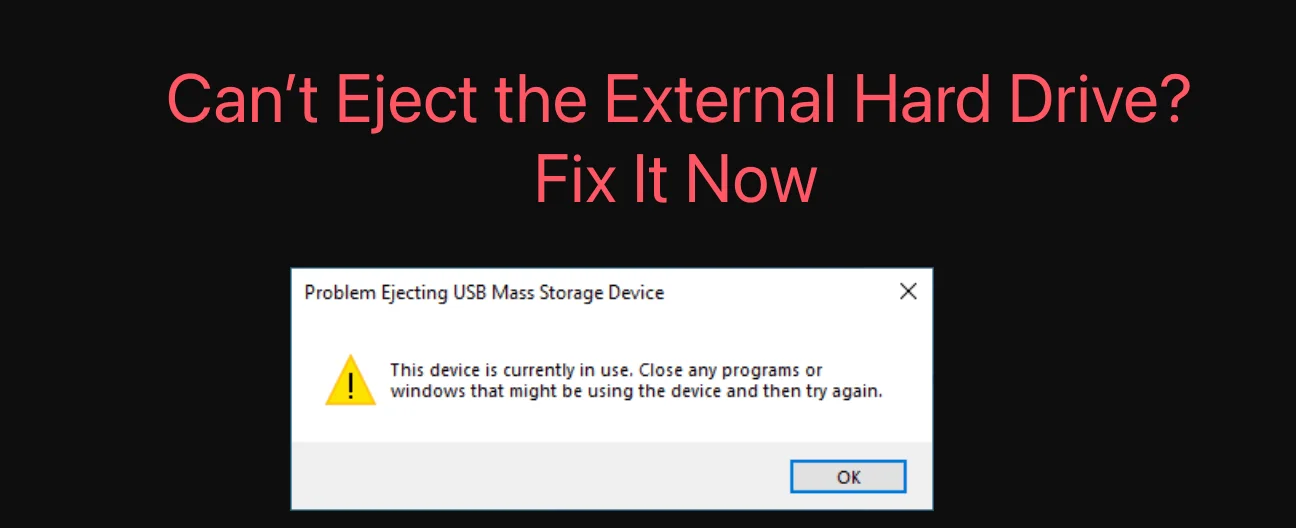
If you can't eject external hard drive on Windows 11 or Windows 10, don't panic. This friendly, step-by-step guide will walk you through exactly why this happens and how to safely free your drive without losing a single byte of your data.
Before we dive into the fixes, let's look at why Windows locks your drive in the first place. Understanding the culprit helps you pick the right tool for the job.
Before diving into advanced settings, let's rule out the most obvious roadblocks:
If the quick fixes didn't work, it means a hidden process or system setting is keeping a tight grip on your storage device. Work your way down these proven solutions.
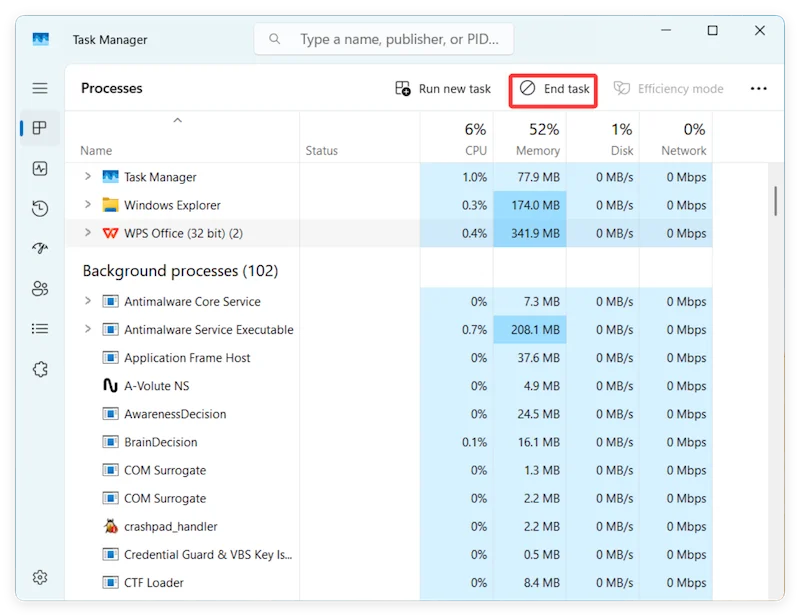
Sometimes an app is running invisibly in the background, keeping your drive hostage.
Windows Explorer is the system process that manages your desktop, taskbar, and file folders. If it glitches out, it won't let your external drive go. Restarting it resets the connection without messing up your open work.
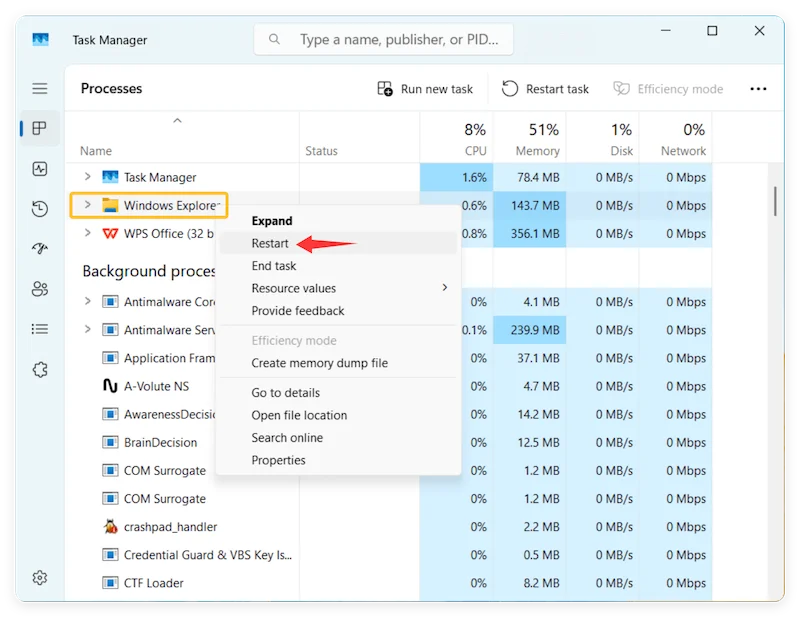
Your desktop screen might flicker or disappear for a second—this is completely normal. Once it reappears, try ejecting your drive.
If Windows refuses to tell you what's using the drive, you can force the operating system to take the drive "Offline." This safely severs all active software links to the drive so you can pull the cable out.
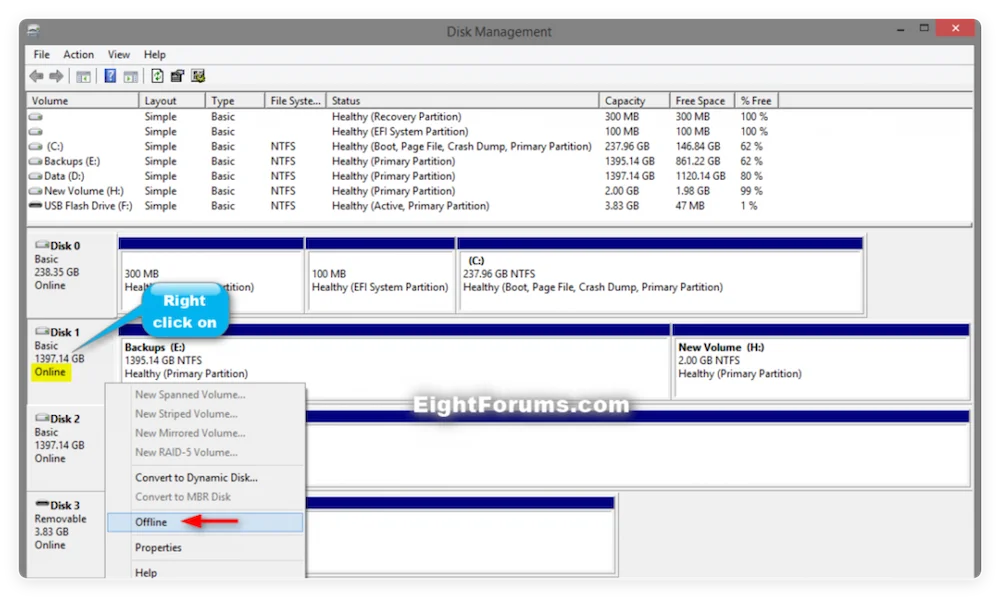
📌 Crucial Step: The next time you plug this drive into your computer, come back here, right-click it, and select Online so Windows can read it again!
Windows allows you to change how it interacts with external drives. By default, it might be optimized for "Better performance," which uses a cache that requires you to manually eject the drive every time. Switching it to "Quick Removal" disables this cache, allowing you to disconnect the drive safely whenever data isn't actively transferring.
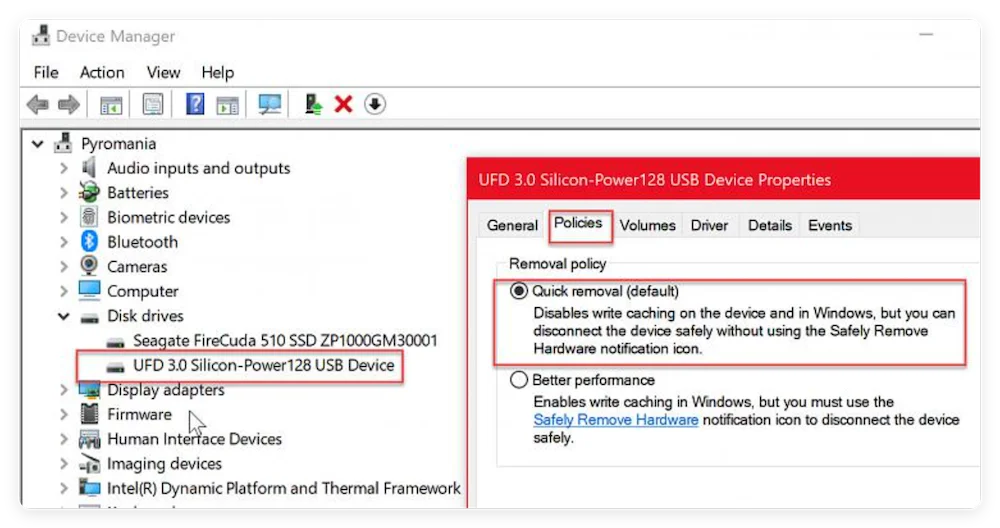
📌 Note: While this helps prevent future ejection hang-ups, it's still best practice to check the drive's activity light before unplugging it.
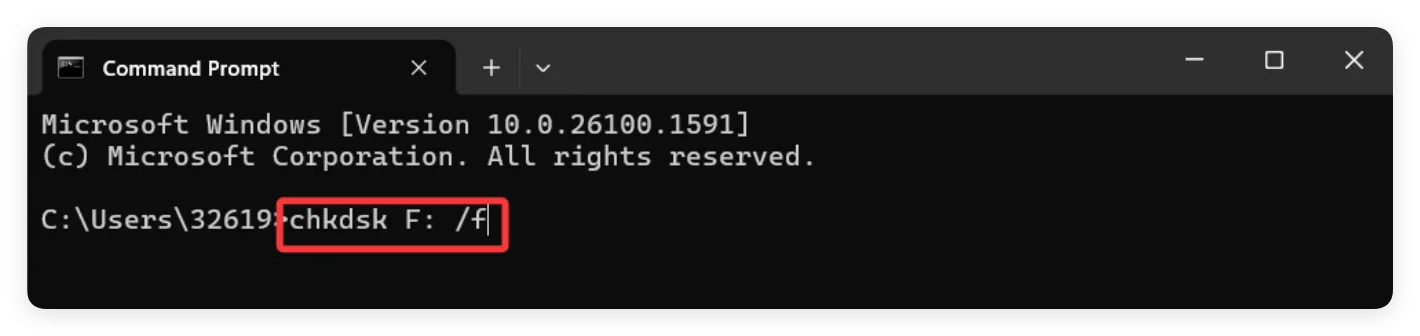
If a drive has hidden corruption, Windows might lock it out of caution. Running a quick scan can fix these underlying volume errors.
chkdsk X: /f
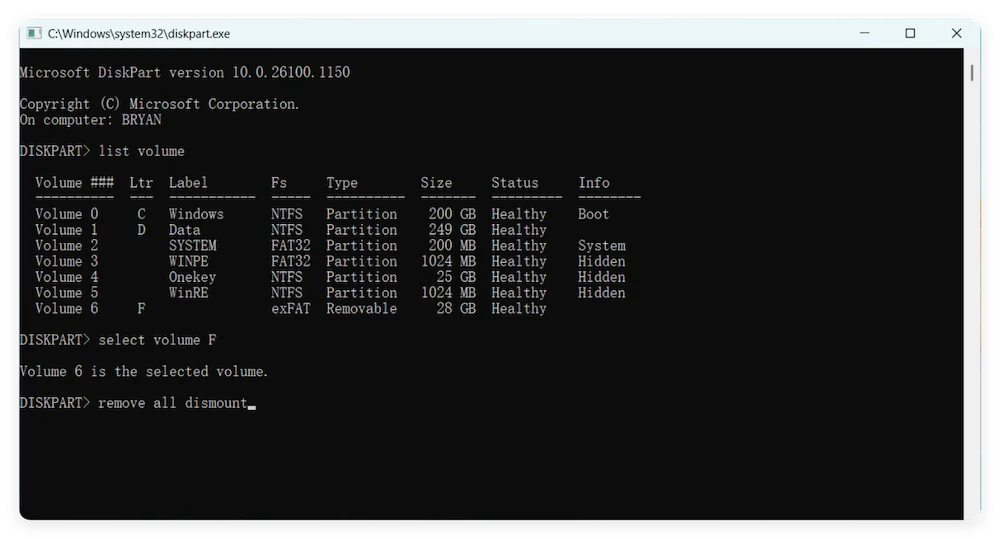
For advanced users, you can use Windows' command-line disk partitioning utility to force a dismount.
If you've tried every step and Windows still says you can't eject external hard drive, don't just pull the plug while the PC is fully active. There is one 100% foolproof way to prevent data corruption:
When the operating system shuts down, it automatically closes all file structures, dumps its cache, and safely powers down the USB ports, ensuring your data remains completely pristine.
The inability to eject an external hard drive safely on Windows is a common issue, but it is usually solvable through the steps outlined above. By closing unnecessary applications, scanning for errors, and using the right tools, you can quickly address this problem and prevent future occurrences. Remember to always safely eject your devices and maintain your system to ensure smooth operation.
By following these troubleshooting tips and preventive steps, you can safeguard your data and extend the life of your external hard drive. If you have lost data due to fixing can't eject external hard drive, you can use data recovery program - such as Donemax Data Recovery to scan the external hard drive, then find and recover the lost data.
Donemax Data Recovery
Donemax Data Recovery is one of the best data recovery software. It is easy-to-use and can help in recovering deleted, formatted, inaccessible or lost data from HDD/SSD, external disk, USB drive, SD card, camera or other storage devices.
Maria
Maria is one of the senior writers & editors of Donemax who lives and works in Sydney, Australia. She loves PC, Mac and Internet Technology. She has 6 years of writing articles about data recovery on PC/Mac, disk cloning solution, data eraser and computer OS optimization, etc. She is also interested in testing various software and digital products.
Gerhard Chou
In order to effectively solve the problems for our customers, every article and troubleshooting solution published on our website has been strictly tested and practiced. Our editors love researching and using computers and testing software, and are willing to help computer users with their problems
Clone hard drive with advanced clone technology or create bootable clone for Windows/Mac OS.
Completely and easily recover deleted, formatted, hidden or lost files from hard drive and external storage device.
Certified data erasure software - permanently erase data before selling or donating your disk or any digital device.