Before we start: If you can't copy or move files to another hard drive on Windows 11 or Windows 10, you can first check the permissions, connections, settings, etc. If there are issues with the hard drive file system, you can first use Donemax Data Recovery to restore the files to another hard drive, then try to fix or reformat the drive.
PAGE CONTENT:
Copying and moving files is one of the most basic tasks you perform on your computer, whether it's transferring documents to a USB drive, organizing folders, or moving large files between drives. However, many users encounter frustrating errors and them can't copy or move files on Windows 11/10.

If you're unable to transfer files due to permissions issues, disk errors, or unknown system glitches, this comprehensive guide provides step-by-step fixes to help you resolve the problem and get back to work.
Why You Can't Copy or Move Files on Windows 11/10
Prior exploring some solutions, it is significant to understand the possible causes behind this issue:
- ✔ Insufficient Permissions: You may lack administrative rights or ownership of the file or folder.
- ✔ File or Folder in Use: The file might be open in another program, preventing changes.
- ✔ Disk Errors or Bad Sectors: Storage devices with errors or physical damage can disrupt file operations.
- ✔ File System Corruption: Damaged file systems (NTFS, FAT32, exFAT) can prevent transfers.
- ✔ Malware or Antivirus Interference: Security software may block certain file operations.
- ✔ File Size Limitations: FAT32 drives cannot handle files larger than 4GB.
- ✔ External Drive Issues: Faulty USB ports, cables, or incompatible drives can cause failures.
- ✔ System Glitches: Outdated drivers or Windows updates may introduce temporary bugs.
Identifying the root cause is essential for applying the correct solution.
How to Fix Can't Copy or Move Files on Windows 11/10
Method 1. Quick Preliminary Checks
Before applying detailed fixes, try these quick troubleshooting steps:
- Restart Your Computer: Simple reboots often resolve file operation glitches.
- Check Available Disk Space: Ensure the destination drive has enough free space.
- Close Open Programs: Make sure the file isn't being used by other applications.
- Test with Other Files: Try copying different files to determine if the issue is file-specific.
- Test the Storage Device: If using a USB drive or external disk, try it on another computer to rule out hardware failure.
If these steps don't resolve the issue, proceed to the solutions below.
Method 2. Run File Explorer as Administrator
Sometimes, file operations require elevated permissions:
- Access This PC and go to C: drive and get into Windows folder, then right-click the file explorer.exe and choose Run as Administrator.
- Attempt to copy or move the files again.

If the problem is related to permission restrictions, this should help.
Method 3. Check for File or Folder Lock
If a file is in use by another process, Windows will prevent copying or moving it.
Option 1: Close Background Programs
- Press Ctrl + Shift + Esc to open Task Manager.
- Look for applications that might be using the file and end those tasks.

Option 2: Use Process Explorer
- Download Process Explorer from Microsoft's website.
- Use the Find Handle or DLL feature to search for the file name and identify which process is locking it.
- End the related task carefully.

Method 4. Run CHKDSK to Scan for Disk Errors
Disk errors or bad sectors can block file operations. CHKDSK can help fix them.
One of the most common reasons Windows 11/10 users face issues when copying or moving files is disk errors, bad sectors, or file system corruption on the source or destination drive. Fortunately, Windows offers a built-in tool called CHKDSK (Check Disk) to detect and repair such issues.
What Causes Disk Errors?
Disk errors can occur due to several reasons:
- Unexpected system shutdowns or power failures
- Removing external drives without proper ejection
- Physical damage to hard drives or SSDs
- Aging storage devices developing bad sectors
- Malware infections affecting file systems
When disk errors accumulate, file transfer operations such as copying, moving, or even deleting files may fail, throwing error messages like:
- "The file or directory is corrupted and unreadable"
- "Cannot copy file: The parameter is incorrect"
- "Disk not accessible"
Running CHKDSK is an effective first-line solution to resolve such underlying issues.
- Type cmd into the Command Prompt, right-click it, and choose Run as Administrator.
- Type the below mentioned command and press Enter:
chkdsk C: /f /r
💡 Note: Replace C: with the appropriate drive letter if you're troubleshooting an external drive or another partition.
- CHKDSK will scan the disk and attempt to fix errors.
Interpreting CHKDSK Results
After the scan, CHKDSK will display a summary, including:
- Number of bad sectors found
- Errors detected and fixed
- Disk space status
- File system integrity
If Errors Were Fixed:
Attempt your file operation again. In most cases, copying or moving files should now work.
If Bad Sectors Exist:
While CHKDSK attempts to recover data from bad sectors, persistent hardware faults may indicate that your drive is failing. It's advisable to:
- Back up critical files immediately
- Consider replacing the drive if errors persist
Alternative: Run CHKDSK Using Graphical Interface
If you're uncomfortable with Command Prompt:
- Select Properties by right-clicking the impacted drive in File Explorer.
- Go to the Tools tab.
- Click Check under Error Checking.
- To scan and correct disk faults, adhere to the on-screen directions.

While this method works for basic checks, the Command Prompt version provides more control and thorough repair options.
When CHKDSK May Not Help
CHKDSK is powerful, but it has limitations:
- Cannot fix severe physical hardware damage
- May not recover files lost due to advanced corruption
- If the drive is completely inaccessible, CHKDSK might fail to start
In such cases, consider:
- Using third-party disk repair utilities for advanced recovery
- Seeking professional data recovery services if files are critical
- Replacing the storage device if hardware diagnostics reveal faults
Method 5. Temporarily Disable Antivirus or Security Software
Overprotective antivirus programs can sometimes block file transfers.
- Right-click your antivirus icon in the taskbar and look for an option to disable it temporarily.
- Attempt the file operation again.
If successful, consider adjusting your antivirus settings or switching to a different security solution.
Method 6. Check File System and Reformat if Necessary
Incompatible or corrupted file systems may cause copy errors, especially with external drives.
Steps to Check File System:
- Right-click the drive in File Explorer, then choose Properties.
- Under the General tab, check the File System type (e.g., NTFS, exFAT, FAT32).
File Size Consideration:
- FAT32 drives cannot handle files larger than 4GB.
- To transfer large files, reformat the drive to NTFS or exFAT.
🚨 Warning: Reformatting erases all data. Back up your files first. If there are issues with the file system of the drive, you can use a reliable data recovery software to recover the files from the drive first.
Donemax Data Recovery is a reliable recovery tool that can rescue files from a drive if the file system is corrupted. You can download and use the software to recover the important files to another drive before you reformat the drive.
Donemax Data Recovery
- Professional data recovery software for Windows and macOS.
- Recover lost data in different data loss scenarios.
- 100% safe and easy-to-use file recovery tool.
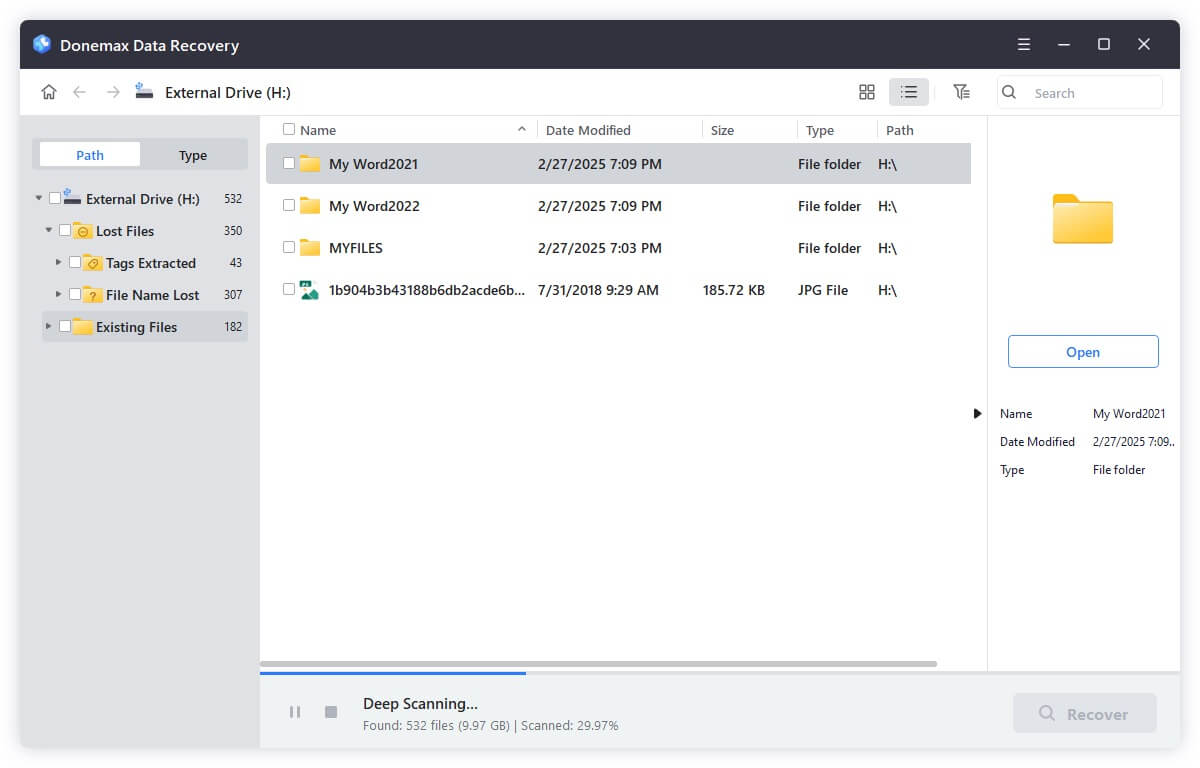
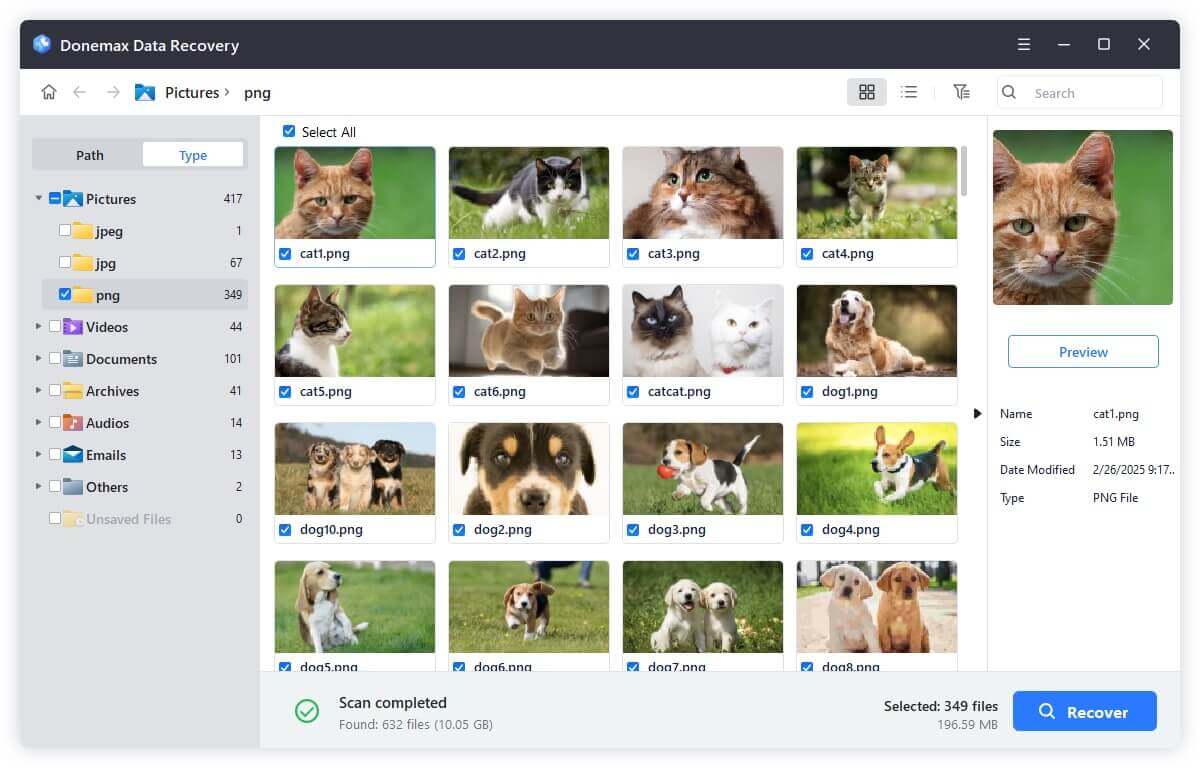
The software is easy to handle and here is a simple guide to help you recover deleted or lost files with Donemax Data Recovery.
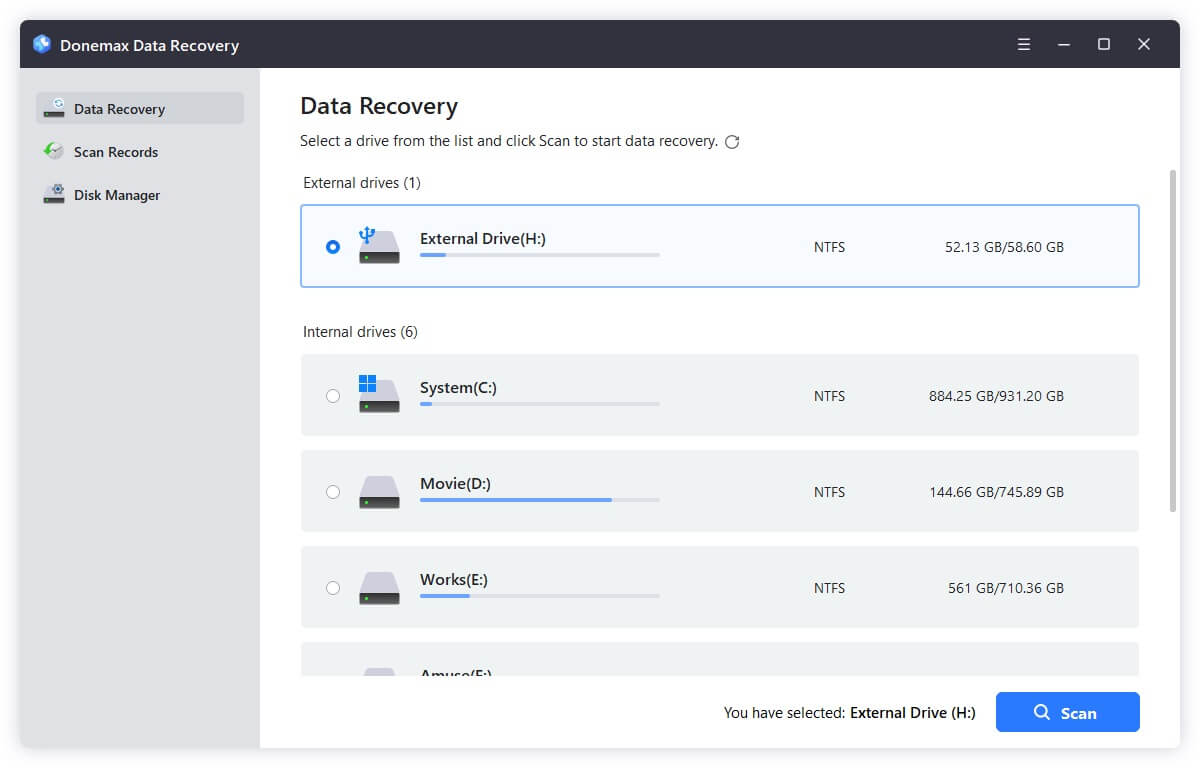
- Run the software and choose the drive which has issues with file system.
![fix can't copy or move files on Windows 11/10]()
- Click the Scan button to search for the files from the selected hard drive.
![fix can't copy or move files on Windows 11/10]()
- Check and locate the lost files. Preview and choose the wanted files to recover.
![fix can't copy or move files on Windows 11/10]()
After recovering the files successfully to another hard drive, you can then follow the steps to reformat the drive for further use:
- In File Explorer, right-click the drive and choose Format.
- Choose NTFS or exFAT, check Quick Format, and click Start.

Method 7. Use Safe Mode to Perform File Transfers
Booting into Safe Mode minimizes background processes that may interfere with file operations.:
- Type "msconfig" and press Enter after pressing Windows + R.
- Select Safe Boot from the Boot menu, then restart your computer.
- Try copying or moving the files in Safe Mode.

Afterward, disable Safe Boot using the same steps to return to normal mode.
Method 8. Fix Corrupt User Profile
A damaged user profile may restrict file permissions. Create a new profile to test:
- Press Windows + I, go to Accounts → Other users.
- Click Add account, create a local or Microsoft account.
- Log into the new profile and attempt the file operation.

If successful, consider migrating to the new profile permanently.
Method 9. Run SFC and DISM to Repair System Files
Corrupted system files can disrupt basic functions, including file transfers.
Run SFC Scan:
- Open Command Prompt as administrator.
- Enter:
sfc /scannow
Run DISM Scan (Optional but Recommended):
DISM /Online /Cleanup-Image /RestoreHealth
Allow the scans to complete, then restart your PC and test the file operation.
Method 10. Update Windows and Device Drivers
Outdated systems or drivers can cause glitches.
Steps to Update Windows:
- Press Windows + I, go to Windows Update, and click Check for updates.

Steps to Update Drivers:
- Right-click the Start button, select Device Manager.
- Expand relevant categories (e.g., Disk drives, USB controllers).
- Right-click devices and select Update driver.

Keeping everything updated ensures better compatibility and fewer bugs.
Additional Fixes for External Drive Issues
If you're copying to or from an external USB drive or SD card:
- ✔ Try a different USB port or cable.
- ✔ Avoid connecting through USB hubs; use direct ports.
- ✔ Test the drive on another computer to isolate hardware issues.
- ✔ Reinstall USB drivers via Device Manager: Right-click the USB controller, choose Uninstall, then reboot.
Preventive Measures to Avoid File Transfer Issues
- Regular Backups: Keep copies of essential files in case of errors.
- Safely Remove Drives: Always eject external devices properly to prevent corruption.
- Check Disk Health Periodically: Use CHKDSK or third-party tools to monitor drive health.
- Keep Antivirus Updated: Use trusted security tools with minimal false positives.
- Update Windows Frequently: Stay current with system patches and driver updates.
Proactive maintenance reduces the risk of encountering file transfer problems.
Conclusion
Being unable to copy or move files on Windows 11 or 10 can be frustrating, but most causes are fixable with systematic troubleshooting. Whether the issue is related to permissions, file locks, disk errors, or external device problems, the solutions above will help you resolve the error effectively.
If you've tried all the recommended fixes and still can't transfer files, consider seeking professional technical support, as hardware failure or deeper system corruption might be the cause.
Always remember to back up important data before performing disk repairs or reformatting drives to avoid accidental data loss.


Donemax Data Recovery
Powerful, safe & easy-to-use data recovery software. Easily and completely recover deleted, formatted, or other lost data. The tool supports PC, Mac, HDD, SSD, USB drive, camera, SD card, RAID and other storage devices.
Frequently Asked Questions
Related Articles
- Apr 10, 2025Fix com.apple.DiskManagement.disenter error 0 on Mac
- Apr 30, 2025Mac Won't Start into Safe Mode? Here's How to Fix It
- Jan 12, 20255 Fixes for Fixing Partition Map Error on Mac
- Jan 21, 2025Fix SD Card Won't Read or Open
- Apr 18, 2025Fix Can't Solve RAW Drive Problem: Here's How to Really Fix It
- Jan 22, 2024New SSD Not Recognized By Disk Utility on Mac, Fix It Now
Christina
Christina is the senior editor of Donemax software who has worked in the company for 4+ years. She mainly writes the guides and solutions about data erasure, data transferring, data recovery and disk cloning to help users get the most out of their Windows and Mac. She likes to travel, enjoy country music and play games in her spare time.
Gerhard Chou
In order to effectively solve the problems for our customers, every article and troubleshooting solution published on our website has been strictly tested and practiced. Our editors love researching and using computers and testing software, and are willing to help computer users with their problems
Hot Donemax Products
Clone hard drive with advanced clone technology or create bootable clone for Windows/Mac OS.
Completely and easily recover deleted, formatted, hidden or lost files from hard drive and external storage device.
Certified data erasure software - permanently erase data before selling or donating your disk or any digital device.