Written byCoco LinUpdated on Nov 27, 2025

Before we start: It's highly suggested to make a full and bootable clone for your system with Donemax Disk Clone. If there are issues happened and cannot be fixed in any way, you can use the cloned drive to replace the system drive to avoid the issue completely.
PAGE CONTENT:
Windows PowerShell is a powerful command-line tool designed to help IT professionals, developers, and even regular users automate tasks, manage configurations, and run administrative scripts. However, like any system component, PowerShell is not immune to errors. One of the most frustrating problems Windows users face is the dreaded PowerShell has stopped working message.
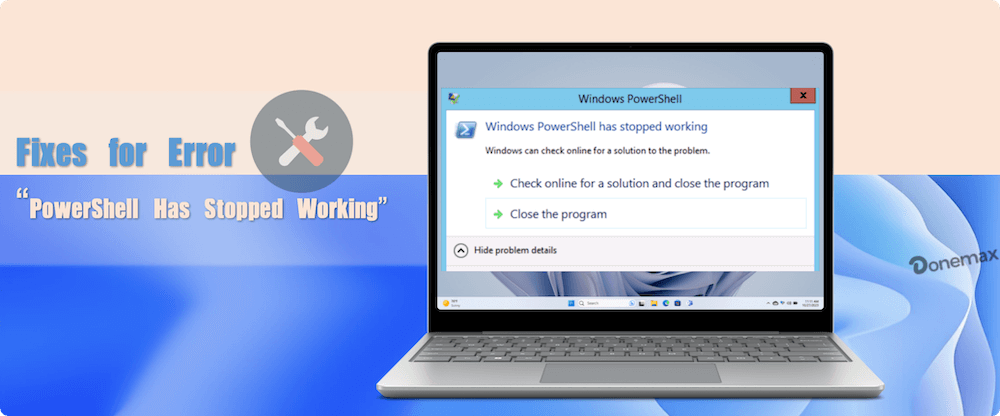
This guide walks you through the potential causes behind this issue and offers tested, step-by-step solutions to help restore PowerShell functionality on your computer.
When this error appears, it often means that PowerShell is crashing unexpectedly. In many cases, the program stops working before a script or command can be executed. You might see a message like:
"Windows PowerShell has stopped working. A problem caused the program to stop working correctly. Windows will close the program and notify you if a solution is available."
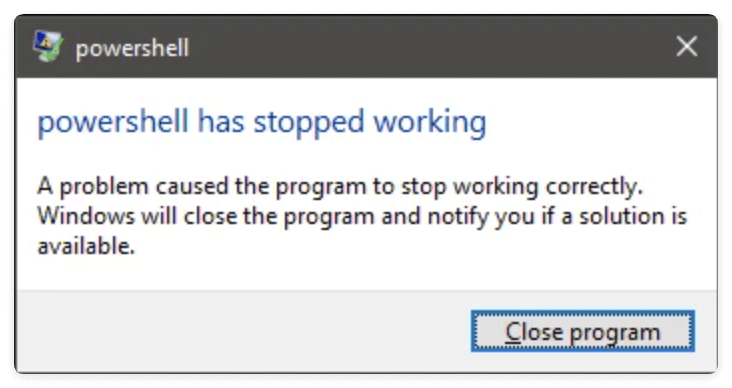
This issue prevents users from executing essential administrative commands, running scripts, or performing automation tasks, making it critical to resolve.
Understanding the root cause is essential before jumping into troubleshooting. Here are the most common reasons:
Before diving into complex troubleshooting, perform these basic checks:
If PowerShell still crashes after these checks, proceed with the solutions below.
One of the most common causes of "PowerShell has stopped working" is corruption in critical system files. Over time, improper shutdowns, failed Windows updates, malware infections, or disk errors can damage these files, causing built-in tools like PowerShell to malfunction or crash entirely.
Windows provides two powerful utilities to address this:
Together, these tools can resolve most system-level file integrity problems.
sfc /scannow
If the problem persists, run DISM:
DISM /Online /Cleanup-Image /RestoreHealth
This command repairs the Windows system image, which may resolve deeper corruption.
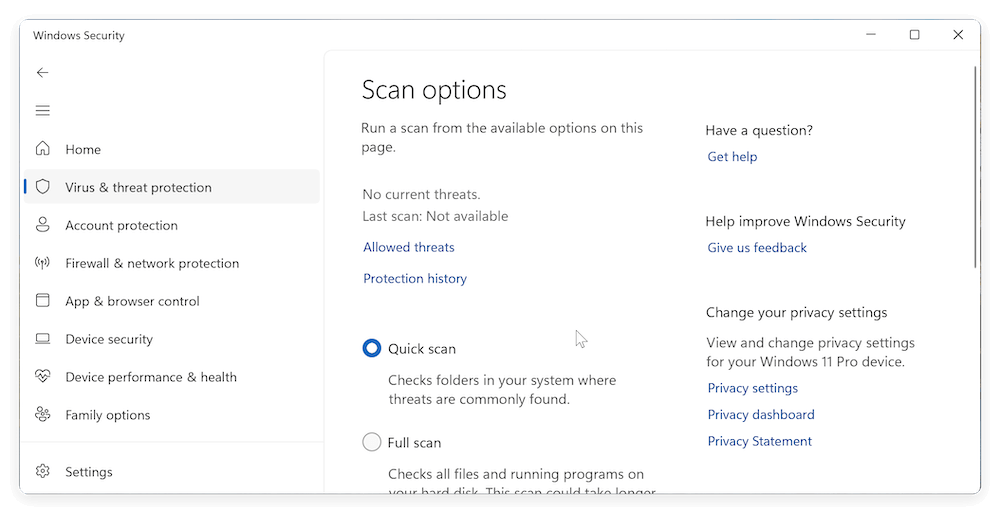
Malware can disable or corrupt system utilities, including PowerShell. Run a full system scan using:
Windows Security (Defender):
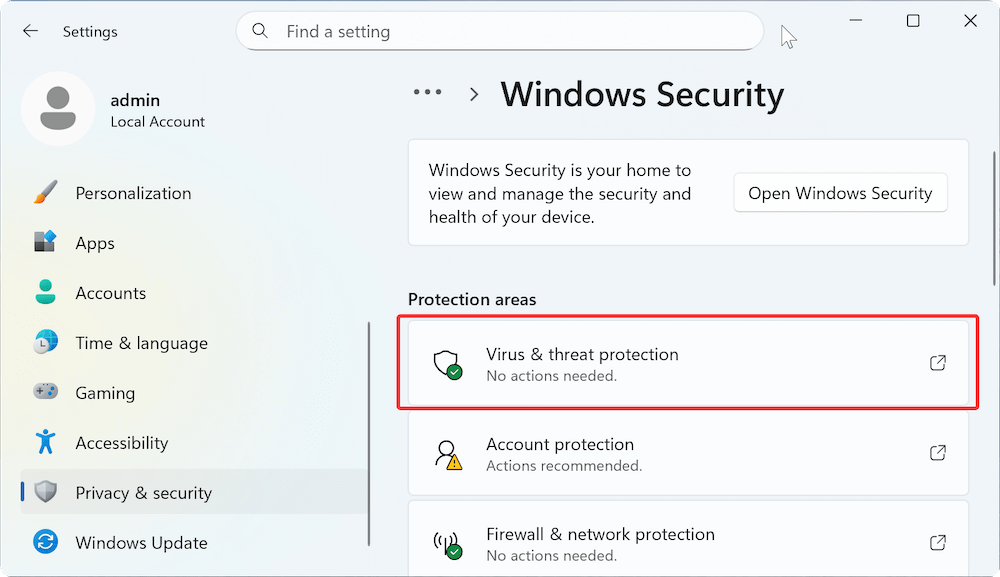
Third-Party Antivirus Tools:
Use reputable programs like Malwarebytes or Bitdefender for deep system scans.
If infections are found, quarantine or remove them, then restart your PC and test PowerShell.
Third-party apps launching at startup might interfere with PowerShell. Perform a Clean Boot to isolate the issue.
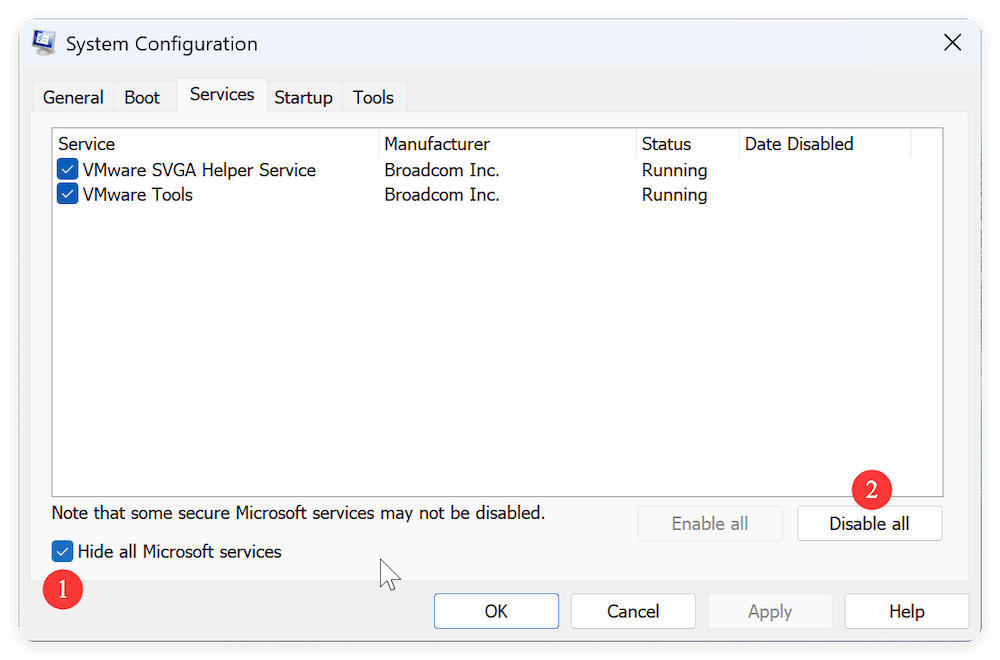
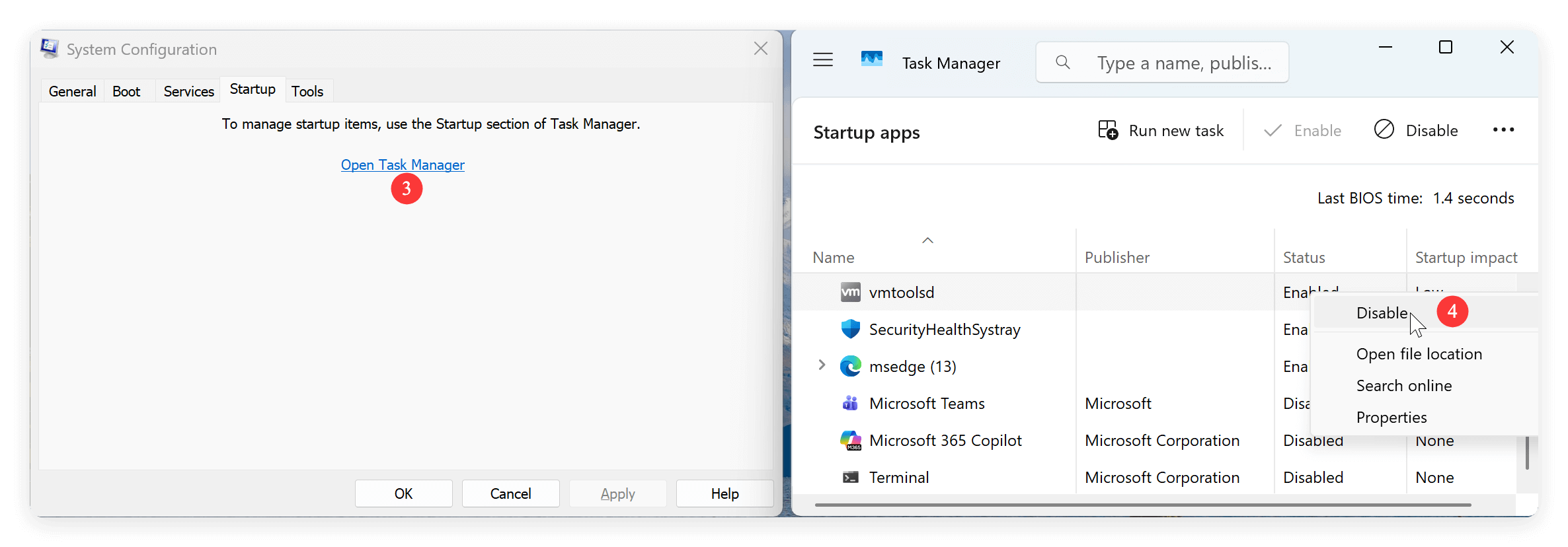
If it functions normally, gradually re-enable services to identify the problematic application.
A corrupted user profile can prevent PowerShell from operating correctly.
Steps to Create a New Profile:
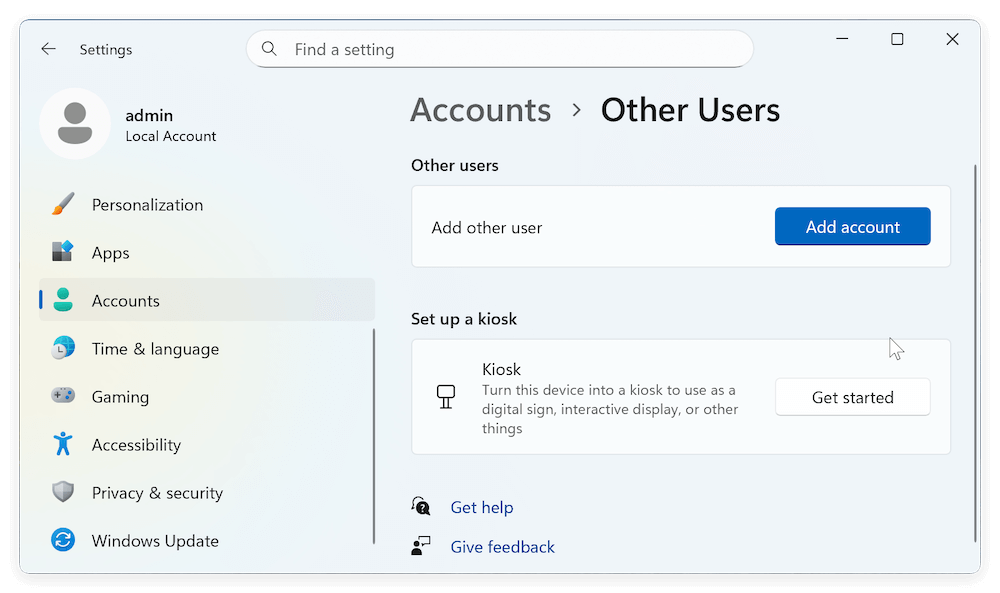
If PowerShell works in the new account, the original profile may be corrupted. You can transfer data and continue using the new profile.
Sometimes, re-registering PowerShell fixes issues with corrupted components.
Get-AppXPackage -AllUsers | Foreach {Add-AppxPackage -DisableDevelopmentMode -Register "$($_.InstallLocation)\AppXManifest.xml"}
This process restores default PowerShell configurations and may resolve crashes.
An outdated Windows version or PowerShell build can cause compatibility issues.
Steps to Update Windows:
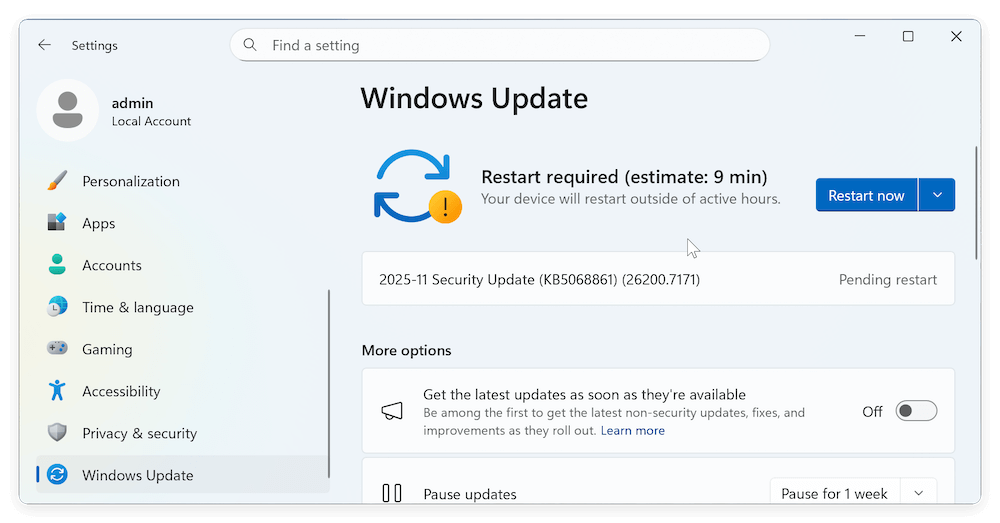
To Update PowerShell (Standalone Installations):
Updated versions often include bug fixes and stability improvements.
Incorrect or missing environment variables can cause PowerShell to malfunction.
Steps to Reset Variables:
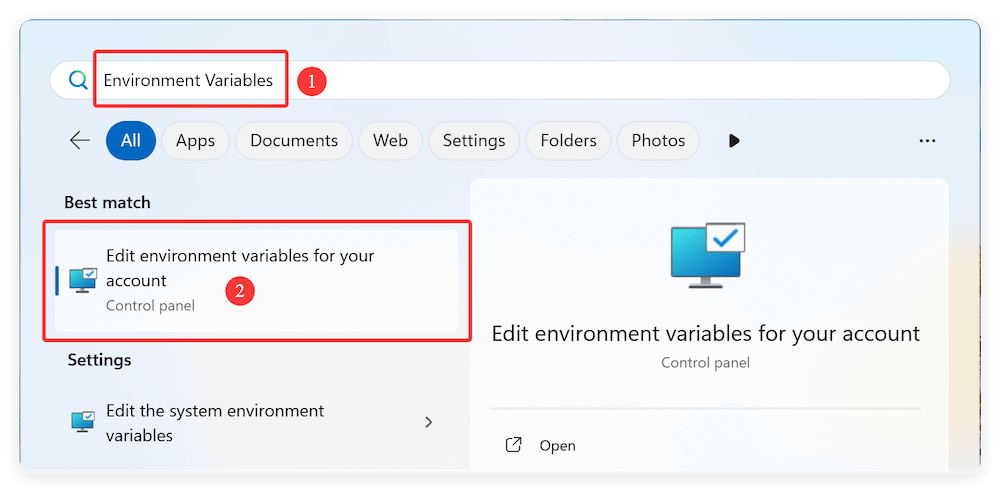
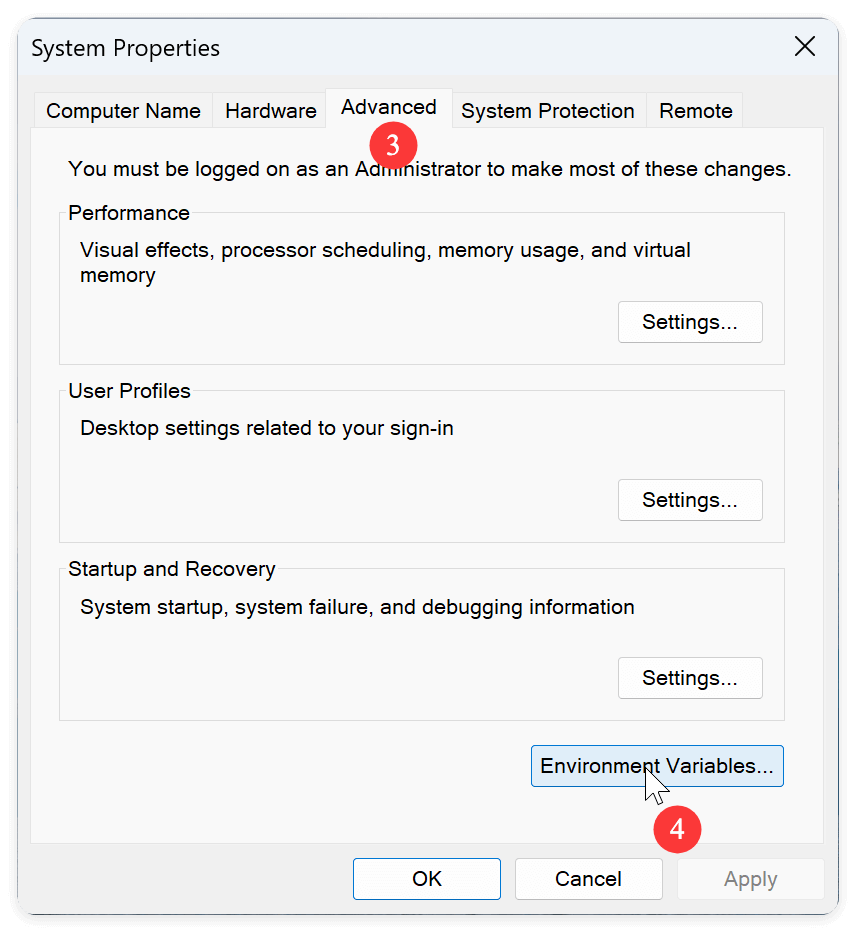
C:\Windows\System32\WindowsPowerShell\v1.0\
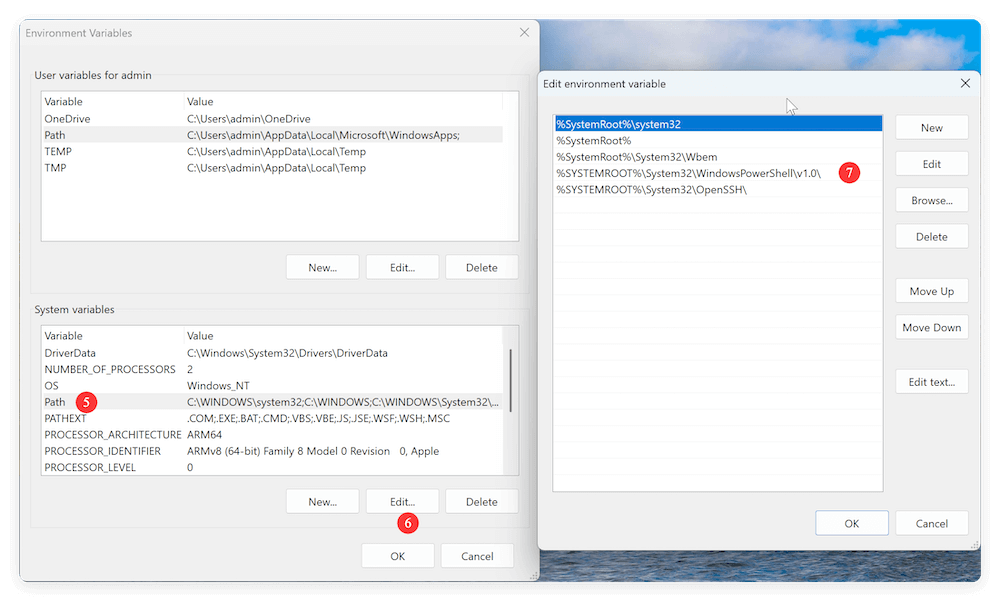
If basic fixes don't work, consider these advanced steps:
1. Analyze Event Viewer Logs
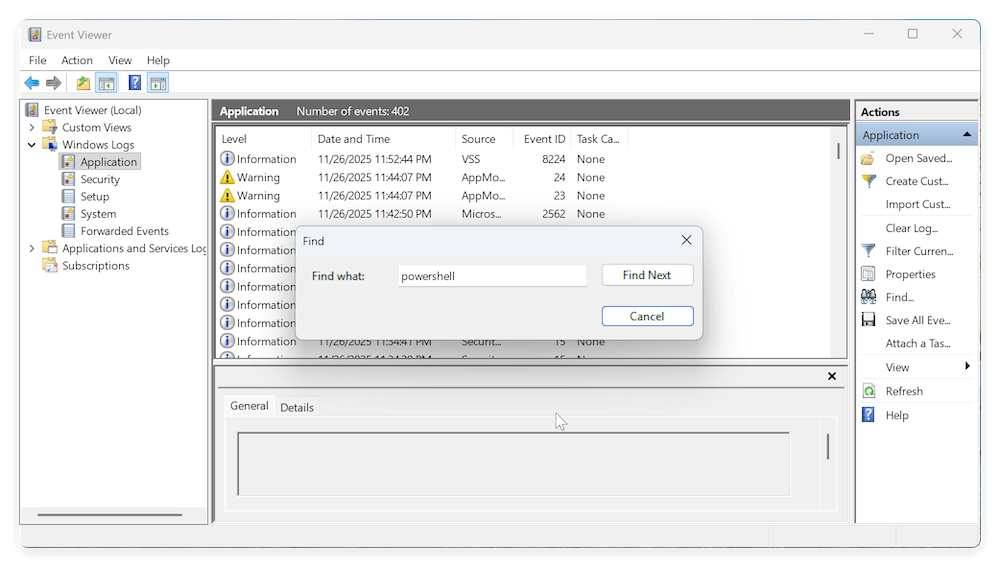
Logs can reveal clues about underlying system conflicts.
2. Check System Reliability Report
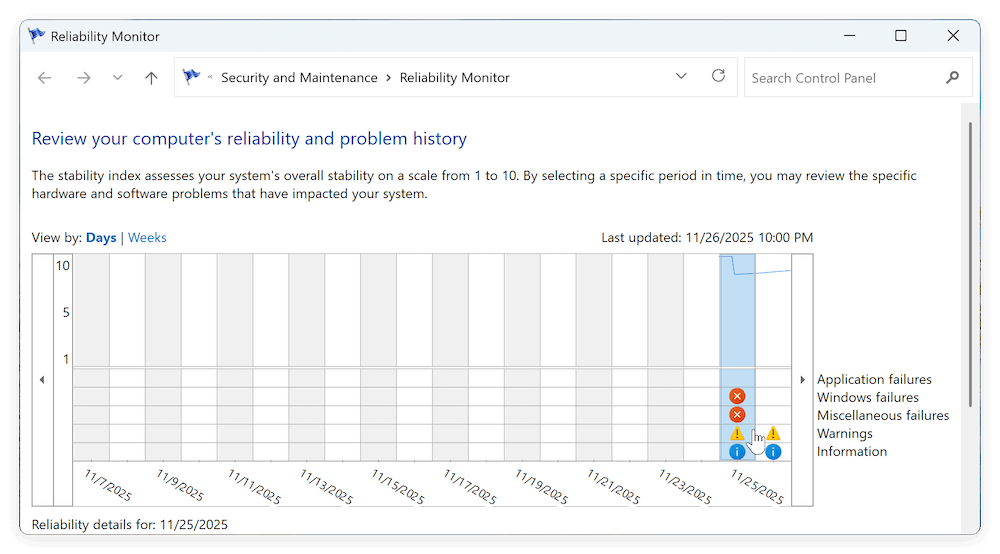
3. Reinstall PowerShell (Advanced Users)
On modern Windows versions, PowerShell can be reinstalled separately.
💡 Note: For built-in PowerShell tied to Windows core components, reinstalling the entire system may be required if severe corruption exists.
If you've exhausted all solutions and PowerShell remains non-functional:
Option 1. System Restore
Run System Restore to revert your system to an earlier working state:
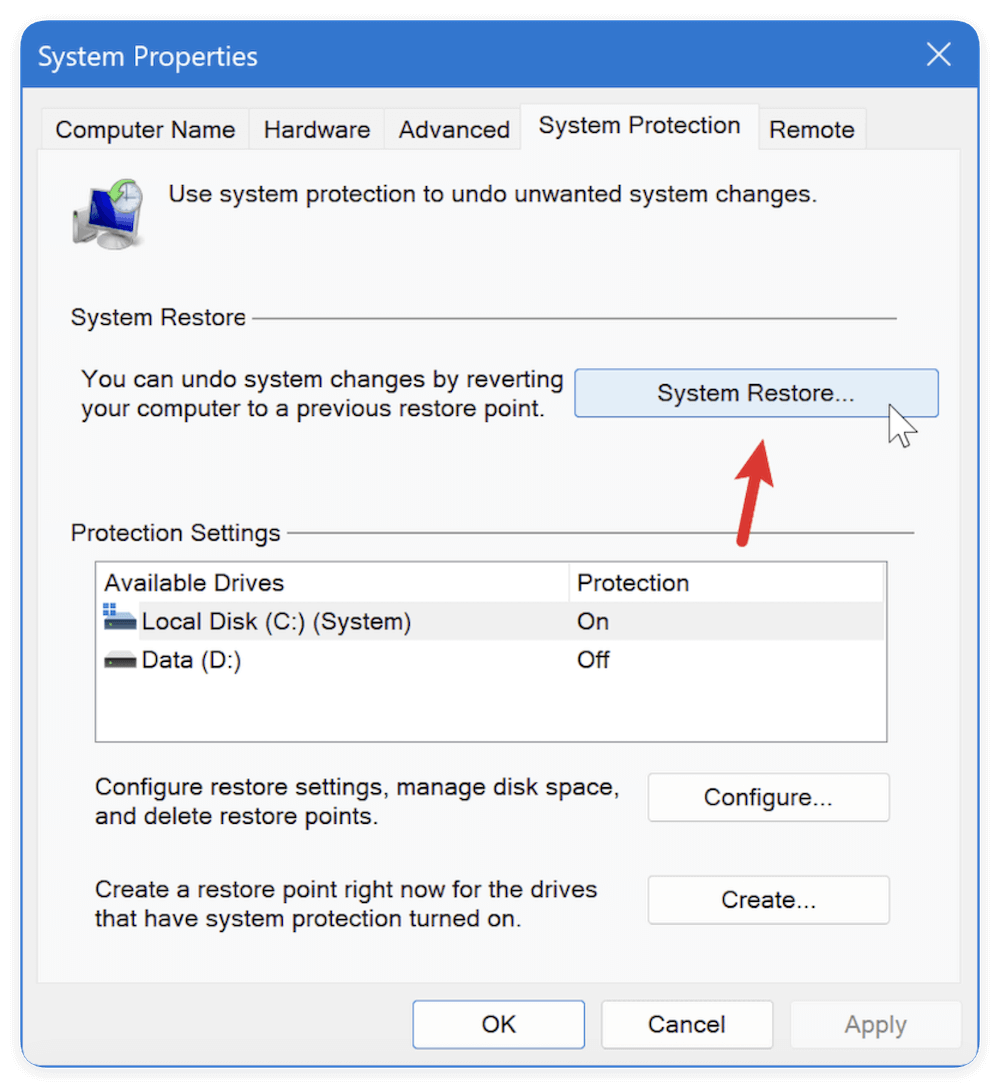
This reverts system settings and files without affecting personal data. Also, you need to make a restore point before. Otherwise, you cannot restore system in this way.
Option 2. Windows Repair Install (Last Resort)
A repair install reinstalls Windows while keeping personal files and most applications:
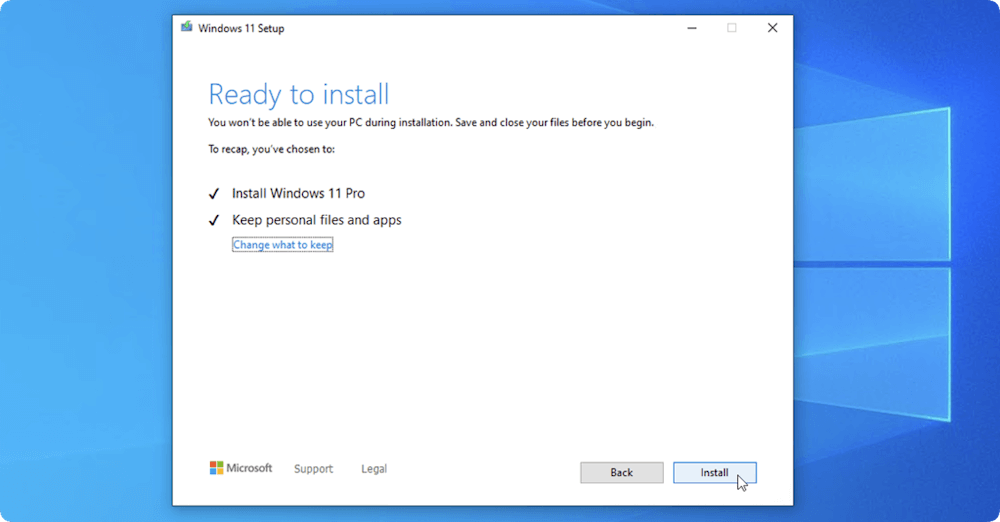
This method refreshes system files and can fix persistent PowerShell errors.
The "PowerShell has stopped working" error can severely hinder your ability to manage, automate, and troubleshoot your Windows system. Fortunately, most issues stem from fixable causes like system file corruption, conflicting apps, or outdated installations.
This guide has provided multiple solutions ranging from basic system checks to advanced troubleshooting methods. Start with simpler fixes like SFC scans and user profile tests, progressing to advanced steps only if needed.
If PowerShell continues to fail despite these efforts, seeking professional technical support is advisable to prevent further complications.
By following these steps and practicing preventive measures, you can restore and maintain PowerShell's functionality, ensuring your system remains productive and reliable.
Donemax Disk Clone
An award-winning disk cloning program to help Windows users and Mac users clone HDD/SSD/external device. It also can create full bootable clone backup for Windows PCs and Macs.
Coco Lin
Coco has been a writer and a chief programmer at Donemax software since 2018. Over 10 years of experience of writing troubleshooting articles in the software industry, she is passionate about programming and loves to providing solutions to Windows and Mac users. Also she enjoys music and palying tennis in her free time.
Gerhard Chou
In order to effectively solve the problems for our customers, every article and troubleshooting solution published on our website has been strictly tested and practiced. Our editors love researching and using computers and testing software, and are willing to help computer users with their problems
Clone hard drive with advanced clone technology or create bootable clone for Windows/Mac OS.
Completely and easily recover deleted, formatted, hidden or lost files from hard drive and external storage device.
Certified data erasure software - permanently erase data before selling or donating your disk or any digital device.