Written byStevenUpdated on Jul 27, 2026

PAGE CONTENT:
A corrupted BIOS can render your PC unbootable and cause frustration, confusion, and potential data loss. The BIOS (Basic Input/Output System) is the firmware that initializes hardware and prepares your system to load the operating system. When this foundational component becomes corrupted, users may encounter a variety of error messages and symptoms, including black screens, failed boots, or system beeps.
This guide explores the common BIOS corruption messages, underlying causes, and step-by-step recovery solutions—ranging from built-in automatic recovery tools to advanced manual flashing techniques. If your PC is showing signs of BIOS corruption, this article will help you bring it back to life.
Users from forums like Reddit, Microsoft Community, and various OEM support pages have reported the following BIOS-related errors:
These messages typically appear after a failed BIOS update, power interruption, malware attack, or sometimes after installing a Windows update that conflicts with system firmware. The symptoms may also include no display, beeping sounds, or a PC stuck in a boot loop.
Understanding the root causes of BIOS corruption can help users avoid it in the future. Below are the most common reasons:
1. Power Failure During BIOS Update - Interrupting a BIOS flash due to power outage or accidental shutdown can instantly corrupt the firmware, making the system unbootable.
2. Malware or Rootkit Attacks - Some advanced malware variants specifically target system firmware. These threats can rewrite or damage BIOS/UEFI.
3. Incorrect BIOS Flash - Installing the wrong BIOS version, or flashing via unofficial tools, may introduce compatibility problems and break firmware.
4. Faulty CMOS Battery - A dead or dying CMOS battery may lead to incorrect BIOS settings or checksum errors on startup.
5. Overclocking or Improper Configuration - Unstable overclocking or incorrect BIOS tweaks can crash the firmware and make recovery difficult.
6. Failed Firmware Updates via Windows - Using OEM software in Windows to update BIOS can fail if the system hangs, reboots unexpectedly, or software conflicts arise.
Before diving into advanced solutions, try these initial steps:
This can resolve errors caused by misconfigured settings or battery failure.
Method 1: Remove CMOS Battery
Method 2: Use CMOS Jumper Pins
Method 3: BIOS Reset Button
If a reset doesn't help, proceed to one of the following methods based on your PC brand, model, and whether it powers on.
Major PC brands include built-in recovery systems that detect BIOS failure and trigger recovery automatically or via key combinations. Here are the steps for some famous computer brands:
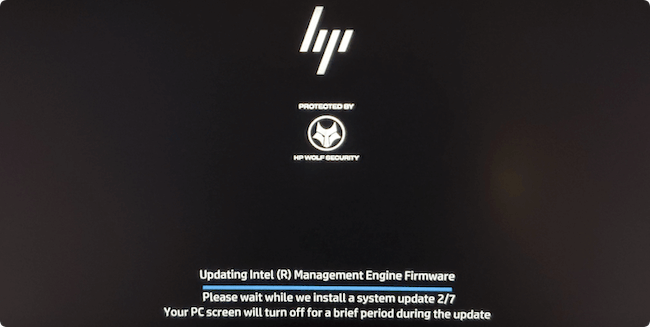
HP (Sure Start or Crisis Recovery):
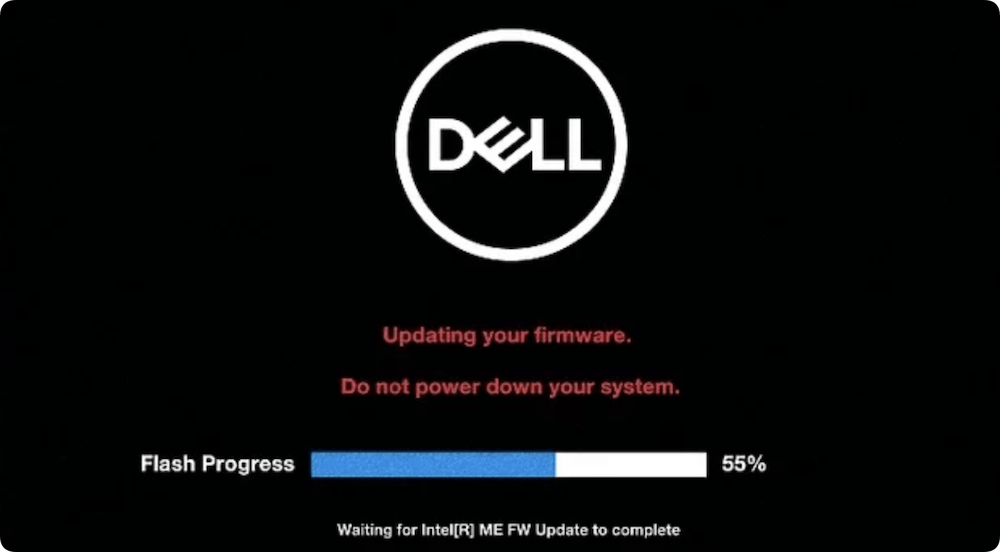
Dell BIOS Recovery Tool:
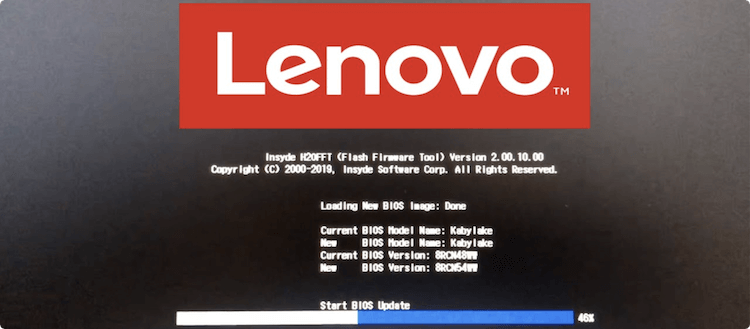
Lenovo (BIOS Crisis Recovery Mode):
When automatic recovery fails, flashing the BIOS manually via USB can restore system functionality.
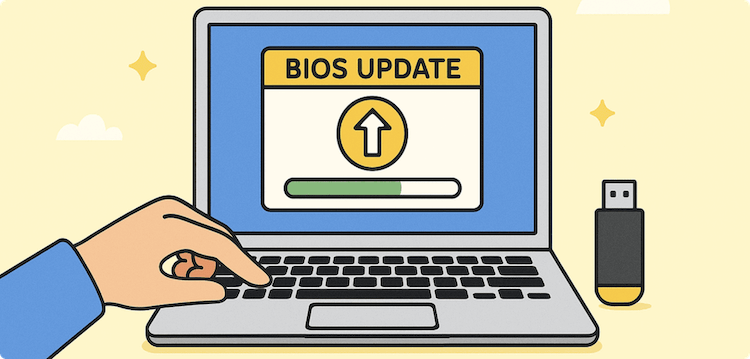
💡 Important: Never remove the USB or turn off power during this process.
Some motherboards support recovery using bootable USB with DOS and BIOS tools.
AFUDOS.EXE BIOS.ROM /P /B /N /C
This method requires more technical confidence and is better suited for desktop PCs.
If your PC boots but shows instability, you can try a BIOS update through Windows.
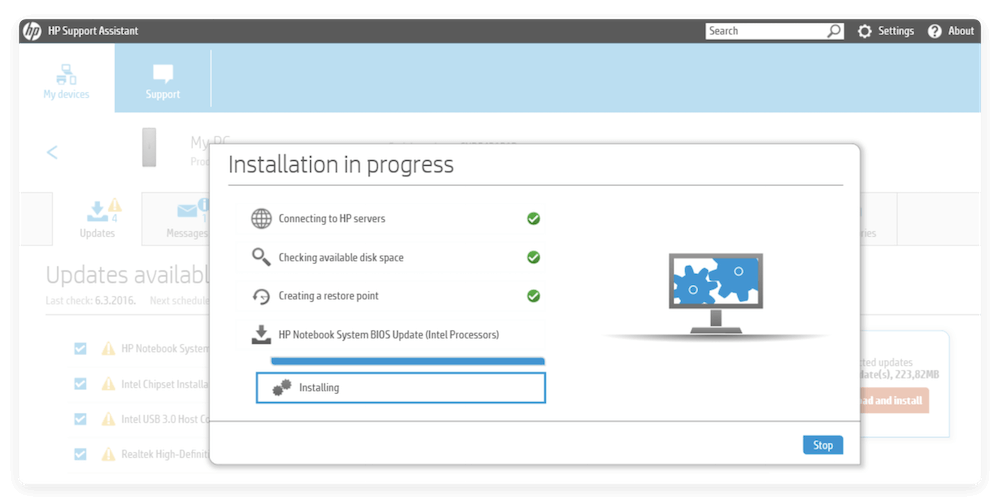
Never interrupt the process once initiated.
In severe cases where BIOS is completely unreadable or physically damaged:
Reprogram BIOS Chip: Use a BIOS programmer like CH341A to rewrite BIOS externally. Requires removing the chip.
Replace BIOS Chip: Some desktop boards use socketed chips that can be replaced. Replacement chips can be pre-flashed and ordered online.
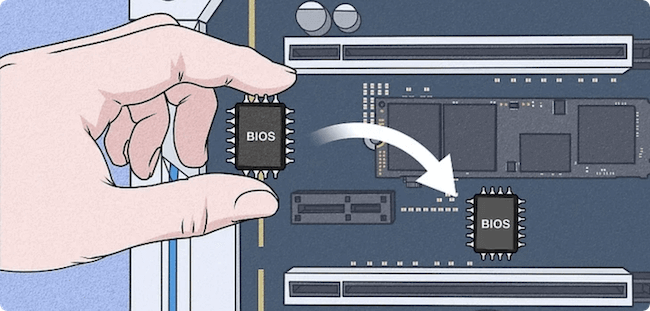
Send to Repair Lab: For laptops or soldered chips, you may need to send the board to a professional technician.
Call a technician or take your PC to a repair center if:
Professional services may include BIOS chip reprogramming, board replacement, or full system diagnostics.
Taking proactive steps can save you from future headaches:
BIOS corruption may sound catastrophic, but with the right knowledge and tools, most users can recover from it. Whether you're using a modern laptop with built-in recovery tools or a custom desktop requiring manual reflash, the steps above can help restore your system.
Act cautiously during any firmware updates, and always rely on official sources for downloads and instructions. Prevention is key—use a UPS, avoid unnecessary flashing, and maintain system stability to keep your BIOS healthy.
1. Can I fix a corrupted BIOS without replacing the motherboard?
Yes, in many cases BIOS corruption can be fixed using automatic recovery, USB flashing, or reprogramming the BIOS chip.
2. Is it safe to update BIOS from Windows?
It is generally safe if using OEM tools and following instructions carefully. However, updating from BIOS/UEFI is often more reliable.
3. How do I know if my BIOS is corrupted?
Signs include error messages at boot, black screens, beeping sounds, or inability to POST/start the system.
4. What happens if BIOS flash fails?
A failed flash can leave the PC unbootable. Recovery methods include automatic recovery tools, USB reflash, or chip reprogramming.
5. Does reinstalling Windows fix BIOS corruption?
No. BIOS and Windows are separate. BIOS corruption must be addressed independently before the OS can load.
Steven
Steven has been a senior writer & editor of Donemax software since 2020. He's a super nerd and can't imagine the life without a computer. Over 6 years of experience of writing technical solutions and software tesing, he is passionate about providing solutions and tips for Windows and Mac users.
Gerhard Chou
In order to effectively solve the problems for our customers, every article and troubleshooting solution published on our website has been strictly tested and practiced. Our editors love researching and using computers and testing software, and are willing to help computer users with their problems
Clone hard drive with advanced clone technology or create bootable clone for Windows/Mac OS.
Completely and easily recover deleted, formatted, hidden or lost files from hard drive and external storage device.
Certified data erasure software - permanently erase data before selling or donating your disk or any digital device.