Before we start: Cannot delete files from an NTFS external hard drive on Mac? It's normal as NTFS drive is read-only by default on Mac. To fix this, just use an NTFS for Mac tool - such as Donemax NTFS for Mac to grant full read-write access, then you can delete files or modify the files from the external hard drive without any limitation.
PAGE CONTENT:
If you've ever tried deleting files from an external hard drive on your Mac and faced frustration, you're not alone. This issue is common and often stems from compatibility issues, file permissions, or hardware restrictions. In this comprehensive guide, we'll explore the causes of the problem and offer step-by-step solutions to fix the issue cannot delete files from external hard drive on Mac.
External hard drives are invaluable for storing and transferring files. However, Mac users sometimes encounter difficulties when trying to delete files from these drives. This issue can be due to the way the drive is formatted, system settings, or hardware limitations. Resolving this problem is crucial for effective storage management and ensuring your drive remains functional and clutter-free.
Why Cannot Delete Files from an External Drive on Mac
Understanding why you're unable to delete files is the first step toward fixing the problem. Here are some common causes:
- Drive Format Incompatibility: External hard drives come in different file system formats, such as NTFS, FAT32, exFAT, HFS+, and APFS. Macs handle these formats differently. If your external drive is formatted in NTFS, you'll face a read-only restriction. Then you cannot delete files from it or do any other writable operations.
- File Permission Restrictions: Permissions determine whether a file or folder can be read, written, or executed. If the file permissions are set to "read-only," macOS will prevent you from deleting or modifying files.
- Drive Lock or Protection: Some external drives have physical locks or built-in write protection that prevents any changes to the files.
- Software or System Issues: Occasionally, the problem may lie with a corrupted drive, outdated macOS software, or glitches in Finder.
Fix Unable to Delete Files from External Drive Issue
Let's dive into detailed solutions to address the issue:
Solution 1: Check and Adjust Permissions
Incorrect file permissions can block you from modifying or deleting files. Adjusting these permissions is often the quickest fix.
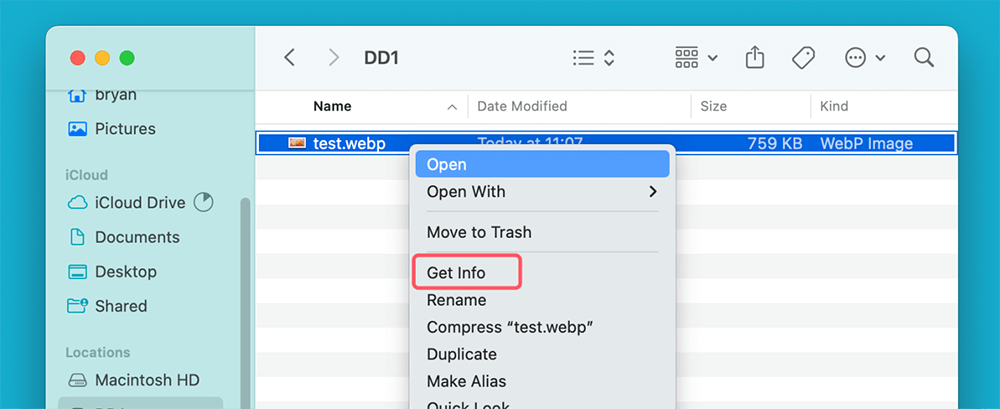
- Locate the file or folder on your external drive that you cannot delete.
- Right-click the file or folder and select "Get Info" from the context menu.
![Access the file's properties]()
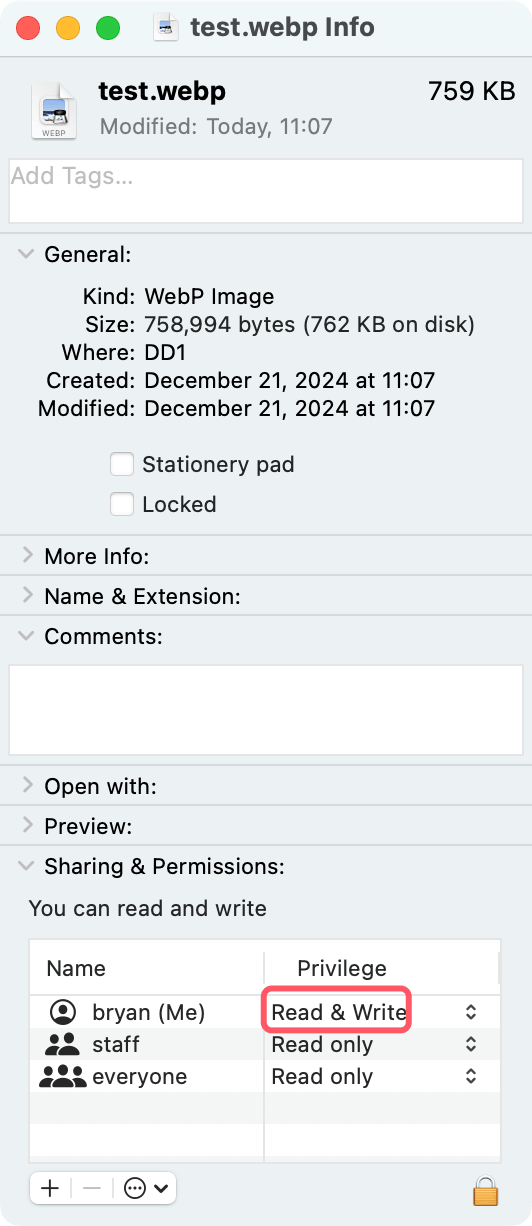
- Scroll to the bottom of the info window and look for the "Sharing & Permissions" section. Check if your user account is listed with "Read & Write" access.
![Inspect the Sharing & Permissions section]()
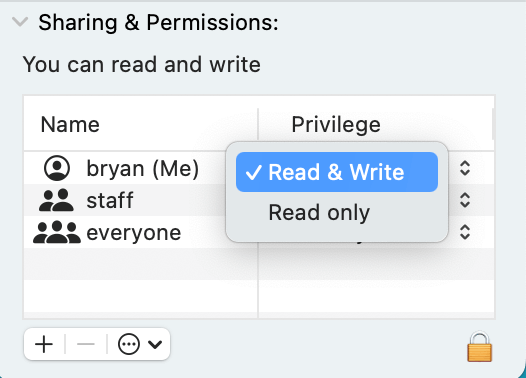
- Click the lock icon in the bottom-right corner to make changes. Enter your admin password if prompted. Select your user account and change the access level to "Read & Write."
![Modify permissions if needed]()
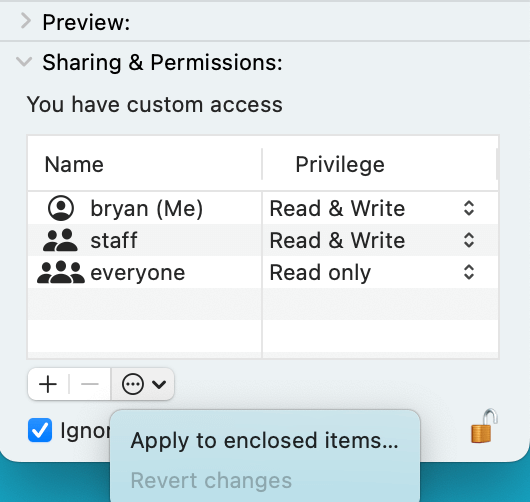
- If you're modifying a folder, click the settings gear icon and choose "Apply to enclosed items" to ensure all files inherit the new permissions.
![Apply changes to enclosed items]()
- Close the info window and try deleting the file again.
If permissions are not the issue, proceed to the next solution.
Solution 2: Reformat the Drive
If your external hard drive is formatted in an incompatible file system (like NTFS), macOS may only allow read access. Reformatting the drive to a compatible file system resolves this problem but erases all data, so back up important files first.
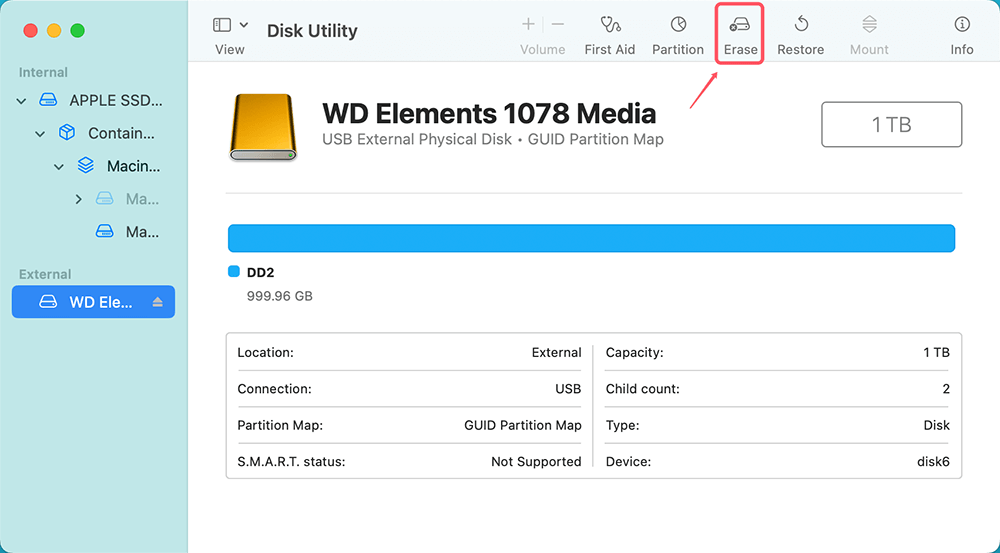
- Open Disk Utility: Use Spotlight Search (Cmd + Space) and type "Disk Utility." Select it from the results.
- Locate your external drive: Find the drive in the left-hand sidebar. Select the root drive (not the indented partition).
- Backup your data: If you haven't already, copy important files to another location before proceeding.
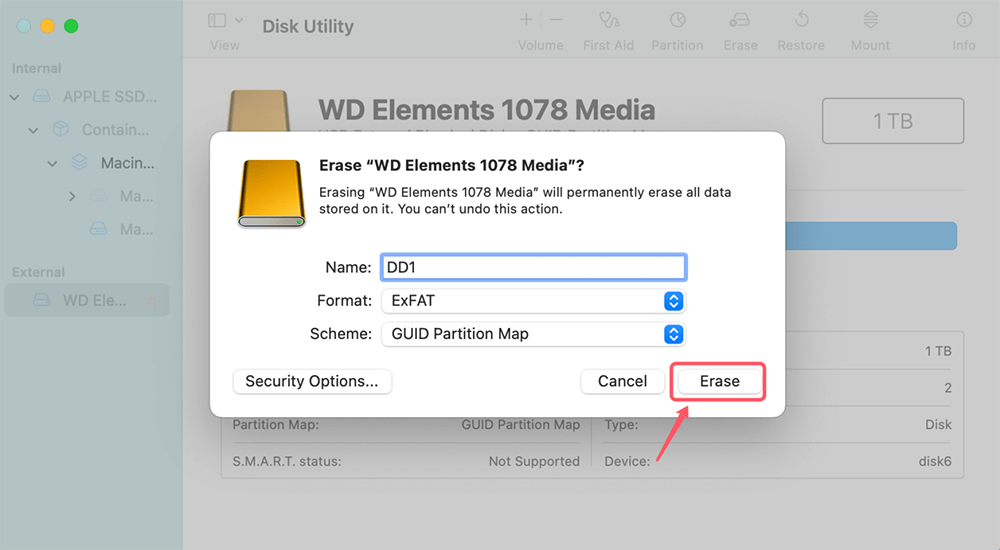
- Start the reformatting process: Click the "Erase" button at the top of the Disk Utility window.
![Start the reformatting process]()
- Select a new file system: For cross-platform use (Mac and Windows): Choose ExFAT. For Mac-only use: Choose APFS or Mac OS Extended (Journaled).
![Select a new file system]()
- Name the drive: Enter a name for the drive in the Name field.
- Erase and reformat: Click "Erase." Wait for the process to complete.
- Verify the format: Once done, click the drive again to ensure it has been formatted correctly.
- Reconnect and test: Try deleting files to confirm the issue is resolved.
Solution 3: Use Third-Party Software for NTFS Drives
If your drive is formatted in NTFS and you prefer not to reformat it, third-party software can enable write access on macOS. These tools act as a bridge, allowing macOS to interact with NTFS drives seamlessly.
Donemax NTFS for Mac is one of the best NTFS for Mac tools. It grants full read-write access to the NTFS drive so that you can delete files from your external hard drive.
Step 1. Download and install Donemax NTFS for Mac and connect your external hard drive to the Mac.
Step 2. Open Donemax NTFS for Mac, select the NTFS external hard drive, click on Enable Writable button.
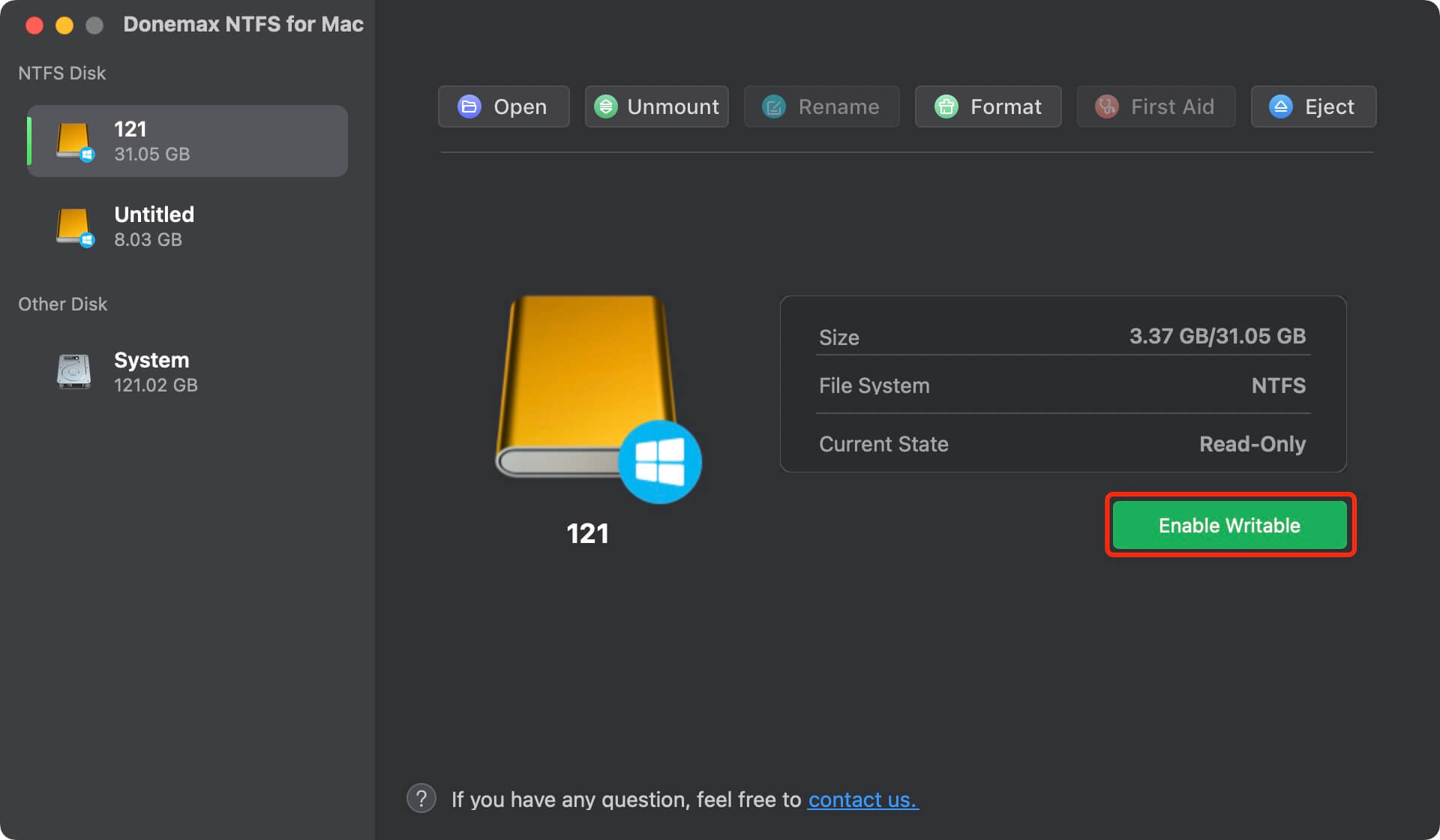
Step 3. Open the external hard drive, try to delete files from it.
Solution 4: Disable Write Protection
Write protection can prevent any modifications to your external drive. Some drives have physical write-protect switches, while others may have software-based protection.
- Examine your external drive for a small toggle switch. Move it to the unlocked position if it's enabled.
- Use Terminal to disable write protection: Open Terminal (use Spotlight Search to find it). Type the following command: sudo chflags nouchg /Volumes/YourDriveName
- Eject the drive, reconnect it, and attempt to delete files.
Solution 5: Repair the Drive
A corrupted or damaged drive may restrict file deletion. Repairing it using Disk Utility can help.
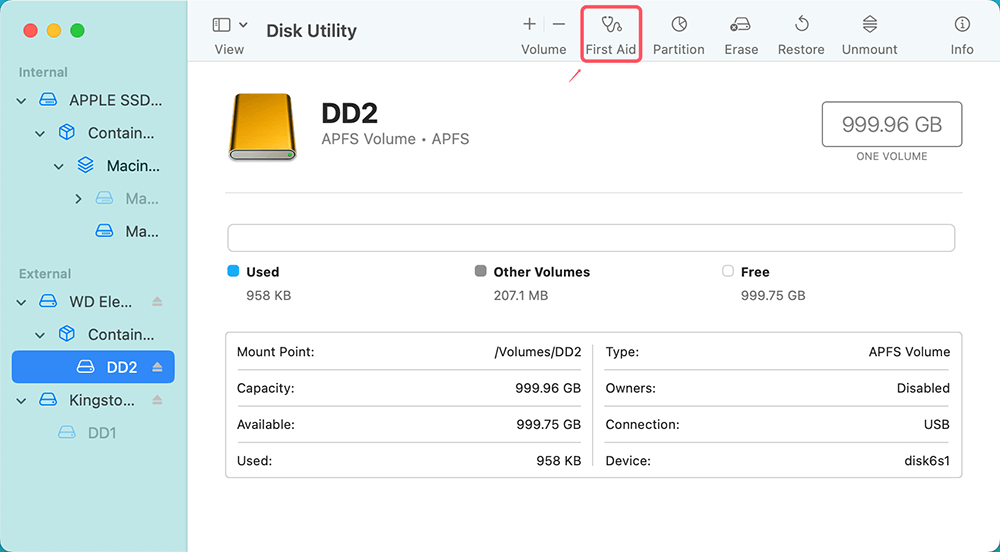
- Use Spotlight Search to locate and open Disk Utility.
- Find your drive in the left-hand sidebar.
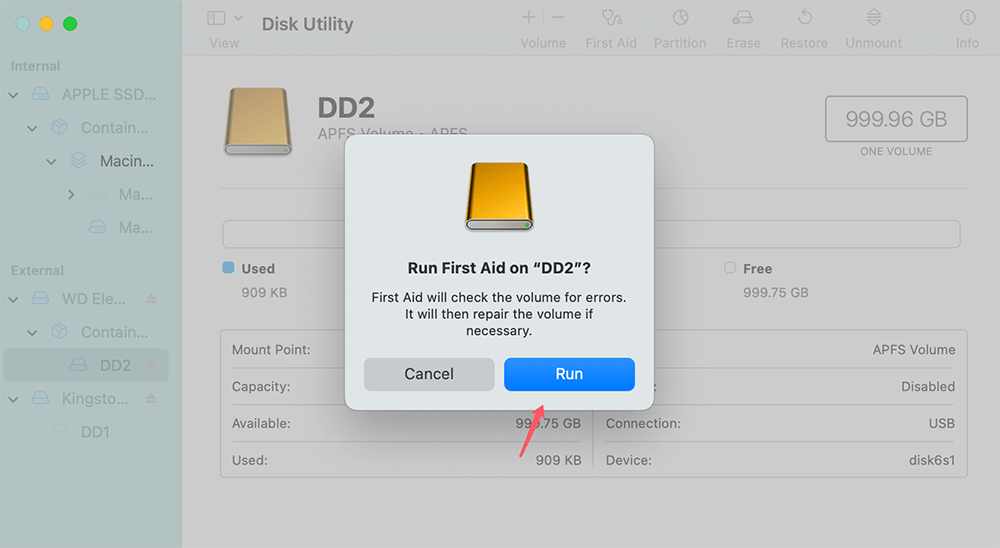
- Click on "First Aid" at the top of the Disk Utility window.
![Run the First Aid tool]()
- Confirm the operation by clicking "Run."
![Confirm the operation by clicking 'Run.']()
- Disk Utility will scan the drive for errors and attempt to fix them.
- If Disk Utility reports success, eject the drive and reconnect it. Try deleting the files again.
If the repair fails, the drive may have significant damage that requires professional intervention.
Solution 6: Restart Mac in Safe Mode
Booting your Mac in Safe Mode disables unnecessary extensions and software, which can sometimes interfere with drive operations.
Steps to Restart in Safe Mode:
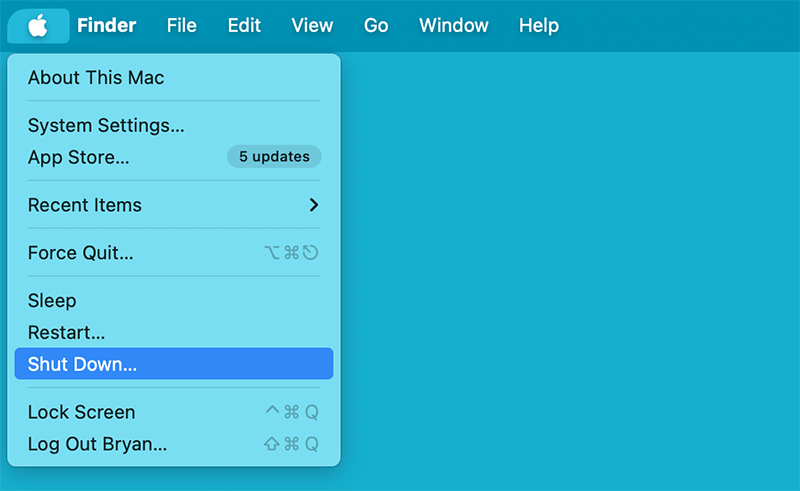
- Shut down your Mac: Click the Apple menu in the top-left corner and select "Shut Down."
![Shut down your Mac]()
- Start your Mac in Safe Mode: For Intel-based Mac: Turn on your Mac and immediately press and hold the Shift key. Release the Shift key when you see the login screen. For Apple silicon Mac: Press and hold Power button when turning on the Mac until it boots into macOS Recovery mode. Then select the Macintosh HD, press and hold the Shift key, click Continue in Safe Mode.
![Start your Mac in Safe Mode]()
- Log in and test: Once in Safe Mode, connect your external drive and attempt to delete the files.
- Restart normally if successful: Restart your Mac without holding any keys to exit Safe Mode.
Preventative Measures for Cannot Delete Files Problem
Preventing this issue in the future can save time and frustration. Here's how:
Choose Compatible Formats for Drives:
- Format drives in ExFAT if you frequently switch between macOS and Windows.
- Use APFS or HFS+ if you're exclusively using macOS.
Regular Drive Maintenance:
- Periodically use Disk Utility to check for and repair errors.
- Avoid filling the drive to its maximum capacity, as this can lead to corruption.
Avoiding Improper Ejections:
- Always eject your external drive safely by right-clicking it in Finder and selecting "Eject."
- Avoid unplugging the drive while data is being transferred.
When to Seek Professional Help:
If none of the above solutions work, the issue may be hardware-related. Indicators of physical damage include:
- The drive doesn't show up in Finder or Disk Utility.
- You hear unusual clicking noises from the drive.
- Files appear corrupted or inaccessible.
In such cases, consult a data recovery specialist or the manufacturer's support team.
Conclusion
Dealing with an external hard drive that won't let you delete files can be frustrating, but with the right approach, it's often fixable. From checking permissions to reformatting drives and using third-party NTFS for Mac tools, there are several effective solutions available.
Taking preventative measures, such as formatting drives appropriately and maintaining proper ejection habits, can help you avoid these issues in the future. If all else fails, don't hesitate to seek professional help.
Related Articles
- Feb 20, 2024How to Fix External SSD Not Mounting on Mac?
- Nov 21, 2024(Solved) Can't Change Permissions on External Drive on Mac
- May 27, 2025CHKDSK Not Working on Windows 11/10/8/7, How to Fix It?
- Feb 17, 20258 Solutions to Fix Can't Access to Toshiba External Hard Drive Without Losing Data
- Apr 18, 2025Best 4 Methods to Fix Memory Card Not Formatted Error
- Jan 26, 2025USB Drive or SD Card Shows 0 Bytes: How to Fix It and Get Your Data Back
Lucien
Lucien is a writer and a chief programmer of Donemax software who has worked in the company for 5+ years. He has written much of the content on the site and devotes to providing troubleshooting and solution for Windows and Mac users including disk cloning, data recovery, migration, eraser, error fixes.
Gerhard Chou
In order to effectively solve the problems for our customers, every article and troubleshooting solution published on our website has been strictly tested and practiced. Our editors love researching and using computers and testing software, and are willing to help computer users with their problems
Hot Donemax Products
Clone hard drive with advanced clone technology or create bootable clone for Windows/Mac OS.
Completely and easily recover deleted, formatted, hidden or lost files from hard drive and external storage device.
Certified data erasure software - permanently erase data before selling or donating your disk or any digital device.