Written byMariaUpdated on Dec 04, 2025

Before we start: It's important to back up data regularly. If you failed to back up data and data loss happened after Bad Pool Header error or other issues, you can still try to recover the lost files with Donemax Data Recovery.
PAGE CONTENT:
Blue Screen of Death (BSOD) errors are among the most frustrating experiences for Windows users. One such common and alarming issue is the Bad Pool Header error, identified by the Stop Code 0x00000019. If your computer crashes unexpectedly with this message, understanding the causes and knowing how to fix it is essential. This guide provides an in-depth, step-by-step approach to resolving the Bad Pool Header error across Windows 11, 10, 8, and 7.
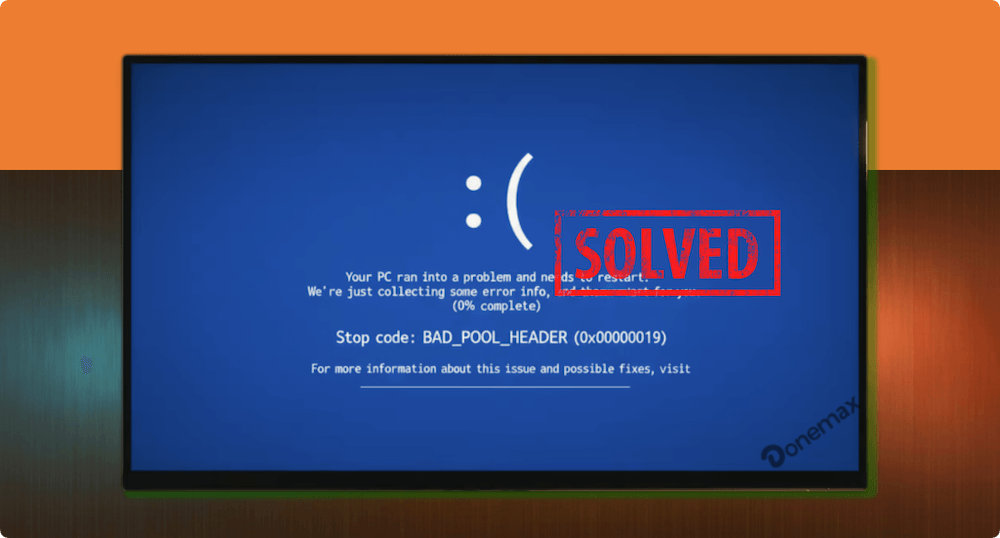
The Bad Pool Header is a specific type of BSOD error linked to memory management issues within the Windows operating system. Technically, it occurs when the system encounters problems with memory allocation, especially involving the pool header, which tracks how Windows assigns memory resources.
The associated Stop Code 0x00000019 points toward corruption or inconsistency in memory usage, often triggered by faulty drivers, hardware malfunctions, software conflicts, or corrupted system files.
Although it sounds highly technical, resolving the Bad Pool Header error is possible through systematic troubleshooting, which we will explain in detail.
Identifying the Bad Pool Header error is straightforward due to the system's abrupt behavior. Symptoms include:
If you experience these signs, it's essential to act quickly to prevent further data loss or system instability.
Several factors can contribute to the Bad Pool Header/Stop 0x00000019 error:
1. Corrupted or Outdated Drivers
Faulty or incompatible drivers can cause memory conflicts, leading to system crashes.
2. Faulty RAM or Hardware Issues
Defective memory modules or other hardware malfunctions can corrupt the system's memory pool.
3. Third-Party Software Conflicts
Antivirus software or other utilities may interfere with memory management, triggering BSOD errors.
4. Hard Drive or SSD Errors
Disk corruption or failing storage devices can indirectly affect memory operations, causing the Bad Pool Header issue.
5. System File Corruption
Missing or corrupted essential Windows system files may lead to instability and BSODs.
6. Recent Hardware or Software Changes
Installing new hardware or incompatible software can introduce memory allocation conflicts.
Understanding the root cause is crucial for applying the correct fix, so let's dive into proven troubleshooting methods.
The following solutions apply to Windows 11, 10, 8, and 7. Start with basic troubleshooting and progress to advanced steps as needed.
Before diving into technical fixes:
How to Enter Safe Mode:
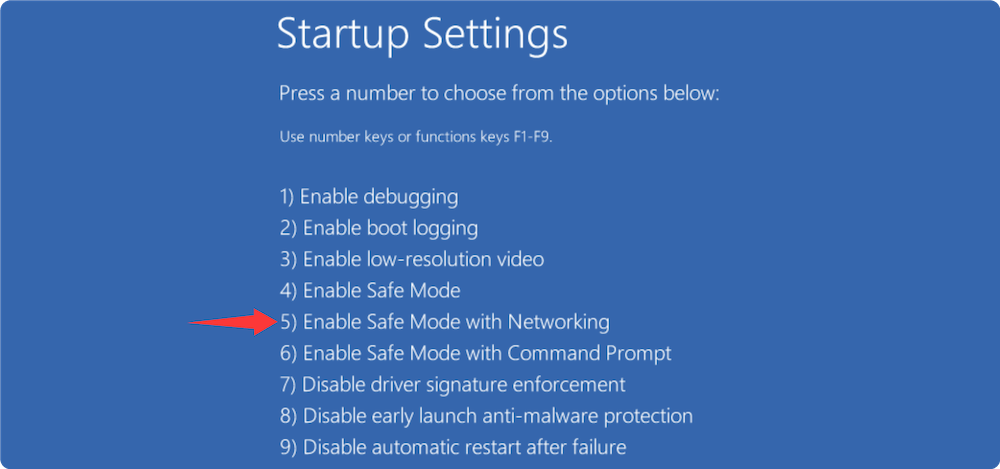
If the error doesn't occur in Safe Mode, the issue likely involves drivers or software conflicts.
Outdated or incompatible drivers are a frequent cause of BSOD errors. Update your drivers to the latest versions.
Steps to Update Drivers:
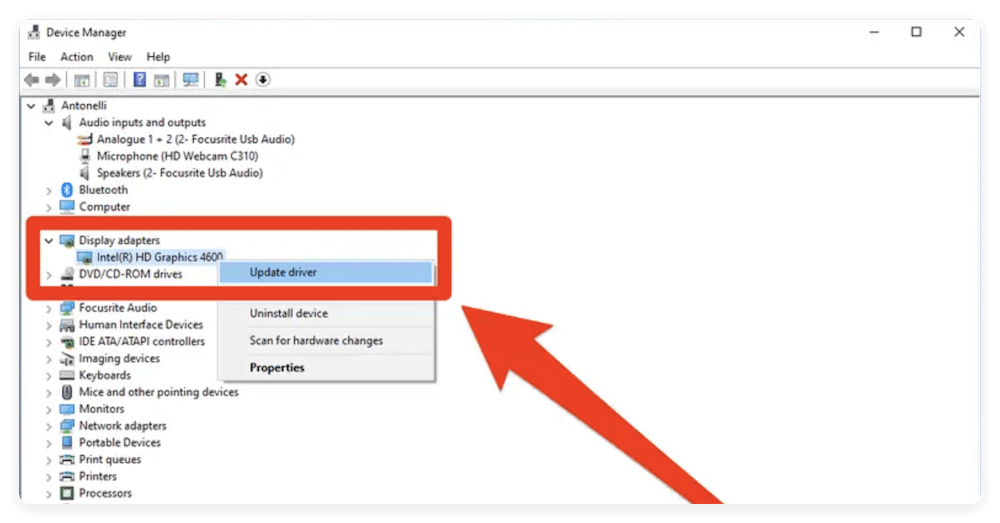
Alternatively, visit the manufacturer's website for driver downloads.
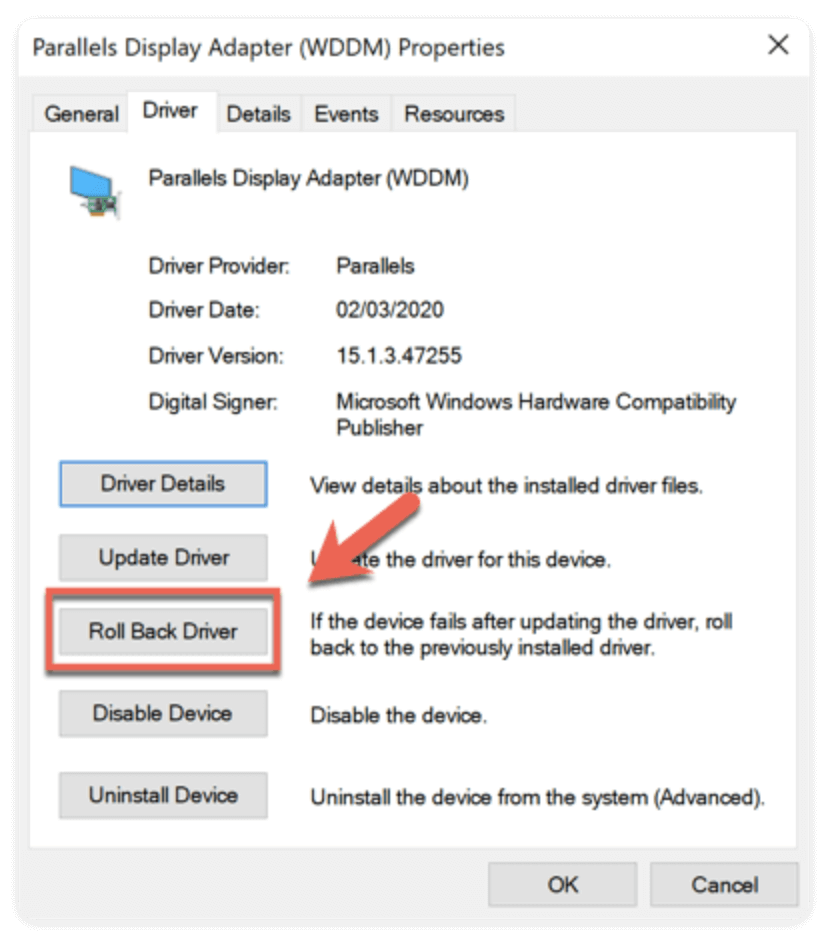
Rollback Drivers:
If the error started after a driver update:
Faulty RAM is a leading cause of Bad Pool Header errors. Windows offers a built-in diagnostic tool to test memory integrity.
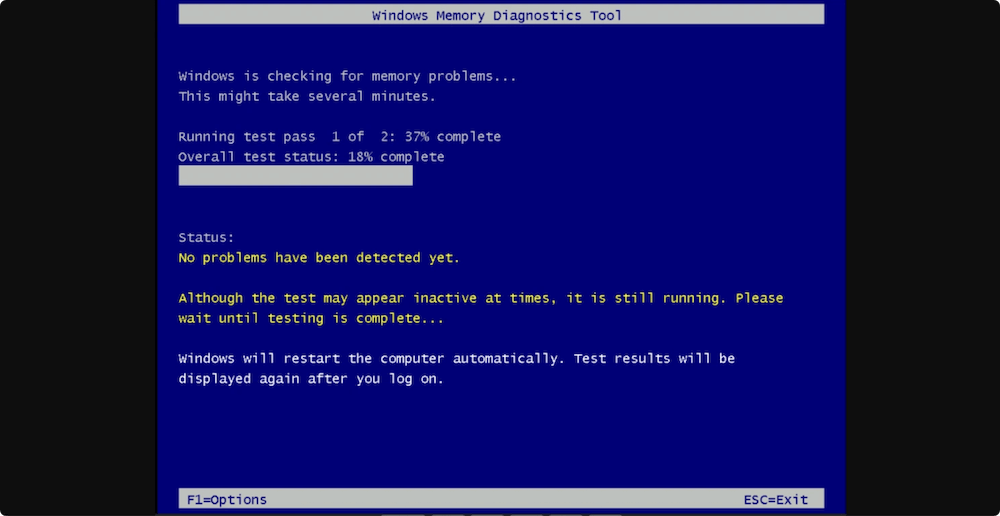
If errors are detected, consider replacing your RAM modules.
Corrupted system files can lead to instability and BSODs. Use these tools to repair them.
Run System File Checker (SFC):
Run DISM Tool (For Windows 8/10/11):
DISM /Online /Cleanup-Image /CheckHealth
DISM /Online /Cleanup-Image /ScanHealth
DISM /Online /Cleanup-Image /RestoreHealth
These tools repair damaged system files and restore system stability.
Disk errors can cause memory pool corruption indirectly. Use CHKDSK to fix drive issues.
Restart your computer and allow CHKDSK to complete.
Antivirus programs can sometimes interfere with system memory processes, leading to Bad Pool Header errors.
💡 Note: Avoid running your system without active protection for prolonged periods.
If the error began after recent changes, System Restore can revert your system to a stable configuration.
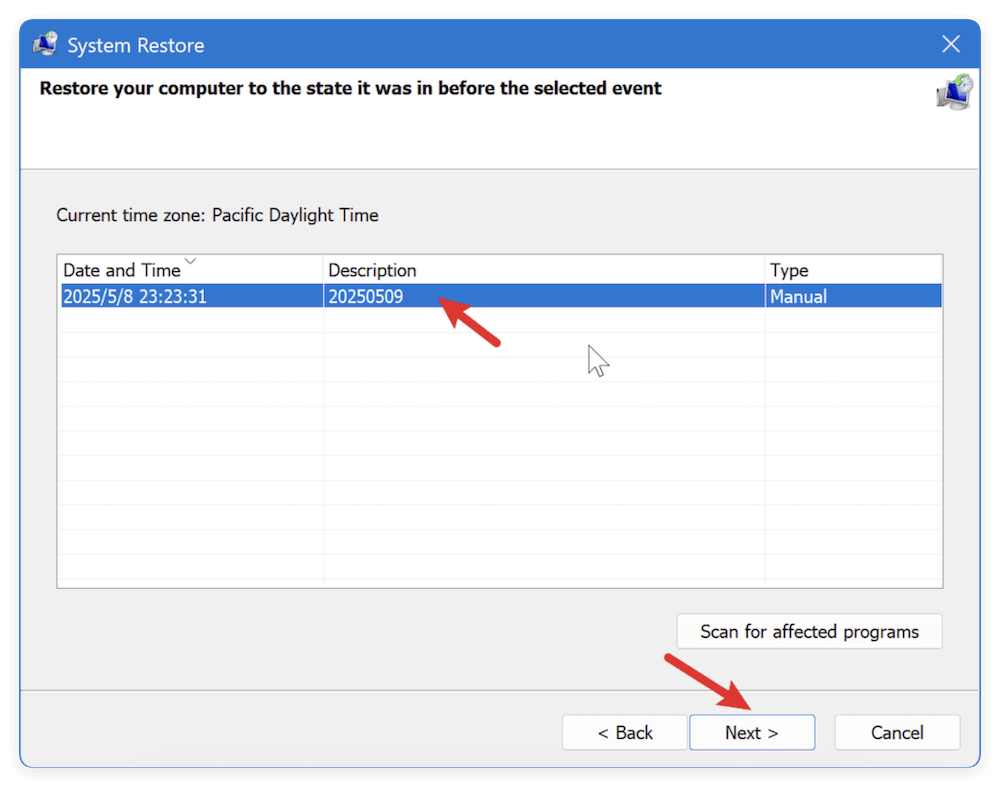
System Restore doesn't affect personal files but removes apps or drivers installed after the restore point.
Microsoft frequently releases updates to address system bugs and compatibility issues.
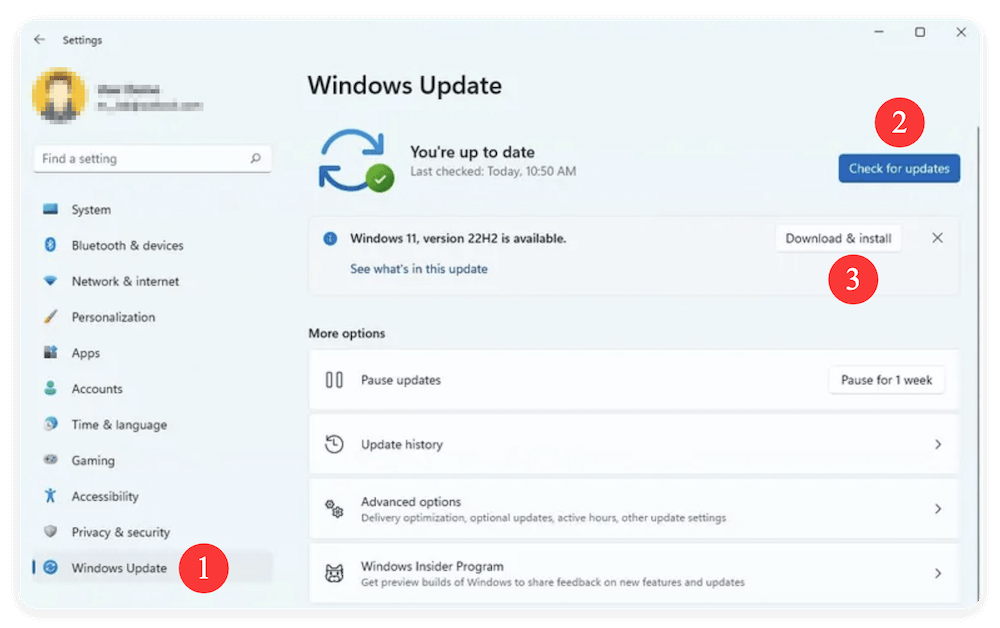
Staying updated can prevent many BSOD errors, including Bad Pool Header.
A clean boot helps identify if third-party services or startup programs cause conflicts.
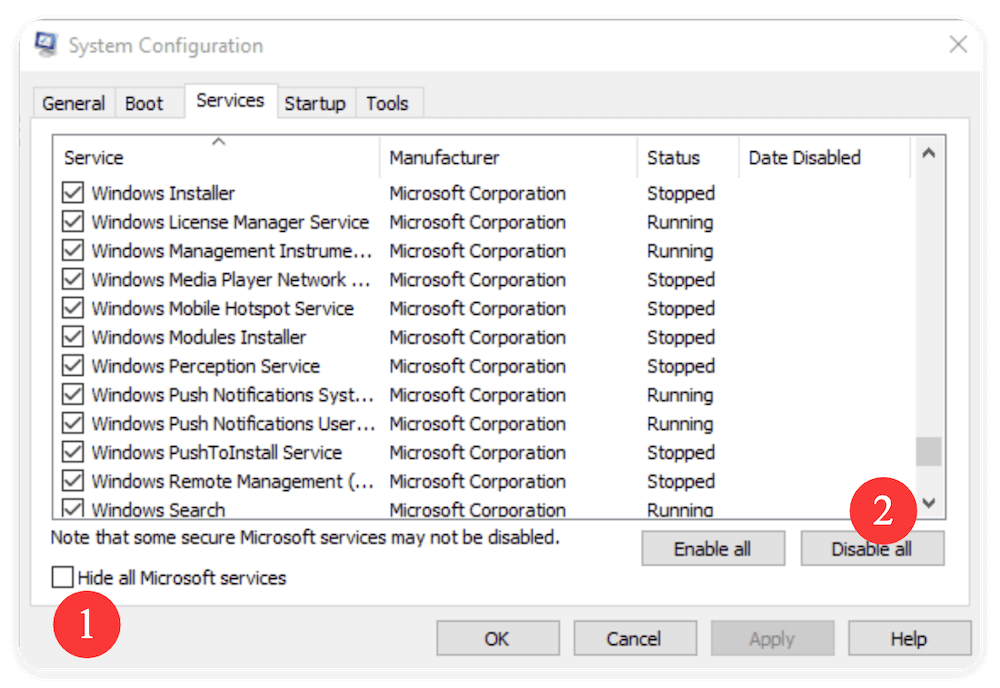
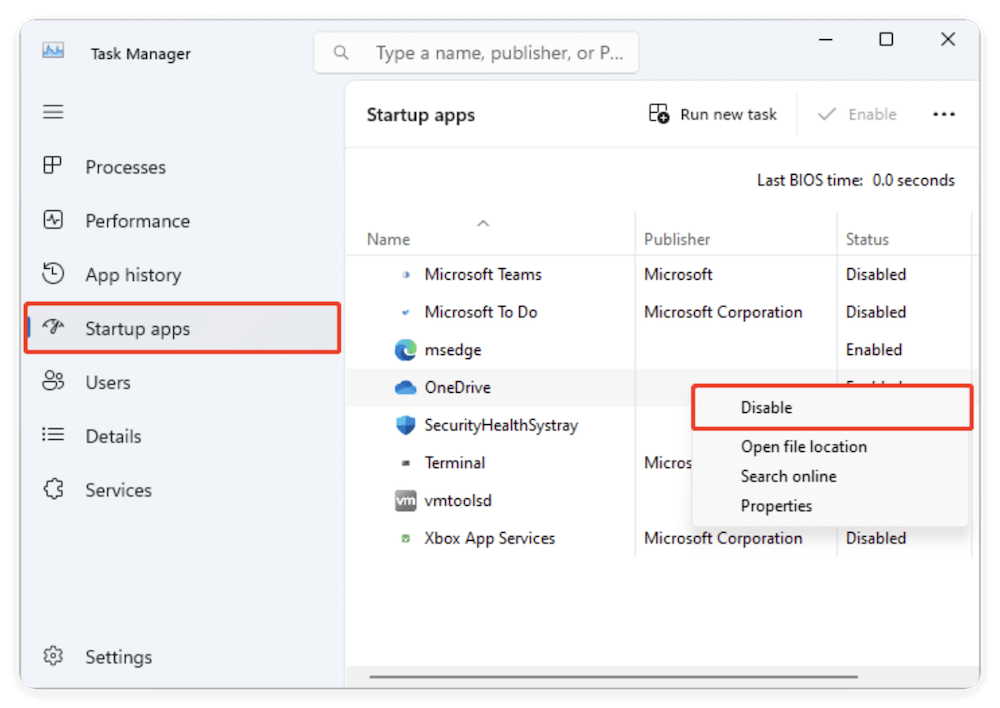
If the Bad Pool Header error disappears, re-enable services one by one to find the culprit.
If the error persists, perform advanced hardware diagnostics:
If diagnostics confirm hardware failure, replace the defective component.
If all else fails, a clean installation of Windows may be necessary:
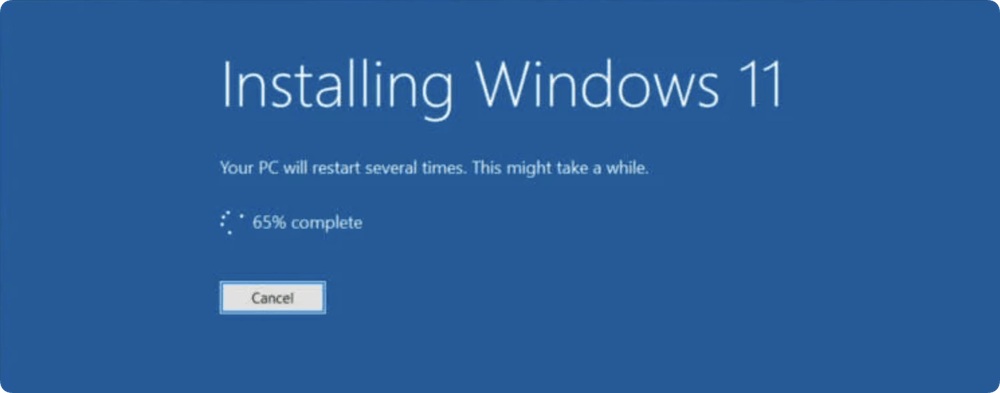
A fresh installation eliminates corrupted system files and software conflicts, resolving persistent BSOD errors.
Data loss may happen unfortunately after Bad Pool Header error. If so, don't be panic, there is still a chance to recover the data from the drive. First, connect the drive to another working computer and check if the drive is accessible. If so, you can easily copy the files to another drive directly.
In some cases, you may find some files are missing or even the drive is inaccessible after the error. Then you will need a reliable data recovery software to retrieve the files. Donemax Data Recovery is recommended for you.
The software can deeply analyse and scan the drive to search for any recoverable files. Also, the software is easy to use. Within a few steps, you can get back the missing files successfully. Here is how to use the software:
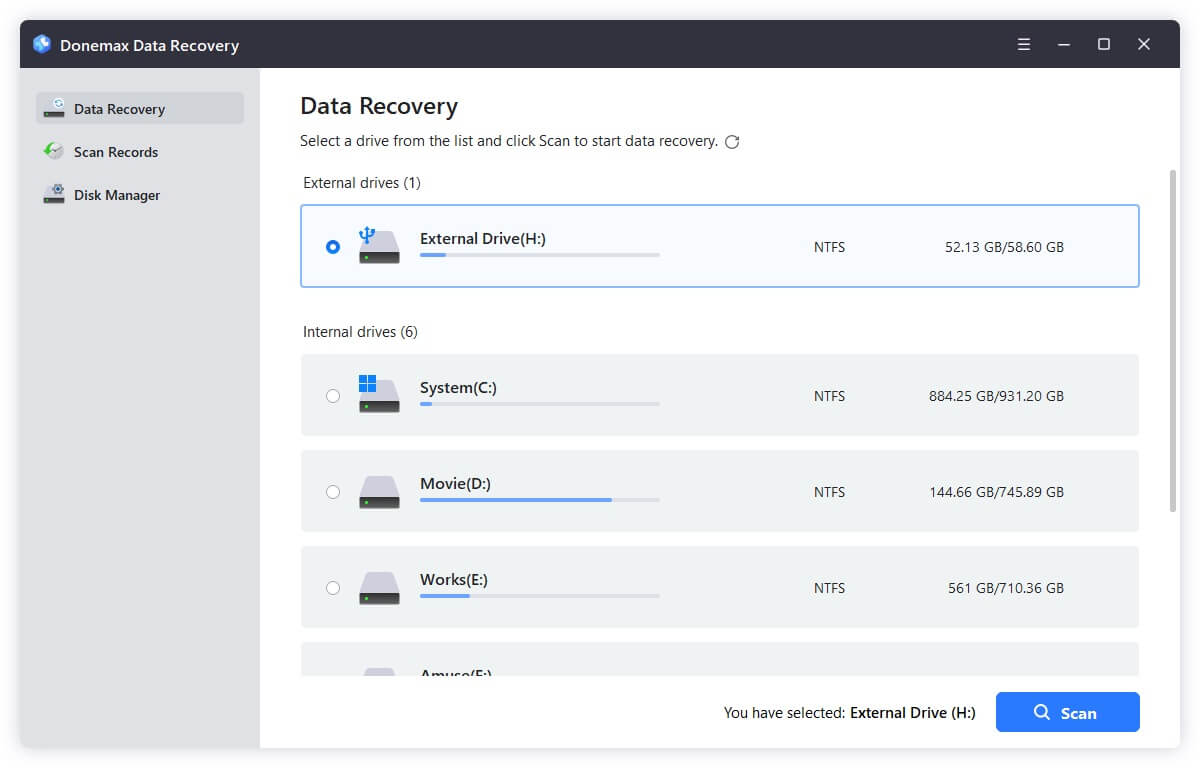
Step 1. Run the software Donemax Data Recovery and select the drive where you lost files.
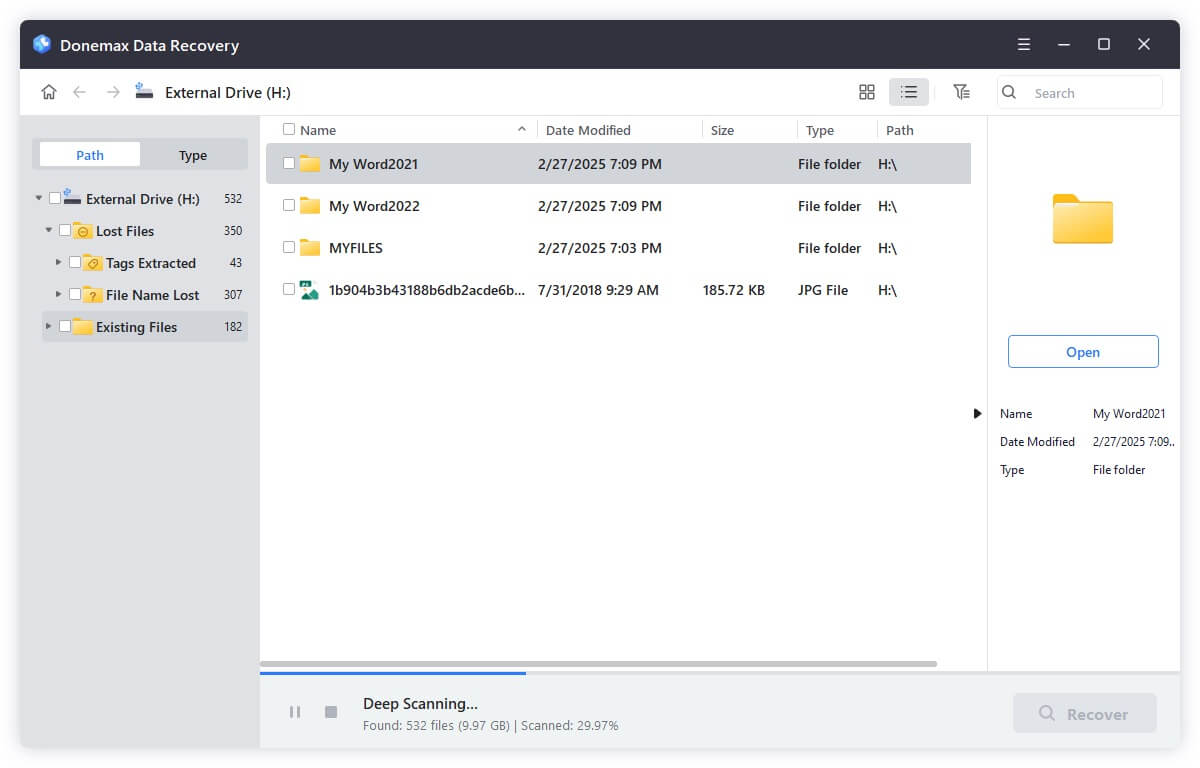
Step 2. Click the Scan button to start searching for the lost files from the selected drive.
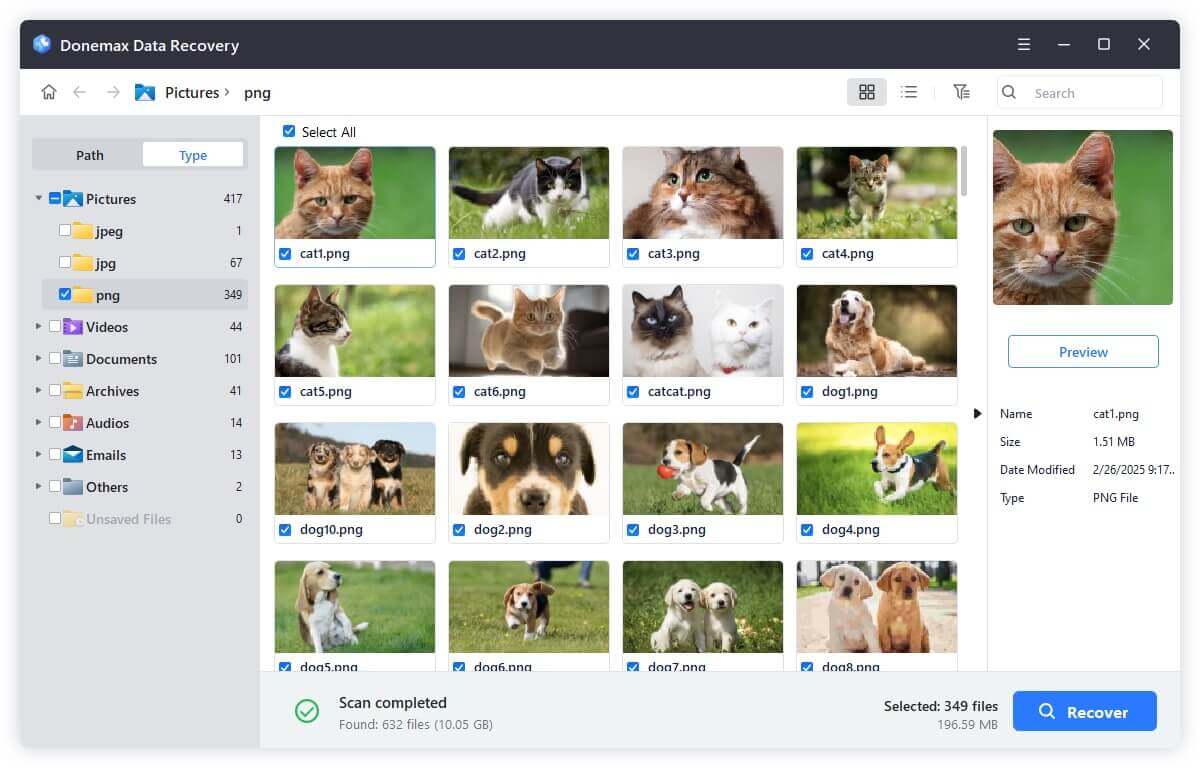
Step 3. Check and locate the lost files after the scan is completed. Preview and choose the wanted files to recover. Ensure to save to another drive.
Proactive system care reduces the likelihood of Bad Pool Header and other BSOD errors.
The Bad Pool Header (0x00000019) error, while alarming, is manageable with systematic troubleshooting. Whether caused by faulty drivers, hardware issues, or software conflicts, the solutions outlined above can help restore your system's stability.
Start with basic fixes, progress through advanced diagnostics, and seek professional assistance if necessary. Regular maintenance and staying updated are key to preventing such errors in the future.
By following these steps, you can resolve the Bad Pool Header error and get your Windows system running smoothly once again.
Donemax Data Recovery
Powerful, safe & easy-to-use data recovery software. Easily and completely recover deleted, formatted, or other lost data. The tool supports PC, Mac, HDD, SSD, USB drive, camera, SD card, RAID and other storage devices.
Maria
Maria is one of the senior writers & editors of Donemax who lives and works in Sydney, Australia. She loves PC, Mac and Internet Technology. She has 6 years of writing articles about data recovery on PC/Mac, disk cloning solution, data eraser and computer OS optimization, etc. She is also interested in testing various software and digital products.
Gerhard Chou
In order to effectively solve the problems for our customers, every article and troubleshooting solution published on our website has been strictly tested and practiced. Our editors love researching and using computers and testing software, and are willing to help computer users with their problems
Clone hard drive with advanced clone technology or create bootable clone for Windows/Mac OS.
Completely and easily recover deleted, formatted, hidden or lost files from hard drive and external storage device.
Certified data erasure software - permanently erase data before selling or donating your disk or any digital device.