
Written byMariaUpdated on Jul 13, 2026

Before we start: How to easily and safely clean up junk data on macOS 27 Golden Gate? A reliable and professional tool is a good choice. For example, Donemax DMcleaner for Mac can deeply scan the system junk data and securely deleted the useless data. Additionally, it can locate and remove large and duplicated files, uninstall unwanted apps completely, etc.
PAGE CONTENT:
Did you recently upgrade to the gorgeous new macOS 27 Golden Gate? It comes with fantastic new features and visual upgrades, but over time, even the best operating systems start slowing down. You might notice apps taking longer to launch, or you might see that frustrating 'the disk space is almost full' notification popping up.
The main culprit behind a sluggish Mac is hidden junk data. System logs, application caches, broken temporary files, and leftover remnants from uninstalled apps build up quietly in the background. If you do not clear them out, they eat up your valuable SSD space and drag down your system's performance.
In this step-by-step guide, we will show you exactly how to clean up junk data on macOS 27 Golden Gate. We will look at both the manual way to dig through system folders and a much quicker, safer automatic solution using a dedicated optimization tool.
Every time you open a website, launch an app, or edit a photo, your Mac creates temporary files. These are called cache files, and they are designed to help your programs load faster the next time you use them.
However, when apps update or get deleted, these temporary files often stay behind. Over months of regular use, these tiny, harmless files turn into gigabytes of digital clutter. Keeping your Mac fresh requires regular cleanups so your operating system has enough room to breathe and run smoothly.
You can try to manually find and remove the junk data if you are skilled and familiar with the macOS. Otherwise, it's highly suggested to use a professional cleanup tool for Mac, which would be fast and safe to clear junk data.
If you have some free time and want to look under the hood of your Mac, you can clean up a large portion of junk data manually. Most of this clutter hides inside hidden user and system libraries.
💡 Note: Be very careful when deleting files manually. If you delete a critical system folder by mistake, your apps might crash, or your Mac might become unstable. Take your time and stick strictly to the paths mentioned below.
1. Clear User Cache Files
Open Finder on your Mac. Look at the top menu bar, click on Go, and then select Go to Folder from the dropdown menu.
Type the following path into the search box exactly as shown and press Enter: ~/Library/Caches
You will see a large collection of folders belonging to different apps. You can select the contents inside these folders and move them to the Trash. Do not delete the main folders themselves—only the files inside them.
2. Remove System and Log Files
Go back to the Go to Folder tool in Finder.
This time, type in: /Library/Logs and hit Enter. This folder holds system logs that you rarely ever need. Move the older log files to the Trash.
You can repeat this process by searching for: ~/Library/Logs to clear out user-specific application logs as well.
3. Empty Your Trash Bin
Many users forget that moving files to the Trash does not actually free up any disk space. The files are still sitting on your drive! Right-click your Trash icon in the dock and select Empty Trash to permanently remove the data.
While manual cleaning works, it takes a lot of effort and comes with a real risk of deleting the wrong file. If you prefer a safe, effortless, and comprehensive cleanup, the best approach is to use a professional tool like Donemax DMcleaner for Mac.
Donemax DMcleaner for Mac is an all-in-one system optimizer designed specifically for modern macOS systems, including the new macOS 27 Golden Gate. It safely scans every hidden corner of your hard drive, identifying useless system junk, app duplicates, and unneeded caches that are 100% safe to remove.
Here is how simple it is to use:
Step 1. Download and install Donemax DMcleaner for Mac on your macOS 27 Golden Gate machine.
Step 2. Open the application on your Mac. You will see a clean, user-friendly interface with an intuitive dashboard. Select Junk Cleaner option.
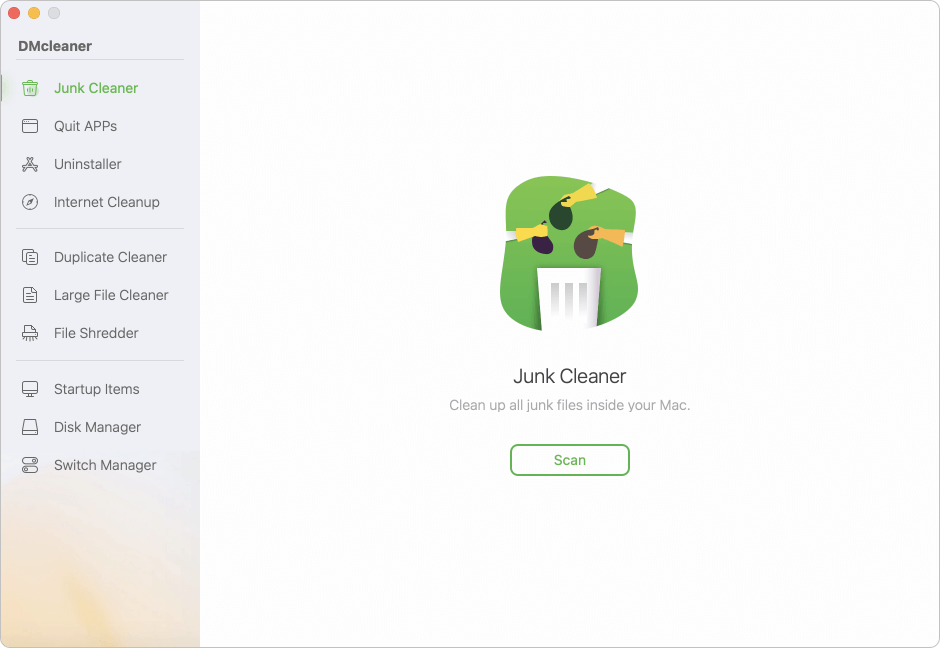
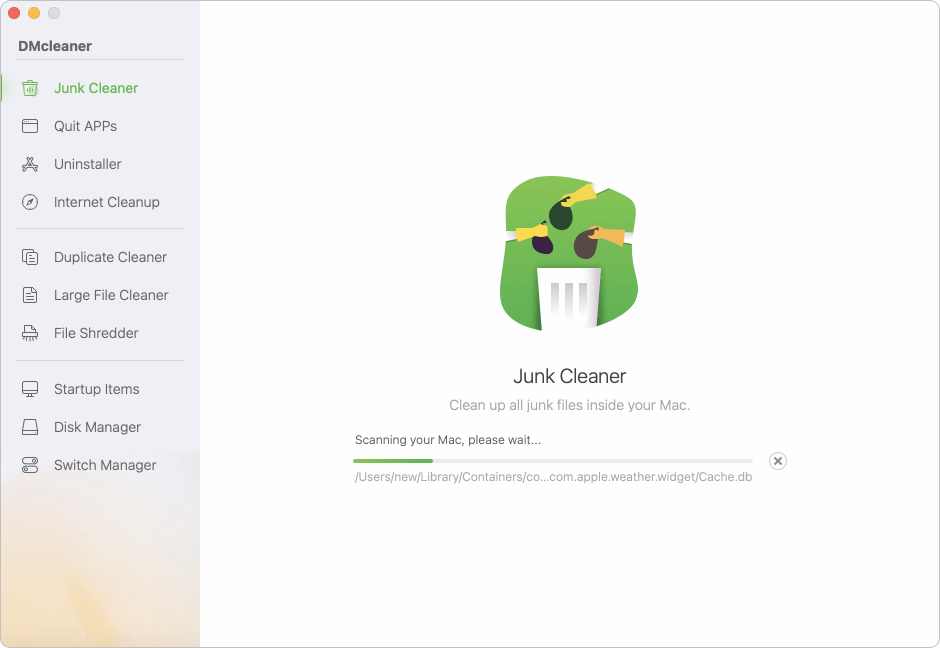
Step 3. Click on the Scan button to let the software run a deep scan of your internal storage.
Step 4. Review the junk data found by the software. It neatly categorizes files into system junk, application cache, mail attachments, and trash bins.
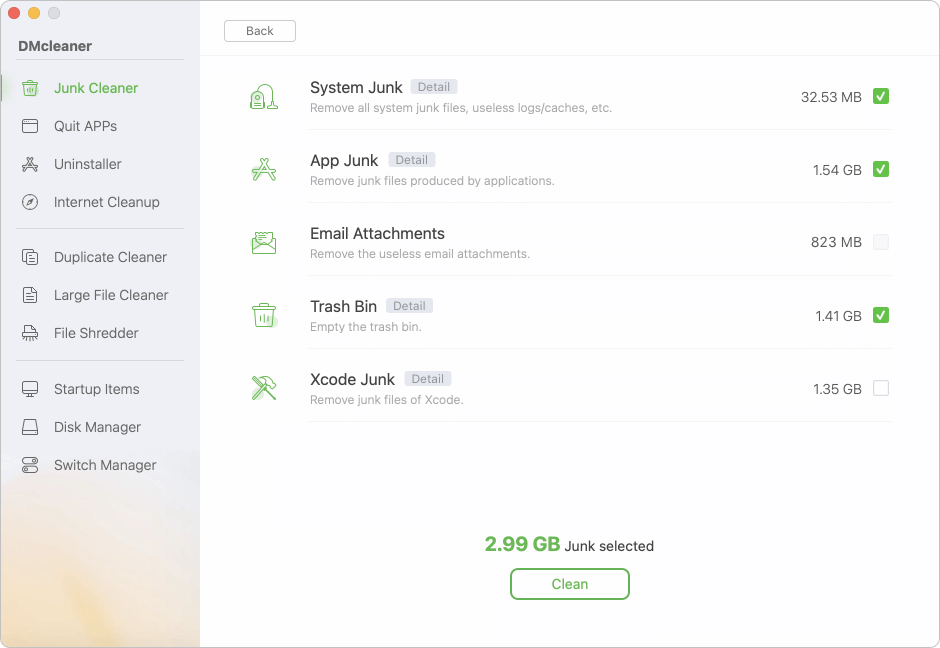
Step 5. Click the Clean button to wipe away all selected junk in just a single click.
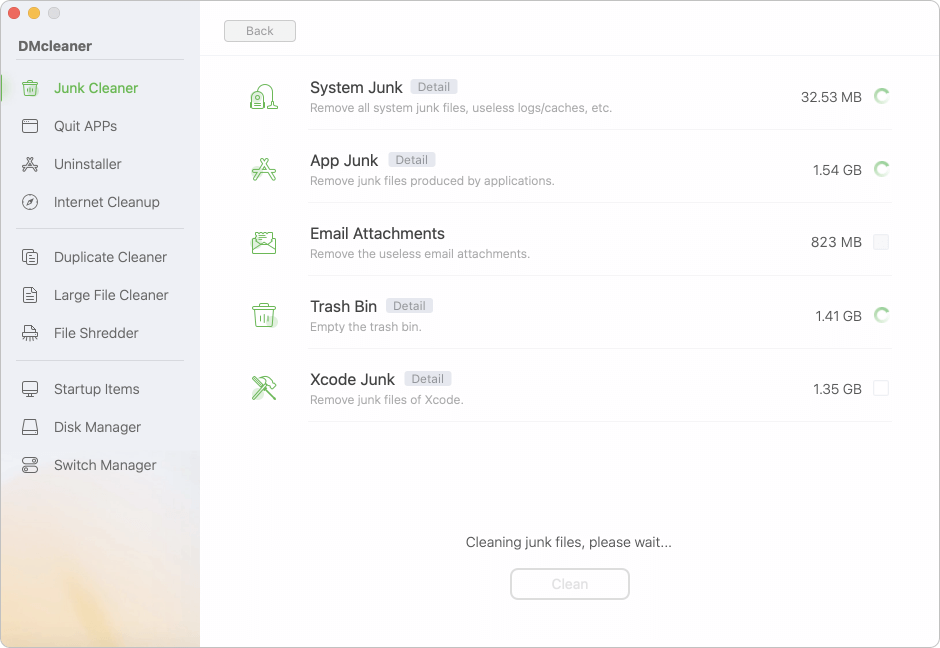
Step 6. Once the process is done, it will show the completed information and show how much junk data is removed.
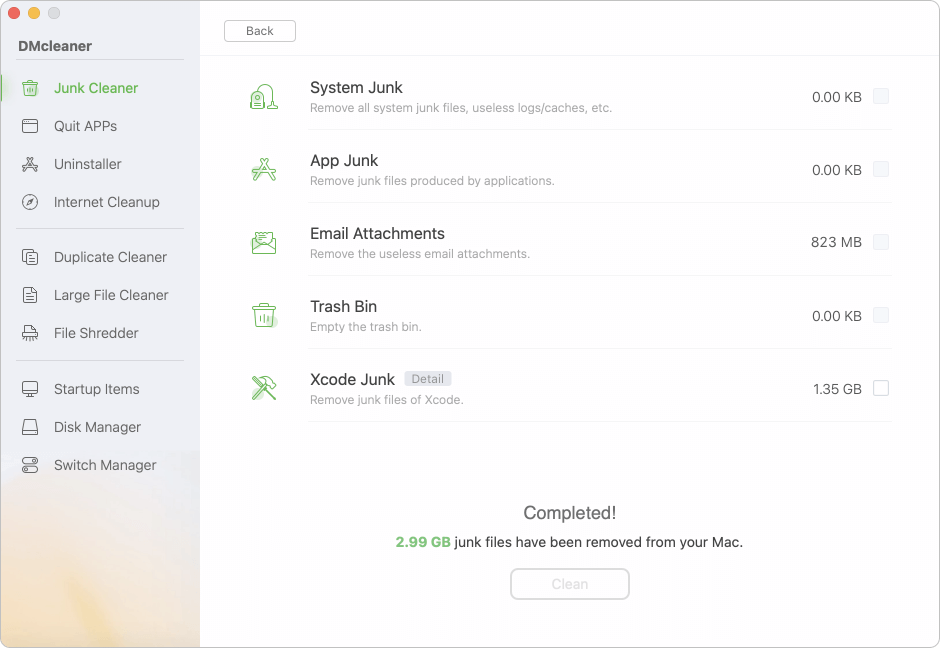
Beyond just deleting cache files, Donemax DMcleaner also features built-in tools to help you uninstall stubborn apps completely, manage your startup items, and locate giant hidden and duplicated files that are hogging your storage space.
Learning how to clean up junk data on macOS 27 Golden Gate is the easiest way to bring back that 'brand-new Mac' speed. While manual cleaning gives you direct control, it requires extreme caution. For a hassle-free and deeper clean, let Donemax DMcleaner for Mac do the heavy lifting for you. Download it today to reclaim your storage and enjoy a faster, optimized Mac system!
Donemax DMcleaner for Mac
Donemax DMcleaner for Mac is an award-winning Mac cleanup & maintenance tool. It offers over 10 tools to help Mac users clean junk data. It helps speed up a slow Mac. Additionally, it includes a smart switch manager and disk manager for Mac.
Maria
Maria is one of the senior writers & editors of Donemax who lives and works in Sydney, Australia. She loves PC, Mac and Internet Technology. She has 6 years of writing articles about data recovery on PC/Mac, disk cloning solution, data eraser and computer OS optimization, etc. She is also interested in testing various software and digital products.
Gerhard Chou
In order to effectively solve the problems for our customers, every article and troubleshooting solution published on our website has been strictly tested and practiced. Our editors love researching and using computers and testing software, and are willing to help computer users with their problems