
Written byCharlesUpdated on Dec 02, 2025

Before we start: If the Acer Recovery Management doesn't work or the new system doesn't contain this tool, you can also use other methods to back up and restore your Acer computer. Donemax Disk Clone offer a solution to fully back up and restore the entire system drive on Acer machine.
PAGE CONTENT:
When your Acer laptop or desktop faces system errors, viruses, or performance slowdowns, restoring your system to its original state can be a lifesaver. That's where Acer Recovery Management (ARM) comes in—a built-in tool designed to help you back up your data, create recovery media, and restore your device to factory settings.
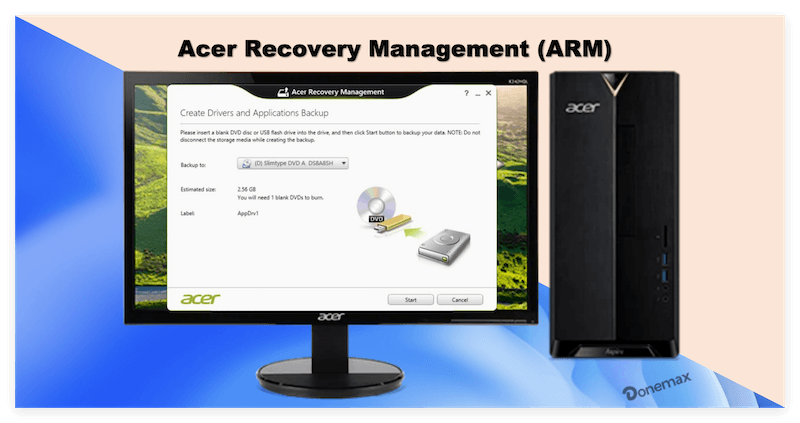
In this comprehensive guide, we'll explain what Acer Recovery Management is, how to use it effectively, and what to do if recovery options are missing or fail. Whether you want to prepare for potential issues or fix an existing problem, this article covers all aspects of Acer Recovery Management.
Acer Recovery Management is proprietary software pre-installed on many Acer laptops and desktop computers. Its primary function is to provide users with recovery tools that allow them to:
Acer designed ARM to simplify the recovery process, especially for users who aren't tech-savvy. With just a few clicks, you can back up your system or reset your PC to its original factory condition.
Supported Devices:
Acer Recovery Management comes pre-installed on most Acer Aspire, Swift, Nitro, Predator, and TravelMate series laptops, as well as Acer desktops and all-in-one PCs. However, it's mainly available on systems shipped with Windows 7, Windows 8/8.1, and early Windows 10 builds. Some newer Acer devices now rely on standard Windows Recovery options instead.
Let's break down the essential features and tools provided by Acer Recovery Management:
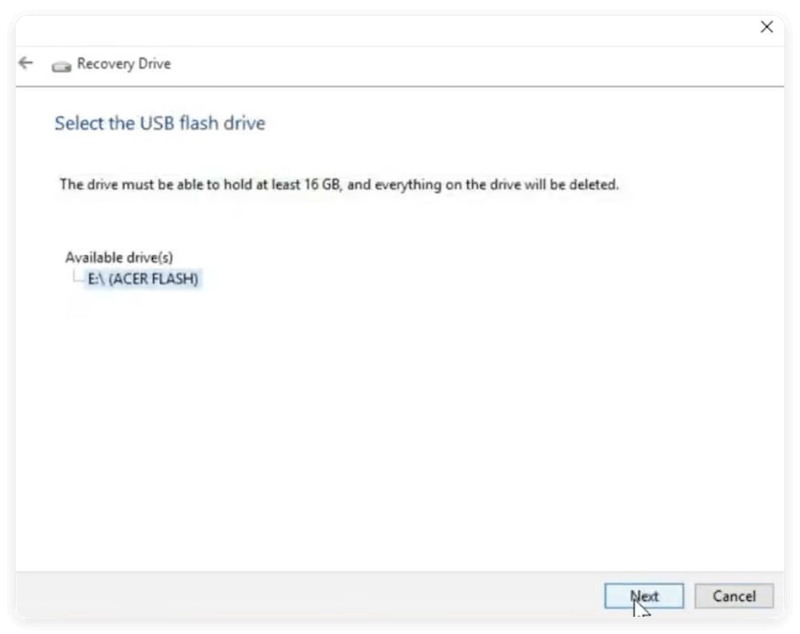
Creating a recovery disk or USB drive is crucial. If your hard drive fails, recovery partitions become inaccessible, and only external recovery media can save your system.
Steps to Create Recovery Media:
💡 Tips:
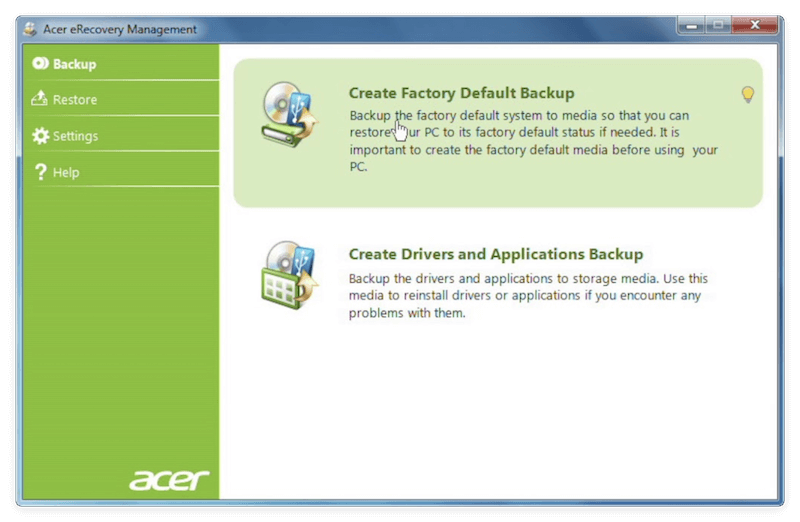
Acer Recovery Management allows you to back up system files, drivers, and applications. This ensures that, even after a factory reset, your device retains essential programs and drivers.
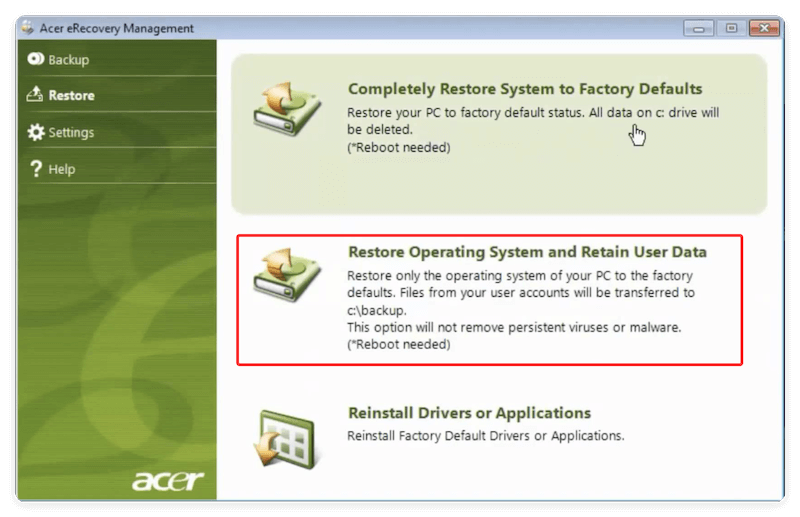
System Restore lets you revert your computer to a previous working state without affecting personal files. It's ideal for resolving:
To Use System Restore via ARM:
When all else fails, a factory reset restores your Acer device to its original state, erasing all user data, apps, and settings.
Steps to Perform a Factory Reset Using ARM:
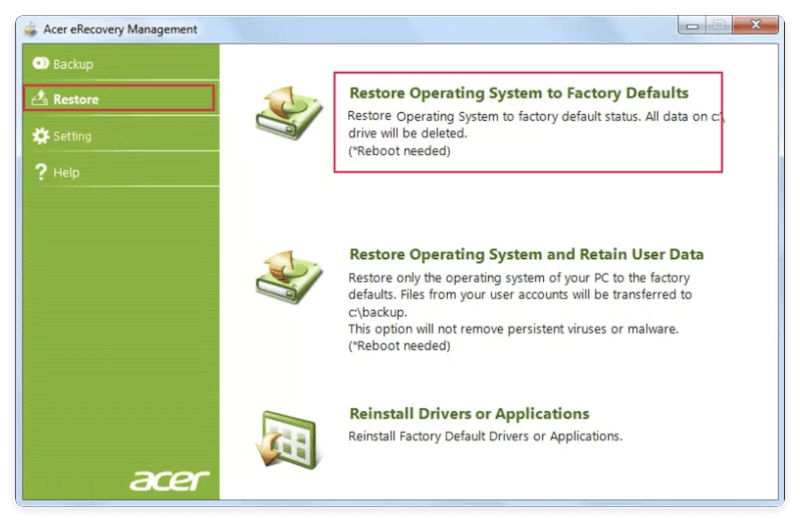
🪧 Note:
Accessing Acer Recovery Management (ARM) is essential for creating backups, restoring your system, or performing a factory reset. The software provides both in-Windows access and boot-level access for situations where the operating system fails to start. Below, we break down each method in detail, including troubleshooting steps if the tool is inaccessible. There are two main ways to access ARM:
If your system doesn't boot, use the recovery partition:
If Alt + F10 doesn't work, the recovery partition may be damaged or deleted.
If ALT + F10 fails repeatedly and you suspect the recovery partition is intact, ensure your BIOS settings allow recovery access.
BIOS Configuration Steps:
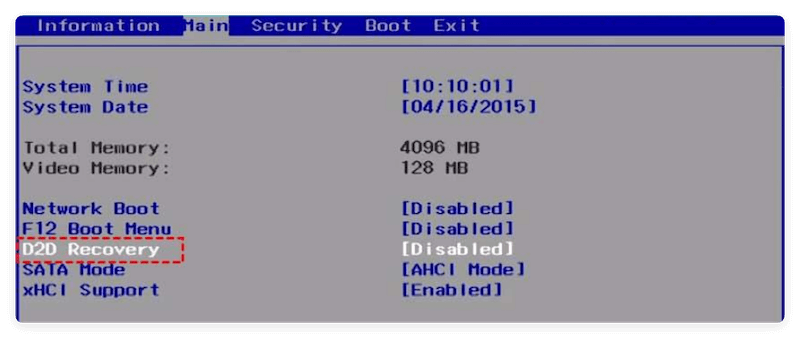
Once enabled, try the ALT + F10 shortcut again during startup.
Despite being user-friendly, you may encounter issues with ARM:
Several situations can cause ARM to disappear:
Solution Options:
Solution: Use recovery media created earlier or order recovery discs from Acer.
Solution: Try recreating recovery media or test on another device to isolate hardware issues.
Data Recovery Tips:
Preventive Tips to Avoid Data Loss
If ARM isn't available or doesn't work, consider these alternatives:
For newer Acer devices with Windows 10 or Windows 11:
Trusted third-party tools like Donemax Disk Clone, Macrium Reflect, or Acronis True Image provide advanced backup and recovery solutions beyond what ARM offers.
As a common backup solution, cloning the system disk is always reliable. When the computer is working normally, use the disk cloning software to make a full and bootable clone.
The process is very simple to make a complete and bootable clone of the system with Donemax Disk Clone. Just a few clicks, you can get a full backup:
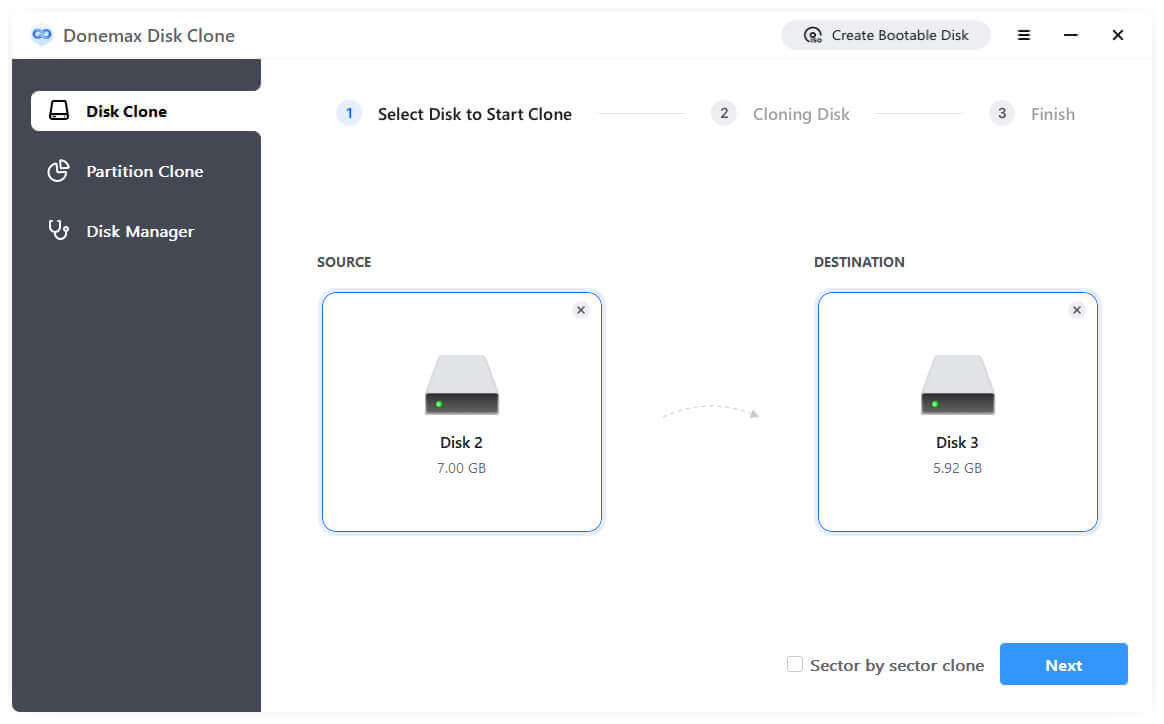
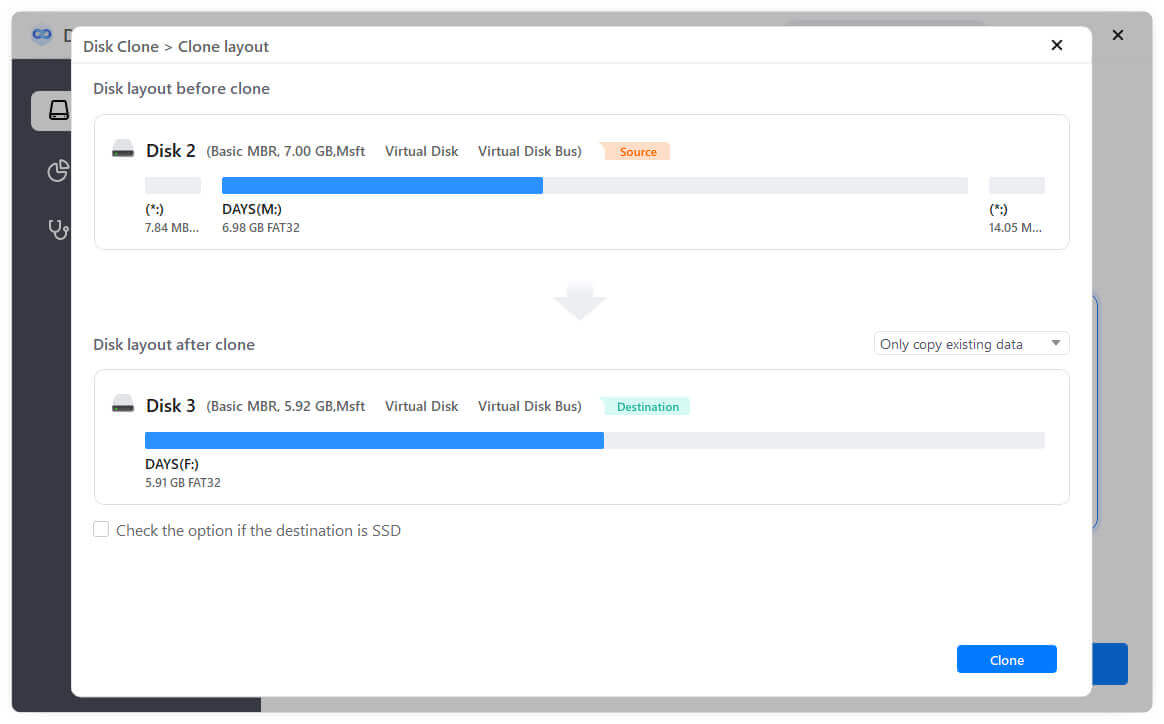
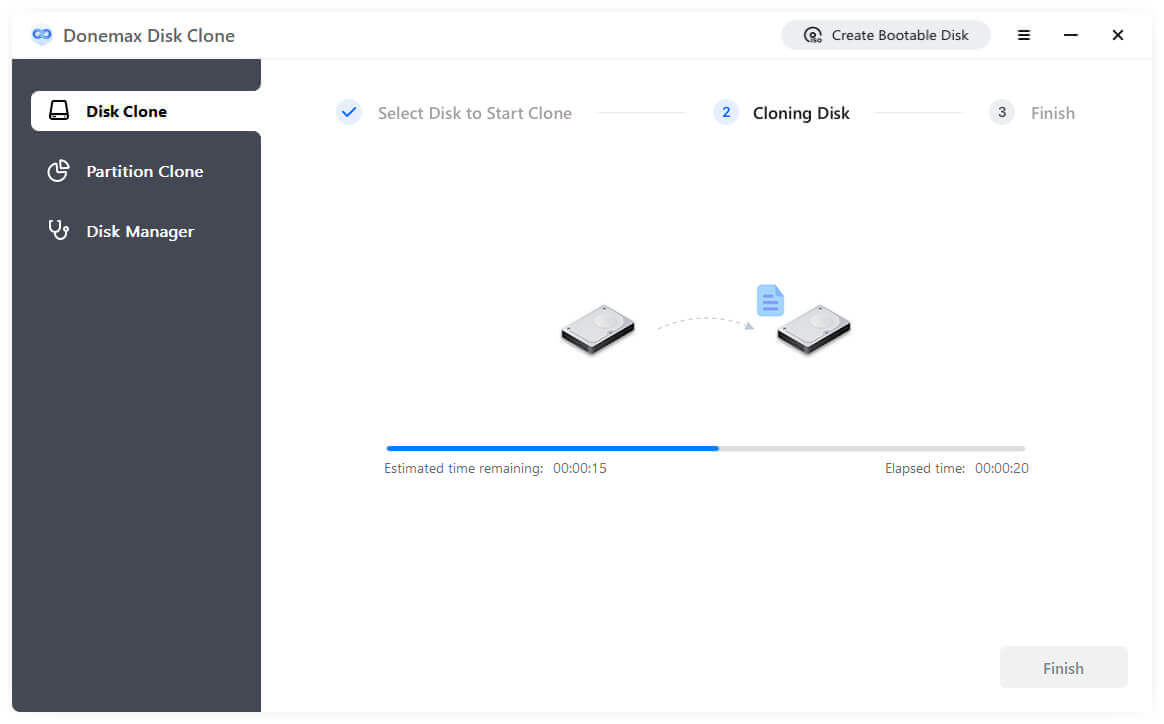
If there are issues with the original system disk, you can use the clone disk to replace it and make the computer boot up immediately. Or you can use the bootable media of the disk cloning software to boot the computer, then clone from the backup disk back to the system disk to make it working again.
If you didn't create recovery discs, contact Acer Support to order them:
For some models, Acer offers downloadable recovery images online. Check the support portal with your SNID to see if your model is eligible.
Acer Recovery Management is a vital tool for Acer laptop and PC users. Whether you need to create recovery media, back up system files, restore your device, or perform a factory reset, ARM simplifies the process, even for beginners.
However, being proactive is key. Don't wait for your device to malfunction—create recovery media, back up essential data, and familiarize yourself with recovery procedures now.
If ARM isn't accessible, Windows recovery tools, third-party software, and Acer's support options offer reliable alternatives. By understanding how to use Acer Recovery Management effectively, you can maintain your system's performance and recover from unexpected issues with confidence.
Donemax Disk Clone
An award-winning disk cloning program to help Windows users and Mac users clone HDD/SSD/external device. It also can create full bootable clone backup for Windows PCs and Macs.
1. Can I reinstall Acer Recovery Management if it's missing?
Yes, visit Acer's official support website and search for your model to download ARM, if available.
2. Does a factory reset remove viruses?
Yes, a complete factory reset generally removes malware and viruses, but always run antivirus scans beforehand.
3. What happens if I didn't create recovery media?
You'll need to order official recovery media from Acer Support or use Windows built-in recovery tools if available.
Charles
Charles, who lives in Sydney, Australia, is an editor & writer of Donemax Team. He is good at writing articles related with Apple Mac computers, Windows operating systems, data recovery, data erasure, disk clone and data backup, etc. He loves reading and playing tennis in his spare time and is interested in testing new digital devices such as mobile phones, Macs, HDDs, SSDs, digital cameras, etc.
Gerhard Chou
In order to effectively solve the problems for our customers, every article and troubleshooting solution published on our website has been strictly tested and practiced. Our editors love researching and using computers and testing software, and are willing to help computer users with their problems

