Written byCoco LinUpdated on Dec 03, 2025

Before we start: When data loss happen after Adobe Illustrator crashing or in other cases, you can use the reliable recovery software Donemax Data Recovery to get back the missing files effectively and quickly.
PAGE CONTENT:
Adobe Illustrator is a leading graphic design tool used by millions of creative professionals worldwide. From logo design to complex vector illustrations, it provides unmatched precision and control for digital artists. However, even such robust software isn't immune to technical glitches. A common frustration many users face is Adobe Illustrator keeps crashing, often unexpectedly during critical projects.
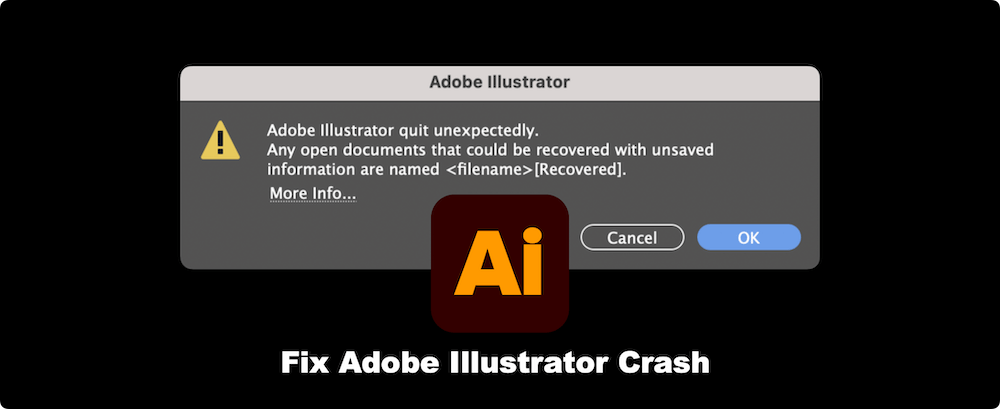
If you've encountered sudden crashes, freezes, or Illustrator shutting down without warning, you're not alone. These issues can stem from various causes—ranging from outdated software to hardware conflicts. Fortunately, most Illustrator crashing problems can be resolved with systematic troubleshooting.
This guide covers the causes behind Illustrator crashes and provides step-by-step solutions to get your design environment stable and running smoothly again.
Before diving into fixes, it's essential to understand the potential reasons Illustrator may crash on your system. Identifying the cause can help apply the right solution effectively.
Common Causes of Illustrator Crashes:
By addressing these factors systematically, you can minimize or eliminate Illustrator crashing issues.
Before applying fixes, perform these essential checks to avoid unnecessary steps:
Once these checks are done, proceed with the solutions below.
Keeping Illustrator up to date ensures you have the latest features, performance improvements, and critical bug fixes:
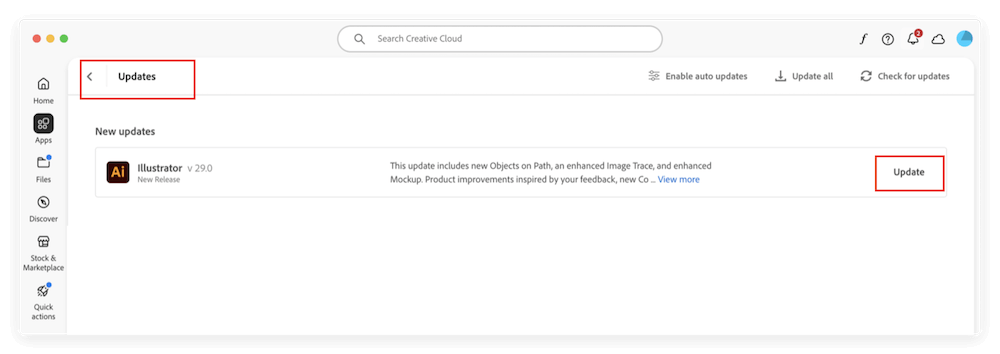
If you're using an older perpetual license version (e.g., CS6), consider upgrading to a supported Creative Cloud plan to ensure compatibility.
One of the quickest yet most effective ways to fix recurring crashes, freezing, or strange behavior in Adobe Illustrator is to reset the preferences. Illustrator stores a wide range of user-specific settings, including:
Over time, these settings can become corrupted due to unexpected shutdowns, software conflicts, or incompatible updates. A corrupted preferences file may cause Illustrator to:
Resetting preferences restores Illustrator to factory defaults, eliminating any corrupted files or conflicting settings that might be causing instability. While this step sounds drastic, it often resolves persistent problems without requiring a full software reinstall.
When Should You Reset Illustrator Preferences?
Consider resetting preferences if:
💡 Tip: Always back up your work and export custom assets like brushes, swatches, and templates before resetting preferences to avoid losing them.
Reset Preferences (Quick Method):
A prompt will ask to reset settings — confirm to proceed.
Manual Reset:
Alternatively, delete the preferences folder manually:
If you can access the Preferences within the program, you can directly click the Reset Preferences button.
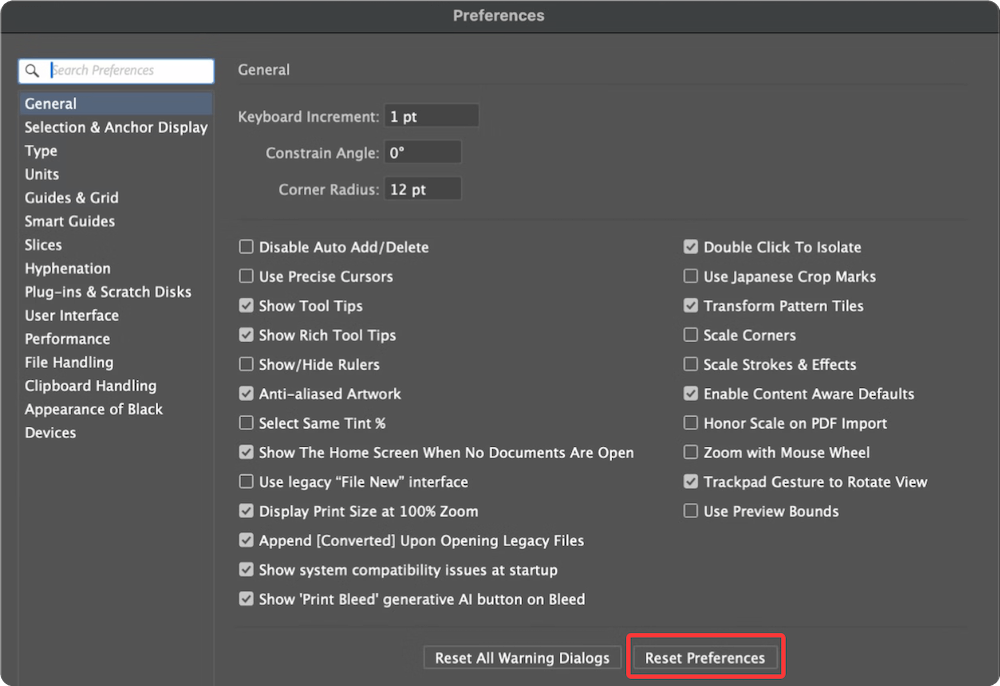
💡 Note: Resetting preferences will restore Illustrator to factory settings. Save your custom brushes, swatches, or workspaces beforehand.
After Reset — Restoring Your Workspace
Once preferences are reset:
If you exported your workspace or custom libraries previously, re-import them through:
Window > Workspace > Manage Workspaces
Or
Window > Swatches / Brushes / Symbols > Other Library
Taking the time to customize your workspace again ensures a comfortable and efficient environment while maintaining stability.
Third-party plugins, though useful, can destabilize Illustrator.
Steps to Test Plugins:
Illustrator utilizes GPU acceleration for improved performance. Outdated or incompatible drivers can cause crashes, especially when working with complex graphics.
Update Your Drivers:
After updating, restart your computer and test Illustrator.
Running heavy apps alongside Illustrator can exhaust system resources, leading to crashes.
Here Are Some Optimization Tips:
On macOS, clear cached and junk files, or run system cleanup utilities for better performance.
If crashes persist despite updates and resets, a clean reinstall may resolve hidden conflicts or corrupted files. Here are the steps:
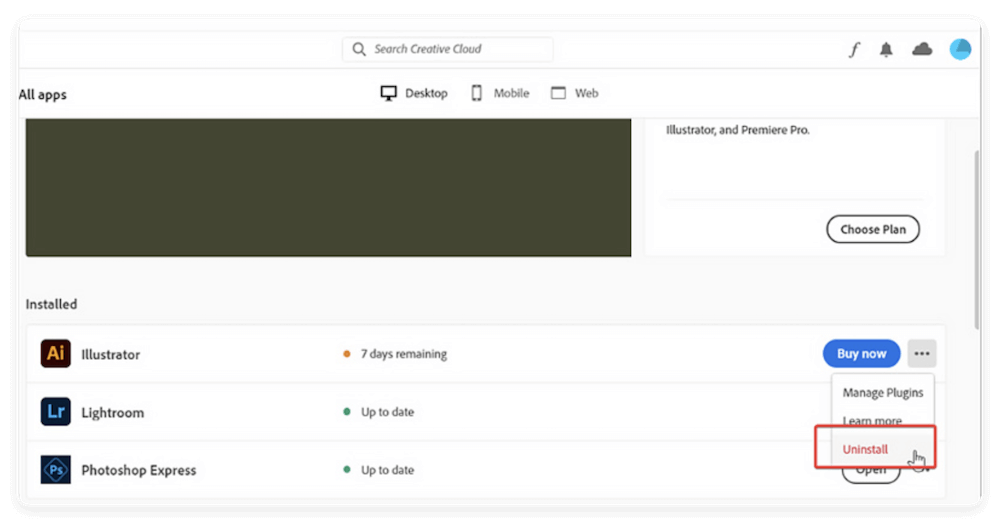
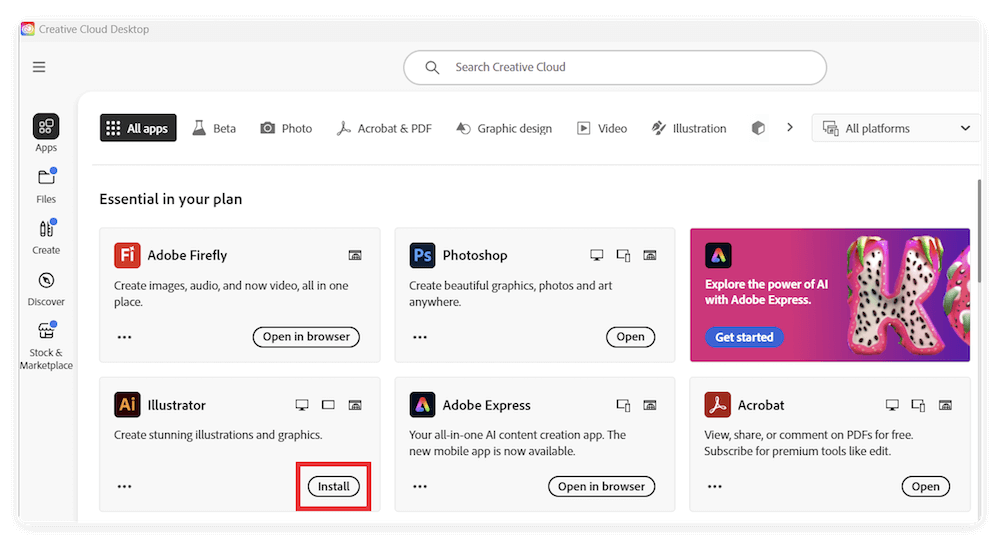
This ensures a fresh, conflict-free setup.
Lack of permissions can cause unexpected behavior.
If this resolves the crashes, adjust the shortcut's properties to always launch with admin rights.
Sometimes, specific .ai or .eps files may be corrupted, causing crashes when opened.
What to Do:
If Illustrator continues to crash after applying all solutions, contact Adobe Support and prepare the following:
Contact options:
Data loss may happen after Adobe Illustrator crashing, for example, the editing files were not saved, or some related files were removed. If the files were not backed up or not auto-saved, you can still try to recover the lost files with data recovery software, such as Donemax Data Recovery.
It's simple to recover deleted or lost files with the software. Here is a short guide:
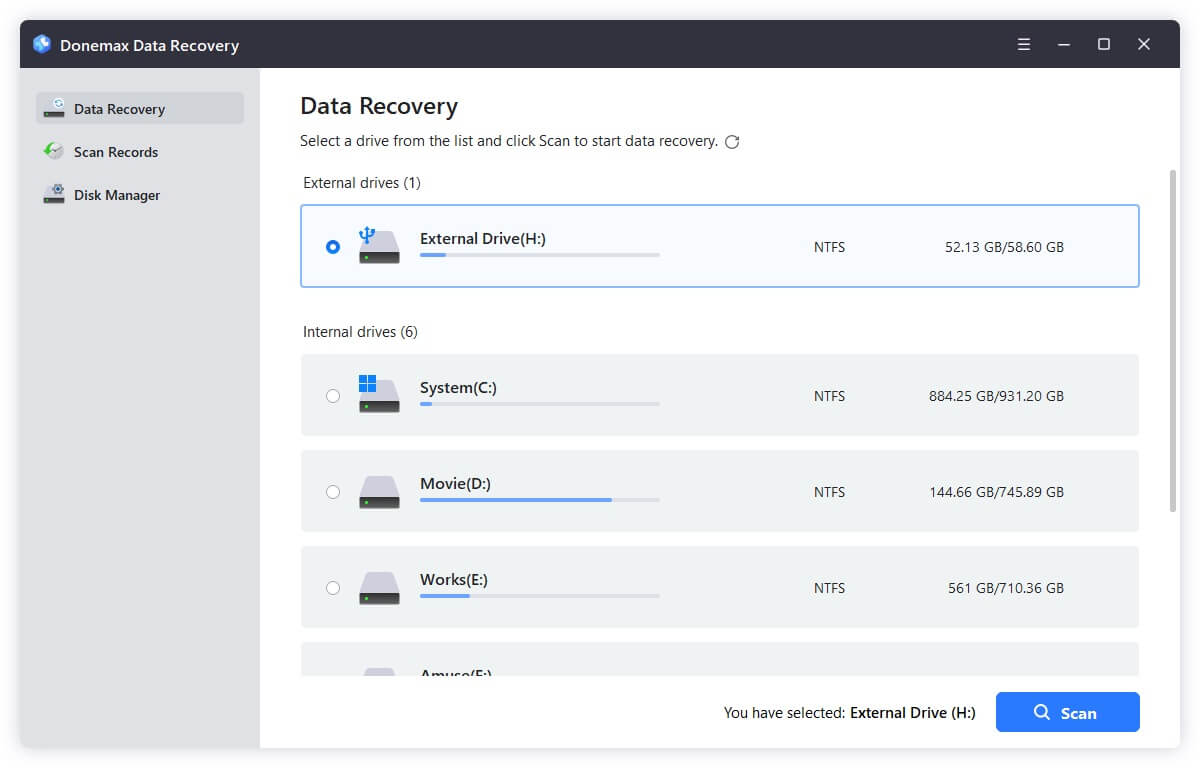
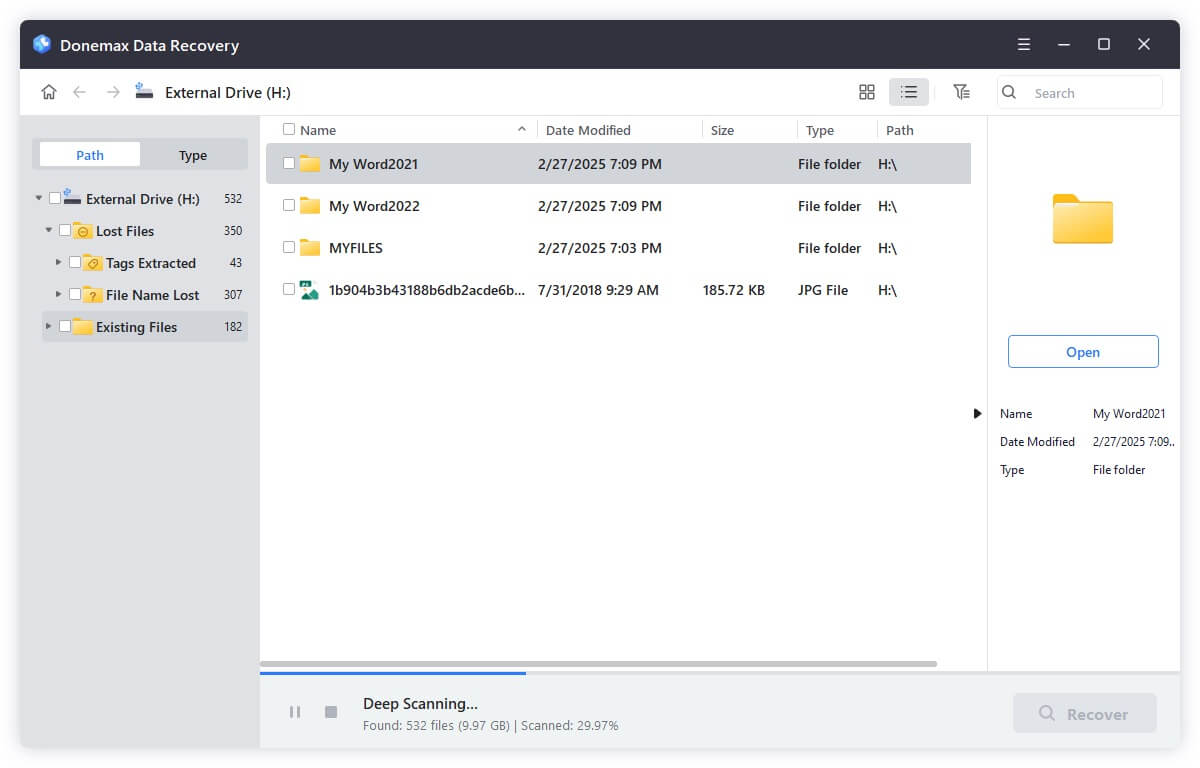
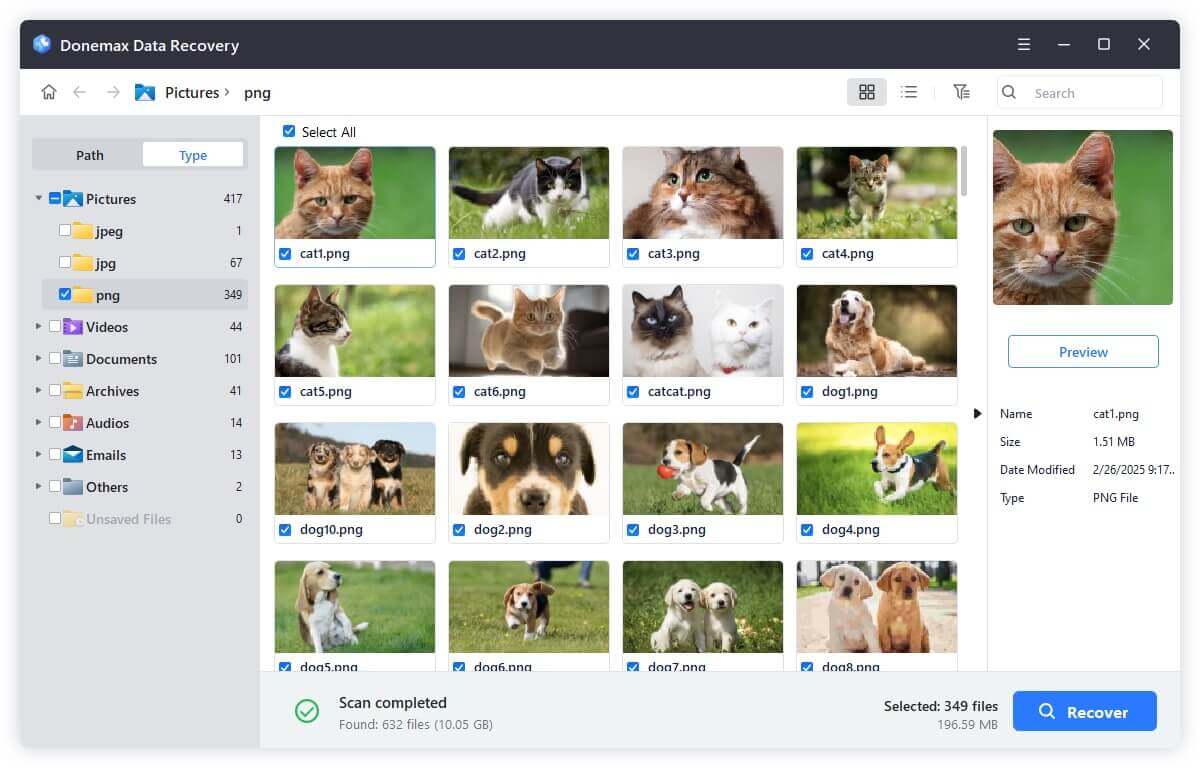
Here are some tips to make the Illustrator stable and avoid data loss:
Crashing issues in Adobe Illustrator can be disruptive, especially during creative workflows or client projects. However, most problems can be fixed by:
Staying proactive with software updates, backups, and regular maintenance significantly reduces the risk of unexpected Illustrator crashes. If all else fails, Adobe's support team can provide advanced diagnostics and solutions tailored to your setup.
With these steps, you can restore Illustrator's stability and focus on what matters most—your creative work.
Donemax Data Recovery
Powerful, safe & easy-to-use data recovery software. Easily and completely recover deleted, formatted, or other lost data. The tool supports PC, Mac, HDD, SSD, USB drive, camera, SD card, RAID and other storage devices.
Coco Lin
Coco has been a writer and a chief programmer at Donemax software since 2018. Over 10 years of experience of writing troubleshooting articles in the software industry, she is passionate about programming and loves to providing solutions to Windows and Mac users. Also she enjoys music and palying tennis in her free time.
Gerhard Chou
In order to effectively solve the problems for our customers, every article and troubleshooting solution published on our website has been strictly tested and practiced. Our editors love researching and using computers and testing software, and are willing to help computer users with their problems
Clone hard drive with advanced clone technology or create bootable clone for Windows/Mac OS.
Completely and easily recover deleted, formatted, hidden or lost files from hard drive and external storage device.
Certified data erasure software - permanently erase data before selling or donating your disk or any digital device.