Written byMariaUpdated on Sep 18, 2026

Before we start: Before fixing WD external hard drive not detected or not not recognized, you can use data recovery software - such as Donemax Data Recovery to recover lost/inaccessible files from the drive and save the files to another drive.
PAGE CONTENT:
Western Digital (WD) external hard drives are among the most popular storage solutions for various functions between devices. However, users may sometimes encounter an issue where their WD external hard drive is not recognized by their computer. Whether the problem is due to hardware, software, or configuration errors, we will cover all possible causes and solutions to get your drive working again.
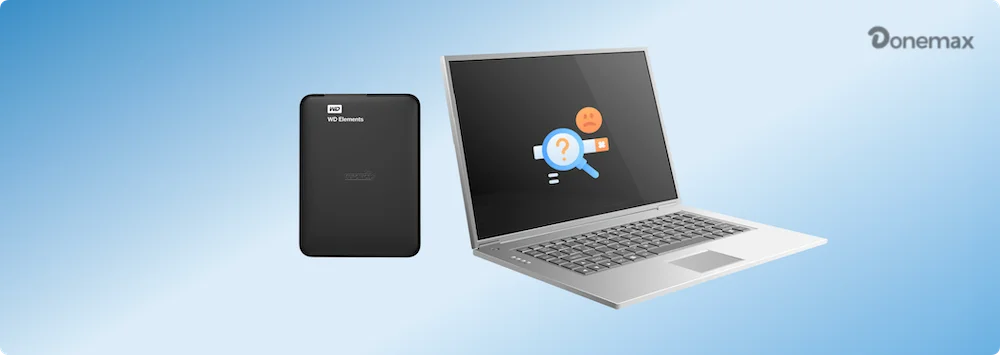
Prior moving into the fixes, it is beneficial to understand why your drive might not be recognized by your system. Some of the most common reasons include:
Before attempting advanced solutions, check USB Connection:
Before fixing unrecognized WD external hard drive on Windows PC or Mac, you can use data recovery program - such as Donemax Data Recovery to recover all lost/inaccessible files.
Step 1. Donemax Data Recovery is able to completely recover files from your WD external hard drive. Just download and install it on your computer.
Step 2. Open Donemax Data Recovery, select the WD external hard drive to start data recovery.
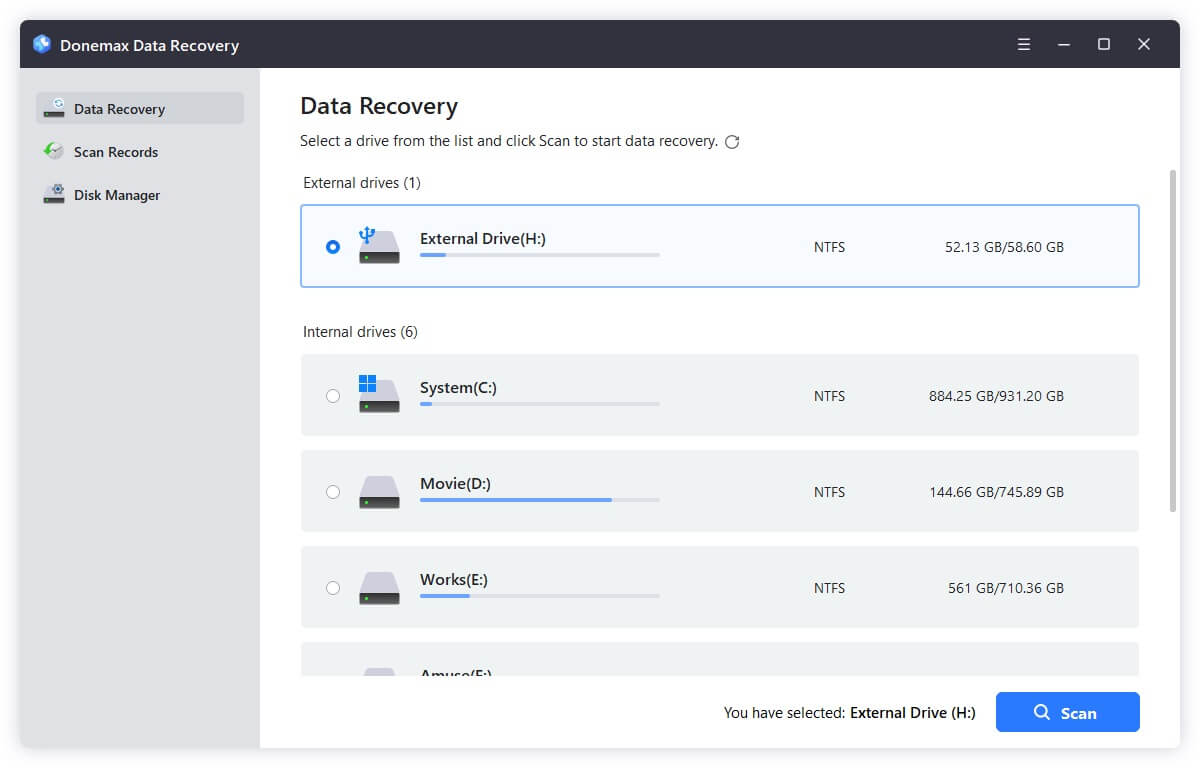
Step 3. Click on Scan button to deeply scan the WD external hard drive and find all existing files, deleted/formatted/lost files, inaccessible files, etc.
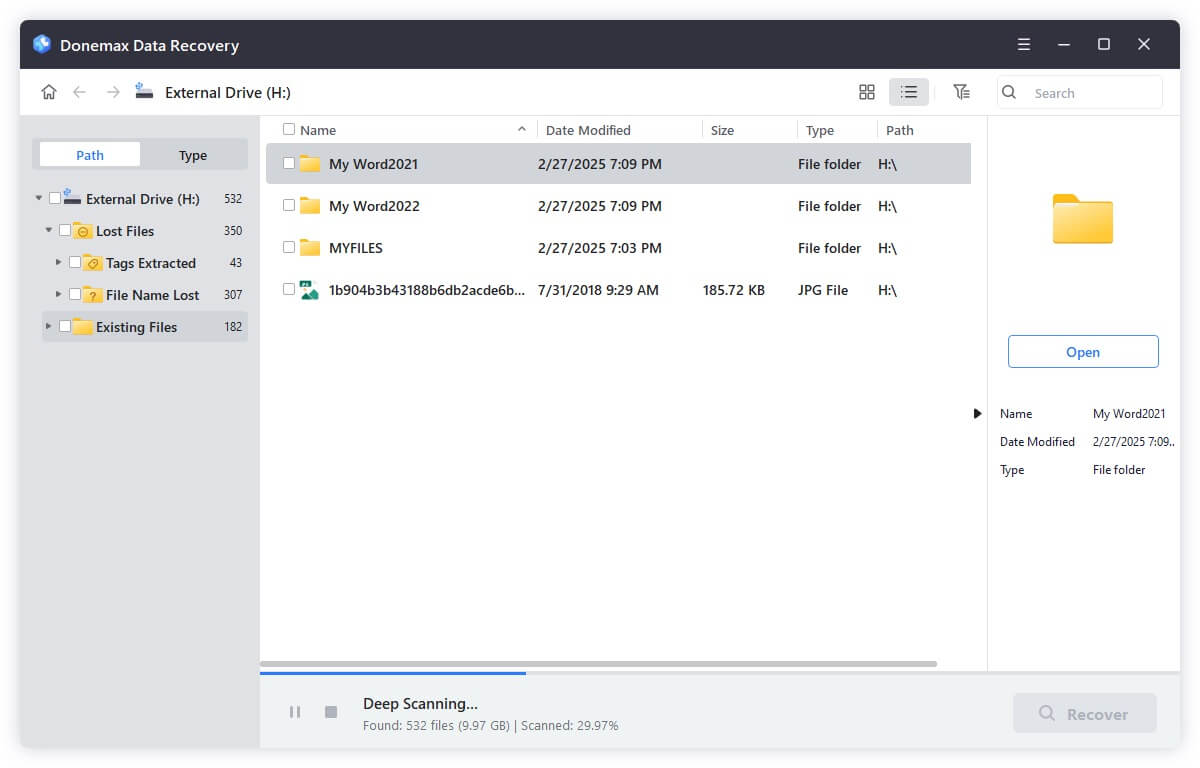
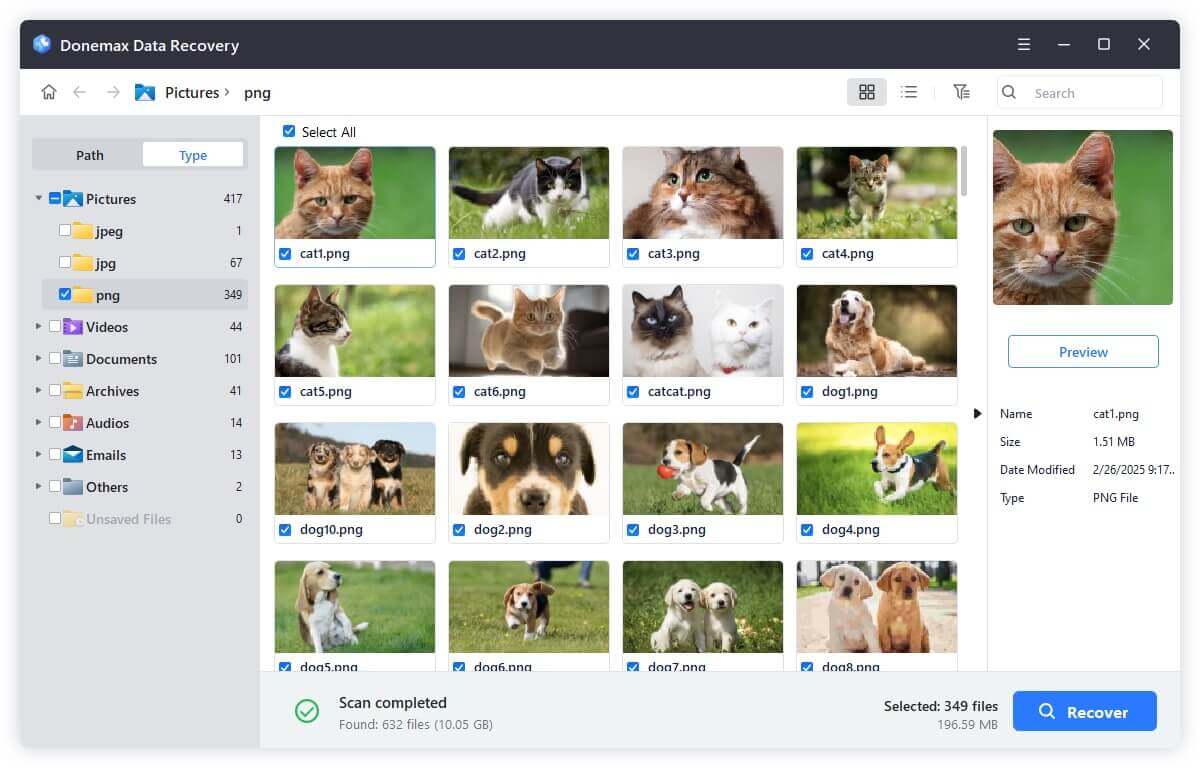
Step 4. Once the scan is completed, you can preview all recoverable files. Then select the wanted files, click on Recover button to save them.
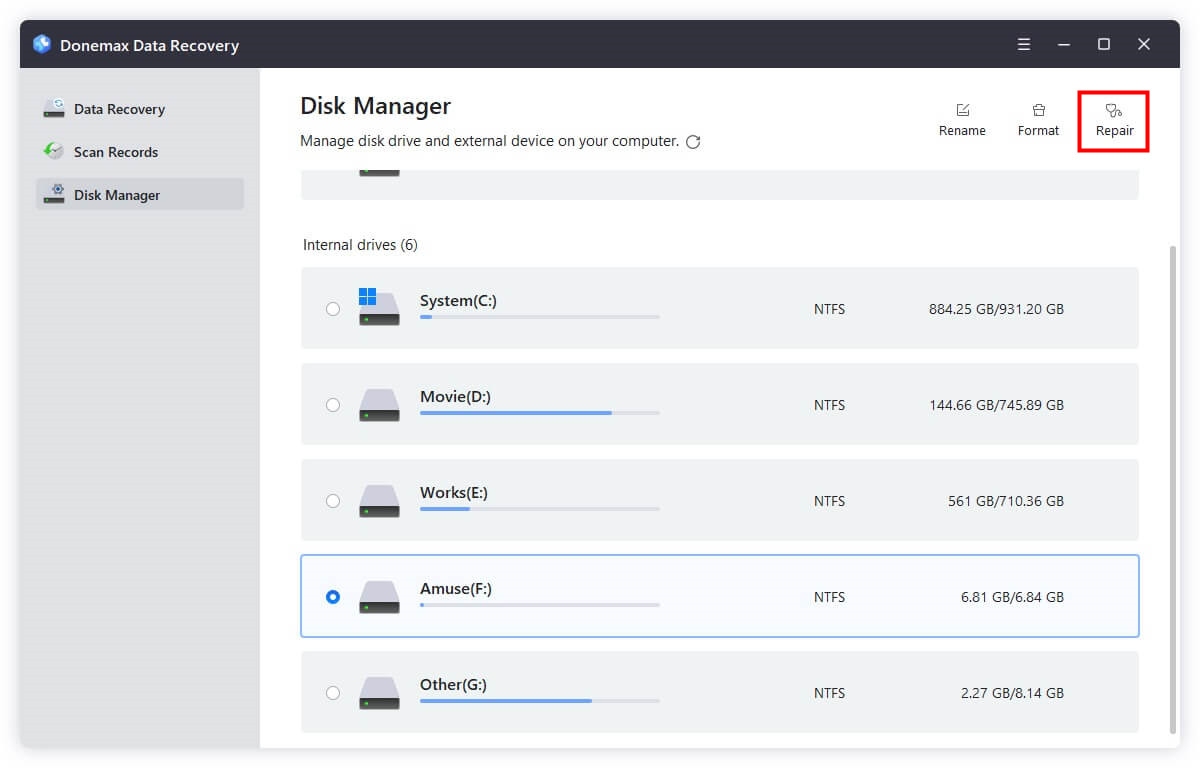
Donemax Data Recovery is able to repair damaged WD external hard drive on Windows or macOS. After data recovery, choose Disk Manager, then select the WD external hard drive, click on Repair button.
If your WD drive is still not recognized after basic troubleshooting, you need to try more in-depth solutions. Below are several methods to resolve the issue, with step-by-step instructions.
Obsolete drivers can prevent your WD external hard drive from being detected by Windows. Updating or reinstalling drivers can help resolve this issue.
Steps to Update Drivers:
Step 1. Choose Device Manager from the menu by pressing Win + X.
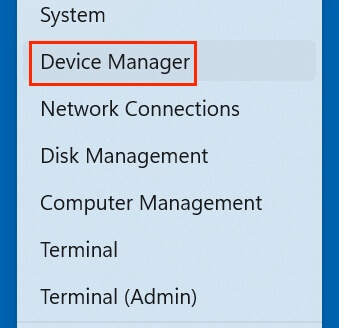
Step 2. Expand Disk drives and look for your WD external hard drive.
If you don't see it, check under Universal Serial Bus Controllers or Unknown Devices.
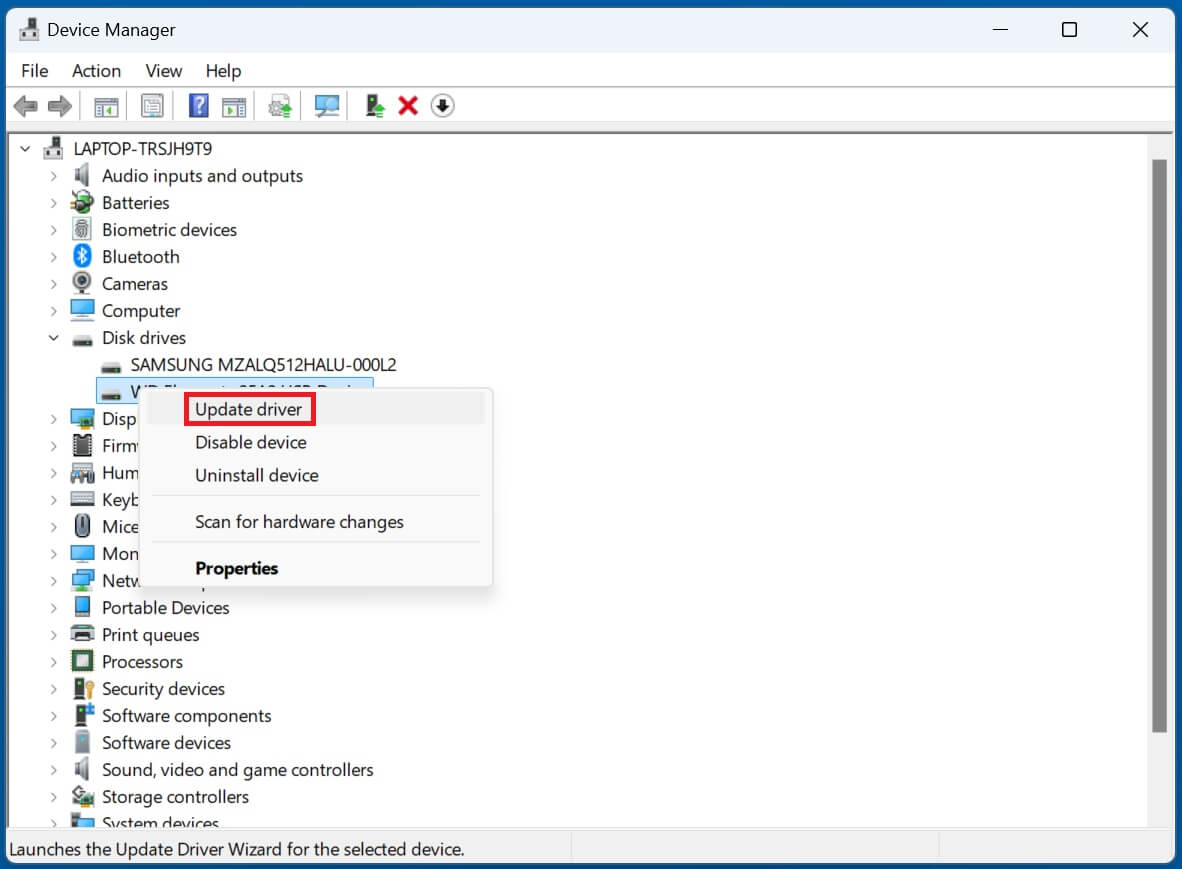
Step 3. To update the driver, right-click on the WD drive and choose Update driver.
Select "Search automatically for drivers" to find the most recent driver software.
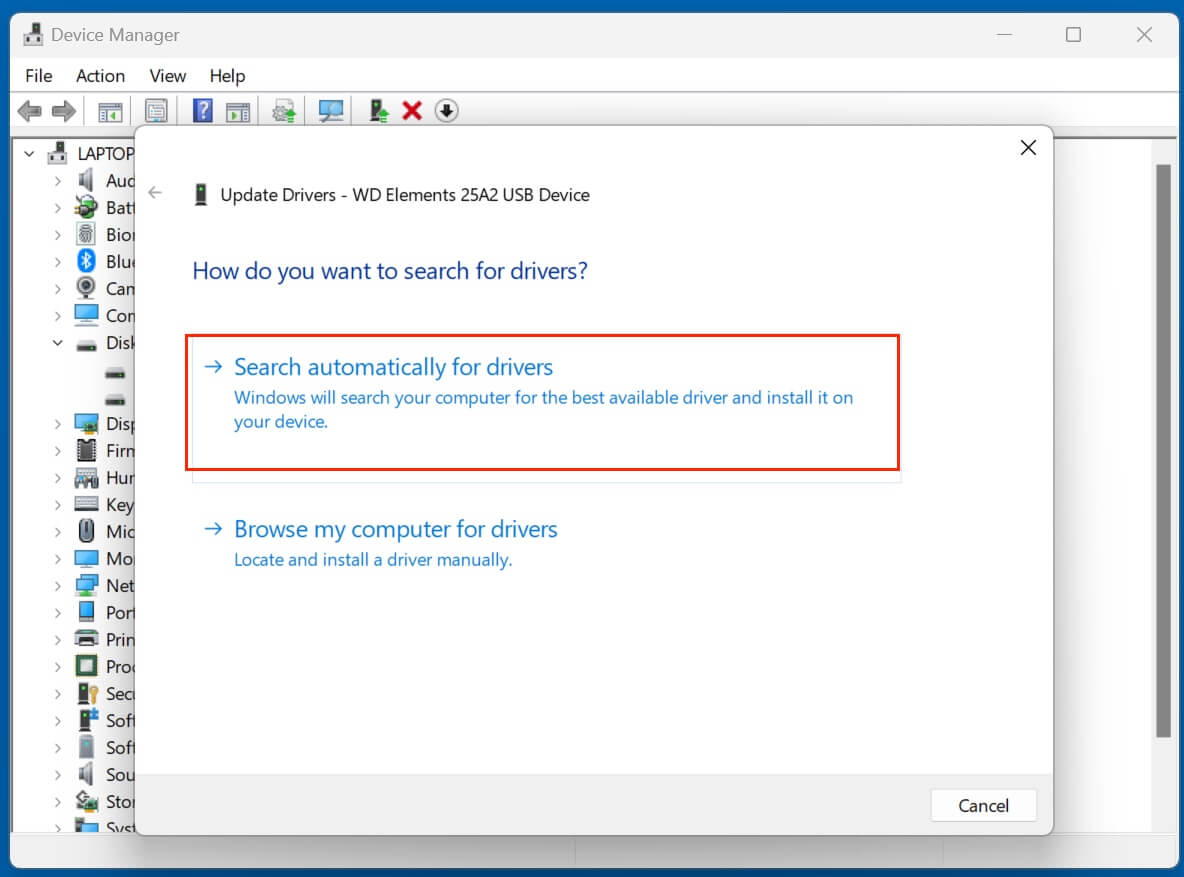
If an update is available, follow the on-screen instructions to install it.
Steps to Reinstall Drivers (If Updating Fails):
Step 1. Right-click the WD external hard drive in Device Manager, then choose Uninstall device.
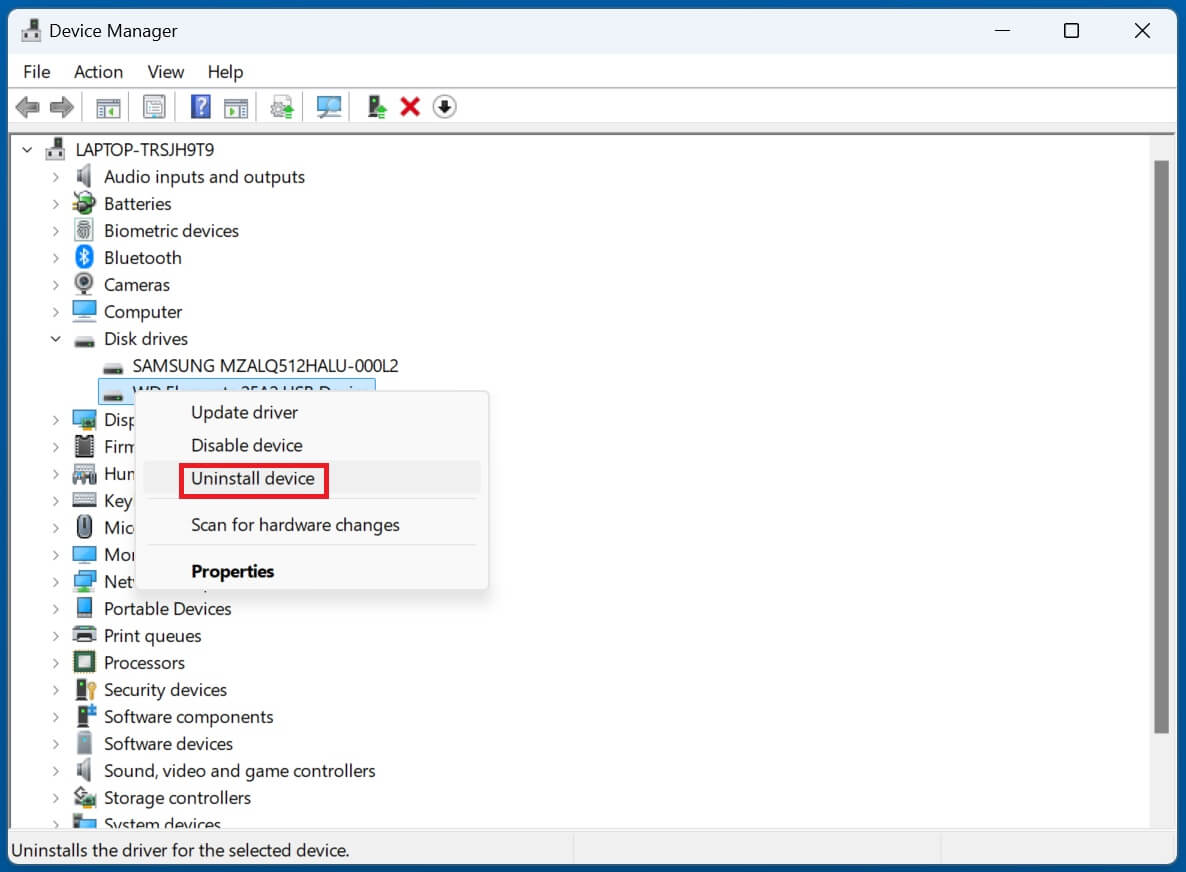
Click Uninstall after checking the box to remove the device's driver software.
Step 2. After rebooting, Windows should automatically reinstall the drivers.
If the device is still not recognized, manually install the driver from the WD Support Website.
Sometimes, the external hard drive is detected but not assigned a drive letter, making it invisible in File Explorer. Assigning a letter manually can fix the issue.
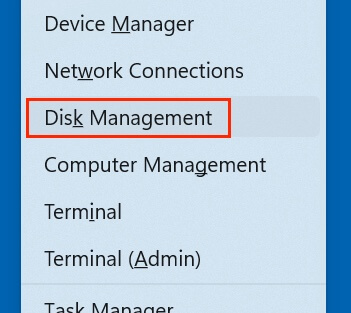
Step 1. Choose Disk Management by pressing Win + X.
Step 2. Right-click the drive and choose Change Drive Letter and Paths if it doesn't have a letter on it.
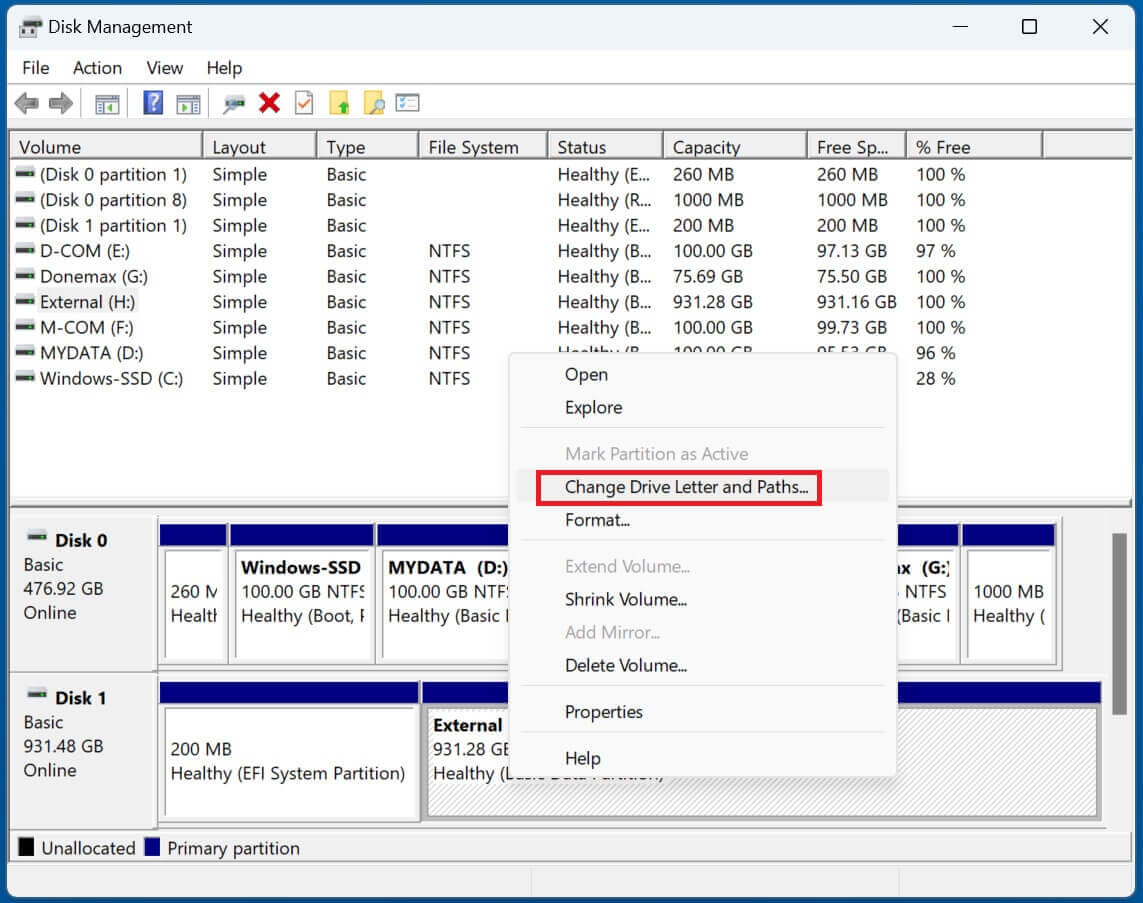
Step 3. Click Add, then choose a drive letter (e.g., "E" or "F" "G" "H"). Click OK to confirm.
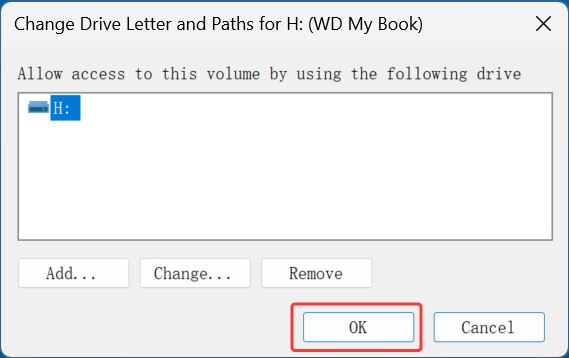
Step 4. Verify that File Explorer can now see the drive.
If your WD external hard drive is detected but inaccessible, it may have file system errors. Running disk repair tools can fix corrupted sectors.
Windows (Using CHKDSK Command):
Step 1. Type cmd, press Win + S, and choose Run as administrator.
Step 2. Type the command below and press Enter:
chkdsk X: /f /r /x (Replace X with your external hard drive's letter.)
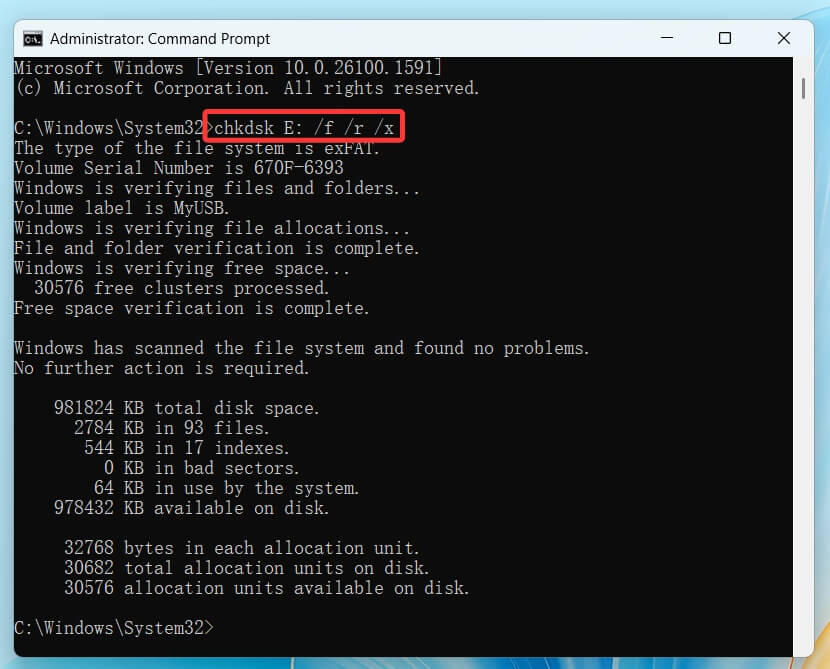
Step 3. The size and condition of the drive will determine how long this operation takes.
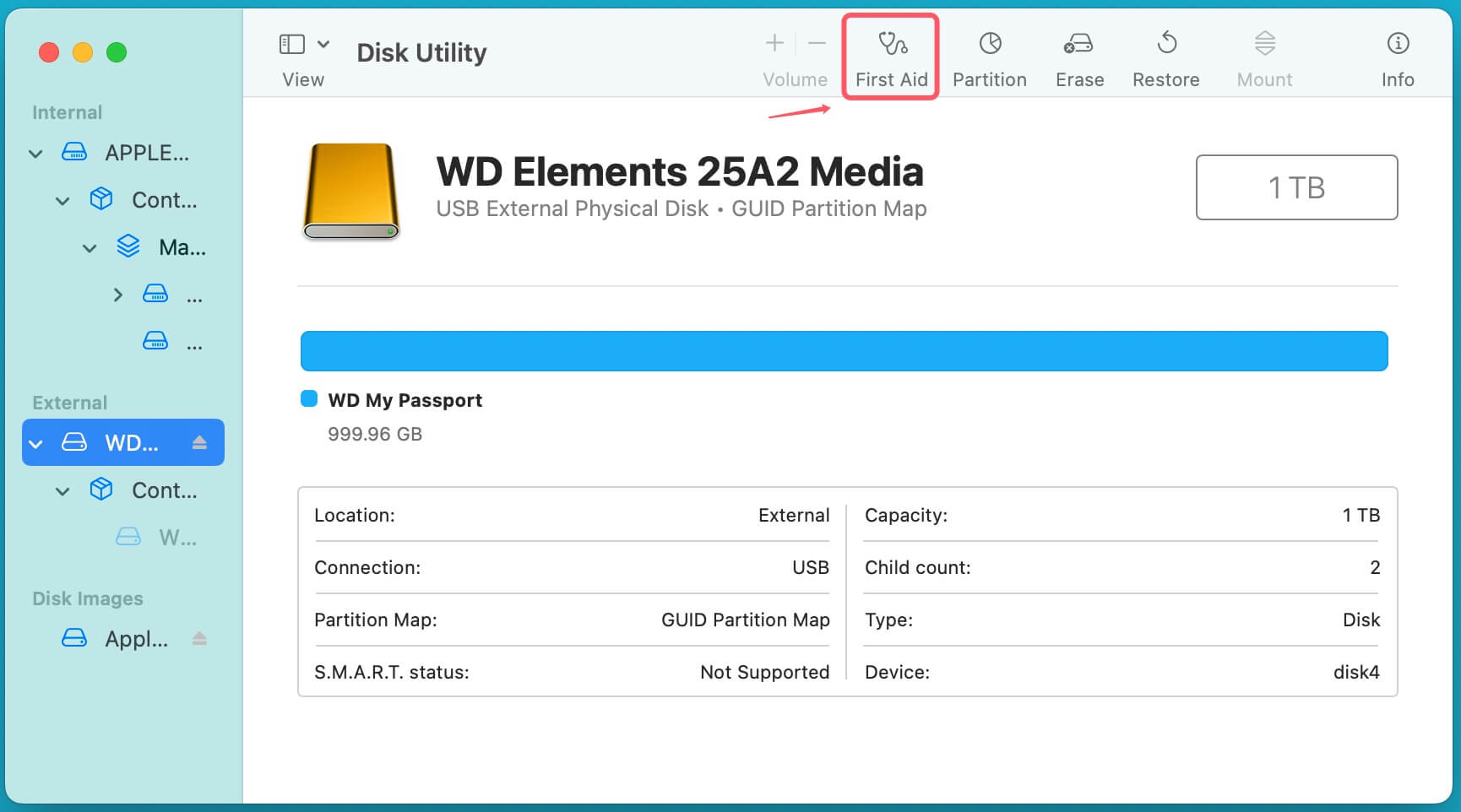
Mac (Using Disk Utility First Aid):
Step 1. Go to Disk Utility from Utilities via Applications.
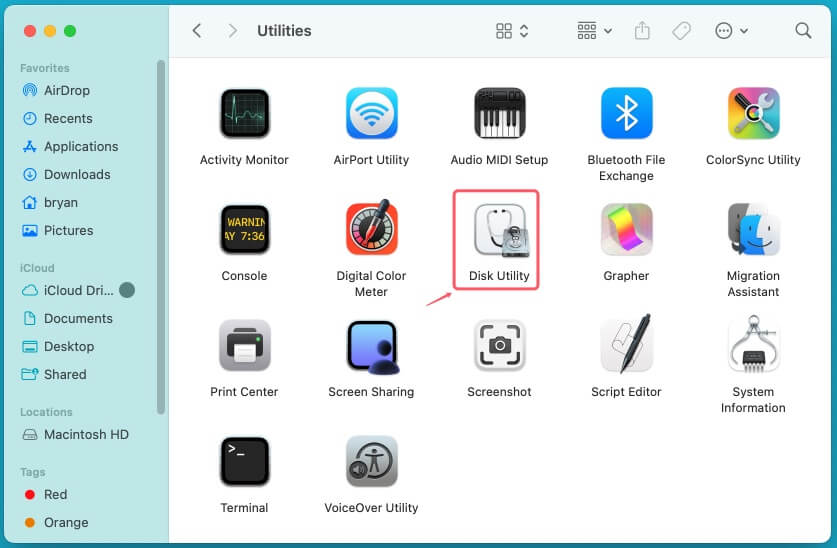
Step 2. Select the WD external hard drive, click First Aid, then select Run to check and repair disk errors.
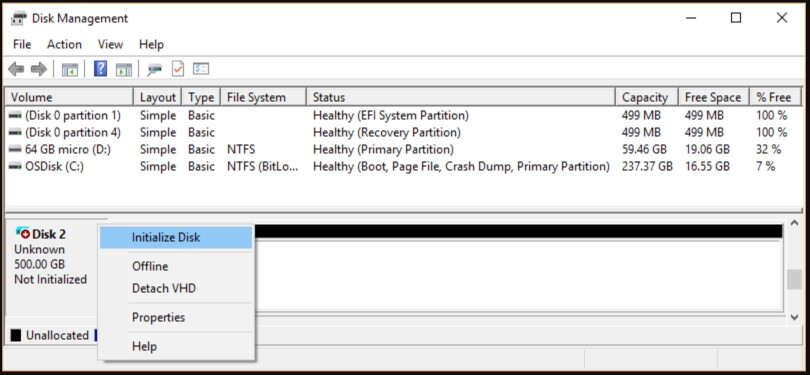
If your WD external hard drive appears as RAW or Unallocated, it may need to be initialized and formatted.
Steps to Format the Drive in Windows:
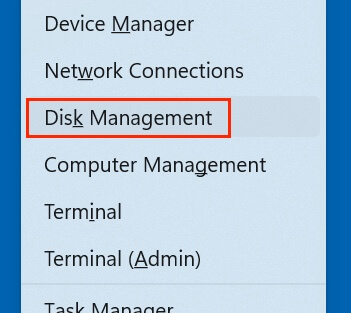
Step 1. Choose Disk Management by pressing Win + X.
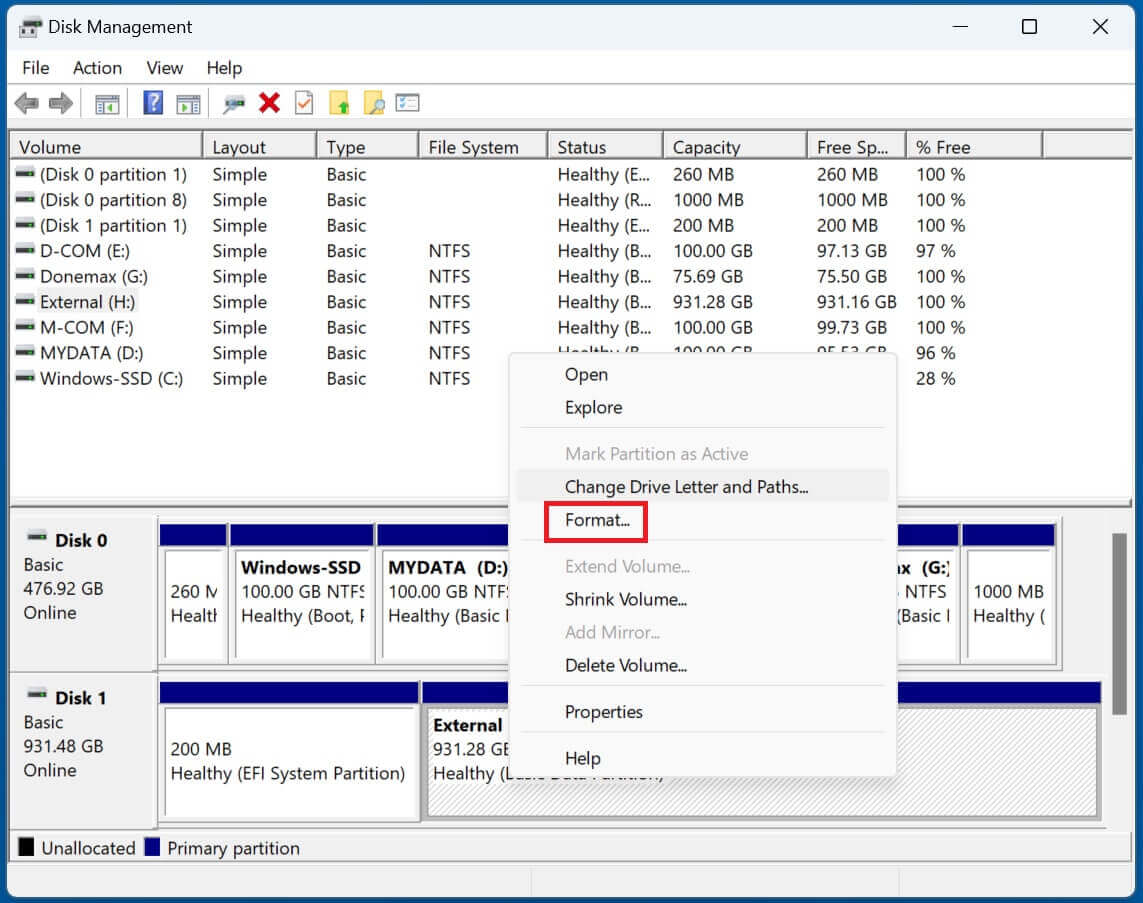
Step 2. If the drive is listed as RAW or Unallocated, select Format or New Simple Volume.
If it is not initialized, right-click and select Initialize Disk first.
Step 3. Select NTFS for Windows-only use or exFAT for compatibility with Mac and Windows.
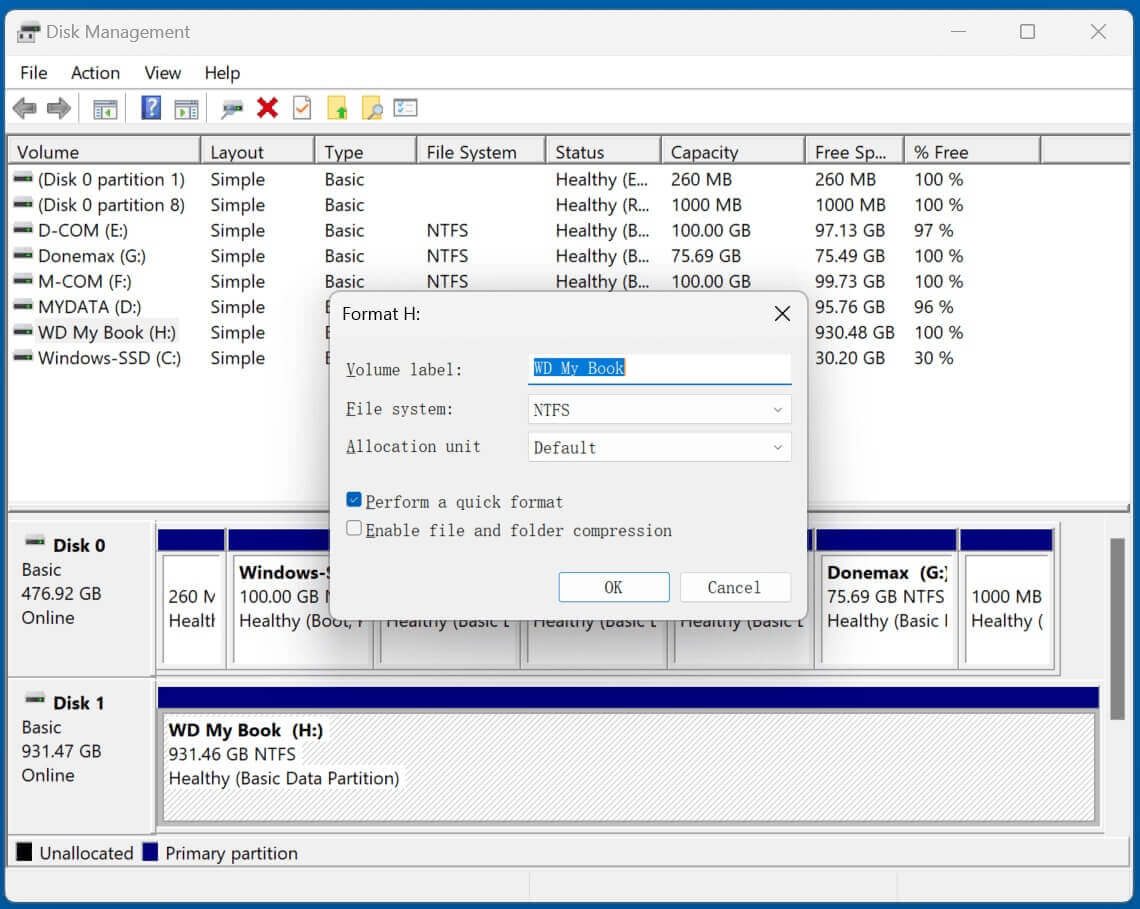
Step 4. After selecting OK, watch for the formatting procedure to finish.
Steps to Format the Drive in Mac:
Step 1. Open Disk Utility from Utilities via Applications.
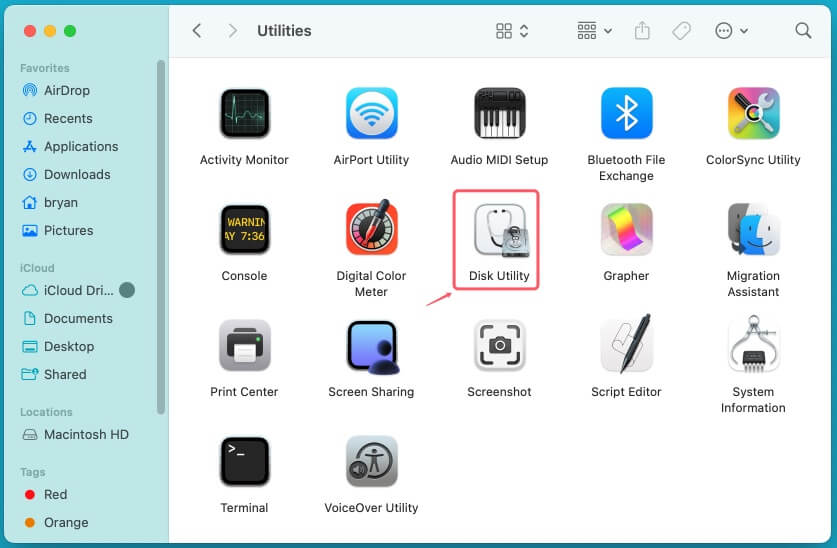
Step 2. Select the drive and Click Erase. Choose a Format:
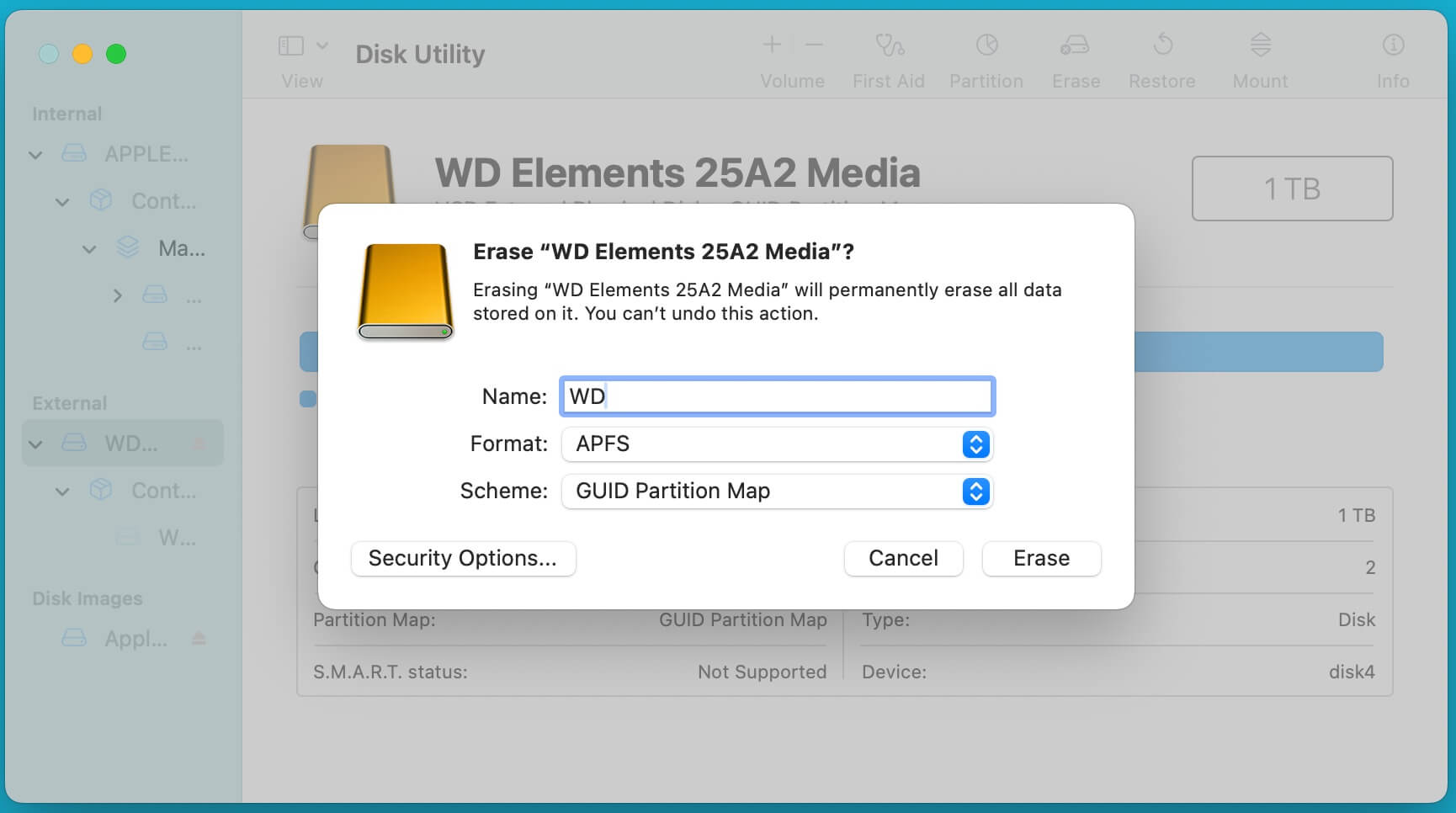
Step 3. Click Erase and Confirm the Process.
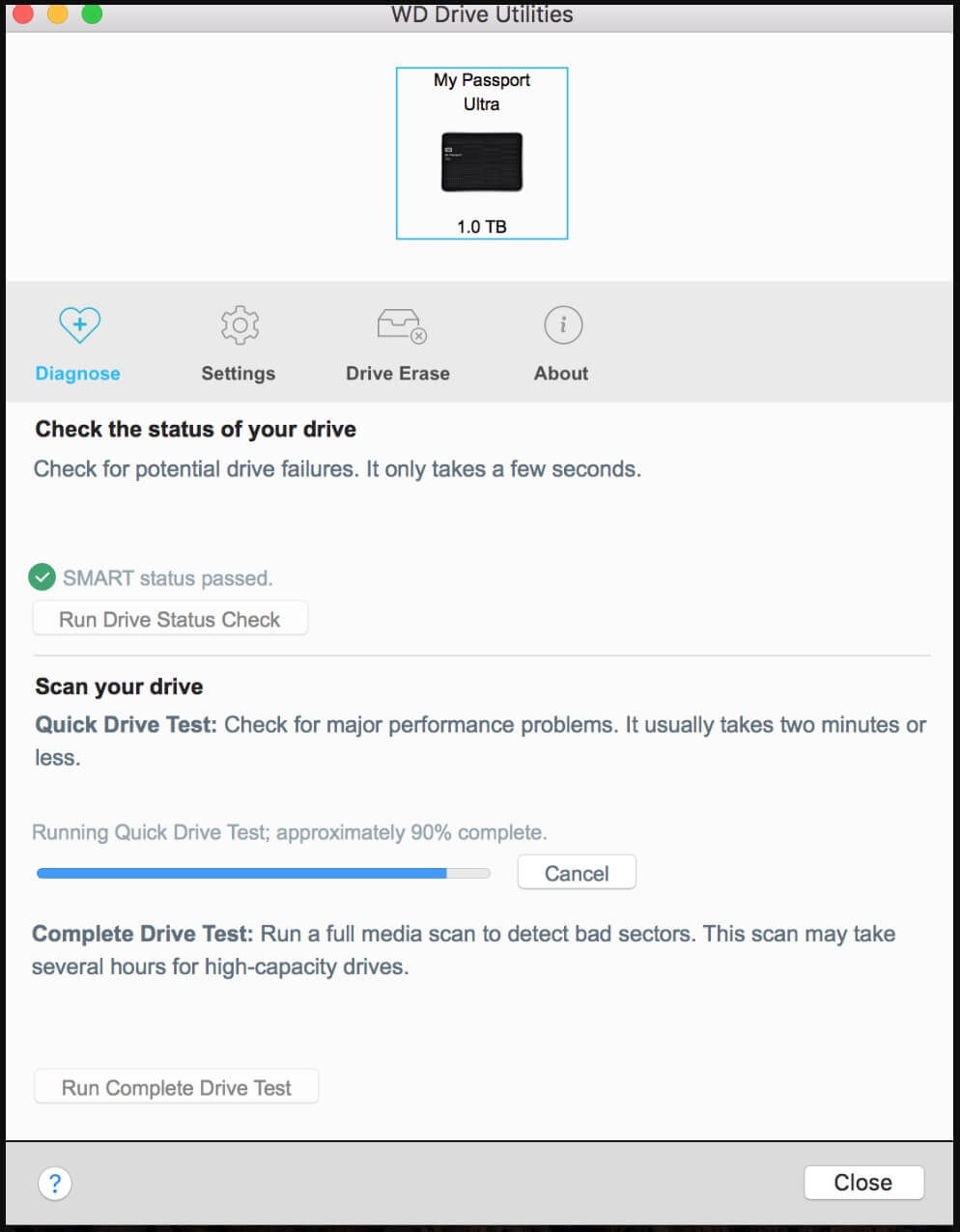
WD provides firmware updates and diagnostic tools that can help fix detection issues.
1. Update WD Firmware
2. Use WD Drive Utilities
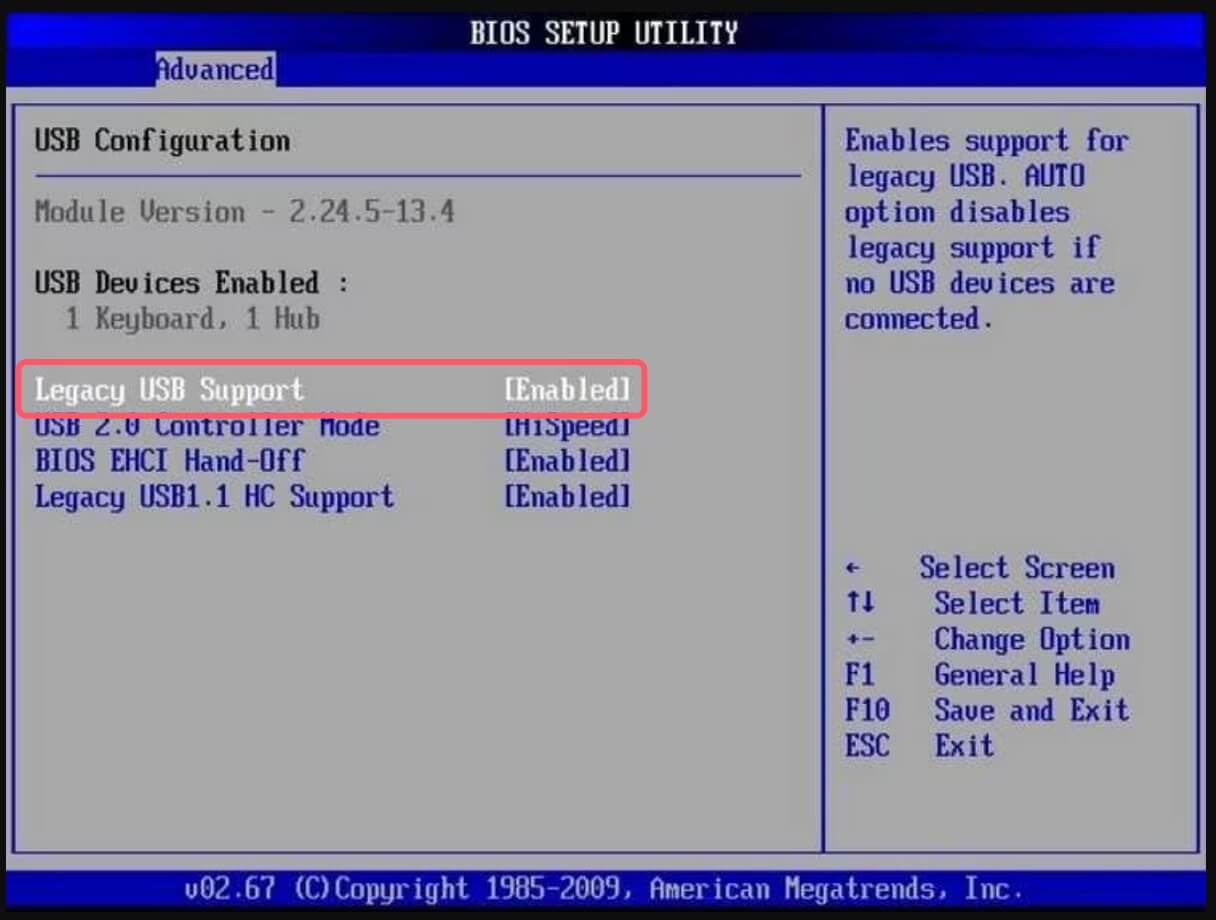
If the WD external hard drive isn't detected at all, it might not be enabled in the BIOS.
A WD external hard drive not being recognized can be due to various reasons, including hardware issues, driver conflicts, or file system corruption. By complying the troubleshooting steps described in this article guide, you should be able to diagnose and fix the issue effectively.
If the drive is still not recognized, consider seeking expert help to recover important data. Always maintain regular backups and take preventive measures to avoid such issues in the future.
Donemax Data Recovery
One of the best data recovery programs to recover deleted, formatted or lost data from PC, Mac, HDD, SSD, USB drive, SD card, camera, RAID, Sever or other storage devices.
Maria
Maria is one of the senior writers & editors of Donemax who lives and works in Sydney, Australia. She loves PC, Mac and Internet Technology. She has 6 years of writing articles about data recovery on PC/Mac, disk cloning solution, data eraser and computer OS optimization, etc. She is also interested in testing various software and digital products.
Gerhard Chou
In order to effectively solve the problems for our customers, every article and troubleshooting solution published on our website has been strictly tested and practiced. Our editors love researching and using computers and testing software, and are willing to help computer users with their problems
Clone hard drive with advanced clone technology or create bootable clone for Windows/Mac OS.
Completely and easily recover deleted, formatted, hidden or lost files from hard drive and external storage device.
Certified data erasure software - permanently erase data before selling or donating your disk or any digital device.