Written byCoco LinUpdated on Dec 03, 2025

Before we start: When data loss happened while resetting your PC, don't hesitate to use the trusted tool Donemax Data Recovery to rescue the missing files. The software is effective to recover deleted or lost files in any data loss scenario.
PAGE CONTENT:
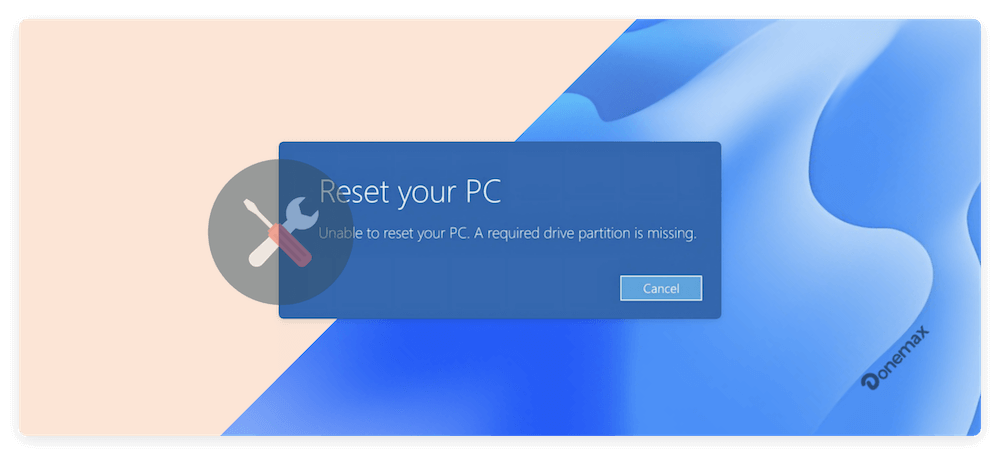
When attempting to reset your Windows computer, encountering the message "Unable to reset your PC. A required drive partition is missing" can be frustrating and alarming. This error prevents you from performing a system reset, which is often necessary to resolve critical system failures, malware infections, or performance issues.
In this comprehensive guide, we'll explain why this error occurs and provide step-by-step instructions to resolve it safely, whether you're using Windows 11, 10, 8, or 7.
The message "A required drive partition is missing" typically means that your system is unable to locate essential partitions needed to complete the reset process. Windows depends on various partitions, such as:
If any of these partitions are missing, corrupted, or improperly configured, Windows cannot proceed with the reset operation.
★ Common Causes of the Error
Understanding the root cause is the first step toward resolving this problem. Common reasons for the error include:
Before diving into complex solutions, perform these basic checks:
Here are several proven methods to resolve this issue:
Diskpart is a command-line utility that helps inspect and manage partitions.
Step 1. Boot from Windows Installation Media:
Insert a bootable USB or DVD with Windows setup files.
Restart your PC and boot from the installation media.
Step 2. Open Command Prompt:
To open Command Prompt on the setup screen, press Shift + F10.
Step 3. Inspect Partitions:
Type the below commands ((Assuming disk 0 is your system drive)):
diskpart
list disk
select disk 0
list partition
Ensure required partitions like System Reserved, Primary, and Recovery are present.
If key partitions are missing or sizes seem incorrect, proceed to the next methods.
If the partition structure is damaged, rebuilding it may resolve the problem.
🚨 Warning: This method risks data loss. Only proceed if you have a backup or your data recovery is complete.
Here are the steps:
select partition 1
active
exit
If partitions are entirely missing, you may need to manually recreate them, which is covered in Method 5.
Corrupted system files or bad sectors can prevent partition recognition.
sfc /scannow /offbootdir=C:\ /offwindir=C:\Windows
chkdsk C: /f /r
These commands check and repair file system errors, improving the chances of successful reset operations.
Startup Repair can fix boot-related problems, including missing partition errors.
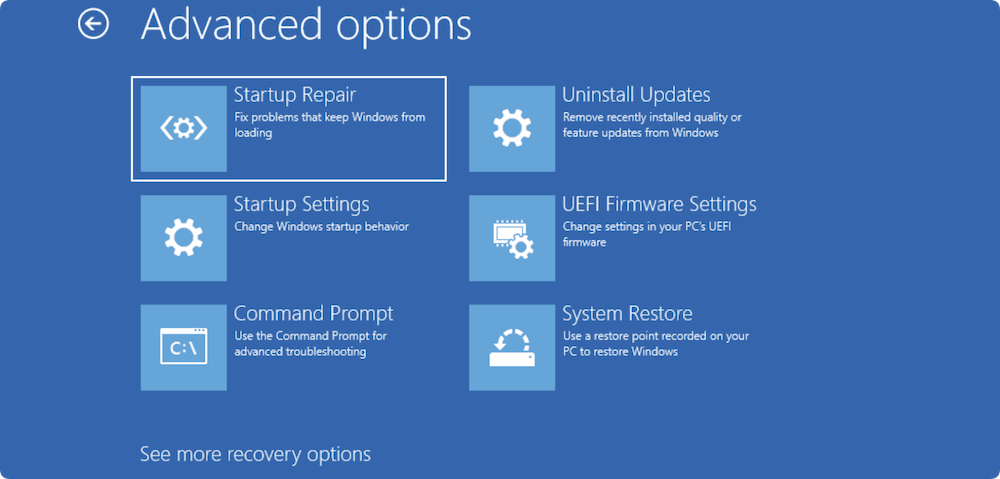
Follow the on-screen instructions. If successful, retry the reset process.
The Recovery Partition plays a crucial role in enabling the Reset this PC feature in Windows. When it's missing, corrupted, or incorrectly configured, your system loses access to essential recovery tools, leading to errors like:
"Unable to reset your PC. A required drive partition is missing."
While recreating a Recovery Partition is an advanced task, it can restore reset functionality without resorting to a full clean installation — provided the rest of your system files are intact.
Understanding the Recovery Partition
Modern Windows systems, especially those using UEFI boot mode, often include:
The Recovery Partition is typically hidden and unlettered, meaning it doesn't appear in File Explorer but is accessible to the system during troubleshooting or reset operations.
If the Recovery Partition is missing:
Using DISM to Restore Recovery Environment
If you have access to a working Windows environment:
reagentc /info
reagentc /enable
DISM /Apply-Image /ImageFile:D:\sources\install.wim /Index:1 /ApplyDir:C:\
💡 Note: Creating a recovery partition manually is complex. If uncomfortable, consider professional assistance or factory recovery options from your PC manufacturer.
Additional Tips
DISM /Apply-Image /ImageFile:X:\sources\install.esd /Index:1 /ApplyDir:R:\
When to Avoid Manual Recovery Partition Creation
In these cases, performing a clean Windows installation is safer and restores proper partition structure automatically.
If all else fails, performing a clean installation restores system functionality.
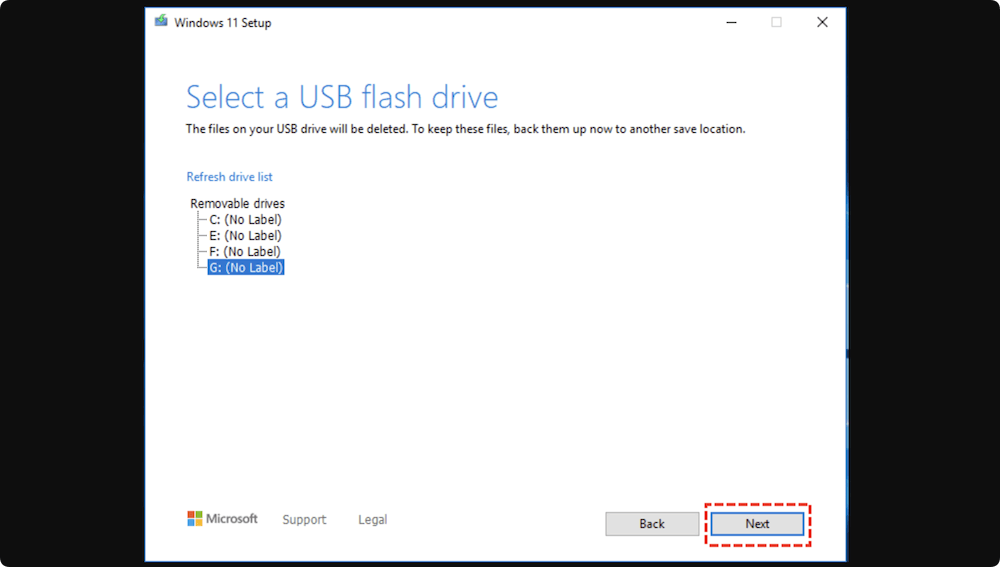
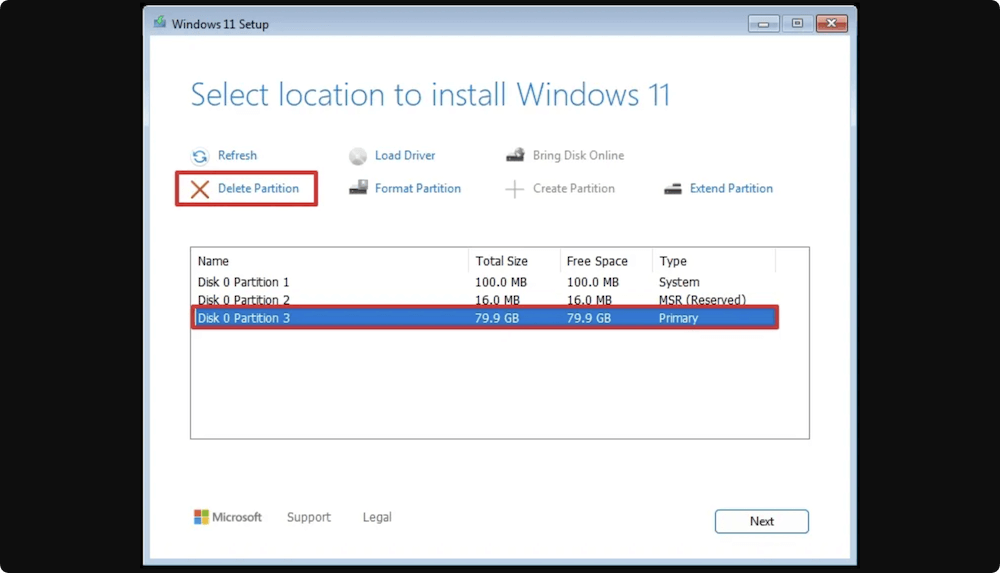
After setup, your system will have fresh partitions, eliminating previous errors.
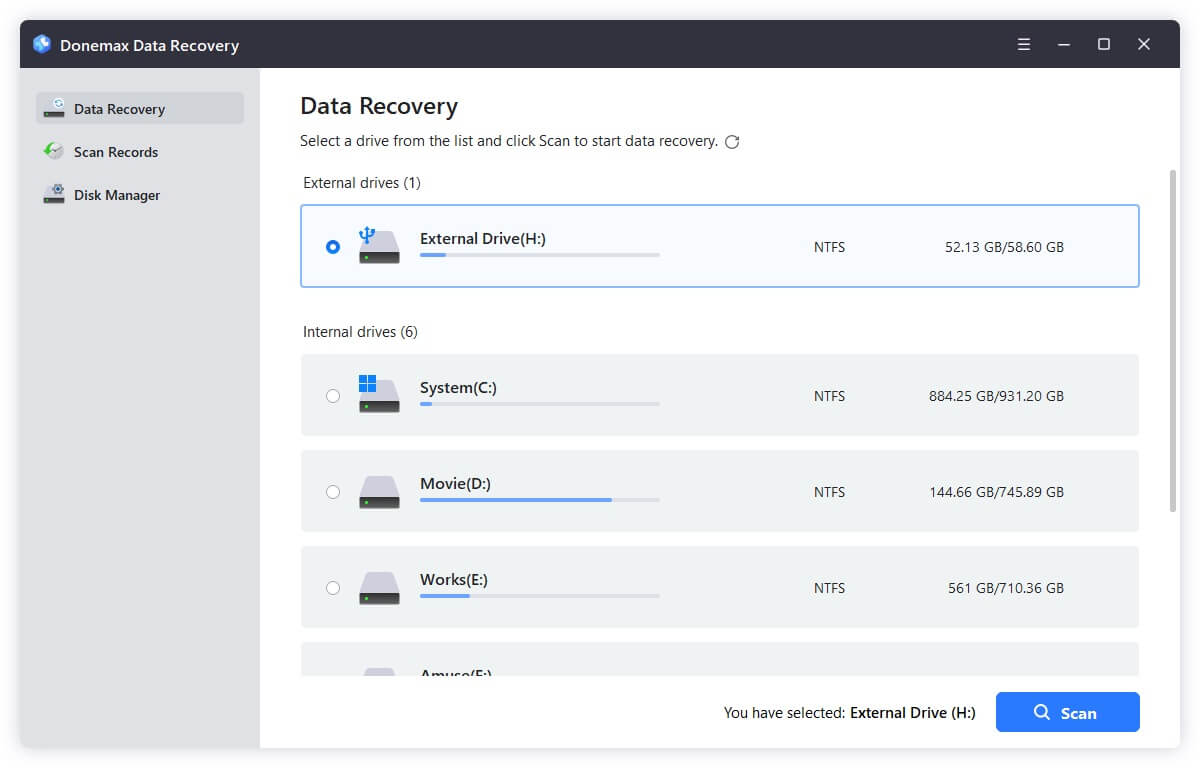
If your partitions are missing due to accidental deletion or corruption, attempt data recovery before repairs. Use trusted tools like Donemax Data Recovery.
Steps to Recover Data with Donemax Data Recovery
The software is simple with intuitive interface. You can easily handle the software to get back the lost files effectively. Here are the steps to use the software:
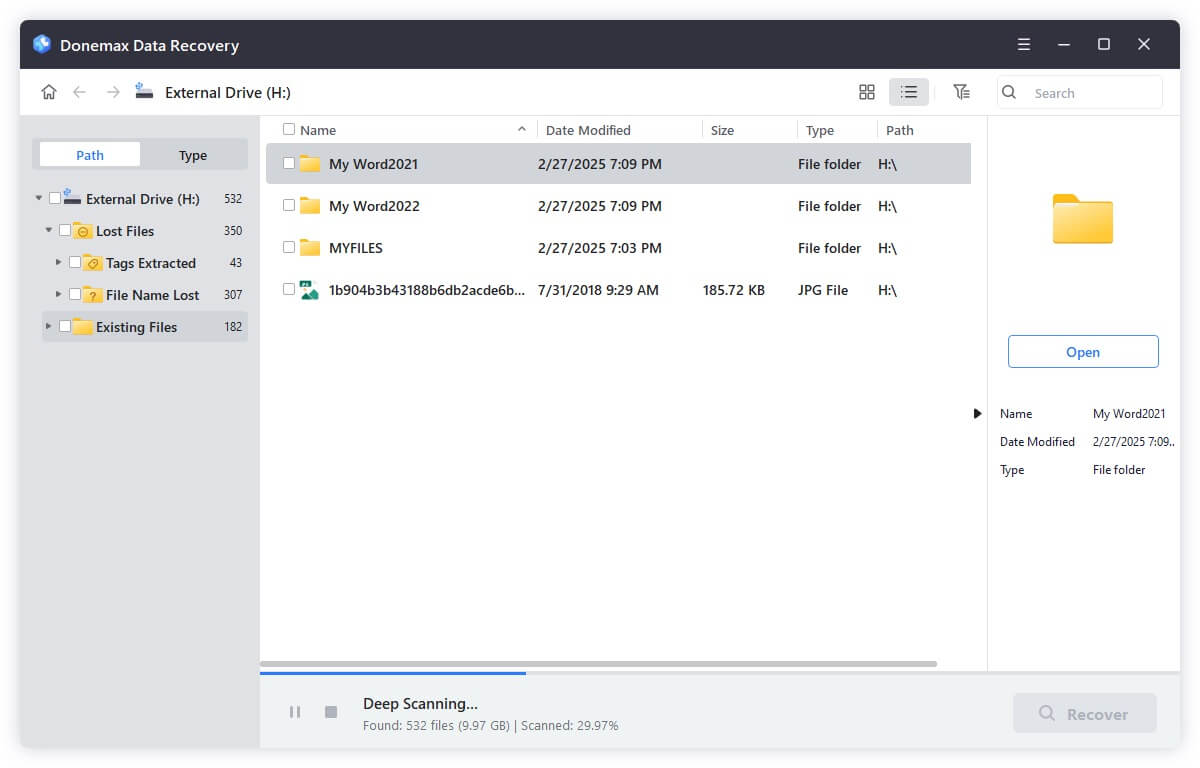
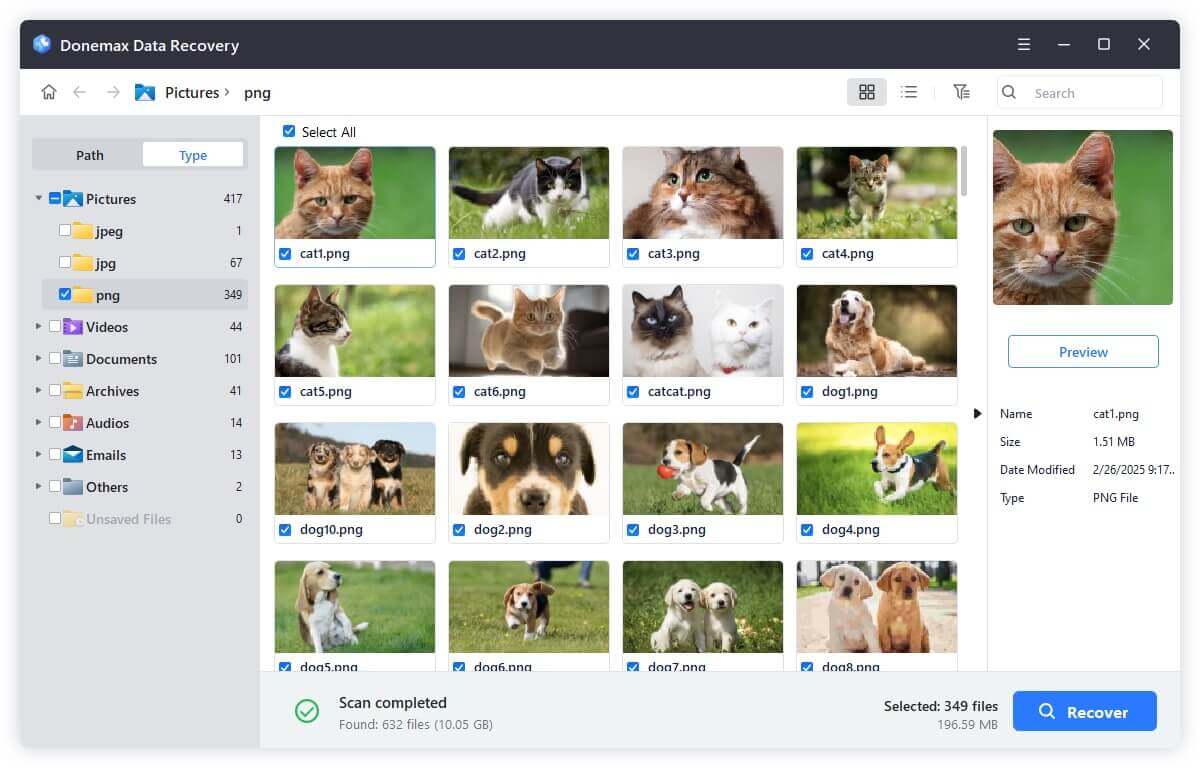
Tips for Successful Data Recovery:
Data recovery success depends on the extent of corruption and whether partitions have been overwritten.
Here are best practices to avoid encountering similar errors:
Use built-in tools like File History, third-party backup or disk cloning solutions.
Avoid unreliable third-party partition tools; only use reputable software.
Enable and create restore points before significant system changes.
Regularly check drives for errors with:
chkdsk /f /r
or use manufacturer-provided utilities for SSD/HDD diagnostics.
The "Unable to reset your PC. A required drive partition is missing" error signals serious partition-related issues but is fixable with careful troubleshooting. Begin with basic checks, inspect your partition structure, attempt repairs, and resort to clean installation only if necessary.
Always prioritize data recovery before making significant disk changes, and implement preventive measures to safeguard your system against future partition errors.
If you're uncomfortable handling partition tools or system commands, consult a professional to avoid accidental data loss or system damage.
Donemax Data Recovery
Powerful, safe & easy-to-use data recovery software. Easily and completely recover deleted, formatted, or other lost data. The tool supports PC, Mac, HDD, SSD, USB drive, camera, SD card, RAID and other storage devices.
Coco Lin
Coco has been a writer and a chief programmer at Donemax software since 2018. Over 10 years of experience of writing troubleshooting articles in the software industry, she is passionate about programming and loves to providing solutions to Windows and Mac users. Also she enjoys music and palying tennis in her free time.
Gerhard Chou
In order to effectively solve the problems for our customers, every article and troubleshooting solution published on our website has been strictly tested and practiced. Our editors love researching and using computers and testing software, and are willing to help computer users with their problems
Clone hard drive with advanced clone technology or create bootable clone for Windows/Mac OS.
Completely and easily recover deleted, formatted, hidden or lost files from hard drive and external storage device.
Certified data erasure software - permanently erase data before selling or donating your disk or any digital device.