Written byCoco LinUpdated on Sep 16, 2026

Before we start: If your Windows 11 26H2 update is stuck at 0%, 61%, 99%, or caught in a restart loop, do not force restart immediately without backing up. Interrupted updates often lead to missing desktop files or lost partitions. Use Donemax Data Recovery to retrieve your important files first. Then, resolve the stuck update using Windows Update Troubleshooter, resetting SoftwareDistribution components, running SFC/DISM, or upgrading via ISO.
PAGE CONTENT:
A very common problem reported by PC users is finding their Windows 11 26H2 update stuck and lost data during or after the installation process. You might see the progress bar frozen at 0%, 25%, 61%, or 99% for hours. In worse cases, your computer might get stuck in an endless reboot loop or boot into a clean desktop with missing personal files.
If you are facing this frustrating issue right now, do not panic! In this comprehensive troubleshooting guide, we will first show you how to safely recover lost files using Donemax Data Recovery, and then provide step-by-step methods to fix the stuck update completely.
When a Windows update freezes, many users force shut down their computers by holding the power button. Unfortunately, interrupting a system update while system files are being rewritten can damage your hard drive partition or corrupt file tables. As a result, you may find your Desktop, Downloads, or Documents folders completely empty when you reboot.
Before attempting deep system repair commands or reinstalling Windows, your top priority must be rescuing your valuable files. Performing repairs on a corrupted drive without securing your data first could lead to permanent file overwriting.
To retrieve lost files quickly and safely, we strongly recommend using Donemax Data Recovery.
Why Use Donemax Data Recovery?
Step-by-Step Guide to Recover Lost Data with Donemax Data Recovery:
Follow these straightforward steps to rescue your missing files:
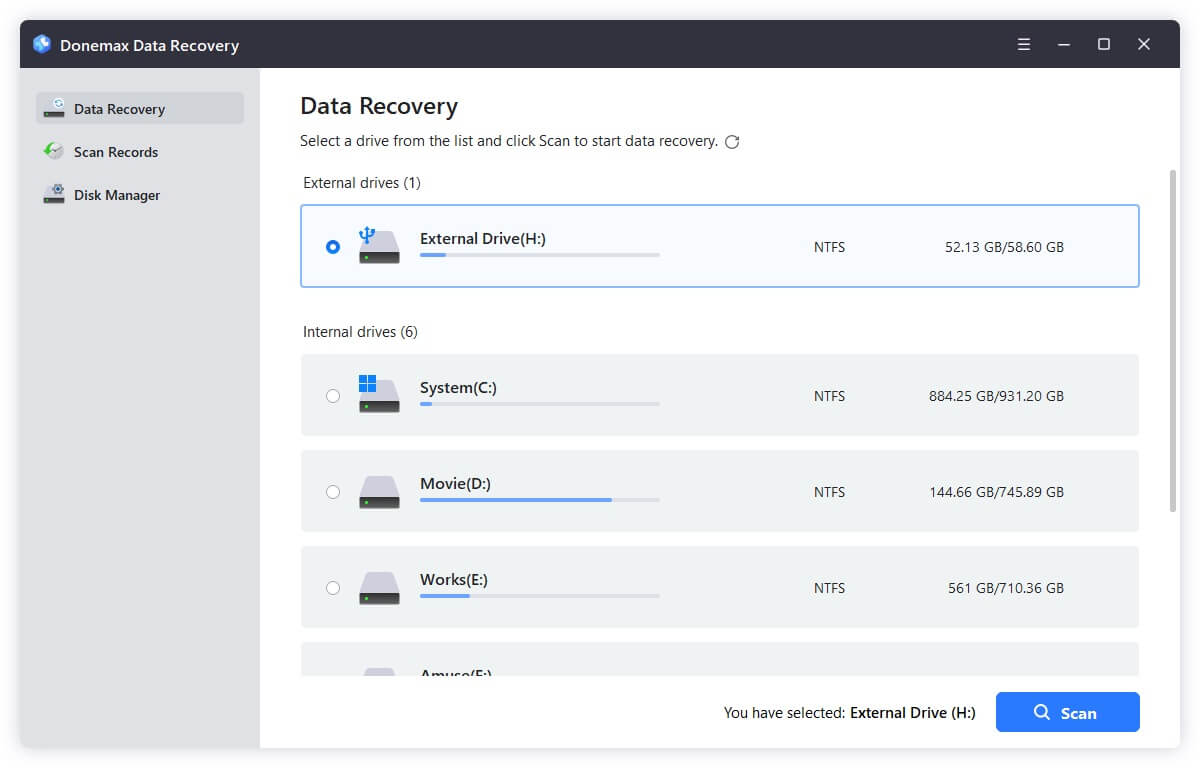
Step 1: Download the software and install it on a healthy drive partition (avoid installing it on the drive partition where you lost your files). Launch the software.
Step 2: In the main interface, select the drive or partition where your lost files were stored (typically C: Drive for Desktop, Documents, and User files). Click the 'Scan' button to begin.
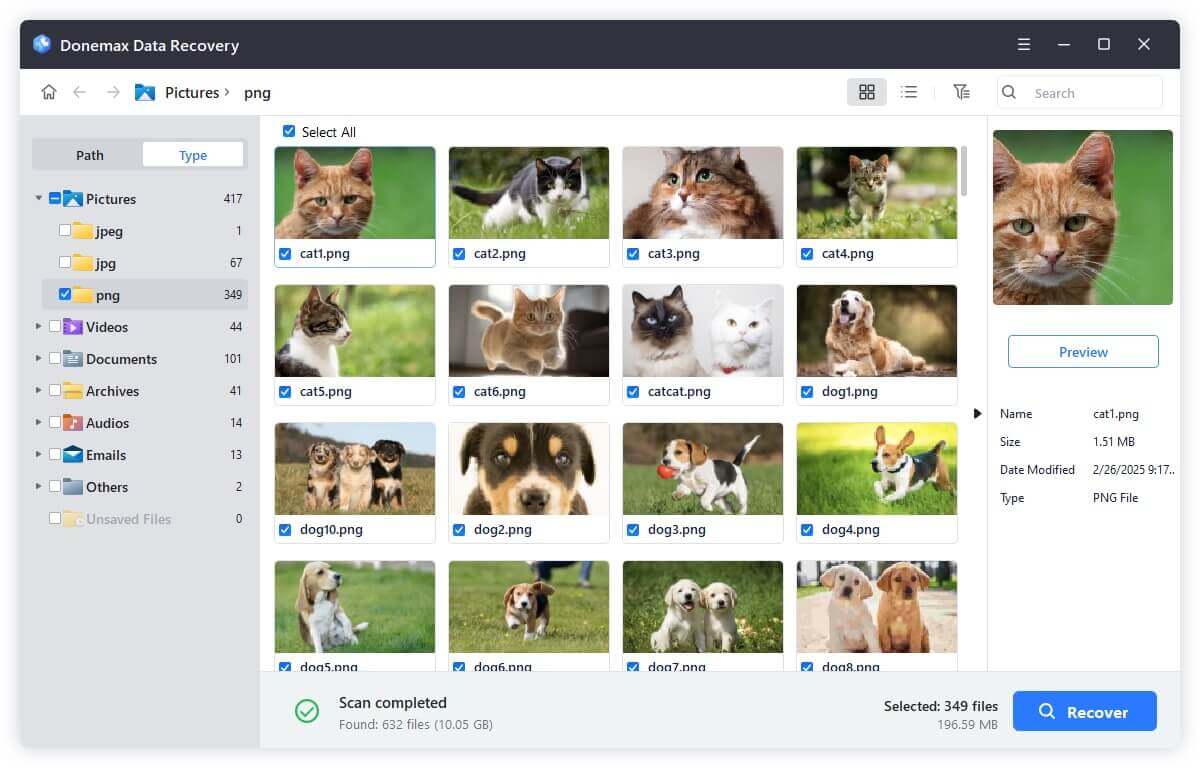
Step 3: Donemax Data Recovery will conduct a deep scan of your storage drive. Once finished, you can filter results by file type or path, preview photos and documents, select the items you need, and click 'Recover' to save them onto an external drive or secondary storage location.
📌 Data Safety Tip: Never save recovered files back onto the same local drive (C:) while troubleshooting the update. Always output recovered files to an external hard drive, USB flash drive, or secondary partition to prevent data overwriting.
Now that your important files are safely recovered and backed up, you can start troubleshooting the stuck update without worrying about file loss. Start with these simple preliminary steps:
1. Disconnect All Non-Essential External Peripherals
Connected hardware such as external hard drives, USB flash drives, printers, webcams, and memory card readers can cause driver conflicts during Windows 11 26H2 installation. Unplug all external devices except your keyboard and mouse. Then check if the update progress continues.
2. Ensure Sufficient Free Disk Space
Major updates like 26H2 require at least 20 GB to 30 GB of free storage space on your primary C: drive to unpack installation packages. Open File Explorer, click 'This PC', and check your C: drive capacity. If space is low, delete temporary files or uninstall unnecessary applications.
3. Disable Third-Party Antivirus Software
Third-party security software can mistake new system modification scripts for security threats, causing the installation process to freeze at specific percentages like 61% or 99%. Temporarily disable third-party antivirus software or firewall tools before retrying the update.
4. Be Patient with Heavy System Packages
Sometimes the update is not actually frozen. On computers with slower mechanical hard drives or weaker internet connections, processing system patches can take up to 2 to 3 hours. If your drive activity LED light is still blinking intermittently, give the update system extra time before manually interrupting it.
If your update remains frozen after hours of waiting, apply the following step-by-step methods to resume or reset the update process successfully.
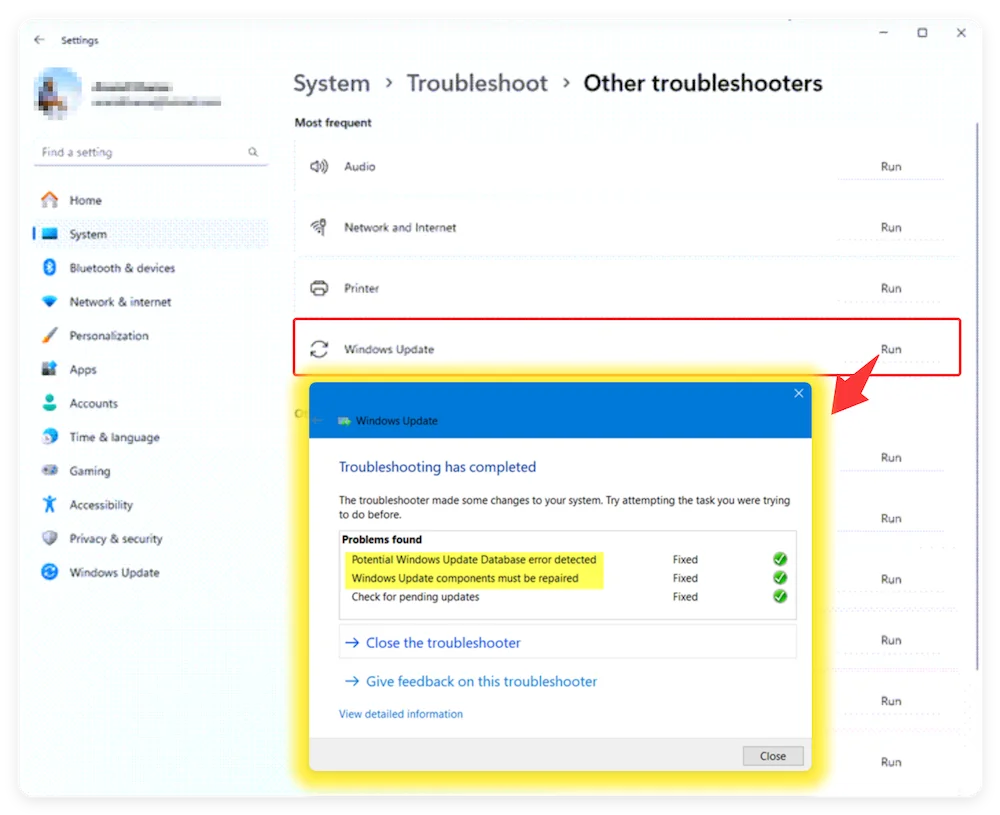
Windows 11 includes an automated built-in repair utility designed to identify and fix common update errors.
Step 1: Press Windows Key + I to open System Settings.
Step 2: Navigate to System > Troubleshoot > Other troubleshooters.
Step 3: Find 'Windows Update' in the list and click the 'Run' button beside it.
Step 4: Let the automated wizard detect issues, apply recommended fixes, and restart your PC.
If update installation files become corrupted during download, Windows Update will continually freeze when trying to execute them. Clearing the update cache forces Windows to download fresh, clean files.
Step 1: Type 'cmd' in the Windows search bar, right-click 'Command Prompt', and select 'Run as Administrator'.
Step 2: Stop the update services by running the following commands one by one (press Enter after each):
net stop wuauserv
net stop cryptSvc
net stop bits
net stop msiserver
Step 3: Rename the cached update storage folders by typing:
ren C:\Windows\SoftwareDistribution SoftwareDistribution.old
ren C:\Windows\System32\catroot2 catroot2.old
Step 4: Restart the update services by executing:
net start wuauserv
net start cryptSvc
net start bits
net start msiserver
Step 5: Close Command Prompt, restart your PC, and try updating again via Windows Settings.
Damaged core Windows files can prevent update scripts from registering properly. You can use native System File Checker (SFC) and Deployment Image Servicing and Management (DISM) command tools to repair core system health.
Step 1: Open Command Prompt as Administrator.
Step 2: Type DISM.exe /Online /Cleanup-image /Restorehealth and press Enter. Wait for the process to complete to 100%.
Step 3: Type sfc /scannow and press Enter.
Step 4: Once system scanning finishes and repairs corrupted files, restart your computer and retry the update.
If the standard Windows Update menu keeps freezing, bypassing automatic updates and performing a manual upgrade using Microsoft's official Windows 11 ISO or Installation Assistant is highly effective.
Step 1: Visit Microsoft's official Windows 11 Download page.
Step 2: Download the Windows 11 26H2 Installation Assistant or ISO file.
Step 3: If using the Installation Assistant, run the tool and follow the on-screen instructions.
Step 4: If using an ISO file, right-click the ISO file, select 'Mount', and double-click setup.exe.
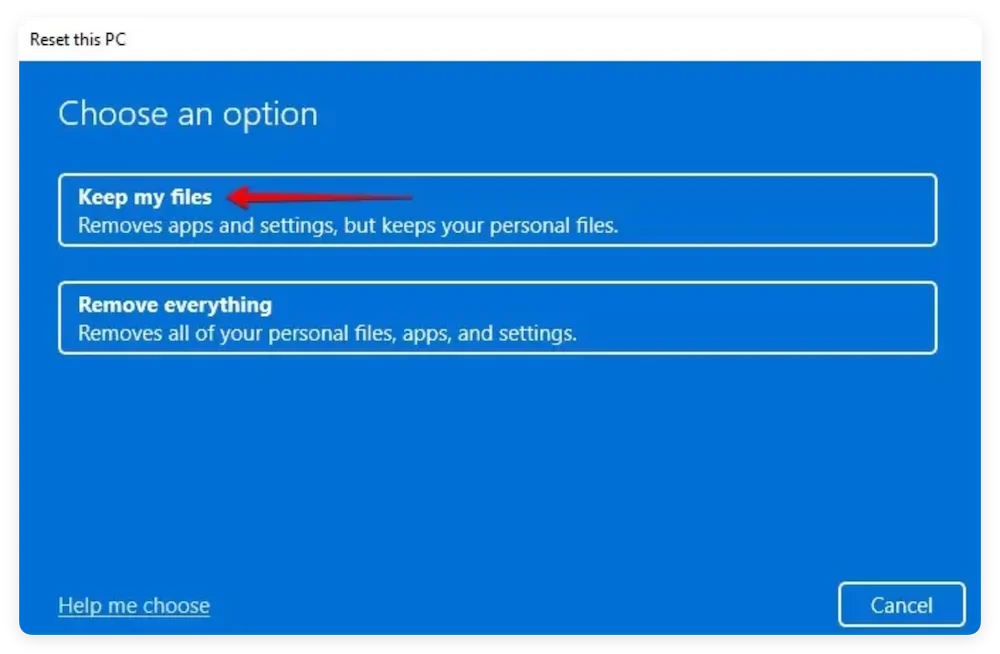
Step 5: Select 'Keep my files' during setup and click Install. This replaces core update files while preserving your setup.
Conflicting background apps or services can stall installation scripts. Performing a Clean Boot isolates your system to Microsoft services only.
Step 1: Press Windows Key + R, type msconfig, and press Enter.
Step 2: Switch to the 'Services' tab, check the box for 'Hide all Microsoft services', and click 'Disable all'.
Step 3: Switch to the 'Startup' tab and click 'Open Task Manager'. Disable all startup programs.
Step 4: Restart your computer and initiate the Windows 11 26H2 update again.
Experiencing a Windows 11 26H2 update stuck and lost data situation can be alarming, but it is completely solvable. By following a clear, step-by-step approach, you can recover your files and get your system updated smoothly.
Always prioritize your data safety first. If you discover missing files after a frozen update or unexpected reboot, run Donemax Data Recovery immediately to restore your documents, photos, and personal data.
Once your files are secured, reset your update components using Windows Update Troubleshooter, clear the SoftwareDistribution folder, or perform a manual ISO installation to enjoy all the new features of Windows 11 26H2 safely!
Donemax Data Recovery
Powerful, safe & easy-to-use data recovery software. Easily and completely recover deleted, formatted, or other lost data. The tool supports PC, Mac, HDD, SSD, USB drive, camera, SD card, RAID and other storage devices.
Coco Lin
Coco has been a writer and a chief programmer at Donemax software since 2018. Over 10 years of experience of writing troubleshooting articles in the software industry, she is passionate about programming and loves to providing solutions to Windows and Mac users. Also she enjoys music and palying tennis in her free time.
Gerhard Chou
In order to effectively solve the problems for our customers, every article and troubleshooting solution published on our website has been strictly tested and practiced. Our editors love researching and using computers and testing software, and are willing to help computer users with their problems
Clone hard drive with advanced clone technology or create bootable clone for Windows/Mac OS.
Completely and easily recover deleted, formatted, hidden or lost files from hard drive and external storage device.
Certified data erasure software - permanently erase data before selling or donating your disk or any digital device.