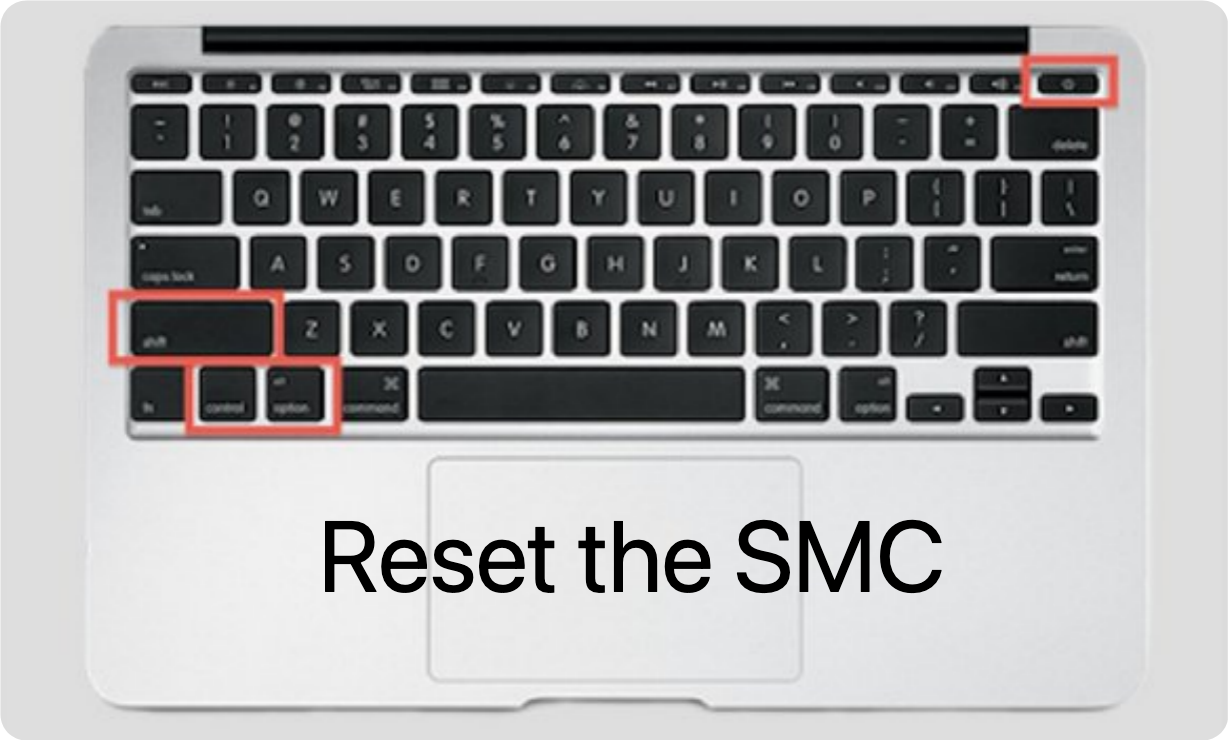
To reset the SMC on an Intel-based Mac laptop, shut down, then press and hold Shift + Control + Option + Power Button (Touch ID button) for about 10 seconds, release all keys, and power on; for Apple Silicon Macs, simply restarting is the equivalent, as they don't have a traditional SMC. SMC resets fix power, battery, fan, or display issues but don't erase data, with different key combos for older models or desktops.
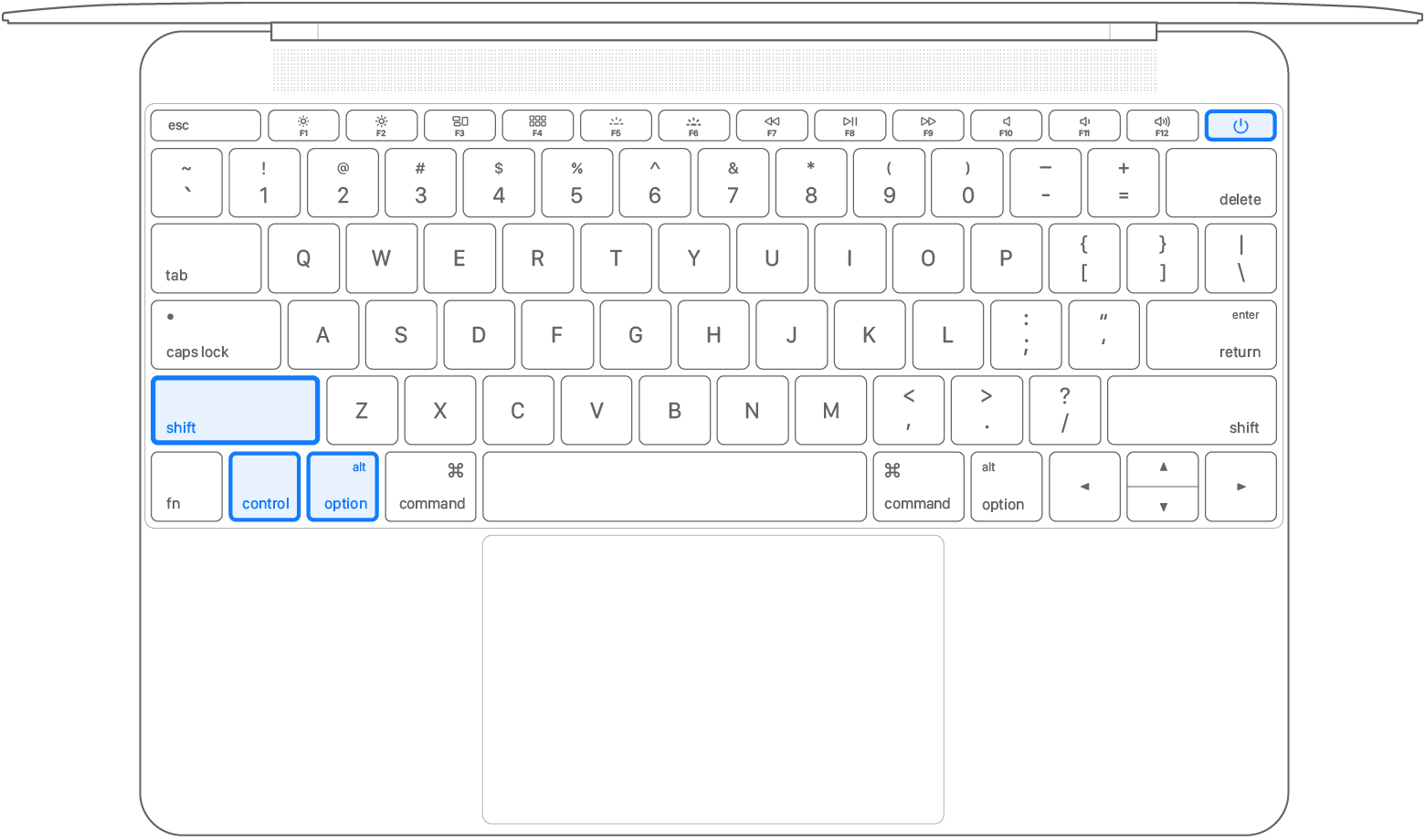
For MacBooks with Non-Removable Batteries (Most Modern Intel-Based Models)
- Shut Down: Go to the Apple Menu > Shut Down your Mac.
- Press Keys: On the built-in keyboard, press and hold Shift (left) + Control (left) + Option (left), then press and hold the Power Button(or Touch ID button).
- Hold: Keep holding all four keys for about 10 seconds.
- Release & Turn On: Release all keys, then press the power button to turn your Mac on.

For MacBooks with Removable Batteries (Older Models)
- Shut Down: Turn off your Mac.
- Remove Battery: Take out the battery (refer to iFixit if unsure).
- Press Power Button: Press and hold the power button for 5 seconds, then release it.
- Reinstall & Power On: Reinstall the battery, then press the power button to start.
For Mac Desktops (Intel-based)
- With T2 Chip: Shut down, then press and hold Shift (left) + Control (left) + Option (left) and the Power Button for 7 seconds, release, wait, then turn on.
- Without T2 Chip: Shut down, unplug the power cord, wait 15 seconds, plug back in, wait 5 seconds, then turn on.
For Macs with Apple Silicon (M1, M2, M3, M4, M5, etc.)
- Simply restart your Mac, as these models don't have a traditional SMC to reset.
When to Reset SMC on Mac
- Fan issues (spinning too fast, too loud).
- Incorrect battery behavior or charging problems.
- Display issues (backlight, dimness).
- Unresponsive keyboard backlighting or LEDs.
- Slow performance or startup problems.


Donemax DMcleaner for Mac
Donemax DMcleaner for Mac is an award-winning Mac cleanup & maintenance tool. It offers over 10 tools to help Mac users clean junk data. It helps speed up a slow Mac. Additionally, it includes a smart switch manager and disk manager for Mac.
Related Articles
- Dec 28, 2024How to Format a USB Drive to FAT32 on Mac?
- Apr 28, 2025Use External Storage as Primary Default Storage
- Feb 17, 2025Fix External Hard Drive Not Responding Without Losing Data [6 Solutions]
- Mar 19, 2025How to Use Seagate Game Drive PS5 SSD?
- Jul 03, 2025How to Format a Drive for PS5?
- Apr 25, 2025Format a RAW SD Card Without Losing Data: Step-by-Step Guide
Steven
Steven has been a senior writer & editor of Donemax software since 2020. He's a super nerd and can't imagine the life without a computer. Over 6 years of experience of writing technical solutions and software tesing, he is passionate about providing solutions and tips for Windows and Mac users.
Gerhard Chou
In order to effectively solve the problems for our customers, every article and troubleshooting solution published on our website has been strictly tested and practiced. Our editors love researching and using computers and testing software, and are willing to help computer users with their problems