
Written byMariaUpdated on Dec 15, 2025

Before we start: Clear and delete Microsoft Office Cache on Mac can help you fix some application issues or free disk space. With the software Donemax DMcleaner for Mac, you can quickly and completely delete the related cache or other junk data for Microsoft Office or any other applications.
PAGE CONTENT:
Microsoft Office apps such as Word, Excel, Outlook, and OneDrive are widely used on macOS devices for both personal and professional tasks. These applications rely on cached files to speed up performance and store temporary data. However, over time, the cache can become bloated or corrupted, leading to application errors, sluggish performance, or syncing issues—especially with Outlook or OneDrive.
If you're facing strange behaviors in your Office apps, such as old files reappearing, syncing delays, or the app freezing, clearing Microsoft Office cache on Mac could solve the problem. This article provides a detailed, step-by-step guide on how to clear the cache for various Microsoft Office applications on macOS.
The Microsoft Office cache consists of temporary files stored by the apps to reduce load times and improve performance. These files include:
Office uses these cached files to enhance responsiveness. For example, Word caches AutoRecovery files to help recover unsaved work, and Outlook stores cached mail data to display messages faster.
However, when the cache grows too large or becomes corrupted, it can cause problems such as:
Clearing the cache can restore functionality and improve performance.
While cache files are designed to help, they may create more problems than they solve under certain conditions. Here are some signs that suggest it’s time to clear the cache:
If you're experiencing any of the above issues, clearing the cache is a safe and effective troubleshooting method.
Before you start deleting anything, follow these safety tips:
For the Mac users who want automatically and safely delete cache of Microsoft Office on Mac, a third-party cleanup tool is the first choice. The software mostly can quickly search for and remove different kinds of junk files on Mac.
Donemax DMcleaner for for Mac is such a cleanup software for Mac. You can use the software to securely delete Microsoft Office cache and other junk data on your Mac.
How to Clear Microsoft Office Cache on Mac with DMcleaner:

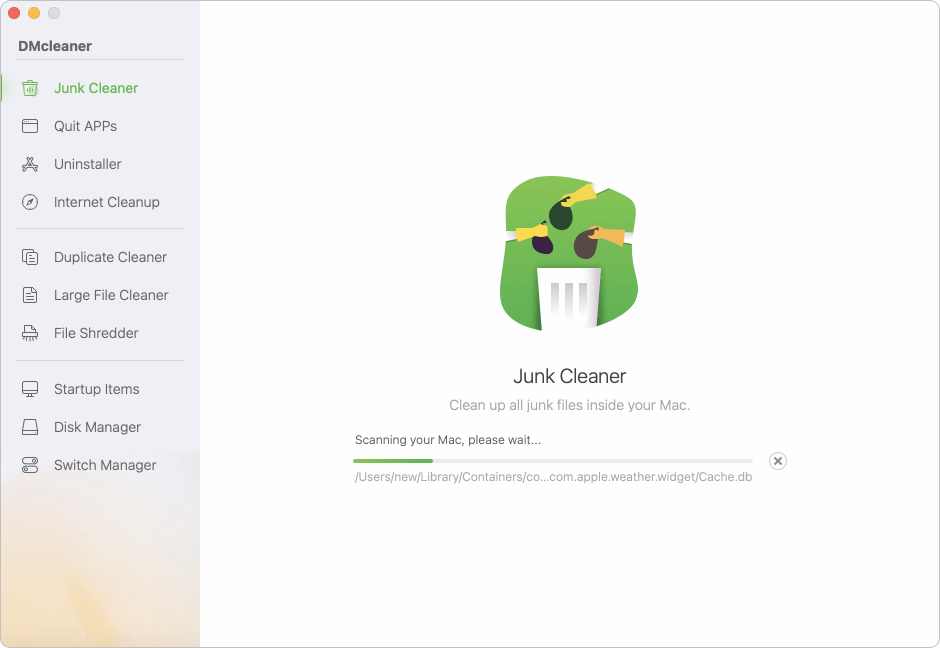
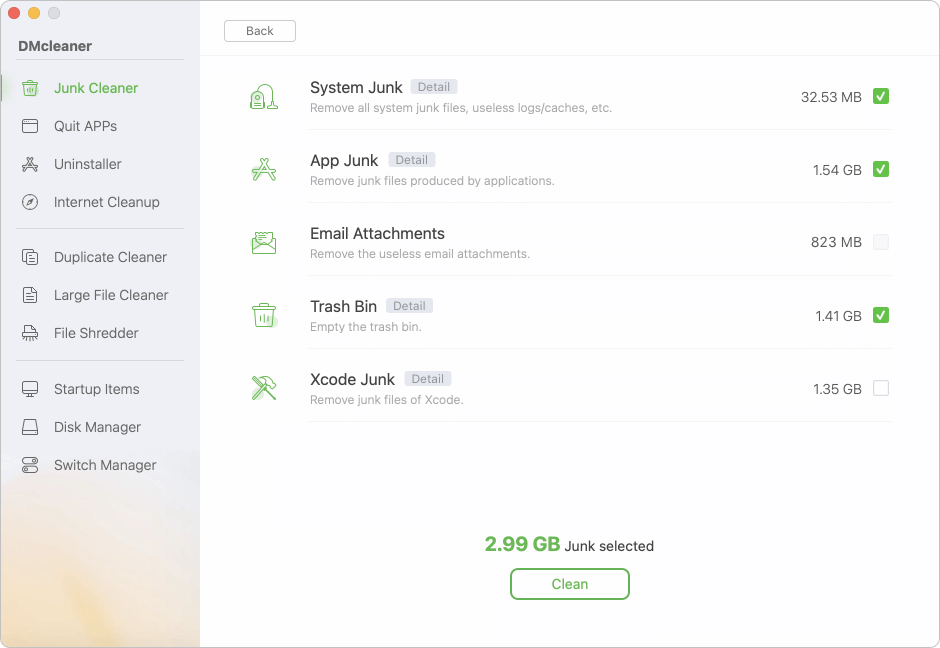
If you don't want to use a third-party software, you can also try to manually delete cache of Microsoft Office on Mac. Note that you should be careful when manually do the job. Now let's explore how to manually clear cache data for the most common Microsoft Office apps on Mac.
~/Library/Group Containers/UBF8T346G9.Office/
~/Library/Application Support/Microsoft/Office/
Microsoft Outlook on Mac stores a significant amount of cached data to streamline operations like sending/receiving emails, accessing attachments, and syncing calendar events. While helpful, this cache can grow large or become corrupted, especially after updates or if multiple accounts are configured. This leads to errors such as missing messages, outdated inbox views, or frequent freezes.
Here’s how you can manually clear Outlook’s cache to refresh its behavior:
Step-by-Step: Delete Outlook Cache Files
~/Library/Caches/com.microsoft.Outlook
~/Library/Group Containers/UBF8T346G9.Office/Outlook
Optional: Reset Outlook Profile (If Cache Deletion Fails)
If you’re still having issues after clearing the cache, your Outlook profile might be corrupted. In this case, you can create a new profile:
~/Library/Group Containers/UBF8T346G9.Office/Outlook
💡 Tip: If you use POP3, be cautious—messages might not redownload, so back up important data.
Why This Helps
Clearing Outlook's cache resolves:
OneDrive cache can get corrupted, especially after updates or file sync issues.
~/Library/Group Containers/
UBF8T346G9.OneDriveStandaloneSuite
If OneDrive still misbehaves, consider fully resetting it:
/Applications/OneDrive.app/Contents/Resources/ResetOneDriveApp.command
This will clear all configurations and start fresh.
AutoRecovery files are saved drafts created by Word, Excel, or PowerPoint.
~/Library/Containers/com.microsoft.Word/Data/Library/Preferences/AutoRecovery/
Deleting these won't affect saved documents but will remove recovery drafts.
For those comfortable with the Terminal, you can use commands to delete cache folders quickly:
rm -rf ~/Library/Group\ Containers/UBF8T346G9.Office/*
rm -rf ~/Library/Caches/com.microsoft.Outlook/*
rm -rf ~/Library/Containers/com.microsoft.Word/Data/Library/Preferences/AutoRecovery/*
Always double-check folder paths before executing deletion commands.
Once the cache is cleared:
The result is typically improved app responsiveness and fewer sync or display issues.
Clearing the Microsoft Office cache on your Mac can significantly improve app performance and fix stubborn issues, especially with Outlook and OneDrive. Whether you're troubleshooting sync problems, resolving app errors, or performing routine maintenance, cache clearing is a quick and effective solution.
Always remember to close all Office apps before proceeding and consider backing up essential settings. With this guide, you now have the knowledge to clear cache files for Word, Excel, Outlook, OneDrive, and more—manually or via Terminal.
For persistent issues, consult Microsoft’s official support documentation or consider reinstalling Office as a last resort. Keeping your Office environment clean and optimized ensures a smoother, faster experience on your Mac.
Donemax DMcleaner for Mac
Donemax DMcleaner for Mac is an award-winning Mac cleanup & maintenance tool. It offers over 10 tools to help Mac users clean junk data. It helps speed up a slow Mac. Additionally, it includes a smart switch manager and disk manager for Mac.
Maria
Maria is one of the senior writers & editors of Donemax who lives and works in Sydney, Australia. She loves PC, Mac and Internet Technology. She has 6 years of writing articles about data recovery on PC/Mac, disk cloning solution, data eraser and computer OS optimization, etc. She is also interested in testing various software and digital products.
Gerhard Chou
In order to effectively solve the problems for our customers, every article and troubleshooting solution published on our website has been strictly tested and practiced. Our editors love researching and using computers and testing software, and are willing to help computer users with their problems