
Written byMariaUpdated on Dec 11, 2025

Before we start: With the most safe and reliable cleanup tool DMcleaner for Mac, you can easily delete YouTube cookies and cache on Mac. It can also remove any other system or app junk data to free up disk space and optimize the Mac performance.
PAGE CONTENT:
Whether you're experiencing playback glitches, slow loading times, or outdated content recommendations on YouTube, one simple fix can often resolve these issues—deleting cookies and cache. On a Mac, this process is straightforward, but varies slightly depending on the browser you use. This guide walks you through everything you need to know about clearing YouTube cookies and cache on Mac using Safari, Chrome, and Firefox, and even via Terminal, Finder or third-party Mac cleanup tools.

Before diving into the how-to section, it's helpful to understand what cookies and cache actually do:
While these tools aim to improve your experience, they can also become outdated or corrupted, leading to issues such as:
Regularly clearing cookies and cache can resolve these problems and improve browser performance.
Here are some common reasons why Mac users clear their YouTube-specific cookies and cached files:
Here's a quick list of frequent YouTube problems that may be fixed by clearing cached data:
Issue |
Resolved by Deleting Cache & Cookies? |
|---|---|
Videos not playing or buffering |
✅ |
YouTube layout broken |
✅ |
Logged in but can't access account features |
✅ |
Video thumbnails not showing |
✅ |
Outdated recommendations |
✅ |
YouTube loading slowly |
✅ |
Incorrect region/language settings |
✅ |
Most Mac users access YouTube through a browser, but if you're using a third-party YouTube app built via a wrapper (e.g., Fluid, Unite, WebCatalog), cache may be stored in app-specific folders. Here we will introduce some methods to help you clear the YouTube Cache.
The most reliable and easy way to remove YouTube app cache on Mac is using a third-party cleanup tool. Donemax DMcleaner for Mac is highly suggested. The software can clear all system and app data, including YouTube cache on Mac.
The software is simple to use and you can quickly use the tool to clear the YouTube cache on Mac:
Step 1. Download and install the DMcleaner on your Mac. Run the app and change to Junk Cleaner option.

Step 2. Click Scan button to to search for any app cache files and other junk data on the Mac.
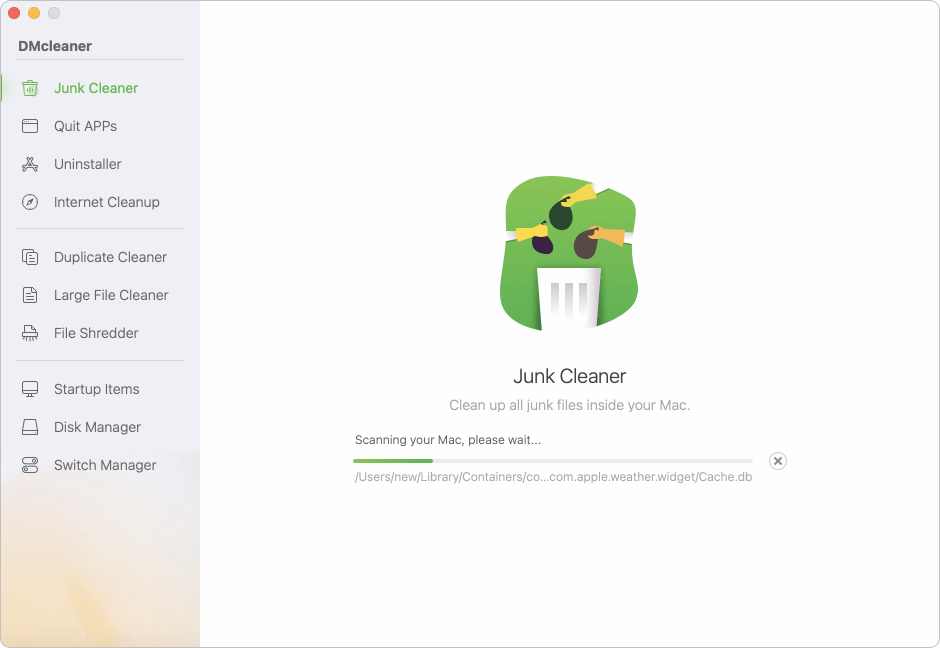
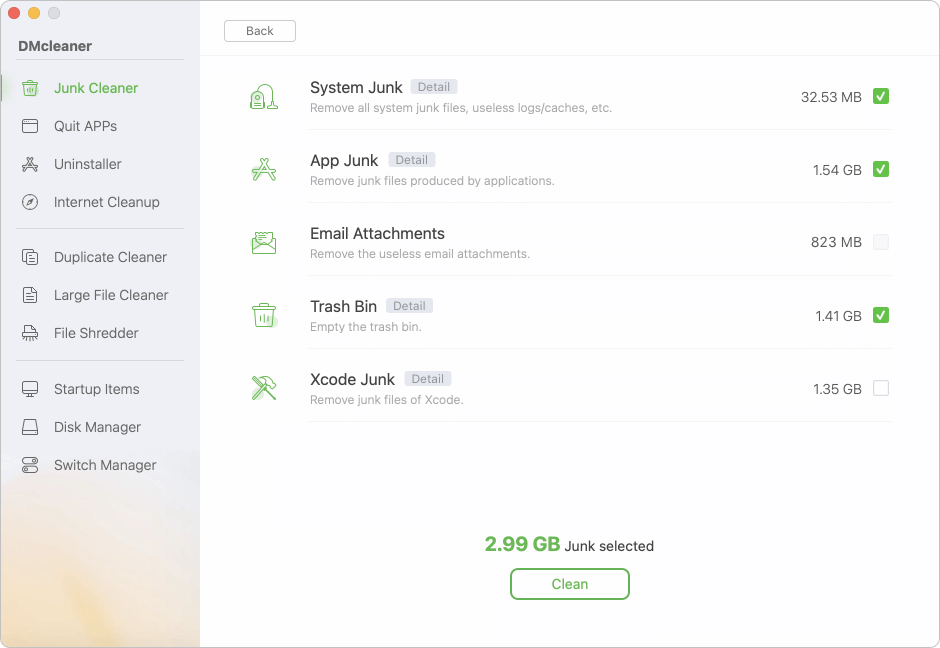
Step 3. Once the scan is done, review the list and click Detail of App Junk to select YouTube caches. At last, just click Clean to clear the selected items from your Mac.
~/Library/Caches
~/Library/Application Support
If you're comfortable with the Terminal, you can manually delete cache files for YouTube from Chrome or Safari.
For Chrome:
rm -rf ~/Library/Application\ Support/Google/Chrome/Default/Cache/*
rm -rf ~/Library/Application\ Support/Google/Chrome/Default/Cookies
For Safari:
rm -rf ~/Library/Caches/com.apple.Safari
rm -rf ~/Library/Cookies/Cookies.binarycookies
💡 Caution: These commands affect all cached content, not just YouTube. Always back up important data before using Terminal for system-level changes.
Clearing cookies and cache is different for each browser. Below are step-by-step instructions for Safari, Chrome, and Firefox.
Safari is the default browser for macOS. Here's how to remove YouTube-related data:
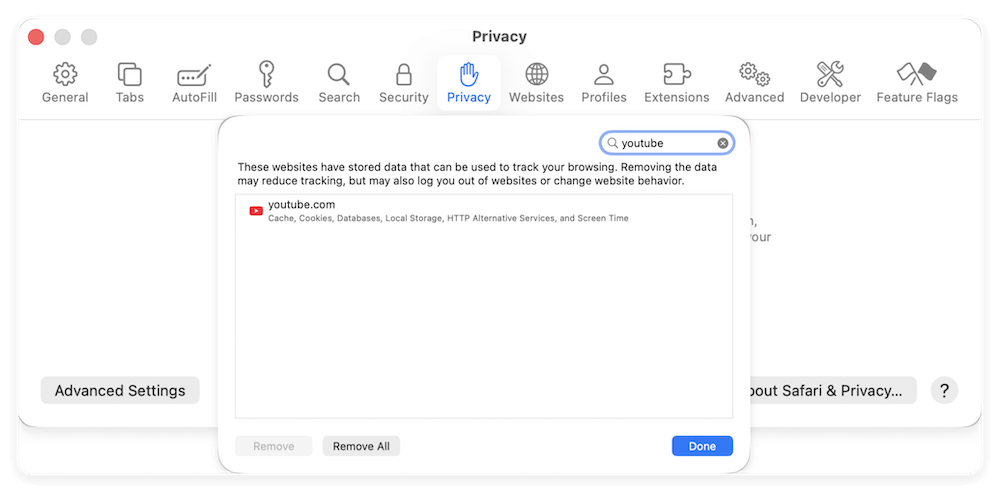
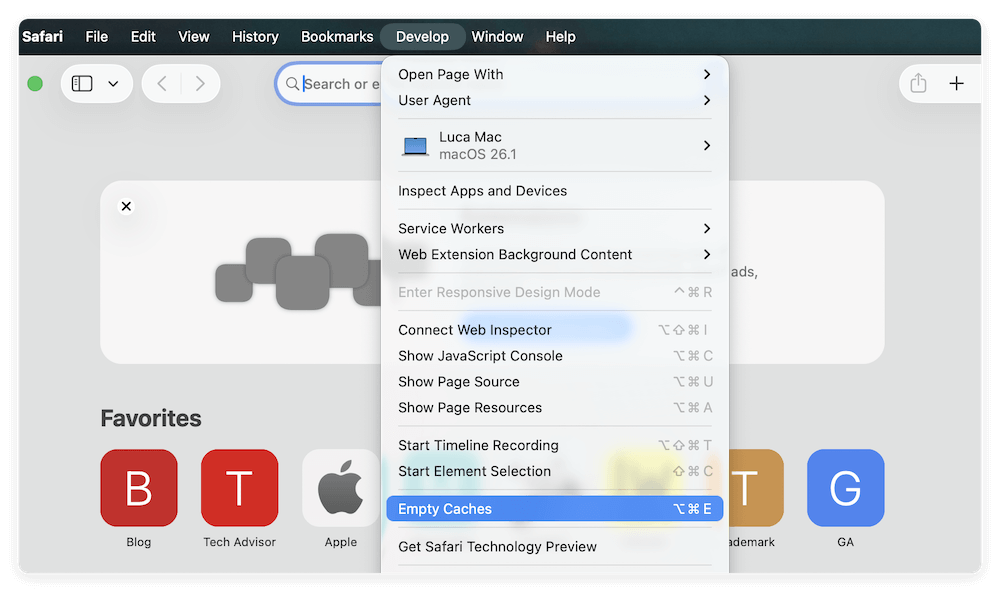
Optional Full Cache Clear: If you're facing severe issues, you can clear all Safari cache by:
Google Chrome is popular for its speed and integration with Google services like YouTube. Here's how to delete YouTube cache and cookies:
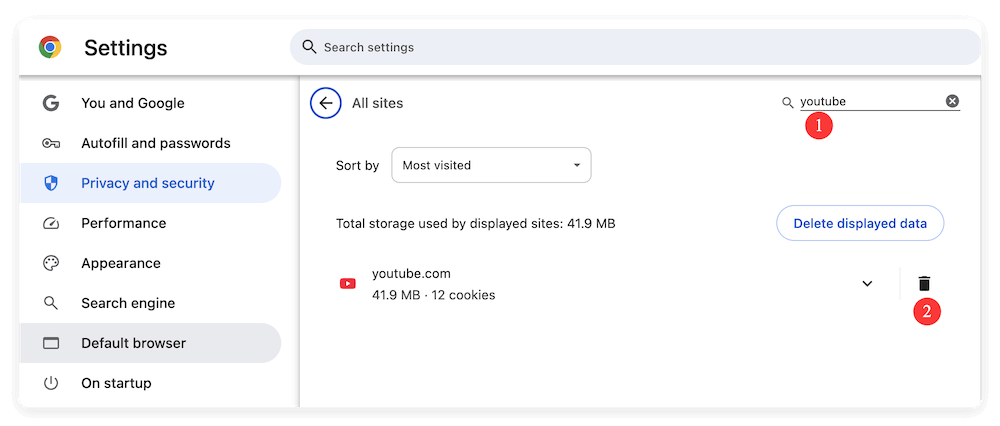
Alternatively, click Delete browsing data:

💡 Note: This will log you out of YouTube and possibly other Google services in Chrome.
Firefox gives users robust privacy controls. Here's how to remove YouTube-specific data:
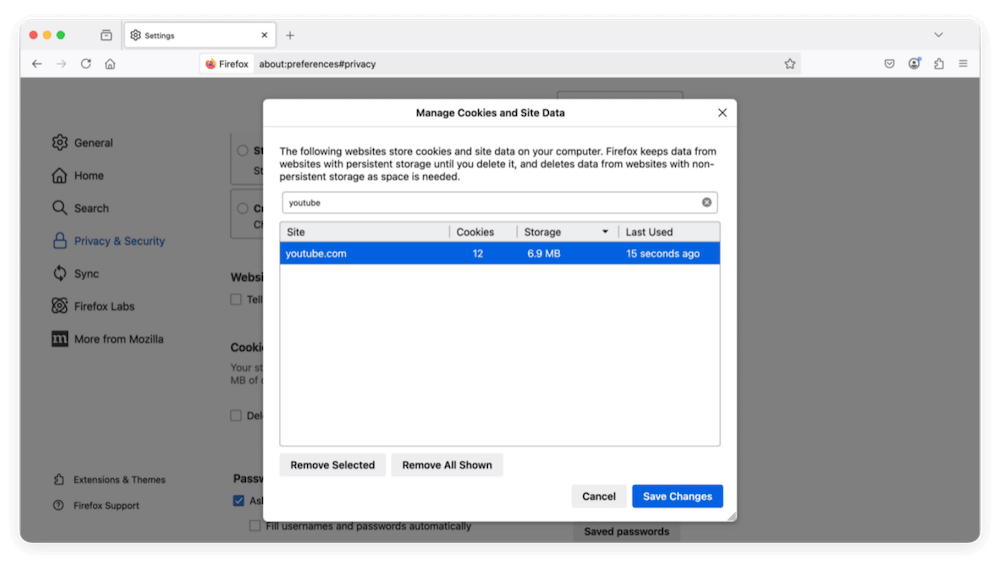
Alternative, to clear all cached data, go to:
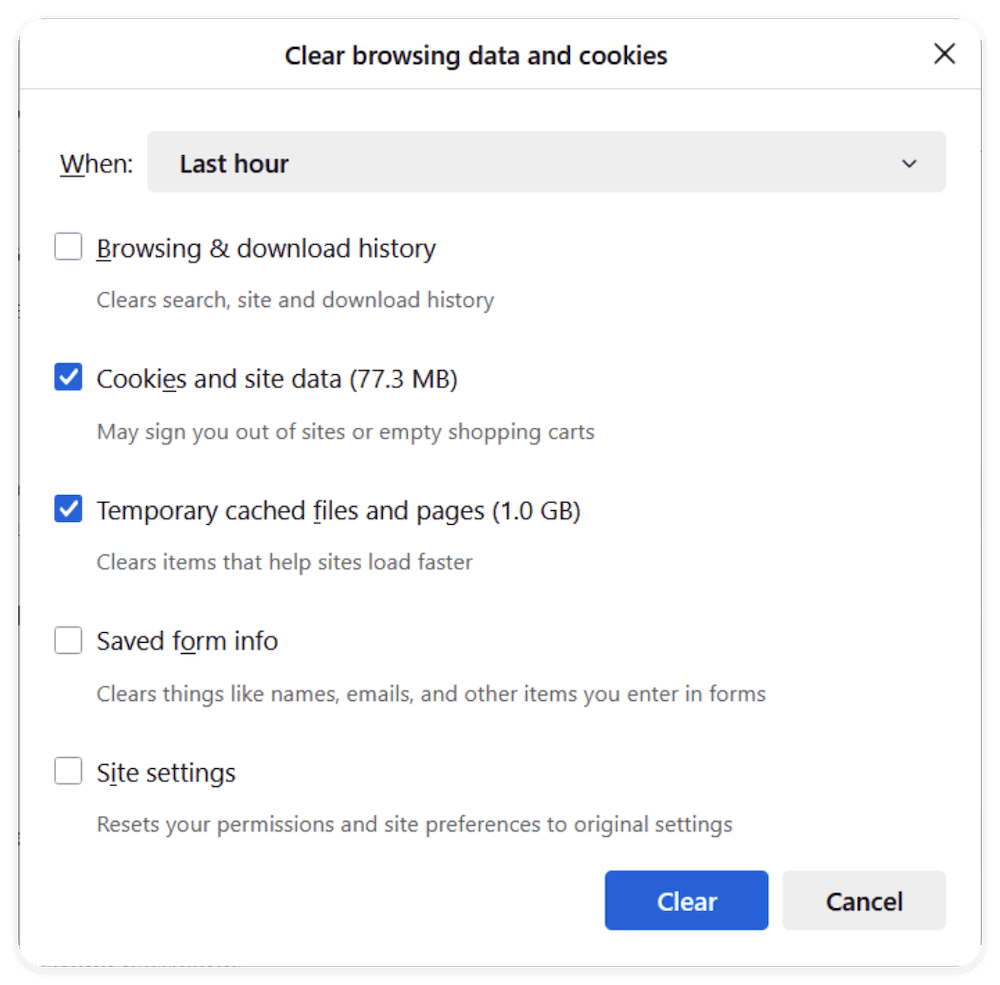
1. You Will Be Logged Out of Your YouTube Account
If you clear cookies for YouTube (especially in Chrome and Firefox), your login session will be terminated. That's because cookies store authentication tokens that allow websites to remember your login credentials. Once deleted:
2. Personalized Content and Recommendations Will Reset Temporarily
YouTube uses cookies to store watch history, likes/dislikes, and search preferences that influence your home page and recommended videos.
After clearing this data:
However, if you're signed into your Google account, YouTube will gradually re-sync this personalized data from the cloud. The reset is usually temporary unless you also cleared your Google account activity history from your profile settings.
3. Saved Video Progress and Playback Settings Are Lost
YouTube often remembers your playback preferences via cache and cookies. For example:
After deletion:
4. Faster and Cleaner User Experience
Deleting cache removes all temporarily stored elements like scripts, images, and video previews. This forces the browser to re-download them freshly the next time you visit.
Benefits:
Keep in mind that the very first load after clearing the cache may be slightly slower, as all elements are fetched anew—but subsequent visits will be smooth.
5. Enhanced Privacy and Security
If you're concerned about tracking, ad targeting, or session hijacking, deleting cookies and cache is a proactive step. Specifically:
Clearing these files ensures:
6. Site-Specific Errors Are Resolved
In some cases, errors like:
…can be resolved by clearing YouTube's cookies and cache. These errors often stem from:
Clearing the data forces a complete reload of YouTube's latest assets and scripts, often solving these visual or functional bugs instantly.
Maintaining healthy browsing data habits can save you from frequent clean-ups.
1. Use Private Browsing for Temporary Access
2. Enable Auto-Clear Settings
3. Use Browser Extensions
Extensions like Click&Clean (Chrome) or Cookie AutoDelete (Firefox) let you schedule or automate cookie/cache cleaning.
4. Monitor Disk Usage
Use the macOS Storage Management tool to monitor how much disk space cache is consuming:
Clearing cookies and cache specific to YouTube can resolve a wide range of playback, account, and display issues on your Mac. Whether you're using Safari, Chrome, Firefox, or even a third-party app, this guide has provided comprehensive steps to help you clean up and refresh your YouTube experience.
For best results, consider making this part of your regular Mac maintenance routine—perhaps once a month or whenever YouTube starts misbehaving. Your browser and your Mac will thank you for it.
Donemax DMcleaner for Mac
Donemax DMcleaner for Mac is an award-winning Mac cleanup & maintenance tool. It offers over 10 tools to help Mac users clean junk data. It helps speed up a slow Mac. Additionally, it includes a smart switch manager and disk manager for Mac.
Maria
Maria is one of the senior writers & editors of Donemax who lives and works in Sydney, Australia. She loves PC, Mac and Internet Technology. She has 6 years of writing articles about data recovery on PC/Mac, disk cloning solution, data eraser and computer OS optimization, etc. She is also interested in testing various software and digital products.
Gerhard Chou
In order to effectively solve the problems for our customers, every article and troubleshooting solution published on our website has been strictly tested and practiced. Our editors love researching and using computers and testing software, and are willing to help computer users with their problems