
Written byChristinaUpdated on Jul 14, 2026

Before we start: Switching from Windows to Mac can be an exciting journey. macOS 27 Golden Gate brings an incredible, fluid user interface with tons of advanced features. However, you might find yourself feeling a bit lost without one simple tool: the classic Windows Start menu. Fortunately, Donemax DMmenu for Mac offers the feature you wanted.
PAGE CONTENT:
On Windows, the Start menu is your absolute command center. It is where you find your apps, open settings, search for missing documents, and restart your computer with a single click. When you jump into macOS 27 Golden Gate, you are greeted by the Dock and the Launchpad instead. While beautiful, they function quite differently.
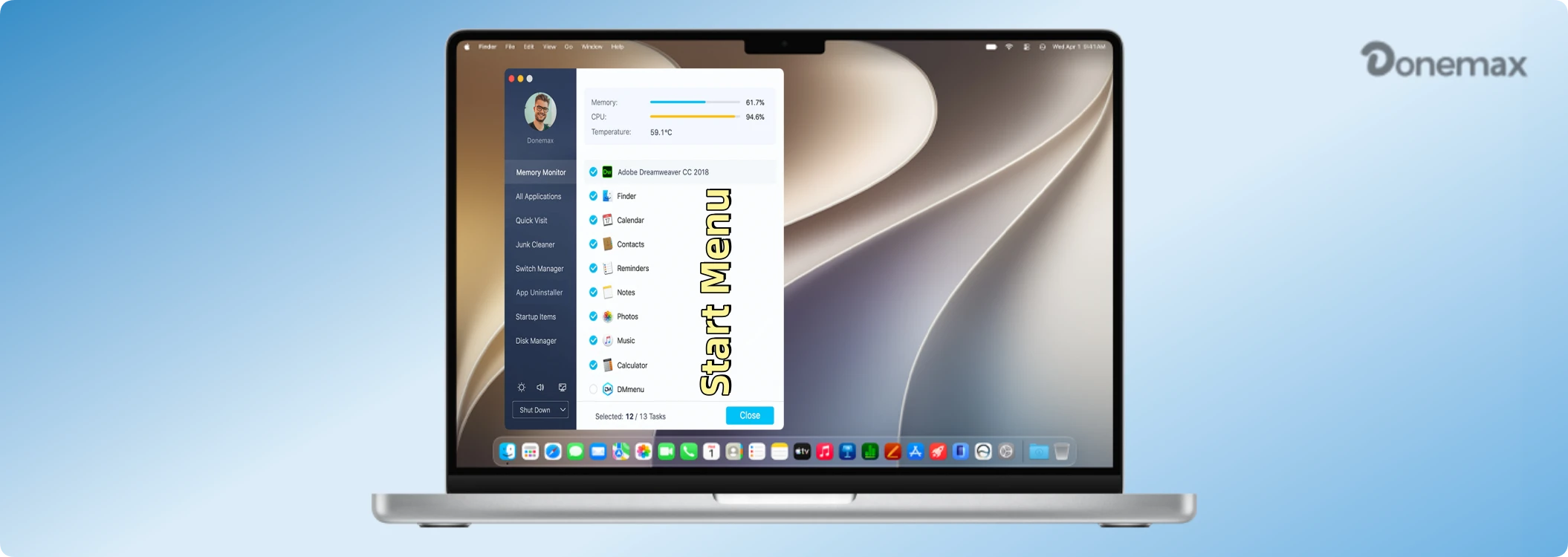
The good news is that you do not have to abandon your old habits. You can easily get that familiar setup back. In this comprehensive guide, we will show you exactly how to create start menu on macOS 27 Golden Gate. We will look at built-in workarounds as well as the ultimate, hassle-free tool: Donemax DMmenu.
Many people wonder why someone would want to add a Windows element to a Mac operating system. The truth is, it comes down to speed, comfort, and productivity. Let's break down the main reasons why users look to create start menu on macOS 27 Golden Gate:
Apple does not include an official Windows-style Start button. However, you can use built-in features to make something that works very similarly. By placing your Applications folder directly onto your Dock, you can replicate a pop-up list layout.
Follow these step-by-step instructions to create a native alternative:
Step 1: Open Finder on your Mac. You can find its smiley-face icon right on your Dock.
Step 2: In the left sidebar of the Finder window, locate the Applications folder.
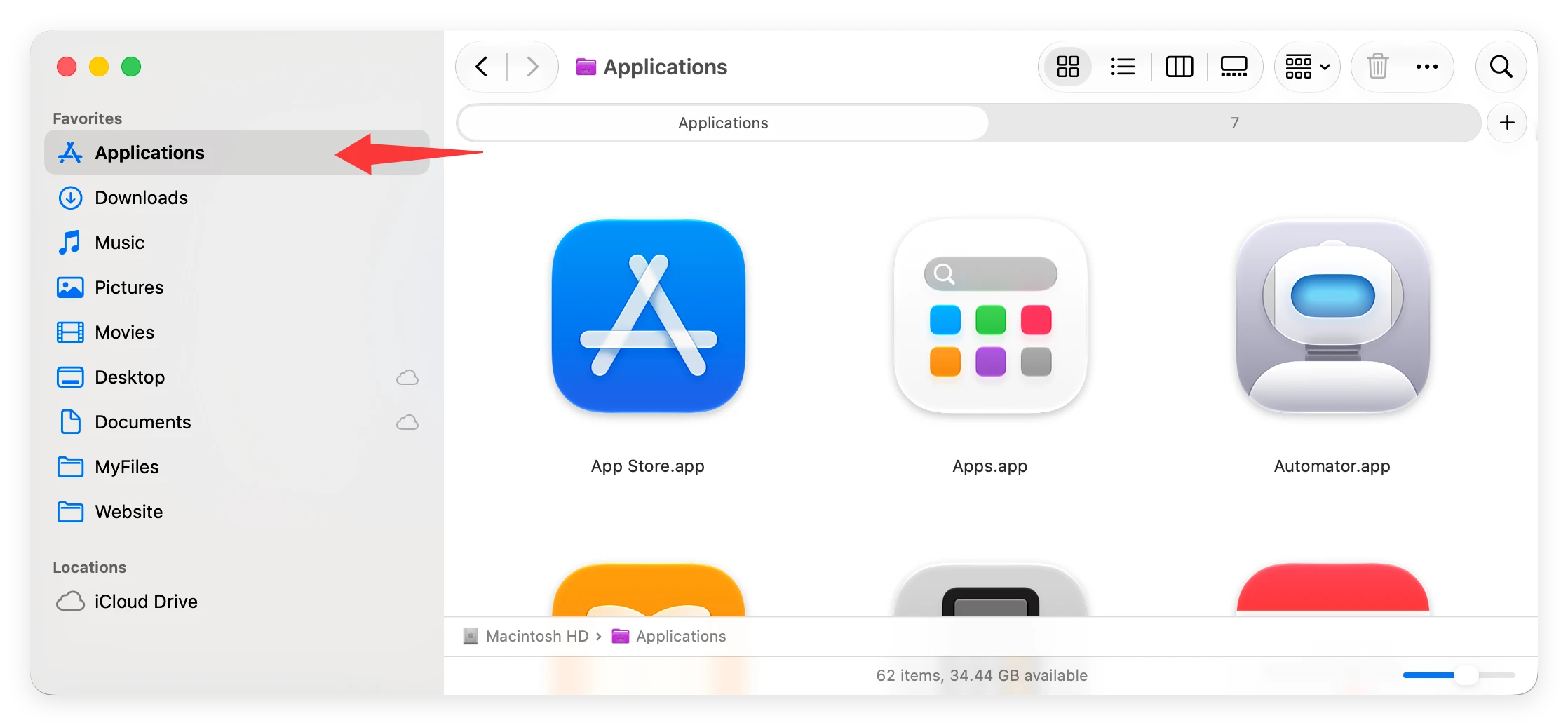
Step 3: Click and hold the Applications folder, then drag it down towards the right side of your Dock, right next to the Trash bin. Make sure you place it to the right side of the small divider line.

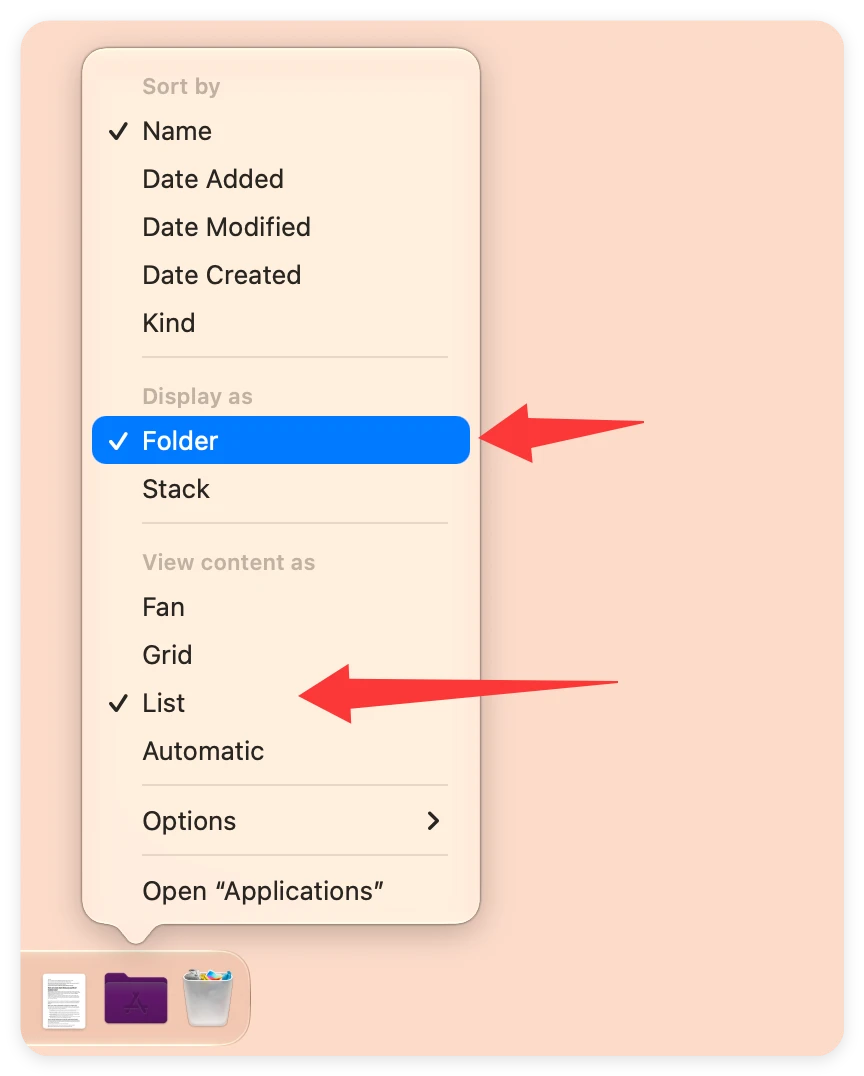
Step 4: Right-click (or hold Control and click) on the folder icon you just added to the Dock. In the settings menu that pops up, change the view options. Set 'Display as' to 'Folder' and 'View content as' to 'List'.
Now, whenever you click that Applications folder on your Dock, a clean vertical list of all your installed software will pop open instantly. It allows you to quickly browse through your apps just like an old-school program menu.
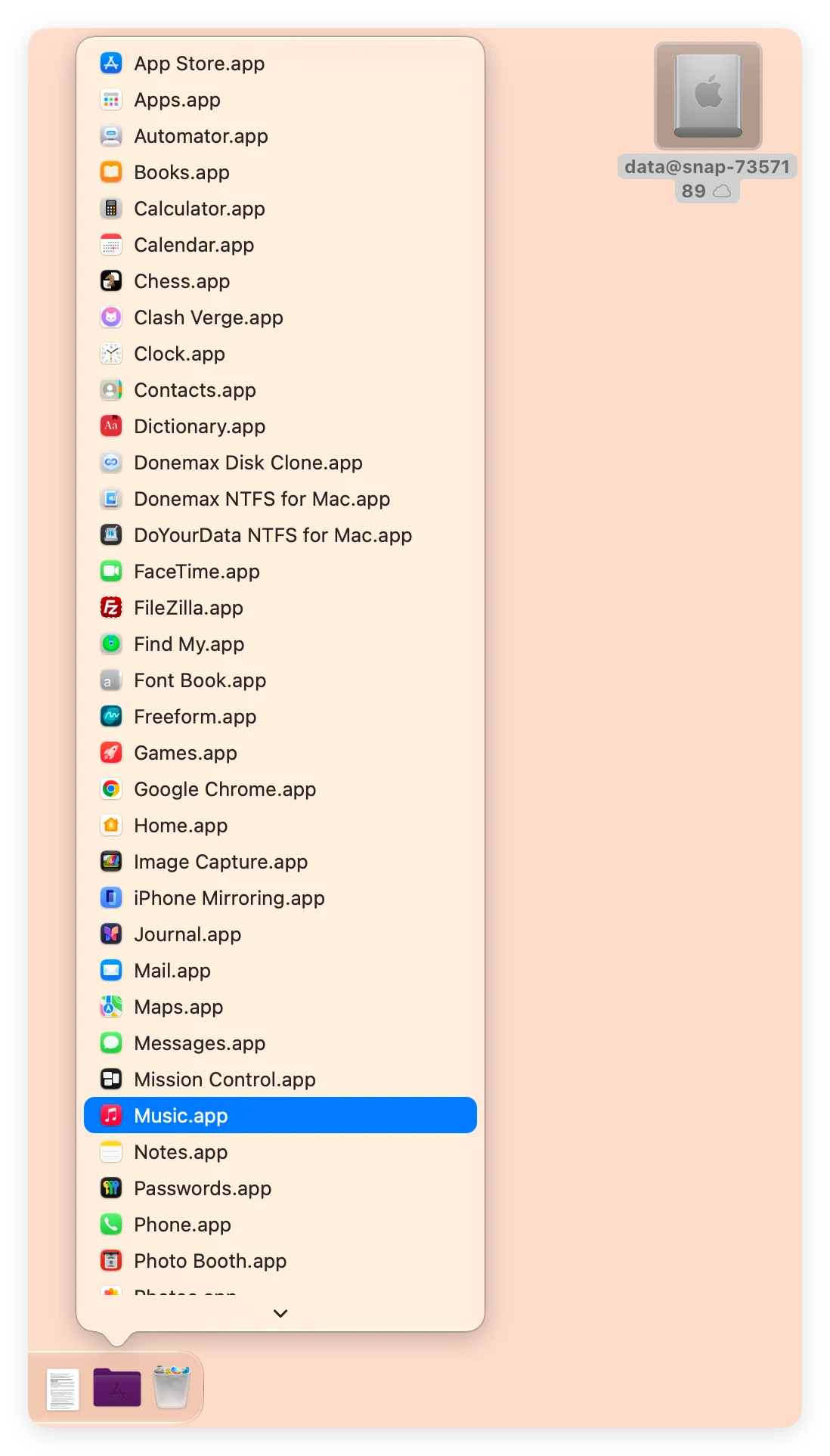
While this native method is completely free and requires no downloads, it definitely has some limitations. It only shows you a list of your apps. It won't give you quick buttons to restart your Mac, check your hard drive health, manage running memory, or clear system caches.
If you want a true, feature-rich Windows style start menu experience, the native workaround isn't going to be enough. That is where Donemax DMmenu comes into play. It is a highly optimized, lightweight tool designed specifically to fill this exact gap for macOS users.
Donemax DMmenu does not just copy the old Windows look; it enhances it to perfectly fit the aesthetic of macOS 27 Golden Gate. It puts a smart, versatile dashboard right at your fingertips.
Why is Donemax DMmenu highly recommended by Mac optimization experts? Let's look at what it brings to your screen:
Getting started is incredibly easy. Follow these steps to set it up on your system:
Step 1: Download and install the software on your Mac.
Step 2: Launch DMmenu from your Applications folder. You will instantly see a sleek Start Menu button appear on your screen. Customize the layout settings to match your personal workflow preferences.
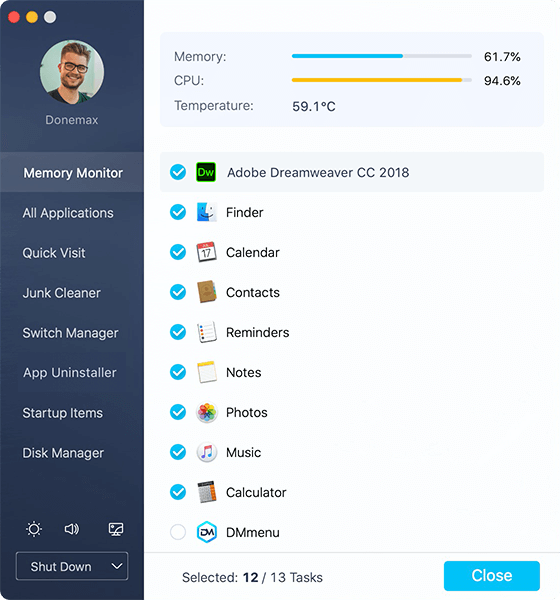
To help you make the right choice, let's look at how the native shortcut compares directly to the full Donemax DMmenu package.
The built-in Dock folder workaround is great if you only want a quick list of apps and absolutely refuse to download third-party software. However, it lacks deep functionality. It cannot clean up your storage, monitor your RAM, or completely uninstall stubborn applications.
On the other hand, Donemax DMmenu transforms your workflow. It functions as a complete control desk. It looks modern, runs incredibly fast, and actively helps you maintain your Mac's health over time. For the best user experience on macOS 27 Golden Gate, Donemax DMmenu is clearly the superior option.
Replicating your favorite Windows features on a Mac doesn't have to be hard. Whether you decide to use the simple built-in Dock trick or choose to power up your desktop experience with Donemax DMmenu, you can easily create start menu on macOS 27 Golden Gate. Give your Mac a boost and enjoy the perfect blend of Windows familiarity and Apple power today!
Donemax DMmenu for Mac
A powerful menubar application helps you hide desktop icons and Dock, enable dark mode, connect Bluetooth, monitor system memory, speed up your Mac, manage apps and clean up junks by one click.
Christina
Christina is the senior editor of Donemax software who has worked in the company for 4+ years. She mainly writes the guides and solutions about data erasure, data transferring, data recovery and disk cloning to help users get the most out of their Windows and Mac. She likes to travel, enjoy country music and play games in her spare time.
Gerhard Chou
In order to effectively solve the problems for our customers, every article and troubleshooting solution published on our website has been strictly tested and practiced. Our editors love researching and using computers and testing software, and are willing to help computer users with their problems