
Written byMariaUpdated on Feb 12, 2026

Before we start: When you find System data is so big on Mac, there might be too much junk data on your Mac. With the most reliable and comprehensive Mac cleaner software, Donemax DMcleaner for Mac, you can easily free the Mac disk space and reduce the System data on Mac.
PAGE CONTENT:
If you've ever checked your Mac's storage and noticed a category labeled "System Data" taking up tens or even hundreds of gigabytes, you're not alone. Many Mac users are surprised by how much space this category occupies, especially when their personal files, applications, and media libraries don't seem to justify it. Understanding what System Data is, why it grows so large, and how to manage it is essential for maintaining optimal Mac performance and reclaiming valuable storage space.
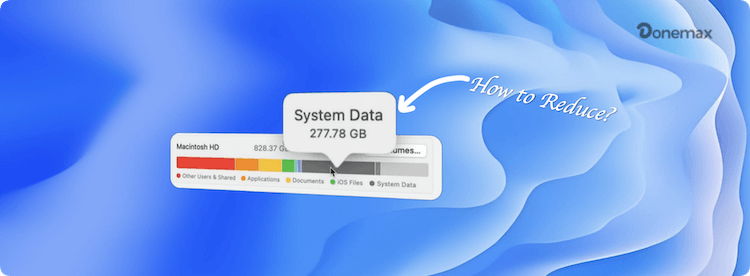
In macOS, storage is categorized into several groups, including Applications, Documents, Photos, Music, Movies, iCloud Drive, and System Data. In older macOS versions, System Data was labeled as "Other", but its core function remains the same: it represents data that doesn't fall into the standard categories.
System Data includes all the files required for macOS to run efficiently, temporary files created by apps, system caches, logs, local backups, and other miscellaneous items. Since this category combines many types of files, it can quickly balloon in size, sometimes occupying more space than your applications or personal documents.
Understanding what makes up System Data can help you identify why it grows and what you can do about it. The major components include:
At the core of System Data are essential macOS files required for the operating system to function. This includes:
While these files are necessary, macOS sometimes stores local snapshots of system updates and Time Machine backups in System Data, which can significantly increase its size if not managed.
Caches are temporary files that allow apps and the system to load data more quickly. macOS uses caches extensively, and they can grow quite large over time.
Types of caches:
While caches are useful, they can occupy dozens of gigabytes if they accumulate over long periods.
Log files are records of system and application activity. They are useful for troubleshooting and diagnosing issues, but macOS doesn't always delete old logs automatically.
Examples include:
Over time, these logs can grow large, especially if apps or the system are unstable and produce frequent errors.
Temporary files are created during regular system and application operations. These include:
These files are often invisible to users, yet they are counted as System Data and can accumulate over months or years.
Many applications create support files stored in hidden folders within your system library. These can include:
When apps are uninstalled, some of these files remain, contributing to an increase in System Data.
System Data may also contain miscellaneous items that don't fit neatly into standard categories, such as:
Even though these files are often overlooked, they can collectively occupy a large portion of your storage.
Several factors contribute to the rapid growth of System Data on a Mac:
If System Data grows unchecked, it can impact system performance and reduce the amount of storage available for your personal files.
Before attempting to reduce System Data, it's important to check its size:
If System Data occupies an unusually large portion of your storage, several strategies can help reclaim space:
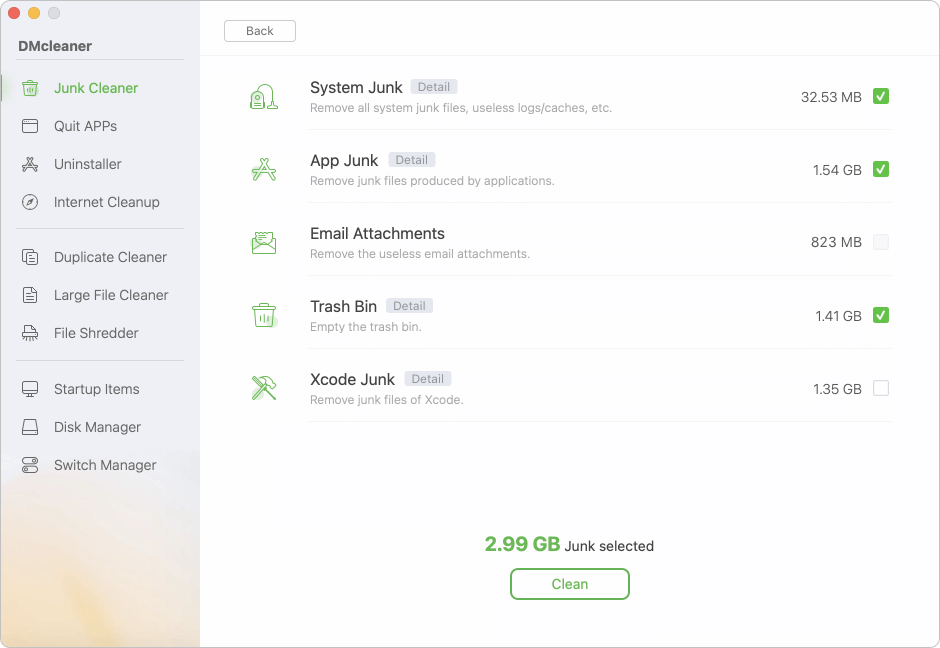
Caches and logs can often be safely deleted:
The software can not only clean and reduce the System Data on Mac, but also remove the other applications junk data, cache, and other data.
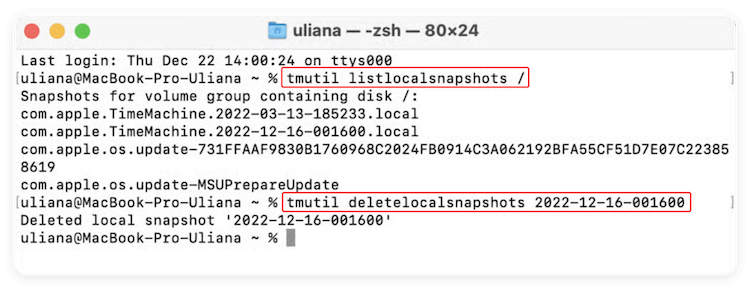
Local Time Machine snapshots can occupy significant space:
tmutil listlocalsnapshots /
tmutil deletelocalsnapshots <snapshot_date>
Regularly connecting your Time Machine drive ensures local snapshots don't accumulate unnecessarily.
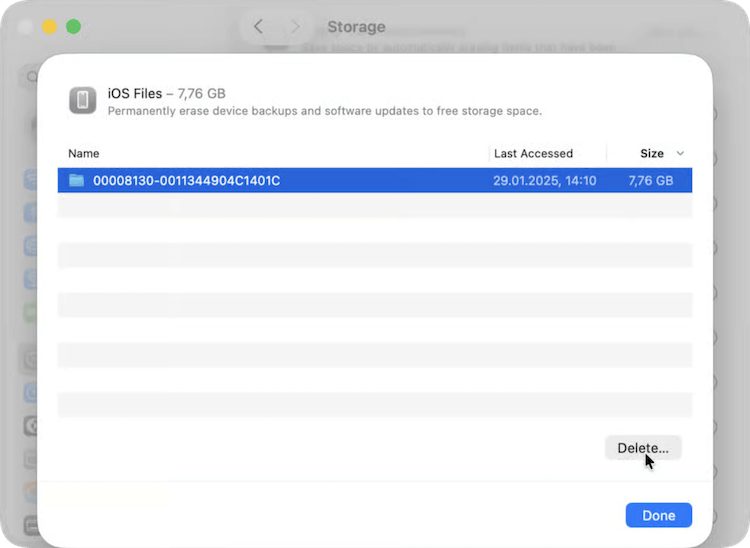
iTunes or Finder stores backups of iPhones and iPads, often under System Data:
When apps are deleted, support files often remain:
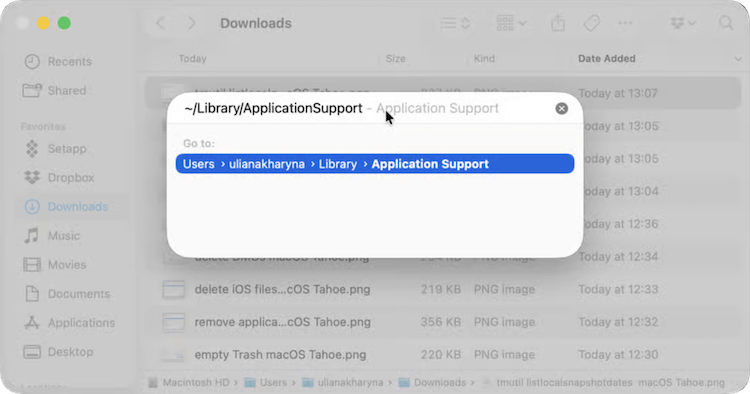
Exercise caution—delete only files from apps you no longer use.
macOS offers built-in tools to optimize storage:
This process can clear temporary files and refresh macOS's storage calculations.
If System Data remains unusually large despite cleanup efforts, reinstalling macOS can reset system files without affecting personal data:
Proactive management is key to preventing System Data from consuming excessive storage:
By adopting these practices, you can maintain a healthy Mac storage environment and prevent System Data from overtaking your drive.
System Data on Mac, formerly known as "Other," can be confusing and frustrating for users. It includes system files, caches, logs, temporary files, app support files, and other miscellaneous items that macOS needs to operate efficiently. While some growth in System Data is natural, excessive accumulation can reduce available storage and impact performance.
By understanding what makes up System Data, regularly checking its size, and implementing strategies to clear unnecessary files, users can effectively manage their Mac storage. Whether through manual cleanup, built-in optimization tools, or careful app management, reclaiming space from System Data is achievable and helps maintain a fast, efficient Mac.
Donemax DMcleaner for Mac
Donemax DMcleaner for Mac is an award-winning Mac cleanup & maintenance tool. It offers over 10 tools to help Mac users clean junk data. It helps speed up a slow Mac. Additionally, it includes a smart switch manager and disk manager for Mac.
Maria
Maria is one of the senior writers & editors of Donemax who lives and works in Sydney, Australia. She loves PC, Mac and Internet Technology. She has 6 years of writing articles about data recovery on PC/Mac, disk cloning solution, data eraser and computer OS optimization, etc. She is also interested in testing various software and digital products.
Gerhard Chou
In order to effectively solve the problems for our customers, every article and troubleshooting solution published on our website has been strictly tested and practiced. Our editors love researching and using computers and testing software, and are willing to help computer users with their problems