Written byChristinaUpdated on May 15, 2026

PAGE CONTENT:
Have you ever looked at your Mac's storage and wondered why it's split into three or four different "disks" when you only wanted one? Maybe you created a partition years ago for a project that's now finished, or perhaps you bought a used Mac that came with a messy drive layout.
Whatever the reason, if you want to merge partitions on Mac setups to reclaim your space, you're in the right place. In this guide, we'll show you how to simplify your digital life by combining those separate volumes into one seamless drive. We will also cover how to resize partitions on Mac if you aren't quite ready to delete them entirely.
As we move into 2026, storage needs are changing. With cloud integration and larger system updates, having a tiny system partition and a huge "Data" partition often leads to "Disk Full" errors—even when you have plenty of total space.
Merging partitions allows you to:
Before we touch any settings, let's handle the "safety first" rules. Merging partitions is a major structural change to your drive.
Back Up Everything: We cannot stress this enough. When you merge partitions, you are essentially deleting one and expanding another. If something goes wrong (like a power flicker), you could lose data. Use an external drive or iCloud.
How to Backup Mac Data?
To back up Mac data, you can use Time Machine or third-party backup or clone software.
Check Your Format: Modern Macs use APFS (Apple File System). Older ones use HFS+. You can usually only merge partitions that share the same format.
Identify the "Parent" Partition: On a Mac, you typically merge a "child" partition into the one that sits "above" it in the disk map.
For 99% of home users, the built-in Disk Utility is the best tool to merge partition on Mac volumes. It's visual, safe, and built right into macOS.
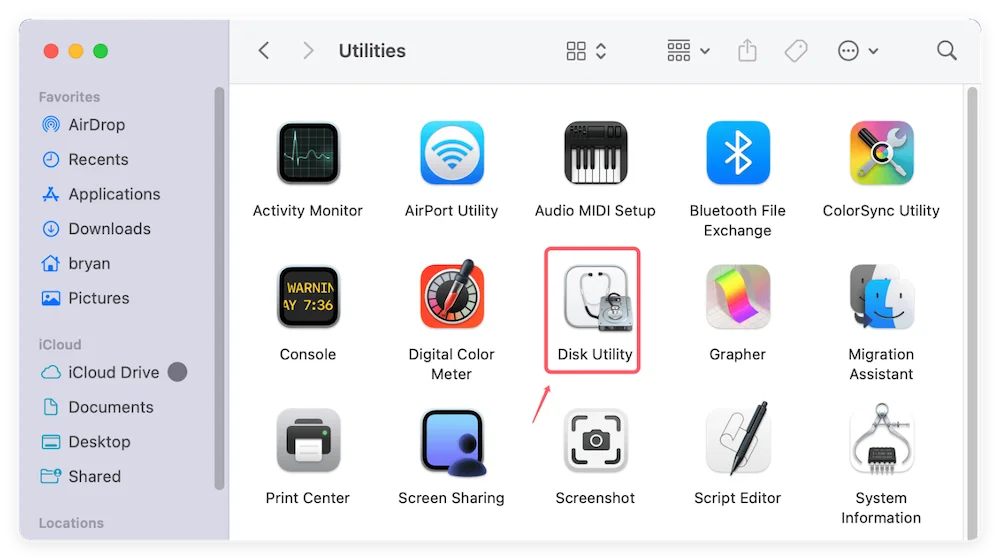
Step 1: Launch Disk Utility
Press Command + Space and type "Disk Utility," or find it in Applications > Utilities.
Step 2: View All Devices
In the top-left corner, click the View icon and select Show All Devices. This ensures you see the physical drive, not just the logical volumes.
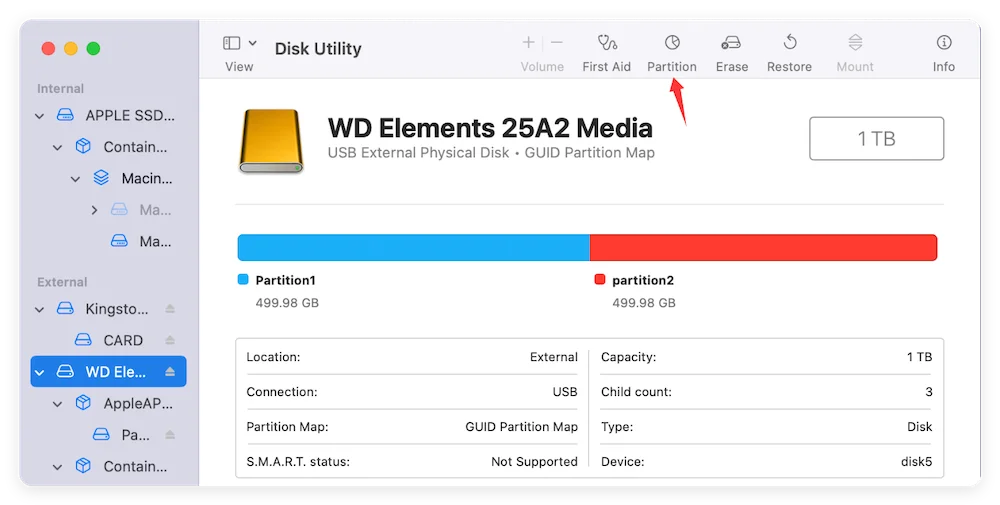
Step 3: The Partition Map
Select your main internal drive and click the Partition button in the top toolbar. A pie chart will appear showing how your space is divided.
Step 4: Delete the Unwanted Partition
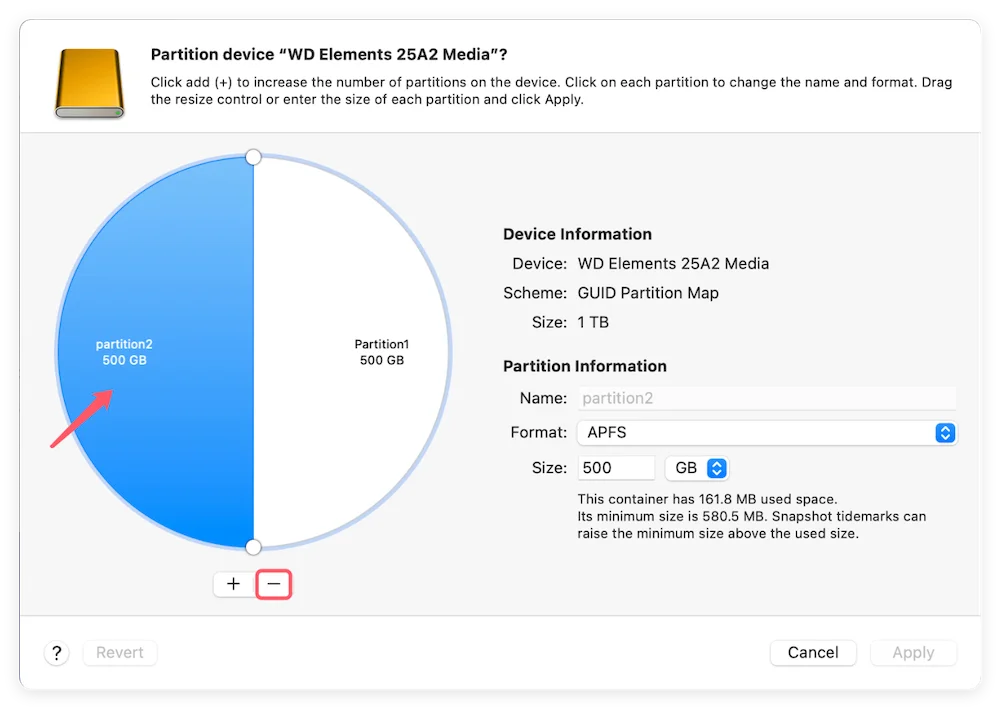
Select the partition you want to get rid of (the one you are merging away from). Click the Minus (-) button. Note: This will instantly erase the data on that specific partition.
Step 5: Resize to Fill the Gap
Once the partition is deleted, you'll have a gray "Free Space" area. To resize partitions on Mac so they take up that space:
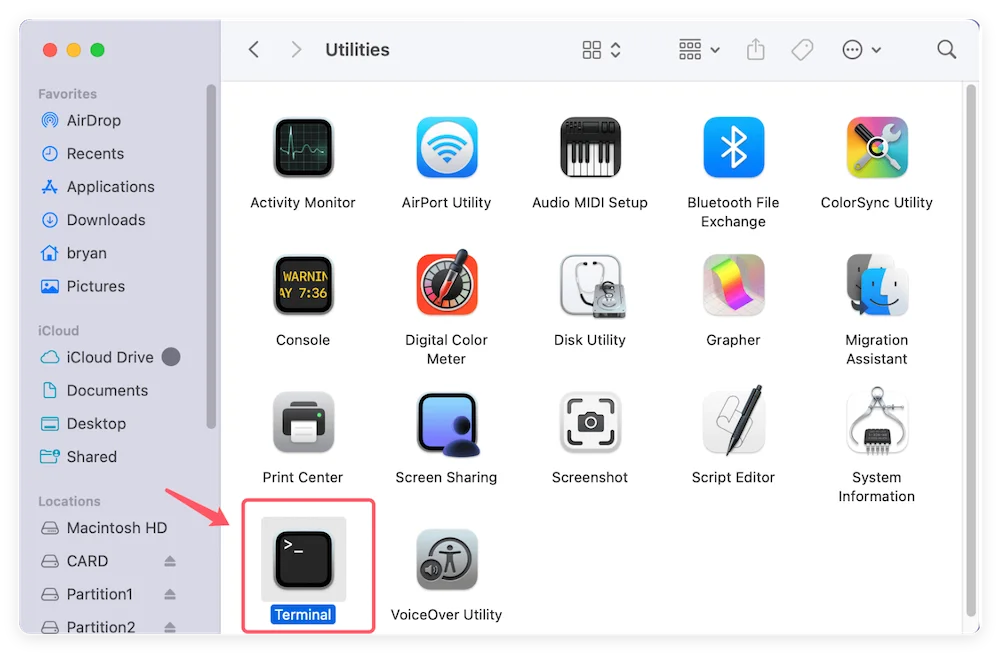
If Disk Utility gives you an error or the "Minus" button is grayed out, you may need to use the Terminal. This is more technical but often more powerful for stubborn drives.
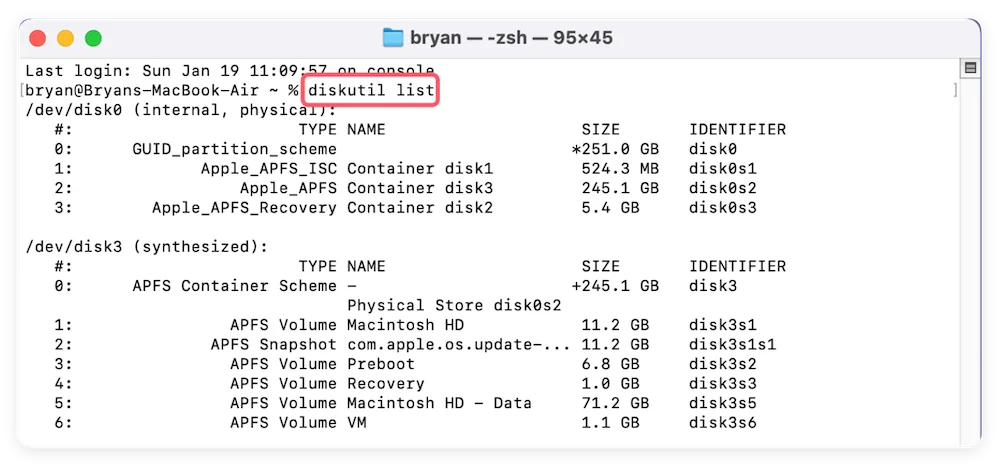
💡 Note: This command merges the space from the second partition into the first one listed.
Sometimes you don't want to delete a partition; you just want to move the "border" between them. This is called resizing.
Managing your storage shouldn't feel like a chore. While the terms "partitioning" and "merging" sound technical, Apple has made the process much more user-friendly over the years. By choosing to merge partition on Mac layouts, you're giving your computer more breathing room and making your file organization much simpler.
Just remember: Backup first, click second. Once those partitions are combined, you'll enjoy a much smoother, more efficient Mac experience.
Donemax Disk Clone for Mac
An award-winning disk cloning program to help Mac users clone HDD/SSD/external device. It also can create full bootable clone backup for Macs.
Christina
Christina is the senior editor of Donemax software who has worked in the company for 4+ years. She mainly writes the guides and solutions about data erasure, data transferring, data recovery and disk cloning to help users get the most out of their Windows and Mac. She likes to travel, enjoy country music and play games in her spare time.
Gerhard Chou
In order to effectively solve the problems for our customers, every article and troubleshooting solution published on our website has been strictly tested and practiced. Our editors love researching and using computers and testing software, and are willing to help computer users with their problems