Written byStevenUpdated on Oct 30, 2026

Before we start: To recording online meetings, games, tutorials, and other useful things on Mac, a reliable screen recorder is necessary. Auto zoom Donemax Recorder for Mac is the best choice. It can record screen and audio stably and effectively.
PAGE CONTENT:
Whether you are creating engaging video tutorials, capturing online lectures, recording Zoom meetings, or archiving live streams, having a reliable Mac screen recorder is essential. With macOS offering stunning visual performance across Apple Silicon Macs, users need a recording tool that keeps up with crisp 4K quality without slowing down their system.
While Mac computers come with built-in options like QuickTime Player and the Screenshot toolbar, many users quickly discover their limitations―especially when trying to record internal system audio or overlay a webcam feed. If you have been searching for the best screen recorder for Mac, this guide will walk you through everything you need to know.
In this comprehensive article, we will examine standard macOS built-in tools, highlight the key features you should look for in professional software, compare top Mac screen recorders, and introduce Donemax Recorder―a powerful, intuitive screen recording and auto-editing tool designed specifically for macOS.
Before looking into third-party software, it helps to understand what macOS provides out of the box and why native solutions often fall short for content creators, educators, and professionals.
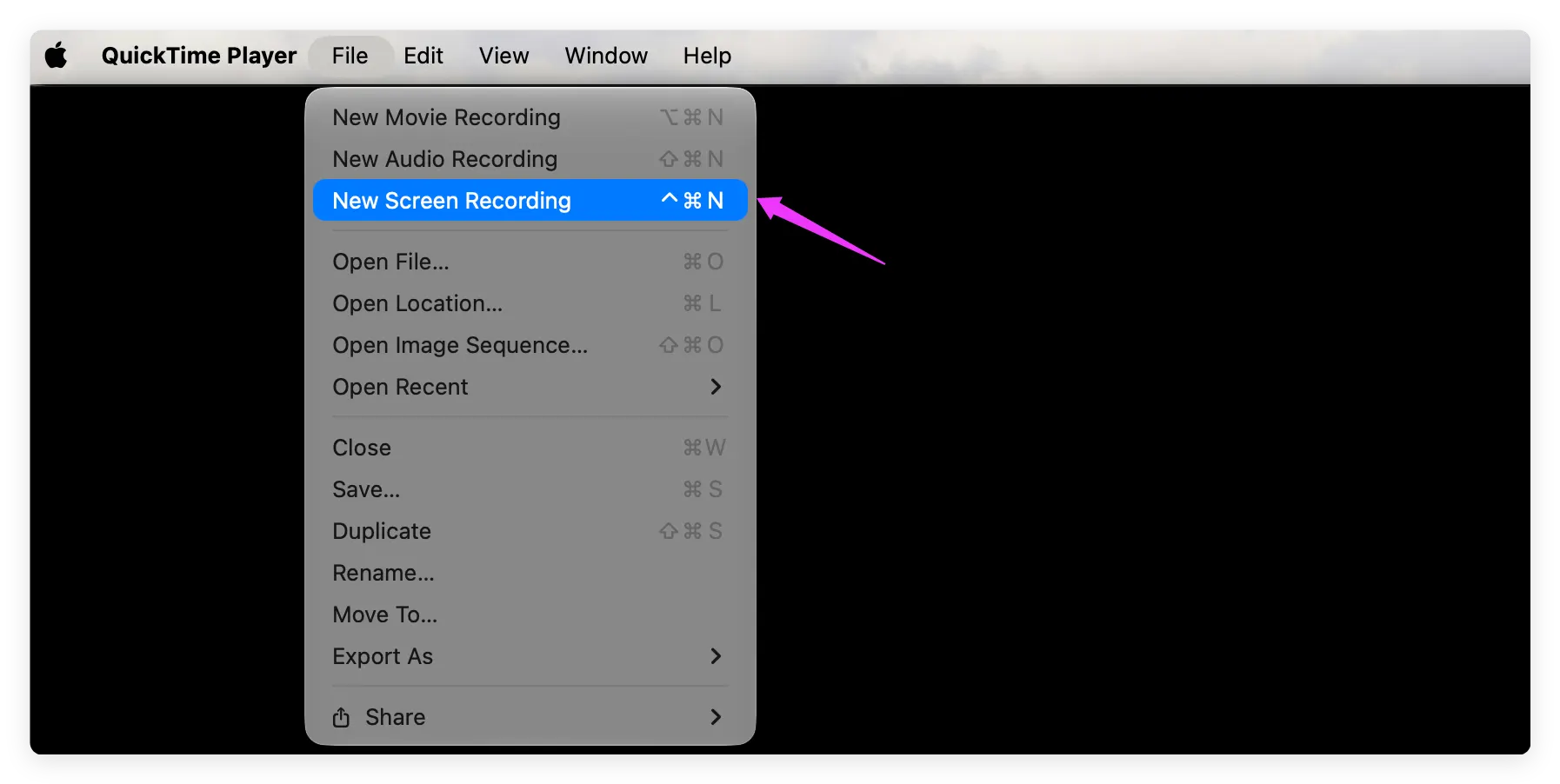
QuickTime Player is Apple's native media player and basic screen recorder. While it is free and built into every Mac, QuickTime lacks a critical feature out of the box: it cannot record system audio natively. To capture computer sound (such as audio from a Zoom call or YouTube video), users are forced to install complex virtual audio drivers like BlackHole or Soundflower. Additionally, QuickTime offers no built-in webcam overlay, real-time annotations, or automated zoom effects.
Pressing Command + Shift + 5 brings up Apple's utility for taking screenshots and recording video clips. It is handy for quick screen captures, but like QuickTime, it only records microphone audio by default. It lacks picture-in-picture webcam support, custom canvas styling, cursor enhancement options, and automatic editing tools.

For users who need seamless internal audio capture, camera overlays, smooth performance, and professional video polish, upgrading to a dedicated Mac screen recorder is necessary.
When evaluating screen recording software for macOS, keep these essential features in mind to ensure you choose the best tool for your workflow:
If you are searching for a lightweight, feature-packed, and easy-to-use screen recorder for Mac, Donemax Recorder is the ultimate solution. Designed to run seamlessly across macOS versions (including macOS Golden Gate, Tahoe, Sequoia, etc.) on both Apple Silicon and Intel Macs, Donemax Recorder combines high-definition screen capture with automated video editing.
Unlike basic recorders that output raw, unedited footage, Donemax Recorder captures your screen, webcam, microphone, and system sound in one take―then automatically applies smooth zooms, cursor polish, and canvas framing so your video comes out ready to share.
Recording and auto-editing your Mac screen with Donemax Recorder is fast and simple. Follow these five straightforward steps:
Step 1: Download and Launch Donemax Recorder
Download and install Donemax Recorder on your Mac. Launch the app to access the clean launcher bar.
Step 2: Select Recording Mode and Audio Sources
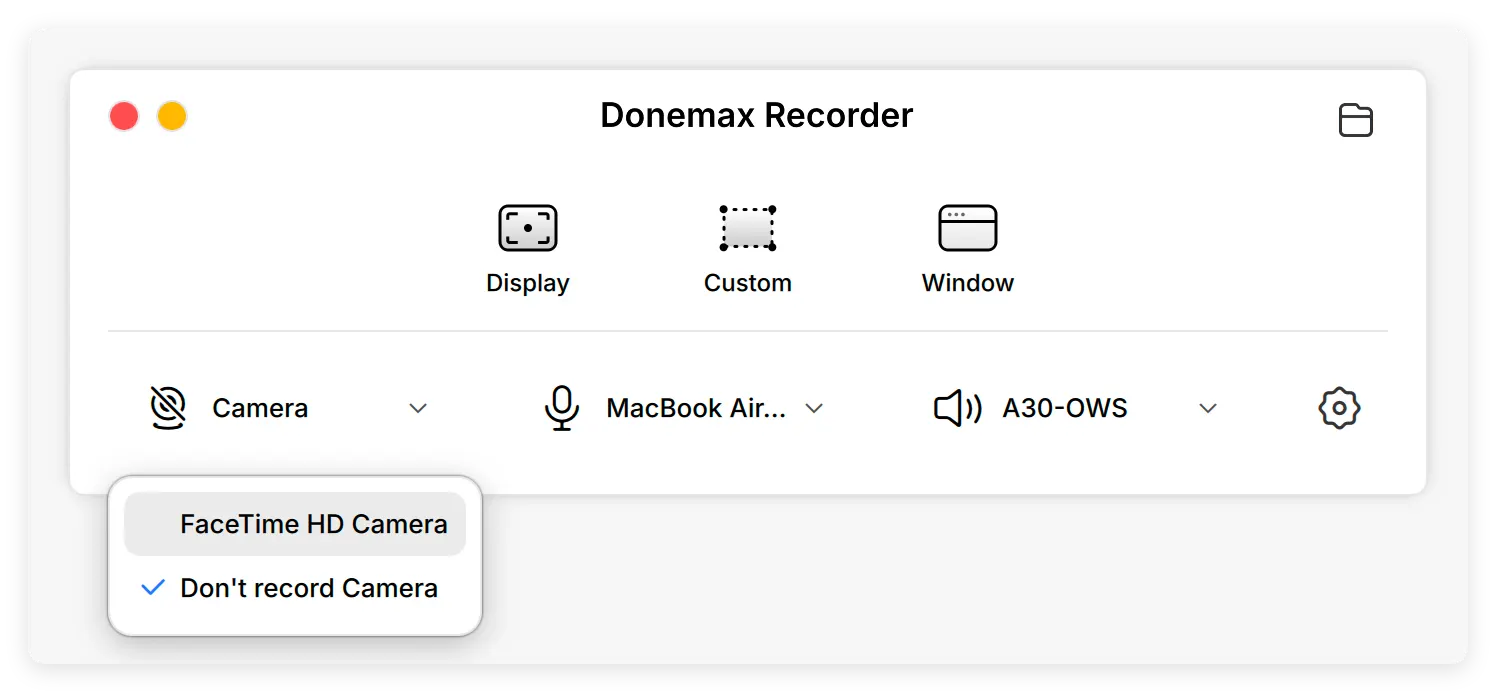
Select your camera, microphone, and digital audio (system sound) from the drop-down menus. Pick your recording region: Display (full screen), Custom (drag a box), or Window (a single app window).
Step 3: Start Recording
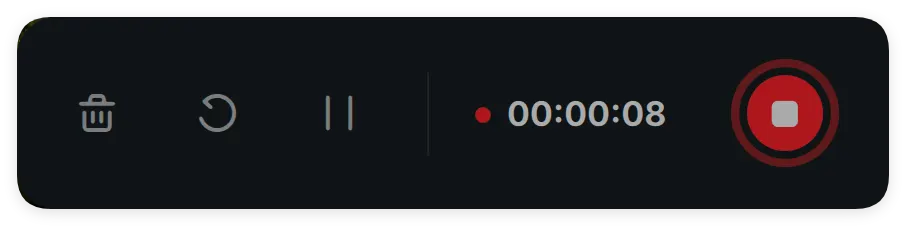
Click the red "Start Recording" button. After a brief 3-second countdown, recording begins. A floating bar displays elapsed time with options to pause, restart, or stop.
Step 4: Auto-Edit and Fine-Tune
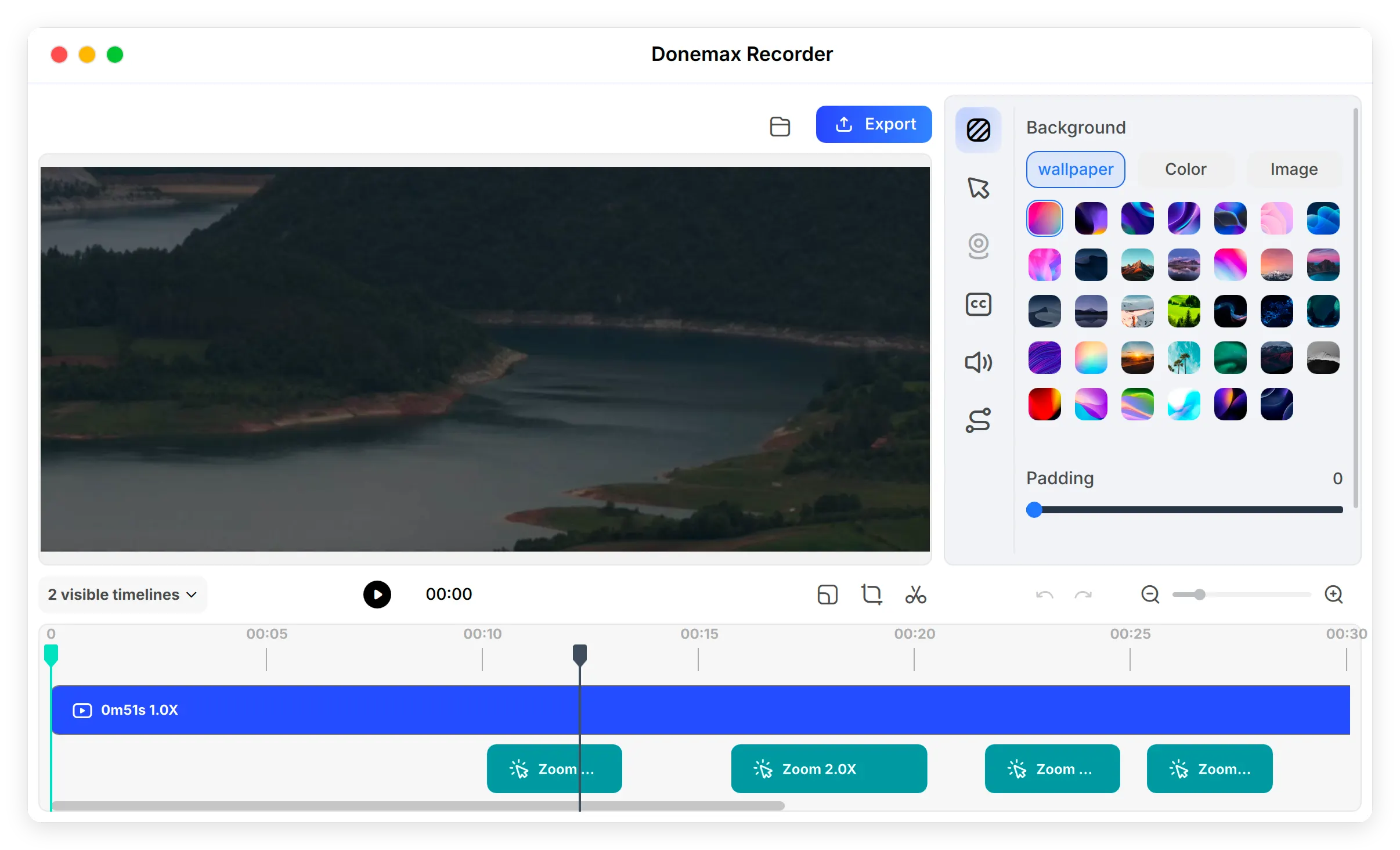
Click Stop when finished. The built-in editor opens automatically with AI auto-zooms and camera layouts applied. Use the side panels to adjust background wallpaper, cursor size, camera bubble position, or captions.
Step 5: Export Your Video
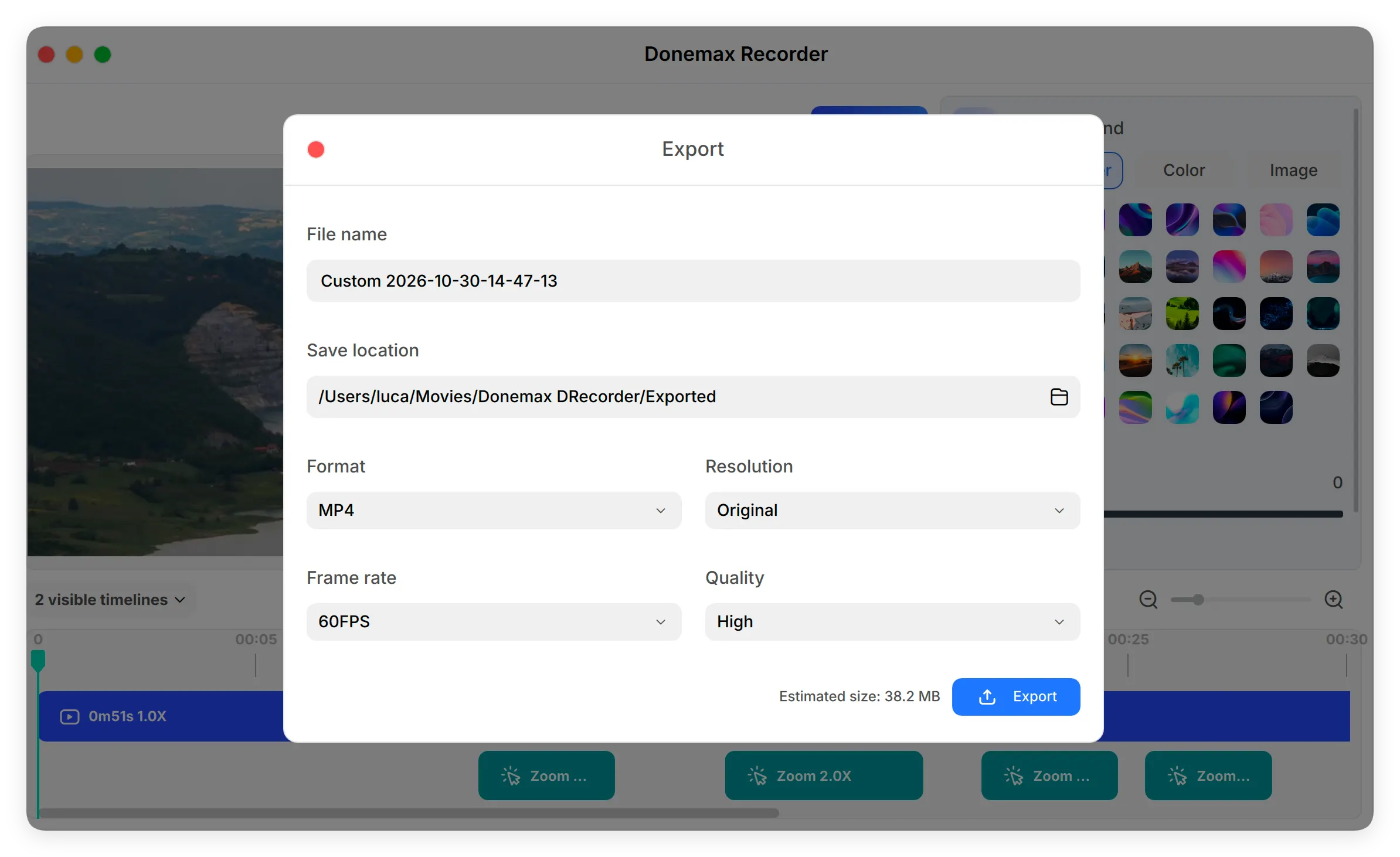
Click the blue Export button to save your polished MP4 video in high quality (up to 60 FPS). Click the folder icon to locate your saved file immediately.
Finding the best screen recorder for Mac doesn't have to be complicated. While native tools like QuickTime Player provide basic capture, they lack internal audio support, webcam overlays, and auto-editing capabilities.
Donemax Recorder bridges the gap between basic screen recording and professional video creation. With dual-audio capture, customizable webcam overlays, AI auto-zoom, custom cursor formatting, and automatic subtitle generation, it delivers everything you need in one easy-to-use package.
Ready to create clean, professional screen recordings on your Mac? Download Donemax Recorder today and experience effortless screen capture on macOS!
Donemax Recorder for Mac
Donemax Recorder is an auto-zoom Mac screen recorder that automatically magnifies clicks and applies smooth cursor effects for effortless tutorial and demo creation.
Steven
Steven has been a senior writer & editor of Donemax software since 2020. He's a super nerd and can't imagine the life without a computer. Over 6 years of experience of writing technical solutions and software tesing, he is passionate about providing solutions and tips for Windows and Mac users.
Gerhard Chou
In order to effectively solve the problems for our customers, every article and troubleshooting solution published on our website has been strictly tested and practiced. Our editors love researching and using computers and testing software, and are willing to help computer users with their problems