Written byMariaUpdated on Nov 02, 2026

Before we start: Whether you are recording an online meeting, creating video tutorials for YouTube, capturing software walk-thorough, or saving live streams, having a reliable screen recorder for Windows 11 is essential. With Donemax Recorder, you can easily capture your screen, webcam, and audio in high quality, with built-in AI auto-editing features that polish your video automatically.
PAGE CONTENT:
Windows 11 comes with impressive visual enhancements, but when it comes to recording screen content with system audio, microphone voice-overs, and webcam picture-in-picture layouts, many users find themselves searching for a tool that balances high performance with user-friendly simplicity.
While Windows offers basic built-in recording options like the Xbox Game Bar and Snipping Tool, these utilities often fall short when you need advanced controls—such as custom area selection, specific window capture, camera overlays, cursor styling, and AI-powered zoom effects.

In this article, we will examine standard Windows 11 recording options, outline key features to look for in a professional screen recorder for Windows 11, and introduce Donemax Recorder—a powerful, lightweight screen recording and auto-editing tool crafted specifically for Windows 11.
Before installing third-party software, it helps to understand what Windows 11 provides out of the box and where those native tools fall short.
Xbox Game Bar
Designed primarily for gamers, Xbox Game Bar allows you to record active gameplay or single app windows quickly. However, it comes with notable restrictions: it cannot record your desktop background or File Explorer, struggles with multi-monitor workflows, and lacks flexible auto-editing, zoom effects, or subtitle tools.
Windows 11 Snipping Tool
Microsoft added screen recording to the Snipping Tool in recent Windows 11 updates. While handy for short, quick clips, it lacks webcam overlay support, cursor enhancement options, automatic zoom effects, AI subtitle generation, and multi-track audio controls.
PowerPoint Screen Recorder
Microsoft PowerPoint allows basic screen capture for slide presentations, but video export options are limited, frame rates are restricted, and recording tutorials or long desktop sessions is cumbersome.
For creators, educators, software reviewers, and remote professionals who require crystal-clear 4K resolution, lag-free recording, dual audio capture, and professional video polish, a dedicated screen recording tool is necessary.
When evaluating screen recording software for Windows 11, keep these essential features in mind:
If you are searching for a lightweight, feature-packed, and intuitive screen recorder for Windows 11, Donemax Recorder is the ideal solution.
Designed to run smoothly on Windows 11 and Windows 10 (64-bit), Donemax Recorder combines professional screen capture with automatic AI video editing. It captures your screen, camera, microphone, and system sound in one take—then automatically adds smooth zooms, cursor polish, and canvas framing so your video comes out ready to share.
Whether you are recording an online lecture, a video call, a software demo, or an instructional guide, Donemax Recorder delivers crisp performance without overwhelming your system.
Here is why Donemax Recorder stands out as a top choice for Windows 11 users:
Recording and editing your Windows 11 screen with Donemax Recorder is fast and simple:
Step 1: Choose What to Record
Open Donemax Recorder and select your recording mode from the launcher bar: Display (full screen/monitor), Custom (drag a region), or Window (a single application window).
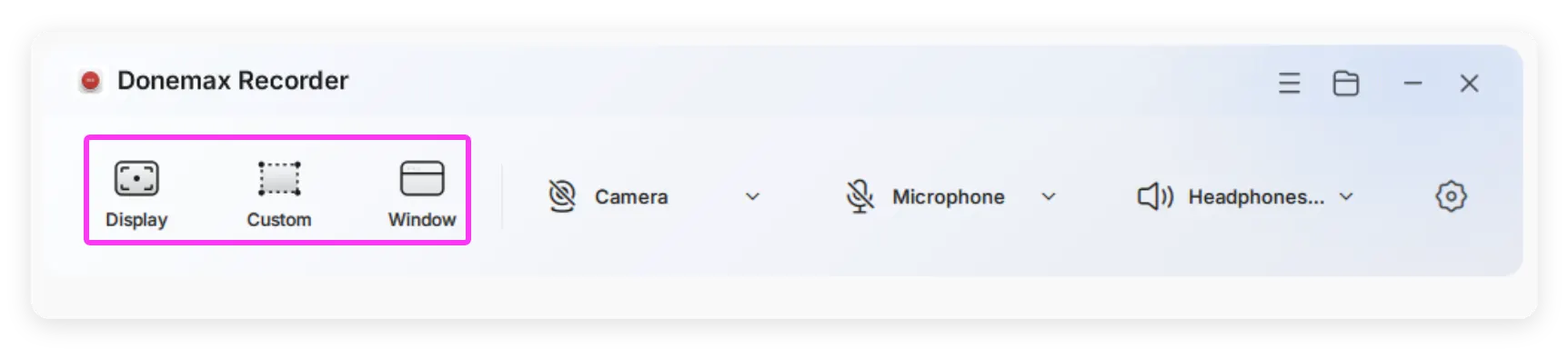
Step 2: Select Camera & Audio Sources
Choose your webcam, microphone, and system audio output from the drop-down menus on the launcher bar (or turn off any source you don't need). Click the gear icon if you wish to enable "Hide desktop icons" or "Hide taskbar".
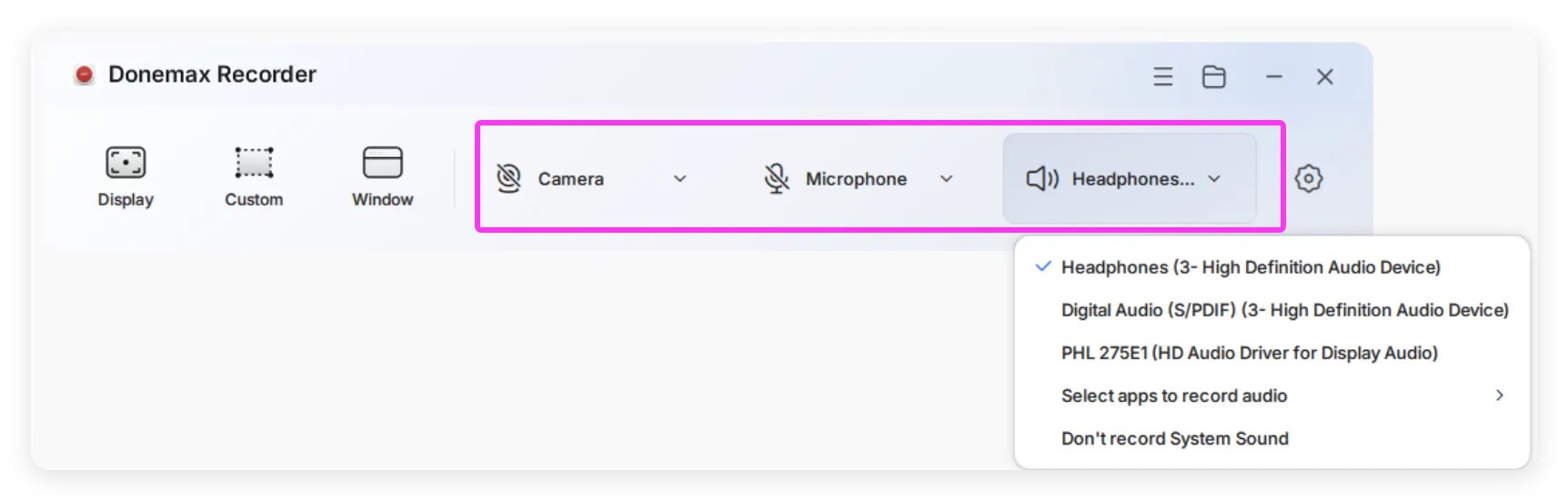
Step 3: Start Recording
Click the red record button. A 3-second countdown will give you time to prepare before capture begins. A floating toolbar will display elapsed time with options to pause, restart, or stop.
Step 4: Auto-Edit & Customize
Click Stop when finished. The built-in editor opens automatically with AI-generated zoom effects and camera layouts applied. Use the side panels to adjust background style, cursor size/design, camera bubble size/position, subtitle captions, or motion smoothness.
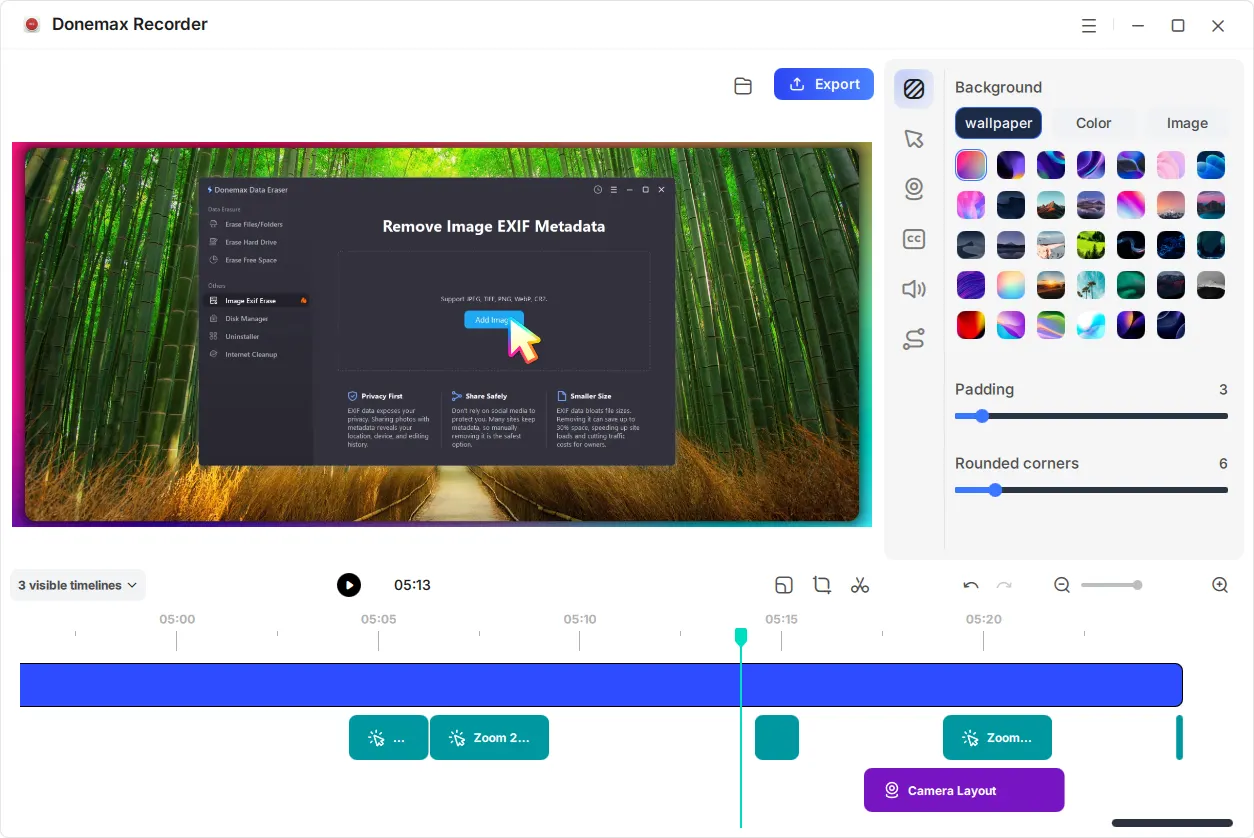
Step 5: Export Your Video
Click the blue Export button to render your polished MP4 video in high quality (up to 60 FPS). Click the folder icon to open the saved file directly.
Finding a trustworthy, versatile screen recorder for Windows 11 doesn't have to be complicated. While native tools like Xbox Game Bar and Snipping Tool offer basic capture, they lack the auto-editing power needed for polished content creation.
Donemax Recorder provides everything you need—from 4K video capture and dual-audio recording to webcam overlays, AI auto-zooms, cursor customization, and automatic captioning.
Ready to create crisp, professional screen recordings on Windows 11? Download Donemax Recorder and start capturing your screen effortlessly!
Donemax Recorder for Windows
Donemax Recorder is an auto-zoom Windows screen recorder that automatically magnifies clicks and applies smooth cursor effects for effortless tutorial and demo creation.
Maria
Maria is one of the senior writers & editors of Donemax who lives and works in Sydney, Australia. She loves PC, Mac and Internet Technology. She has 6 years of writing articles about data recovery on PC/Mac, disk cloning solution, data eraser and computer OS optimization, etc. She is also interested in testing various software and digital products.
Gerhard Chou
In order to effectively solve the problems for our customers, every article and troubleshooting solution published on our website has been strictly tested and practiced. Our editors love researching and using computers and testing software, and are willing to help computer users with their problems