Written byCharlesUpdated on Nov 02, 2026

Before we start: Whether you are an online educator crafting video lessons, a gamer saving epic gameplay highlights, a professional recording Zoom meetings, or a creator filming YouTube software tutorials, having a reliable screen recorder on your PC is an absolute necessity. Donemax Recorder is the right choice for you.
PAGE CONTENT:
As modern desktop applications and web platforms become more visual, the demand for fast, high-quality, and easy-to-use video capture software has never been higher. However, searching online for a PC screen recorder free download often yields frustrating results.
Many downloadable utilities enforce strict recording time limits, embed giant watermark logos over your footage, cap video frame rates, or require complex configurations just to record internal speaker sound. If you want clean, high-definition screen recordings without technical headaches, knowing what to look for makes all the difference.
In this comprehensive guide, we will examine built-in Windows capture options, highlight the critical features you should evaluate before downloading any software, compare top PC screen recorders, and introduce Donemax Recorder—a lightweight, feature-packed screen recording and auto-editing software designed for Windows PCs.
Before downloading third-party software, many users explore the default screen recording tools built into Windows 11 and Windows 10. While native utilities offer quick access, they come with noticeable limitations when used for professional or educational content creation.
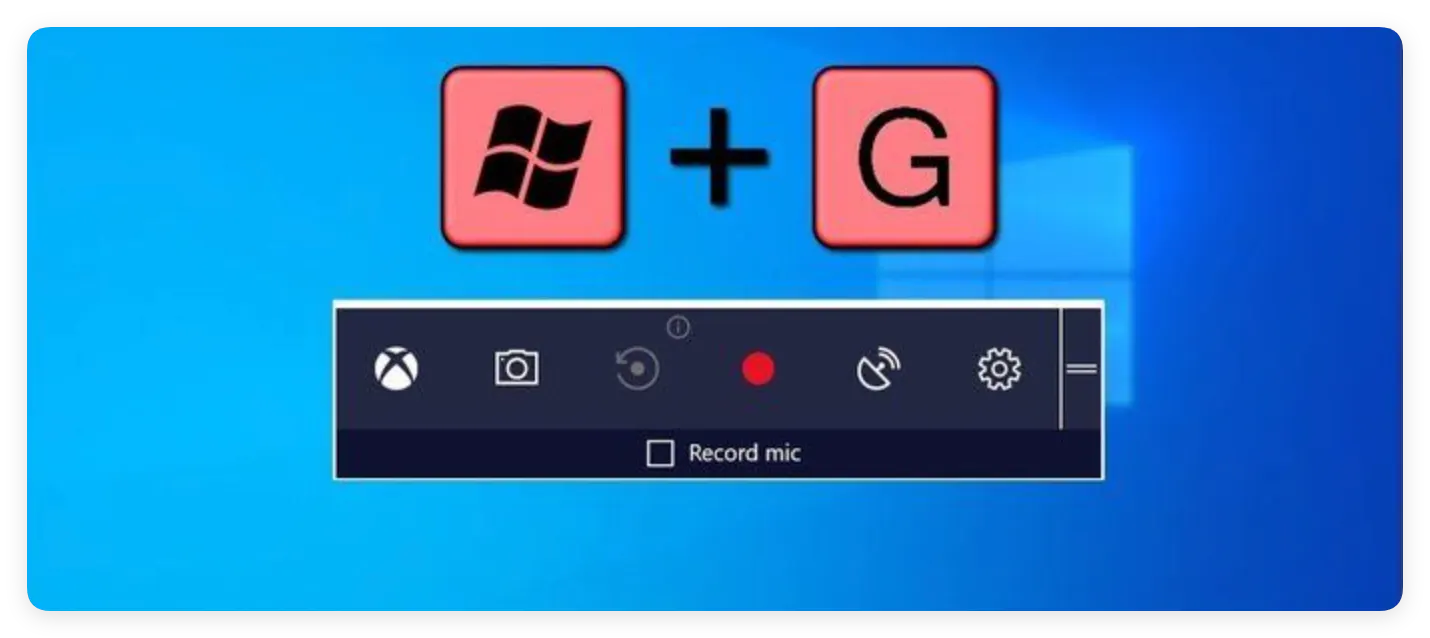
Xbox Game Bar - Built natively into Windows 10 and 11, Xbox Game Bar allows gamers to record active gameplay clips by pressing Windows Key + G. While it is free and pre-installed, Xbox Game Bar has major drawbacks for general PC recording. It can only capture a single active app window at a time—it cannot record your full Windows desktop background, File Explorer, or multi-window desktop workflows. Furthermore, it offers no picture-in-picture webcam integration, cursor pointer enhancements, automated zoom effects, or video editing options.
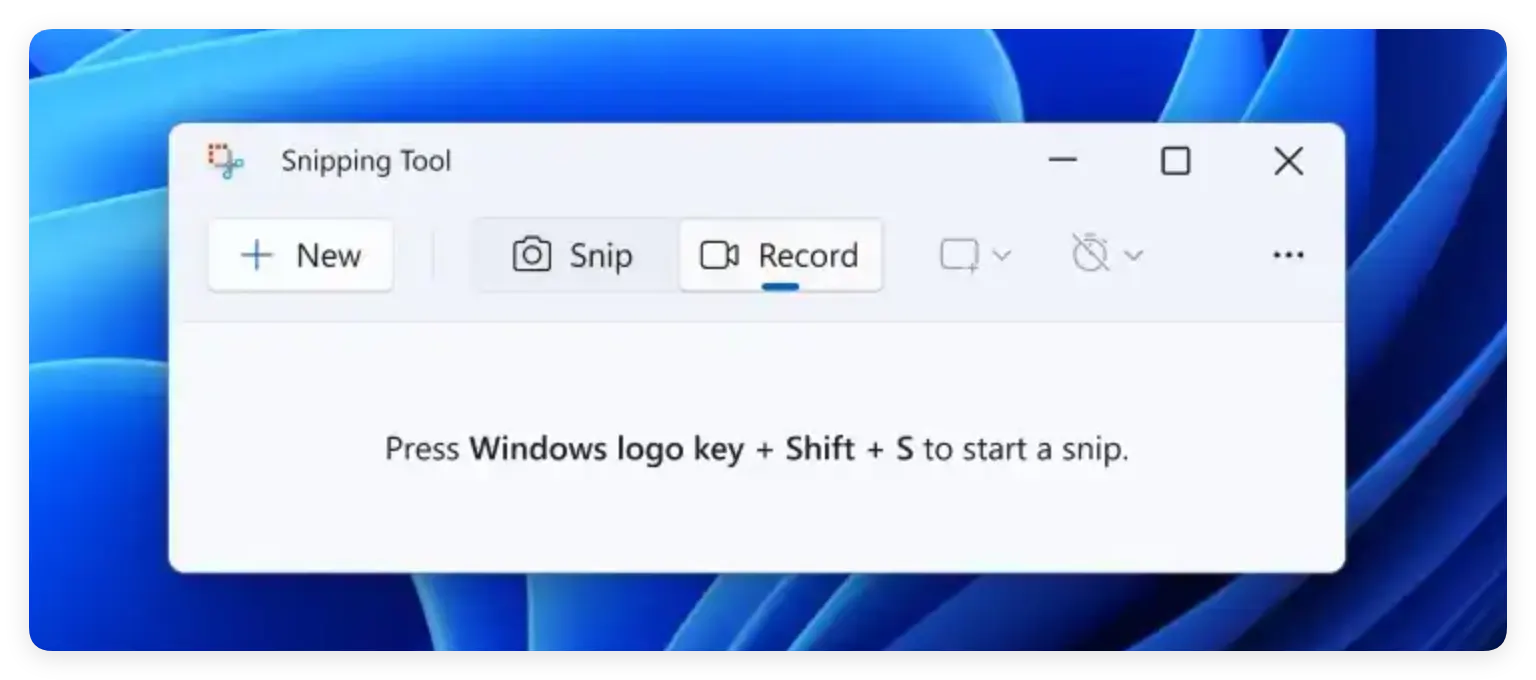
Windows 11 Snipping Tool - Microsoft recently added a video recording feature to the Snipping Tool in Windows 11. It is handy for capturing short, basic desktop clips, but it lacks advanced recording controls. You cannot record webcam video, customize cursor highlight effects, generate automatic subtitles, or schedule automated recording tasks.
For creators, students, and professionals who require 4K resolution, dual-audio mixing, camera overlays, and polished output, upgrading to a dedicated PC screen recorder download is essential.
Not all screen recording applications are created equal. When selecting software for your Windows PC, ensure it includes these essential features for a smooth capture experience:
If you are searching for a lightweight, feature-rich, and easy-to-use PC screen recorder free download, Donemax Recorder is the perfect solution. Fully optimized for 64-bit Windows 11, Windows 10, Windows 8, and Windows 7, Donemax Recorder combines high-definition screen capture with automated video editing capabilities.
Unlike basic screen capture utilities that only output unedited raw footage, Donemax Recorder records your screen, webcam, microphone, and computer audio simultaneously—then automatically applies smooth zoom effects, cursor styling, and canvas background framing so your final video looks professionally edited right out of the box.
Getting started with Donemax Recorder on your Windows PC is fast and simple. Follow these 5 straightforward steps to capture and export your first video:
Step 1: Download and Install Donemax Recorder
Download the free setup package and install it on your Windows 11/10 PC.
Step 2: Choose Your Capture Mode & Audio Sources
Launch the app. On the clean launcher bar, select your mode: Display (full screen), Custom (drag a region), or Window (a single app). Choose your webcam, microphone, and digital audio (system sound) from the drop-down menus.

Step 3: Start Recording
Click the red recording button. A 3-second countdown gives you time to get ready before capture starts. A floating bar displays elapsed time with options to pause, restart, or stop.
Step 4: Auto-Edit and Fine-Tune
Click Stop when finished. The built-in editor opens automatically with AI auto-zooms and camera layouts applied. Customize background wallpaper, cursor design, camera bubble size, or subtitles using the side panels.
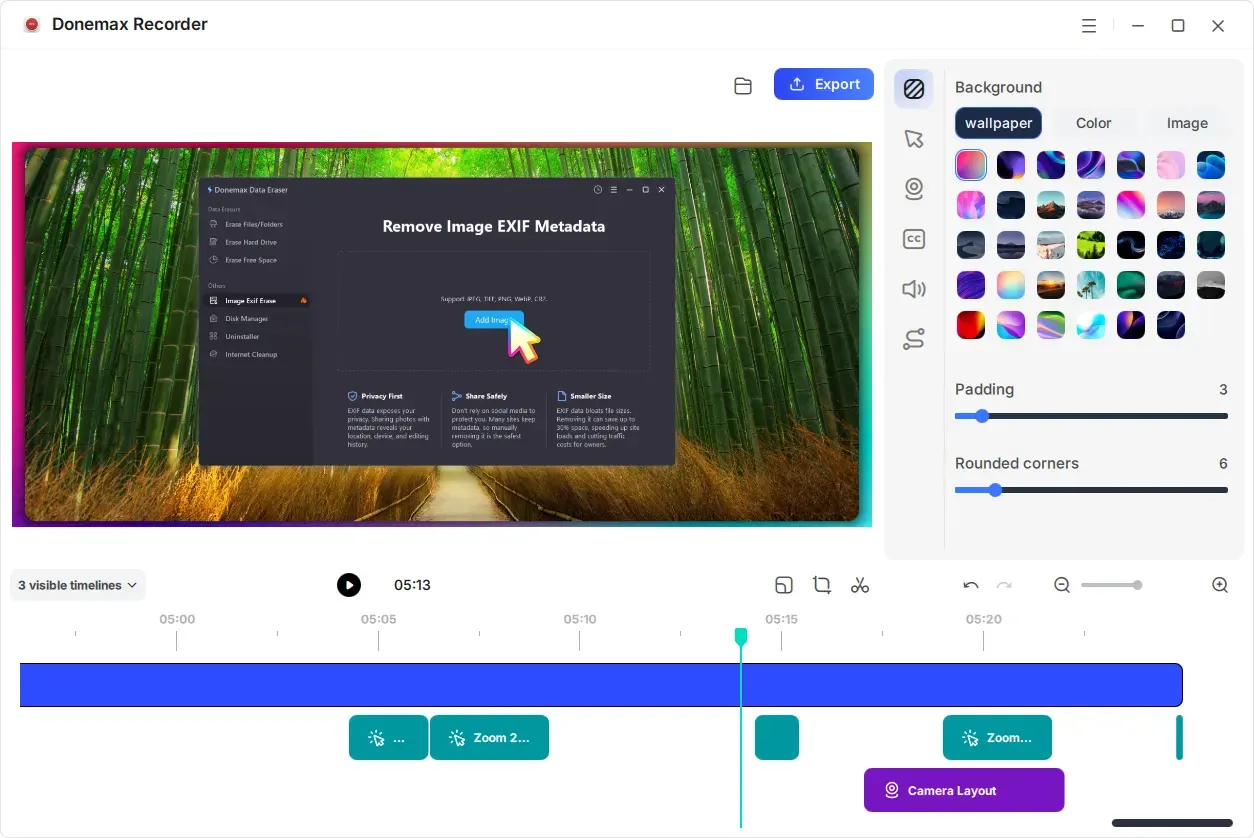
Step 5: Export Your Polished Video
Click the blue Export button to render your video in high quality (MP4 at up to 60 FPS). Click the folder icon to open your saved file location immediately.
Finding the right PC screen recorder free download does not have to involve frustrating watermarks, laggy video output, or complex audio configurations. While basic native utilities like Xbox Game Bar provide quick clips, they lack the auto-editing, webcam overlay, and AI subtitle capabilities needed for high-quality content creation.
Donemax Recorder delivers a complete, professional solution for Windows users. With dual-audio capture, customizable webcam face-cam bubbles, automated AI zoom-ins, custom cursor styling, and automatic subtitle generation, it makes recording and editing your PC screen effortless.
Ready to capture crisp, professional desktop videos on your PC? Download Donemax Recorder today and experience hassle-free screen recording on Windows!
Donemax Recorder for Windows
Donemax Recorder is an auto-zoom Windows screen recorder that automatically magnifies clicks and applies smooth cursor effects for effortless tutorial and demo creation.
Charles
Charles, who lives in Sydney, Australia, is an editor & writer of Donemax Team. He is good at writing articles related with Apple Mac computers, Windows operating systems, data recovery, data erasure, disk clone and data backup, etc. He loves reading and playing tennis in his spare time and is interested in testing new digital devices such as mobile phones, Macs, HDDs, SSDs, digital cameras, etc.
Gerhard Chou
In order to effectively solve the problems for our customers, every article and troubleshooting solution published on our website has been strictly tested and practiced. Our editors love researching and using computers and testing software, and are willing to help computer users with their problems