PAGE CONTENT:
When you plug in a new USB drive or SD card, one of the first decisions you face is how to format it. Choosing between FAT32 vs ExFAT can feel like a technical hurdle, but it is a crucial step that affects your device's compatibility, file size limits, and overall performance.
Both systems belong to the File Allocation Table (FAT) family developed by Microsoft. While FAT32 has been the industry standard for decades, ExFAT was introduced as a modern successor to handle the demands of high-definition media and massive storage capacities.
What is a File System?
A file system is a method of storing and organizing files on storage devices such as hard drives, SSDs, and flash drives. It defines how data is written, read, and managed, and it determines the maximum file and volume sizes that a device can support. File systems also affect performance, compatibility across operating systems, and the ability to store large files.
Before diving into the comparison, it’s helpful to understand what a file system actually does. Think of it as the "librarian" for your storage device. It defines:
- Data Organization: How data is written, read, and managed on the drive.
- Size Limits: The maximum size of an individual file and the total volume capacity the device can support.
- Compatibility: Which operating systems (Windows, macOS, Linux) can "talk" to the drive.
Deep Dive: FAT32 (The Universal Standard)
FAT32 stands for File Allocation Table 32-bit. It was introduced in 1996 as an improvement over FAT16, allowing for larger storage volumes and more efficient file management. FAT32 became widely adopted because of its simplicity and broad compatibility with different devices, including older computers, game consoles, and digital cameras.
Key Features of FAT32
- Maximum File Size: 4GB per file. This means any file larger than 4GB cannot be stored on a FAT32-formatted drive.
- Maximum Volume Size: 2TB for practical usage, though some systems support up to 16TB with specific formatting tools.
- Compatibility: FAT32 works with virtually all operating systems, including Windows, macOS, Linux, game consoles, and even older embedded devices.
- Low Overhead: The file system is lightweight and simple, which makes it efficient for small storage devices and less powerful systems.
Limitations of FAT32
- File Size Restriction: Files larger than 4GB cannot be stored, which is a major limitation for modern high-definition videos, large software packages, or disk images.
- Limited Security Features: FAT32 does not support file permissions or encryption, making it less secure than modern file systems like NTFS.
- Inefficient for Large Volumes: While FAT32 supports volumes up to 2TB, performance can degrade when managing very large disks with numerous files.
Deep Dive: ExFAT (The Modern Professional)
ExFAT, or Extended File Allocation Table, was introduced by Microsoft in 2006. It was designed to overcome the limitations of FAT32, especially the 4GB file size limit, while maintaining a lightweight structure suitable for flash drives and SD cards. ExFAT is particularly useful for devices that require large file storage without the overhead of more complex file systems like NTFS.
Key Features of ExFAT
- Maximum File Size: Up to 16 exabytes theoretically, though practical limits are much lower, usually around 128PB for modern devices.
- Maximum Volume Size: Extremely large, suitable for modern external hard drives and SDXC cards.
- Cross-Platform Support: Works on Windows, macOS, and Linux (with drivers). ExFAT is also supported by many modern cameras and gaming consoles.
- Optimized for Flash Storage: ExFAT is designed for flash memory and removable storage, offering faster read/write performance compared to FAT32.
Limitations of ExFAT
- Compatibility with Older Devices: Some older devices, such as legacy cameras or older operating systems, may not support ExFAT natively.
- Limited Security and Journaling: Like FAT32, ExFAT lacks robust file permissions and journaling features, making it less suitable for critical system drives.
- Driver Dependency on Linux: While Windows and macOS natively support ExFAT, Linux systems may require additional drivers or packages for full compatibility.
Technical Comparison: FAT32 vs ExFAT
Understanding the technical differences helps determine which file system is best for your storage needs. The following aspects are critical:
1. Maximum File Size
- FAT32: Supports files up to 4GB in size. This limit is due to its 32-bit file allocation structure. It means that large HD videos, virtual machine images, or large software installers cannot be stored on a FAT32 drive.
- ExFAT: Removes this restriction and theoretically supports files up to 16 exabytes, though practical limits are much lower depending on the OS and device. This makes ExFAT ideal for modern media workflows and large external storage devices.
2. Maximum Volume Size
- FAT32: Supports volumes up to 2TB in practical usage, although formatting tools may allow slightly larger drives under certain conditions. Performance can degrade as volume size increases due to inefficient cluster allocation.
- ExFAT: Can handle extremely large volumes, often in the hundreds of terabytes or more, making it suitable for high-capacity external HDDs, SSDs, and SDXC cards. ExFAT’s larger cluster size also improves performance on these drives.
3. Compatibility
- FAT32: Offers nearly universal compatibility across operating systems, including Windows, macOS, Linux, and most embedded devices, game consoles, and smart TVs. This makes it the default choice when sharing drives across multiple platforms.
- ExFAT: Supported natively on modern Windows (Vista SP1 and later) and macOS (10.6.5 and later). Linux systems often require additional drivers (exfat-utils or kernel support). Some older cameras, media players, and game consoles may not support ExFAT without firmware updates.
4. Performance and Efficiency
- FAT32: Works efficiently for small files but can suffer from fragmentation and slower read/write speeds with very large files or high-capacity drives. Its small cluster sizes increase overhead when managing large numbers of files.
- ExFAT: Optimized for flash storage and large files. It uses larger cluster sizes and improved allocation algorithms, reducing fragmentation and improving performance for high-capacity drives and media files like HD videos or backups.
5. Cluster Size and Storage Efficiency
- FAT32: Uses smaller cluster sizes (typically 4KB), which is efficient for small files but can result in wasted space when storing many small files on large drives.
- ExFAT: Uses larger clusters and supports customizable cluster sizes, improving efficiency for large files and reducing the overhead of file table management on large storage volumes.
6. Security and Advanced Features
- Both FAT32 and ExFAT lack native journaling, meaning they do not track changes like NTFS, which increases the risk of data corruption during unexpected shutdowns.
- Neither supports advanced file permissions or encryption natively. For secure storage, additional software solutions are required.
7. Use Case Suitability
- FAT32: Best for smaller drives, legacy devices, or cross-platform sharing where compatibility is critical, even if file sizes are limited.
- ExFAT: Best for modern high-capacity drives, flash storage, SDXC cards, and situations requiring storage of very large files across compatible systems.
Summary Table
Feature |
FAT32 |
ExFAT |
Max File Size |
4GB |
16EB (Practical limit ~128PB) |
Max Volume Size |
2TB (Practical) |
Extremely Large (Hundreds of TB) |
Best Performance |
Small files / Small drives |
Large files / Flash storage / HD Media |
Compatibility |
Universal (Old & New) |
Modern OS & Newer devices only |
Security/Journaling |
None |
None |
When Should You Use FAT32 or ExFAT?
When to Use FAT32
FAT32 is ideal in scenarios where device compatibility is more important than file size:
- USB drives shared across multiple devices: Works on PCs, Macs, game consoles, and smart TVs.
- Older devices: Many older cameras, MP3 players, and media players only support FAT32.
- Small drives: Drives under 32GB or when storing files smaller than 4GB.
When to Use ExFAT
ExFAT is better for modern storage needs where large files or high-capacity drives are involved:
- High-definition video or large software files: Exceeds FAT32's 4GB file limit.
- Modern cameras and SDXC cards: Required for SD cards above 32GB.
- Large USB drives or external hard drives: Offers better efficiency for high-capacity storage.
Formatting a Drive: FAT32 vs ExFAT
Formatting a drive is simple but requires careful attention to avoid data loss. Here’s how to do it on Windows and macOS:
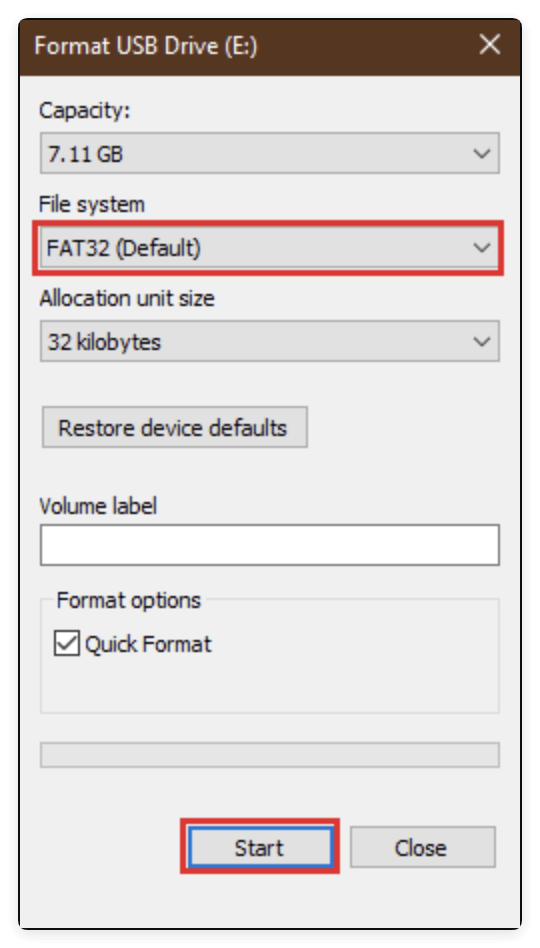
Format a Drive on Windows
- Insert your USB drive or SD card.
- Open File Explorer, right-click the drive, and select Format.
- Choose the File System: FAT32 or ExFAT.
- Select Allocation Unit Size (default is fine in most cases).
- Click Start to format.
![FAT32 vs ExFAT]()
💡 Note: Windows may not allow FAT32 formatting for drives larger than 32GB. Third-party tools like Rufus or FAT32 Format can bypass this limit.
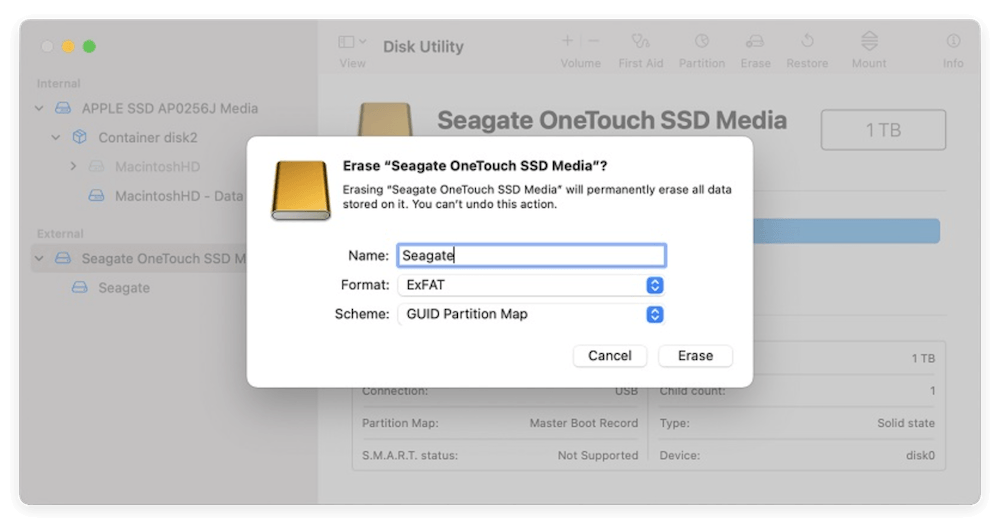
Format a Drive on macOS
- Open Disk Utility from Utilities via Applications.
- Select your drive and click Erase.
- Choose MS-DOS (FAT) for FAT32 or ExFAT.
- Name the drive and click Erase to complete formatting.
![FAT32 vs ExFAT]()
💡 Tip: Always back up important data before formatting, as the process will erase all existing files.
FAQs about FAT32 and ExFAT
No. FAT32 has a hard limit of 4GB per file. You will receive an error message even if the drive has plenty of total space.
For modern flash drives and large files, yes. ExFAT uses larger "clusters" and better algorithms to reduce fragmentation, resulting in better performance for HD media.
Modern Smart TVs typically support both, but older "non-smart" TVs often only recognize FAT32. Check your manual if you're unsure.
Conclusion
Choosing between FAT32 vs ExFAT comes down to balancing compatibility with modern needs. If you need a "plug-and-play-anywhere" solution for small files, FAT32 is your best bet. However, for almost all modern high-capacity storage, ExFAT is the superior choice for speed and flexibility.
Both file systems are lightweight and simple, but understanding their limitations and strengths ensures that your storage devices perform optimally. By selecting the correct file system, you can prevent errors, improve compatibility, and maximize the efficiency of your USB drives, SD cards, and external storage.