
Written byMariaUpdated on Jan 14, 2026

Before we start: Standard methods to delete data from activation camera will not wipe the data completely. If you want to ensure the data is gone forever and no longer recoverable on activation camera, using Donemax Data Eraser to wipe data permanently.
PAGE CONTENT:
Action cameras have become an essential tool for adventurers, vloggers, and casual users alike. Compact, durable, and capable of capturing high-quality videos, these devices often store precious memories. But there comes a time when you may need to wipe all data from your action camera—whether you're selling it, donating it, or simply concerned about privacy. Simply deleting files or formatting the memory card may not be enough to prevent recovery.
This guide will walk you through how to permanently wipe data from your action camera, covering both standard methods and advanced techniques to ensure your files remain unrecoverable.
Before attempting to wipe data, it's crucial to understand how action cameras store information. Most action cameras use microSD cards for storing videos and photos. Some newer models also have internal memory, which can be trickier to erase.
When you delete files normally, the data isn't immediately removed. The camera simply marks the space as available for new files, meaning that specialized recovery software could potentially restore it. Therefore, if your goal is permanent deletion, standard deletion is not enough—you need methods that overwrite or securely erase the data.
Most action cameras, such as GoPro, DJI, Sony, and Insta360, include a built-in formatting option. This process is more effective than manually deleting individual files. Here's how:
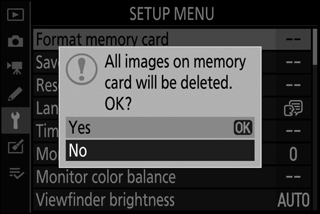
✔️ Pros: Quick, simple, does not require extra software.
✘ Cons: While formatting removes file references, it does not always overwrite the actual data, meaning recovery is possible with specialized tools.
Tip: Always format the microSD card in the camera rather than a computer to ensure compatibility and proper file system setup.
You can also connect your camera or microSD card to a computer and delete files manually. This method is straightforward but not secure for permanent deletion. Files can be recovered using free or paid recovery software.
Recommendation: Avoid relying solely on manual deletion if privacy or sensitive data is a concern.
When privacy is critical, simply deleting files or formatting a microSD card is not enough. Advanced data wiping ensures that deleted files cannot be recovered by recovery software or forensic methods. Here are the most reliable techniques in detail:
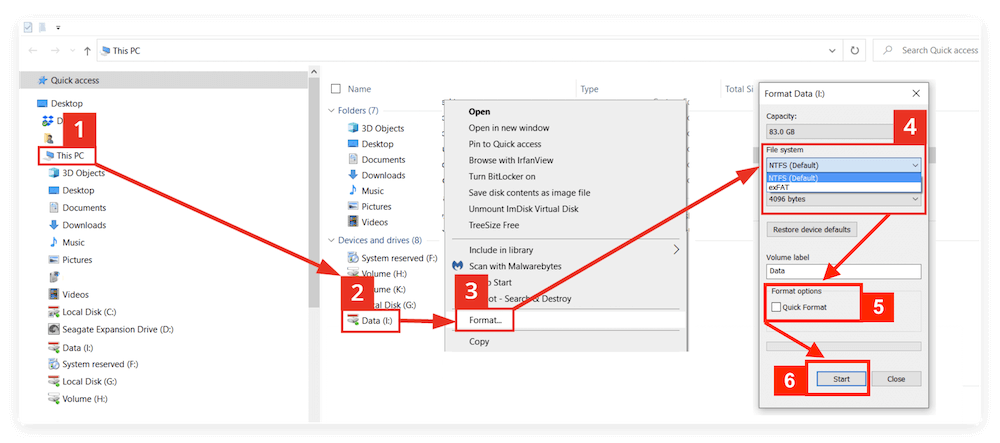
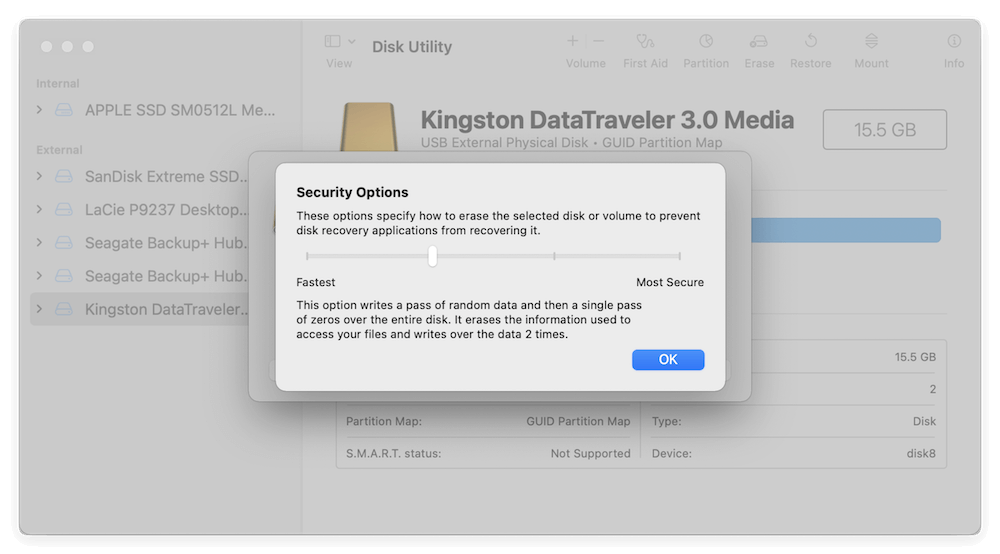
A secure format overwrites the storage sectors with new data patterns, making recovery virtually impossible. Unlike a standard format, which only deletes the file index, secure formatting writes over every block of storage.
For Windows:
For Mac:
For Linux:
sudo dd if=/dev/zero of=/dev/sdX bs=4M status=progress
Replace /dev/sdX with your card identifier (check using lsblk).
💡 Tips:
Specialized data wiping software offers multiple overwrite passes, randomization of patterns, and easy-to-follow interfaces. Some widely recommended tools include:
Steps to Wipe Activation Camera Card with Donemax Data Eraser:
Step 1. Download the software and install it on your computer. Connect the activation camera card to computer with a card reader.
Step 2. Run the software and change to Erase Hard Drive option. Select the memory card of camera and click Erase Now button.
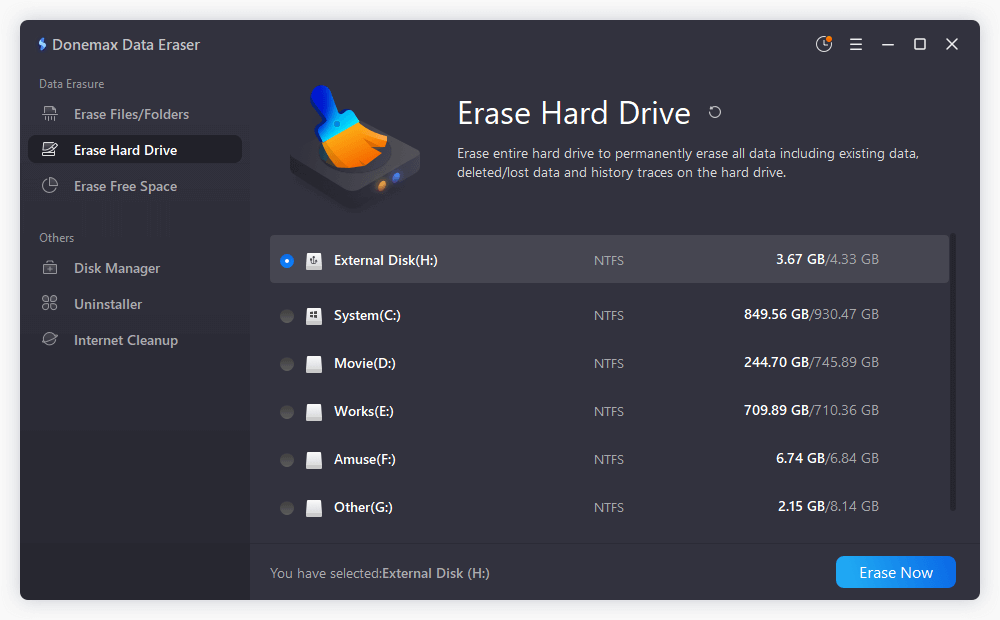
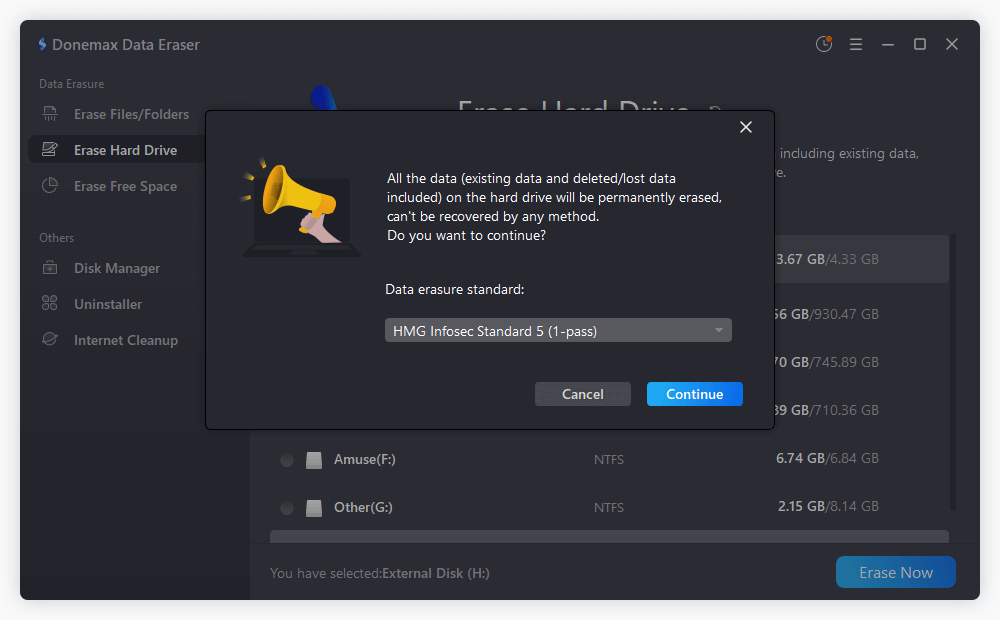
Step 3. A popup window will appear, just select a data erasure standard from the drop-down list. Click Continue button.
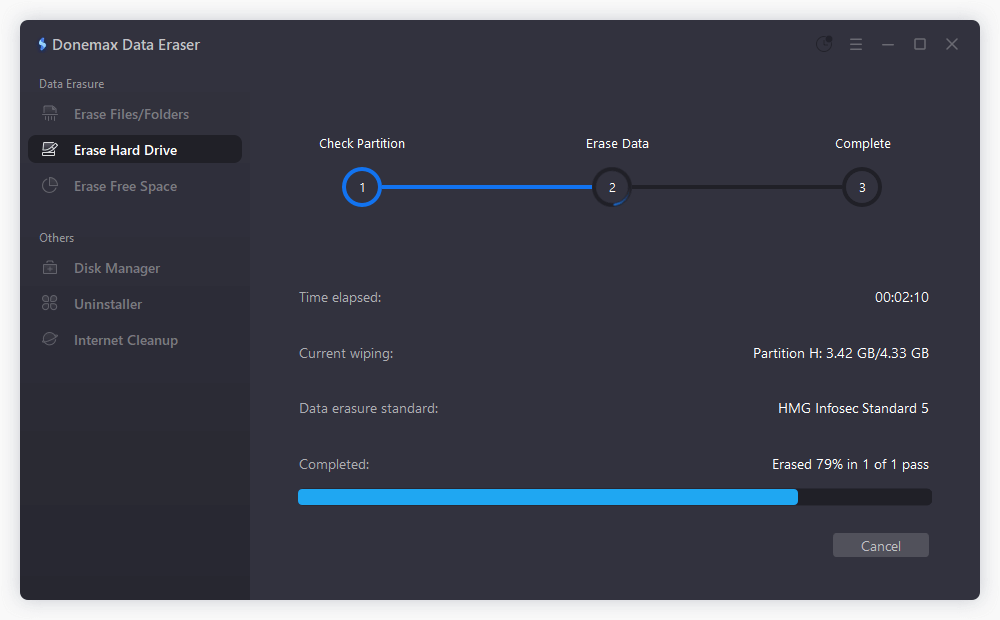
Step 4. The software will start to wipe all data from the selected card of activation camera. Once the process is done, all data is gone forever and unrecoverable.
Practical Advice:
Another effective and hardware-independent method involves filling your storage with dummy files to overwrite old data. This approach is especially useful when you want to avoid using third-party software or the card cannot be formatted securely due to camera limitations.
Step-by-Step Guide:
Example:
Pros and Cons:
For users handling extremely sensitive data—such as corporate projects, confidential research, or government-level security—physical destruction may be the only guaranteed way to prevent recovery.
Methods for Physical Destruction:
Safety Tips:
💡 Note: Physical destruction is rarely necessary for typical personal data but can be crucial in corporate or military contexts.
Some action cameras have internal storage in addition to microSD cards. Internal memory requires specific steps:
💡 Tip: Some cameras may require manufacturer software or firmware updates to access full internal memory formatting.
After wiping, it's wise to verify that files are truly unrecoverable. You can do this by:
💡 Important: Overwriting the memory multiple times increases the likelihood that the data is permanently destroyed.
To maintain privacy and minimize risk:
Q1: Can I recover data after a secure wipe?
No, a secure wipe overwrites data multiple times, making recovery extremely unlikely.
Q2: Is formatting enough before selling my camera?
Standard formatting removes file references but may not prevent recovery. Use secure formatting or data wiping software for safety.
Q3: Which software is best for permanent deletion?
Free tools like Donemax Data Eraser or SD Formatter are reliable, while CCleaner provides user-friendly options with multiple overwrite passes.
Permanently wiping data from an action camera involves more than just deleting files. Whether you are using a built-in format, a secure format on a computer, dedicated wiping software, or even physical destruction, the method you choose depends on your security needs. For most users, a combination of camera format + secure microSD formatting is sufficient. For highly sensitive data, additional overwriting cycles or physical destruction may be warranted.
By following the steps in this guide, you can ensure that your videos, photos, and other personal files are truly unrecoverable, giving you peace of mind before selling, donating, or recycling your action camera.
Donemax Data Eraser
One of the best data erasure programs can permanently delete data. It works on PCs, Macs, HDDs, SSDs, USB drives, digital cameras, and other devices. Once the tool erases the data, no one cannot recover it by any method.
Maria
Maria is one of the senior writers & editors of Donemax who lives and works in Sydney, Australia. She loves PC, Mac and Internet Technology. She has 6 years of writing articles about data recovery on PC/Mac, disk cloning solution, data eraser and computer OS optimization, etc. She is also interested in testing various software and digital products.
Gerhard Chou
In order to effectively solve the problems for our customers, every article and troubleshooting solution published on our website has been strictly tested and practiced. Our editors love researching and using computers and testing software, and are willing to help computer users with their problems