
Written byMariaUpdated on Aug 11, 2026

Before we start: How to make bootable and complete clone backup for new Windows 11 26H2? The software Donemax Disk Clone is fully compatible with the latest Windows 11 26H2. It can easily create bootable clone for the new system.
PAGE CONTENT:
Upgrading your computer or switching to a faster SSD is one of the best ways to boost your PC's performance. With the release of Windows 11 26H2, Microsoft introduces newer system components, improved feature updates, and refined security protocols. However, reinstalling Windows 11 26H2 from scratch can be frustrating. You have to reinstall all your software, re-configure customized system settings, and move endless files.
Fortunately, there is a much easier solution. You can create a bootable clone of Windows 11 26H2. By cloning your existing system, you make a 1:1 exact replica of your operating system, programs, settings, and personal data. Once the cloning process finishes, you simply swap your old drive with the new SSD or change your boot order in BIOS, and your computer boots immediately. In this comprehensive guide, we will walk you through everything you need to know to create bootable clone Windows 11 26H2 effortlessly.
Before diving into the steps, it helps to understand what a bootable clone actually is. Many users confuse copying files with cloning a disk. Copying and pasting files transfers standard user documents, but it misses essential boot code, system files, hidden system partitions, and registry entries. If you just copy Windows files manually, the new drive will not boot.
A bootable clone duplicates every single sector and partition required by Windows 11 26H2. This includes the EFI System Partition (ESP), Microsoft Reserved Partition (MSR), Recovery Partition, and the main system drive (C: drive). Because all essential boot files and partition structures are preserved, the target SSD or hard drive becomes fully bootable.
Creating a bootable clone of Windows 11 26H2 offers several key advantages for everyday computer users and tech enthusiasts alike:
To ensure a fast and smooth cloning process without boot failures, complete these quick preparation steps:
Windows 11 does not have a built-in tool that can perform a direct live system clone. To accomplish this task safely, you need reliable disk cloning software. Donemax Disk Clone is an industry-leading cloning utility designed specifically for Windows users.
Donemax Disk Clone features an intuitive interface that makes drive cloning simple for beginners. It fully supports Windows 11 26H2, modern UEFI boot modes, GPT partition styles, and BitLocker-encrypted drives. With its advanced hot cloning engine, you can continue using your PC while Donemax Disk Clone creates your bootable system replica in the background.
Follow these simple steps to clone your Windows 11 26H2 system drive to a new SSD using Donemax Disk Clone:
Step 1. Download and Install Donemax Disk Clone
Download Donemax Disk Clone from the official website. Install the software on your Windows 11 26H2 computer and launch it.
Step 2. Choose Disk Clone Mode
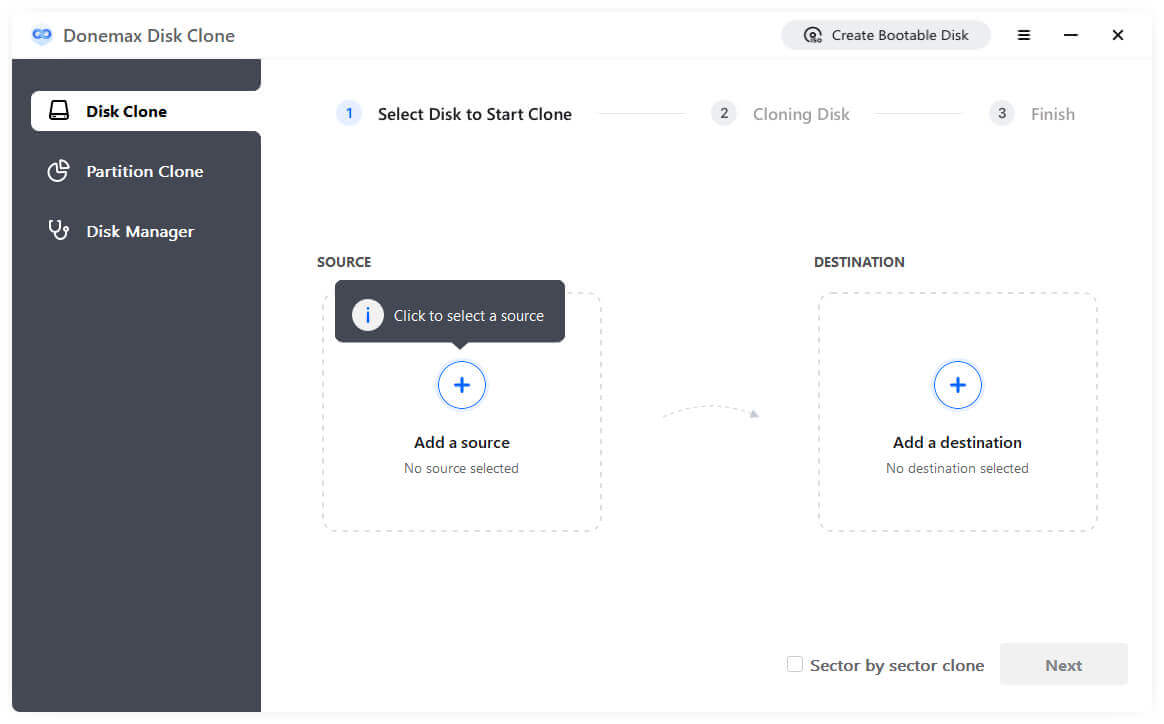
In the main interface, you will see multiple modes. Select Disk Clone if you want to automatically select all boot partitions and migrate Windows 11 26H2 to your target drive.
Step 3. Select the Target Drive
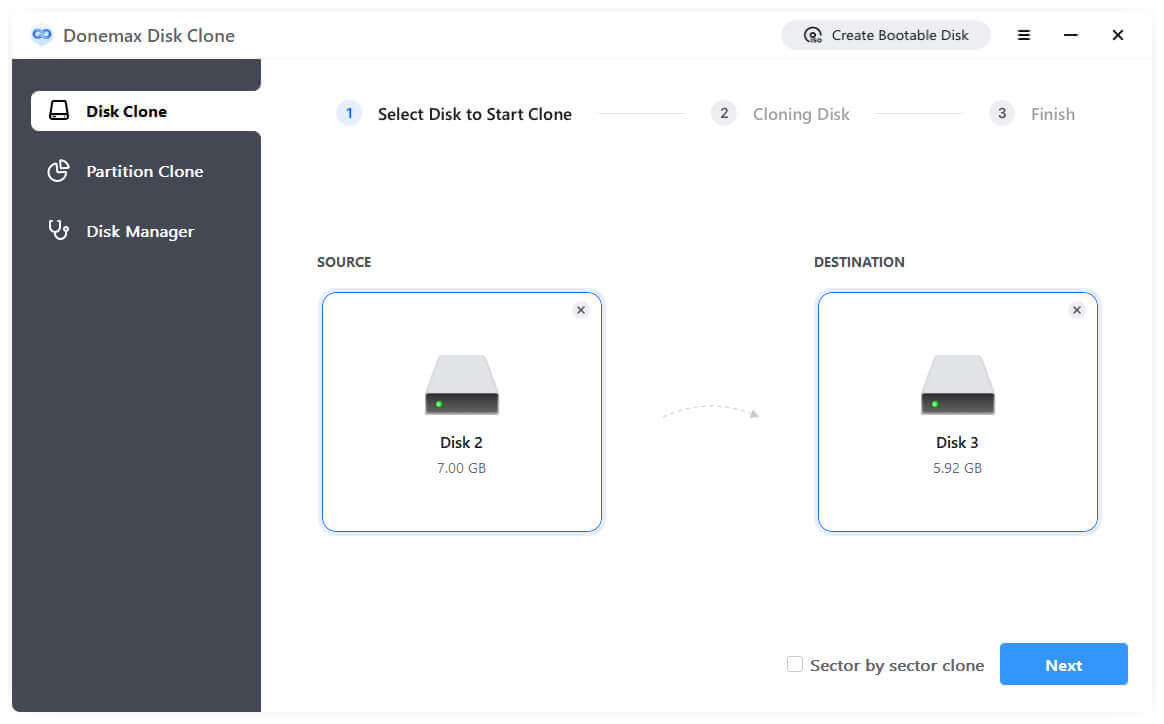
Choose your connected target SSD or HDD as the destination drive. Double-check to ensure you selected the correct target drive, as all data on this target drive will be overwritten.
Step 4. Start the Cloning Process
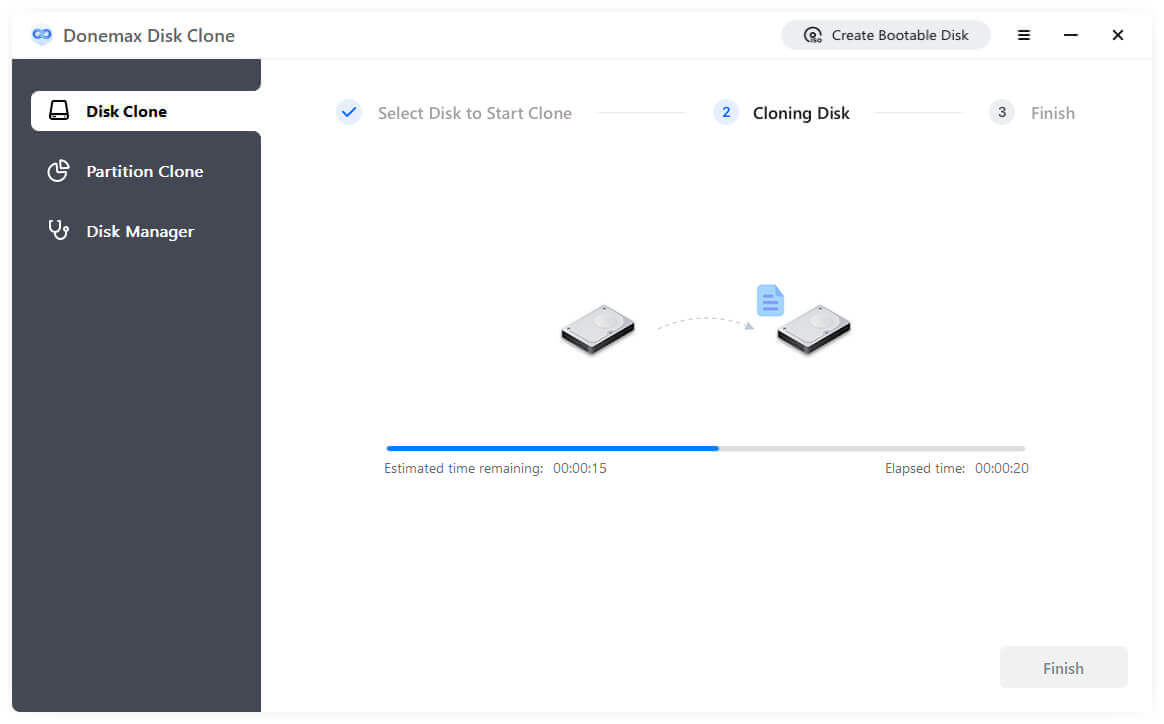
Click the Clone button. Donemax Disk Clone will begin copying all system files, EFI partitions, and data to the destination drive. Wait patiently for the process to complete. Cloning time usually takes between 10 to 30 minutes depending on your disk speed.
Once the cloning process is finished, you need to set your computer to boot from the newly cloned drive. You have two options depending on your hardware setup:
🪧 Pro Tip for Booting: Windows 11 26H2 requires UEFI boot mode and GPT partition style. Donemax Disk Clone automatically maintains proper GPT/UEFI alignment during cloning, ensuring smooth boot performance.
Learning how to create bootable clone Windows 11 26H2 saves you countless hours when upgrading storage or building a system backup. By making an exact replica of your operating system, system settings, and applications, you eliminate the hassle of clean installations. With Donemax Disk Clone, the entire process is straightforward, fast, and safe. Download Donemax Disk Clone today and migrate your Windows 11 26H2 system with confidence!
Donemax Disk Clone
An award-winning disk cloning program to help Windows users and Mac users clone HDD/SSD/external device. It also can create full bootable clone backup for Windows PCs and Macs.
Maria
Maria is one of the senior writers & editors of Donemax who lives and works in Sydney, Australia. She loves PC, Mac and Internet Technology. She has 6 years of writing articles about data recovery on PC/Mac, disk cloning solution, data eraser and computer OS optimization, etc. She is also interested in testing various software and digital products.
Gerhard Chou
In order to effectively solve the problems for our customers, every article and troubleshooting solution published on our website has been strictly tested and practiced. Our editors love researching and using computers and testing software, and are willing to help computer users with their problems