
Written byStevenUpdated on Aug 28, 2026

Before we start: By cloning the system disk of Windows 11 26H2 to a USB disk with Donemax Disk Clone, you can get a bootable and complete clone backup. You can boot the computer directly from the clone USB drive. It can save your time to replace or upgrade system disk.
PAGE CONTENT:
Upgrading to or testing the latest Windows 11 26H2 release brings fresh features and improved system performance. However, major system updates can occasionally trigger unexpected errors, software incompatibilities, or system crashes. To prevent sudden data loss or productivity downtime, having an emergency bootable backup is essential.

While standard file backups safeguard your documents, they cannot boot your computer if your internal hard drive fails. That is why learning how to create Windows 11 26H2 bootable USB clone is the smartest precaution every PC user can take. In this comprehensive guide, we will walk you through everything you need to know to build a 1:1 bootable USB system replica using Donemax Disk Clone.
A bootable USB clone is an exact, bit-for-bit duplicate of your entire operating system, software installations, system configurations, and personal files saved directly onto an external USB drive or portable SSD.
Unlike standard system image files or basic installation media (like ISO files created with Rufus or Media Creation Tool), a bootable system clone contains everything already configured:
Many users confuse creating an installer USB with creating a bootable system clone. Understanding the difference is vital for your backup strategy:
Why Cloning Wins for Emergency Backup: Standard Windows installer media forces you to reinstall all your software from scratch. A bootable USB clone allows you to bypass installation entirely and run your exact working desktop directly from an external drive.
Here is a quick breakdown showing how a bootable USB clone created with Donemax Disk Clone compares to traditional recovery solutions:
| Feature | Bootable USB Clone (Donemax) | Standard USB Installer | System Image Backup |
|---|---|---|---|
| Direct Boot Capability | Yes (Boots straight to desktop) | Boots into Windows Setup | Requires System Restore step |
| Preserves Installed Apps | Yes (100% identical copy) | No (Clean install required) | Yes (After restoration) |
| Downtime Upon Failure | Zero (Immediate USB boot) | High (Hours of reinstalling) | Medium (Requires image restore) |
Before starting the cloning process, ensure you have prepared the right hardware and settings to guarantee a seamless operation:
To successfully duplicate Windows 11 26H2 without missing hidden boot files, you need dedicated disk cloning software. Donemax Disk Clone for Windows is a powerful, beginner-friendly tool designed for seamless system replication.
Follow these clear steps to clone your active Windows 11 26H2 system to an external USB drive using Donemax Disk Clone.
Step 1: Download and Install Donemax Disk Clone
Download the official version of Donemax Disk Clone. Install the software on your Windows 11 26H2 PC and launch the application.
Step 2: Connect Your USB Drive to the Computer
Plug your high-speed USB flash drive or external portable SSD into a USB 3.0 or USB-C port on your computer. Ensure your PC recognizes the device under File Explorer.
Step 3: Select Disk Clone Mode
In the main Donemax Disk Clone menu, select the Disk Clone feature on the left sidebar. This mode will clone entire disk, including your active Windows 11 26H2 system drive along with all essential EFI boot partitions.
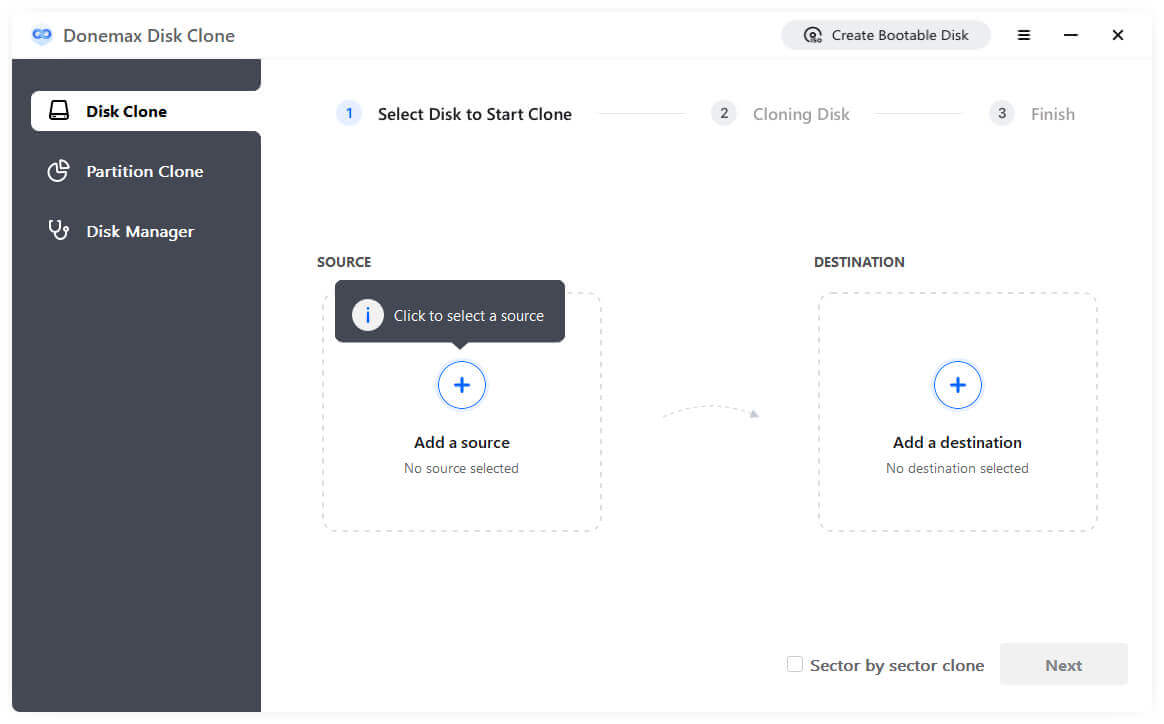
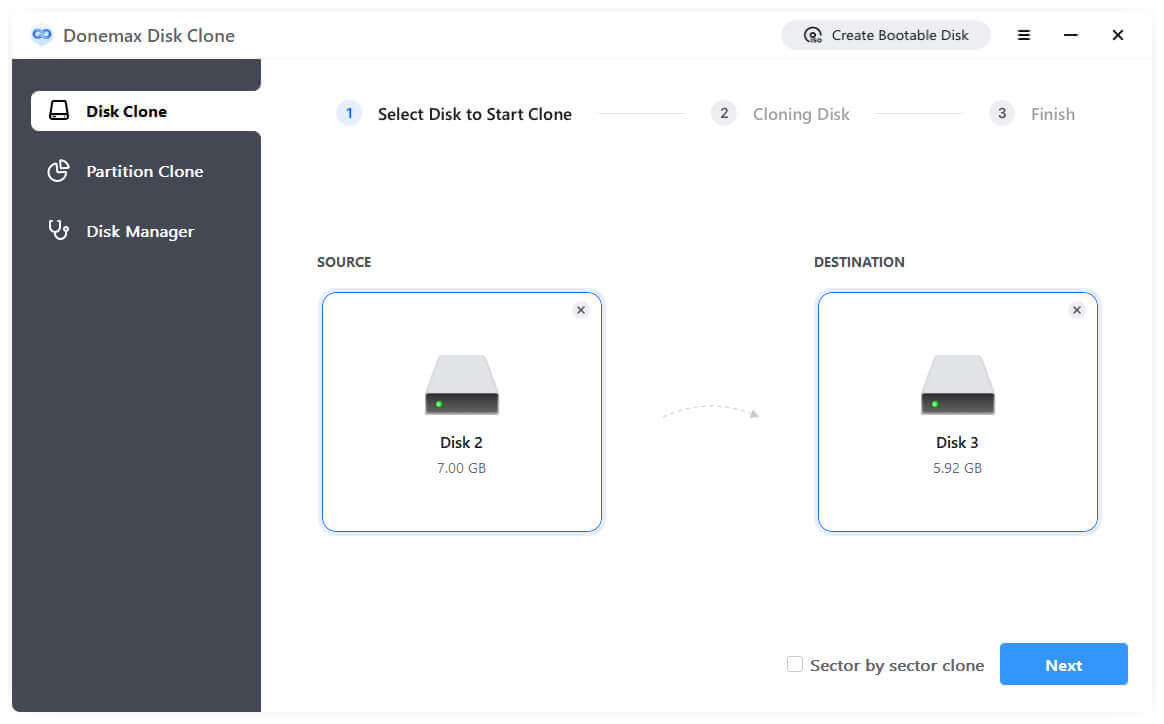
Step 4: Choose Source and Destination Drives
Choose the system disk as the source. Select your connected USB drive as the target destination. Double-check to ensure you selected the correct external drive, as all existing content on the destination drive will be erased.
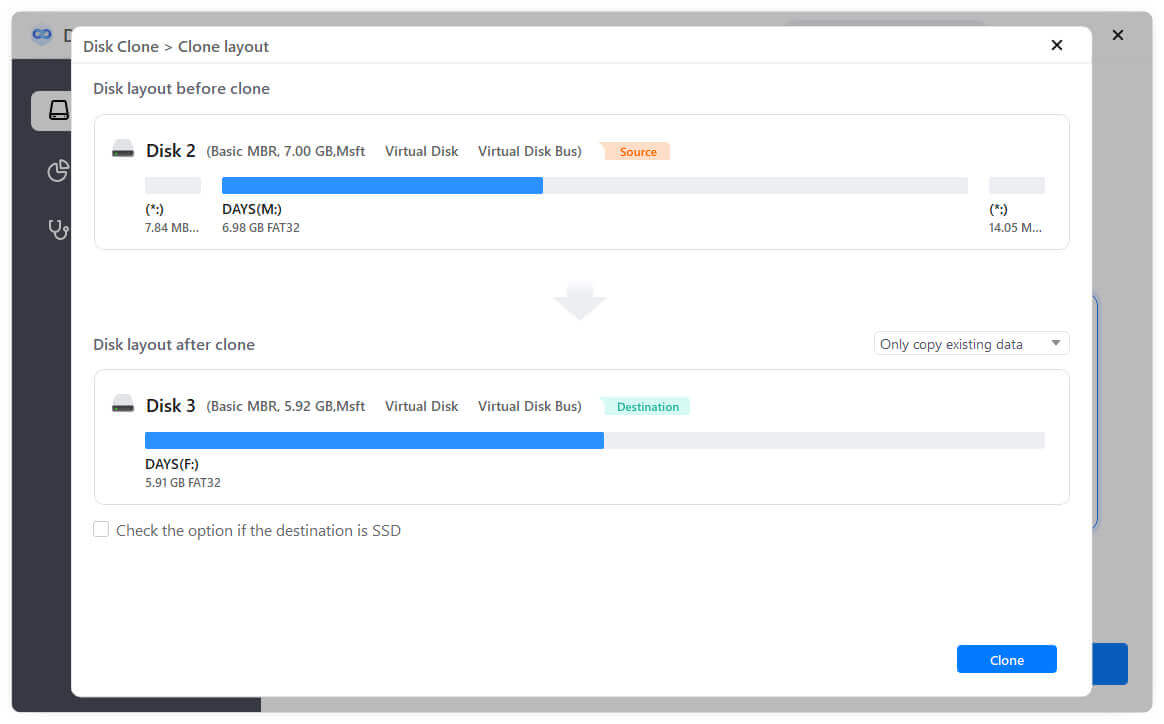
Step 5. Preview or Modify the Disk Layout
Click Next button and check the partition layout of the destination USB disk. If needed, you can also change the partition layout by resizing or moving the partitions.
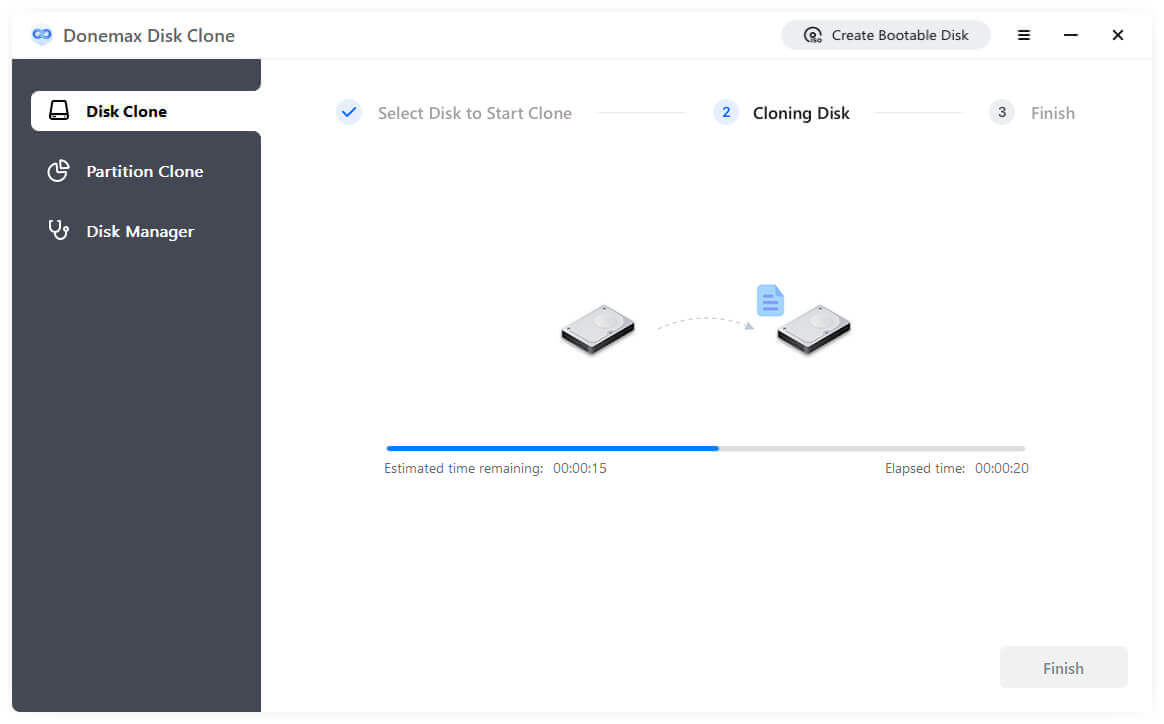
Step 6: Start the Cloning Process
Click the Clone button. Donemax Disk Clone will initiate the hot-cloning process, copying your operating system, software, and files to the USB drive. Wait for the progress bar to reach 100%. Depending on your data size and drive speed, this process usually takes between 10 to 30 minutes.
Once you create Windows 11 26H2 bootable USB clone, test it to verify that your PC can boot from it smoothly. Follow these simple steps:
Step 1: Shut down your PC completely and ensure the cloned USB drive is plugged in directly to a USB 3.0/USB-C port.
Step 2: Power on your computer and immediately press the Boot Menu key repeatedly (typically F12, F11, F8, Del, or Esc depending on your motherboard brand like Dell, HP, Lenovo, or ASUS).
Step 3: In the Boot Option Menu, select your connected USB drive as the primary boot device.
Step 4: Press Enter. Your PC will load Windows 11 26H2 directly from the external USB drive.
If your computer does not immediately boot from the cloned USB drive, check these common configuration items:
Creating a complete bootable backup is the best defense against unexpected system crashes, failed update rollouts, or hardware failure on Windows 11 26H2. Unlike basic installer media, a bootable clone preserves your entire personal working environment.
When you create Windows 11 26H2 bootable USB clone with Donemax Disk Clone, you gain immediate peace of mind and an instant emergency recovery plan. Download Donemax Disk Clone today and safeguard your digital workspace in just a few simple clicks!
Donemax Disk Clone
An award-winning disk cloning program to help Windows users and Mac users clone HDD/SSD/external device. It also can create full bootable clone backup for Windows PCs and Macs.
Steven
Steven has been a senior writer & editor of Donemax software since 2020. He's a super nerd and can't imagine the life without a computer. Over 6 years of experience of writing technical solutions and software tesing, he is passionate about providing solutions and tips for Windows and Mac users.
Gerhard Chou
In order to effectively solve the problems for our customers, every article and troubleshooting solution published on our website has been strictly tested and practiced. Our editors love researching and using computers and testing software, and are willing to help computer users with their problems