
Written byMariaUpdated on Jan 27, 2026

Before we start: After data loss happened on Insta360 camera, stop using the camera immediately to avoid further damage to the lost data. Unplug the SD card from the camera and connect it to a computer via a card reader. Then you can use the most reliable software Donemax Data Recovery to rescue the lost photos and videos.
PAGE CONTENT:
Insta360 cameras have become increasingly popular among vloggers, content creators, and travel enthusiasts for their 360-degree videos and high-quality photos. However, like any digital device, they are not immune to data loss. Losing your cherished videos or photos can be stressful, whether it happens due to accidental deletion, SD card corruption, or software glitches.

Fortunately, several reliable methods exist to recover lost files from your Insta360 camera, including using cloud backups, SD card recovery tools, and file repair software.
This guide provides a comprehensive step-by-step approach to recovering lost videos and photos from Insta360 camera, helping you get your memories back safely and efficiently.
Understanding why data loss occurs can help you prevent it in the future. Common reasons include:
Accidental Deletion
Users may accidentally delete files directly from the camera or through the Insta360 mobile app. Once deleted, these files may not appear in the recycle bin, making them inaccessible.
Corrupted SD Cards
Removing the SD card while recording, abrupt power loss, or physical damage can corrupt the files, rendering them unreadable.
File System Errors
SD cards formatted incorrectly or damaged file systems can prevent your camera from saving or reading videos properly.
Firmware or Software Glitches
Camera firmware or app crashes can sometimes result in missing files, especially during long recording sessions.
Other Causes
Viruses, malware, or accidental formatting of the SD card can also lead to permanent file loss.
Knowing these scenarios emphasizes the importance of handling your SD cards carefully and backing up your files regularly.
Before attempting recovery, it is crucial to take some preparatory steps:
Stop Using the SD Card or Camera
Continuing to record or save new files may overwrite the deleted files, making recovery impossible. Always remove the SD card and avoid using the camera until recovery is complete.
Check Basic Backups
Many users overlook the Insta360 app’s cloud backup feature. Files may already be saved in your Insta360 account, especially if auto-upload is enabled. Check both cloud storage and any local backups on your computer or phone.
Gather Required Tools
Insta360 cameras often sync with the Insta360 app on your mobile device. If you have enabled auto-upload to the cloud, recovery is straightforward:
Limitations:
When cloud backups are unavailable or incomplete, SD card recovery is the most effective way to retrieve lost videos and photos from your Insta360 camera. This method works for both Windows and Mac users and is compatible with most Insta360 camera models.
Step 1: Connect the SD Card to Your Computer
Remove the SD card carefully from your Insta360 camera. Use a high-quality USB card reader; cheap or faulty readers can fail to read damaged cards properly.
Insert the card reader into your computer.
💡 Tip: If the SD card is not recognized, try another card reader or port. Sometimes switching computers helps, as some systems handle damaged file systems better than others.
Step 2: Choose a Reliable Data Recovery Software
There are multiple software options, each with its strengths. Selecting the right one can increase your chances of successful recovery:
Donemax Data Recovery (Windows/Mac)
Disk Drill (Windows/Mac)
Recuva (Windows only)
Wondershare Recoverit (Windows/Mac)
💡 Tip: If you have a large SD card (64GB or higher), choose software with Deep Scan mode for higher success rates.
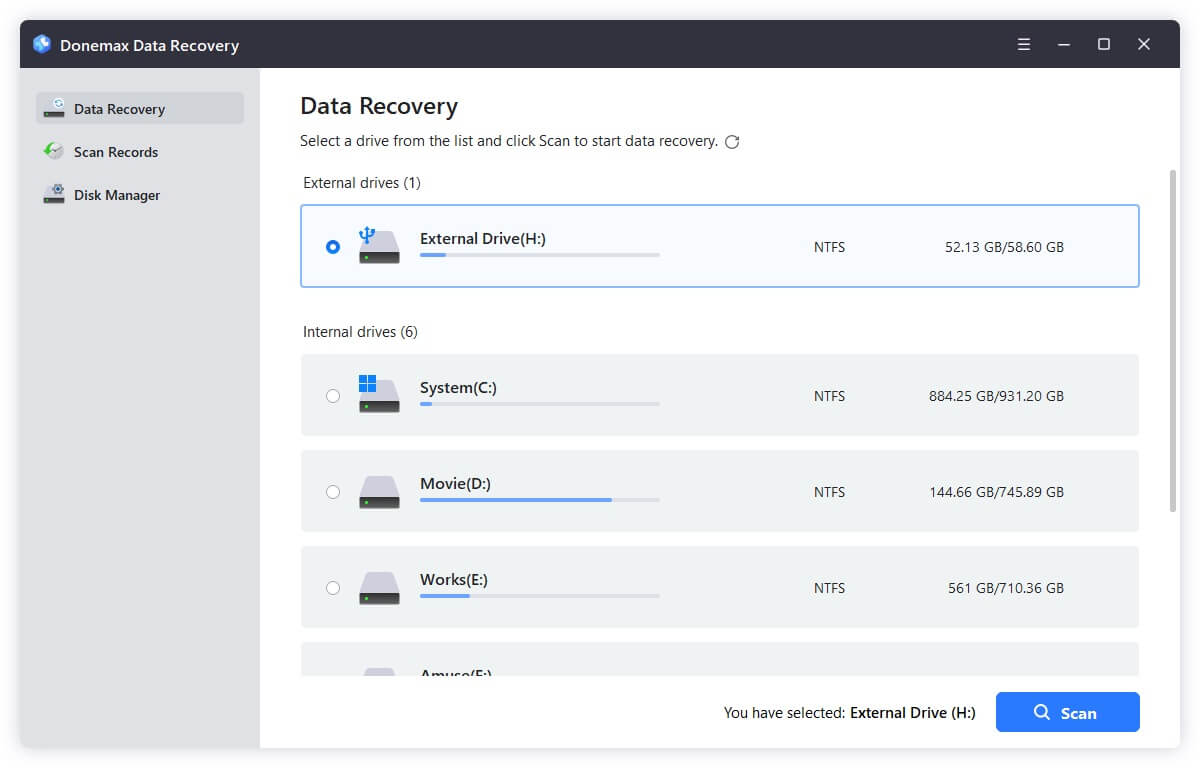
Step 3: Scan the SD Card
Open your selected recovery software. Select the SD card as the target device to scan. Choose a scanning method (Donemax Data Recovery will run deep scan automatically):
Click Scan and wait. Scanning time depends on the card size, speed, and level of corruption. For example:
💡 Tip: Avoid interrupting the scan. Doing so may reduce the chance of full recovery.
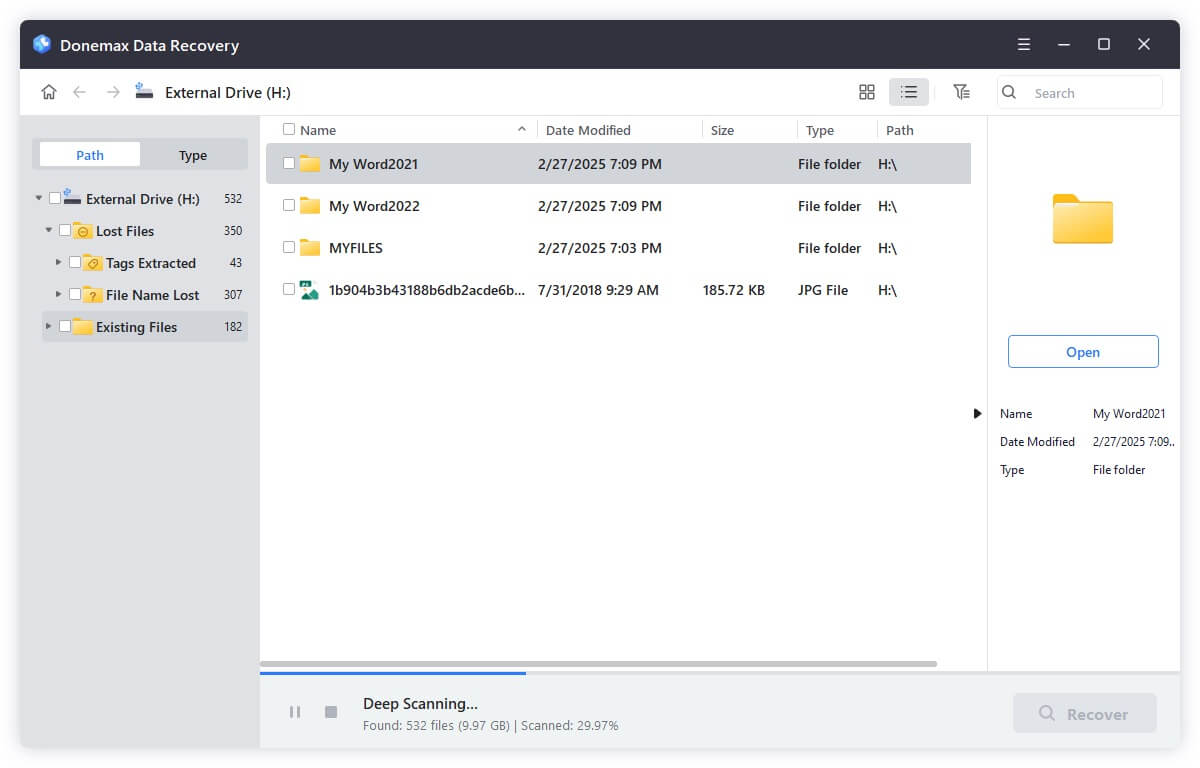
Step 4: Preview and Recover Files
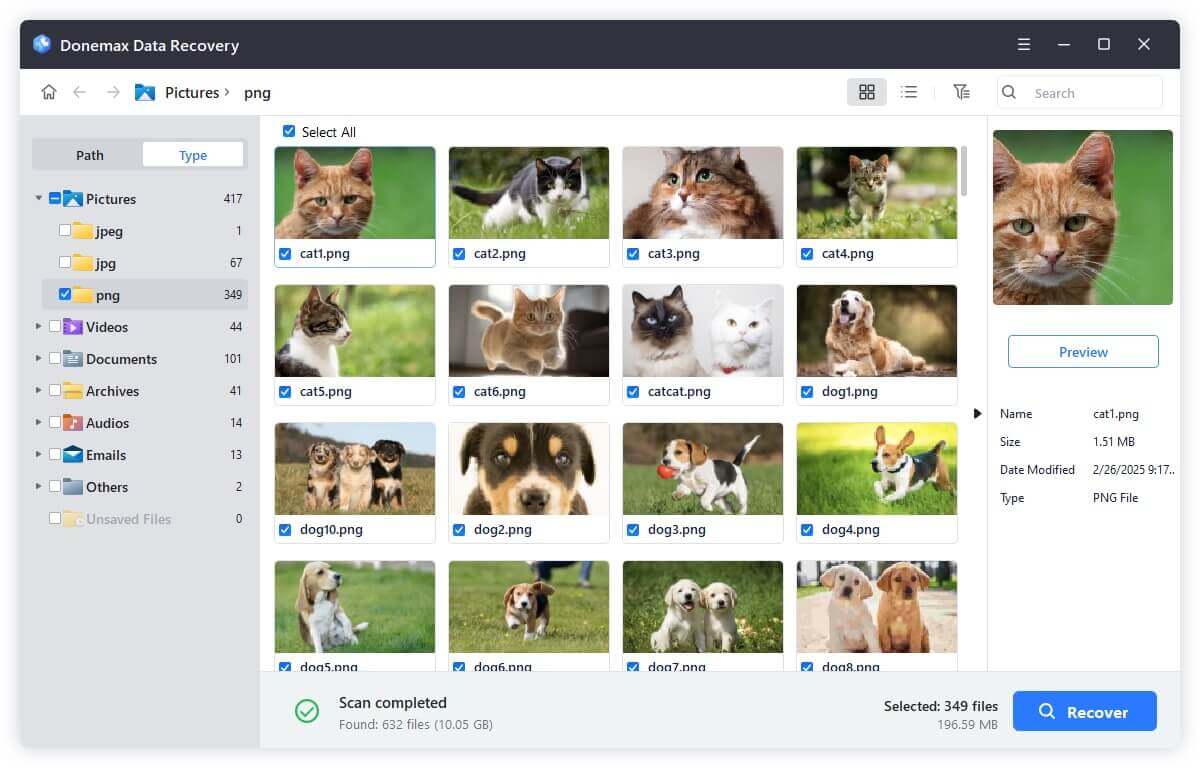
💡 Tip for INSV files: INSV is a proprietary Insta360 video format. If the file preview fails after recovery, don’t panic. Recovered INSV files can often be repaired or converted using Insta360 Studio or third-party repair tools.
Sometimes recovery restores files that are corrupted or unplayable. Insta360 provides tools to repair such files:
Using Insta360 Studio
Using Third-Party Repair Tools
Always preview repaired files before deleting the original corrupted versions.
Prevention is always better than recovery. Implement these best practices to safeguard your files:
🇶 1: Can I recover permanently deleted Insta360 files?
Yes, if they haven’t been overwritten. Recovery software can often restore permanently deleted files.
🇶 2: Which SD card types are safest for Insta360 cameras?
UHS-I, U3, or V30 cards with high write speed are recommended for smooth recording and reduced corruption risk.
🇶 3: Does recovery software work for all Insta360 camera models?
Yes, as long as the SD card or internal storage is accessible. Proprietary formats like INSV can be repaired with Insta360 Studio.
🇶 4: How long does recovery take?
Scan time depends on SD card size and software. Deep scans of large 128GB or 256GB cards can take 1–3 hours.
Losing videos or photos from an Insta360 camera can be frustrating, but with the right approach, most files can be recovered. Start by checking cloud backups, then move to SD card recovery using reliable software. For corrupted files, Insta360 Studio and third-party repair tools can restore your precious footage.
By following these steps and implementing preventive measures, you can protect your Insta360 memories and minimize the risk of future data loss. Remember: the key is acting quickly, avoiding further use of the affected SD card, and maintaining regular backups.
With patience and the right tools, it’s entirely possible to recover lost videos and photos from your Insta360 camera and preserve your most valuable moments.
Donemax Data Recovery
Powerful, safe & easy-to-use data recovery software. Easily and completely recover deleted, formatted, or other lost data. The tool supports PC, Mac, HDD, SSD, USB drive, camera, SD card, RAID and other storage devices.
Maria
Maria is one of the senior writers & editors of Donemax who lives and works in Sydney, Australia. She loves PC, Mac and Internet Technology. She has 6 years of writing articles about data recovery on PC/Mac, disk cloning solution, data eraser and computer OS optimization, etc. She is also interested in testing various software and digital products.
Gerhard Chou
In order to effectively solve the problems for our customers, every article and troubleshooting solution published on our website has been strictly tested and practiced. Our editors love researching and using computers and testing software, and are willing to help computer users with their problems

