
Written byStevenUpdated on Oct 22, 2026

Before we start: What to do if photos or other files were deleted by mistake? Don't panic — your deleted photos are likely still recoverable. Donemax Data Recovery is effective to recover deleted or lost data in any data loss scenarios.
PAGE CONTENT:
Accidentally deleting cherished family photos, vacation memories, or important work graphics from your Windows 11 PC can instantly cause a feeling of panic. You might have pressed 'Shift + Delete', emptied your Recycle Bin, or lost images during a sudden system update or disk error. When photos disappear completely from your drive, it is easy to assume they are gone forever.
However, here is the good news: when Windows 11 'permanently' deletes a file, the underlying image data usually remains intact on your storage sectors until new files overwrite that space. As long as you take action quickly and avoid saving new files onto that drive, your chances of restoring your lost pictures are extremely high.

In this comprehensive guide, we will walk you through the most effective, step-by-step methods on how to recover permanently deleted photos from Windows 11 safely and easily, whether you prefer built-in Windows backup utilities or professional data recovery tools.
To maximize your chances of getting your photos back, it helps to understand what actually happens when files are removed in Windows 11.
When you delete a photo normally, Windows moves it to the Recycle Bin. If you empty the Recycle Bin or use 'Shift + Delete', Windows removes the index pointer that locates the file and marks its storage space as 'free space'. The raw image data (JPEG, PNG, RAW, HEIC) physically remains on your hard drive or SSD until new data is written over those exact sectors.
Crucial Golden Rule: The moment you realize your photos are missing, stop using that computer drive immediately! Do not download large files, stream videos, or install new applications to that drive, as any new data creation can overwrite your deleted photos and make recovery impossible.
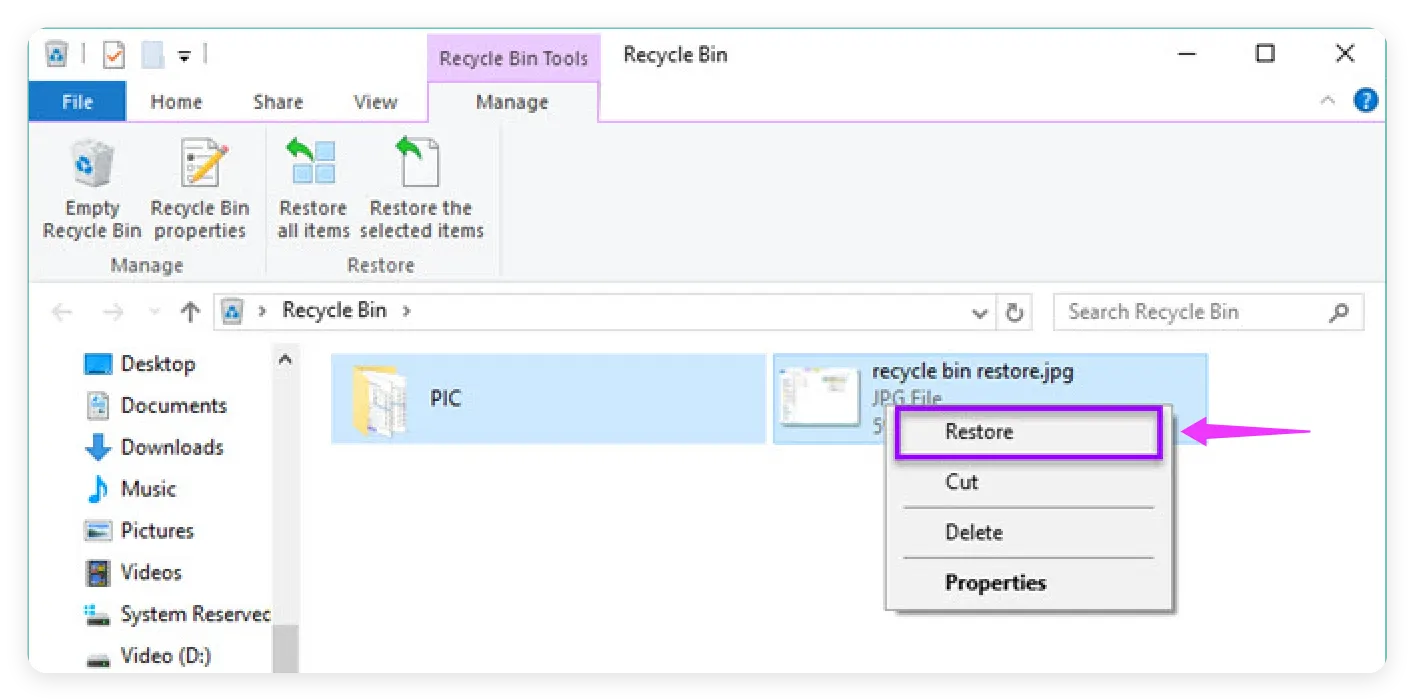
Before diving into deeper technical solutions, always double-check your Windows 11 Recycle Bin. Sometimes photos moved to the bin are still sitting there waiting to be restored.
Step 1: Double-click the Recycle Bin icon on your desktop.
Step 2: In the search bar at the top right, type '.jpg', '.png', or the photo filename.
Step 3: Right-click the deleted photo and select 'Restore'. The photo will immediately return to its original folder location.
If you do not have a recent system backup, or if your photos were permanently deleted past the Recycle Bin, using professional recovery software is the most reliable, effective, and hassle-free option.
Donemax Data Recovery is an advanced yet user-friendly data retrieval application engineered for Windows 11. It performs deep sector scans on HDDs, SSDs, SD cards, and USB drives to locate and reconstruct deleted photo formats including JPG, PNG, GIF, BMP, TIFF, SVG, and camera RAW formats (CR2, NEF, ARW) with original file quality intact.
Step-by-Step Guide: Recover Photos with Donemax Data Recovery
Step 1. Download and Install: Download Donemax Data Recovery from the official website. To prevent overwriting lost files, install the program on a partition or drive different from where your deleted photos were originally stored (e.g., install on D: drive if photos were lost from C: drive).
Step 2. Select the Location: Launch Donemax Data Recovery. Select the specific drive, folder, desktop location, or external SD card where your photos were located before deletion.
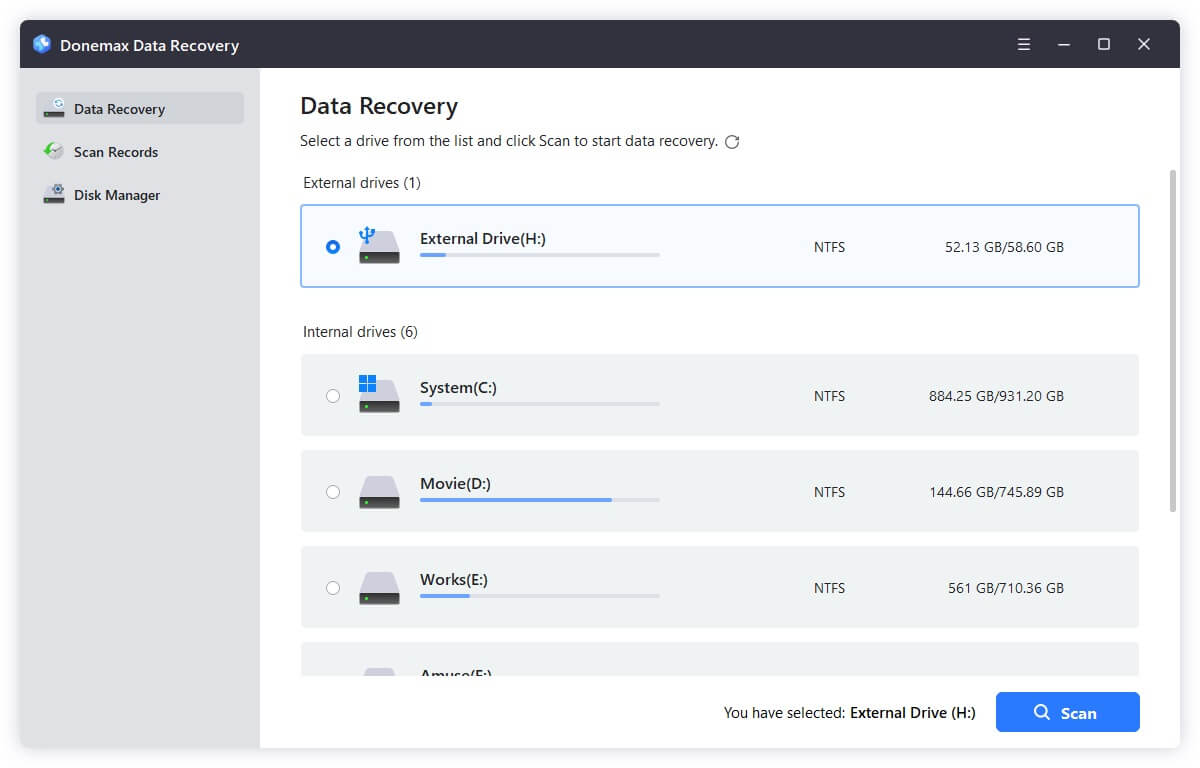
Step 3. Scan for Deleted Photos: Click the 'Scan' button. The software will execute a fast scan followed by a thorough deep scan, analyzing drive sectors to retrieve lost file structures.
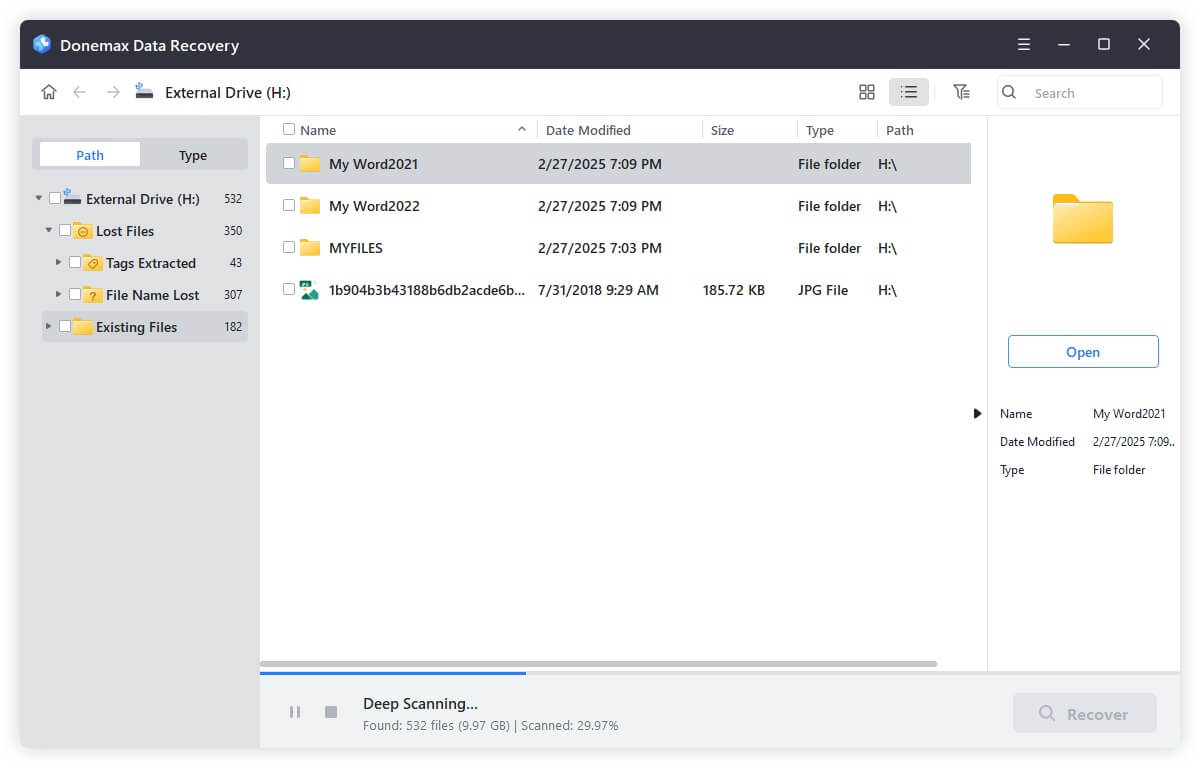
Step 4. Filter and Preview Photos: Once the scan completes, click the 'Pictures' category in the left sidebar. Use the built-in preview feature to inspect image thumbnails and verify photo quality before recovery.
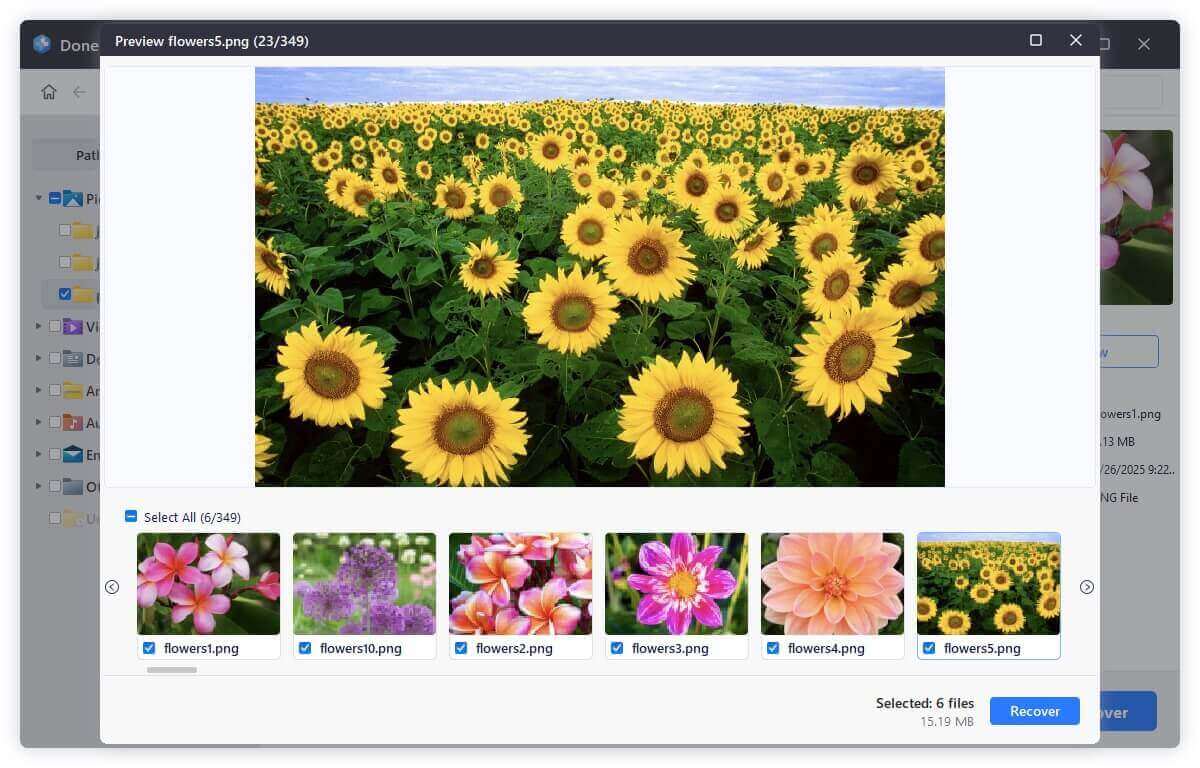
Step 5. Recover and Save Safely: Check the boxes next to the photos you wish to restore, click 'Recover' button, and choose a safe saving destination (such as an external hard drive or cloud folder) to complete the recovery.

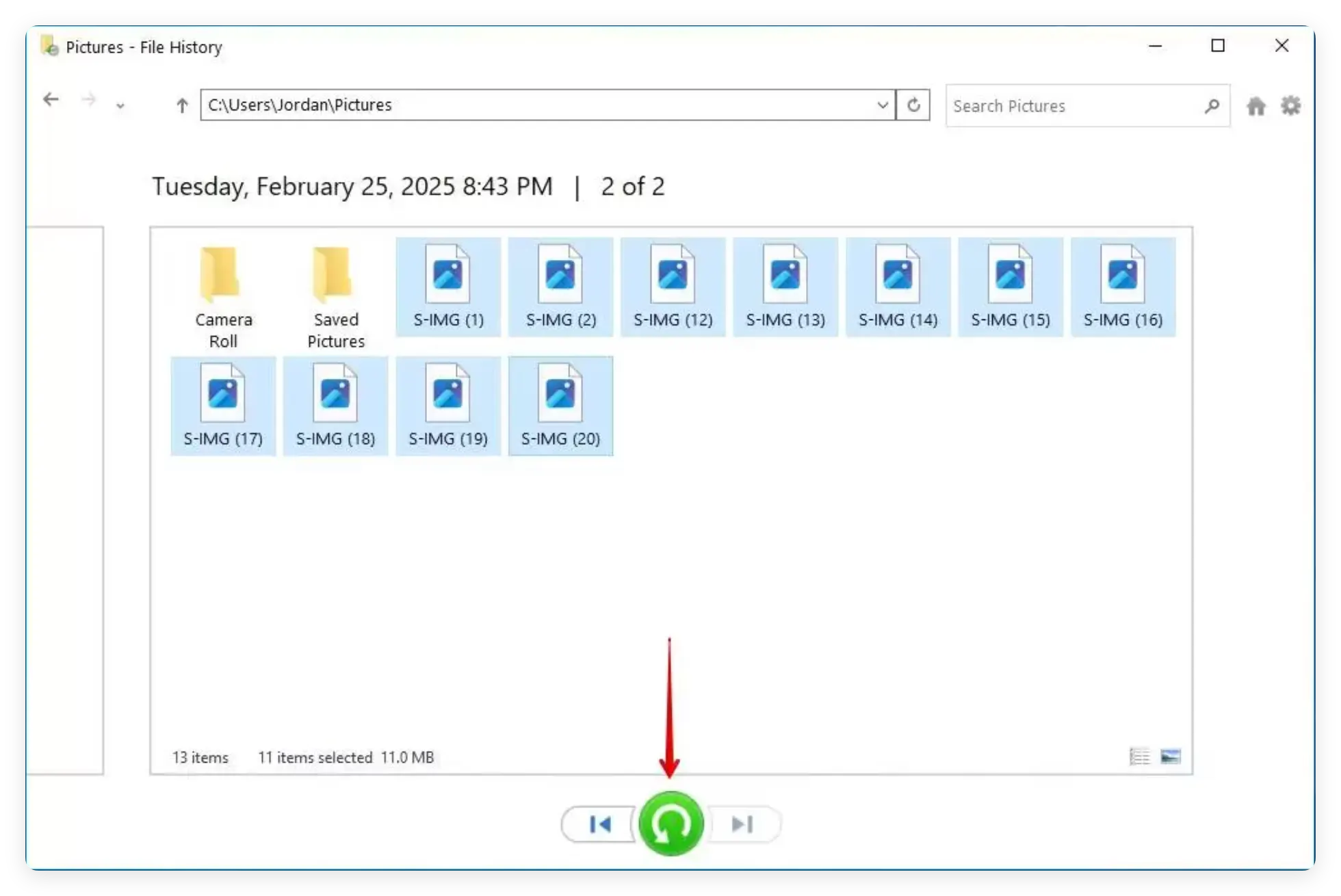
Windows 11 includes a powerful built-in backup feature called File History. If you enabled File History prior to losing your photos, you can easily restore previous versions of your folders.
Step 1: Open the Start menu, type 'File History', and select 'Restore your files with File History'.
Step 2: Navigate to the folder where your photos were originally saved (e.g., Pictures library or Documents).
Step 3: Browse through the backup snapshots using the left and right arrow buttons to find a version saved before deletion.
Step 4: Select the missing photos or entire folder, then click the green 'Restore' button at the bottom.
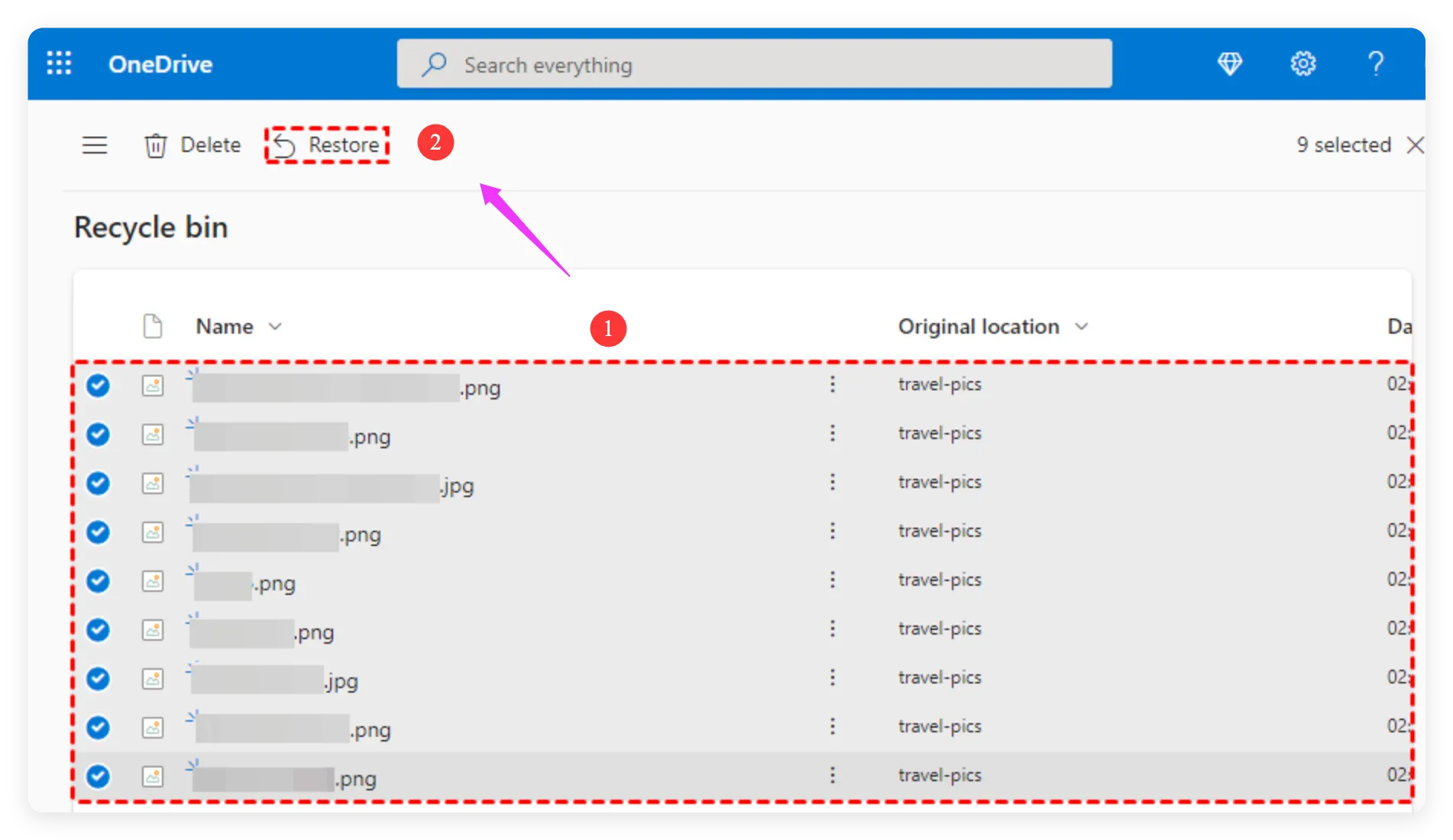
Windows 11 comes deeply integrated with Microsoft OneDrive. If your Pictures folder was synced with OneDrive, your deleted photos might still be safely stored in OneDrive's online cloud trash.
Step 1: Log in to your account at OneDrive.live.com in any web browser.
Step 2: Click on 'Recycle Bin' from the left navigation menu.
Step 3: Locate your deleted photos, select them, and click 'Restore'. Items in OneDrive Recycle Bin remain available for 30 days before automatic permanent removal.
Microsoft offers a free command-line tool called Windows File Recovery in the Microsoft Store. While effective, it lacks a visual interface and requires typing specific terminal commands.
Step 1: Search for 'Windows File Recovery' in the Microsoft Store, install it, and launch Command Prompt as administrator.
Step 2: Use the recovery syntax: 'winfr <source-drive:> <destination-drive:> [/mode] [/switches]'.
Note: Because this tool requires accurate command typing and offers no file preview, most users prefer graphical software like Donemax Data Recovery.
Recovering lost photos is great, but preventing data loss in the future is even better. Keep these best habits in mind:
Learning how to recover permanently deleted photos from Windows 11 doesn't have to be a stressful experience. While accidental deletion or system crashes can be frightening, modern Windows tools and backup features provide multiple recovery pathways.
If built-in tools or Recycle Bin checks do not yield results, turning to a trusted application like Donemax Data Recovery ensures you can perform deep sector scans, preview thumbnails, and bring your precious memories back with total confidence.
Steven
Steven has been a senior writer & editor of Donemax software since 2020. He's a super nerd and can't imagine the life without a computer. Over 6 years of experience of writing technical solutions and software tesing, he is passionate about providing solutions and tips for Windows and Mac users.
Gerhard Chou
In order to effectively solve the problems for our customers, every article and troubleshooting solution published on our website has been strictly tested and practiced. Our editors love researching and using computers and testing software, and are willing to help computer users with their problems