
Written byCharlesUpdated on Sep 01, 2026

Before we start: If a drive status is turned to RAW, it means there are issues with the file system of the drive. What to do if there are important files on the drive? Donemax Data Recovery can help you deeply scan the drive and recover the files effectively.
PAGE CONTENT:
Have you plugged in your external hard drive, USB flash drive, or internal SSD on Windows 11 26H2 only to be greeted by an annoying error message? Statements like 'You need to format the disk in drive before you can use it' or 'The file or directory is corrupted and unreadable' can send anyone into a instant panic.
When you open Disk Management, you notice that your familiar NTFS, exFAT, or FAT32 partition has suddenly changed to a RAW file system. Your disk space might even show as 0 bytes, and all your important photos, work documents, and videos appear to have vanished into thin air.
Take a deep breath! A RAW drive does not mean your files are destroyed forever. In this guide, we will walk you through everything you need to know about Windows 11 26H2 RAW drive data recovery. You will learn why drives turn RAW, how to recover your vital data safely, and how to fix the drive so you can use it again without losing a single file.
To fix a RAW drive, it helps to understand what the term actually means. In Windows operating systems, a file system (like NTFS, FAT32, or exFAT) acts as an organized filing cabinet. It tells Windows where files are stored, how big they are, and how to read them.
When a drive becomes RAW, it means Windows 11 26H2 can no longer recognize or read the drive's file system structure. The operating system loses its 'map' to your data. Because Windows cannot identify the file system, it marks the drive status as RAW and prevents you from opening it to protect the storage surface from further corruption.
Crucially, your raw binary files are usually still sitting safely on the disk platters or flash memory chips. Windows simply lacks the pointer system required to display them in File Explorer.
A drive does not turn RAW overnight without a reason. Understanding the cause can help you prevent this headache in the future. Here are the most common reasons why a storage drive becomes RAW on Windows 11 26H2:
When Windows detects a RAW drive, it frequently prompts you with a pop-up window: 'You need to format the disk before you can use it.'
⚠️ WARNING: Do NOT click 'Format Disk'! Formatting will wipe the file record structures and overwrite parts of your storage, making file recovery significantly harder or even impossible.
Many online tutorials suggest running command-line repair tools like 'chkdsk X: /f' right away. However, running CHKDSK on a RAW drive usually fails with the error 'CHKDSK is not available for RAW drives.' Worse, CHKDSK attempts to repair corrupted index structures by deleting unreadable file references, which can destroy your recoverable files permanently.
The golden rule for Windows 11 26H2 RAW drive data recovery is simple: Always extract and recover your lost files first using professional recovery software, and only format or repair the drive after your data is safe.
Because Windows cannot open a RAW partition directly, you need a powerful tool capable of scanning raw disk sectors directly. Donemax Data Recovery is an advanced, user-friendly data recovery program built specifically for Windows 11/10.
Donemax bypasses corrupted file system headers and performs deep raw sector scans to reconstruct lost partition structures, photos, documents, videos, and audio files effortlessly.
Step 1: Download and Install Donemax Data Recovery – Download Donemax Data Recovery and install it on your Windows 11 26H2 PC. Open the program. (Make sure not to install the software on the RAW drive itself to avoid overwriting data).
Step 2: Select the RAW Drive – On the main interface, you will see a list of all detected internal and external drives. Find and select the RAW drive or partition that contains your missing files.
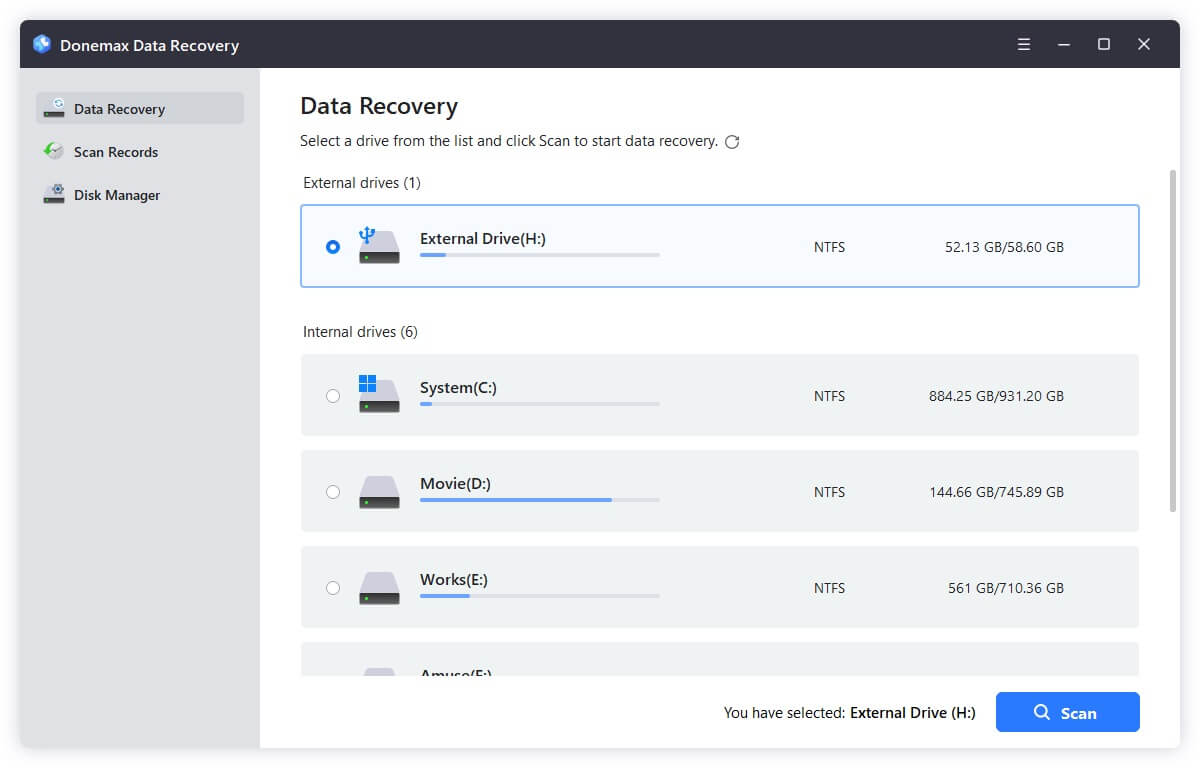
Step 3: Scan the RAW Partition – Click the Scan button. Donemax will execute a deep scan algorithm, analyzing every sector on the RAW drive to identify file signatures and recover lost directory hierarchies.
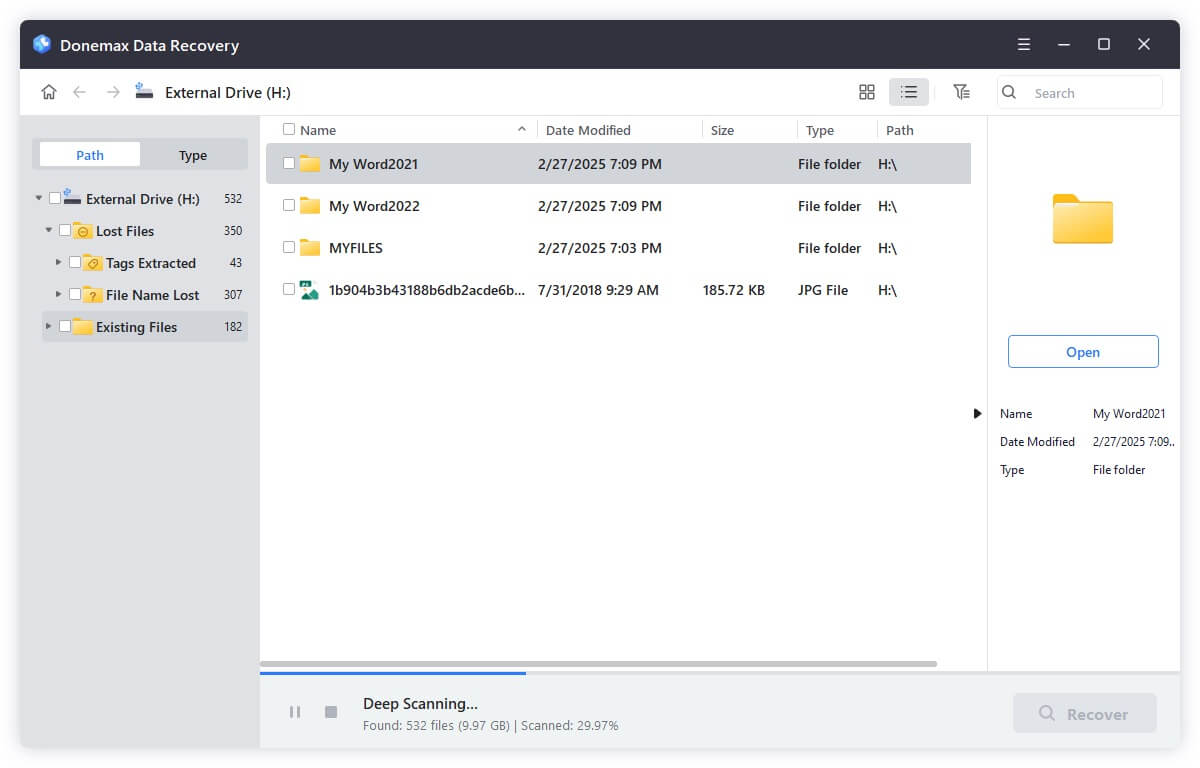
Step 4: Preview and Save Your Files – Once the scan completes, browse through the categorized file folders. You can preview photos, documents, and videos directly inside the software. Select the files you want to keep, click the Recover button, and save them to a safe, healthy drive.
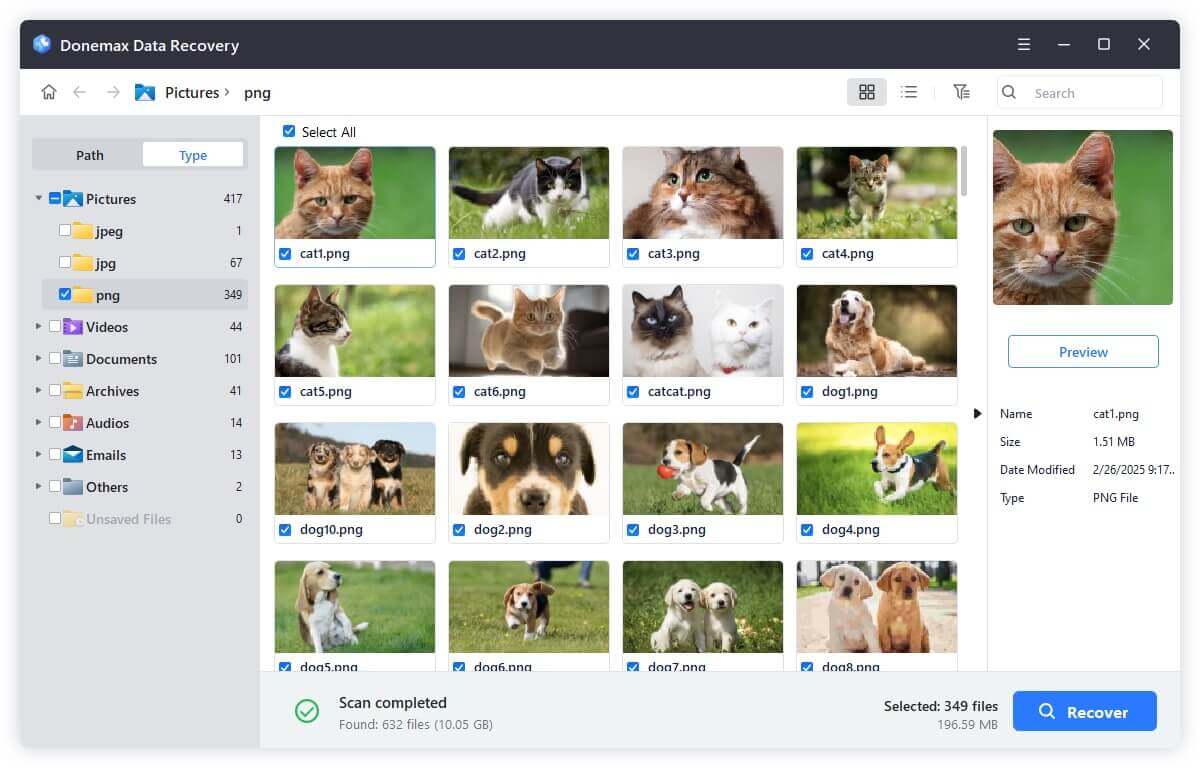
💡 Tip: Never save recovered files back onto the same RAW drive! Always restore your files onto your Windows 11 computer's internal storage or a separate healthy external drive until the RAW drive is fully repaired.
Once all your valuable files are safely recovered and saved to a secure location, you can safely repair the RAW drive so it becomes fully usable again. Normally, you can just reformat the RAW drive to make it working again. Here are the two commonly used methods to format the RAW drive:
If you can still see the RAW drive listed in Explorer, you can just do as follows to format it:
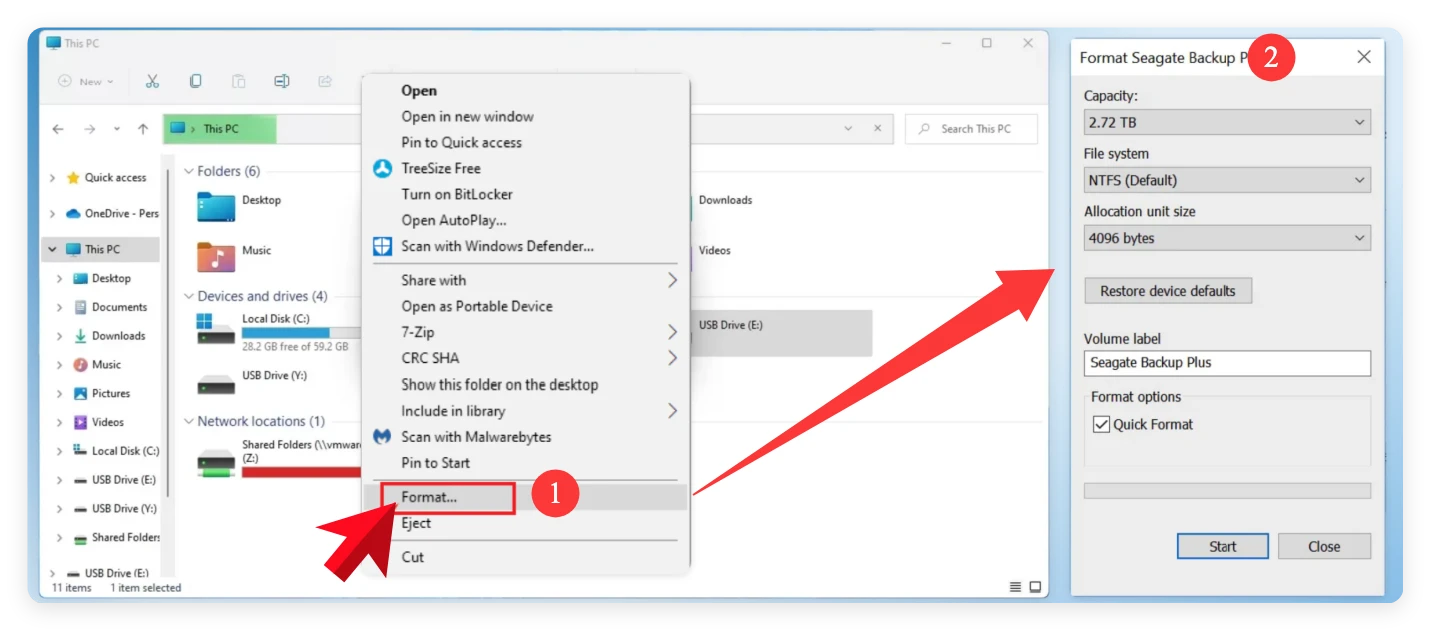
Sometimes, the RAW drive will not be showing up in File Explorer, then you need to reformat the drive in Disk Management. Here is how:
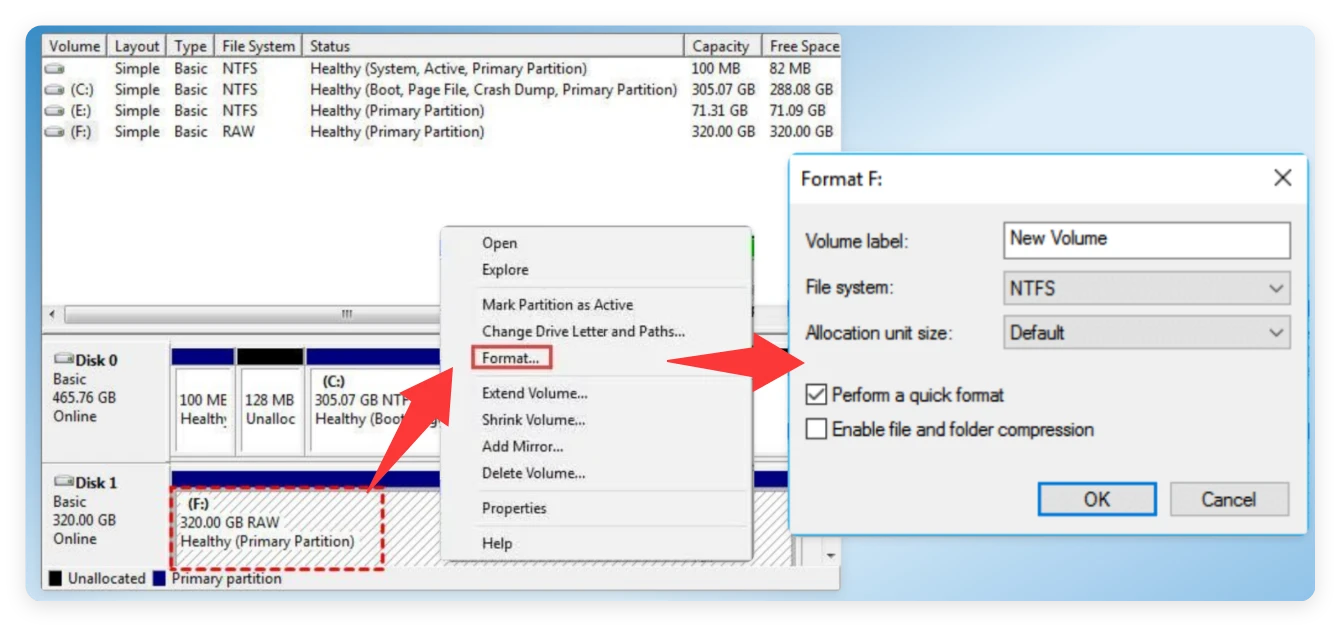
To protect your hardware and data from experiencing RAW drive corruption in the future, keep these simple habits in mind:
Encountering a RAW drive on Windows 11 26H2 can be stressful, but it doesn't have to end in data loss. Remember the golden rule: never format the drive or attempt aggressive command-line fixes until your files are recovered.
With a trustworthy tool like Donemax Data Recovery, you can easily execute Windows 11 26H2 RAW drive data recovery, retrieve all your precious documents and photos, and then format the drive back to healthy NTFS or exFAT status. Download Donemax Data Recovery today to protect your valuable files and resolve RAW drive issues with ease!
Charles
Charles, who lives in Sydney, Australia, is an editor & writer of Donemax Team. He is good at writing articles related with Apple Mac computers, Windows operating systems, data recovery, data erasure, disk clone and data backup, etc. He loves reading and playing tennis in his spare time and is interested in testing new digital devices such as mobile phones, Macs, HDDs, SSDs, digital cameras, etc.
Gerhard Chou
In order to effectively solve the problems for our customers, every article and troubleshooting solution published on our website has been strictly tested and practiced. Our editors love researching and using computers and testing software, and are willing to help computer users with their problems