Written byStevenUpdated on Apr 30, 2026

PAGE CONTENT:
Imagine this: You're ready to save an important document or transfer some vacation photos to your USB drive, but Windows stops you cold with a frustrating message: "The disk is write protected."
You can't delete files, you can't format the drive, and you certainly can't save anything new. It's like having a notebook that's been padlocked shut.
Don't worry—your drive probably isn't broken. Write protection is often just a security setting that got toggled by mistake. In this guide, we'll walk through 9 professional yet easy ways to remove write-protection and get your disk working again.
The simplest solution may be to check for a physical write protection switch, especially for external storage devices like USB flash drives or SD cards. Many of these devices come equipped with a small switch that, when turned on, activates write protection.
How to Disable the Write Protection Switch:
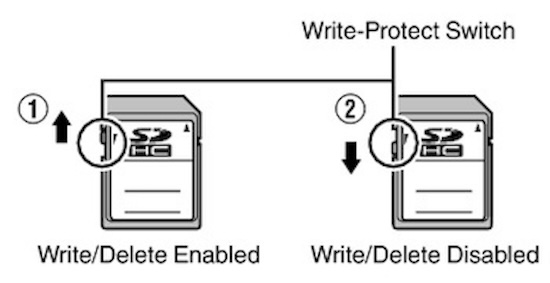
If your device has no physical write protection switch, or the issue persists, proceed to the next solution.
This tool allows you to modify the attributes of a disk, including write protection.
Steps to Remove Write Protection with Diskpart:
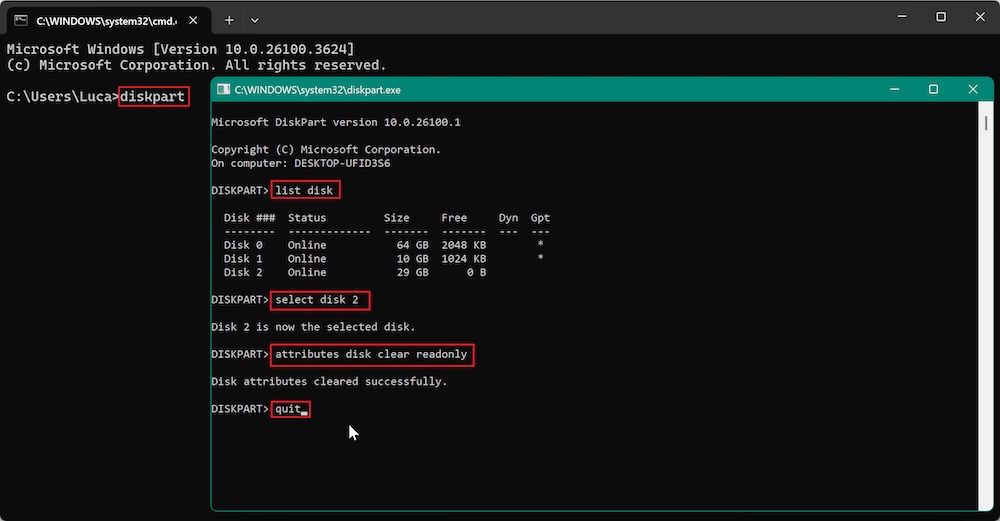
After completing these steps, check the disk to see if write protection has been disabled. If the problem persists, move on to the next solution.
In some cases, the write protection is caused by a registry setting that prevents the system from writing to the disk. You can disable this protection by editing the Windows Registry, though it's important to back up your registry beforehand to avoid potential issues.
How to Modify the Registry:
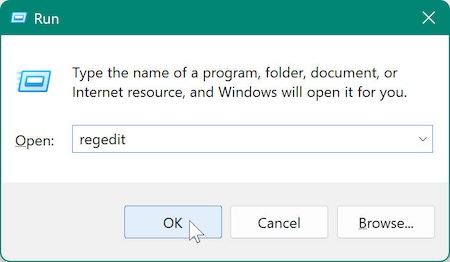
HKEY_LOCAL_MACHINE\SYSTEM\CurrentControlSet\Control\StorageDevicePolicies
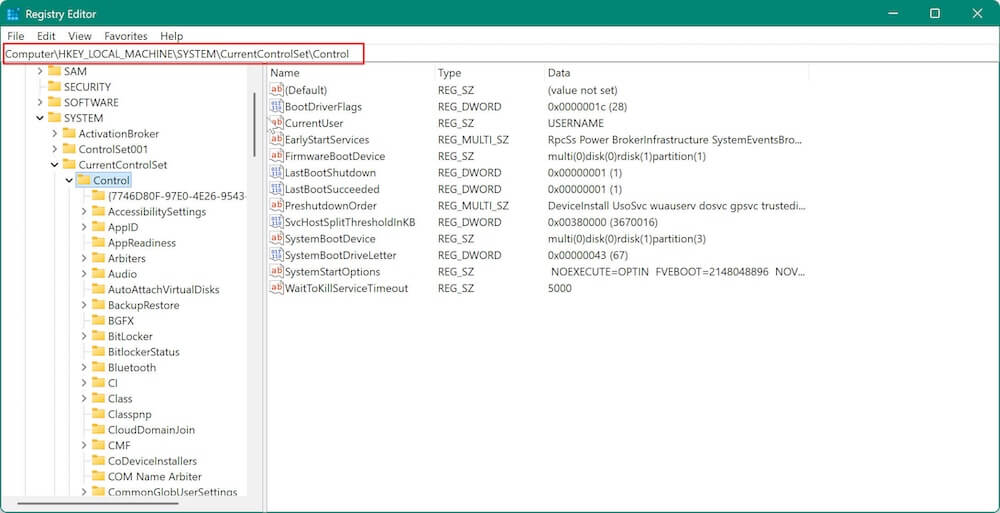
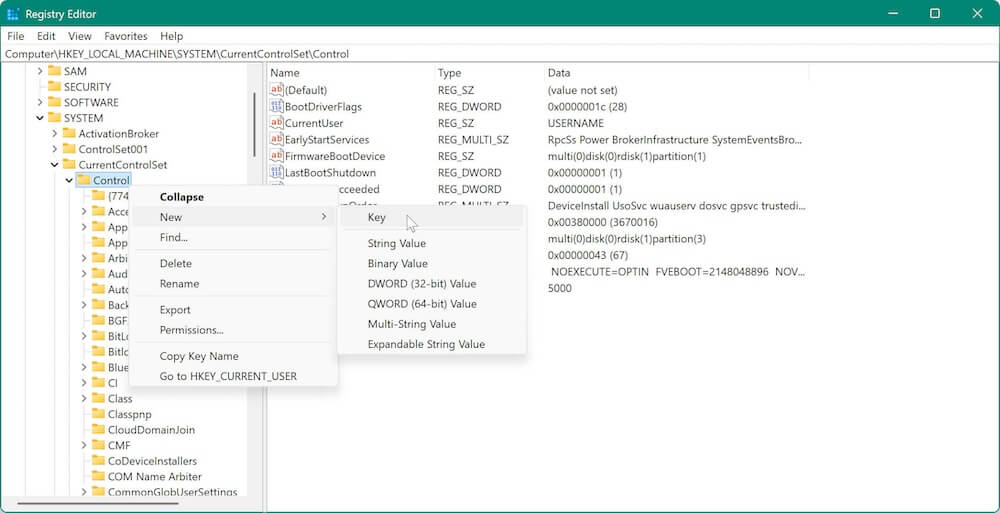
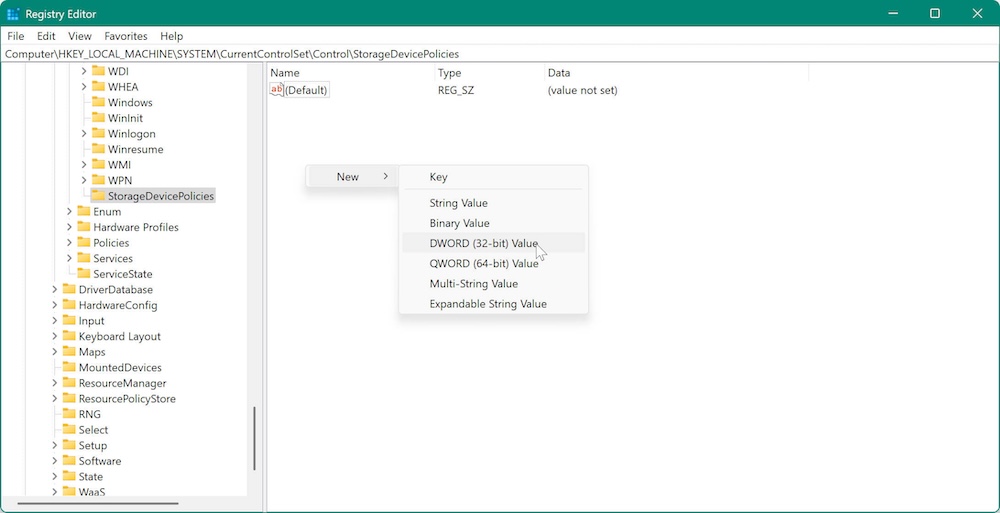

This method should disable write protection if the issue was caused by the registry settings. If the error still appears, try the next method.
You can control write protection settings with the Group Policy Editor if you're running Windows Pro or Enterprise. Note that Windows Home editions cannot use this strategy.
Steps to Disable Write Protection Using Group Policy Editor:
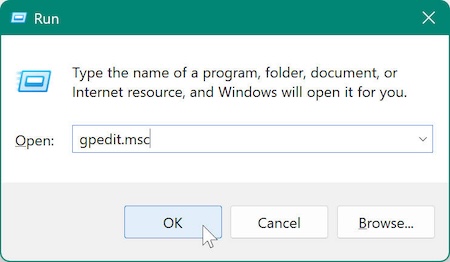
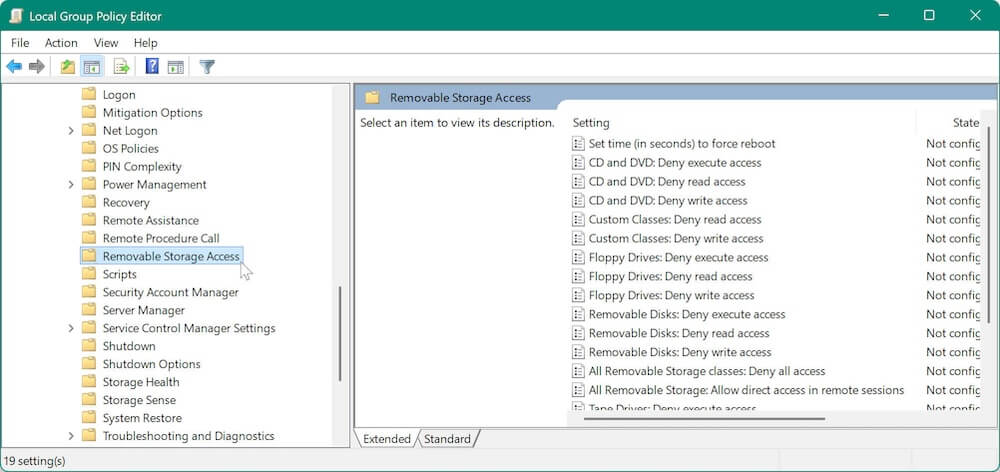
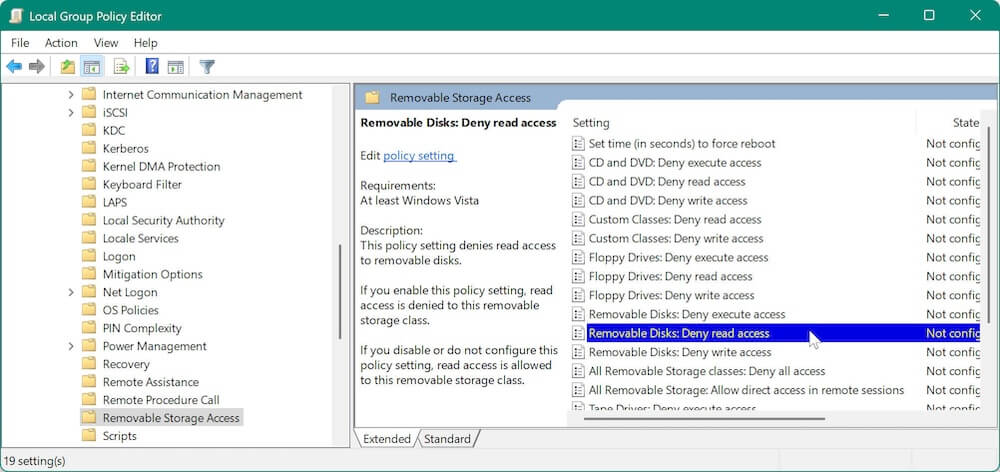
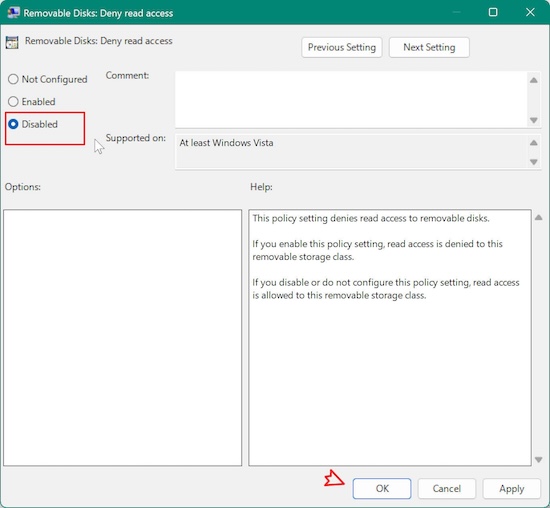
This should resolve the write protection error on external devices. If it doesn't, proceed to the next step.
Additionally, you can use the third-party software Donemax Data Eraser to repair the drive. Here is how:
Step 1. Download and install the software.
Step 2. Repair the drive with the software.
Run the software and change to Disk Tool option. Select the write-protected drive or card, then click Repair button to start.
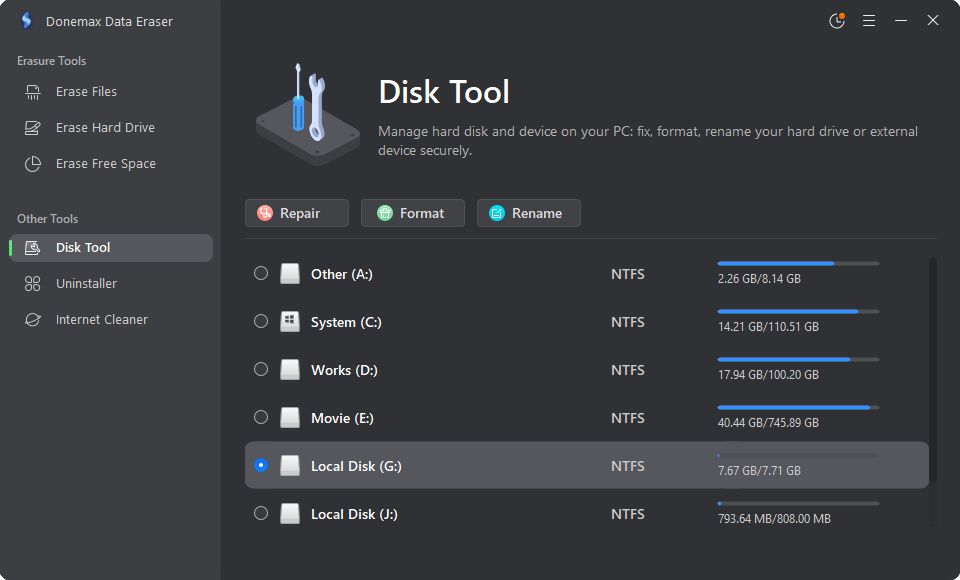
The software will start to check the device and try to fix any found errors. If the repair is successfully, the write-protection will be removed and the drive/card will be writable again.
To get rid of write protection, you might have to format the drive if all else fails. Make cautious to backup any vital files before starting, though, as formatting will remove all data from the device.
How to Format the Disk:
You can also use the system built-in tool to format the drive. Here are the steps:
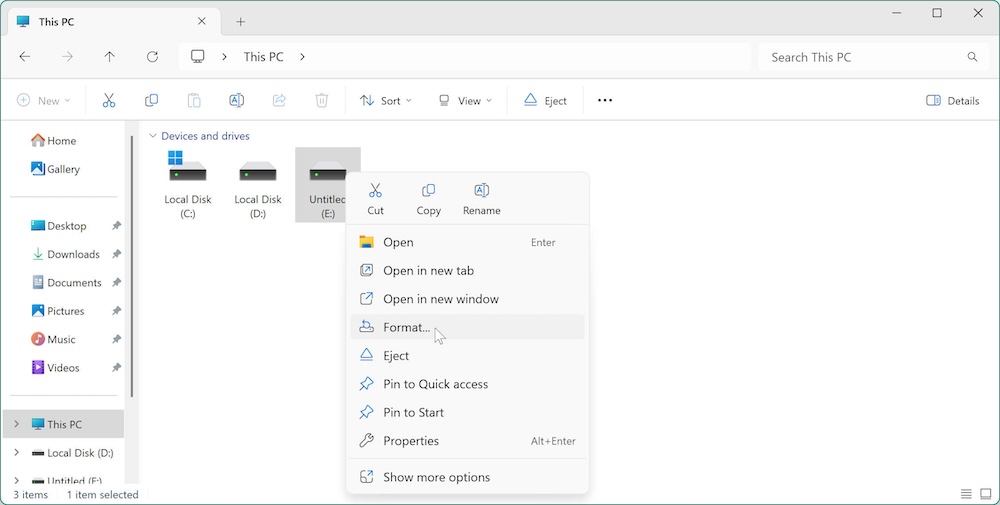
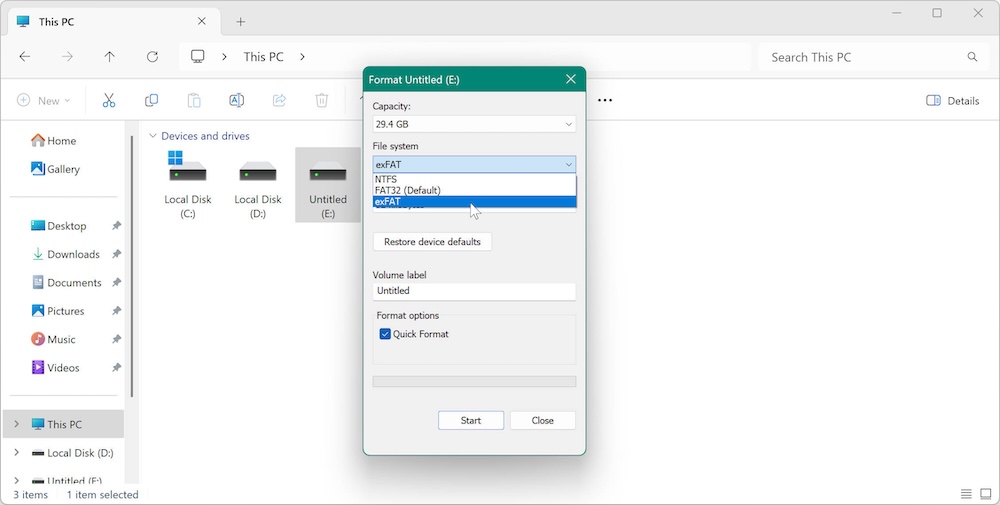
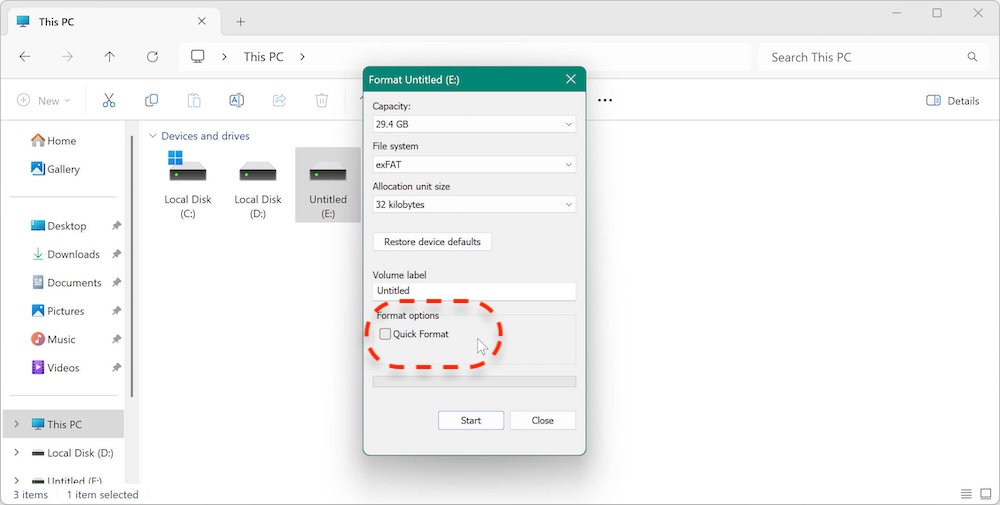
✍ Note: Sometimes, it's impossible format a write-protected device in Windows; you might end up receiving the same "The disk is write protected" error message. To avoid this, you can reboot Windows and get into safe mode to format the write-protected device.
Once the format is complete, the write protection should be removed. However, if the problem persists, it could be a sign of a deeper issue with the disk or file system.
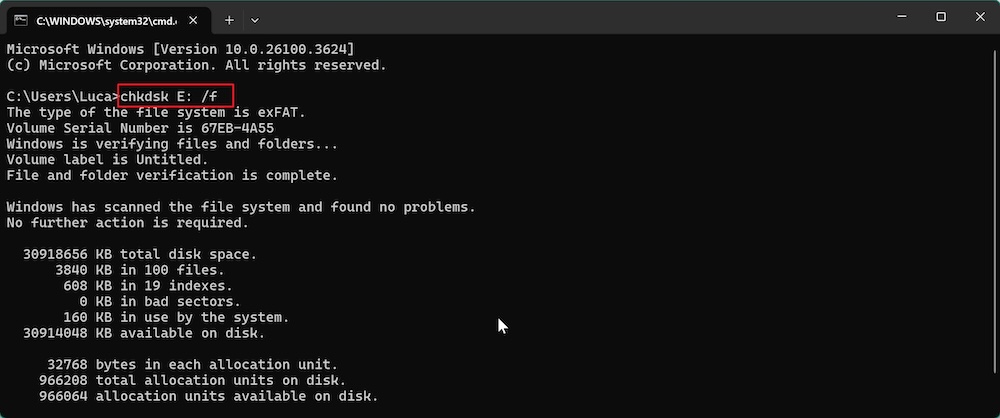
Open Command Prompt and type chkdsk X: /f (replace X with your disk's letter). This will scan the disk for errors and fix any issues found.
Go to Device Manager, find your external device under Disk Drives, right-click, and select Update Driver.
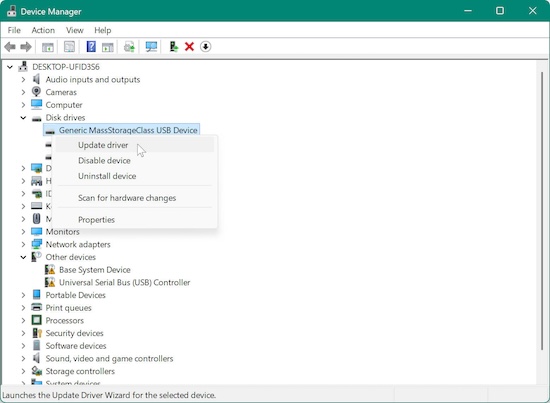
If the disk is nearly full, it may prevent you from making changes. Check the available space and free up some room if necessary.
To avoid running into the "Disk is Write Protected" error again in the future, follow these best practices:
"The Disk is Write Protected" error in Windows can be a frustrating obstacle, but as we've seen, there are several methods to resolve it. By following the solutions provided, you can remove the write protection from your disk and regain full access to your files. Remember to always back up your data before making significant changes, such as modifying the registry or formatting the disk.
If you've tried all the solutions and the issue persists, there may be a deeper hardware issue, and it may be time to replace the disk. But in most cases, these solutions should work and get you back on track in no time.
Donemax Data Eraser
Donemax Data Eraser One of the best data erasure programs for permanently erase data from PC, Mac, HDD, SSD, USB drive, digital camera and other devices. Once the data is erased, it is lost for good, cannot be recovered by any method.
Steven
Steven has been a senior writer & editor of Donemax software since 2020. He's a super nerd and can't imagine the life without a computer. Over 6 years of experience of writing technical solutions and software tesing, he is passionate about providing solutions and tips for Windows and Mac users.
Gerhard Chou
In order to effectively solve the problems for our customers, every article and troubleshooting solution published on our website has been strictly tested and practiced. Our editors love researching and using computers and testing software, and are willing to help computer users with their problems
Clone hard drive with advanced clone technology or create bootable clone for Windows/Mac OS.
Completely and easily recover deleted, formatted, hidden or lost files from hard drive and external storage device.
Certified data erasure software - permanently erase data before selling or donating your disk or any digital device.