How to Fix External Hard Drive Is Unreadable on macOS 27 Golden Gate?

Charles
Written byCharlesUpdated on Aug 05, 2026

Gerhard Chou
Approved byGerhard Chou

Table of Contents

Before we start: Due to some problems, the external hard drive may not be readable on macOS 27 Golden Gate. If the data on the drive is very important, before you fixing the issue, it's necessary to recover the data first. Donemax Data Recovery for Mac can help you recover the files in such a case.


 Download

Mac Data Recovery

Rate: 4.8


PAGE CONTENT:

Upgrading to macOS 27 Golden Gate brings exciting system improvements, enhanced security, and fluid performance. However, some users encounter an unexpected problem right after updating: their external hard drive is unreadable on macOS 27 Golden Gate.
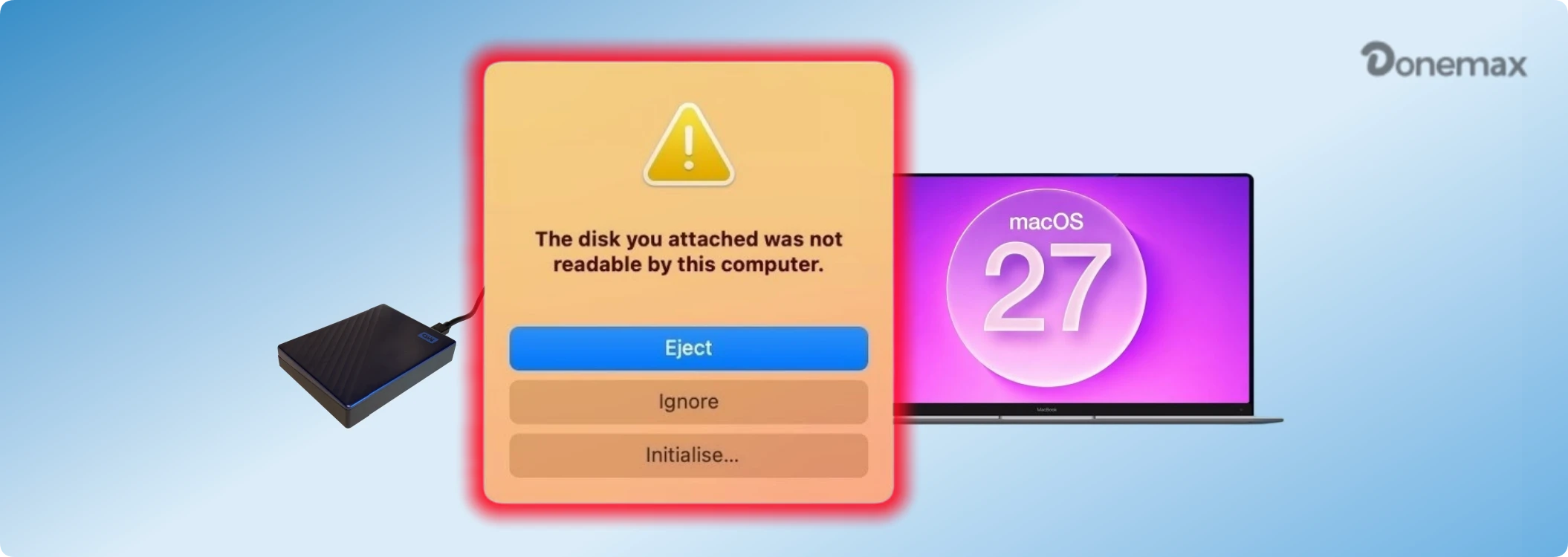
external hard drive is unreadable on macOS 27 Golden Gate

When you plug in your external hard drive, SSD, or USB flash drive, macOS may throw a error pop-up stating 'The disk you attached was not readable by this computer.' In other cases, the drive simply fails to appear in Finder or on your desktop.

If you are facing this issue, do not panic. This guide explains why your external hard drive becomes unreadable on macOS 27 Golden Gate, how to safely recover your important files using Donemax Data Recovery for Mac, and step-by-step methods to fix the drive so it works smoothly again.

Why Is External Hard Drive Unreadable on macOS 27 Golden Gate?

When an external storage device becomes unreadable on macOS 27 Golden Gate, the cause usually ranges from simple connection glitches to updated system permissions or drive corruption. Here are the most common reasons:

  • macOS System Update Glitches: Major operating system upgrades can reset device permissions or temporarily disrupt driver compatibility for external storage controllers.
  • File System Corruption: Unplugging an external drive without properly ejecting it can corrupt its file system header, preventing macOS from mounting it.
  • Unsupported File Systems: If the drive uses an outdated or unsupported format (like older BitLocker or specialized Windows formats without proper drivers), macOS Golden Gate will mark it as unreadable.
  • Physical Connection Issues: Damaged USB cables, dirty ports, faulty adapters, or insufficient power delivery can cause your Mac to misread drive data.
  • Bad Sectors or Hardware Wear: Physical wear and tear on hard drive platters or flash memory blocks can make parts of the drive unreadable.

CRITICAL STEP: Recover Files First with Donemax Data Recovery for Mac

Before attempting any repair methods—especially those involving formatting or First Aid disk modifications—your highest priority should be protecting your stored files. Attempting repairs on an unstable drive can sometimes worsen data loss.

If your external hard drive is unreadable on macOS 27 Golden Gate but still recognized physically by your Mac, Donemax Data Recovery for Mac can scan the drive and recover your documents, photos, videos, and music safely.

Why Choose Donemax Data Recovery for Mac?

  • Deep Scan Technology: Bypasses corrupted file system barriers to locate and recover lost partitions and raw files directly.
  • Full macOS 27 Compatibility: Optimized for macOS 27 Golden Gate and Apple Silicon chips.
  • Safe & Read-Only Operations: Scans your unreadable drive without modifying or overwriting your existing data.
  • File Preview Feature: Preview documents, photos, audio, and videos before performing the actual recovery.

Step-by-Step Guide to Recover Data from Unreadable External Drive:

Step 1: Download and Install: Download Donemax Data Recovery for Mac and install it on your Mac.

Donemax Data Recovery for Mac

  • Recover data from unreadable/inaccessible external drive.
  • Support the latest macOS 27 Golden Gate.
  • 100% safe and easy to recover lost data.
 

 Download

Mac Data Recovery

Rate: 4.8


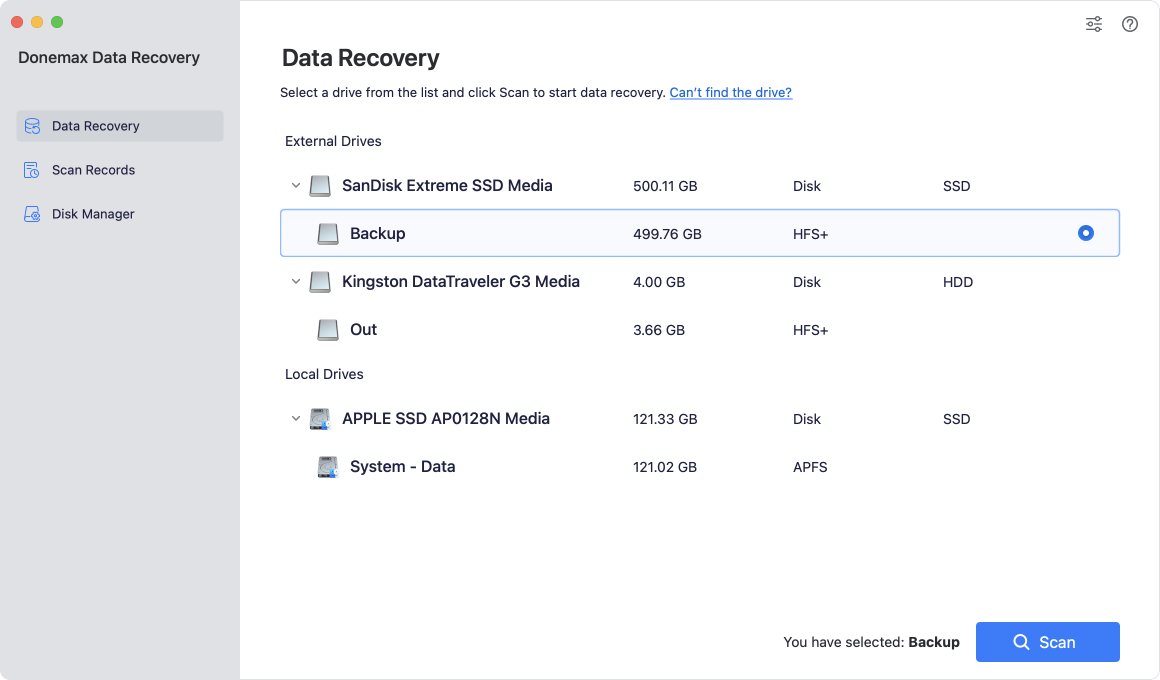
Step 2: Connect and Select Drive: Connect your unreadable external hard drive to your Mac. Open Donemax Data Recovery, select your external drive from the list, and click 'Scan'.
external hard drive is unreadable on macOS 27 Golden Gate

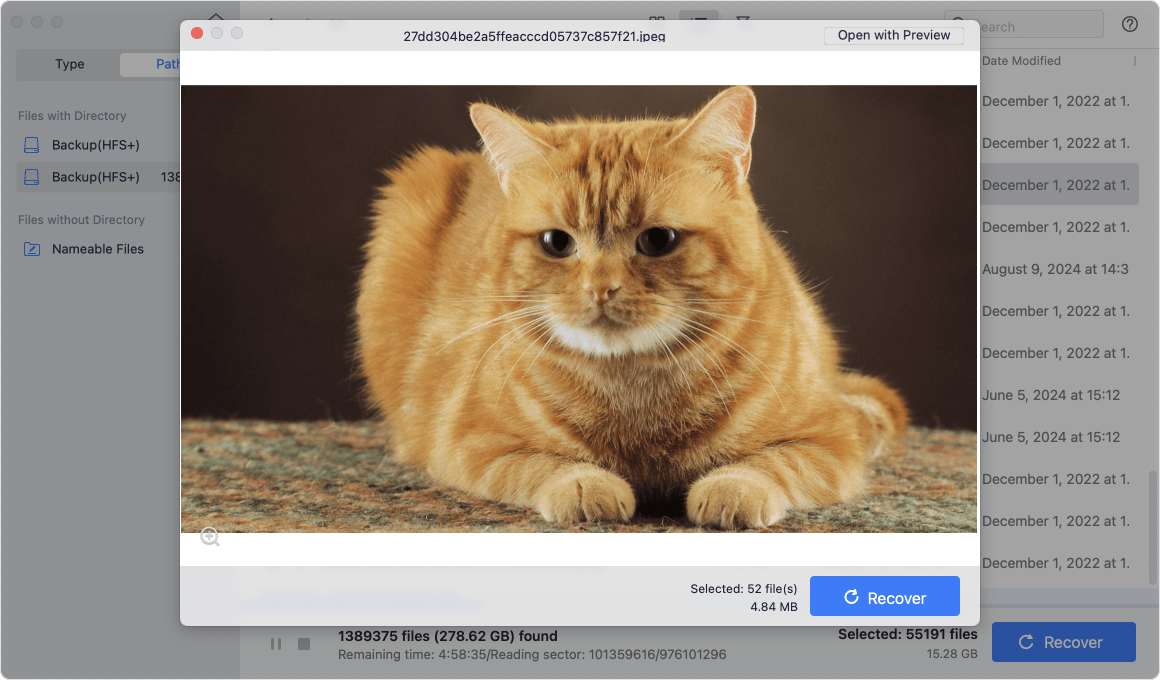
Step 3: Preview and Filter: Once the scan completes, browse through the found files. Use the preview feature to verify your photos, documents, and media.
external hard drive is unreadable on macOS 27 Golden Gate

Step 4: Recover and Save: Select the files you wish to restore, click 'Recover', and save them to a safe location on your Mac's internal storage or a different working drive.
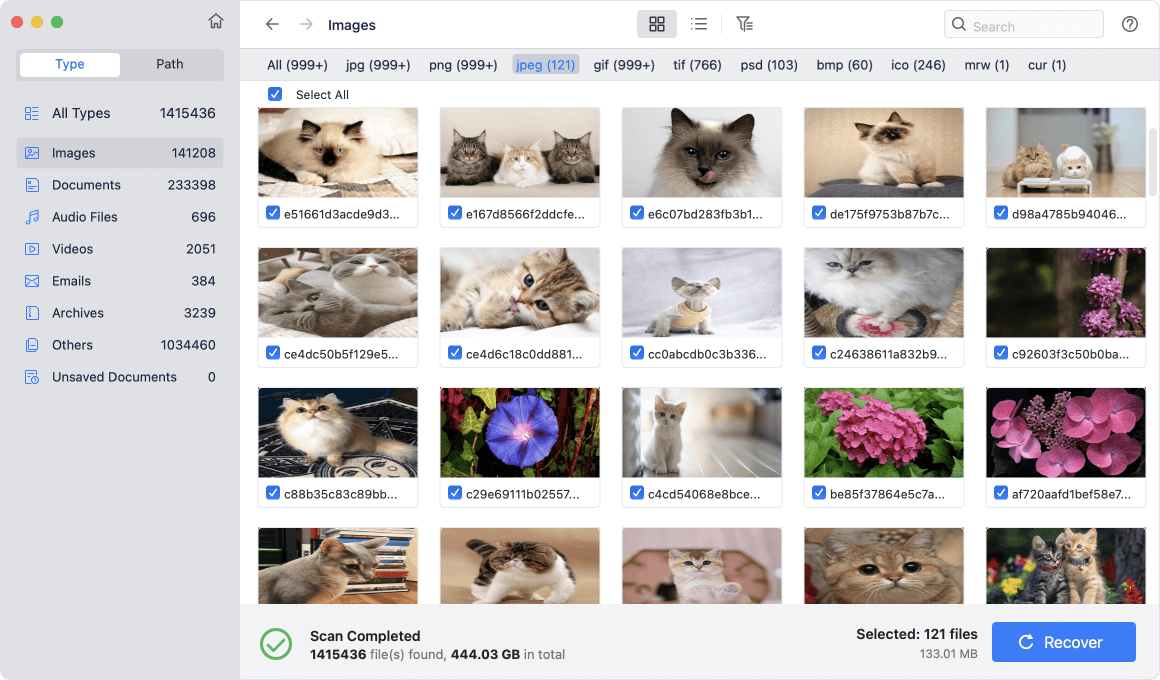
external hard drive is unreadable on macOS 27 Golden Gate

How to Fix External Hard Drive Unreadable on macOS 27 Golden Gate

Once your important files are safely backed up, you can proceed with these effective troubleshooting methods to make your external drive readable again.

Method 1: Basic Hardware Checks and Reconnection

Sometimes the simplest fix is the most effective. Connection glitches can cause macOS to misinterpret drive communications.

  • Reconnect the Cable: Unplug the drive, wait 10 seconds, and plug it back into a direct USB/Thunderbolt port on your Mac.
  • Bypass USB Hubs: Avoid unpowered USB adapters or hubs; connect the drive directly to your MacBook or iMac.
  • Try Another Cable or Mac: Test with a different cable or plug the drive into another computer to verify if the issue is hardware-related.

Method 2: Check System Permission Settings in macOS 27

macOS 27 Golden Gate features strict security protocols regarding external hardware access.
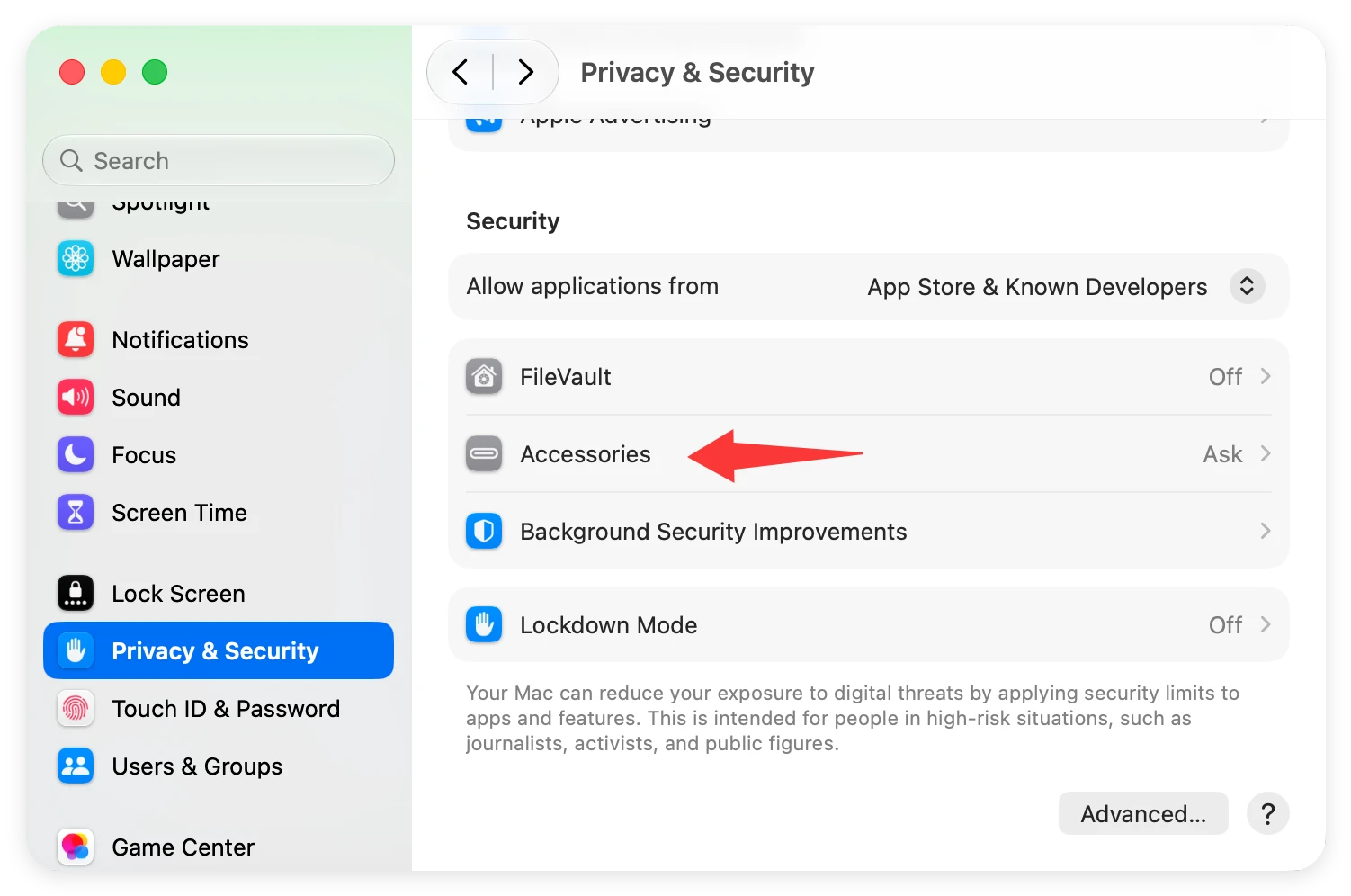
  1. Open System Settings from the Apple menu.
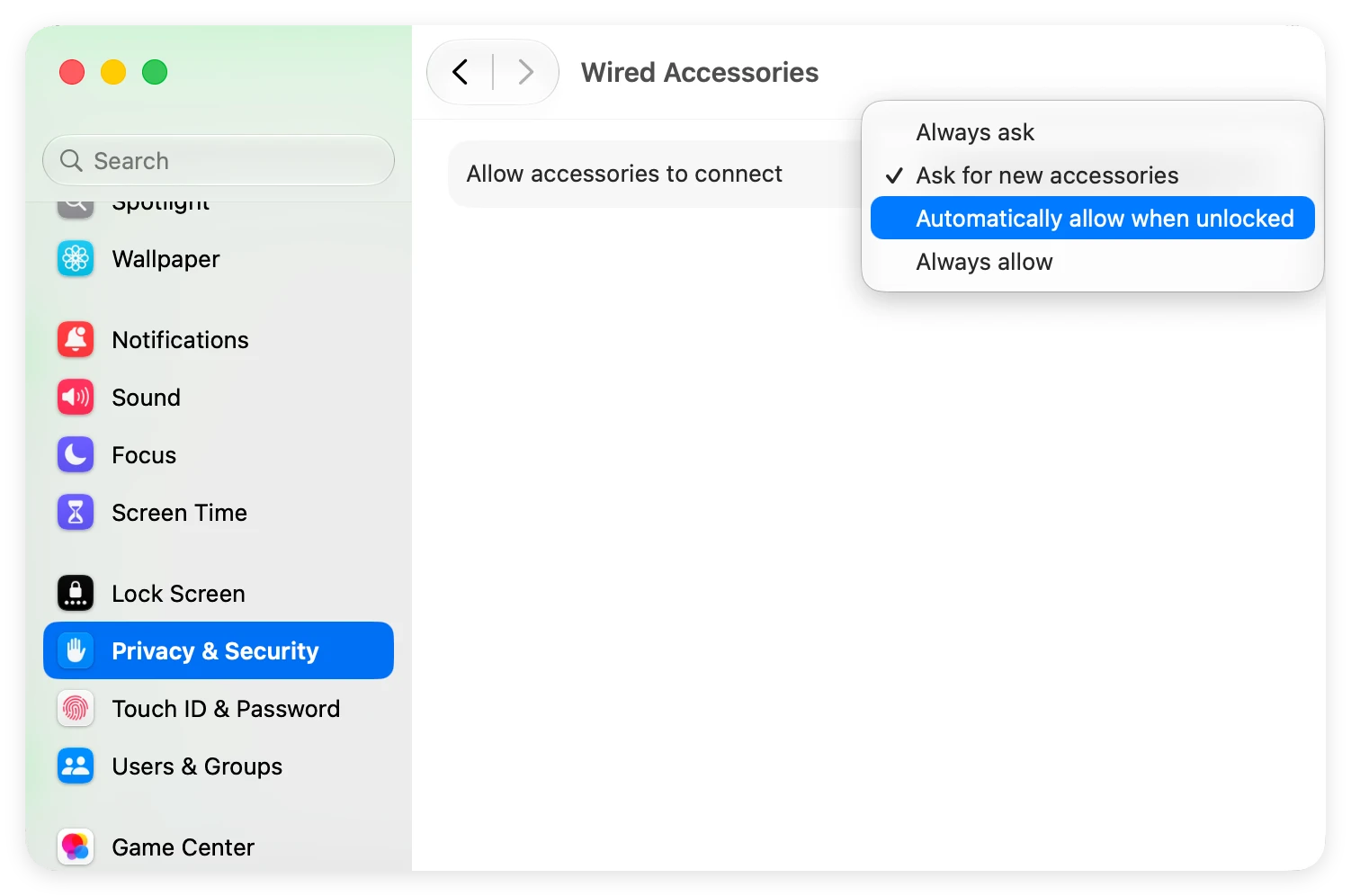
  2. Navigate to Privacy & Security > Accessories.

    external hard drive is unreadable on macOS 27 Golden Gate

  3. Ensure your Mac is granted permission to connect and read external accessories automatically.

    external hard drive is unreadable on macOS 27 Golden Gate

Method 3: Repair Unreadable Drive with Disk Utility First Aid

macOS includes a built-in repair tool called First Aid inside Disk Utility. It can scan external drives for file system errors and attempt automatic repairs.
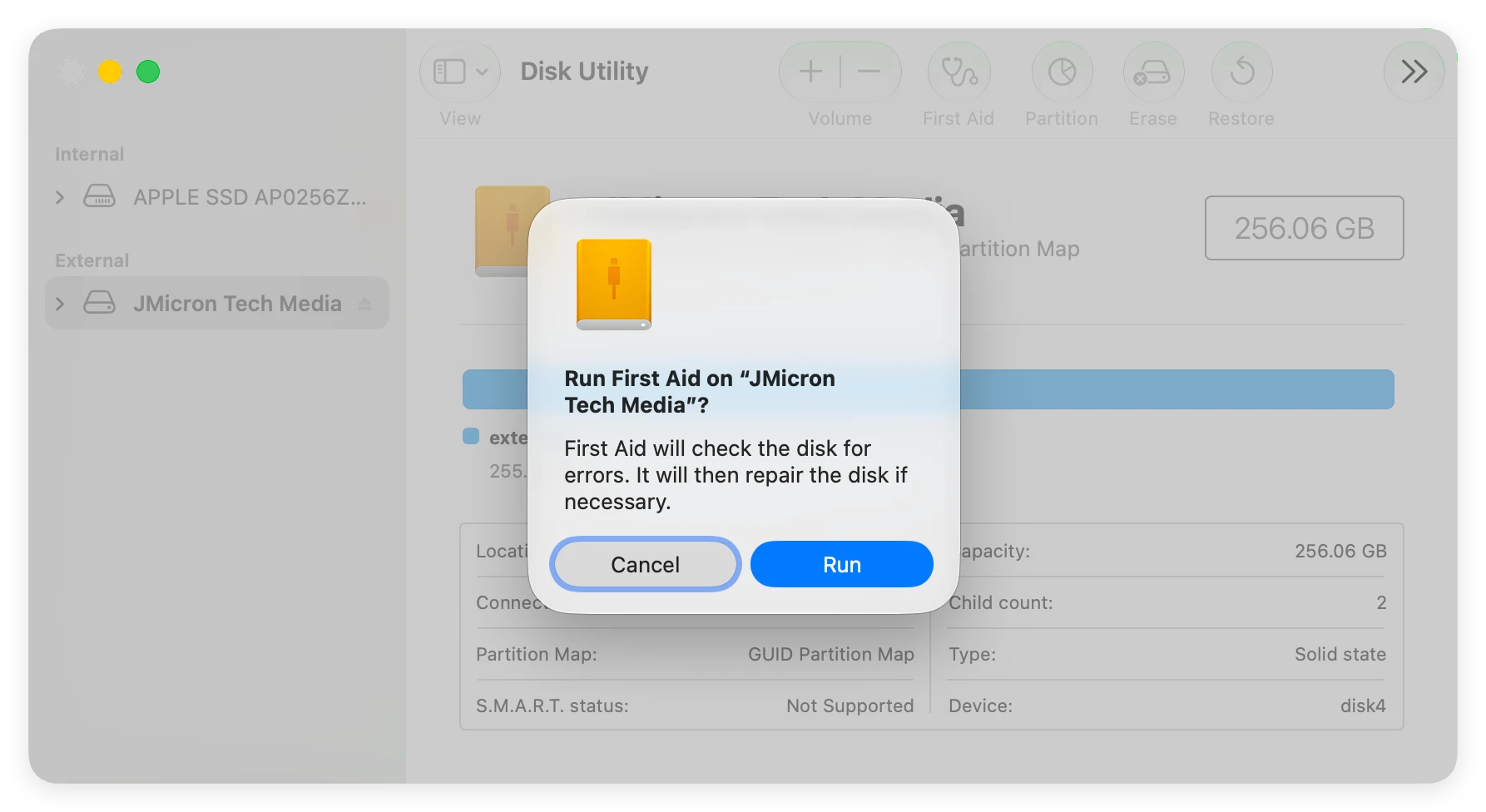
  1. Go to Finder > Applications > Utilities > Disk Utility.
  2. Click 'View' in the top bar and choose 'Show All Devices'.
  3. Select your unreadable external drive from the left sidebar.
  4. Click the 'First Aid' button at the top and select 'Run'.
  5. Wait for Disk Utility to diagnose and repair file system structure errors.

    external hard drive is unreadable on macOS 27 Golden Gate

Method 4: Force Mount the Drive via Terminal

If Disk Utility cannot mount the drive normally, you can attempt to force mount it using macOS command line options.

  1. Open Terminal from Applications > Utilities.
  2. Type 'diskutil list' and press Enter to view all connected disks.
  3. Locate your external drive identifier (e.g., disk2 or disk2s1).
  4. Type 'diskutil mount /dev/disk2' (replace disk2 with your drive ID) and press Enter.

Method 5: Reformat the External Drive (Final Solution)

If the file system on your external hard drive is severely damaged and First Aid fails, reformatting will restore the drive to working condition by creating a fresh file system structure.

💡 Warning: Reformatting erases all contents on the drive. Ensure you have recovered your data using Donemax Data Recovery for Mac before performing this step.
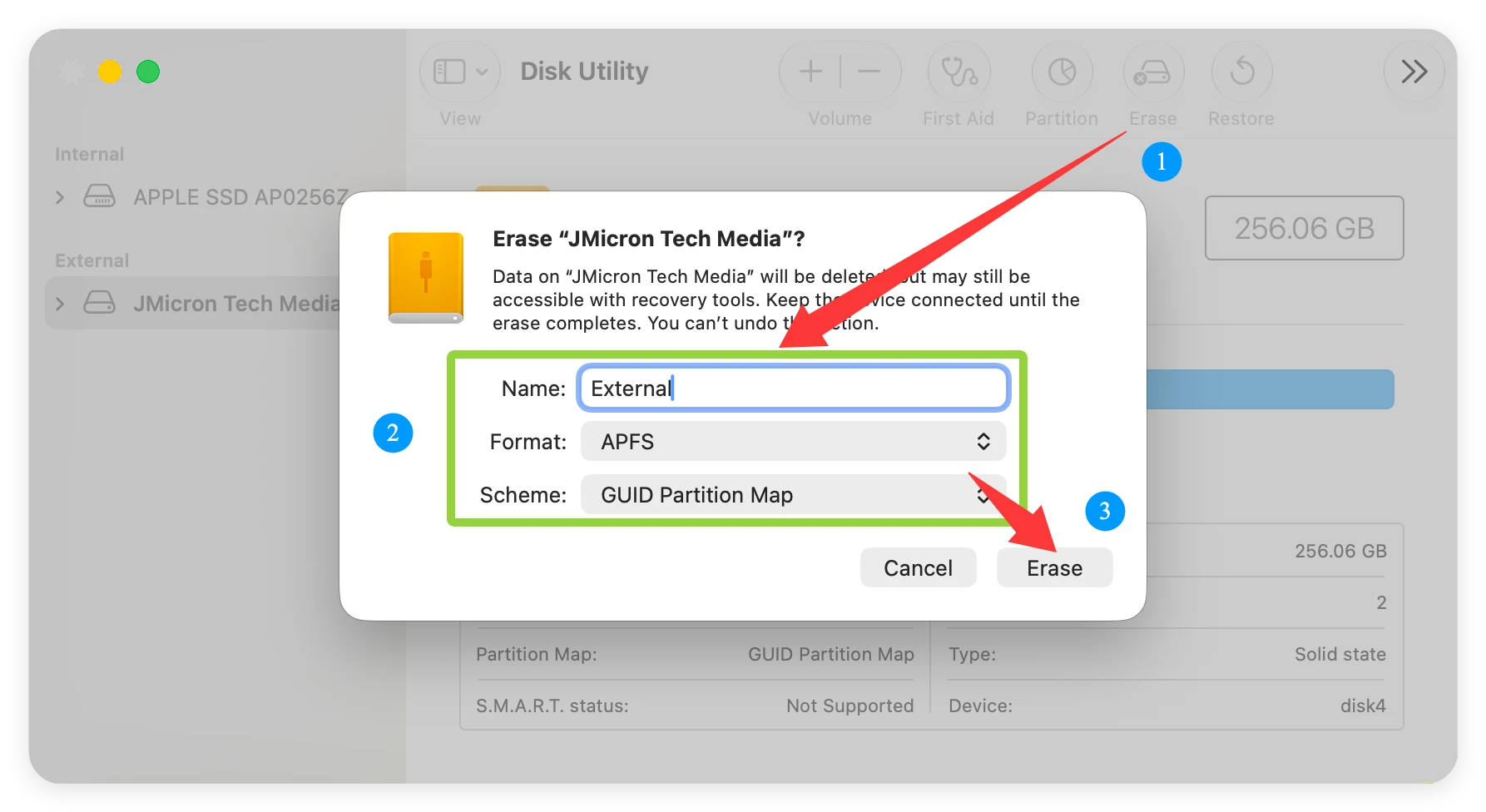
  1. Launch Disk Utility.
  2. Select your external drive from the left panel.
  3. Click 'Erase' in the top menu.
  4. Assign a name and select a suitable format: exFAT (for Mac & Windows) or APFS (for Mac only).
  5. Click 'Erase' to complete the formatting process.

    external hard drive is unreadable on macOS 27 Golden Gate

FAQs of Fixing Unreadable External Hard Drive on macOS 27

This message appears when macOS cannot recognize the file system format of your drive, or when the drive's file allocation table has become corrupted following a system update or improper ejection.
Yes! First use Donemax Data Recovery for Mac to scan the unreadable drive and extract your files to a safe location. Once your data is secured, you can safely use First Aid or reformat the drive.
Yes. Donemax Data Recovery for Mac is fully updated and optimized for macOS 27 Golden Gate, supporting both Intel-based and Apple Silicon Macs.
APFS is best if you only use your drive on Mac computers. If you need compatibility with both Windows and Mac, exFAT is recommended for cross-platform reliability.
If Disk Utility First Aid reports that it cannot repair the volume, recover your critical files immediately using Donemax Data Recovery for Mac, then erase and reformat the drive in Disk Utility.

Conclusion

Encountering an unreadable external hard drive on macOS 27 Golden Gate can be alarming, but it is completely solvable. By following a structured approach—recovering your files first before attempting system repairs—you can protect your data while restoring your drive.

If your drive holds irreplaceable files, download Donemax Data Recovery for Mac right away to scan and restore your documents, photos, and videos. Once your data is safe, toolsets like Disk Utility or reformatting will have your drive working smoothly on macOS 27 Golden Gate in no time.

logo stage

Donemax Data Recovery for Mac

Donemax Data Recovery for Mac is one of the best Mac data recovery software. It is easy-to-use and can help in recovering deleted, formatted, inaccessible or lost data from Mac HDD/SSD, external disk, USB drive, SD card, camera or other storage devices.


 Download

Mac Data Recovery

Rate: 4.8


Charles
Contributing Writer

Charles

Charles, who lives in Sydney, Australia, is an editor & writer of Donemax Team. He is good at writing articles related with Apple Mac computers, Windows operating systems, data recovery, data erasure, disk clone and data backup, etc. He loves reading and playing tennis in his spare time and is interested in testing new digital devices such as mobile phones, Macs, HDDs, SSDs, digital cameras, etc.

Gerhard Chou
Editor in chief

Gerhard Chou

In order to effectively solve the problems for our customers, every article and troubleshooting solution published on our website has been strictly tested and practiced. Our editors love researching and using computers and testing software, and are willing to help computer users with their problems