
Written byMariaUpdated on Nov 24, 2026

Before we start: A factory reset on Apple Silicon Mac can remove all data and reset the configurations. However, if you want to ensure the removed data is no longer recoverable, data erasure software like Donemax Data Eraser for Mac is suggested. It make wipe data permanently and make sure the data is gone for good beyond data recovery.
PAGE CONTENT:
Apple Silicon Macs use built-in security features and internal storage that differ from older Intel Macs. For supported macOS versions, Apple's Erase All Content and Settings feature is generally the simplest recommended way to remove your data and settings while keeping macOS installed.
However, if you will sell the Apple Silicon Mac, it's not enough by factory resetting. The removed data would be recoverable. In this guide, we will show you how to securely wipe Mac before selling Apple Silicon device. The wiped data will then be unrecoverable and you can sell the Mac without worrying about data leakages.
Erasing removes local data. Before you begin, make sure the files you want to keep are backed up and that you can access your accounts from another device.
Do not erase the Mac until you have verified your backup. Once the erase is complete, recovering files that were not backed up may be difficult or impossible.
|
Method |
Best for |
What it does |
Notes |
|
Erase All Content and Settings |
Most supported Apple Silicon Macs |
Removes data, settings, and user accounts while retaining macOS |
Simplest option when available |
|
macOS Recovery |
The erase assistant is unavailable or the Mac needs troubleshooting |
Provides recovery tools to erase the startup disk and reinstall macOS |
Follow Apple's model-specific instructions |
|
Third-party erasure software |
Additional supported cleanup or reporting workflows |
Offer features beyond a standard reset |
Verify compatibility and claims for Apple Silicon and SSD storage |
The built-in erase assistant is the normal first choice for a supported Mac that is being sold. Recovery is an alternative when the assistant is unavailable or the Mac cannot start normally. Third-party software should be considered only after checking that its features work with your specific Mac and storage.
On supported macOS versions, Erase All Content and Settings removes user data, accounts, and settings without requiring you to reinstall macOS manually. The exact menu names can vary slightly by macOS version.
When the Mac starts at the Hello or Setup Assistant screen, the erase is generally complete. If you are selling it, do not continue through setup with your personal Apple Account. Shut down the Mac at that screen so the new owner can set it up.
If You Cannot Find "Erase All Content and Settings"
Availability depends on the Mac model and macOS version. Update macOS if appropriate, then check System Settings > General > Transfer or Reset again. If the option is still unavailable, use macOS Recovery and Apple's instructions for erasing a Mac with Apple silicon.
Use Recovery if you cannot access the regular macOS desktop or the erase assistant is unavailable. Recovery steps and interface wording may differ by macOS release, so consult Apple's current instructions for your model before proceeding.
Be careful in Disk Utility: erasing the wrong disk can destroy data on an external drive. Disconnect external storage before starting and check the selected device before confirming any erase operation.
For most supported Apple Silicon Macs being sold, Apple's erase assistant is the appropriate starting point. A third-party tool is not automatically necessary just because the computer is changing owners.
|
Your situation |
Practical next step |
|
You are selling a supported Mac and want to remove your data |
Use Erase All Content and Settings |
|
You cannot access the erase assistant |
Follow Apple's Recovery instructions |
|
You have special erasure or reporting requirements |
Review a compatible tool's documented capabilities |
|
You need to remove individual files before the reset |
Back them up or delete them, then complete the full erase process |
Donemax Data Eraser for Mac may be worth reviewing if you need additional data-erasure or cleanup features beyond a standard reset. Before using it, confirm that the current version explicitly supports your Apple Silicon model, macOS release, and internal storage.
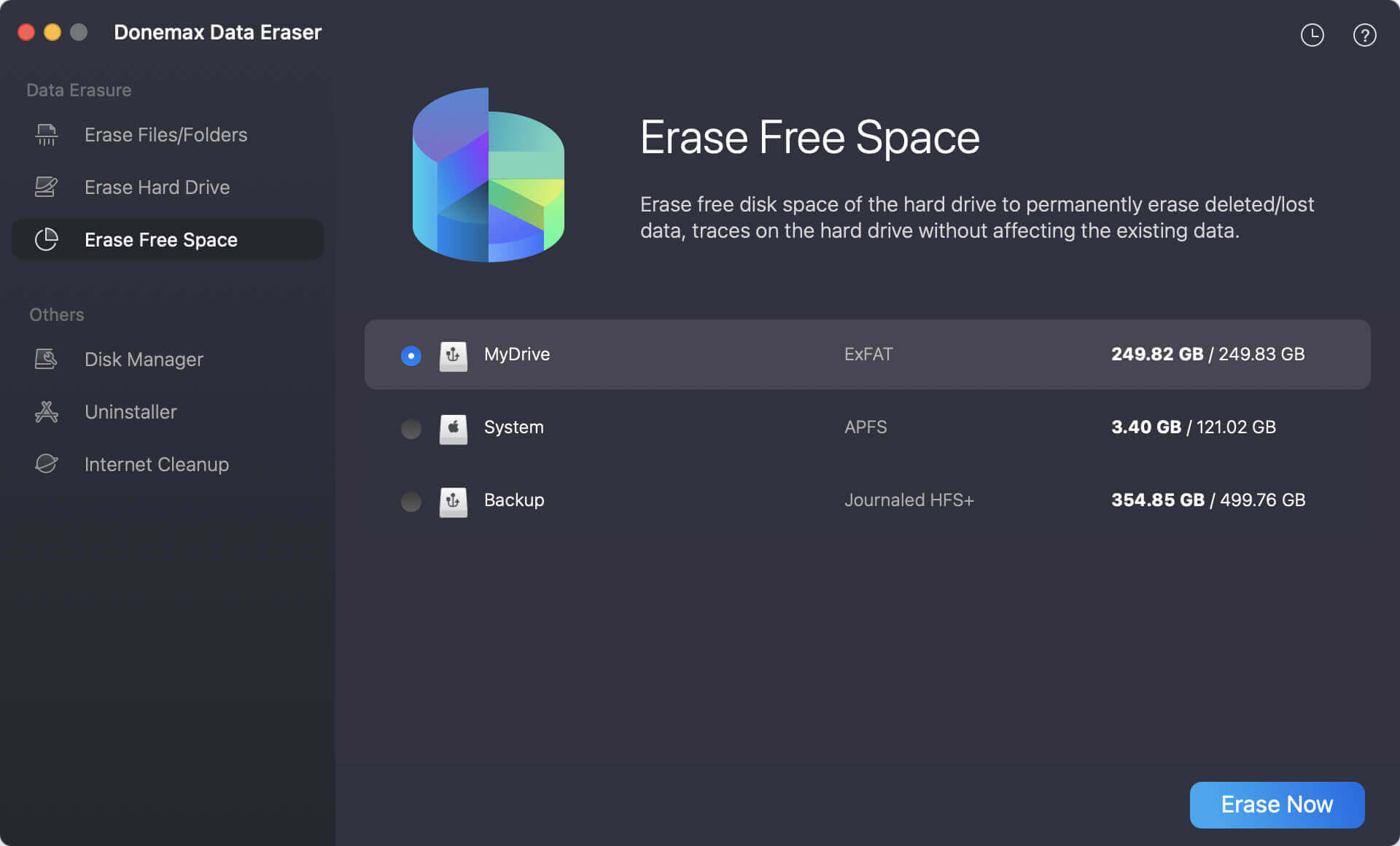
If you have reset the Mac with above 2 methods, you can then use the feature 'Erase Free Space' of Donemax Data Erasure for Mac to wipe the Mac drive. It can ensure the removed data is unrecoverable without affecting the existing files.
A software tool should not be described as guaranteeing unrecoverable deletion unless that claim is supported for the specific Apple Silicon hardware and storage configuration. Modern Macs use SSD storage, where traditional overwrite methods may not work as expected. Check the vendor's current technical documentation instead of relying only on general "secure erase" claims.
Activation Lock is designed to prevent someone else from using a Mac without authorization. When you erase a Mac using Apple's supported process and follow the prompts to sign out or disable Find My, the Mac can be prepared for a new owner.
After erasing, verify that the Mac reaches Setup Assistant without asking for your Apple Account during activation. If it still requests your account, do not hand it over as ready for setup. Sign in with the account previously associated with the Mac, remove the device from your account as appropriate, and follow Apple's current guidance.
Never give the buyer your Apple Account password. The buyer should set up the Mac with their own account.
Use this checklist after the erase:
To prepare an Apple Silicon Mac for sale, back up your files, sign out of Apple services where needed, and use Erase All Content and Settings if your macOS version supports it. This Apple-provided process erases your data and settings while preserving the system software. If you need additional secure-erasure or storage-cleanup features, check whether a dedicated tool supports your Mac and storage type.
Donemax Data Eraser for Mac
100% safe and powerful Mac data erasure program. It offers certified data erasure standards including U.S. Army AR380-19, DoD 5220.22-M ECE to securely and permanently erase data from Mac HDD/SSD and external storage devices, making data recovery impossible.
Maria
Maria is one of the senior writers & editors of Donemax who lives and works in Sydney, Australia. She loves PC, Mac and Internet Technology. She has 6 years of writing articles about data recovery on PC/Mac, disk cloning solution, data eraser and computer OS optimization, etc. She is also interested in testing various software and digital products.
Gerhard Chou
In order to effectively solve the problems for our customers, every article and troubleshooting solution published on our website has been strictly tested and practiced. Our editors love researching and using computers and testing software, and are willing to help computer users with their problems