
Written byChristinaUpdated on May 22, 2026

Before we start: Fortunately, if you are looking for a reliable MacBook Neo data recovery software free download, you have landed in the perfect spot. The technology behind Apple's new fanless, entry-level laptop is highly advanced, but it is entirely possible to restore your lost data safely at home with Donemax Data Recovery for Mac.
PAGE CONTENT:
Did you open your brand-new, ultra-sleek MacBook Neo only to discover that your critical work folders, cherished family photos, or heavy video projects have completely vanished? Whether an accidental slip of the fingers sent your folders to the Trash or an unexpected macOS update crash wiped out a partition, finding out your files are missing is an instant gut-punch. It feels even more stressful when you are adapting to a fresh, revolutionary device layout.

In this complete, step-by-step guide, we will break down exactly how storage operates on this unique hardware platform and show you how to pull your files back from the digital brink for free using Donemax Data Recovery for Mac.
The MacBook Neo has redefined portable computing, squeezing incredible efficiency out of its baseline 8GB unified memory and high-efficiency A18 Pro architecture. However, because it relies on a tightly integrated internal Solid State Drive (SSD) with advanced system encryption, file loss behaves slightly differently on this machine than on traditional computers. Understanding these underlying mechanics is key to ensuring a successful rescue process:
If you realize files are missing, stop writing new data immediately. Avoid downloading heavy streaming music, or rendering video files. Keeping your internal storage idle maximizes the chances of a pristine recovery.
Donemax Data Recovery for Mac is a professional-grade, household-friendly utility engineered specifically to navigate the intricate file systems of modern Apple hardware, including the MacBook Neo and high-tier M5 Mac configurations. It combines raw, enterprise-level deep-scanning power with a simple, three-click wizard layout that anyone can master in seconds.
The standout advantage of Donemax is its fully transparent, risk-free model. It allows you to download, run deep scans, and fully preview every single recoverable document, image, or video file 100% free of charge. You never have to spend a penny blindly; you only commit if you see exactly what you want to rescue. Even better, the free edition provides a full test recovery allowance of up to 200MB of files completely free, letting you prove the software's performance with no strings attached.
Ready to bring your missing files home? Grab an external thumb drive or hard disk drive if you are recovering a large chunk of data, and follow this straightforward tutorial.
Step 1: Choose Your Target Storage Drive
On the main dashboard interface, Donemax will display a clean list of all identified storage partitions and connected external devices. Highlight your primary internal Mac drive (typically labeled as 'Macintosh HD') where your data originally resided. Click the blue Scan button positioned in the lower-right corner to initiate the search sequence.
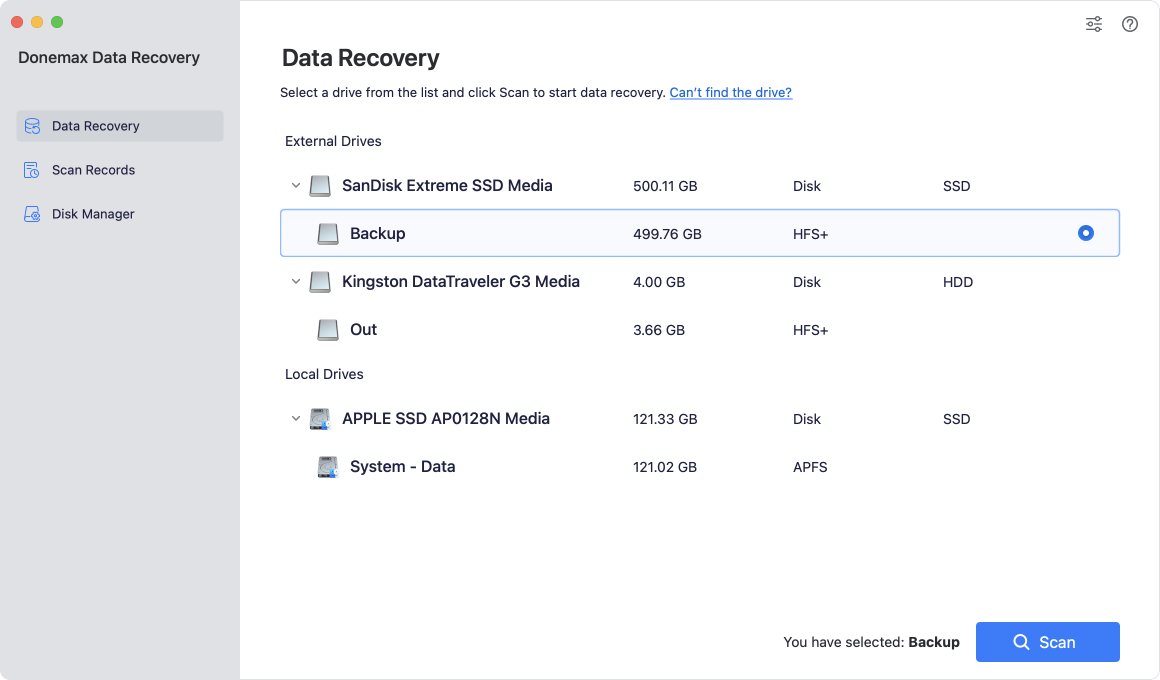
Step 2: Scan and Deep Search
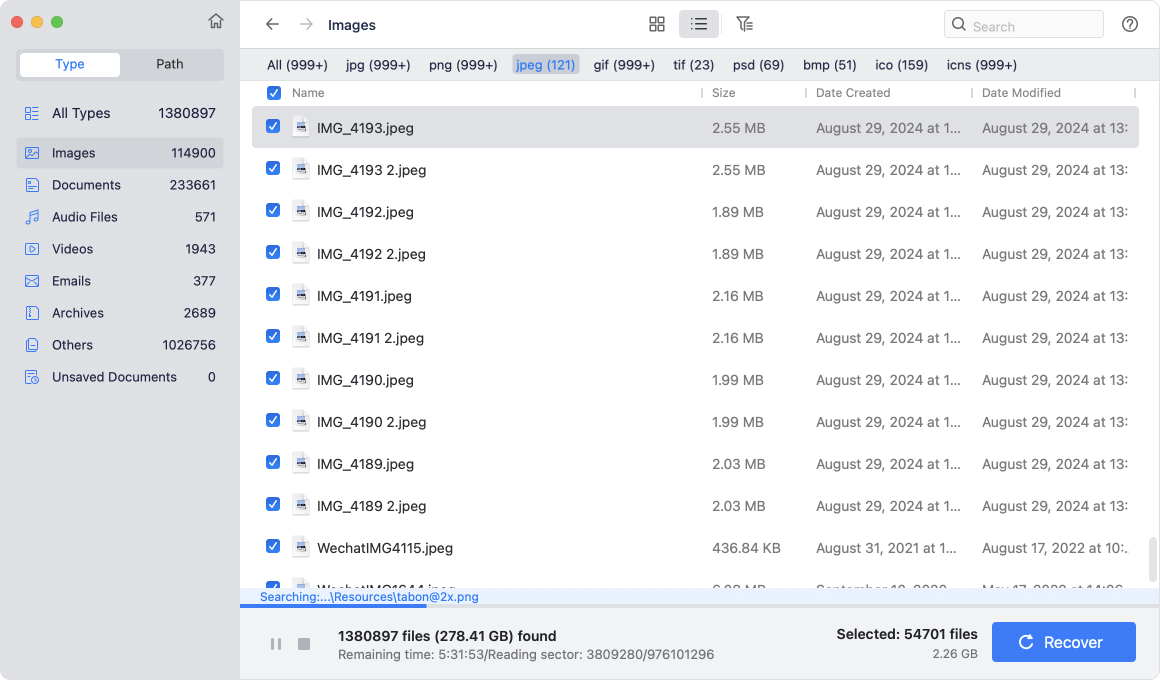
Donemax will automatically run its dual-layer scanning framework. First, a rapid scan sweeps recent file structures, followed immediately by an intensive deep search that maps out hidden raw data signatures across the disk space. You can watch the real-time file tree build up right on your screen, complete with progress bars and dynamic category sorting filters.
Step 4: Fully Preview and Recover Your Files
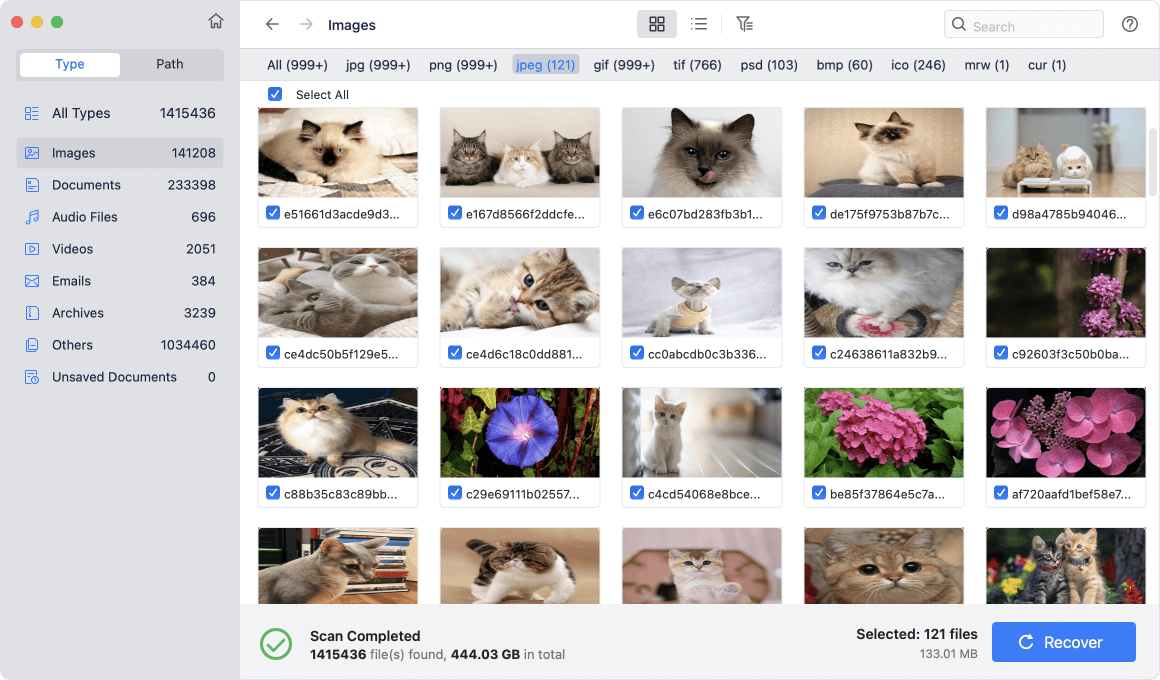
Once the scanning process completes, click on any item to open the live preview window. If an image displays beautifully or a document reads clearly, it means the underlying file structure is healthy and fully salvageable. Choose the files you want to recover and click the Recover button. A prompt will appear asking you to specify a destination directory.
Crucial tip: Always choose an external USB flash drive, external SSD, or cloud drive as your save destination. Saving them back to the same internal MacBook Neo drive risks overwriting other lost files that you might want to recover!
Yes! When you empty the Trash, macOS removes the visible access paths to those files, but the data itself remains written on the flash storage blocks until new application data overwrites it. Running Donemax Data Recovery immediately allows you to bypass the empty paths, scan the storage blocks directly, and pull those files back safely.
Absolutely. Donemax allows you to download the program, scan your entire internal or external drive layout, and open the full visual preview window for every single found file without paying anything. This ensures you know exactly which files are fully recoverable before making any commitments. Furthermore, you can recover up to 200MB of files completely free as a full performance test.
The scanning duration depends directly on the capacity of your drive (e.g., 256GB vs 512GB) and the volume of stored files. Thanks to Donemax's low-overhead algorithms designed for fanless Apple chips, a deep scan is highly optimized and typically wraps up within 10 to 30 minutes, all without causing thermal throttling or overheating.
Writing any new information to the drive where the data loss occurred can permanently destroy your remaining missing data. If the system assigns a new file to write over a storage block containing an old, unindexed file, that old file is lost forever. Saving to an external drive keeps the internal recovery zone completely pristine.
Yes. If your laptop is trapped in a boot loop or fails to load the desktop, you can boot the machine into macOS Recovery Mode (by shutting down and holding the Power Button). From there, you can launch Disk Utility to check drive health or connect an external bootable drive containing Donemax to safely scan and pull your vital files onto external backup storage.
Data loss can feel overwhelming, but with modern utility engineering on your side, it doesn't have to be permanent. Donemax Data Recovery for Mac offers home users the perfect balance of commercial-grade scanning accuracy and straightforward simplicity, optimized beautifully to match the unique hardware envelope of your MacBook Neo.
Don't let valuable background system cycles overwrite your missing documents. Secure your copy of the MacBook Neo data recovery software free download today, run a completely free scan, preview your files, and reclaim your digital peace of mind in just a few clicks!
Donemax Data Recovery for Mac
Donemax Data Recovery for Mac is one of the best Mac data recovery software. It is easy-to-use and can help in recovering deleted, formatted, inaccessible or lost data from Mac HDD/SSD, external disk, USB drive, SD card, camera or other storage devices.
Christina
Christina is the senior editor of Donemax software who has worked in the company for 4+ years. She mainly writes the guides and solutions about data erasure, data transferring, data recovery and disk cloning to help users get the most out of their Windows and Mac. She likes to travel, enjoy country music and play games in her spare time.
Gerhard Chou
In order to effectively solve the problems for our customers, every article and troubleshooting solution published on our website has been strictly tested and practiced. Our editors love researching and using computers and testing software, and are willing to help computer users with their problems

