
Written byCharlesUpdated on May 28, 2026

Before we start: If you suddenly cannot find your files or folders on your computer, please take a deep breath and do not panic. The good news is that your missing data is usually still hidden on the computer, and you can get it back safely using a helpful tool called Donemax Data Recovery for Mac.
PAGE CONTENT:
The new MacBook Neo is a fantastic laptop that handles schoolwork, writing, and family photos without making a sound. However, because its internal storage drive (called an SSD) is permanently built inside the computer, losing a file can feel scary.
If you are looking at your screen wondering where your folders went, take a deep breath. Whether an application crashed during a routine macOS update or you accidentally emptied your Trash bin with crucial documents still inside, your data isn't permanently erased yet. In this home-user-friendly guide, we will analyze the unique architecture of modern Mac solid-state storage and show you how to safely pull your files back using a dedicated MacBook Neo internal SSD data recovery tool.

To successfully recover missing data, it helps to understand what happens behind the scenes on a solid-state drive. When you delete a folder and clear out the Trash, macOS doesn't immediately scrub those blocks of flash memory. Doing so would place extra stress on the drive components and slow down your active workflow.
Instead, macOS takes an indexing shortcut: it deletes the 'address pointer' for that file and marks that specific sector block as free, open real estate, ready to be written over whenever a new application needs to save data. As long as your laptop does not save new files over those exact physical storage positions, your original data remains intact and completely salvageable by a specialized recovery program.
The Most Important Rule of Saving Lost Data
The number one rule right now is to stop using your laptop immediately so you do not accidentally write over your lost files. Do not download new movies, install games, or save new homework files to the laptop's main drive. Every time the computer saves something new, it risks stepping on your old, hidden data and destroying it forever. If you want to rescue a large number of files, it is highly recommended to plug in an external USB-C thumb drive or a portable hard drive so you have a safe, secondary place to send your recovered items.
Donemax Data Recovery for Mac is a premium software tool designed to safely find and piece together lost files without needing any technical skills. It works like a friendly digital detective that automatically scans your MacBook Neo's hidden storage layers to get lost data back. It lets you see a completely free, visual preview of your missing photos, videos, and documents before you make further choices, ensuring that you only rescue items that are intact and healthy.
Let's go through the actual data recovery steps. Before starting the recovery, please connect an external drive to your MacBook Neo laptop. You will need a safe location to save your recovered files so you don't overwrite any lost items during the process.
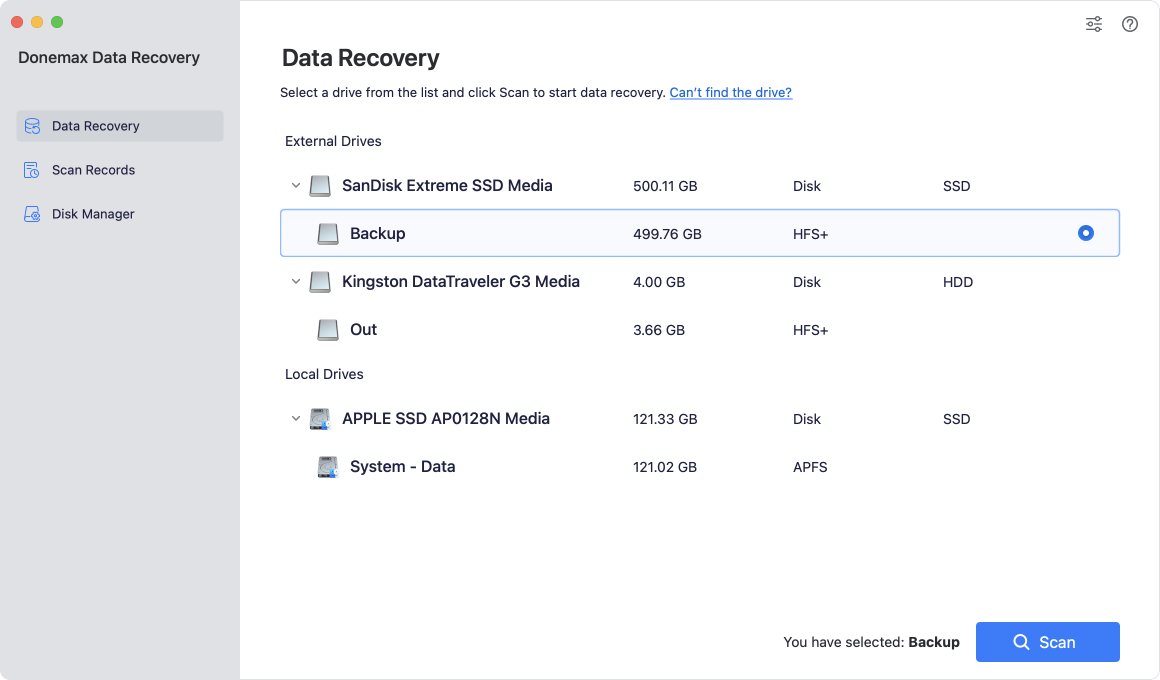
Step 1: Launch the data recovery software. Highlight your main internal hard drive—typically named 'Macintosh HD' or 'Apple SSD'. Click the Scan button.
Step 2: Donemax will automatically deploy its advanced dual-layer scanning framework. It begins with a lightning-fast quick scan, then seamlessly runs a thorough deep scan to reconstruct raw file signatures from deep within the drive sectors.
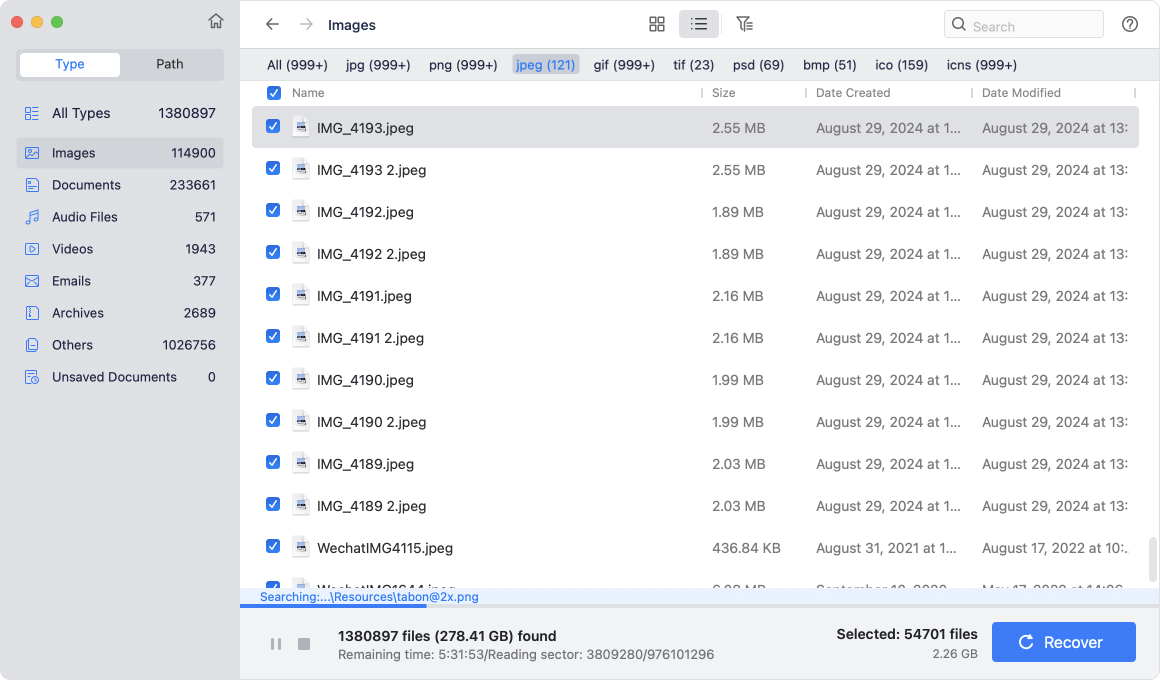
Step 3: Once the scan finishes, navigate through sorted categories in the left-hand panel or use the search bar to locate specific files. Double click on any file to open the preview pane and check its integrity.

Step 4: Select the specific files or folders you want to rescue, then click the Recover button. Choose your connected external drive. Never save the files back onto your internal MacBook Neo SSD during this stage!

Losing your important papers or family photos can feel really scary, but you do not have to worry. With the right tools, your lost files can be saved. Donemax Data Recovery for Mac is a simple app made for regular families. It does all the hard detective work automatically to find your missing files on your MacBook Neo. Do not wait too long, because your computer might accidentally save new data over your hidden files. Download Donemax Data Recovery today to run a completely free scan and get your important files back with peace of mind!
Donemax Data Recovery for Mac
Donemax Data Recovery for Mac is one of the best Mac data recovery software. It is easy-to-use and can help in recovering deleted, formatted, inaccessible or lost data from Mac HDD/SSD, external disk, USB drive, SD card, camera or other storage devices.
Charles
Charles, who lives in Sydney, Australia, is an editor & writer of Donemax Team. He is good at writing articles related with Apple Mac computers, Windows operating systems, data recovery, data erasure, disk clone and data backup, etc. He loves reading and playing tennis in his spare time and is interested in testing new digital devices such as mobile phones, Macs, HDDs, SSDs, digital cameras, etc.
Gerhard Chou
In order to effectively solve the problems for our customers, every article and troubleshooting solution published on our website has been strictly tested and practiced. Our editors love researching and using computers and testing software, and are willing to help computer users with their problems

