
Written byChristinaUpdated on May 29, 2026

Before we start: After deleting the wrong 4K videos on M5 Mac, how to get back the files quickly? If there is no backup available for the lost videos, use the tool Donemax Data Recovery for Mac to retrieve the lost files.
PAGE CONTENT:
Apple's powerful M5 chip family (including the M5, M5 Pro, M5 Max, and M5 Ultra) has made editing high-resolution 4K, 6K, or 8K video incredibly fast. However, these massive video files quickly fill up your computer's storage. In a rush to clear space, it only takes a split second to accidentally hit 'Command + Option + Delete' or empty the Trash bin, erasing hours of critical footage.
If you just realized your video clips are gone, don't panic, and stop changing random settings. Whether your files were on your Mac's internal drive or a fast external drive, you have an excellent chance of getting them back.
This guide will explain exactly how to safely recover permanently deleted 4K videos on M5 Mac using straightforward software designed for everyday home users.
Many online guides rely on outdated information written for older computers. To successfully save your video clips, you need to understand how modern M5 Macs actually handle data:
1. Large Videos Are Broken Into Pieces (Fragmentation)
Unlike small text files, a large 4K video takes up massive space. Your Mac often splits these large files across different areas of the drive. Outdated recovery tools only look for whole files, resulting in a recovered video that is broken or corrupted. Modern data recovery software uses intelligent stitching to piece these fragments back together perfectly.
2. External Hard Drives Need Special Attention
Because 4K videos are so large, most people store them on external drives or portable SSDs. A good recovery guide must support these external devices just as well as the Mac's internal drive.
3. "TRIM" Doesn't Mean It's Hopeless
You might read online that modern Macs use a feature called "TRIM" that instantly wipes deleted files forever. This is a myth. While TRIM does clean the drive automatically, it takes time—especially with huge 4K video files. If you act quickly, you can easily catch and recover the files before TRIM touches them.
When you empty the Trash, your Mac doesn't instantly erase the video. Instead, it deletes the file's "address" and marks that space as "empty."
The actual video remains hidden on the drive until the Mac needs that space to save something new. As long as you don't save new files to that drive, your old video is completely intact and recoverable.
⚠ The Golden Rule of Data Recovery: Stop using the drive immediately. Do not browse websites, download apps, or export new video projects. Any new data you save can accidentally overwrite your hidden video, destroying it forever.
To safely scan modern Mac drives and piece together large 4K video files, you need software built for modern Apple chips. Donemax Data Recovery for Mac is a trusted tool designed specifically for Apple Silicon, from standard household Macs to top-tier M5 models.
Donemax features a simple, user-friendly wizard that does all the heavy lifting for you—no tech skills required. Best of all, it features a 100% risk-free preview, meaning you can see your recovered videos before deciding to buy the software.
Important Tip: Before you begin, connect an external drive (like a USB thumb drive or external hard drive) to your Mac. You will need to save your recovered videos there so you don't accidentally overwrite anything.
Step 1: Download and Install
Download the secure installer from the official Donemax website. Double-click the downloaded file and drag the Donemax icon into your Applications folder, then open it.
Step 2: Select the Drive to Scan
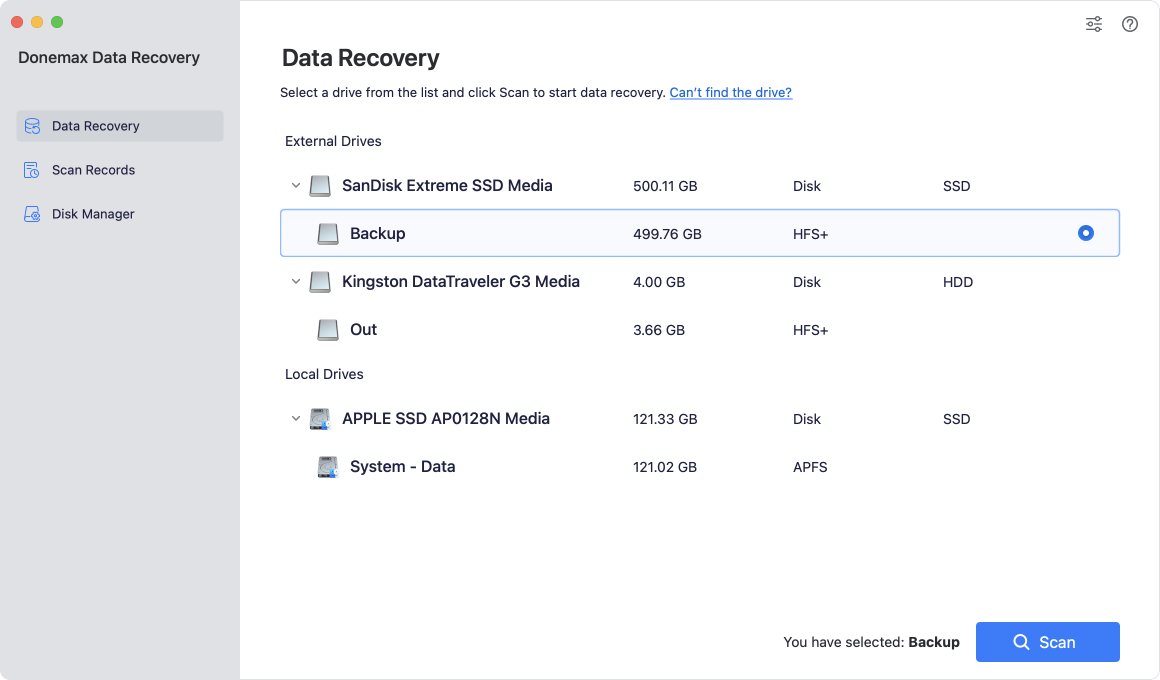
Donemax will display a clean list of all hard drives connected to your Mac. Click on the drive where your videos used to be stored (such as "Macintosh HD" or your external drive), then click the blue Scan button.
Step 3: Let the Scan Run
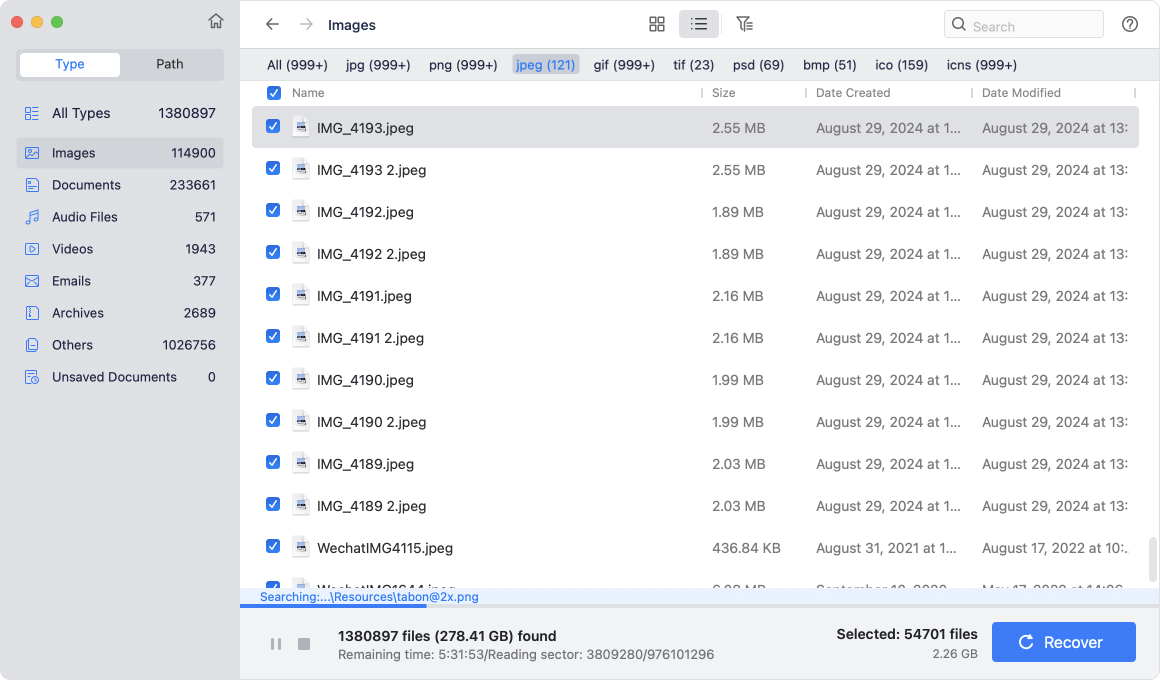
The software will automatically scan your drive. You will see files appear on the screen in real-time. You can track the progress bar at the top.
Step 4: Find and Preview Your Videos
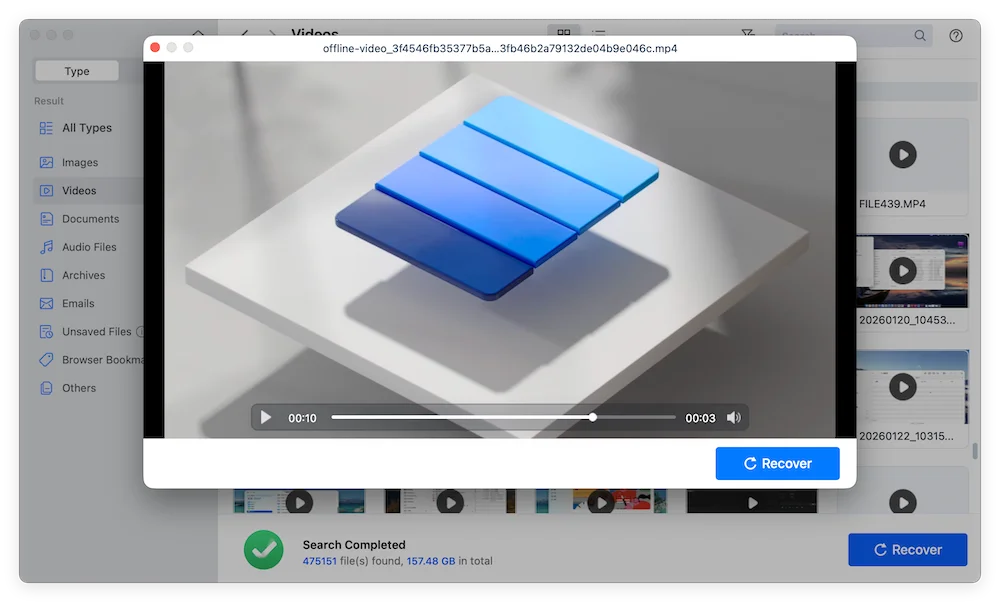
Once the scan is done, click the Videos folder on the left side. You can sort by file type (like .mp4 or .mov) or use the search bar to look for a specific file name. Double-click any video to watch a live preview and verify it is intact.
Step 5: Save to a Safe Location
Check the boxes next to the videos you want to save, then click the Recover button. When prompted, choose your connected external drive as the save destination.
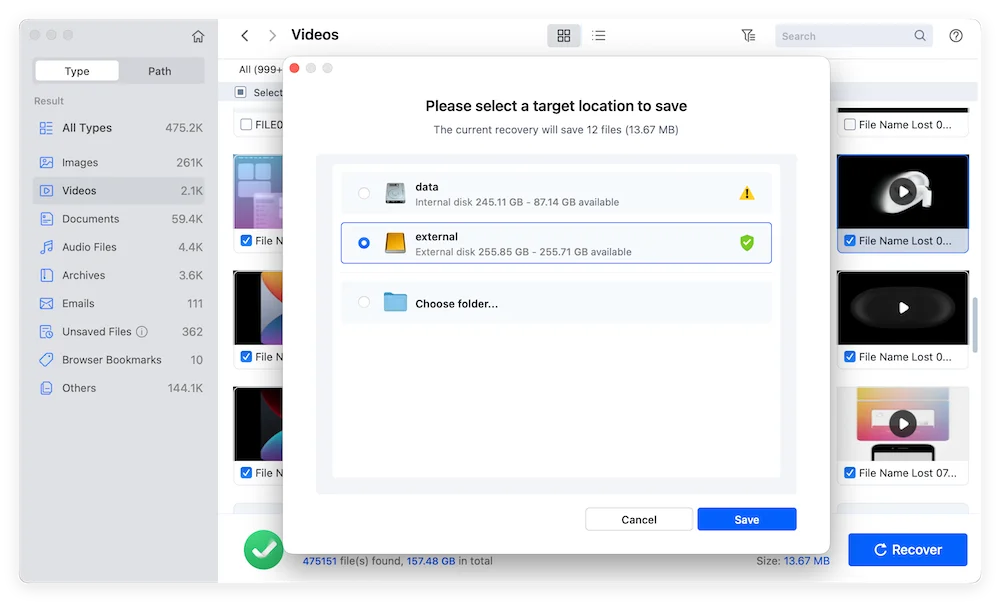
💡 Note: Never save the files back to the same drive they were deleted from, or you might permanently ruin other deleted files!
Accidentally deleting important footage is stressful, but it doesn't have to be permanent. Donemax Data Recovery for Mac gives home users a simple, stress-free way to rescue files with professional results.
Don't let background system operations or automatic cache overwrites risk your missing files. Secure your download of Donemax Data Recovery today, run a completely free drive scan, and reclaim your important data with absolute peace of mind!
Donemax Data Recovery for Mac
Donemax Data Recovery for Mac is one of the best Mac data recovery software. It is easy-to-use and can help in recovering deleted, formatted, inaccessible or lost data from Mac HDD/SSD, external disk, USB drive, SD card, camera or other storage devices.
Christina
Christina is the senior editor of Donemax software who has worked in the company for 4+ years. She mainly writes the guides and solutions about data erasure, data transferring, data recovery and disk cloning to help users get the most out of their Windows and Mac. She likes to travel, enjoy country music and play games in her spare time.
Gerhard Chou
In order to effectively solve the problems for our customers, every article and troubleshooting solution published on our website has been strictly tested and practiced. Our editors love researching and using computers and testing software, and are willing to help computer users with their problems

