
Written byStevenUpdated on Jun 16, 2026

Before we start: To avoid issues and data loss during macOS 27 installing, it's better to create a full clone backup for your Mac first. Donemax Disk Clone for Mac an help you make a bootable copy for the startup disk. If issues occurred after installing macOS Golden Gate, you can just boot from the clone drive without down time.
PAGE CONTENT:
Apple has officially dropped its latest operating system upgrade: macOS 27 Golden Gate. Packed with amazing UI changes like the Liquid Glass effect and heavy performance updates, everyone is rushing to try it out. If you are looking to do a completely clean installation or want to update multiple computers without downloading the update every single time, you need a bootable drive.
In this clear guide, we will show you exactly how to create installer for macOS 27 Golden Gate using a USB drive. Don't worry if you aren't a technical wizard. We have broken everything down into very short paragraphs and easy actions so you can update your Mac with total confidence.
Getting a brand-new OS is exciting, but installing it straight through your system settings doesn't give you a backup setup file. Creating an external installation drive provides some great benefits:
Before modifying your operating system, safety must be your top priority. System upgrades can occasionally stall, or you might find that some of your older apps aren't ready for macOS 27 Golden Gate yet.
Pro Expert Tip for a Safe Upgrade: To ensure you do not lose a single file, we strongly suggest making a bootable backup copy. We highly recommend using Donemax Disk Clone for Mac. It is a super reliable and simple tool that creates an exact clone of your startup disk. If anything goes wrong, you can boot instantly from your clone and keep working without losing your mind or your personal data.
Before we start building your setup drive, make sure you have the following items ready near your desk:
To build a copy, you must get the actual installation app file rather than doing an instant update. If you are a developer, log into developer.apple.com with your Apple ID and enable beta updates inside your system software menus.
Go to your Apple Menu > System Settings > General > Software Update. Check the options under Beta Updates and turn on the macOS 27 Developer Beta. Let the system load.
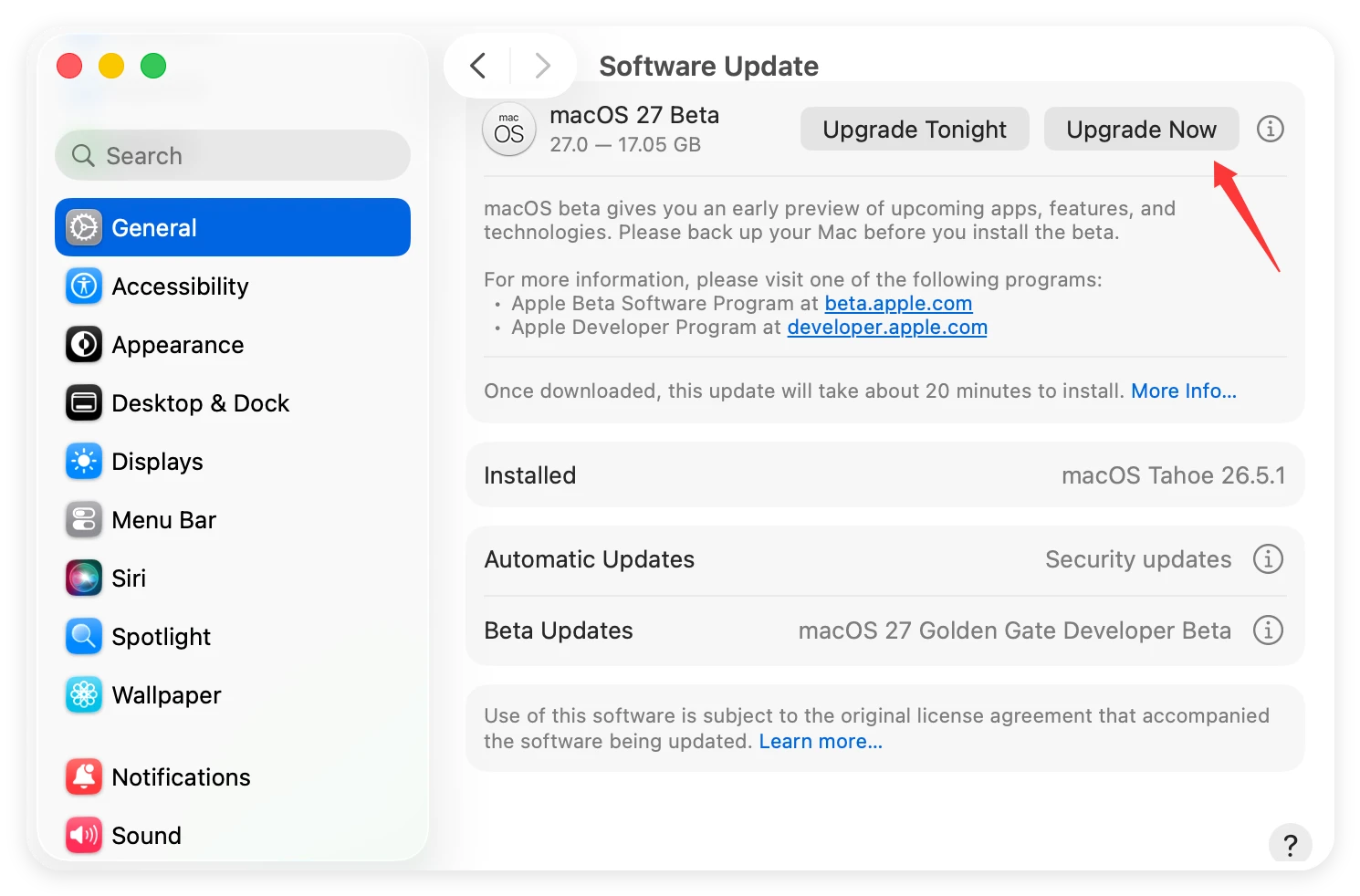
Alternatively, you can open your built-in Terminal app and force a download from Apple's update framework servers. Type the command line tool search script to extract the installation files directly to your Applications folder. When the downloaded setup software window pops open on your screen, click Quit. Do not let it start the actual installation process yet.
Your external flash disk must use the correct partition map architecture to boot your Mac system. Connect your flash drive directly into your Mac's port. Avoid using USB expansion hubs as they can drop connections during deep formatting tasks.
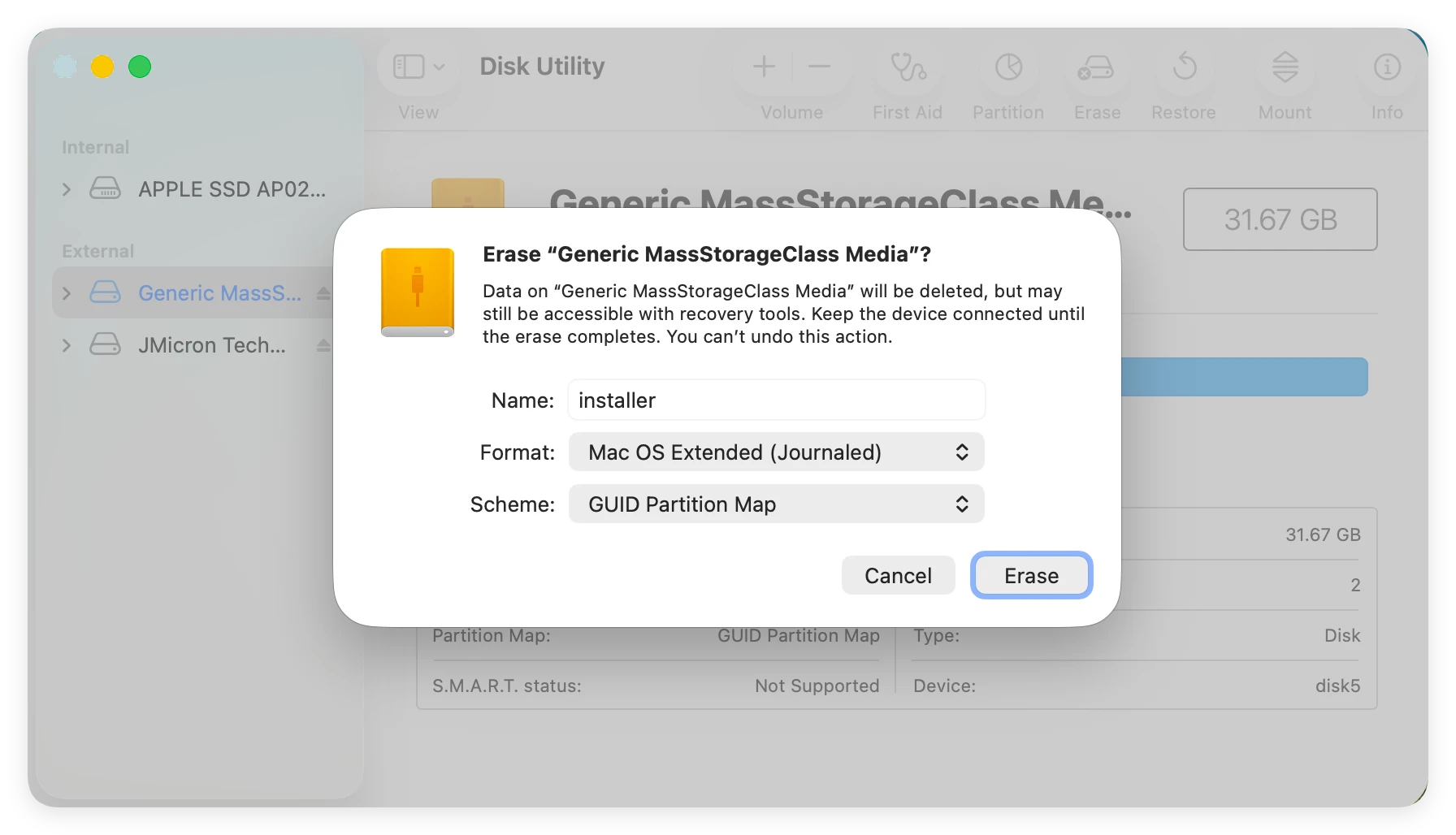
Now your drive is clean and named 'MyVolume'. We will use the built-in system createinstallmedia app script inside the package contents to turn your flash drive into a live bootable media drive.
sudo /Applications/Install\ macOS\ 27\ Golden\ Gate.app/Contents/Resources/createinstallmedia --volume /Volumes/MyVolume
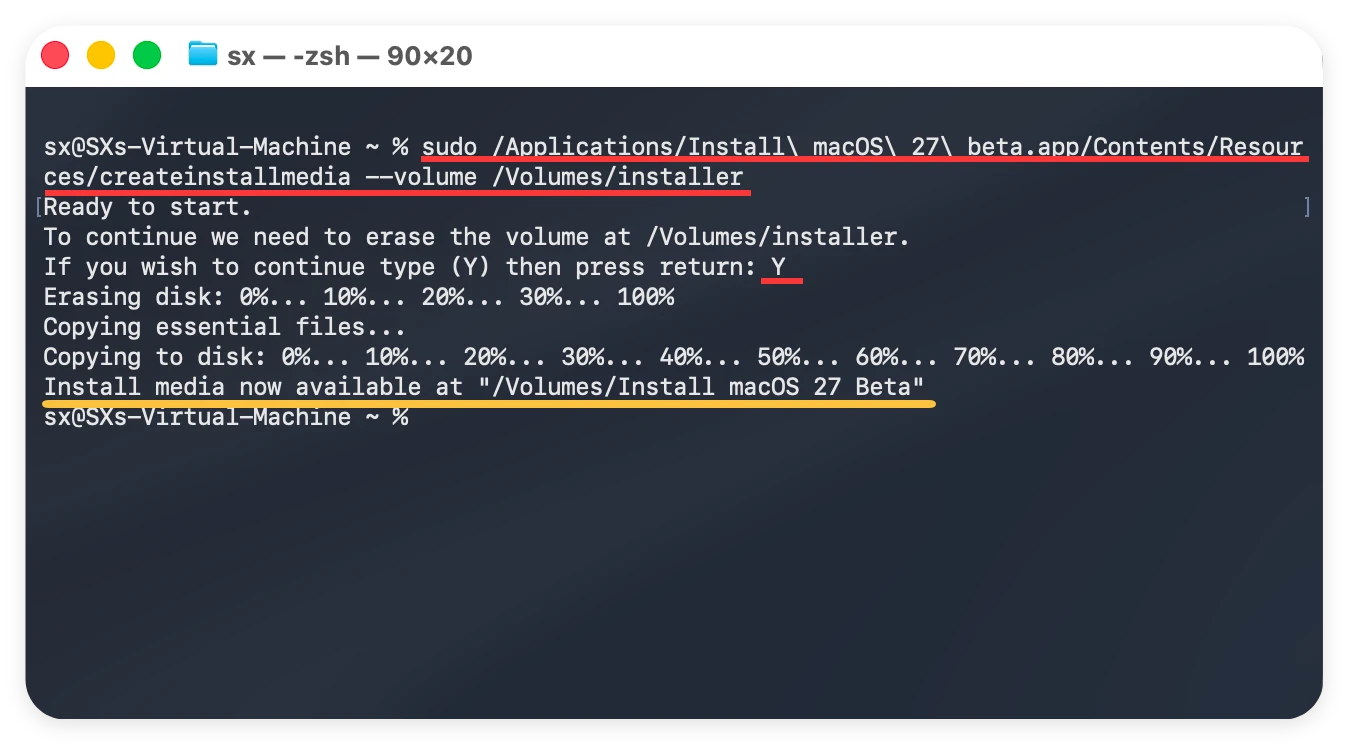
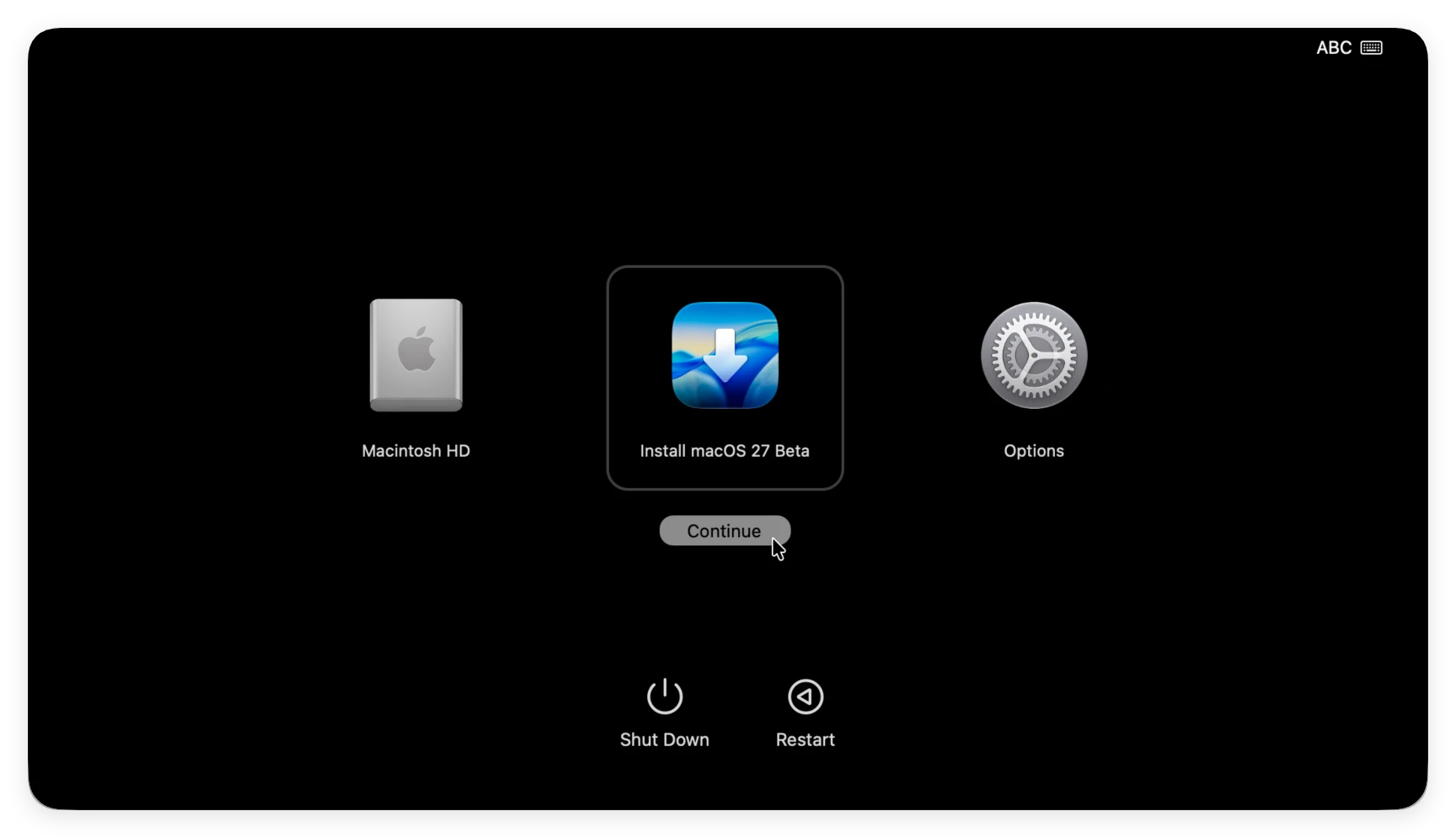
Now your new storage installation drive is prepared. Turn off your Apple Silicon Mac completely. Plug your freshly created bootable USB drive right into the machine's port side.
Learning how to create installer for macOS 27 Golden Gate is a wonderful skill that keeps your hardware operating safely and lets you run clean system updates easily. Just remember to use a fast, clean 32GB flash drive, apply the exact drag-and-drop Terminal command paths, and verify your model chip compatibility.
Most importantly, protect your critical files before executing any major system tasks. Use Donemax Disk Clone for Mac to keep a complete, bootable mirror clone copy of your data on hand. It provides peace of mind so you can explore all the incredible new features in Golden Gate without any risk.
Donemax Disk Clone for Mac
An award-winning disk cloning program to help Mac users clone HDD/SSD/external device. It also can create full bootable clone backup for Macs.
Steven
Steven has been a senior writer & editor of Donemax software since 2020. He's a super nerd and can't imagine the life without a computer. Over 6 years of experience of writing technical solutions and software tesing, he is passionate about providing solutions and tips for Windows and Mac users.
Gerhard Chou
In order to effectively solve the problems for our customers, every article and troubleshooting solution published on our website has been strictly tested and practiced. Our editors love researching and using computers and testing software, and are willing to help computer users with their problems

