Written byChristinaUpdated on Jul 02, 2026

Before we start: If the disk storage is used up, Mac becomes slow, or just want to remove unwanted apps or junk data completely from macOS 27 Mac, you can use the reliable and safe cleanup tool Donemax DMcleaner for Mac.
PAGE CONTENT:
So, you just clicked that tempting 'Upgrade' button, waited patiently, and successfully installed the brand-new macOS 27 Golden Gate on your beloved MacBook. You were expecting lightning-fast performance, beautiful animations, and smooth multitasking. Instead, you are met with a spinning beach ball of death, laggy apps, and a battery that drains faster than ever.
If you are currently thinking, 'My MacBook becomes very slow after installing macOS 27 Golden Gate,' please don't panic. You are definitely not alone. Thousands of Mac users face exactly the same performance drops right after a major macOS system update.

In this guide, we will dive deep into why your MacBook feels like a turtle after the update, share proven manual troubleshooting methods, and introduce a powerful automated tool to get your fast Mac back instantly.
When your MacBook becomes sluggish post-update, it is usually not a permanent issue or a sign that your hardware is dying. Most of the time, it is caused by a series of heavy system tasks running quietly behind the scenes.
Let's look at the primary culprits that are hogging your CPU and memory resources:
1. Spotlight Indexing and Photos Optimization
Right after you install macOS 27 Golden Gate, your operating system needs to rebuild its database search index. This process is called Spotlight indexing. It scans every single file, document, photo, and app on your solid-state drive to ensure that your search results remain instant later on.
At the same time, the Photos app re-analyzes your entire media library to apply new facial recognition and object-tagging features. This background operation requires massive CPU and RAM power, causing temporary performance lag.
2. Accumulated System and App Cache Conflict
Your Mac relies heavily on cached data to load apps and system files quickly. However, caches created by your older operating system might conflict directly with the new architecture of macOS 27 Golden Gate. These mismatched system caches cause apps to stall, glitch, or consume excessive resources.
3. Outdated and Incompatible Applications
Some of your favorite apps might not be optimized for macOS 27 Golden Gate yet. When old applications try to run on a new system framework, they can enter an infinite error loop, utilizing 100% of your CPU capacity and heating up your MacBook.
4. Excessive Login Items and Background Daemons
New macOS updates often reactivate background helper tools or change system permissions. If you have dozens of apps trying to launch and run silently the moment your MacBook starts up, your overall performance will suffer dramatically.
Now that we know what is happening under the hood, let's explore how you can resolve these issues and restore your Mac to its peak speed.
Step 1: Give Your Mac Time (24 to 48 Hours)
Since Spotlight indexing and Photos curation are essential system processes, the simplest solution is often just patience. Keep your MacBook connected to its power adapter, turn off automatic sleep mode, and let it run overnight. Once the background indexing is complete, your Mac's speed should improve automatically.
Step 2: Clean Up System Cache and Junk Files
Clearing out old cache files forces macOS 27 Golden Gate to create fresh, optimized data pools. You can do this manually by navigating to Finder, clicking 'Go to Folder' from the top menu bar, typing '~/Library/Caches', and moving the contents to the Trash. However, be careful not to delete essential system folders.
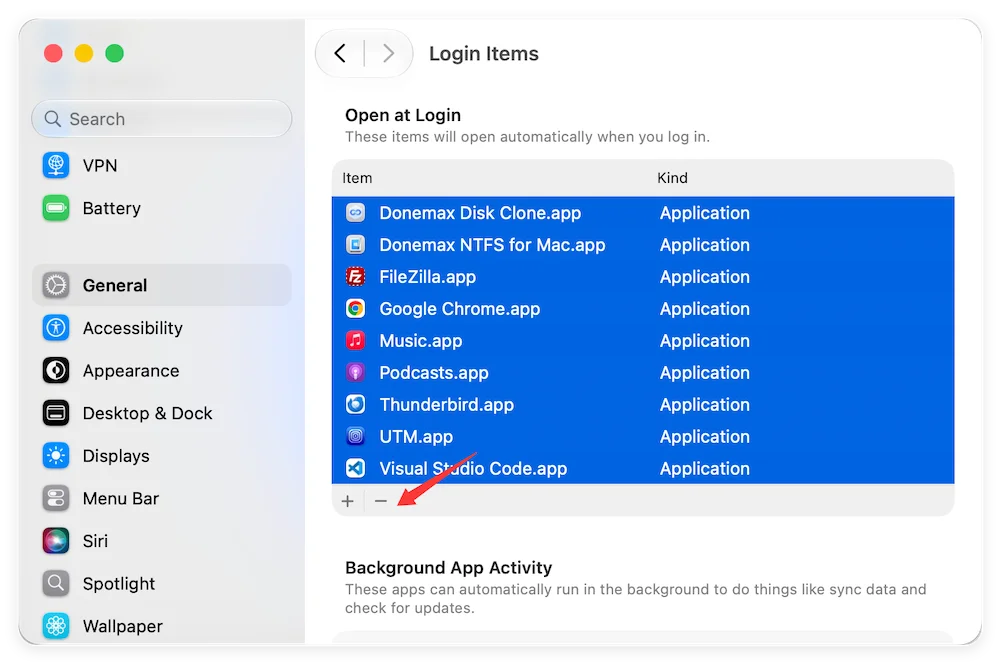
Step 3: Audit Your Startup and Login Items
To stop unnecessary applications from slowing down your boot time and daily workflow, open your System Settings. Navigate to General, then select Login Items and Extensions. Look through the list of apps allowed to open at login and toggle off anything you do not need immediately upon startup.
Step 4: Update All Installed Applications
Make sure every single app on your machine is updated to its latest version. Open the Mac App Store and check the Updates tab. For third-party apps downloaded outside the App Store, open them individually and check for updates within their built-in preferences menus.

While manual maintenance works, digging through hidden system files can be stressful, time-consuming, and potentially risky if you delete the wrong file. If you want a quick, completely safe, and effortless way to optimize your computer, we highly recommend Donemax DMcleaner for Mac.
Donemax DMcleaner for Mac is an all-in-one professional disk cleaning and optimization utility specifically updated to support the latest macOS 27 Golden Gate. It completely eliminates the guesswork and gets your Mac running smoothly in just seconds.
Intelligent Junk Clean: Instantly finds and deletes system junk, redundant application caches, old log logs, development temporary files, and unneeded language packs.

To keep your MacBook running like new on macOS 27 Golden Gate over the long term, build these simple maintenance habits:
Experiencing a slow performance drop after upgrading to macOS 27 Golden Gate is frustrating, but it is highly fixable. By giving the system some time to finish its background indexing, cleaning up conflicting caches, and managing startup applications, you can easily unlock the true potential of your MacBook.
For the fastest and most seamless optimization experience, let Donemax DMcleaner for Mac do the heavy lifting for you. Download it today, clean up gigabytes of useless junk data, and enjoy the smooth, high-speed performance you deserve!
Donemax DMcleaner for Mac
Donemax DMcleaner for Mac is an award-winning Mac cleanup & maintenance tool. It offers over 10 tools to help Mac users clean junk data. It helps speed up a slow Mac. Additionally, it includes a smart switch manager and disk manager for Mac.
Christina
Christina is the senior editor of Donemax software who has worked in the company for 4+ years. She mainly writes the guides and solutions about data erasure, data transferring, data recovery and disk cloning to help users get the most out of their Windows and Mac. She likes to travel, enjoy country music and play games in her spare time.
Gerhard Chou
In order to effectively solve the problems for our customers, every article and troubleshooting solution published on our website has been strictly tested and practiced. Our editors love researching and using computers and testing software, and are willing to help computer users with their problems