
Written byCoco LinUpdated on Apr 23, 2026

PAGE CONTENT:
With the release of macOS Sequoia, many tech enthusiasts, developers, and home users are eager to test the new features in a virtual environment or on multiple machines. Whether you are looking to run macOS Sequoia on VMware, VirtualBox, or simply need a versatile backup, learning how to create macOS Sequoia ISO files is an essential skill.
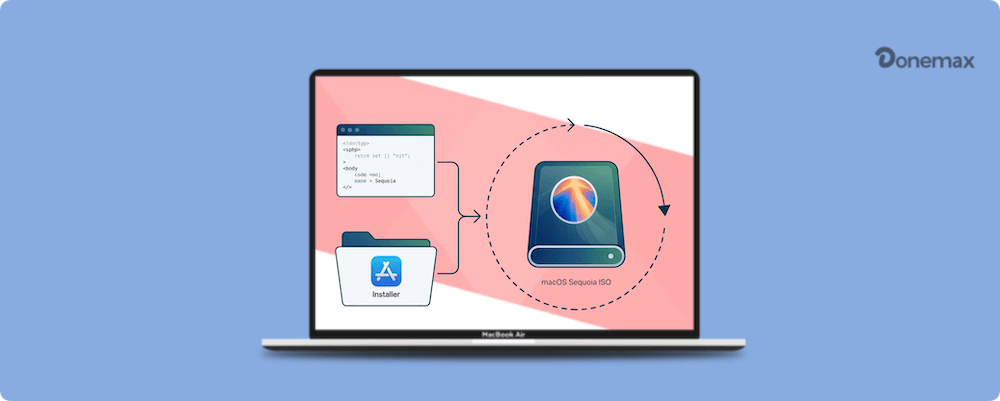
While Apple provides the installer through the Mac App Store, it doesn't come in an ISO format. In this guide, we will walk you through the professional yet simple process of downloading the installer and using Terminal to build your own ISO file.
Before you can build an ISO, you need the source material. You must download the full "Install macOS Sequoia" application.
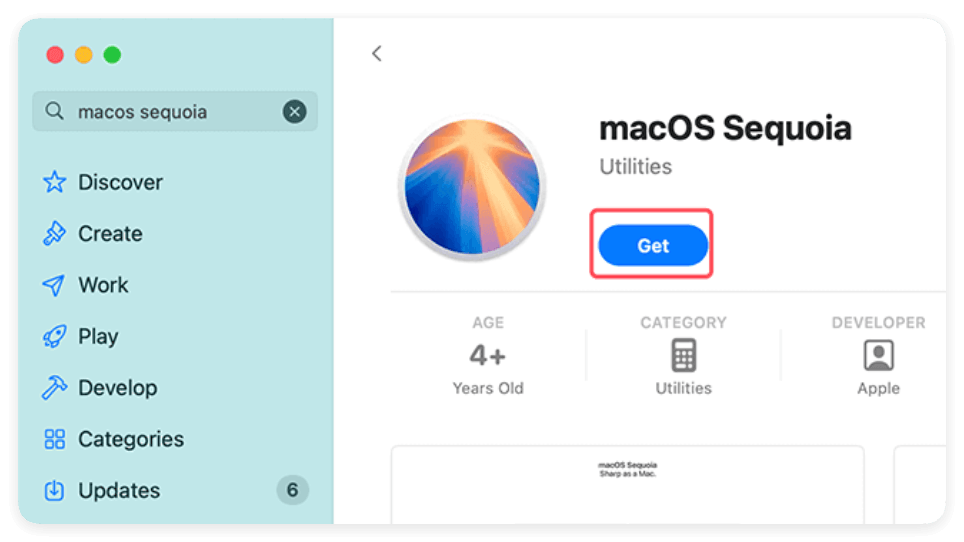
1. Open the App Store on your Mac.
2. Search for "macOS Sequoia."
3. Click Get or Download. This will open the Software Update panel.
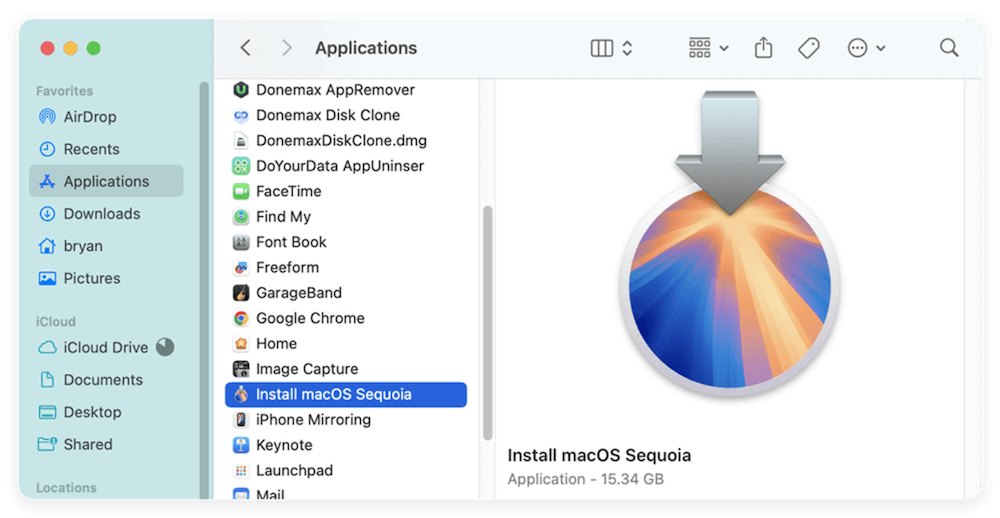
4. Once finished, the installer will appear in your Applications folder as Install macOS Sequoia.app.
If the App Store is giving you trouble, you can force the download via Terminal:
softwareupdate --fetch-full-installer --full-installer-version 15.0
Now that you have the installer, we need to convert it. Since macOS uses the .app or .dmg format, we use a series of Terminal commands to create a virtual disk, mount it, and convert it to a .iso file.
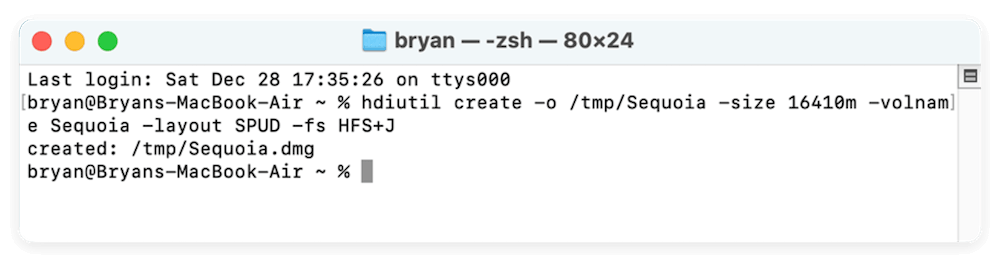
We need to create a temporary "container" for the installer. Open Terminal (Command + Space, then type Terminal) and enter:
hdiutil create -o /tmp/Sequoia -size 16410m -volume Sequoia -layout SPUD -fs HFS+J
This creates a 16GB blank disk image in your temporary folder.
Now, mount that blank image to your Mac:
hdiutil attach /tmp/Sequoia.dmg -noverify -mountpoint /Volumes/Sequoia
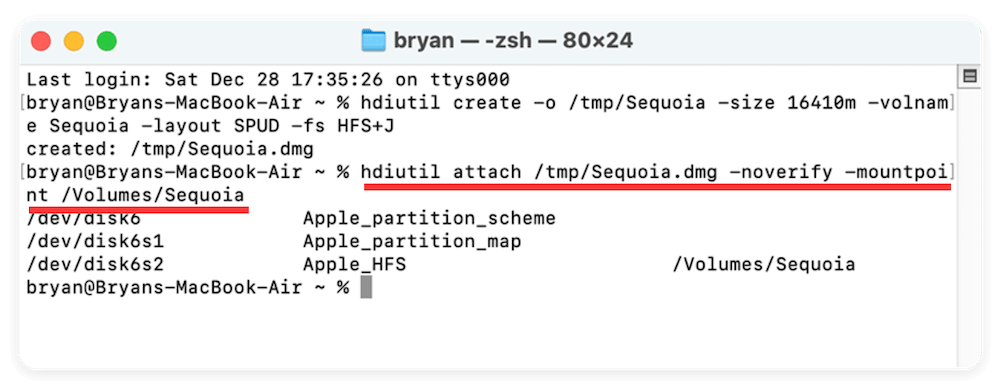
Use the official Apple "createinstallmedia" tool to copy the Sequoia files into our new disk:
sudo /Applications/Install\ macOS\ Sequoia.app/Contents/Resources/createinstallmedia --volume /Volumes/Sequoia --nointeraction
(You will need to enter your Mac login password to proceed.)
Once the copy process is 100% complete, unmount the volume:
hdiutil detach /Volumes/Install\ macOS\ Sequoia
Now, convert the .dmg file into a .cdr file:
hdiutil convert /tmp/Sequoia.dmg -format UTOto -o ~/Desktop/Sequoia.cdr
The last step is to change the file extension from .cdr to .iso:
mv ~/Desktop/Sequoia.cdr ~/Desktop/Sequoia.iso
Congratulations! You have successfully learned how to create macOS Sequoia ISO. The file is now sitting on your desktop, ready for use.
The primary reason to create a macOS Sequoia ISO is for virtualization software.
Even for pros, things can go wrong. Here is how to fix common hurdles:
"Not enough space": Ensure your Mac has at least 35-40GB of free space. The ISO creation process creates large temporary files.
"Permission Denied": Always ensure you use the sudo command when prompted, and make sure Terminal has "Full Disk Access" in your System Settings.
"Installer not found": Ensure the installer is named exactly Install macOS Sequoia.app and is located in your Applications folder.
The ability to create macOS Sequoia ISO files gives you the freedom to explore Apple's latest operating system in a safe, virtualized environment. By following the Terminal steps outlined above, you ensure a clean, error-free image that works across various platforms.
Despite some challenges along the way, such as handling permissions or managing large files, the process is straightforward with the right tools and knowledge. With this guide, you now have the steps and understanding necessary to create and work with macOS Sequoia ISO files. Now that your ISO is ready, you're all set to experience the future of macOS!
Donemax Disk Clone for Mac
An award-winning disk cloning program to help Mac users clone HDD/SSD/external device. It also can create full bootable clone backup for Macs.
Coco Lin
Coco has been a writer and a chief programmer at Donemax software since 2018. Over 10 years of experience of writing troubleshooting articles in the software industry, she is passionate about programming and loves to providing solutions to Windows and Mac users. Also she enjoys music and palying tennis in her free time.
Gerhard Chou
In order to effectively solve the problems for our customers, every article and troubleshooting solution published on our website has been strictly tested and practiced. Our editors love researching and using computers and testing software, and are willing to help computer users with their problems

