
Written byCoco LinUpdated on Dec 17, 2025

PAGE CONTENT:
Safari's iCloud Private Relay is a privacy-centric feature designed to hide your IP address and encrypt your browsing activity. It's part of Apple's iCloud+ service and works in the background while you surf using Safari on macOS. However, many users occasionally run into a frustrating issue: "Safari can't connect to iCloud Private Relay."
This error disrupts the privacy promise Apple offers, and it can result from anything ranging from a misconfigured setting to an internet connection conflict. Fortunately, most of these issues are easy to fix. In this comprehensive guide, we'll explain what causes the issue and walk you through how to resolve it.
iCloud Private Relay is Apple's privacy service introduced with iOS 15 and macOS Monterey. It protects your browsing activity by encrypting traffic leaving your device and routing it through two secure internet relays. This design ensures no single entity—including Apple—knows both your IP address and the websites you visit.
It works only in Safari and is available exclusively to users subscribed to iCloud+. Here's how it helps:
However, when it fails to connect, Safari may not load pages or revert to less private browsing. Let's explore why that happens.
There are several reasons Safari may fail to connect to iCloud Private Relay:
Before changing settings on your Mac, verify if the problem is on Apple's end.
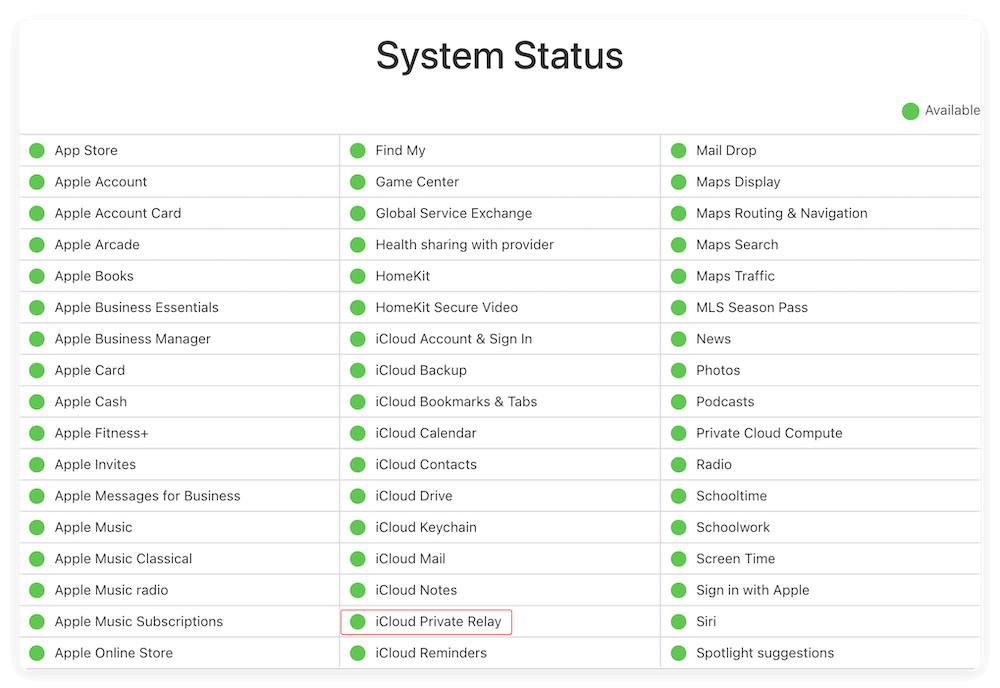
This quick check can save you time if the issue is out of your hands.
Private Relay is only available with an iCloud+ subscription. Here's how to check:
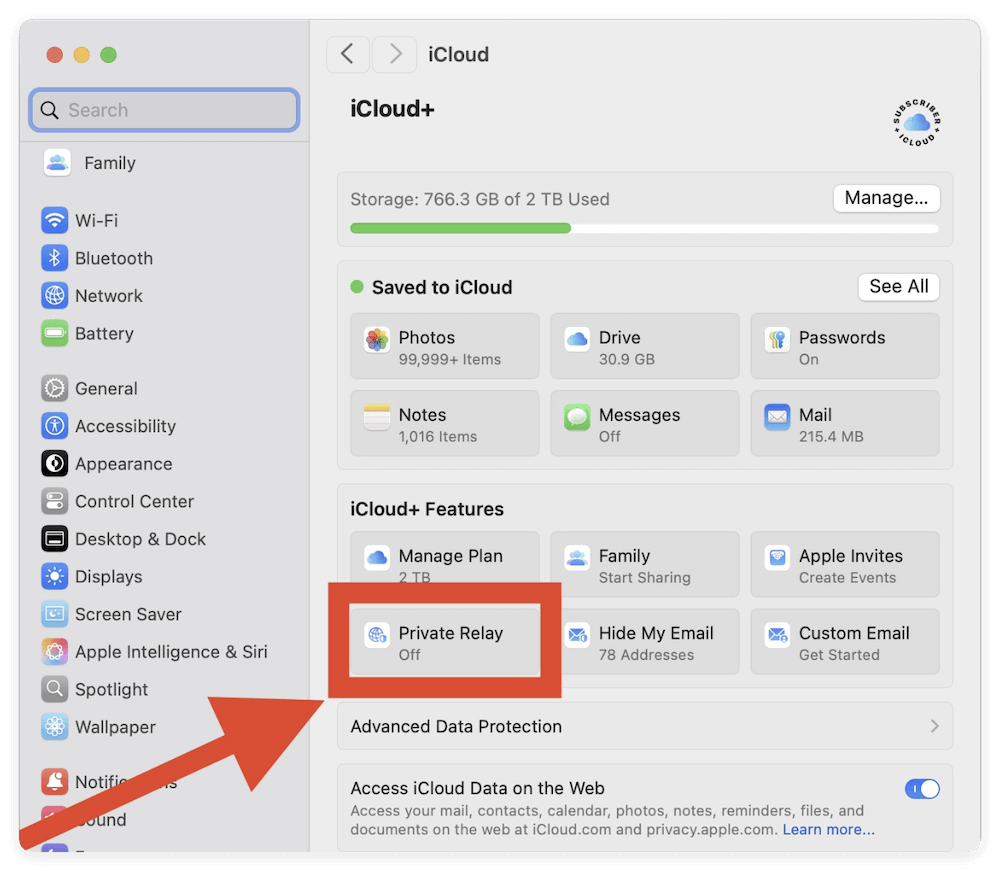
If you're not subscribed, you'll need to upgrade to any iCloud+ plan to access the feature.
Sometimes, the issue is temporary. A restart might be all you need.
Restart Safari:
Restart Your Mac:
Restarting clears temporary glitches, cache issues, and service hang-ups.
iCloud Private Relay requires the latest software versions to function smoothly.
To update macOS:
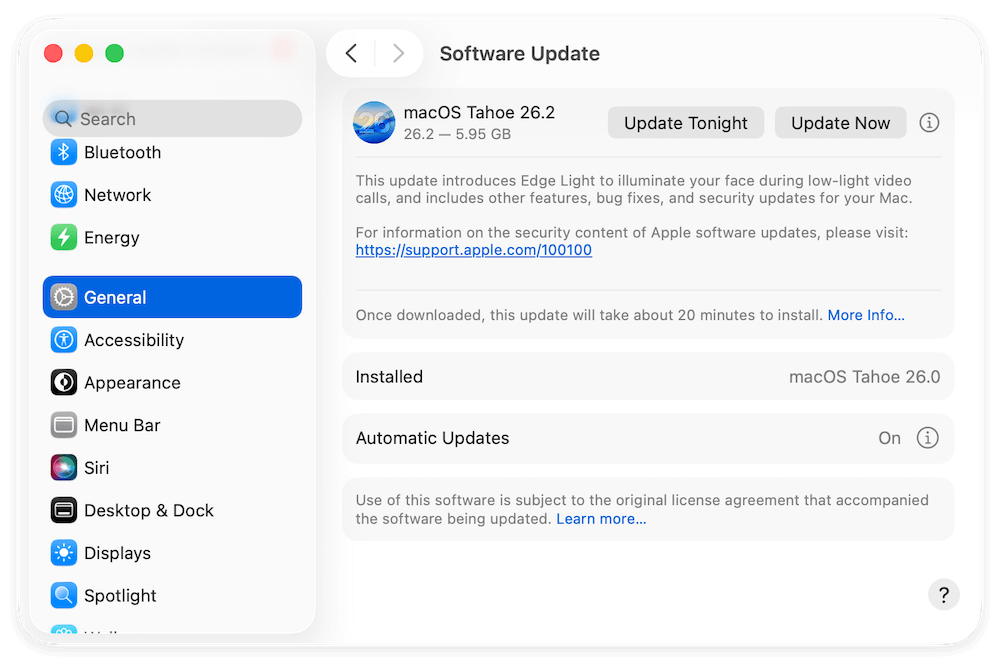
Safari updates are typically bundled with macOS updates. Keeping your OS current ensures maximum compatibility with Apple services.
One of the simplest yet surprisingly effective solutions to resolve Private Relay issues is to toggle the feature off and back on. This forces macOS to reset the secure tunnels and server handshakes used by iCloud Private Relay, which may have failed or expired silently in the background.
Why This Works
Private Relay uses a dual-hop encryption system—your traffic is sent through two internet relays operated by different entities (one by Apple, the other by a third party). If either of these connections times out, becomes unstable, or is blocked (e.g., after waking from sleep, changing Wi-Fi networks, or updating macOS), Safari might display the "Can't connect to iCloud Private Relay" error.
Turning the feature off and on again forces macOS to:
Steps to Toggle Private Relay
Optional Check: IP Address
After re-enabling, you can verify if Private Relay is working:
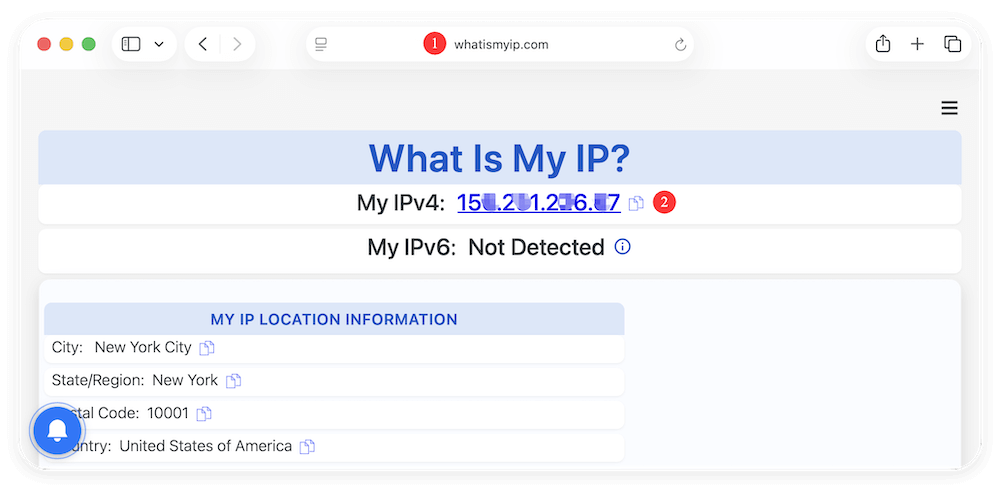
If it still doesn't work, consider restarting your Mac before continuing with the next fixes. Also, keep in mind that some websites or services may be incompatible with Private Relay, so test with multiple safe websites to confirm.
Network restrictions are common in office or institutional settings. Try connecting to:
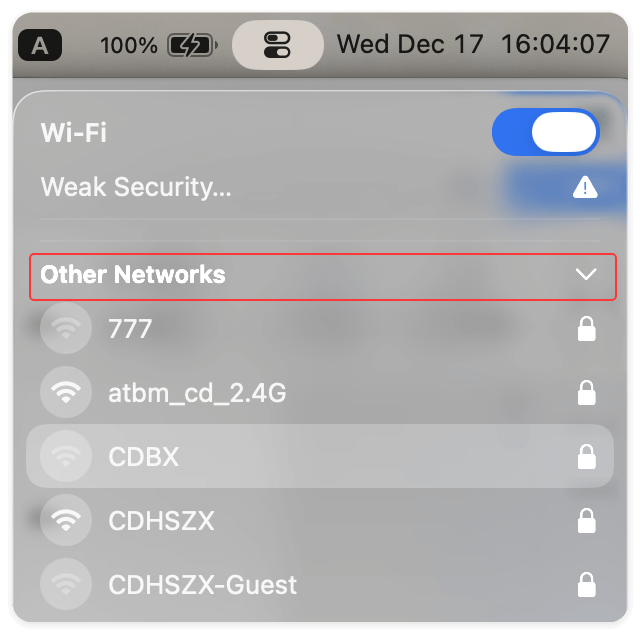
If the issue resolves, the original network may be blocking iCloud Private Relay through firewall or DNS policies.
VPNs and third-party firewall or antivirus tools can interfere with Private Relay's secure tunnels.
Apple recommends not using a VPN with Private Relay, as both may conflict with each other.
Clearing out custom DNS entries and caches can help.
Steps:
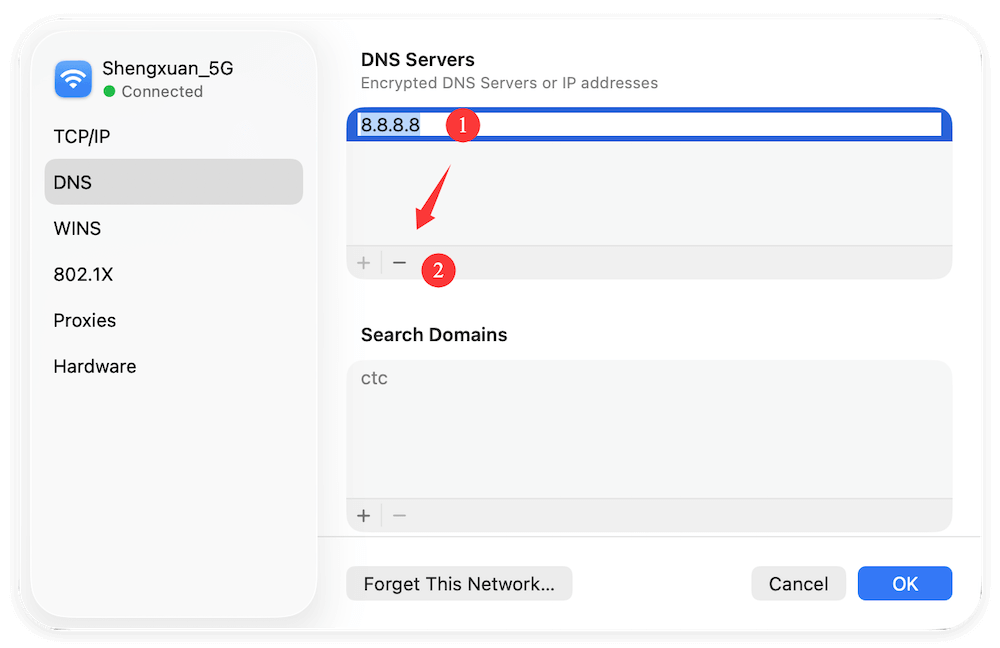
This forces your Mac to use Apple's secure DNS routing again.
Incorrect system time can cause HTTPS and encryption services like iCloud Private Relay to fail.
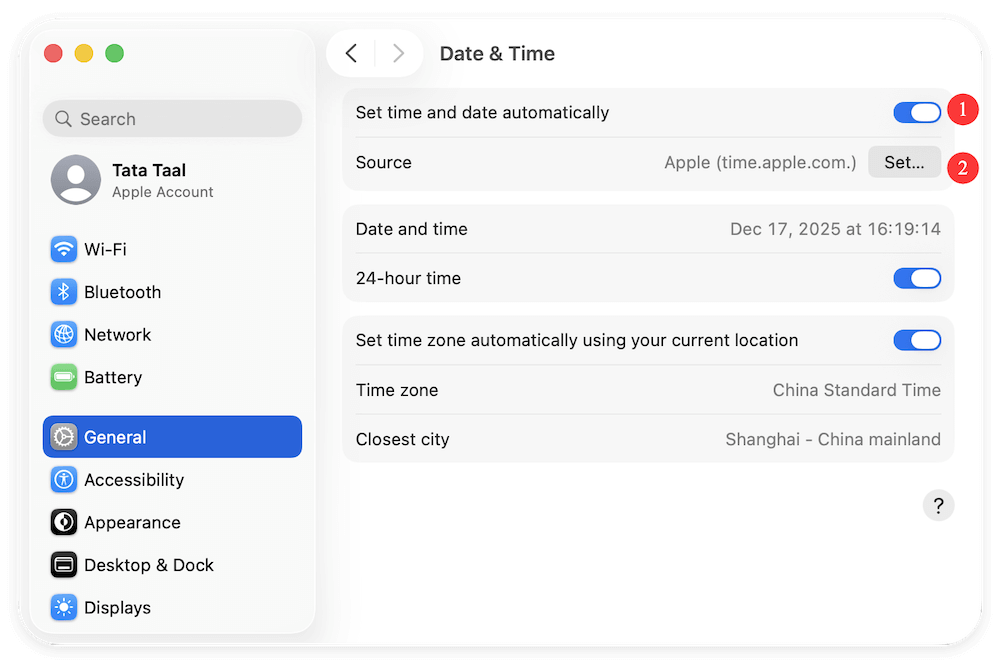
Once corrected, restart your Mac to apply the changes.
If none of the above methods work, these advanced options may help:
A. Boot into Safe Mode
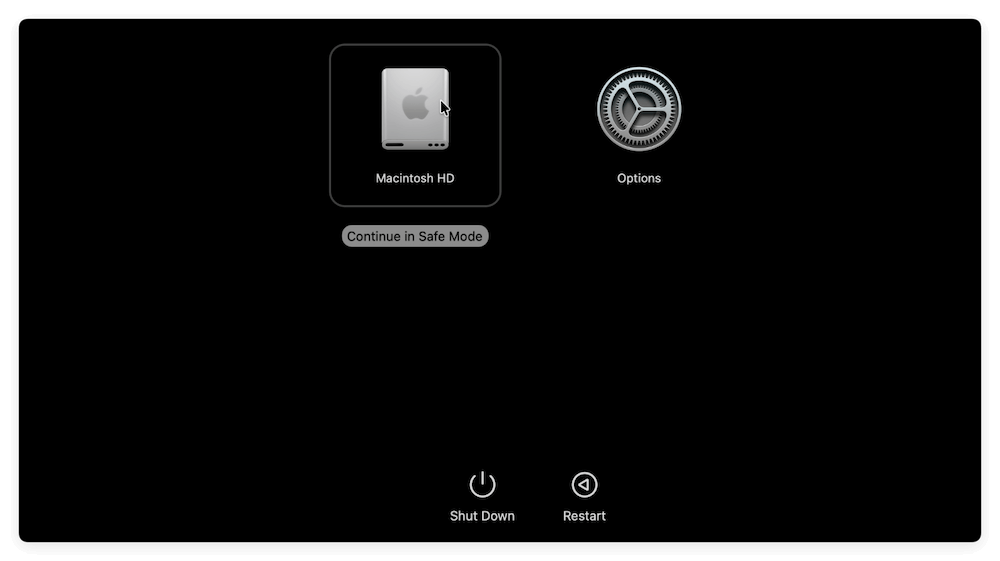
Safe Mode disables extensions and third-party conflicts. If Private Relay works, you likely have an app or login item causing the issue.
B. Test in a New User Account
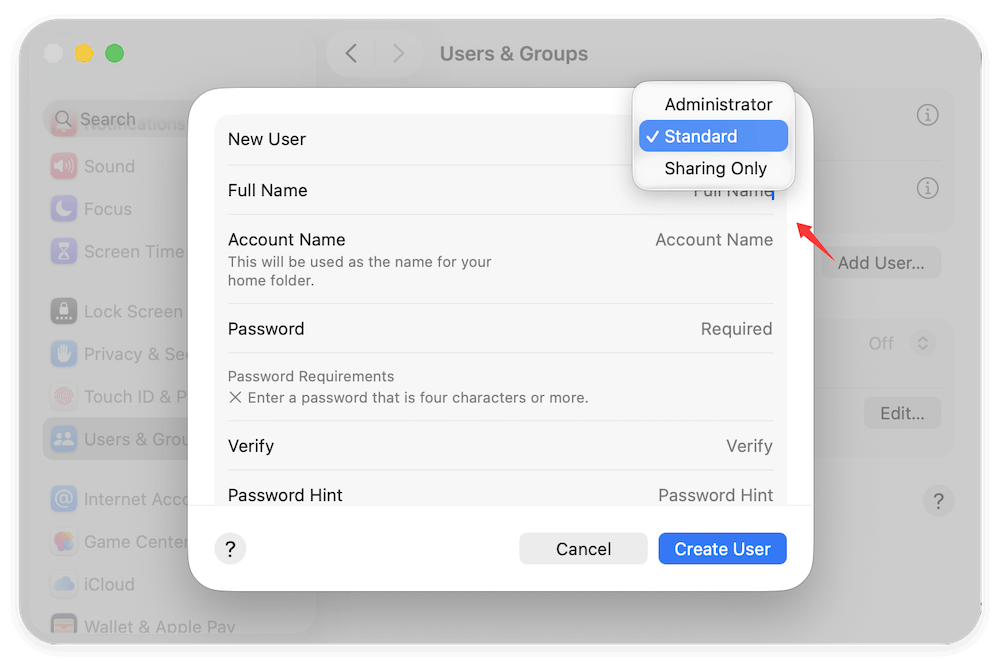
If it works fine there, the issue is isolated to your main user account's settings or cache.
C. Use Console to Inspect Logs (For Advanced Users)
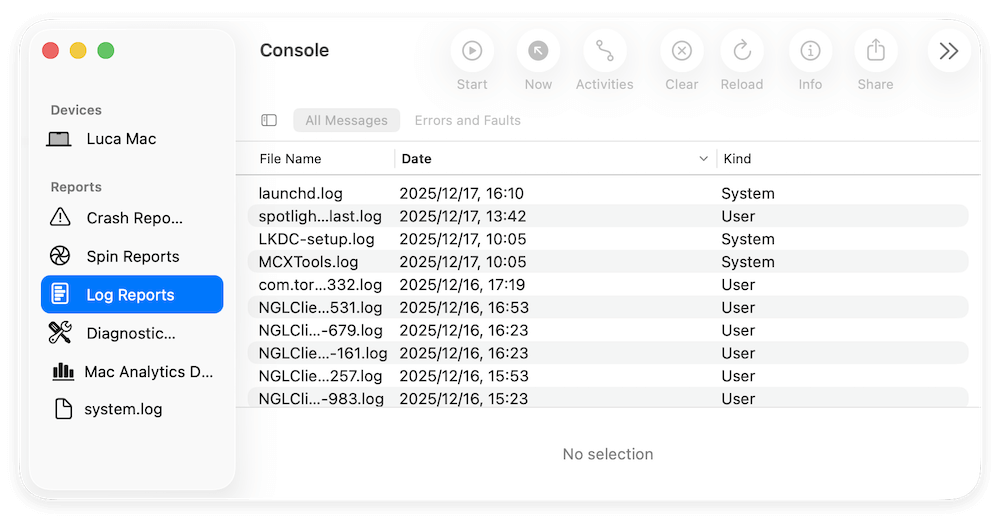
This is primarily helpful if you plan to share logs with Apple Support.
When to Contact Apple Support
If you've tried all of the above and Safari still can't connect to iCloud Private Relay, it's time to escalate.
Reach out to Apple via:
Apple can check for account-level or device-specific issues and may provide backend resets if needed.
iCloud Private Relay is a valuable feature for keeping your browsing activity secure and private. When Safari can't connect to it, your Mac might fall back to regular IP-based browsing, reducing your privacy protections.
Luckily, most issues stem from minor configuration errors, outdated software, or network interference. By following the steps in this guide—from checking your iCloud+ subscription and updating your macOS, to switching networks and disabling VPNs—you should be able to restore Private Relay's functionality quickly.
If all else fails, Apple's support team is well-equipped to troubleshoot persistent problems. Until then, keep Safari and macOS updated, and maintain trusted network settings to ensure Private Relay keeps protecting your privacy in the background.
Donemax DMcleaner for Mac
Donemax DMcleaner for Mac is an award-winning Mac cleanup & maintenance tool. It offers over 10 tools to help Mac users clean junk data. It helps speed up a slow Mac. Additionally, it includes a smart switch manager and disk manager for Mac.
Coco Lin
Coco has been a writer and a chief programmer at Donemax software since 2018. Over 10 years of experience of writing troubleshooting articles in the software industry, she is passionate about programming and loves to providing solutions to Windows and Mac users. Also she enjoys music and palying tennis in her free time.
Gerhard Chou
In order to effectively solve the problems for our customers, every article and troubleshooting solution published on our website has been strictly tested and practiced. Our editors love researching and using computers and testing software, and are willing to help computer users with their problems