
Written byStevenUpdated on Jun 18, 2026

PAGE CONTENT:
Apple has recently given us a glimpse of the future with the announcement of macOS 27 Golden Gate at WWDC 2026. This next-generation desktop operating system brings a stunning array of features, from a completely reimagined Siri AI and deep Apple Intelligence capabilities to highly requested UI refinements like the Liquid Glass slider and native pull-to-refresh. It is easily one of the most exciting updates Mac users have seen in years.
However, many eager users face an immediate roadblock when trying to jump into the action. Instead of a smooth update screen, they are met with a frustrating realization: 'Why my Mac can't install macOS 27 Golden Gate?' If you find yourself staring at an empty Software Update menu or an explicit installation error message, you are definitely not alone.
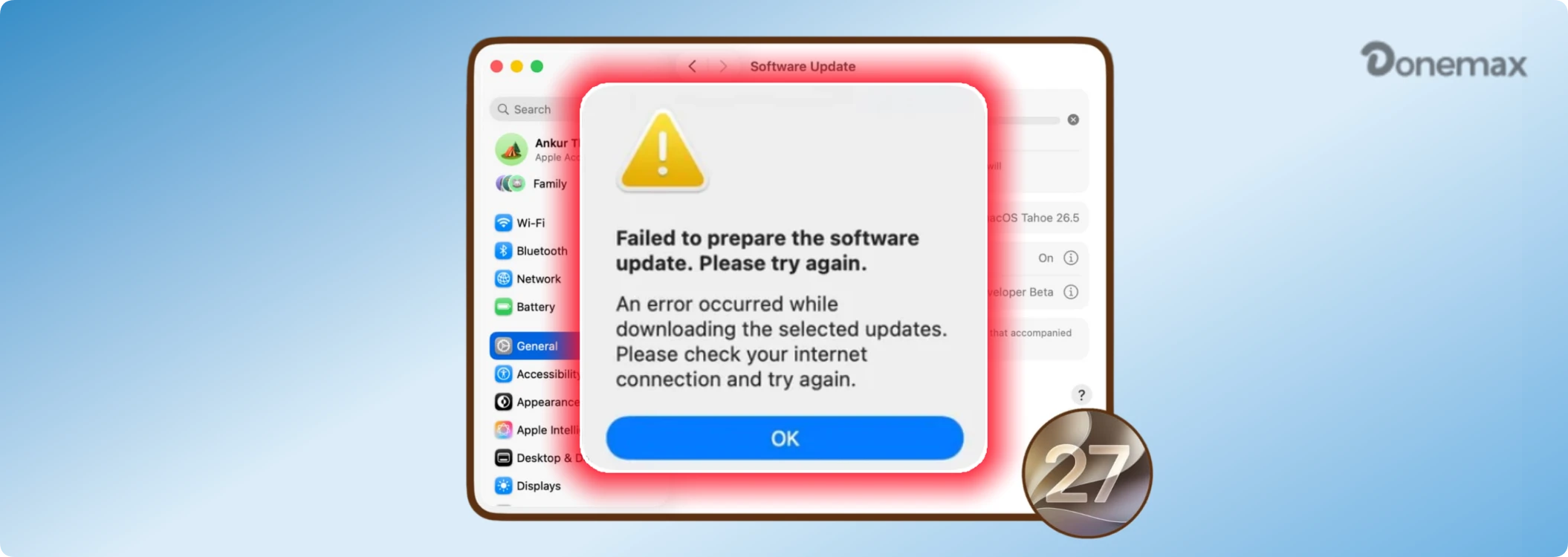
In this comprehensive optimization guide, we will break down exactly why your Mac might be struggling or refusing to install the latest macOS 27 build. Whether it is an absolute compatibility limitation set by Apple or a temporary system glitch, we will walk you through the real reasons and practical fixes to get your system sorted out.
Let us start with the most significant change introduced with this version. If you are asking why your Mac cannot install macOS 27 Golden Gate, the absolute first thing you must check is what kind of processor powers your computer. With the official rollout of macOS 27, Apple has officially drawn a line in the sand and concluded its multi-year transition away from Intel hardware.
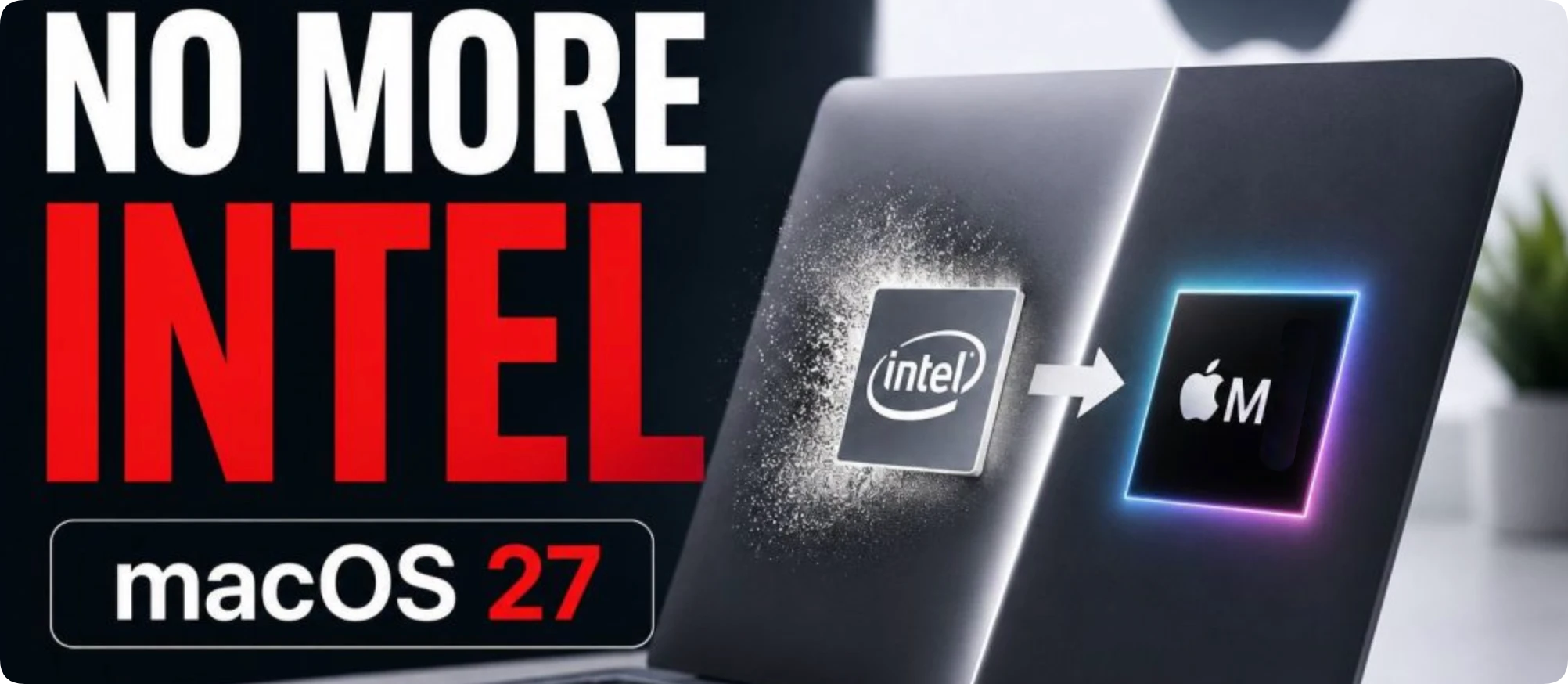
During the previous WWDC 2025 event, Apple hinted that macOS 26 Tahoe would serve as the absolute final curtain call for vintage Intel machines. Now, with the release notes of macOS 27 Golden Gate, that policy is fully in effect. macOS 27 is the very first version of macOS designed to run exclusively on Apple Silicon platforms.
What does this mean for you? If your Mac runs on an Intel Core i5, i7, i9, or Xeon processor, it is mathematically impossible to install macOS 27 Golden Gate natively. The software does not include the code base required to run on legacy x86 architecture. While Rosetta 2 remains active in Golden Gate to help modern M-series Macs run older Intel applications, the operating system itself will no longer boot on an actual Intel machine.
To clear up any confusion about whether your specific device is supported, here is the official list of Mac computers eligible for the update. If your computer was manufactured before these periods or uses an Intel processor, it has officially been left behind by this update cycle:
Conversely, prominent models that were highly popular just a few years ago are now officially unsupported. These include the 16-inch Intel MacBook Pro (2019), the 13-inch MacBook Pro (2020 with four Thunderbolt ports), the 27-inch Intel iMac (2020), and the beefy Intel Mac Pro (2019). If you own one of these models, your native upgrade journey stops at macOS 26 Tahoe.
What if you already own a fully compatible M1, M2, M3, M4, or M5 Apple Silicon Mac, but you are still encountering errors? If compatibility is not the source of your problem, several other underlying system factors could be halting your upgrade progress.
1. Severe Virtual Machine (VM) Incompatibility Bug
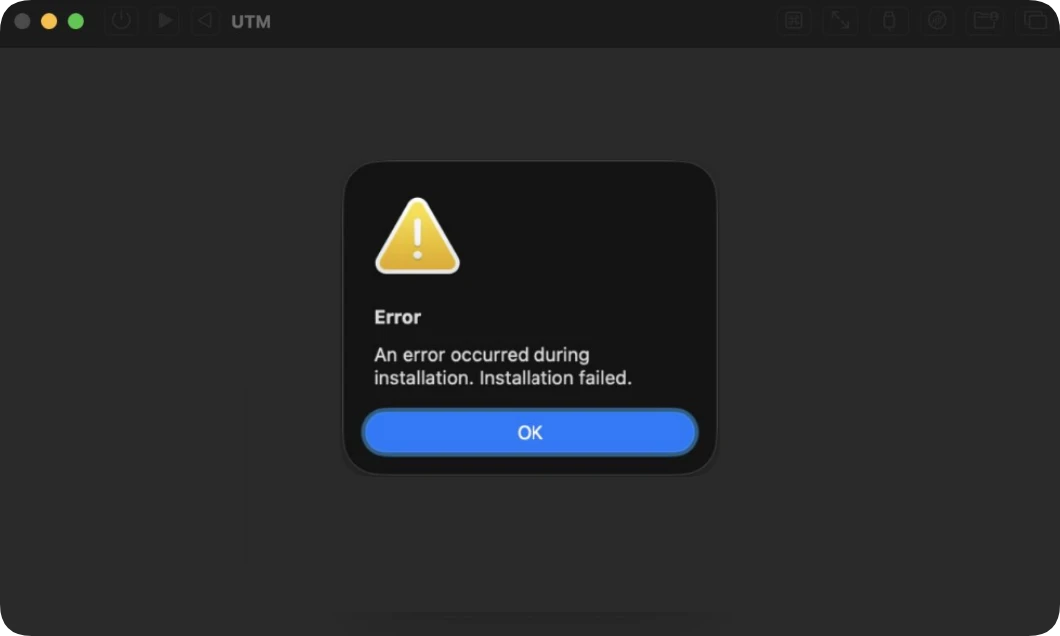
For developers, testers, and power users who love to test new operating systems inside isolated sandboxes, there is a prominent known issue with early builds of macOS 27. Apple engineers have publicly acknowledged a late-stage incompatibility between the VZMacOSInstaller API on macOS 26 hosts and the raw macOS 27 IPSW restore files.
If you are trying to deploy macOS 27 Golden Gate inside virtualization tools like Parallels Desktop, VMware, UTM, or VirtualBuddy, the installation will crash out with a generic 'An error occurred during installation' screen. This is a software bug that Apple will address in future developer updates, rather than a permanent restriction.
2. Critical Insufficient Disk Storage Space
The installer for macOS 27 Golden Gate is a massive download, measuring roughly 18 GB in size just for the baseline InstallAssistant package. However, simply having 18 GB of free space is nowhere near enough to successfully complete an upgrade.
During the execution phase, your Mac needs to unpack files, cache data, create temporary setup files, and preserve your old files. As a rule of thumb, you should maintain at least 35 GB to 40 GB of verified free storage space on your primary APFS startup volume. If your drive is clogged with old caches, duplicate downloads, or large media assets, the installer will abruptly throw a failure error midway through the installation process.
3. Beta Enrollment and Configuration Profile Glitches
Because macOS 27 Golden Gate is currently in its beta phases, it will not appear automatically for everyday standard users. You must actively enroll your Apple ID in the Developer or Public Beta Program.
Sometimes, even when enrolled, local system setting caches can stall, meaning the update fails to display under System Settings > General > Software Update. Misconfigured beta profiles or network restrictions blocking Apple's developer servers are classic culprits behind a missing update screen.
4. Security Settings Prevent the Installing of macOS 27
When upgrading to macOS 27 Golden Gate, Apple's strict built-in security frameworks act as digital bouncers. While these features are designed to keep your machine safe from malware, they can frequently misinterpret legitimate installation attempts—especially since macOS 27 is currently in its beta phases—and block the installer entirely.
Now that we have thoroughly analyzed the root causes, let us dive into the actual solutions you can implement right now to overcome these technical roadblocks.
If your Mac is complaining about storage space, it is time for a thorough cleaning. Go to System Settings > General > Storage to review what is consuming your drive. Delete large unwanted movies, clean out your Downloads directory, and empty your Trash bin.
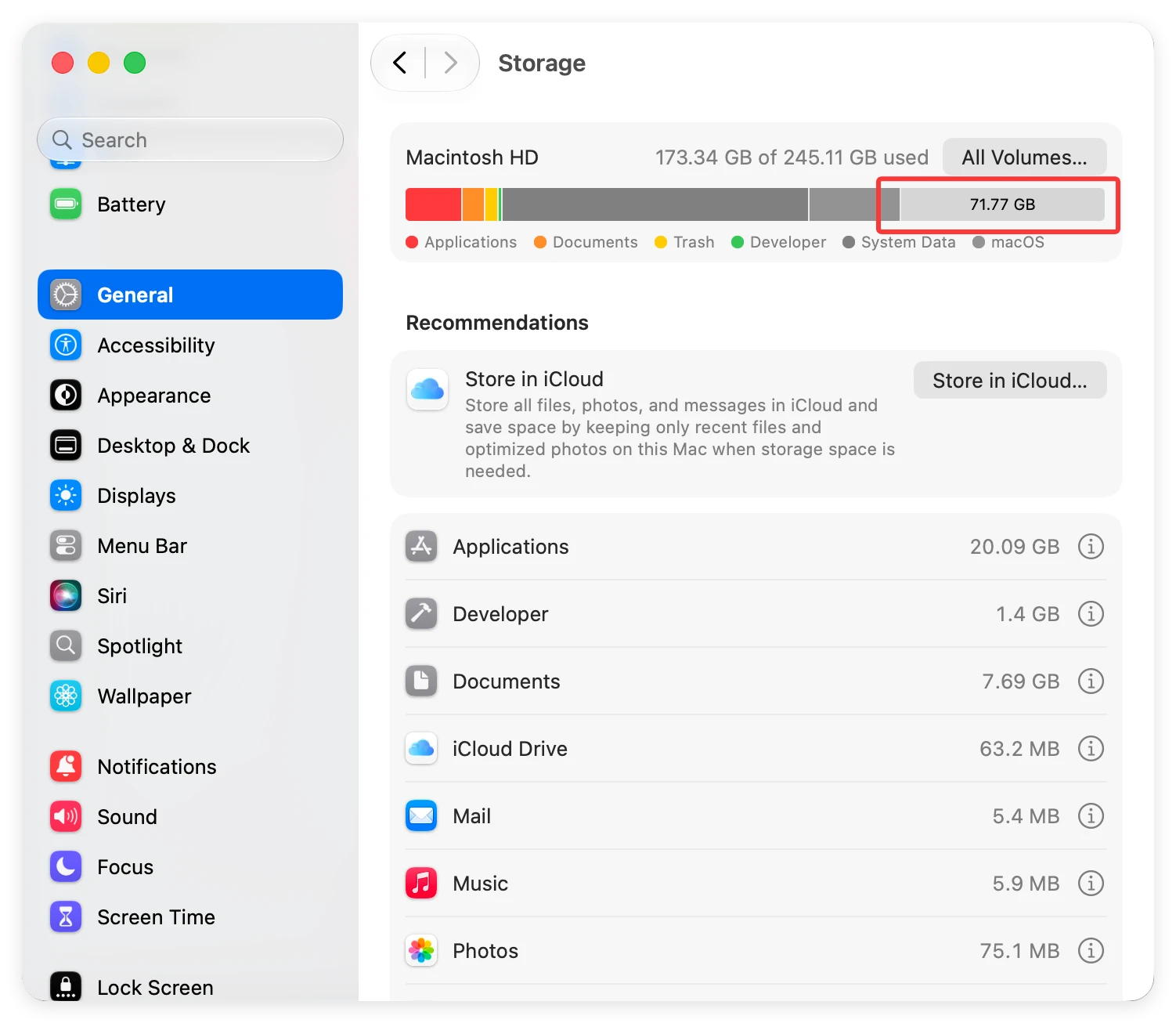
For a deeper optimization, check for hidden junk and large application caches that are cluttering your APFS containers. You can use the software Donemax DMcleaner for Mac to deeply scan and remove junk data from your Mac.
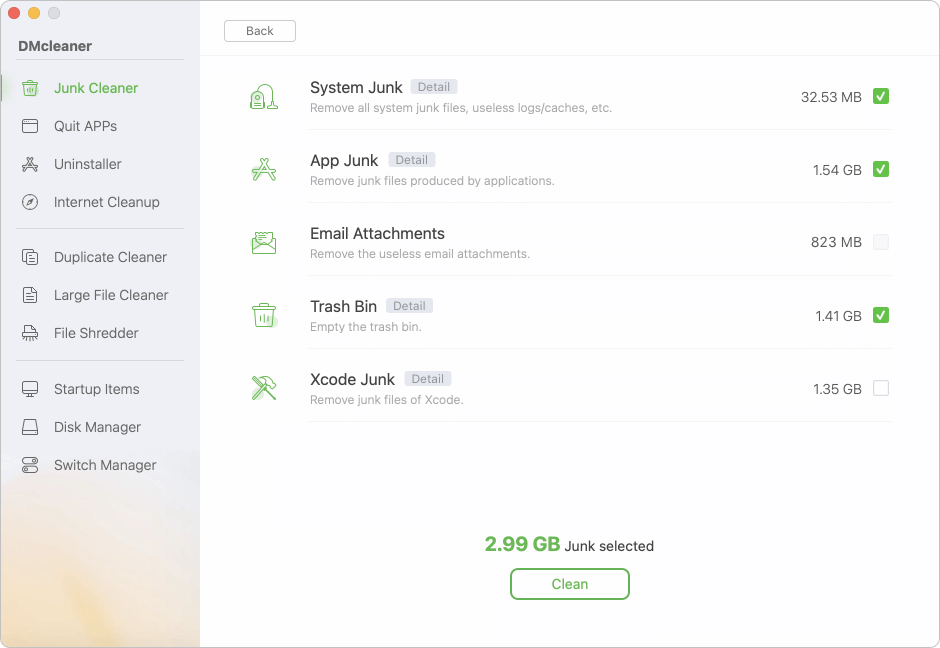
If you need to test macOS 27 Golden Gate inside a virtual machine and are hitting the known VZMacOSInstaller bug, utilize one of these two proven workarounds:
Workaround A: Set up a stable macOS 26 Tahoe virtual machine first. Once inside that running guest OS, sign into your Apple Beta-enrolled developer account, navigate to Software Update, and execute an over-the-air (OTA) upgrade directly to macOS 27. This bypasses the buggy local IPSW installation path.
Workaround B: Build the macOS 27 VM on a bare-metal machine that is already running macOS 27 Golden Gate natively as its host operating system, then simply transfer the finalized virtual disk file back over to your primary computer.
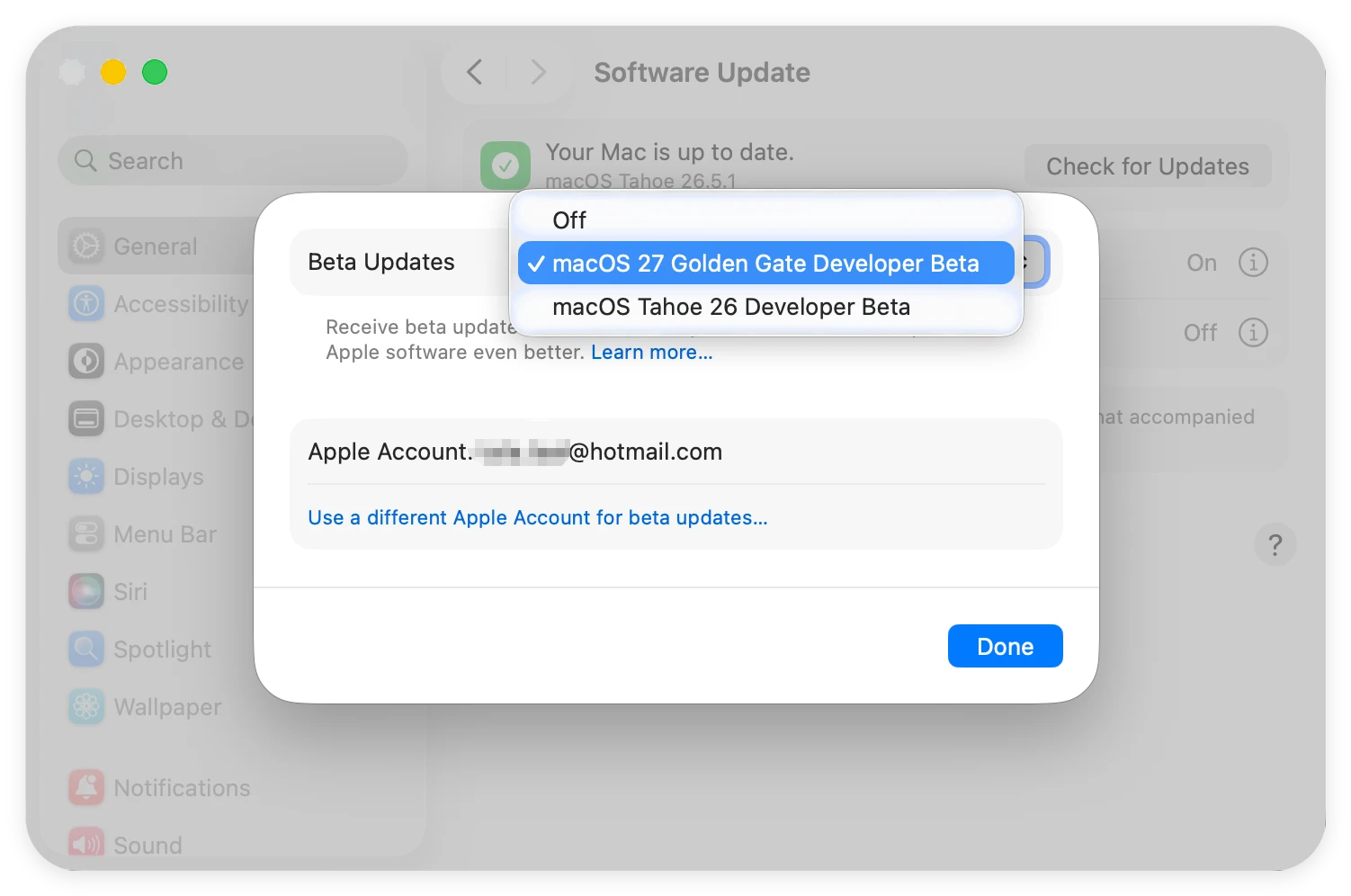
If the update isn't appearing under Software Update, try toggling your beta preferences. Turn the Beta Updates selection off, wait thirty seconds, and turn it back on. Ensure that the Apple ID signed into your Mac matches the account registered on Apple's developer portal.
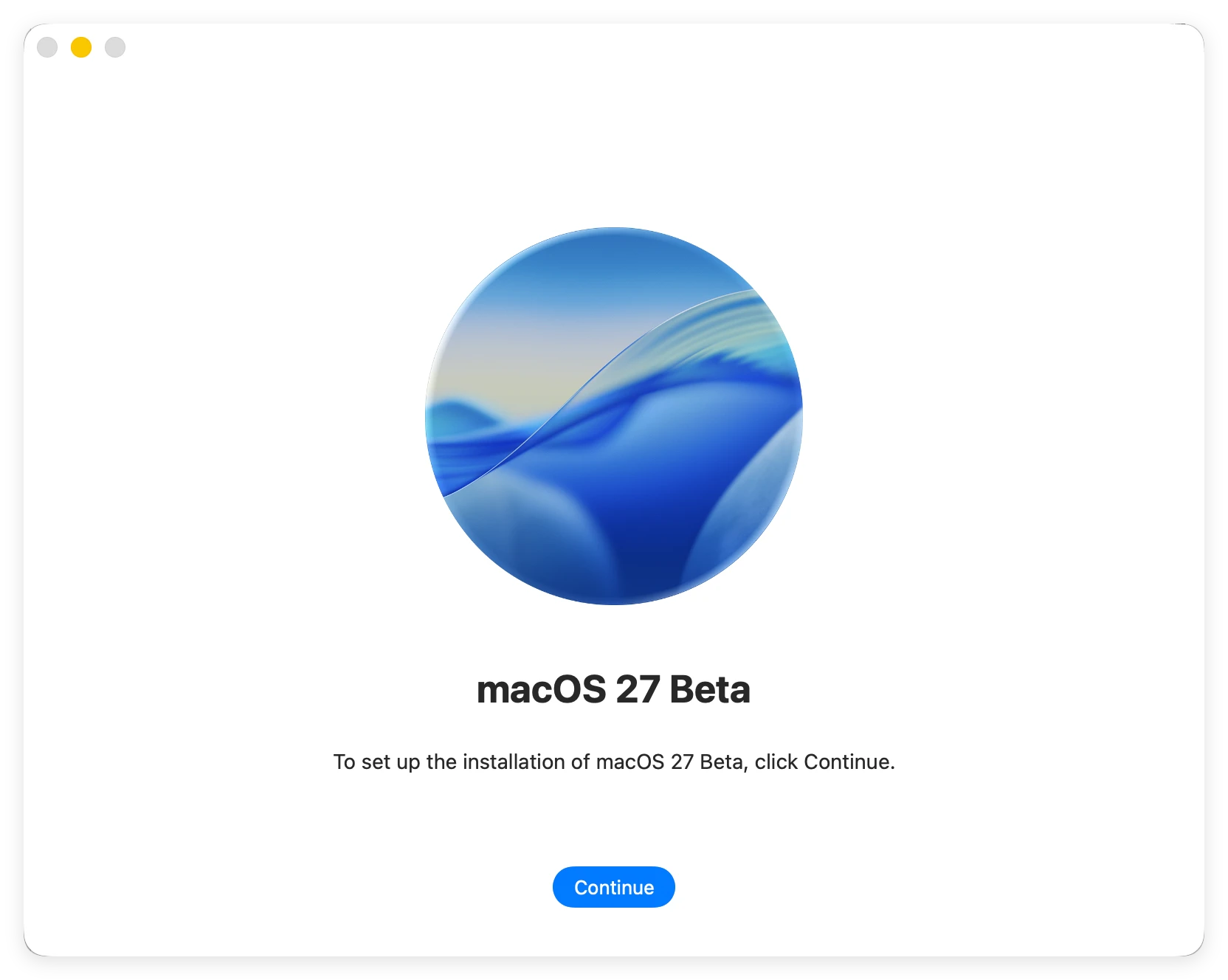
If all else fails, you can download the complete independent 18 GB InstallAssistant.pkg file directly from Apple's developer servers to initiate the setup wizard manually.
To solve the security issue that prevent the macOS 27 update, you can boot into Recovery mode to check and modify the security settings.
Step 1. Shut down the Mac. Then power on it and press the Power button. Hold the button until you see the message "Loading startup options."
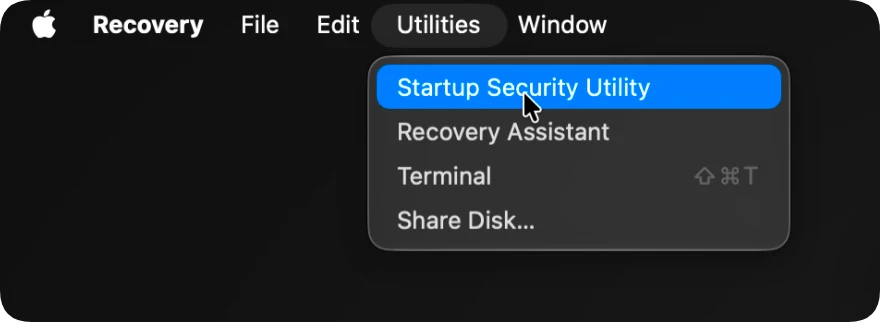
Step 2. Click Options and click Continue. Click the Utilities from the top menu bar and then select Startup Security Utility.
Step 3. Click the Unlock button. You will be asked to enter your computer password to unlock it. Enter your password and click the Unlock button again.
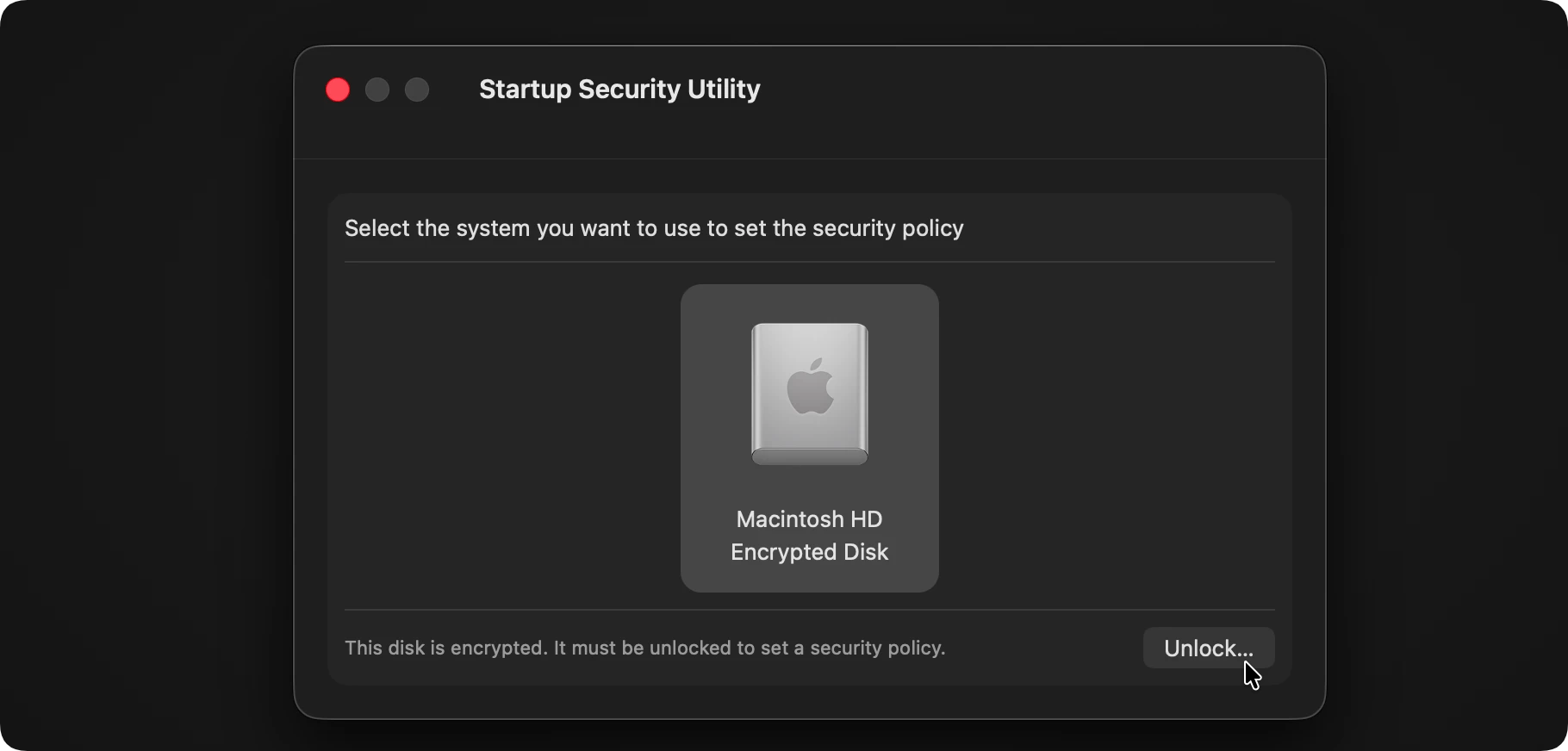
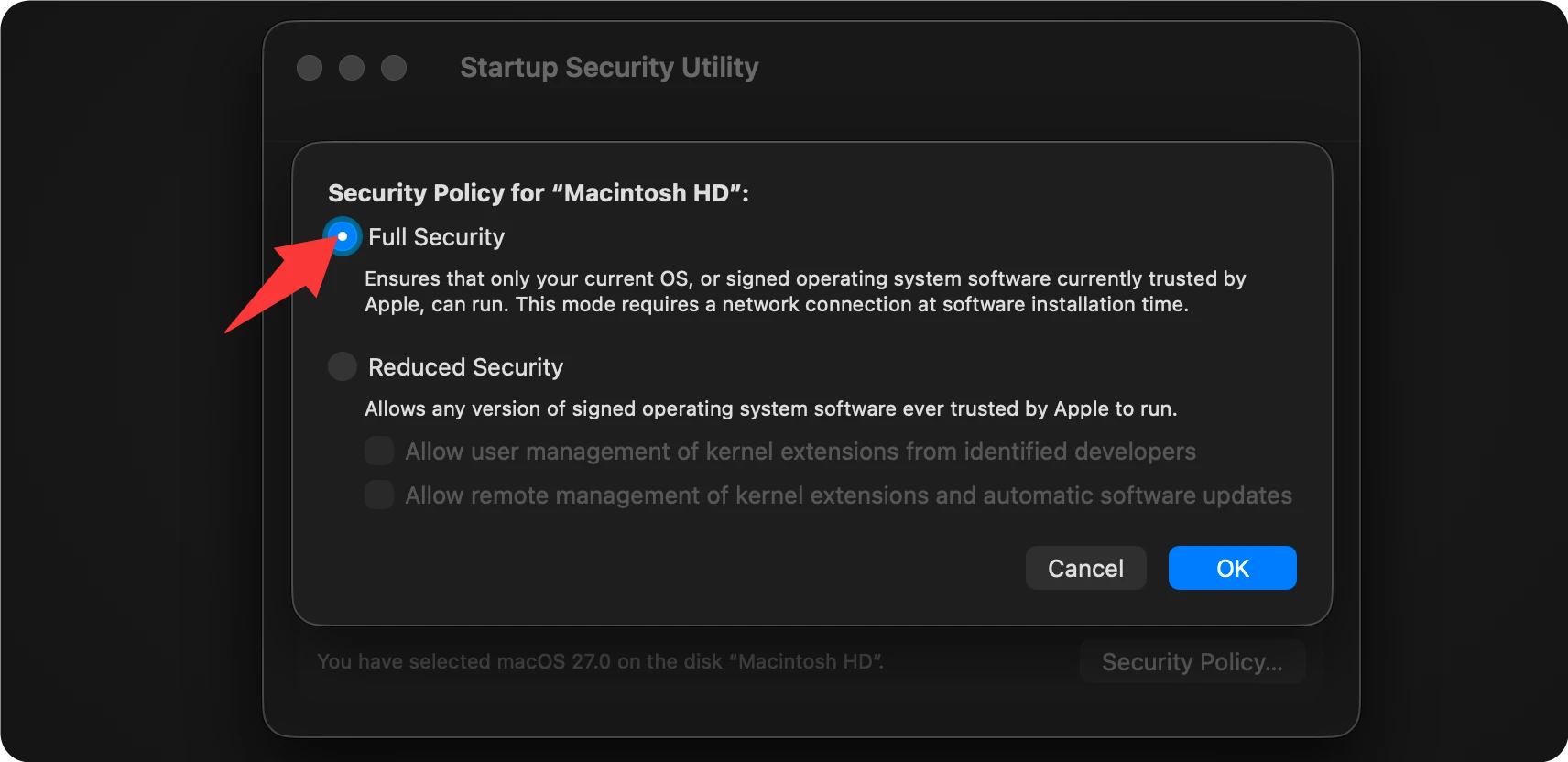
Step 4. Click the Security Policy and then check the settings. If it was changed to "Reduced Security", ensure to modify it as Full Security. Click OK to apply the modification. Restart the Mac and try to install macOS 27 Golden Gate again.
Upgrading to a major cutting-edge operating system like macOS 27 Golden Gate always carries natural technical risks, particularly in the early developer beta periods. System crashes, data corruption, and boot loops can occasionally happen.
Before hitting that final install button, make it an absolute priority to back up your system. You can utilize Time Machine to capture a snapshot of your state.
Also, you can execute a comprehensive disk clone using specialized Mac utility tools, like Donemax Disk Clone for Mac. Keeping your files secure ensures that even if the installation fails, your records remain completely safe.
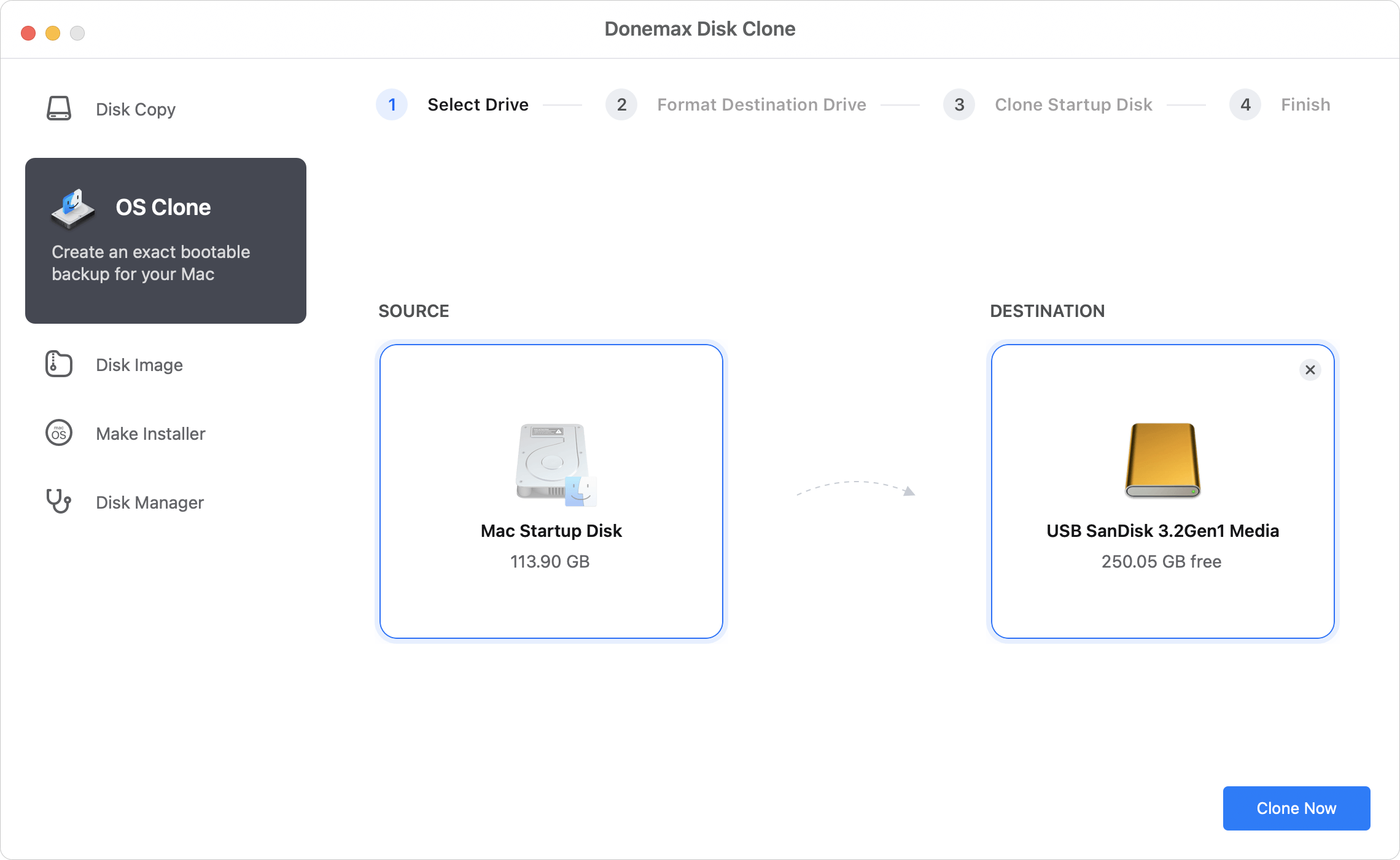
Donemax Disk Clone for Mac
An award-winning disk cloning program to help Mac users clone HDD/SSD/external device. It also can create full bootable clone backup for Macs.
Steven
Steven has been a senior writer & editor of Donemax software since 2020. He's a super nerd and can't imagine the life without a computer. Over 6 years of experience of writing technical solutions and software tesing, he is passionate about providing solutions and tips for Windows and Mac users.
Gerhard Chou
In order to effectively solve the problems for our customers, every article and troubleshooting solution published on our website has been strictly tested and practiced. Our editors love researching and using computers and testing software, and are willing to help computer users with their problems

