
Written byStevenUpdated on Jun 15, 2026

Before we start: Before upgrading to macOS 27 Golden Gate beta, it's necessary to make a full backup for the current macOS. For example, you can use Donemax Disk Clone for Mac to make a complete and bootable clone. If there are issues with the new macOS 27 beta, you can easily boot your Mac from the clone drive.
PAGE CONTENT:
Apple has officially announced its next-generation operating system, macOS 27 Golden Gate. Packed with amazing UI refinements, enhanced system transparency control, and advanced system optimization features, this new version has caught the attention of every tech enthusiast. It is currently available as a developer beta, allowing you to try out the latest features before the public release.
However, installing early software comes with risks. Beta versions often contain software glitches, unexpected bugs, or app compatibility problems that can affect your daily work. If you want to know how to install macOS 27 Golden Gate beta safely without losing any important data, you are in the perfect place. Let's walk through the entire setup step-by-step.
Before doing anything else, you must check if your Mac can run the new update. macOS 27 Golden Gate marks a significant milestone because it officially ends support for old Intel-based Macs. To use this new operating system, you must have a Mac powered by Apple Silicon (M1 chips or newer).
Here is the list of compatible Mac hardware:
Since beta builds are experimental, they can cause sudden system crashes, system freezes, or even accidental data loss. Apple strongly advises backing up your machine before upgrading. If you just copy files manually or use basic cloud storage, you won't save your system settings, and recovery will be a headache if things go wrong.
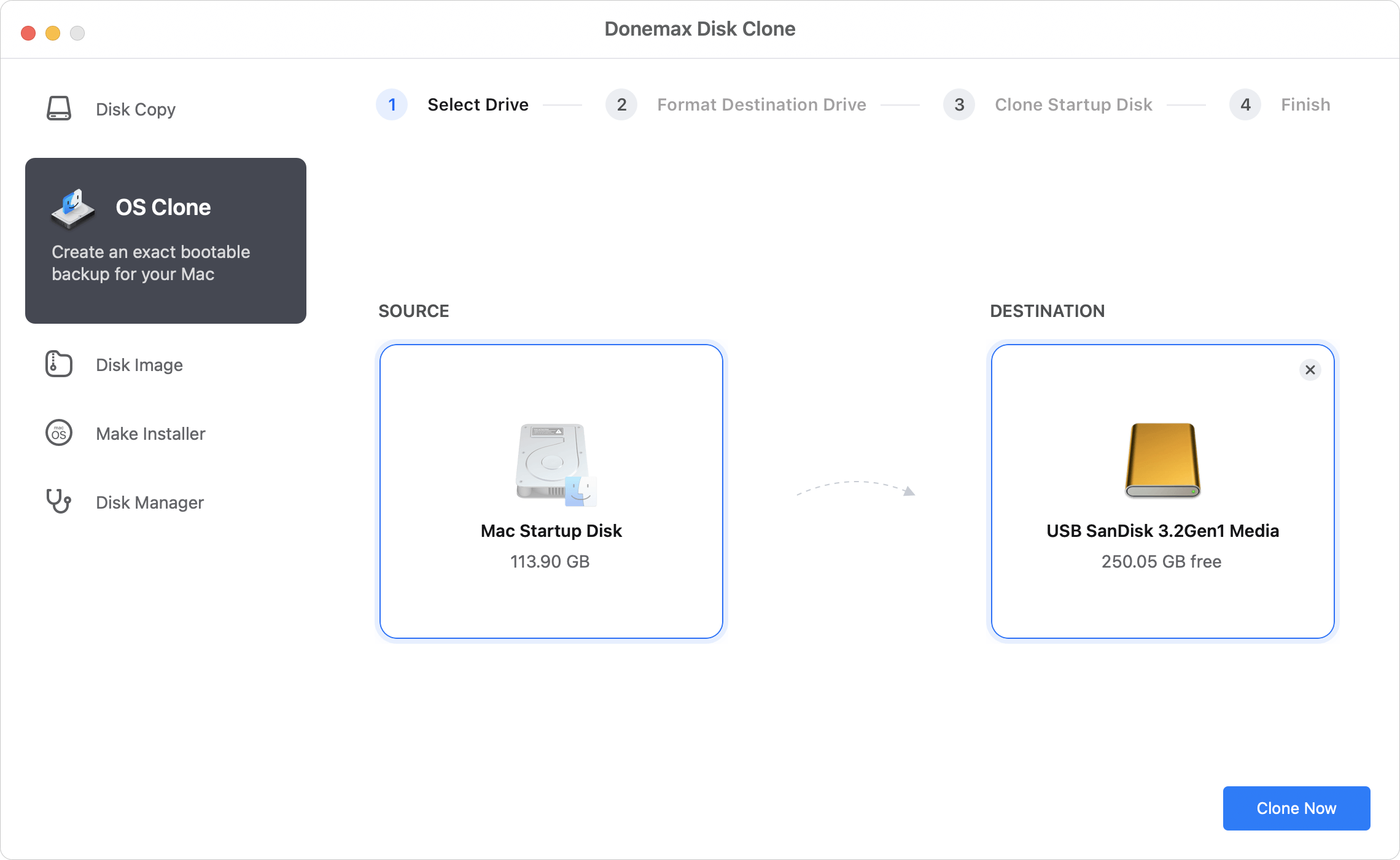
The safest method is to build a complete 1-to-1 clone of your current startup disk. For this job, we highly recommend using Donemax Disk Clone for Mac. It is a powerful, reliable, and user-friendly software tool that creates a full, bootable backup of your hard drive with just a few simple clicks.
Why choose Donemax Disk Clone for Mac? If the macOS 27 Golden Gate beta causes severe bugs or clashes with your essential professional apps, you can connect your bootable backup drive to boot the system to its previous working state without losing a single file.
Here is how to secure your Mac data using Donemax Disk Clone:
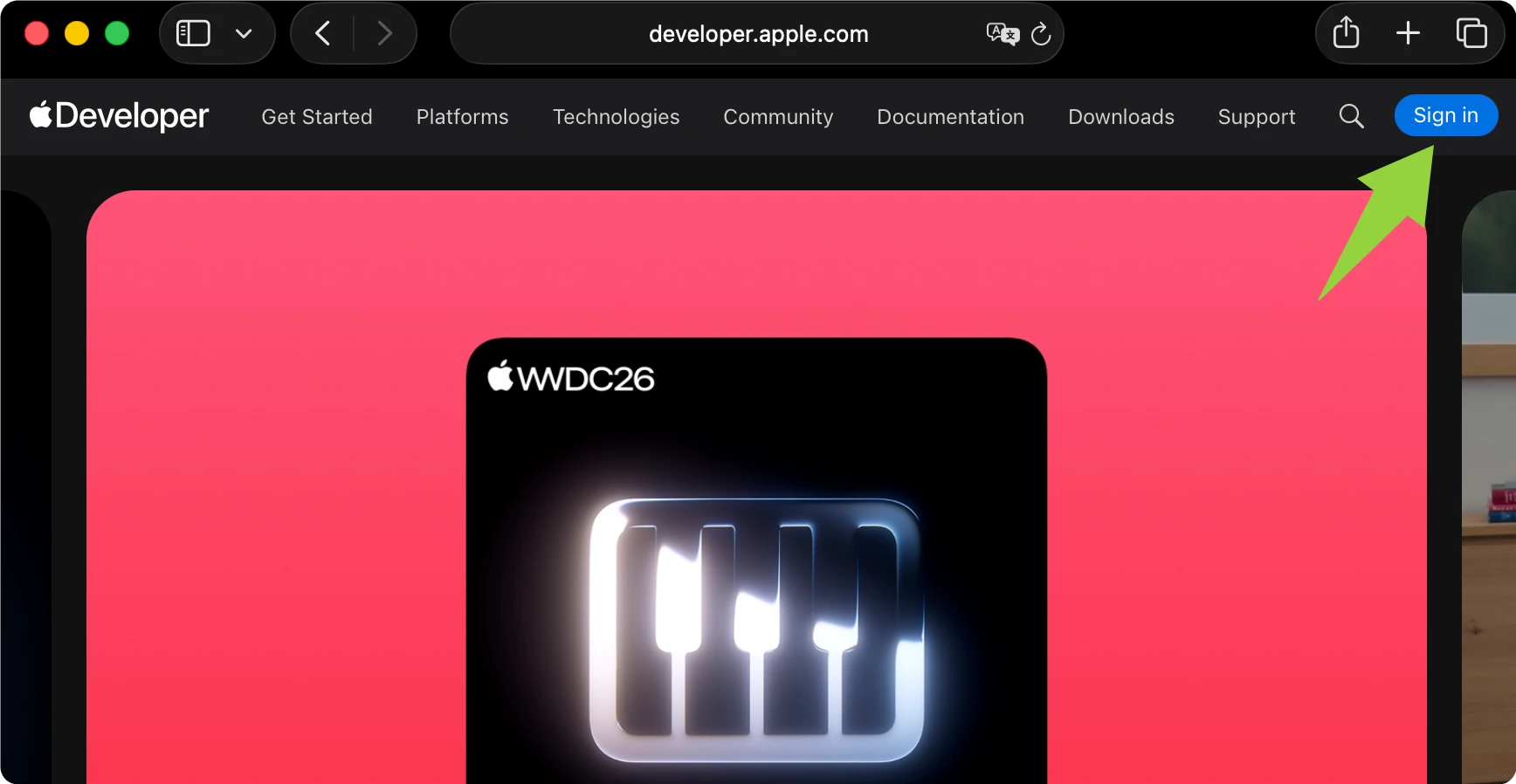
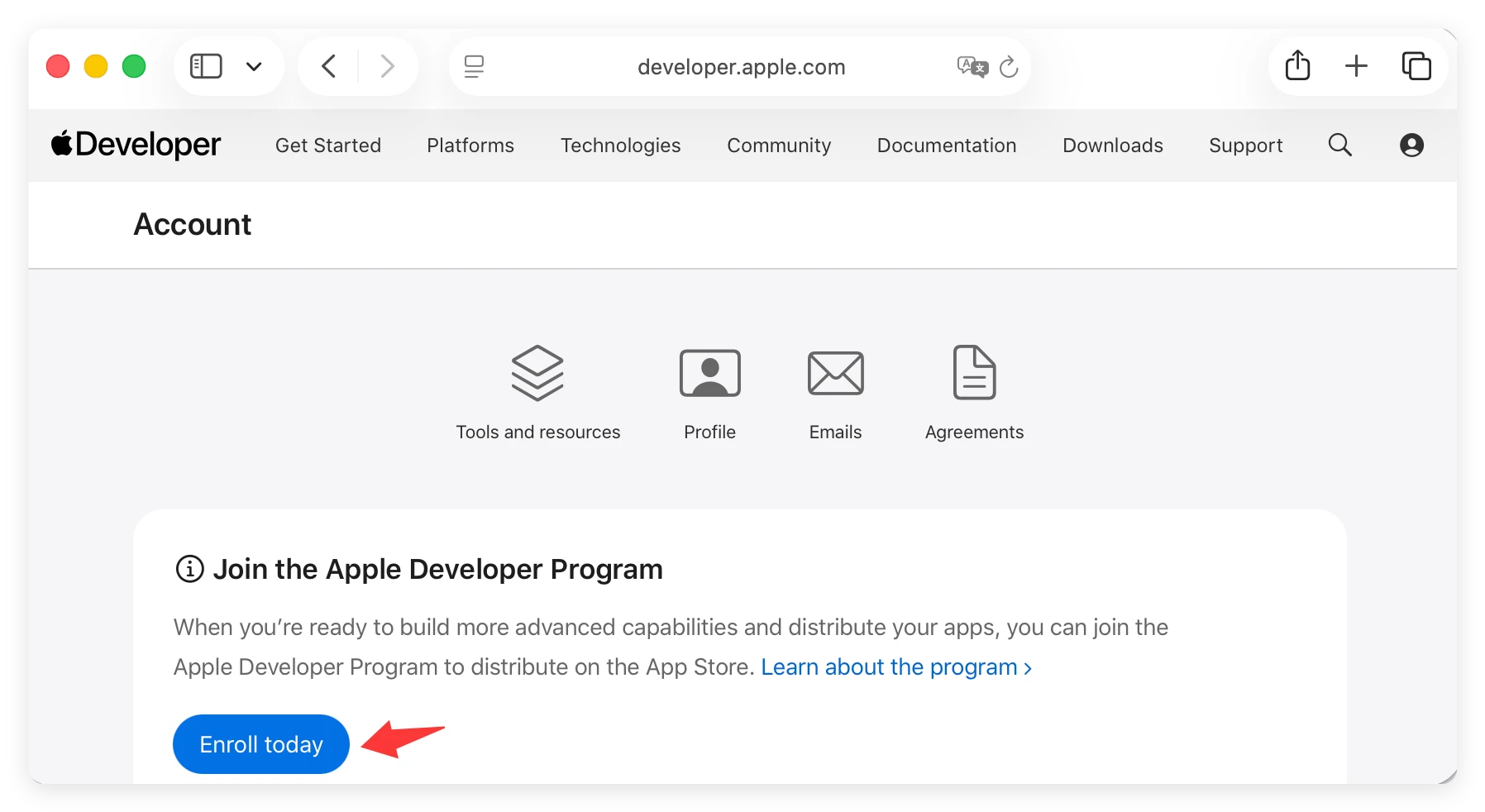
In the past, accessing developer builds required a paid annual membership. Today, Apple allows anyone to download and test the early developer beta releases for free using their regular Apple ID credentials.
Follow these quick steps to register your account:
Once your account is registered and your bootable backup is safe on your external drive, you are ready to configure the software update. Apple has built the beta delivery system directly into the modern macOS architecture, meaning you no longer need to download old configuration utility profiles manually.
Follow these exact steps to complete the installation:
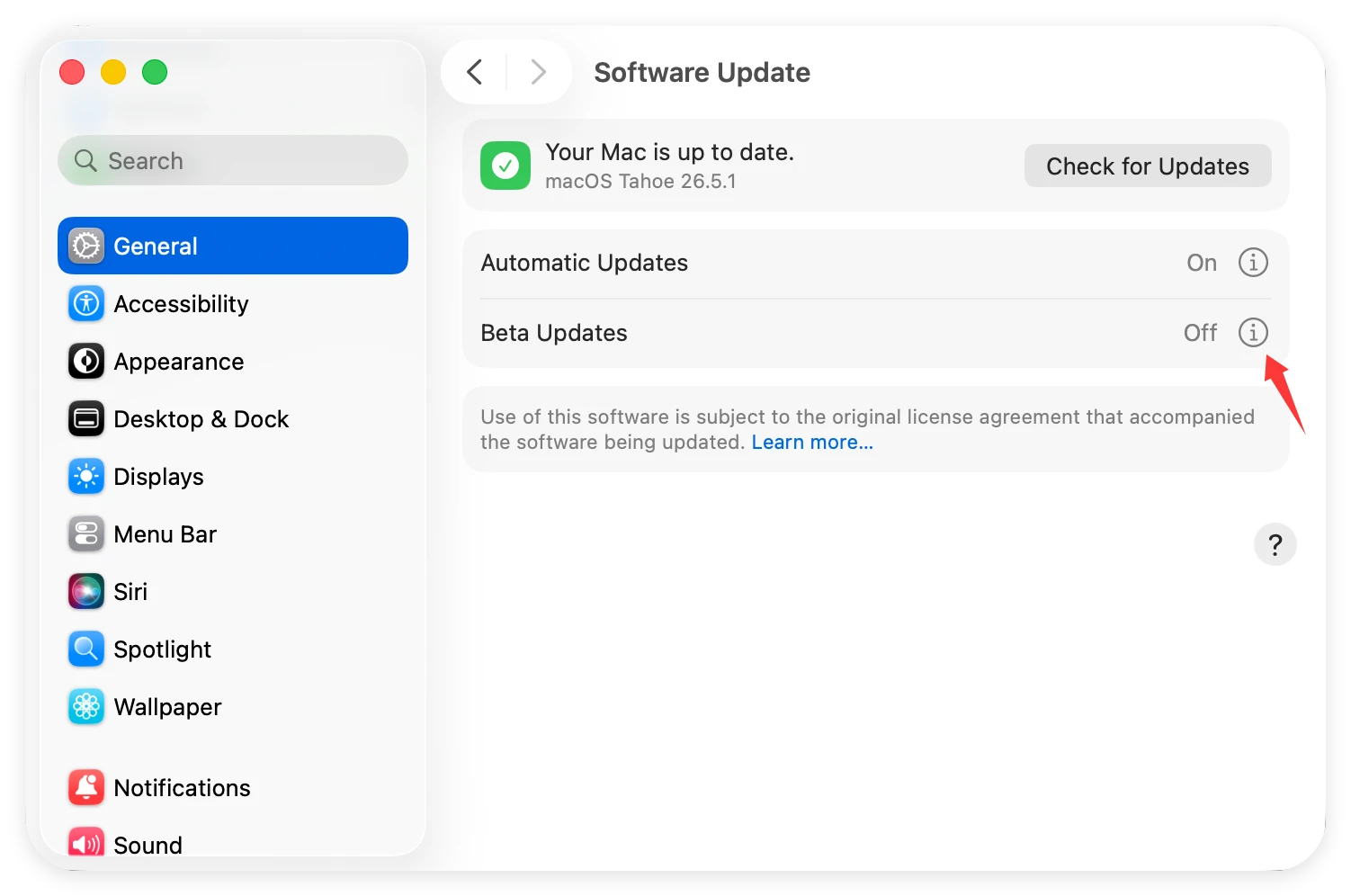
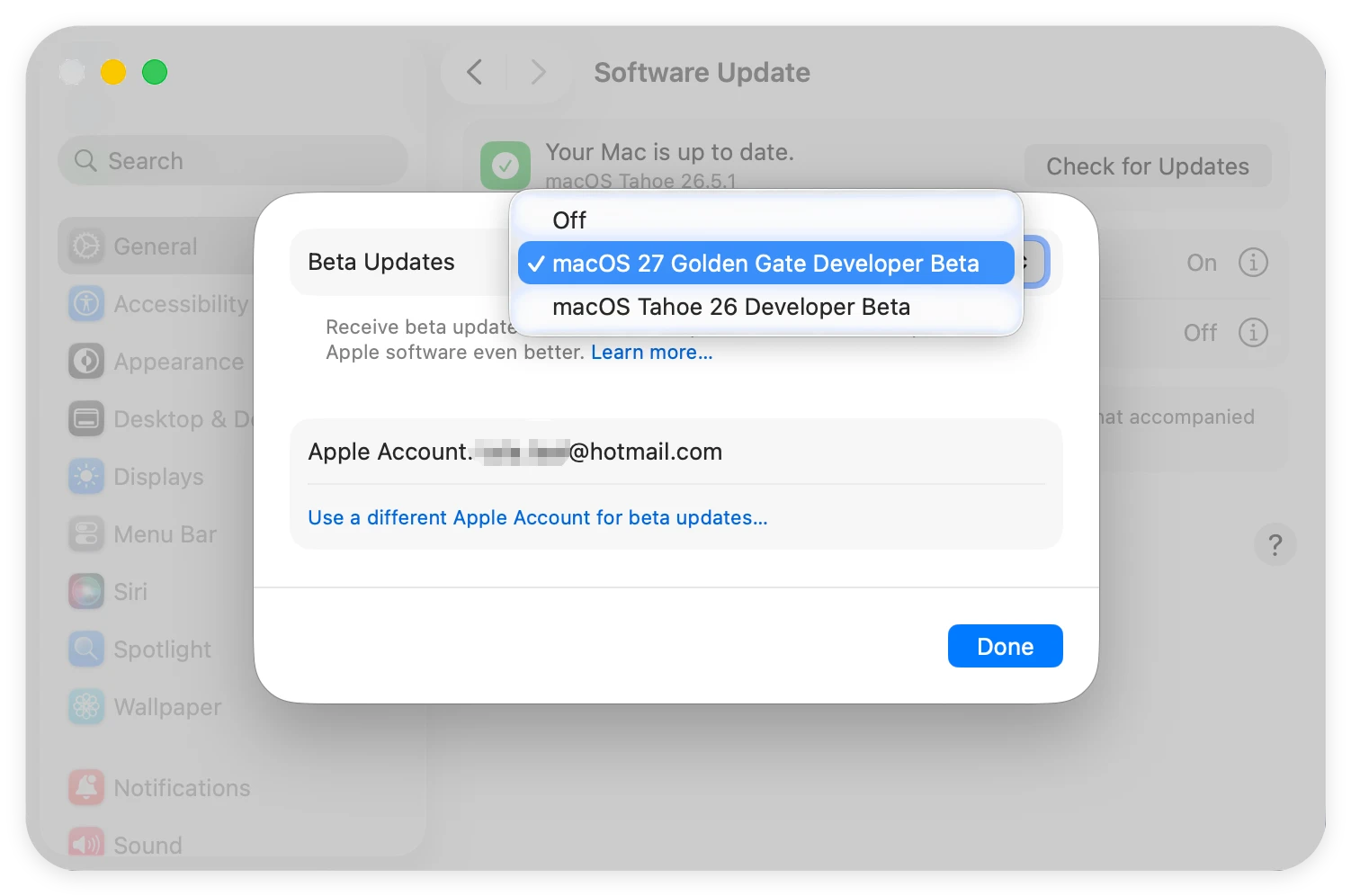
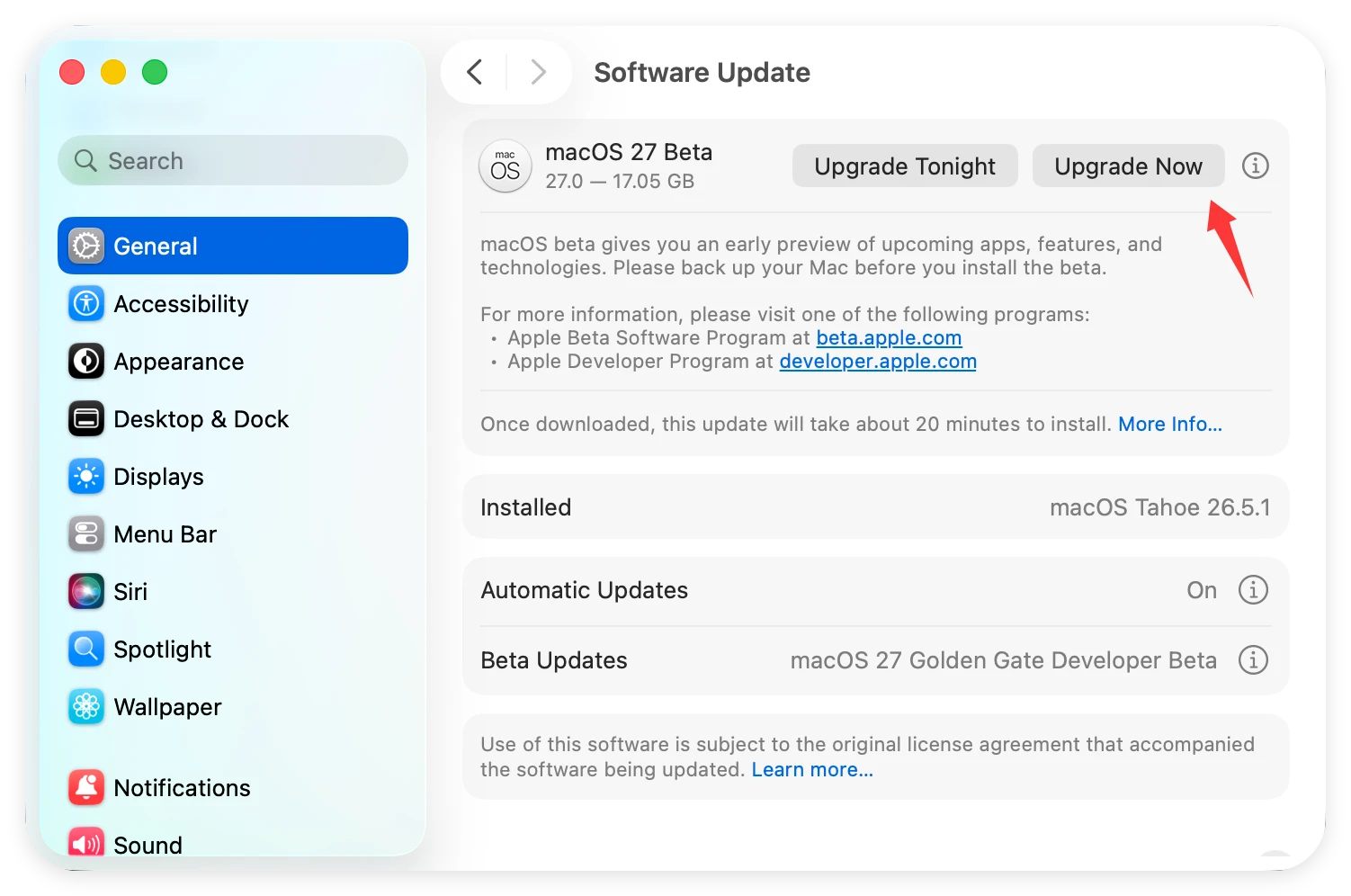
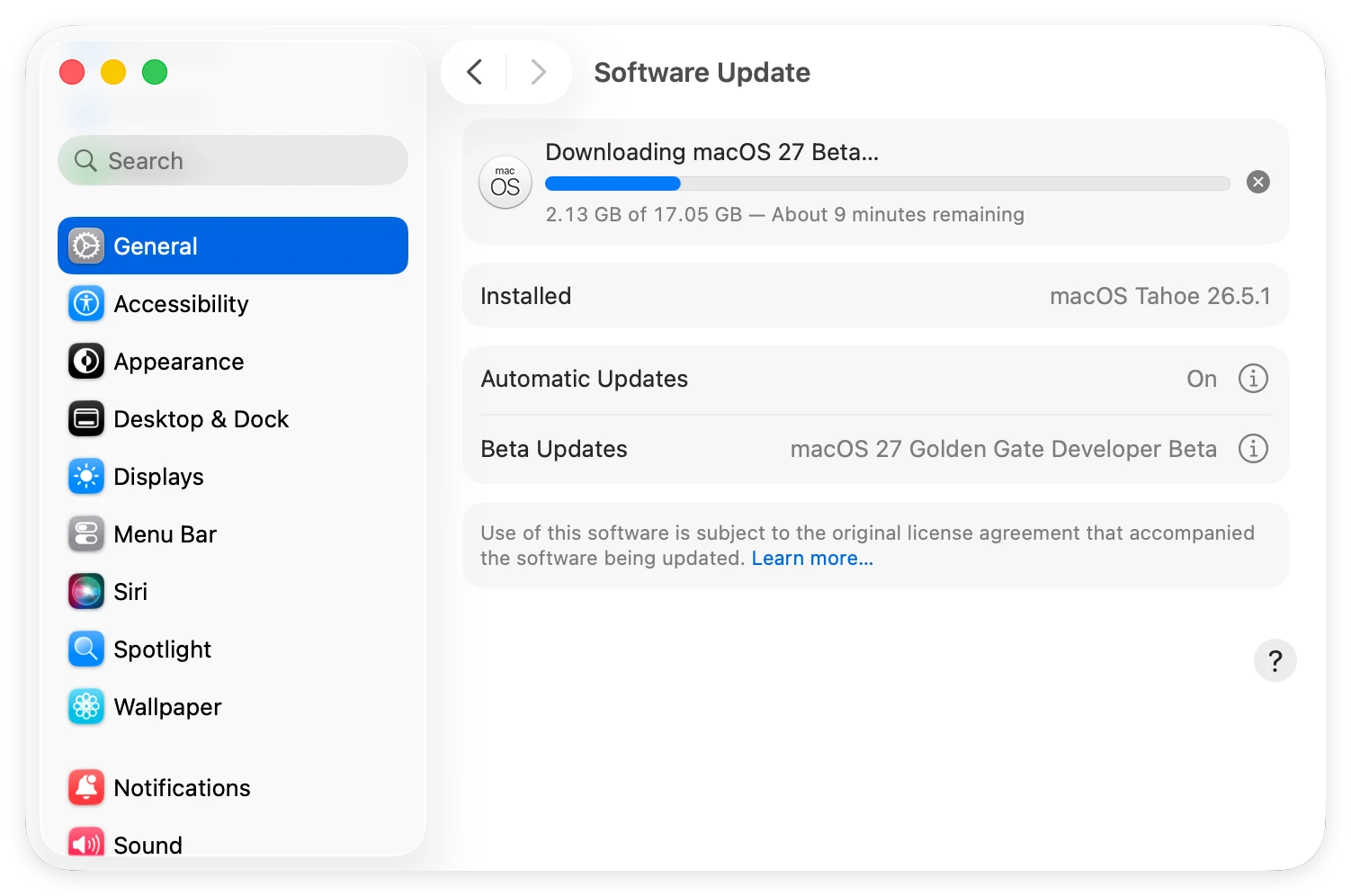
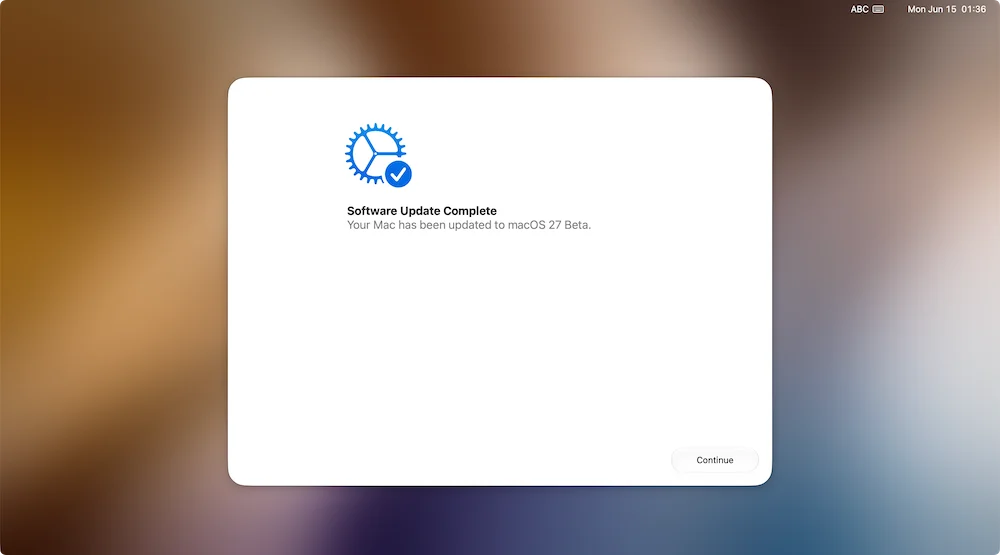
During the update process, your Mac will restart a few times, and you will see a dark screen with an Apple logo and a moving progress bar. Do not close your laptop lid, press the power button, or unplug your machine while this is happening. When the process finishes, you will be greeted by the new macOS 27 Golden Gate login screen!
Once you boot into the new update, you will notice a responsive desktop experience. The biggest visual upgrade is the overhauled 'Liquid Glass' UI engine. Apple has added a premium look and feel across the workspace, bringing back deeper window corner radiuses and a customizable global transparency slider. You can easily adjust text contrast and control panel backgrounds through your appearance settings.
Under the hood, search functionality has become much faster. Spotlight search delivers instant results, and AppKit developers get built-in pull-to-refresh mechanics.
Additionally, System Settings will now flag older Intel apps that won't work in future releases, making it easier to transition to Apple Silicon equivalents.
Upgrading to the macOS 27 Golden Gate beta is an exciting way to explore the future of Apple software before everyone else. By making sure your Apple Silicon Mac is fully compatible and creating a safe, bootable backup clone using Donemax Disk Clone for Mac, you can try out the new Liquid Glass design and fast search features without any worries. Secure your data today, follow our simple steps, and enjoy exploring macOS Golden Gate!
Donemax Disk Clone for Mac
An award-winning disk cloning program to help Mac users clone HDD/SSD/external device. It also can create full bootable clone backup for Macs.
Steven
Steven has been a senior writer & editor of Donemax software since 2020. He's a super nerd and can't imagine the life without a computer. Over 6 years of experience of writing technical solutions and software tesing, he is passionate about providing solutions and tips for Windows and Mac users.
Gerhard Chou
In order to effectively solve the problems for our customers, every article and troubleshooting solution published on our website has been strictly tested and practiced. Our editors love researching and using computers and testing software, and are willing to help computer users with their problems

