Written byChristinaUpdated on Jul 21, 2026

PAGE CONTENT:
Have you recently updated your Mac to macOS 27 Golden Gate, only to find that you can't write data to your external hard drive? You plug in your drive, try to drag a file over, or create a new folder, but nothing happens. Or worse, your Mac shows a small stop icon, or tells you that the disk is 'Read-Only'.
This is a very common issue among Mac users after major system upgrades. Whether you are using a portable HDD, an external SSD, or a USB flash drive, losing the ability to save, edit, or delete files on your external storage can bring your work to a complete halt.
In this article, we will break down exactly why you can't write data to external hard drive on macOS 27 Golden Gate and walk you through 5 straightforward, reliable solutions to fix it—including a simple one-click tool designed to unlock NTFS drives instantly.
Before jumping into the solutions, it helps to understand why this problem occurs. In most cases, the issue comes down to file system compatibility, permission settings, or drive errors.
1. The External Hard Drive is Formatted as NTFS
NTFS is the default file system for Windows operating systems. Out of the box, macOS—including macOS 27 Golden Gate—can only read NTFS drives. It cannot natively write, edit, rename, or delete files on an NTFS formatted drive. If your external drive was previously formatted on a Windows PC, this is almost certainly why you can't write data to it.
2. Read-Only Permission Settings
Sometimes, user permission configurations change after upgrading to macOS 27 Golden Gate. Your Mac user account might only have 'Read' permissions for the external drive, preventing you from adding or modifying files.
3. File System Errors or Incomplete Ejection
If the external hard drive was unplugged without safely ejecting, or if it experienced a sudden power loss, macOS might flag the file system as unsafe. To protect your data, macOS automatically mounts the drive in read-only mode.
4. macOS 27 Golden Gate Security and Privacy Policies
Apple routinely enhances system security with every major release. macOS 27 Golden Gate introduces stricter privacy permissions. External storage devices without full disk access authorization may be restricted from write operations.
Depending on the root cause of your issue, choose the fix below that best fits your situation. We recommend starting with Method 1 if your drive is formatted as NTFS.
If your external hard drive uses the NTFS file system, the easiest and safest solution is to use professional NTFS driver software. You don't need to format the drive or erase any existing data.
Donemax NTFS for Mac is a powerful, lightweight utility fully optimized for macOS 27 Golden Gate. It enables full read and write access to any NTFS drive connected to your Mac, delivering native transfer speeds and complete stability.
Key Highlights of Donemax NTFS for Mac:
Step-by-step Guide to Enable NTFS Write Support:
Step 1: Download and install Donemax NTFS for Mac on your Mac running macOS 27 Golden Gate.
Step 2: Connect your NTFS external hard drive to your Mac. Launch Donemax NTFS for Mac. Select your NTFS drive from the list of connected volumes.
Step 3: Click the Enable Writable button. Donemax will mount the drive with complete read and write access.
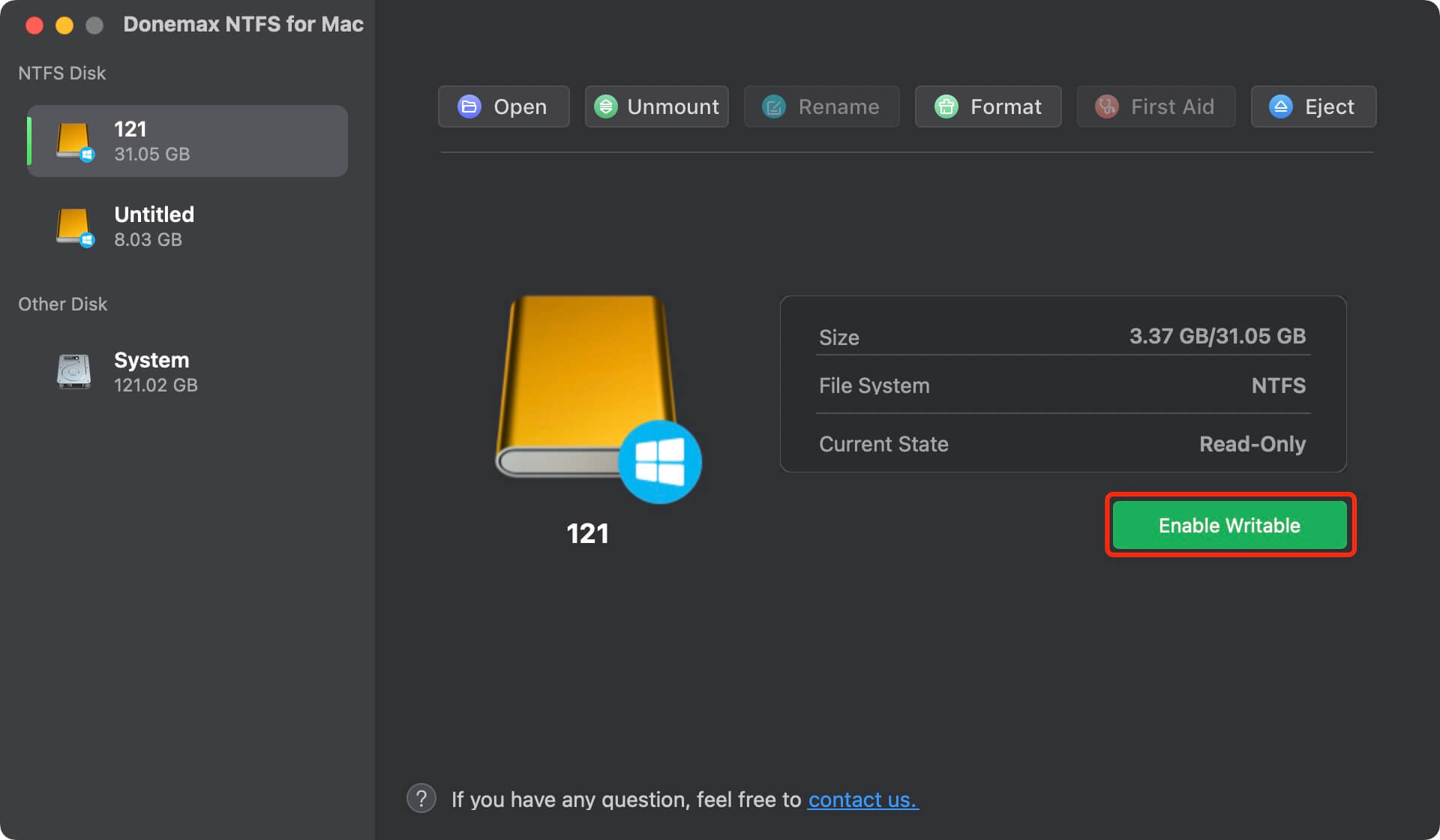
Once enabled, you can open Finder and freely copy, move, create, edit, or delete files on your external hard drive just like any native Mac drive.
WHY CHOOSE DONEMAX NTFS FOR MAC?
Using Donemax NTFS for Mac saves you from formatting your drive. It preserves all existing files while allowing seamless cross-platform use between Mac and Windows PCs.
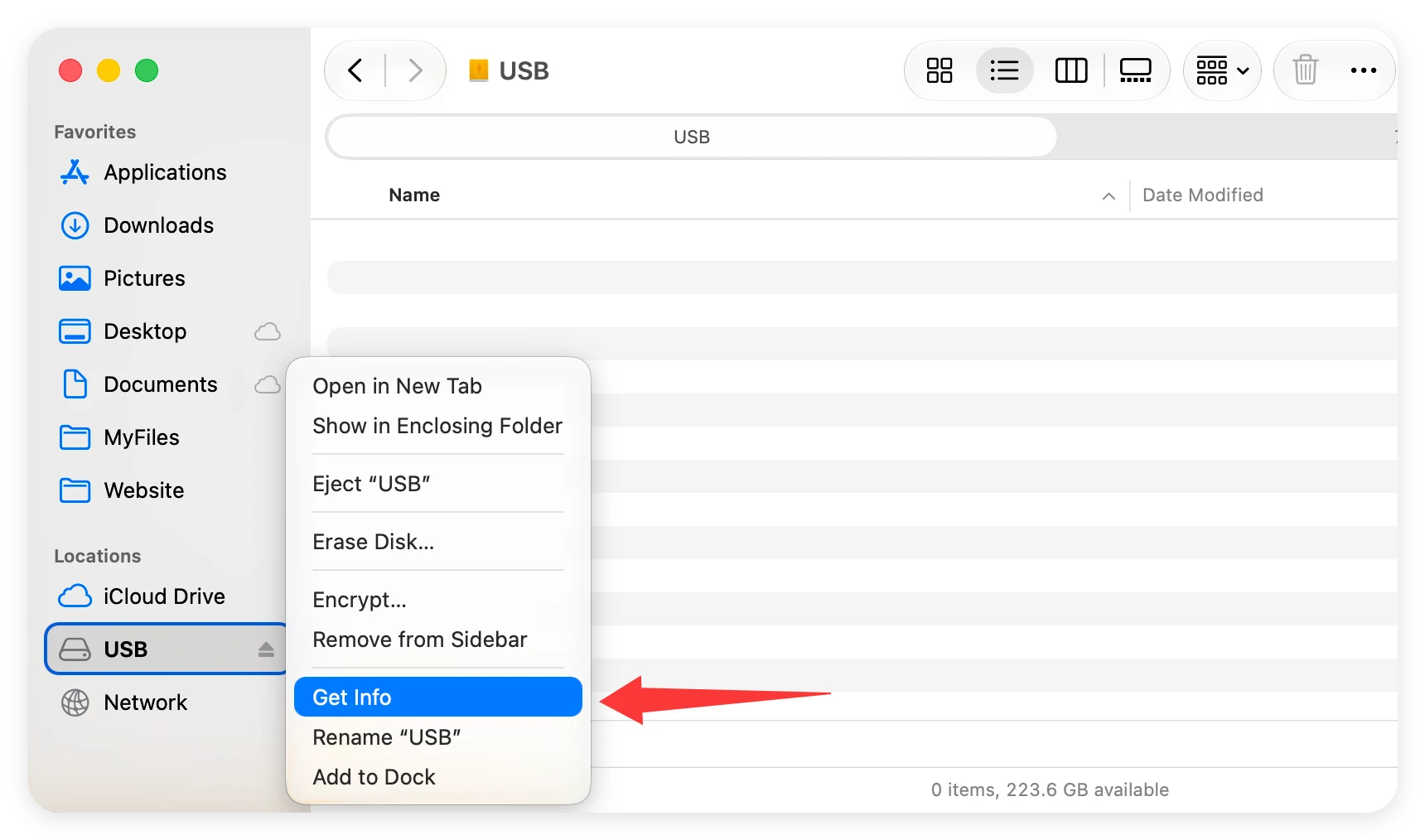
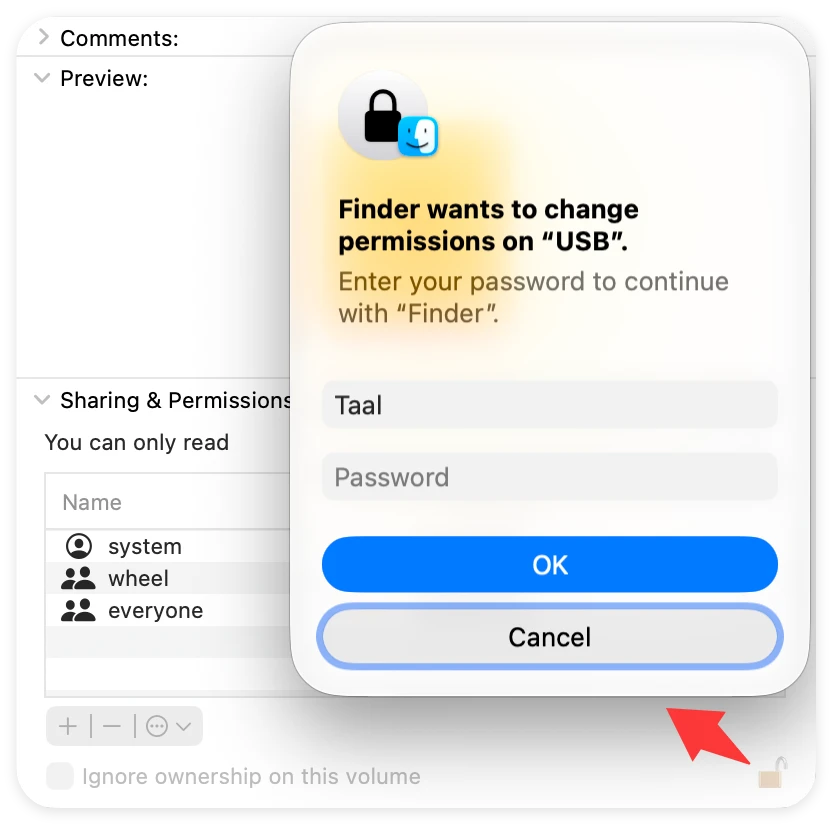
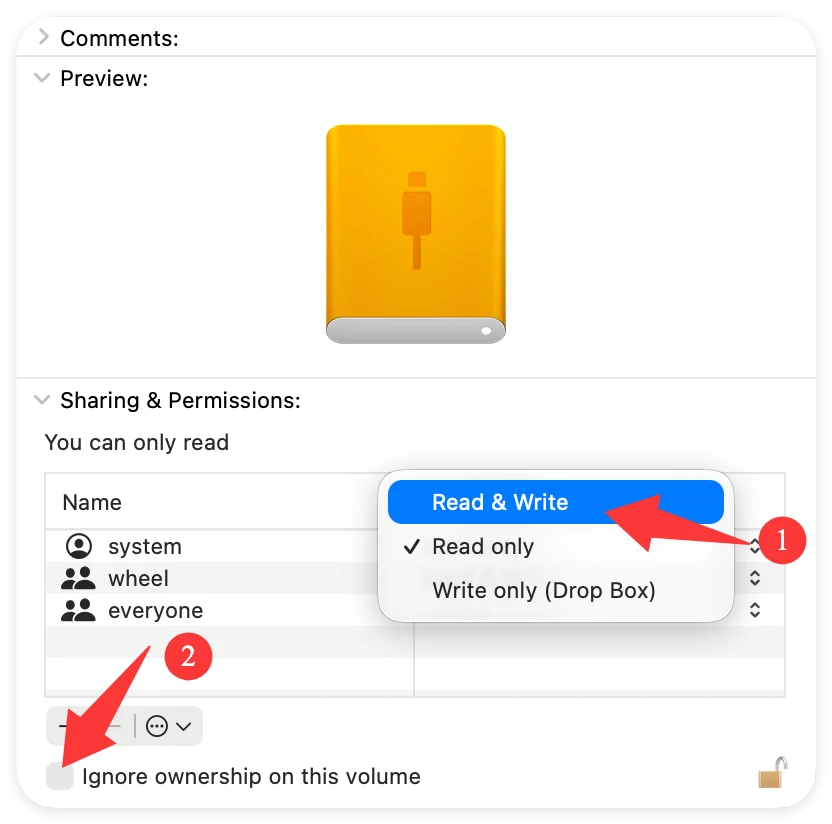
If your external hard drive is formatted as APFS or Mac OS Extended, but you still can't write data to it, permission settings might be blocking you. You can adjust permissions in Finder.
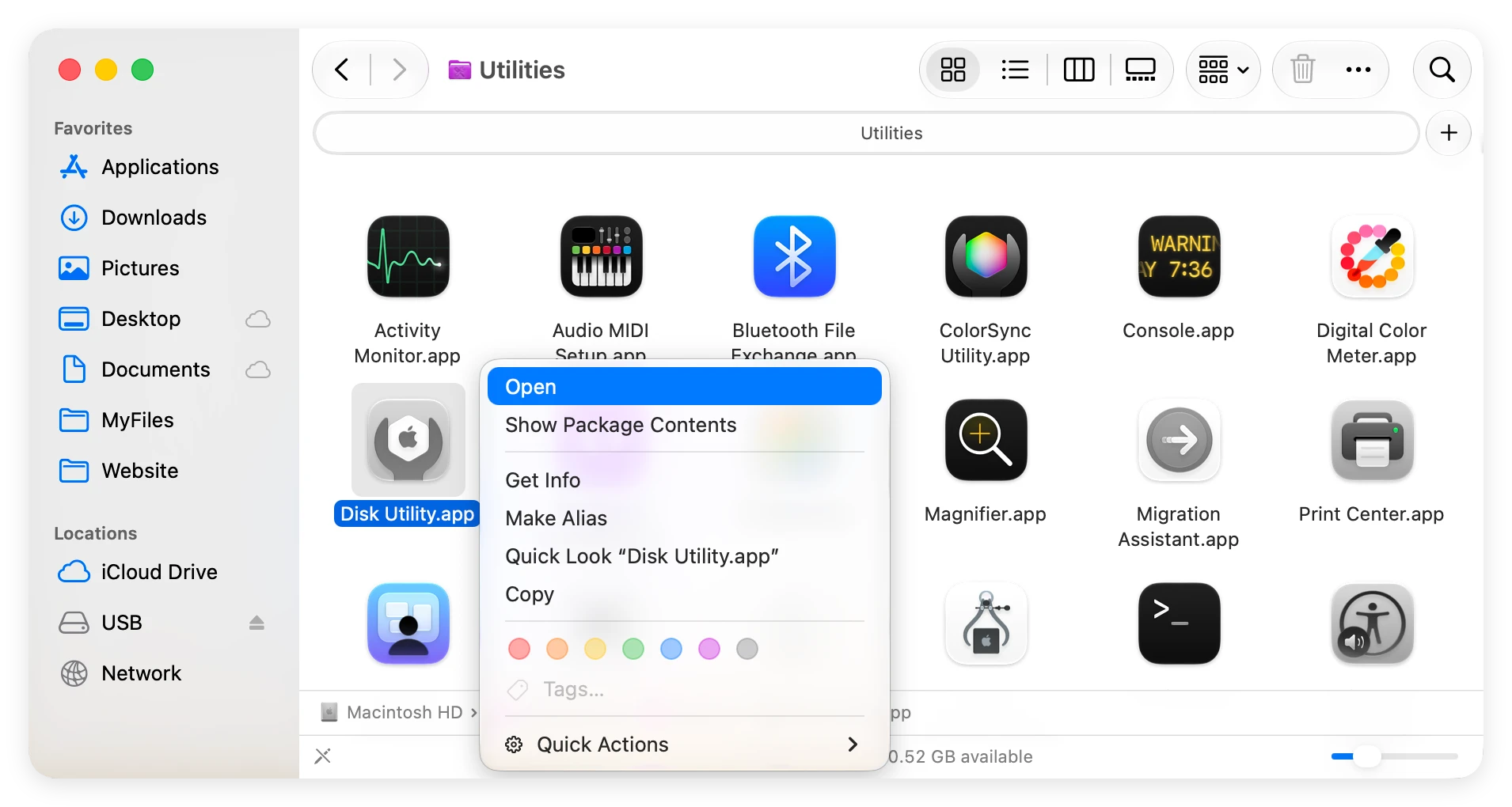
If your drive was unexpectedly disconnected, minor disk errors can cause macOS 27 Golden Gate to lock the drive in read-only mode to prevent file corruption. Running Disk Utility First Aid can repair these minor faults.
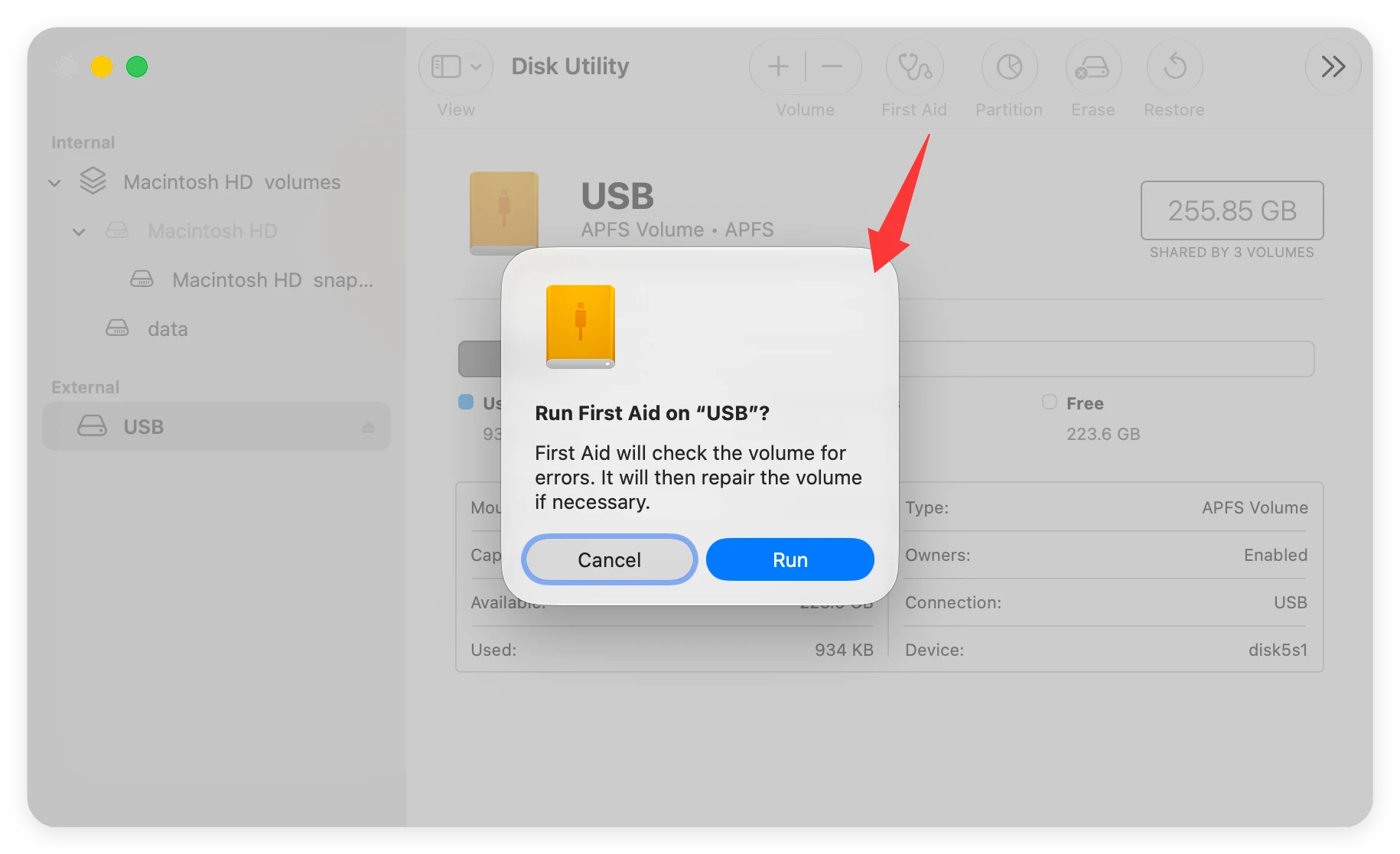
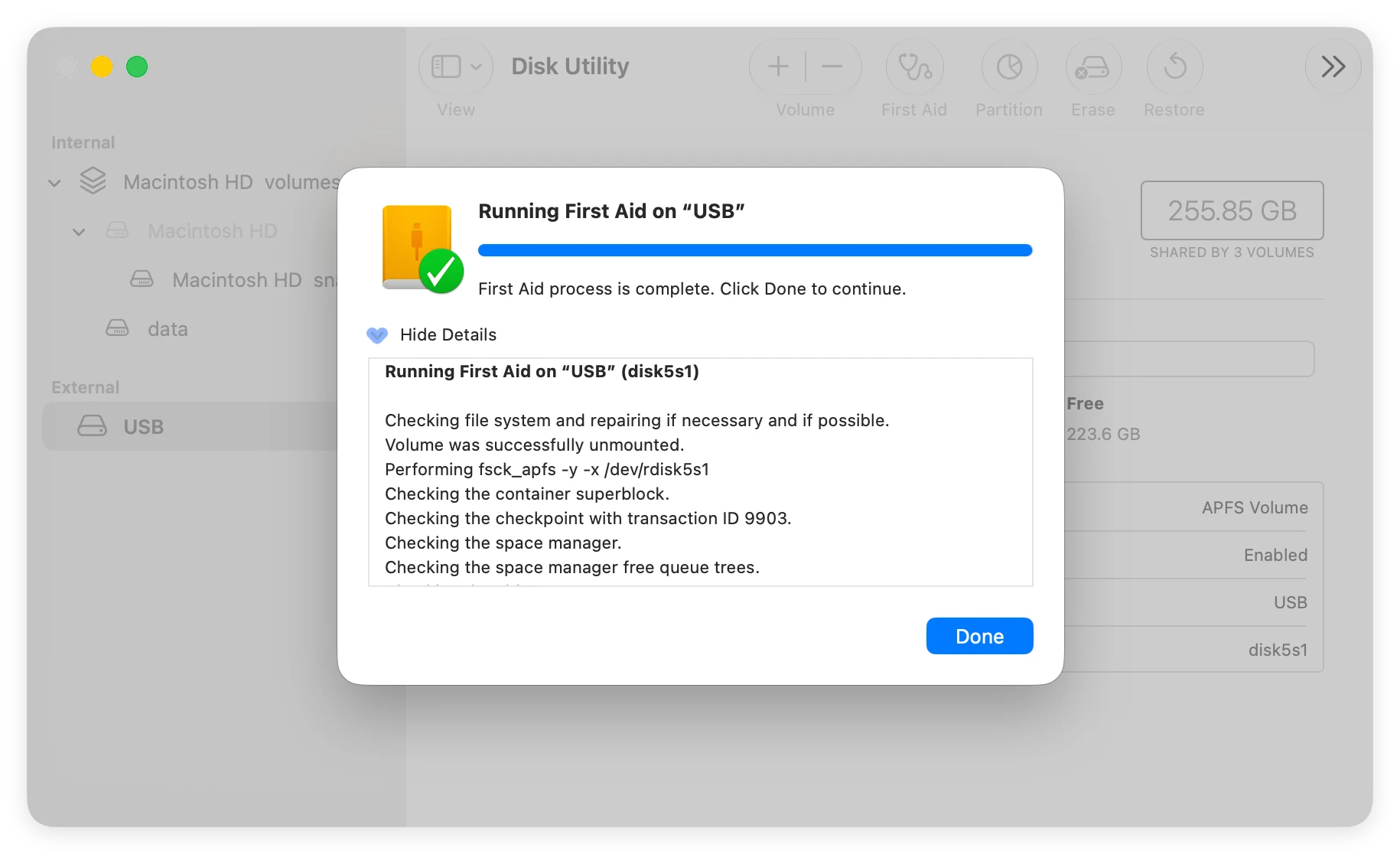
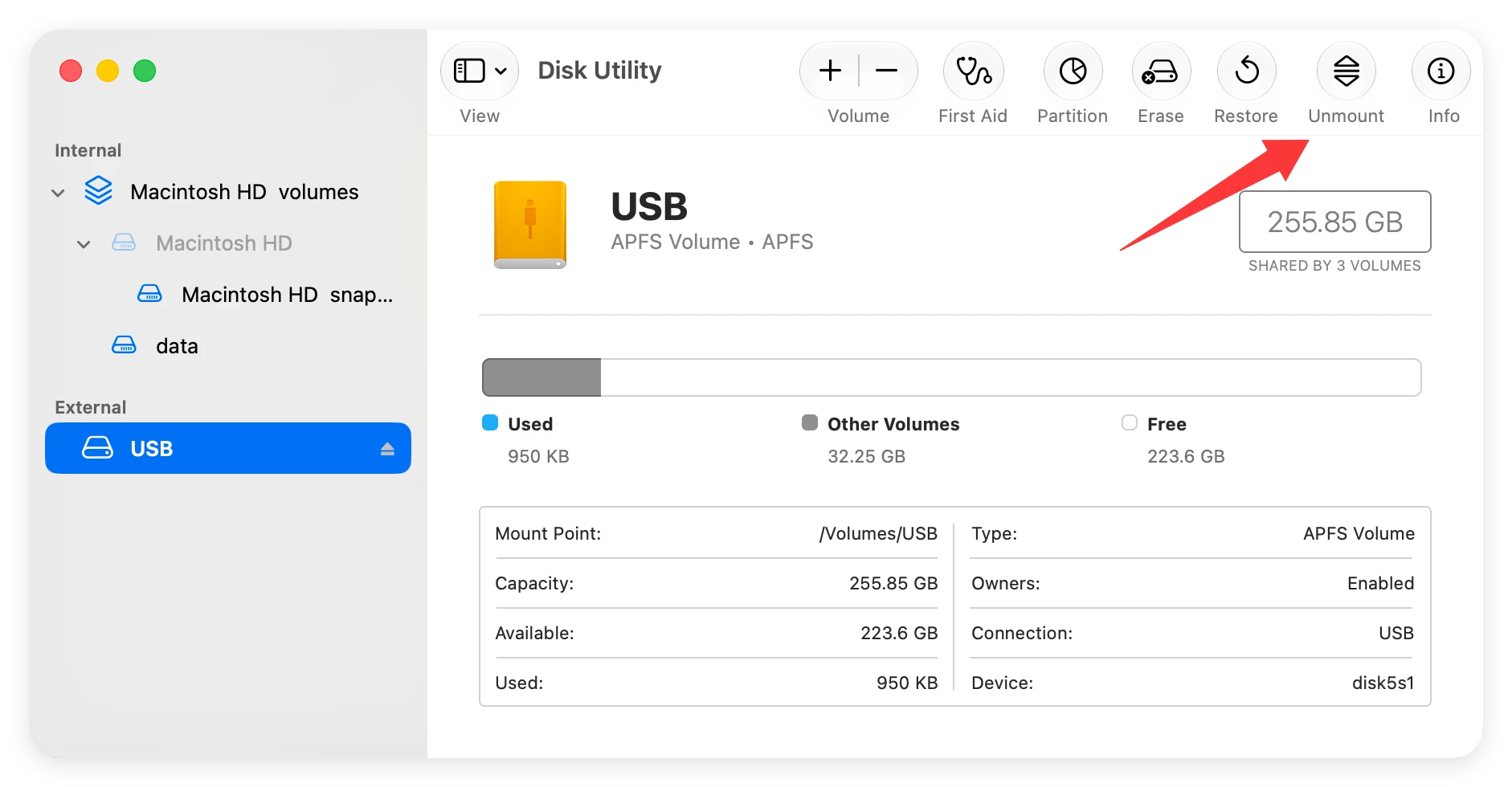
Unmount and re-connect your drive to see if write capability has been restored.
Sometimes a background system process holds onto the external drive, locking write permissions. Safely unmounting and re-mounting the volume will refresh system connections.
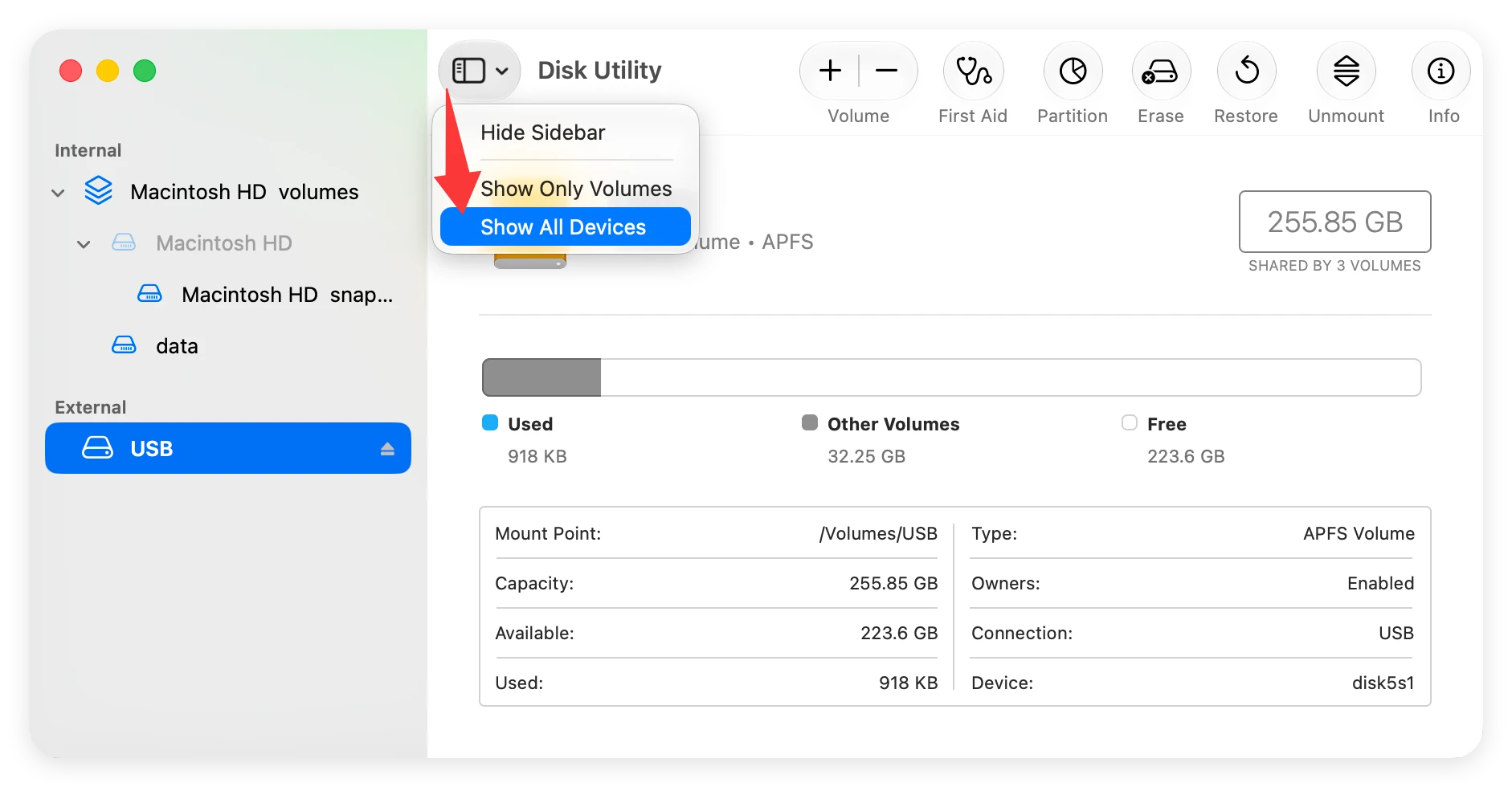
If you don't need cross-platform compatibility with Windows, or if you don't mind wiping the drive, you can reformat it to a native Mac format such as APFS, Mac OS Extended (Journaled), or exFAT.
Important Note: Formatting will erase all data on the external hard drive. Make sure to back up all important files to another storage device or cloud service before proceeding!
Steps to Reformat Your Drive on macOS 27 Golden Gate:
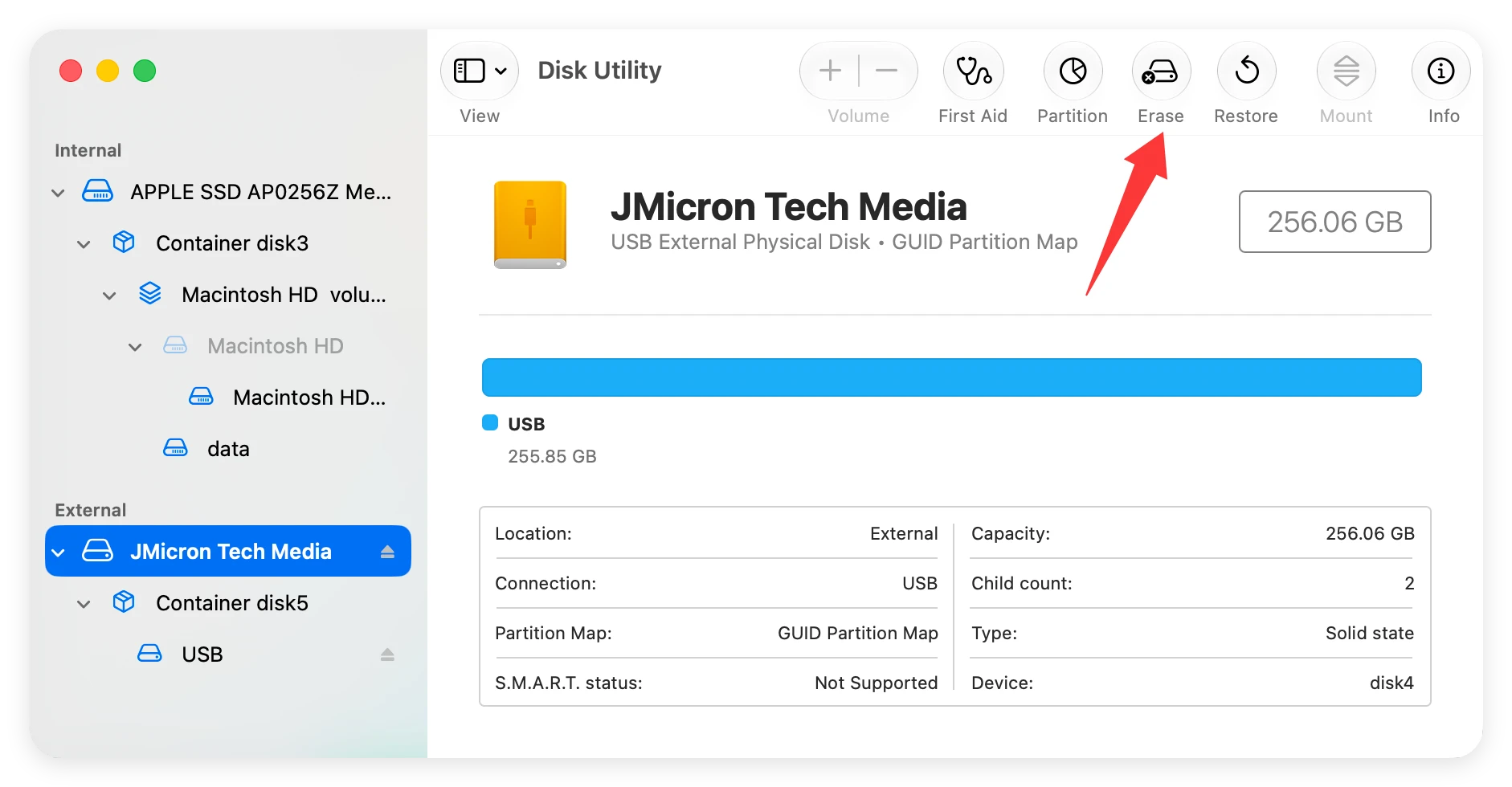
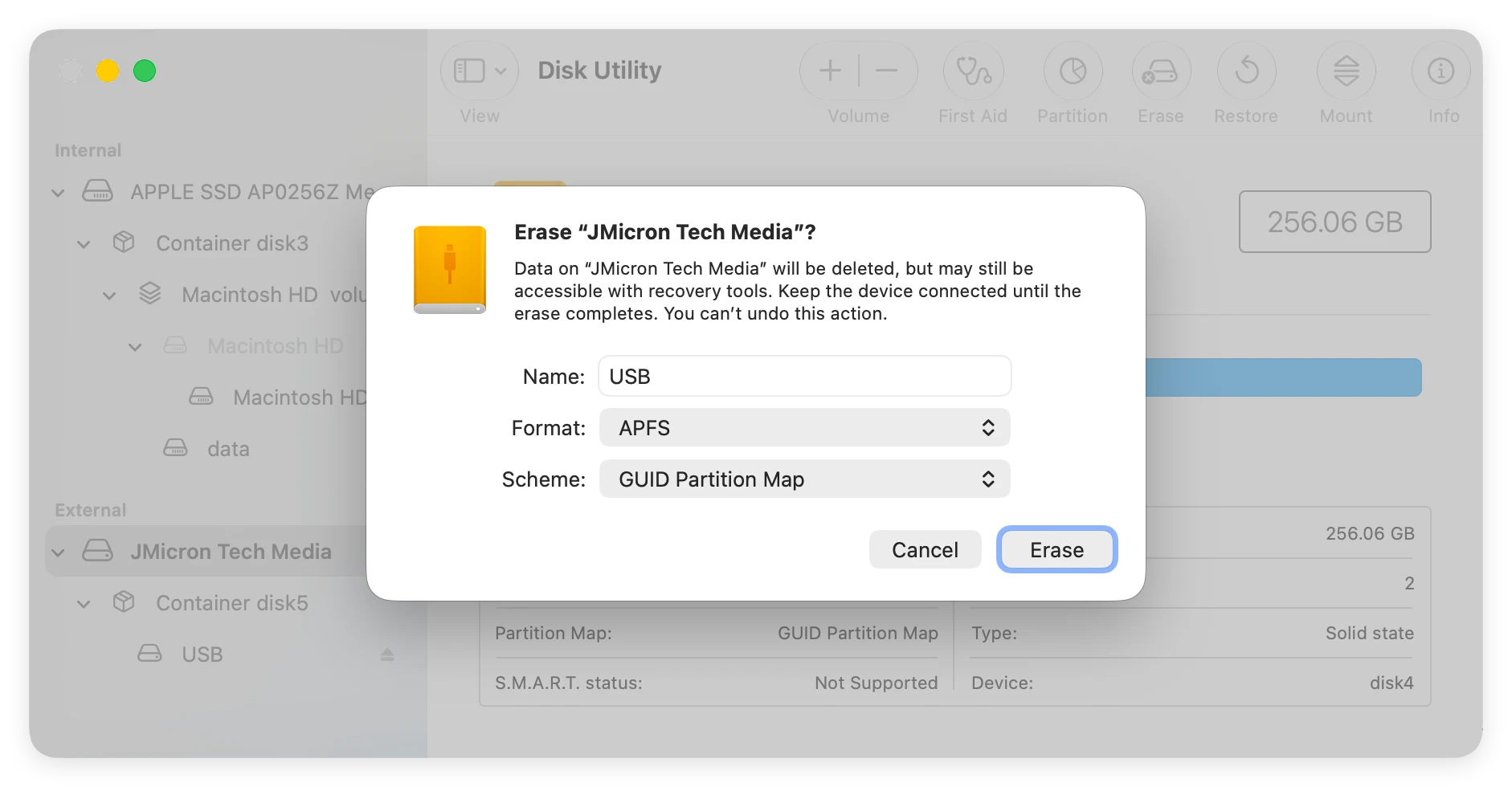
Once formatting is complete, your external hard drive will have native write permissions on macOS 27 Golden Gate.
| Method | Target Scenario | Data Safe? | Ease of Use |
|---|---|---|---|
| Donemax NTFS for Mac | NTFS drives | Yes (No formatting) | Very Easy (1 Click) |
| Change Permissions | APFS/HFS+ read-only | Yes | Easy |
| Disk Utility First Aid | Corrupted / dirty drive | Yes | Easy |
| Remount / Restart | System glitch | Yes | Very Easy |
| Reformat Drive | Any drive (Fresh start) | No (Erases data) | Moderate |
Facing the issue where you can't write data to external hard drive on macOS 27 Golden Gate can be frustrating, but it is easy to resolve once you identify the cause. If your drive is formatted as NTFS, downloading Donemax NTFS for Mac is the fastest, safest, and most efficient solution—allowing you to read, write, copy, and edit files seamlessly without formatting or losing data.
For non-NTFS drives, adjusting permission settings in Finder or repairing disk errors with Disk Utility will usually get your drive back to full functionality in minutes. Keep your Mac updated, practice safe eject habits, and enjoy smooth external storage performance on macOS 27 Golden Gate!
Christina
Christina is the senior editor of Donemax software who has worked in the company for 4+ years. She mainly writes the guides and solutions about data erasure, data transferring, data recovery and disk cloning to help users get the most out of their Windows and Mac. She likes to travel, enjoy country music and play games in her spare time.
Gerhard Chou
In order to effectively solve the problems for our customers, every article and troubleshooting solution published on our website has been strictly tested and practiced. Our editors love researching and using computers and testing software, and are willing to help computer users with their problems