Written byMariaUpdated on Sep 24, 2026

Before we start: NTFS drives are read-only on MacBook Neo and other Macs by default. If you need to write to NTFS drives on MacBook Neo, how to deal with the situation? Use Donemax NTFS for Mac can help you make NTFS drivers writable on Mac easily with only one click.
PAGE CONTENT:
Have you plugged a Windows-formatted external hard drive or USB flash drive into your new MacBook Neo, only to find out you cannot copy, edit, or delete files? You are not alone.
By default, Apple's macOS provides read-only support for Microsoft's NTFS file system. This means your MacBook Neo can open and view files stored on an NTFS drive, but it prevents you from making any changes. If you try to drag a file onto the drive, macOS shows a grayed-out icon or blocks the action entirely.
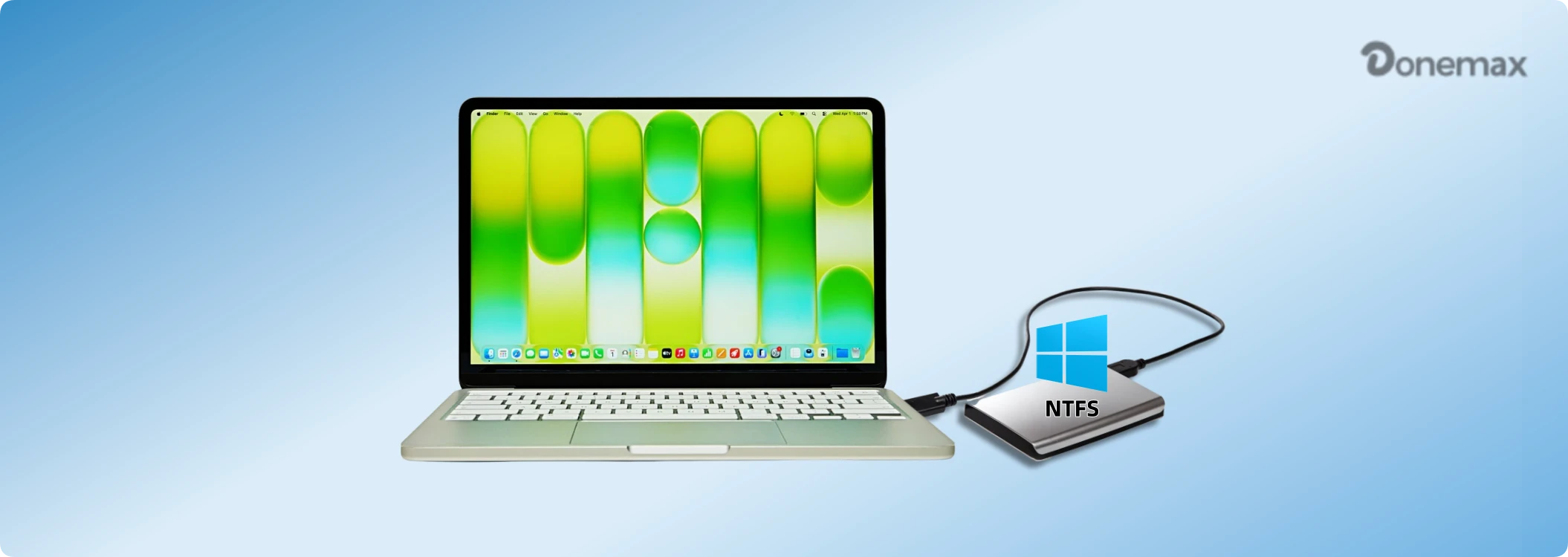
This restriction creates huge headaches for users who share external drives between Windows PCs and Macs. Luckily, you don't need to reformat your drive and lose your valuable data. With a reliable MacBook Neo NTFS for Mac free download, you can unlock full read and write permissions in seconds.
To understand why this happens, it helps to look at how different operating systems organize data:
Why Formatting Isn't the Best Option
Reformatting your external drive to exFAT or FAT32 lets both Mac and Windows write to it, but formatting wipes all existing files completely. Using a dedicated NTFS driver software like Donemax NTFS for Mac gives you instant write permissions without touching your files.
Donemax NTFS for Mac is a lightweight, high-performance NTFS utility engineered specifically for Apple Silicon and modern macOS releases. It sits quietly in your Mac's top menu bar and grants automatic read-write access whenever you plug in an NTFS drive.
Unlike older command-line workarounds, Donemax NTFS for Mac operates with complete system stability. You can open, edit, delete, move, and copy files between your MacBook Neo and any Windows NTFS drive just as fast as using an APFS drive.
⭐ Key Features:
❓ Why Choose Donemax for MacBook Neo?
Enabling read and write access on your MacBook Neo takes less than two minutes. Follow these simple steps using Donemax NTFS for Mac:
Step 1: Download and Install Donemax NTFS for Mac
Get your MacBook Neo NTFS for Mac free download directly from the official Donemax website. Double-click the installer package and follow the quick setup wizard.
Step 2: Connect Your NTFS External Drive to MacBook Neo
Plug your Windows NTFS external hard drive, SSD, or USB thumb drive into your MacBook Neo's Thunderbolt/USB-C port. Check and make sure the drive is recognized in Finder on the MacBook Neo.
Step 3: Launch Donemax and Mount NTFS Drive Writable
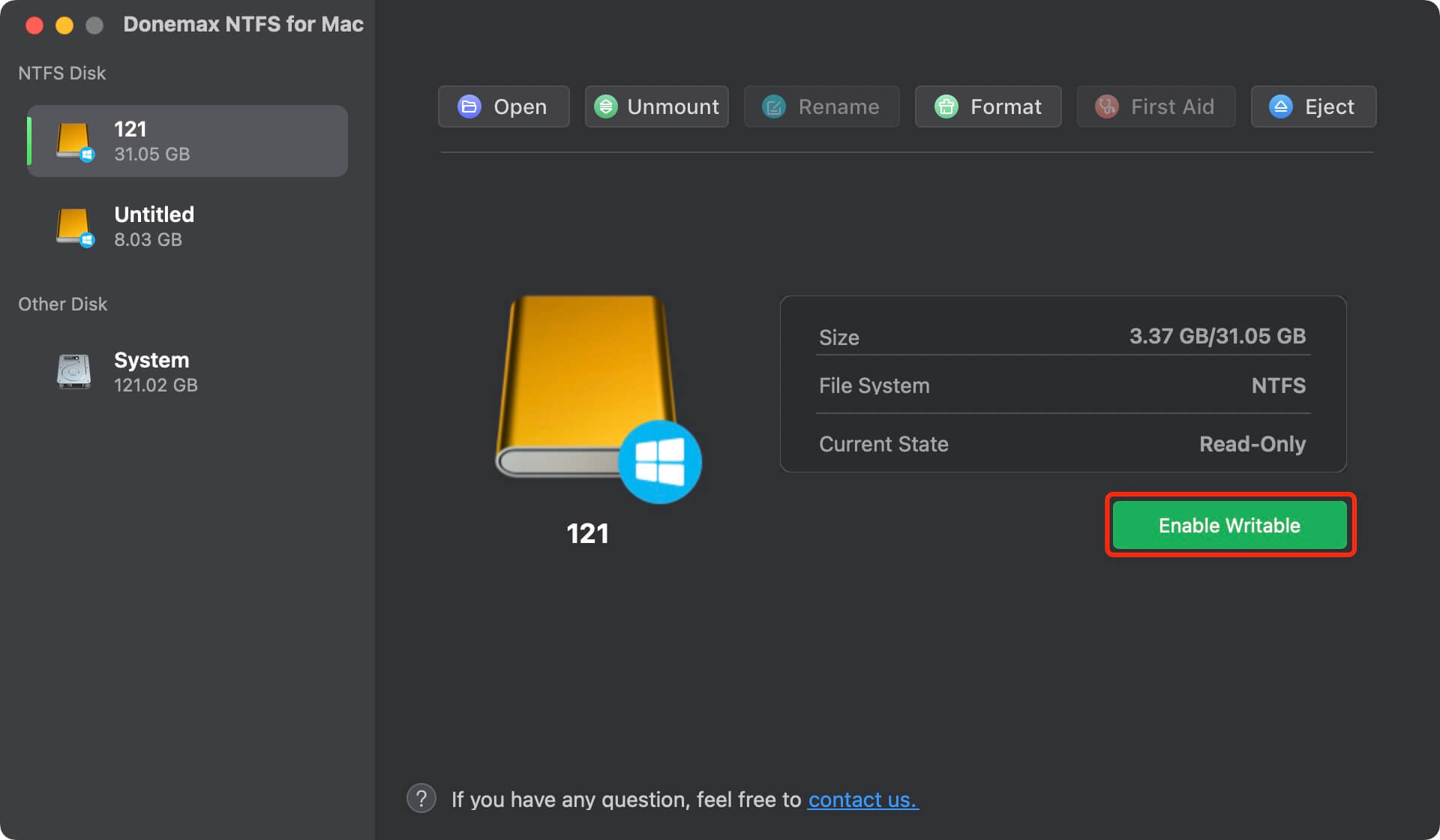
Open Donemax NTFS for Mac. The app will automatically detect your connected drive. Click the 'Enable Writable' button. The software will then mount the NTFS drive as writable on MacBook Neo.
Step 4: Edit and Transfer Files Freely
Your NTFS drive will now appear in Mac Finder with full read and write access. You can now drag and drop files, create folders, and edit documents seamlessly!
Don't let Apple's default read-only restriction slow down your workflow or prevent you from sharing files with Windows users. By using a reliable utility like Donemax NTFS for Mac, you can eliminate file transfer barriers instantly.
Ready to get full control over your external hard drives? Get your MacBook Neo NTFS for Mac free download today from Donemax and enjoy effortless read-write performance across all your storage devices!
Maria
Maria is one of the senior writers & editors of Donemax who lives and works in Sydney, Australia. She loves PC, Mac and Internet Technology. She has 6 years of writing articles about data recovery on PC/Mac, disk cloning solution, data eraser and computer OS optimization, etc. She is also interested in testing various software and digital products.
Gerhard Chou
In order to effectively solve the problems for our customers, every article and troubleshooting solution published on our website has been strictly tested and practiced. Our editors love researching and using computers and testing software, and are willing to help computer users with their problems