6 Solutions to Fix Can't Format SSD in Disk Management

Charles
Written byCharlesUpdated on May 20, 2026

Gerhard Chou
Approved byGerhard Chou

Table of Contents

PAGE CONTENT:

Solid State Drives (SSDs) are essential storage devices that offer faster speeds, greater reliability, and improved energy efficiency compared to traditional hard drives. However, like any other hardware component, they can encounter issues. One common problem is the inability to format an SSD using Windows Disk Management. This issue can be frustrating, especially when you need to erase the drive, change its file system, or prepare it for a new use. This article explores the potential causes of this problem and provides step-by-step solutions to help you fix it.
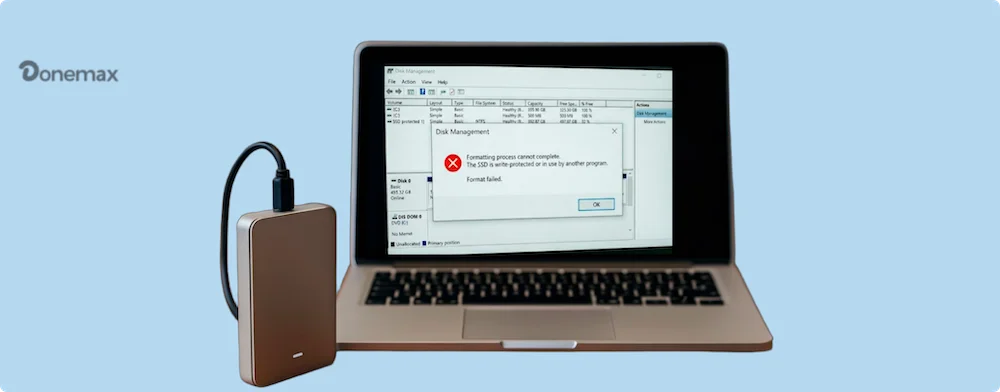
Disk Management fails to format an SSD

Why You Can't Format SSD in Disk Management

1. Drive or Partition Issues: If a partition is corrupt, damaged, or improperly configured, it can prevent formatting.

2. Write Protection: Write protection is another common culprit. It prevents any changes to the data on the SSD, including formatting.

3. System-Specific Problems: The issue might not lie with the SSD itself but with your operating system. Another possibility is a bug or glitch within the Disk Management utility.

4. Hardware or Firmware Issues: More serious problems can arise from the hardware or firmware of the SSD. If hardware damage is the root cause, you may need to replace the SSD entirely.

6 Solutions for Unable to Format SSD Issue

Solution 1. Quick Fixes for Can't Format SSD in Disk Management

Before diving into advanced fixes, start with basic troubleshooting steps.

  • Restart Your Computer: A simple reboot can resolve temporary glitches that might be preventing Disk Management from functioning properly.
  • Check the SSD Connection: Ensure the SSD is securely connected to your computer. For internal SSDs, verify that the SATA cables are properly plugged in. For external SSDs, ensure the USB cable and port are functioning correctly.

Solution 2. Remove Write Protection of the SSD

If your SSD is write-protected, follow these steps to remove the restriction.

Using Diskpart to Remove Write Protection

Diskpart is a powerful command-line tool built into Windows that can manage disk partitions. Here's how to use it:
  1. To launch Command Prompt as an administrator, press Win + R, type cmd, and then press Ctrl + Shift + Enter.
  2. Press Enter after typing diskpart.
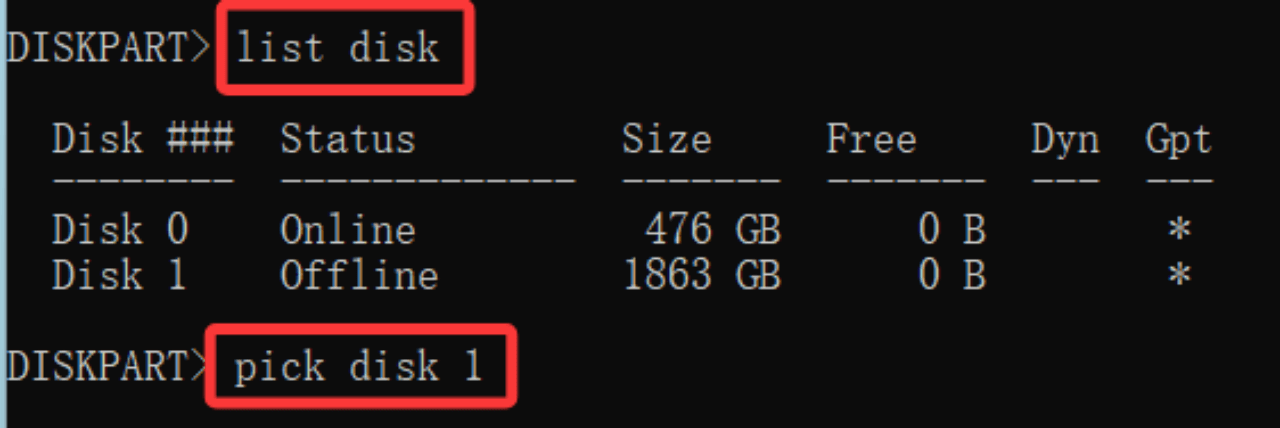
  3. Type list disk into the Diskpart terminal and hit Enter. From the list of disks, select your SSD.
  4. Type select disk X (substitute "X" with your SSD's disk number) to choose your SSD, then hit Enter.

    Disk Management fails to format an SSD

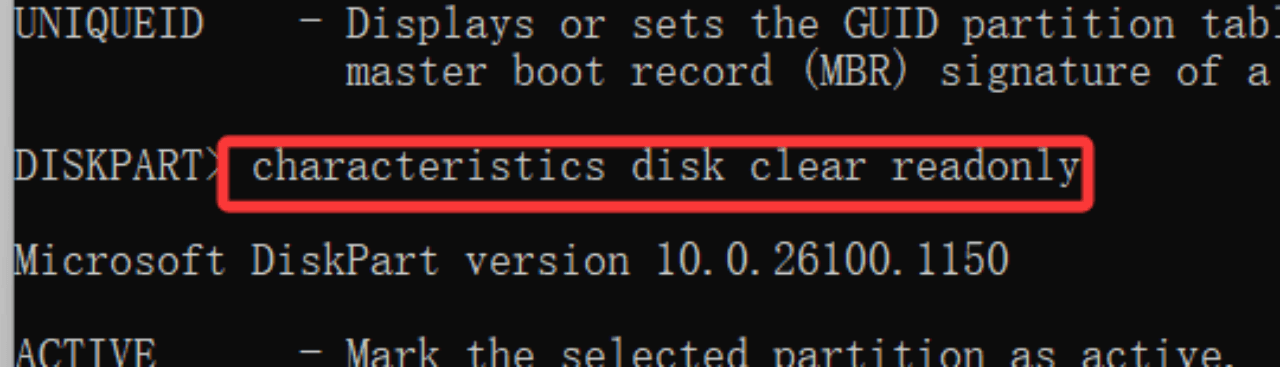
  5. Press Enter after typing characteristics disk clear readonly. With this command, the disk's write protection is removed.

    Disk Management fails to format an SSD

  6. Close Diskpart and try formatting the SSD again in Disk Management.

Using Registry Editor

You can also remove write protection by modifying the Windows registry:
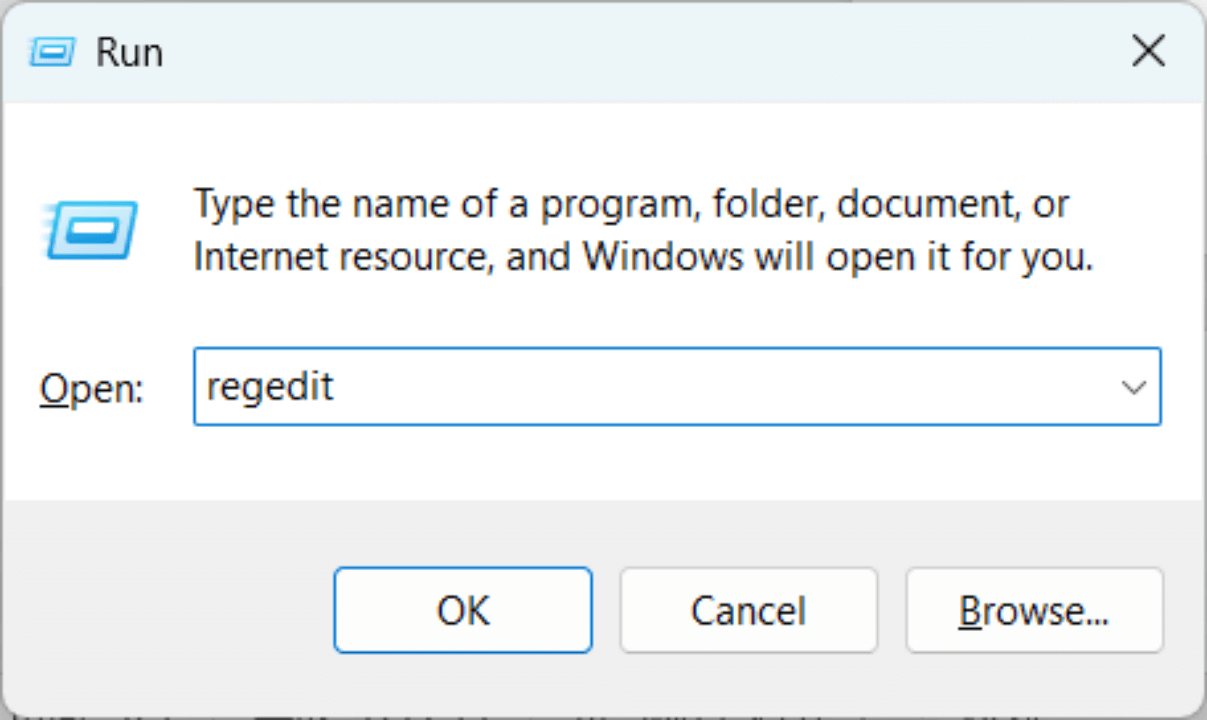
  1. Type regedit using Win + R, then hit Enter.

    Disk Management fails to format an SSD

  2. HKEY_LOCAL_MACHINE\SYSTEM\CurrentControlSet\Control\StorageDevicePolicies is the second location to visit.
  3. Right-click Control, choose New > Key, and give it the name StorageDevicePolicies to create a StorageDevicePolicies key if you don't already have one.
  4. Create a new DWORD value called WriteProtect inside StorageDevicePolicies.
  5. Select WriteProtect with a double-click and adjust its value to 0.
  6. Restart your computer and try formatting the SSD again.

Solution 3. Use Diskpart to Format the SSD

If Disk Management fails to format your SSD, you can use Diskpart as an alternative:
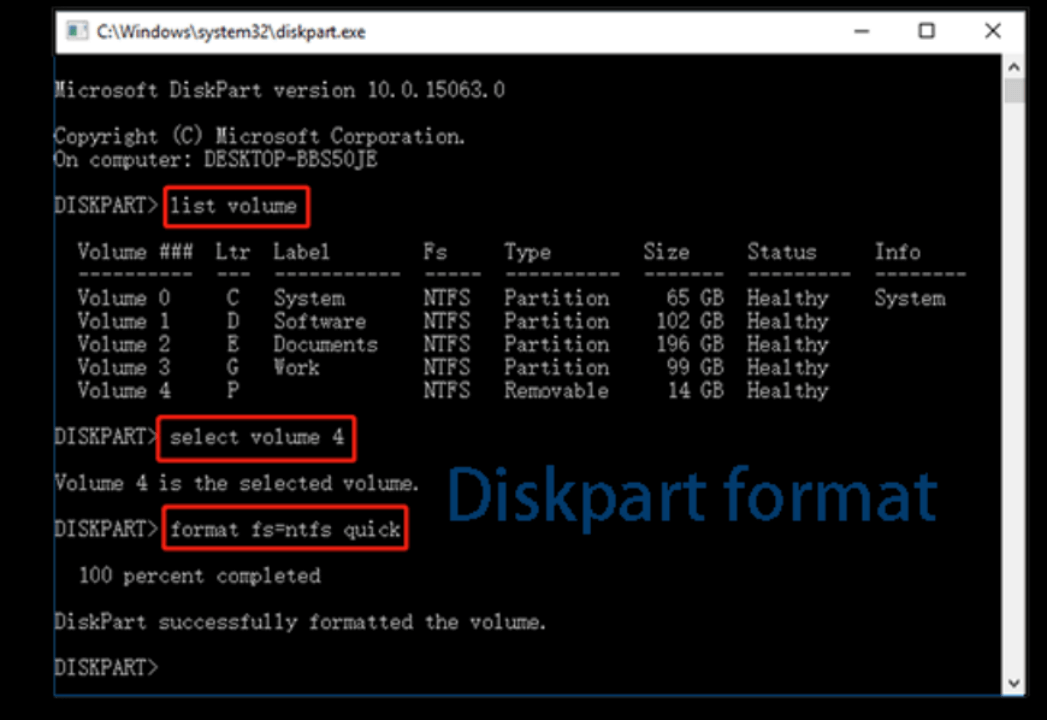
  1. Launch Diskpart after opening Command Prompt as an administrator.
  2. To view all attached disks, type list disk and hit Enter.
  3. Use select disk X to choose your SSD; substitute the SSD's disk number for "X" here.
  4. To remove every partition on the drive, type clean and hit Enter.
  5. Use the create partition primary command to create a new partition, then hit Enter.
  6. Format the partition using format fs=ntfs quick (or use format fs=fat32 quick if you prefer FAT32).

    Disk Management fails to format an SSD

  7. Assign a drive letter with assign and press Enter.

This process bypasses Disk Management and performs a clean format of the SSD.

Solution 4. Update SSD Firmware or Drivers

Outdated firmware or drivers can cause compatibility issues with Disk Management. Here’s how to update them:

Updating Drivers via Device Manager
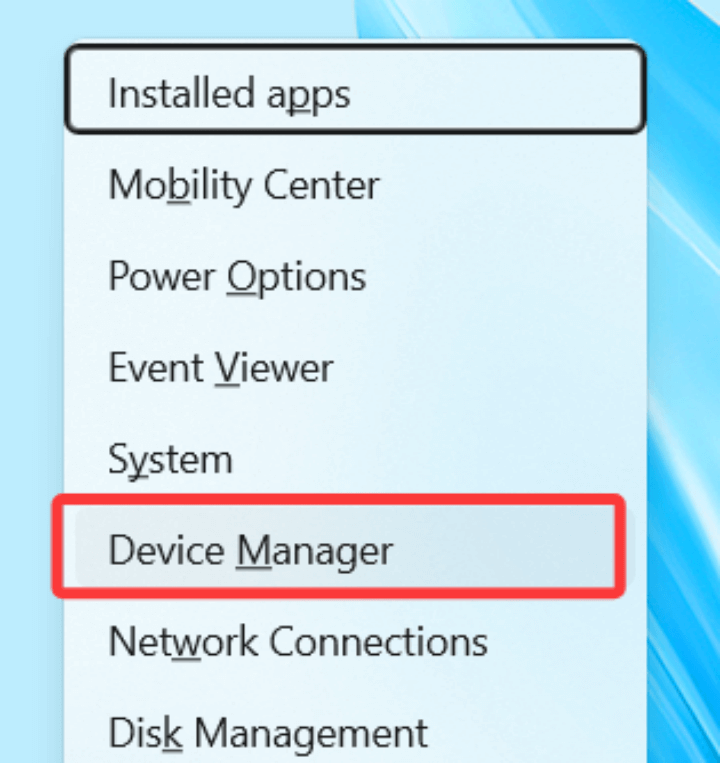
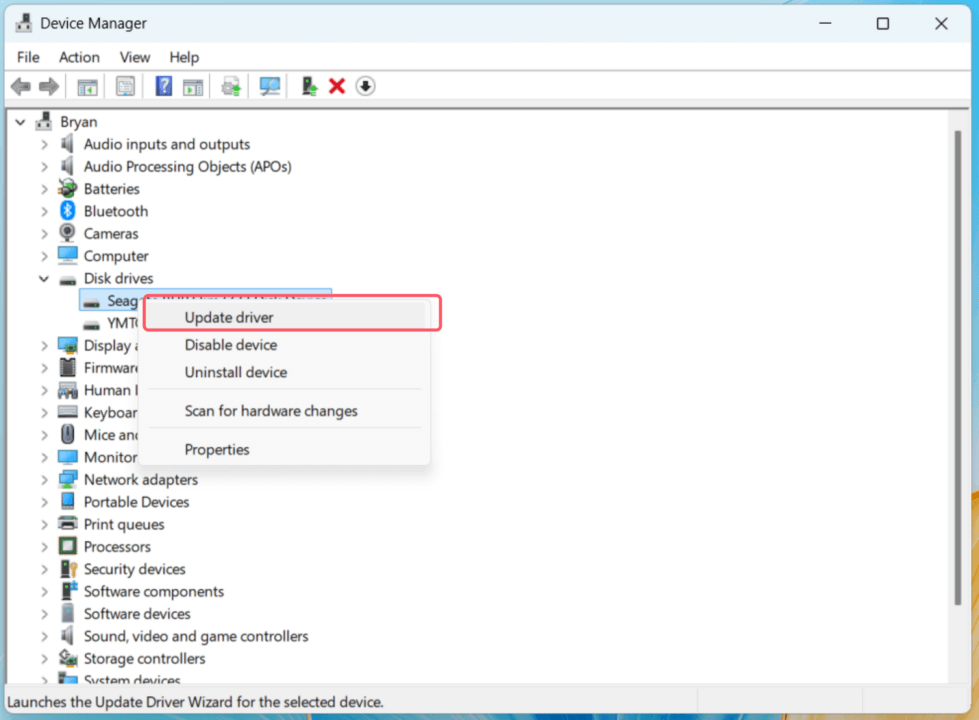
  1. Choose Device Manager by pressing Win + X.

    Disk Management fails to format an SSD

  2. Locate your SSD by expanding the Disk drives section.
  3. To update the driver, right-click on the SSD and choose Update driver.

    Disk Management fails to format an SSD

  4. Select "Search automatically for drivers" and adhere to the instructions.

    Disk Management fails to format an SSD

Updating Firmware Using Manufacturer Tools

Most SSD manufacturers provide proprietary software for managing their drives. Examples include Samsung Magician, Crucial Storage Executive, and WD SSD Dashboard. Download the appropriate tool from the manufacturer’s website and use it to check for firmware updates.

Solution 5. Use Third-Party SSD Formatting Tools

If Windows tools fail, third-party disk management software can often handle the task. Popular options include:

Donemax Data Eraser:

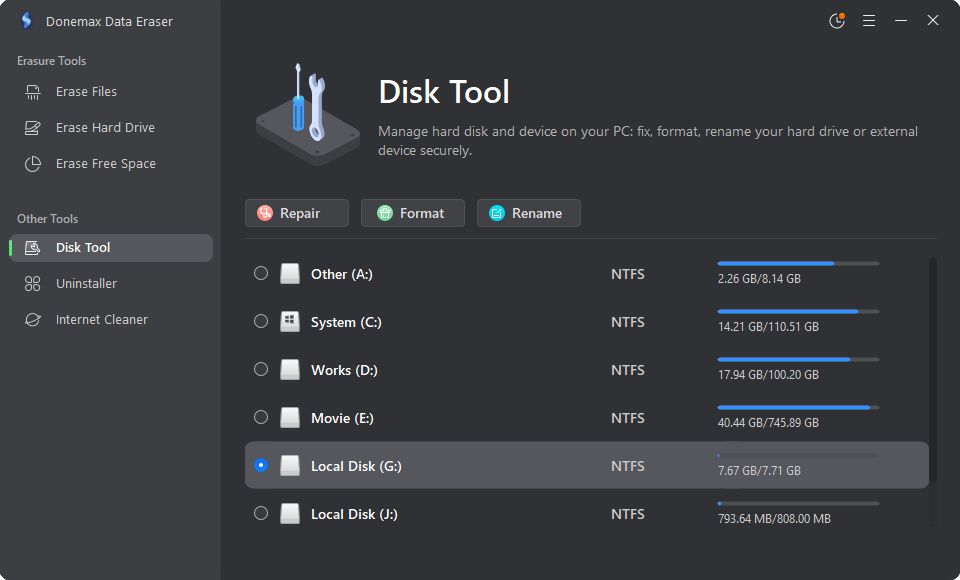
This disk wipe software can help you force format a SSD which can't be formatted by your computer. It will format and wipe the SSD and permanently erase all data from it, ensure no data is recoverable.

If you only want to format your SSD, just choose Disk Manager, select the SSD, click on Format button to format the SSD to NTFS or ExFAT.
Donemax Data Eraser

Solution 6. Checking for Hardware Issues

If none of the above solutions work, your SSD may have a hardware problem. Use diagnostic tools provided by the SSD manufacturer to check for errors. For example, Samsung SSD users can run diagnostics through Samsung Magician. If the tool identifies a problem, contact the manufacturer's support team for repair or replacement options.

Prevent Future SSD Issues:

Once you've resolved the issue, take steps to prevent similar problems in the future:

  • Perform Regular Maintenance: Keep your SSD healthy by running periodic diagnostics and avoiding unnecessary write operations.
  • Update Firmware and Drivers: Always keep your SSD's firmware and drivers up to date to ensure compatibility with your system.
  • Handle Write Protection Carefully: Use write protection only when necessary and remember to disable it when you need to modify or format the drive.
  • Back Up Your Data: Regular backups can save you from data loss during formatting or repair operations.

💡 Note: If you want to export inaccessible data from your SSD or recover deleted/formatted data from your SSD, you can use data recovery program - such as Donemax Data Recovery to deeply scan the SSD and find all recoverable files. Then select the wanted files, click on Recover button to save them to another drive.

FAQs about SSD Can't Format Issue

The format option usually becomes unavailable or greyed out for three specific reasons:
  • The volume you are trying to format contains critical system files, such as the active boot partition or page files (Windows protects these from accidental deletion).
  • The drive has a corrupted file system architecture that Disk Management cannot natively interpret.
  • The SSD is completely unallocated. In this case, you must right-click the unallocated space and choose New Simple Volume before you can format it.
If your SSD has software-based write protection enabled, Windows will block all formatting attempts. You can override this using the built-in Diskpart utility:
  1. Press Win + R, type cmd, and press Ctrl + Shift + Enter to launch Command Prompt as an Administrator.
  2. Type diskpart and press Enter.
  3. Type list disk to find your SSD's drive number.
  4. Type select disk X (replace X with your actual drive number).
  5. Execute the command: attributes disk clear readonly. This instantly strips the write restriction away, allowing normal formatting.
No, formatting does not physically harm a Solid State Drive. It simply clears the logical data tables and prepares a fresh file structure (like NTFS or exFAT) for data storage. However, if an older SSD repeatedly triggers write protection by itself, it might mean the drive has run out of write cycles and has entered a permanent hardware-level read-only mode to safeguard your existing data before failing completely.
Windows Disk Management cannot natively format or interact with Linux file systems like ext4, ext3, or ext2. When you plug in a Linux-formatted SSD, it may show up as an "RAW" or unrecognized partition, often causing Disk Management to freeze or throw an error during a format request. To fix this, you should use the clean command in Diskpart to wipe the partition table entirely before creating an NTFS partition.
If both Disk Management and Diskpart fail, your drive likely has deeply corrupted partition tables or bad storage sectors. Your best course of action is to use dedicated software like Donemax Data Eraser. Using its built-in Disk Manager module, you can force format problematic solid-state drives, or utilize its data erasure tools to completely wipe and rebuild the drive's structure from scratch.

Conclusion

Encountering an unformattable SSD in Disk Management can be a hassle, but the solutions provided in this guide should help you resolve the issue. From basic troubleshooting to advanced tools like Diskpart, these methods cover a range of scenarios. If the problem persists despite your efforts, consider seeking professional help or contacting your SSD's manufacturer for support.

Maintaining the health of your SSD is essential for optimal performance. By following the preventative measures outlined above, you can minimize the risk of encountering similar problems in the future. Remember, an SSD is a powerful tool, but like all technology, it requires proper care and attention.

If you have lost data due to formatting SSD or fixing damaged SSD, you can use data recovery program - such as Donemax Data Recovery to help you get the lost data back.

logo stage

Donemax Data Recovery

Powerful, safe & easy-to-use data recovery software to easily and completely recover deleted, formatted, inaccessible and lost data from PC, Mac, HDD, SSD, USB drive, camera, SD card, RAID and other storage devices.

Charles
Contributing Writer

Charles

Charles, who lives in Sydney, Australia, is an editor & writer of Donemax Team. He is good at writing articles related with Apple Mac computers, Windows operating systems, data recovery, data erasure, disk clone and data backup, etc. He loves reading and playing tennis in his spare time and is interested in testing new digital devices such as mobile phones, Macs, HDDs, SSDs, digital cameras, etc.

Gerhard Chou
Editor in chief

Gerhard Chou

In order to effectively solve the problems for our customers, every article and troubleshooting solution published on our website has been strictly tested and practiced. Our editors love researching and using computers and testing software, and are willing to help computer users with their problems