
Written byStevenUpdated on Aug 10, 2026

Before we start: Traditional multi-pass overwrite methods designed for HDDs will drastically degrade SSD health. To wipe an SSD safely, rely on hardware-level firmware commands (ATA Secure Erase / NVMe Sanitize) or dedicated software optimized for flash storage like Donemax Data Eraser.
PAGE CONTENT:
Solid-state drives (SSDs) are standard in almost all modern PCs and laptops. They offer blazingly fast read and write speeds, low latency, and high energy efficiency. However, when it comes time to sell your computer, donate an old drive, or clear out sensitive personal files, wiping an SSD is completely different from wiping a traditional hard disk drive (HDD).
If you use traditional disk wiping utilities that repeatedly overwrite sectors with multiple passes (such as 7-pass or 35-pass overwrite methods), you risk writing tens or hundreds of gigabytes unnecessarily. This inflicts severe wear on NAND flash memory cells and significantly degrades the drive's total lifespan. In this guide, we will show you how to securely erase SSD without damaging drive life using safe, smart erasure technologies.
To understand why old wiping methods ruin solid-state drives, we must look at how SSDs handle data writing differently than magnetic hard drives.
Before initiating any disk wiping process, make sure to perform the following steps:
For most users, navigating BIOS menus or typing command-line prompts can be intimidating and prone to error. Donemax Data Eraser offers a safe, user-friendly, and powerful solution designed specifically to handle both HDDs and modern SSDs.
Donemax Data Eraser implements high-efficiency erasure standards tailored to prevent unnecessary write operations. It ensures 100% irrecoverable data removal while preserving the health and longevity of your NAND flash chips.
Step 1: Download, install, and launch Donemax Data Eraser on your Windows or Mac computer.
Step 2: Choose the 'Erase Hard Drive' mode from the main interface. Select your target SSD from the list of available storage drives. Double-check to ensure you selected the correct drive.
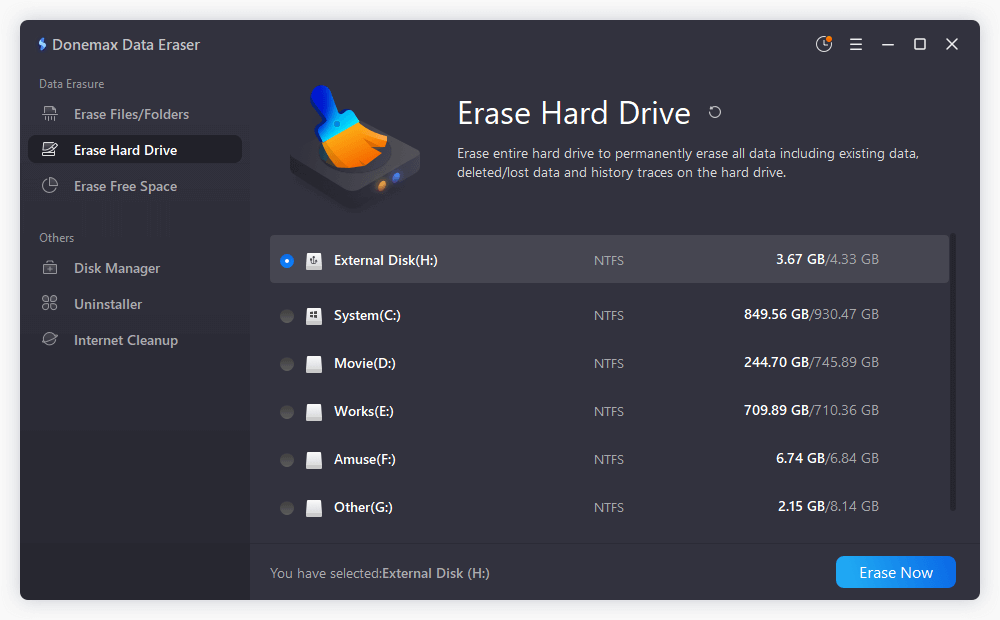
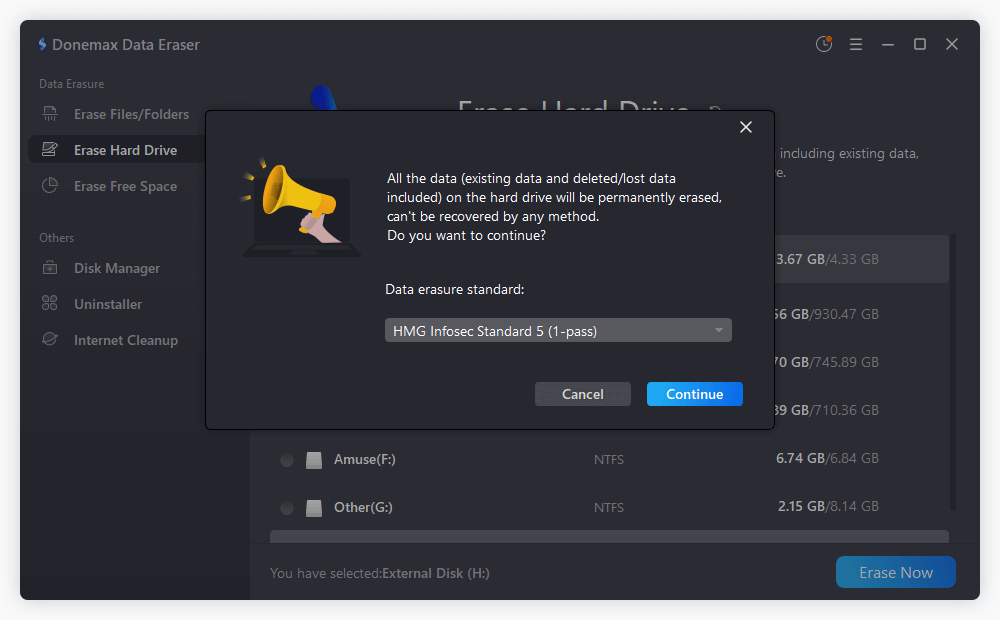
Step 3: Click the 'Erase Now' button. Then You will be asked to select a data erasure algorithm from the drop-down list. After confirming the selection, click Continue to start data wiping.
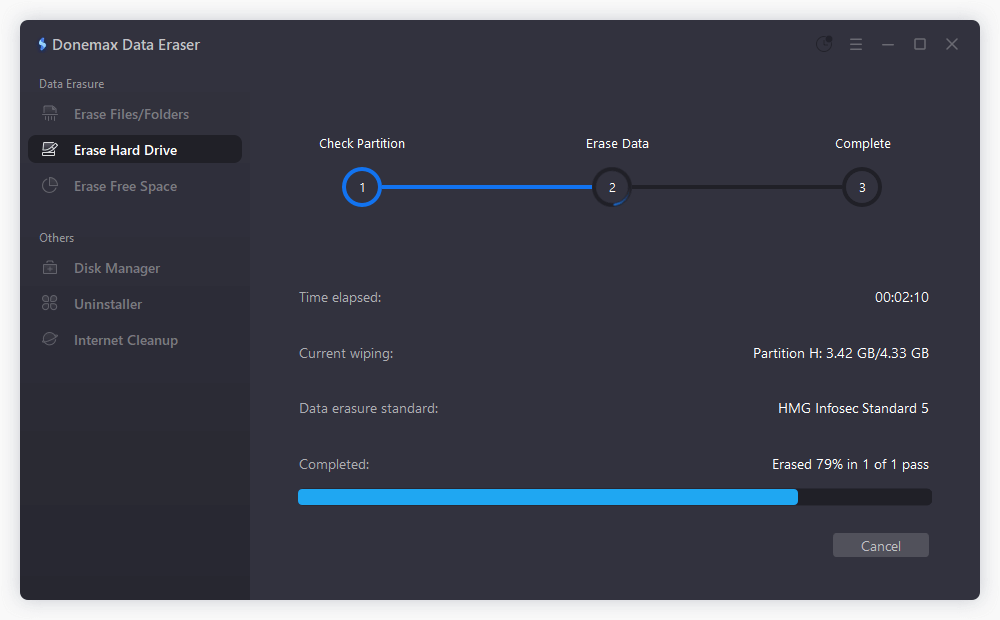
Step 4. Donemax will wipe all data blocks, rendering all stored files completely unrecoverable without causing excessive flash wear.
If you want to erase a drive at the hardware level, modern SSD firmware includes built-in secure erasure protocols called ATA Secure Erase (for SATA drives) and NVMe Sanitize (for PCIe/NVMe drives).
Instead of writing gigabytes of garbage data over the entire drive, these commands send a high-voltage pulse to all NAND flash cells simultaneously or reset the drive's internal encryption key. This wipes the whole drive in just a few seconds without consuming P/E cycles.
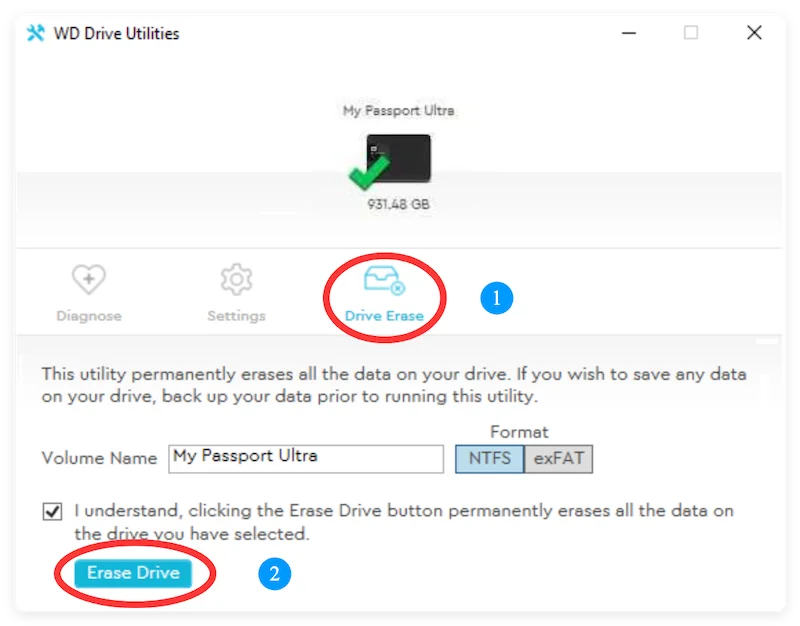
If you are selling or giving away a computer running Windows 11/10 or macOS, you can leverage native OS encryption and formatting tools.
Crypto-shredding is one of the safest and fastest ways to render an SSD unreadable without writing any data to it.
Windows 10 and 11 offer a clean reset feature that triggers TRIM and safely clears user data:
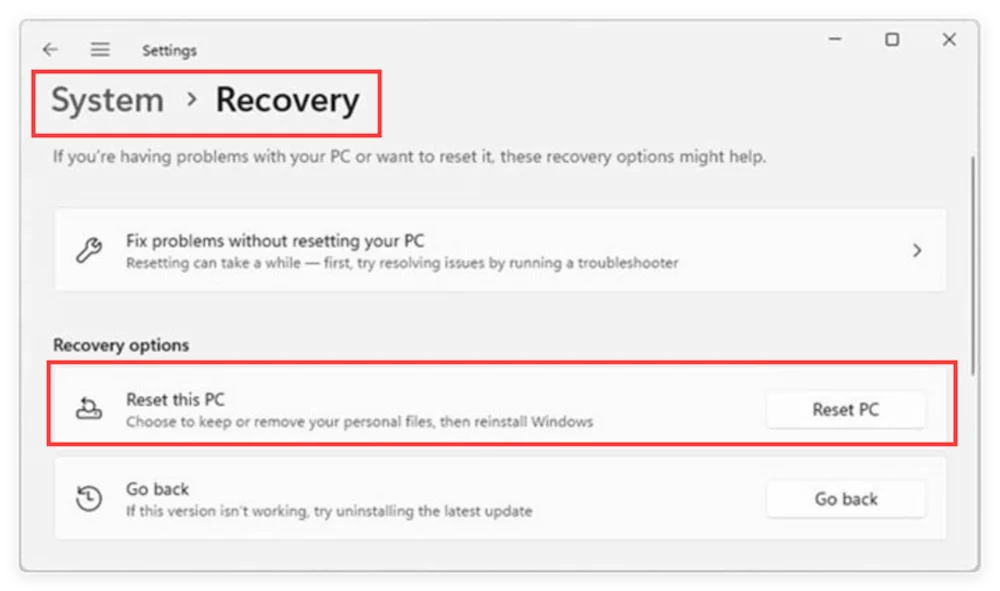
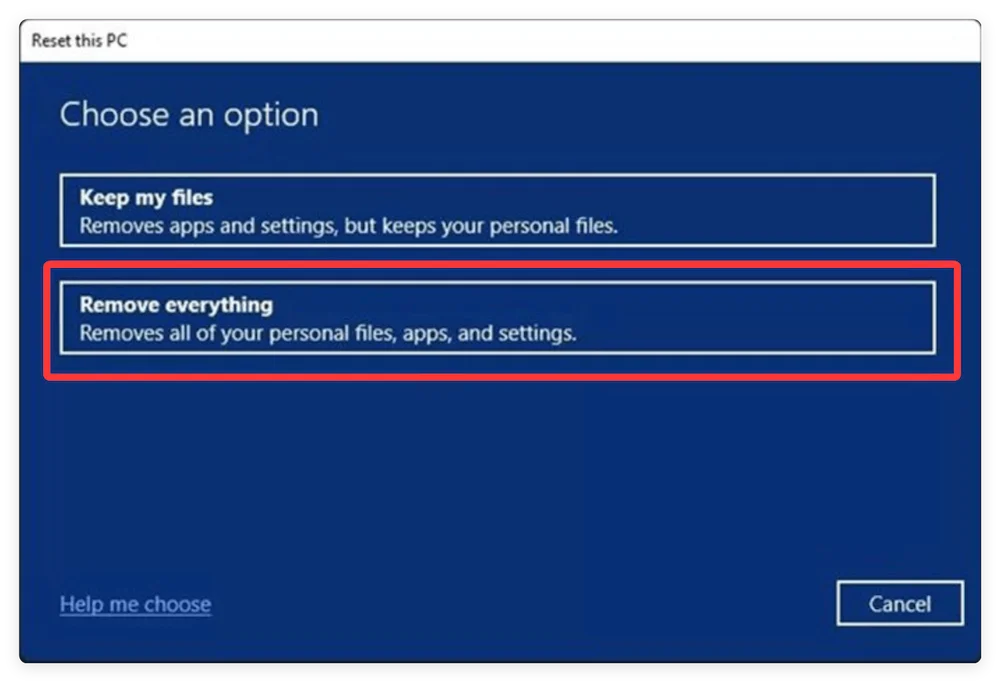
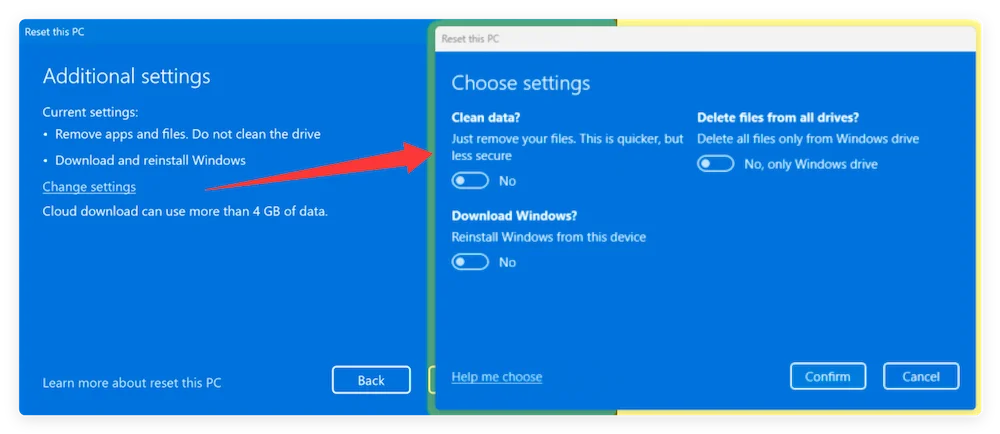
Securely erasing an SSD does not have to come at the cost of your drive's health. By avoiding aggressive, multi-pass HDD wiping tools and choosing smart erasure solutions like Donemax Data Eraser, hardware-based ATA/NVMe firmware commands, or crypto-shredding, you can achieve 100% permanent data destruction in minutes. Protect your personal privacy and preserve your solid-state drive's lifespan with the right wiping approach before handing off your drive.
Donemax Data Eraser
The best data erasure program to permanently delete data. It works on PCs, Macs, HDDs, SSDs, USB drives, digital cameras, and other devices. Once the tool erases the data, no one can recover it by any method.
Steven
Steven has been a senior writer & editor of Donemax software since 2020. He's a super nerd and can't imagine the life without a computer. Over 6 years of experience of writing technical solutions and software tesing, he is passionate about providing solutions and tips for Windows and Mac users.
Gerhard Chou
In order to effectively solve the problems for our customers, every article and troubleshooting solution published on our website has been strictly tested and practiced. Our editors love researching and using computers and testing software, and are willing to help computer users with their problems