Written byStevenUpdated on Apr 14, 2026

Before we start: There are different methods to wipe hard drive from BIOS. If you want to wipe drive without entering BIOS, you can also use the software Donemax Data Erasure.
PAGE CONTENT:
When it comes to permanently erasing a hard drive, most users think of software running in the operating system. However, sometimes you need a deeper, hardware-level wipe. This is where wiping a hard drive from the BIOS or UEFI firmware comes into play. Whether you are selling your computer, disposing of an old hard drive, or fixing persistent malware issues, securely wiping your drive ensures your data cannot be recovered.
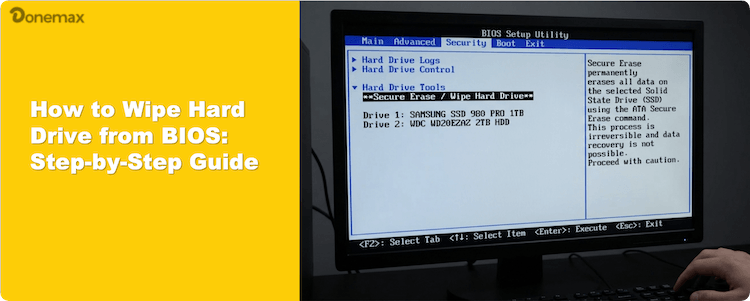
This guide explains everything you need to know about wiping HDDs and SSDs using BIOS-level methods, secure erase commands, and bootable utilities.
Most people think about formatting a drive within Windows or macOS, but sometimes you need a deeper, hardware-level clean. Whether you're disposing of an old PC or need to permanently wipe system disk data to fix persistent malware, the BIOS/UEFI firmware is your best friend.
The Difference Between BIOS and UEFI
Wiping a drive is permanent. Once you hit "Go," there is no "Undo" button.
Backup Everything: Ensure any photos, documents, or licenses are saved elsewhere. Data recovery is nearly impossible after a BIOS data erasure.
Know Your Drive: SSDs use flash memory and require "Secure Erase" commands.
HDDs are magnetic and usually require multiple "overwrites" to be safe.
Check Power: Always ensure your laptop is plugged in. A power failure mid-wipe can brick your drive.
To start the process to wipe hard drive from BIOS, you first need to get into the "command center" of your computer:
Many modern motherboards (ASUS, MSI, Gigabyte) have a built-in tool designed specifically to permanently wipe system disk SSDs using the ATA Secure Erase command.
Step 1: Enter BIOS and find the Security or Advanced tab.
Step 2: Look for SSD Storage Tool or Secure Erase.
Step 3: Select your target SSD and confirm.
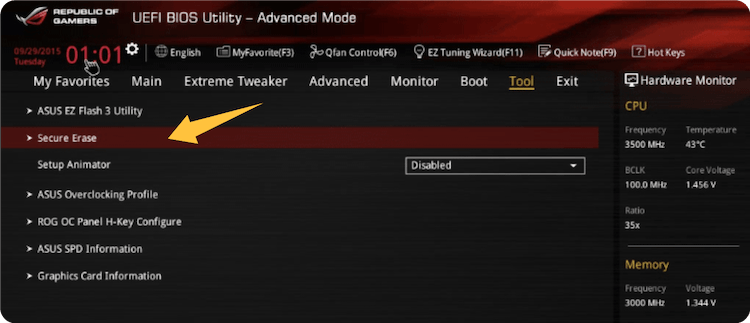
Why it works: Instead of overwriting every bit, it resets the storage cells, making it fast and incredibly effective.
If your BIOS doesn't have a built-in wipe tool, or if you are using a mechanical HDD, you'll need a bootable USB.
For HDDs: Use DBAN (Darik's Boot and Nuke)
DBAN is the gold standard for mechanical drives.
How-To: Create a bootable USB using a tool like Rufus, boot from it via BIOS, and select your drive.
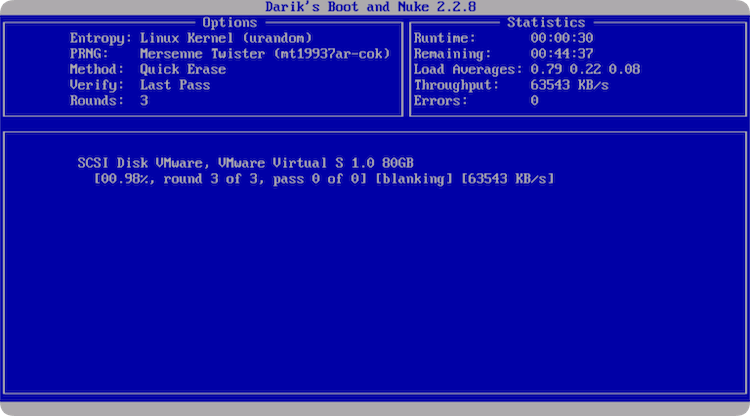
💡 Pro Tip: Choose the DoD Short or Gutmann method for maximum security.
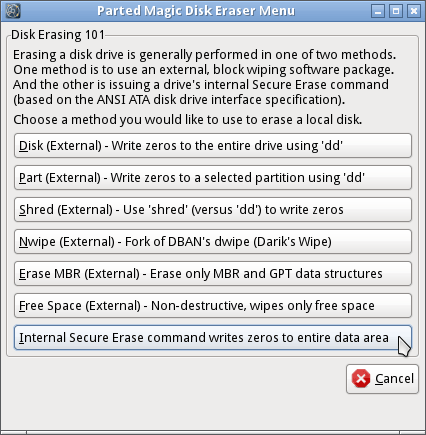
For SSDs: Use Parted Magic
Parted Magic is highly recommended for SSDs as it handles the technical "frozen" states that BIOS sometimes runs into.
Brands like Samsung, Dell, and Lenovo often include their own tools in the BIOS to manage their specific hardware.
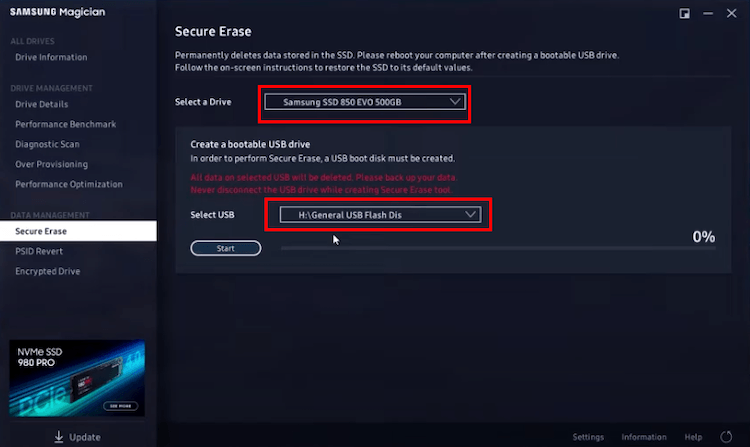
Samsung Magician: Excellent for Samsung-specific SSD secure erasure.
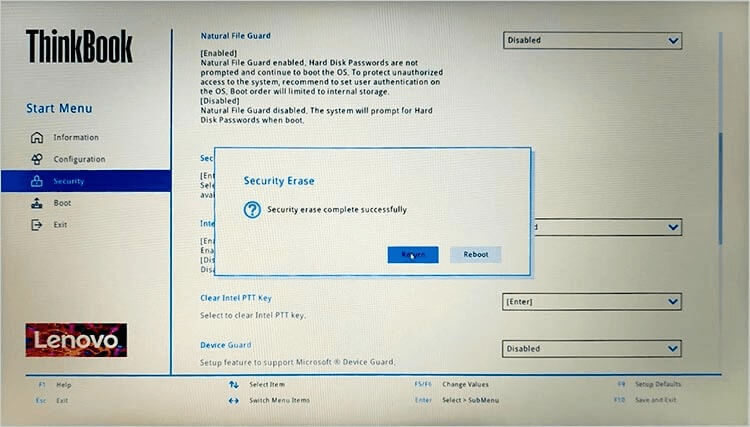
Dell/HP/Lenovo BIOS Tools: Many enterprise laptops have a "Disk Wipe" or "Sanitize" option directly in the BIOS Maintenance menu.
Post-Wipe: What's Next?
Verify: Boot your PC. If you see a "No Bootable Device" error, congratulations—the permanently wipe system disk process was successful.
Reinstall OS: If you're keeping the PC, you will need to boot from a Windows or macOS installation USB to start fresh.
|
Feature |
BIOS Secure Erase |
DBAN / Bootable Tools |
Manufacturer Tools |
|---|---|---|---|
|
Best For |
Modern SSDs |
Older HDDs |
Brand-specific drives |
|
Complexity |
Low |
Medium |
Low |
|
Speed |
Very Fast |
Slow (Hours) |
Fast |
|
Security |
High (Hardware Level) |
High (Multi-pass) |
High (Optimized) |
If you don't want to wipe the hard drive in BIOS, there are still other methods. For example, you can install a data erasure software on your system to wipe data.
Donemax Data Eraser is a professional and safe data wiping tool. It can wipe hard drive without entering BIOS. The software can permanently wipe data by using international data erasure standards.
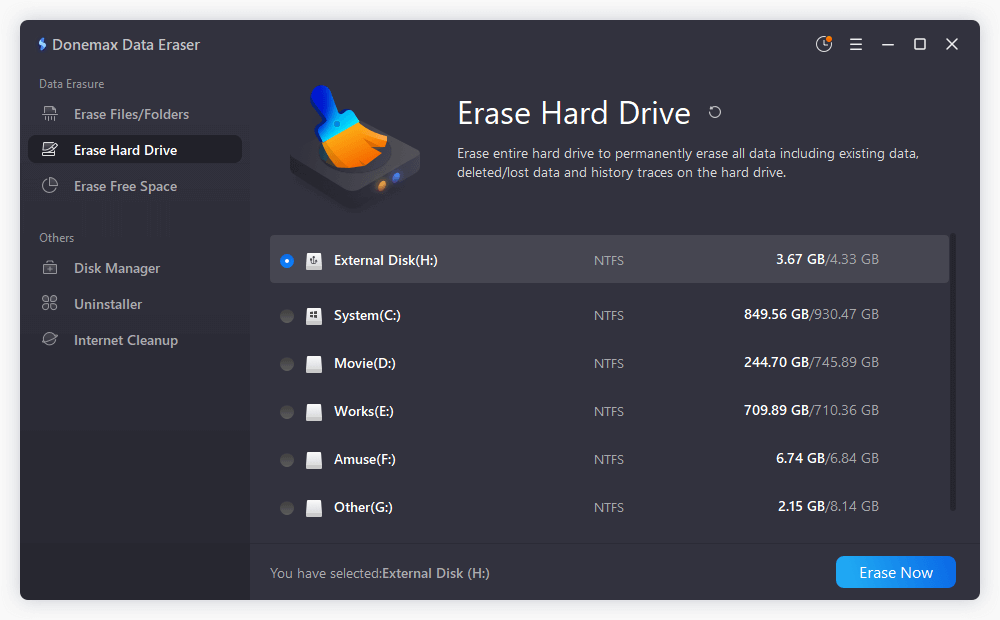
If you want to wipe a data drive, you can just choose Erase Hard Drive, then select the drive to wipe directly.
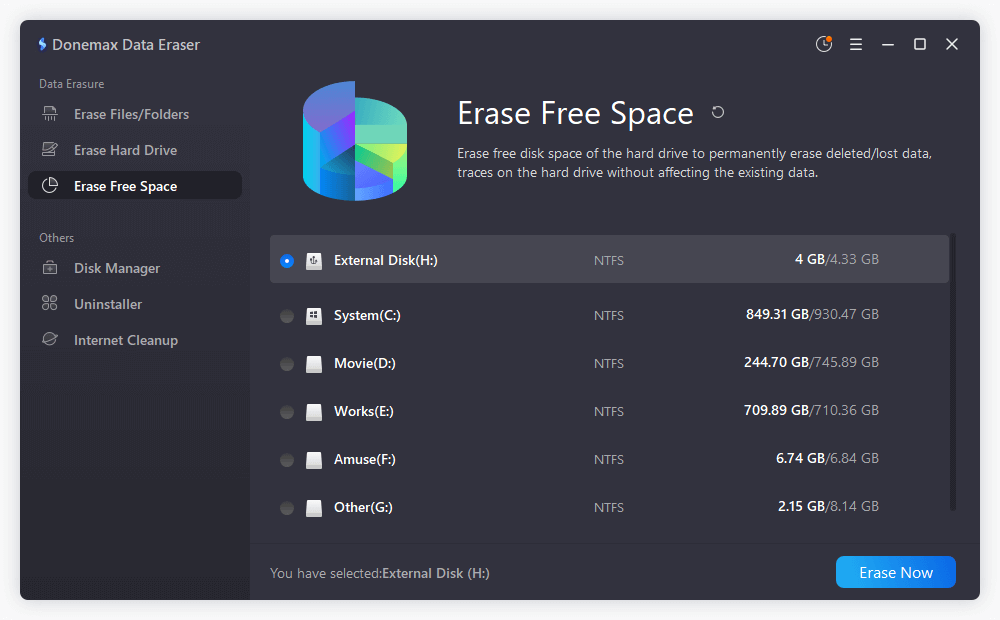
However, if you want to wipe a system disk, you cannot wipe it directly. You can first factory reset the system and choose to remove all files. After that, you can choose Erase Free Space to wipe the system disk. It will then wipe the removed data and make the data unrecoverable. In this way, it can also help you wipe all the personal data permanently from the computer.
Wiping a hard drive from BIOS is a reliable method to ensure your data is permanently removed. Depending on your hardware, you can use BIOS built-in secure erase, bootable tools like DBAN or Parted Magic, or manufacturer-specific BIOS utilities. Always remember to back up data, verify the drive type, and follow step-by-step instructions carefully.
By combining BIOS-level wipes with post-wipe verification, you can safely dispose of, sell, or reuse your hard drives with confidence, knowing your personal data is secure.
Donemax Data Eraser
One of the best data erasure programs can permanently delete data. It works on PCs, Macs, HDDs, SSDs, USB drives, digital cameras, and other devices. Once the tool erases the data, no one cannot recover it by any method.
Steven
Steven has been a senior writer & editor of Donemax software since 2020. He's a super nerd and can't imagine the life without a computer. Over 6 years of experience of writing technical solutions and software tesing, he is passionate about providing solutions and tips for Windows and Mac users.
Gerhard Chou
In order to effectively solve the problems for our customers, every article and troubleshooting solution published on our website has been strictly tested and practiced. Our editors love researching and using computers and testing software, and are willing to help computer users with their problems