
Written byStevenUpdated on Oct 12, 2026

Before we start: Image metadata (EXIF data) stores sensitive hidden details inside every photo, including exact GPS location coordinates, capture time, camera serial numbers, and device settings. Built-in Windows and Mac tools often leave residual EXIF tags or require manual editing for each picture. To wipe image metadata permanently across single images or batch folders, use dedicated privacy software like Donemax Data Eraser. Select the Image Exif Erase feature, import your image files, and execute a permanent metadata strip to sanitize your photo files before sharing them online.
PAGE CONTENT:
Every time you snap a photograph with your smartphone, digital camera, or drone, your device records much more than just a visual picture. In the background, it embeds a detailed digital footprint known as EXIF (Exchangeable Image File Format) metadata inside the image file.
This hidden metadata acts as an electronic passport for your photo. It stores your exact GPS location coordinates, street address clues, date and time stamps, device model, camera serial numbers, and software editing logs.
Whenever you upload photos to social media, sell items on online marketplaces, publish blog posts, or email photos to strangers, this hidden data goes along for the ride. Anyone can right-click your photo to inspect your personal privacy details.

If you want to protect your privacy and safety, learning how to wipe image metadata permanently is crucial. In this guide, we will break down what image metadata contains, why built-in OS tools fall short, and how to scrub your photos clean in seconds.
Image metadata serves helpful purposes for professional photographers organizing large photo libraries, but it poses serious risks when shared publicly.
Why should you care about wiping image metadata before posting or sending photos online?
Here is a quick overview showing how built-in computer options compare against specialized privacy software:
Metadata Removal Method |
Strips GPS Data? |
Supports Batch Processing? |
Permanence & Reliability |
|---|---|---|---|
Windows File Properties |
Partial (Some tags remain) |
Slow / Clunky |
Medium (Can be missed) |
Mac Preview / Tools |
View/Remove Location only |
No (Manual per file) |
Low (Leaves technical EXIF) |
Donemax Data Eraser |
Yes (100% EXIF Cleaned) |
Yes (Full Folders) |
Maximum (Permanent Scrub) |
Both Windows and macOS offer basic native options to view or clear properties, but they have major drawbacks for privacy-conscious users.
1. Windows Properties 'Remove Properties and Personal Information'
Right-clicking a file in Windows Explorer and choosing 'Remove Properties' seems convenient. However, Windows frequently fails to strip hardware serial numbers, camera manufacturer tags, and raw color profiles.
2. macOS Preview Inspector Limitations
On Mac, Apple allows you to turn off location data in Preview. But Preview does not offer a quick, automated way to strip all EXIF tags from hundreds of photos simultaneously.
3. Online EXIF Strippers Pose Security Risks
Uploading your private photos to free web-based metadata removers means sending your raw files to an unknown third-party server, creating an even greater privacy hazard.
To ensure your photos are completely sanitized locally without uploading them to cloud servers, using a reliable desktop tool is the safest approach. Donemax Data Eraser includes a built-in Image Exif Erase utility designed specifically to strip metadata from JPEG/JPG, PNG, TIFF, WEBP and CR2 files.
Step 1: Download and Launch Donemax Data Eraser
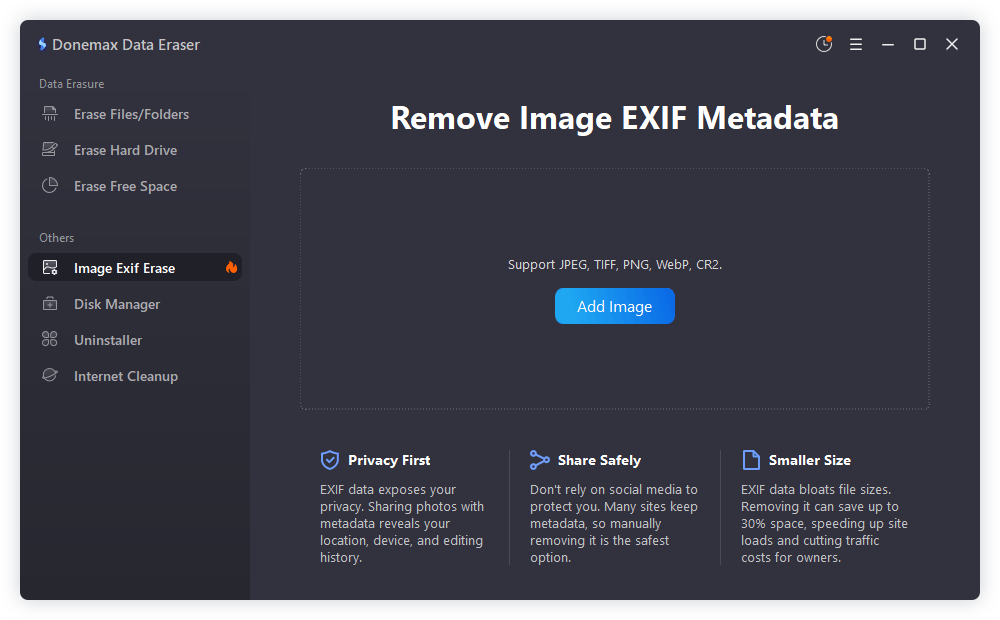
Install Donemax Data Eraser on your Windows PC or Mac. Open the application and navigate to the tools menu to locate the 'Image Exif Erase' feature.
Step 2: Add Your Target Images or Photo Folders
Click the 'Add Image' button to select individual photos, or select an entire folder containing hundreds of images from your hard drive, SD card, or USB drive.
Step 3: Execute Metadata Stripping
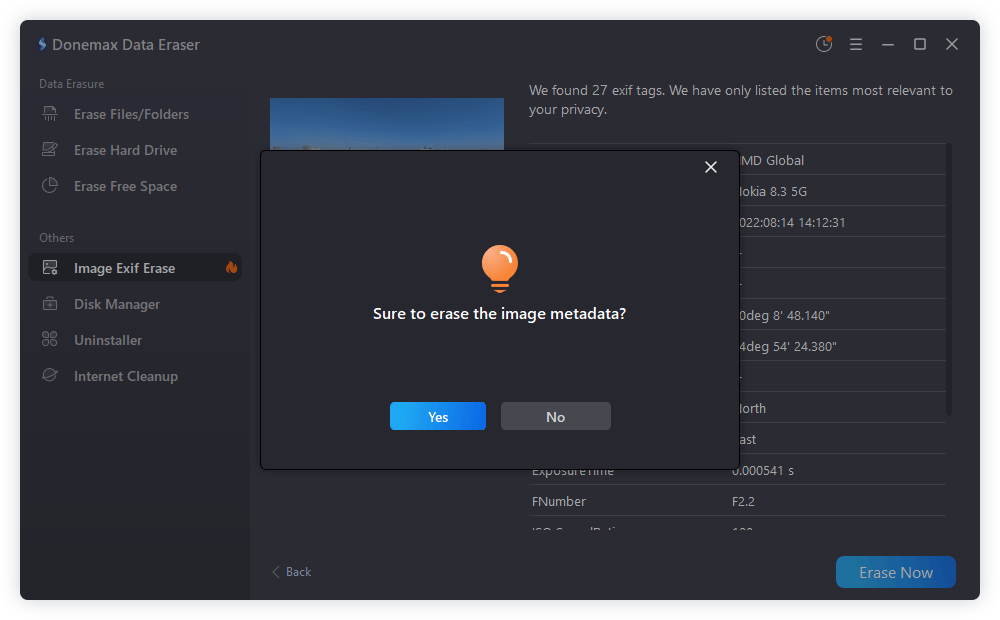
Click the 'Erase' button. Donemax Data Eraser will scan the image headers, strip away all embedded EXIF tags, GPS coordinates, device information, and creation timestamps, saving clean copies.
Step 4: Verify the Sanitized Image Files
Open the properties of your newly processed images. You will see that the location, camera model, and personal tags have been completely wiped clean while preserving the original visual image quality.
Alongside scrubbing existing photos, adopting good habits helps prevent metadata leaks at the source:
In today's connected world, protecting your digital footprint requires paying attention to details hidden beneath the surface. Leaving GPS coordinates and device tags attached to your personal photos exposes your private life to the public internet.
By learning how to wipe image metadata permanently using Donemax Data Eraser, you take full control of your photo privacy. Clean your images in seconds and share your memories online with complete peace of mind.
Donemax Data Eraser
Donemax Data Eraser The best data erasure program to permanently delete data. It works on PCs, Macs, HDDs, SSDs, USB drives, digital cameras, and other devices. Once the tool erases the data, no one can recover it by any method.
Steven
Steven has been a senior writer & editor of Donemax software since 2020. He's a super nerd and can't imagine the life without a computer. Over 6 years of experience of writing technical solutions and software tesing, he is passionate about providing solutions and tips for Windows and Mac users.
Gerhard Chou
In order to effectively solve the problems for our customers, every article and troubleshooting solution published on our website has been strictly tested and practiced. Our editors love researching and using computers and testing software, and are willing to help computer users with their problems