Free Tool to Repair Pen Drive/Flash Drive/SD Card

Steven
Written byStevenUpdated on May 11, 2026

Gerhard Chou
Approved byGerhard Chou

Table of Contents

Before we start: Donemax Data Recovery is a powerful recovery & repair tool. Before fixing corrupted pen drive, flash drive or SD card, you can use this tool to completely recover lost or inaccessible files. Then choose Disk Manager tool to repair the corrupted flash drive/pen drive/SD card, etc.

PAGE CONTENT:

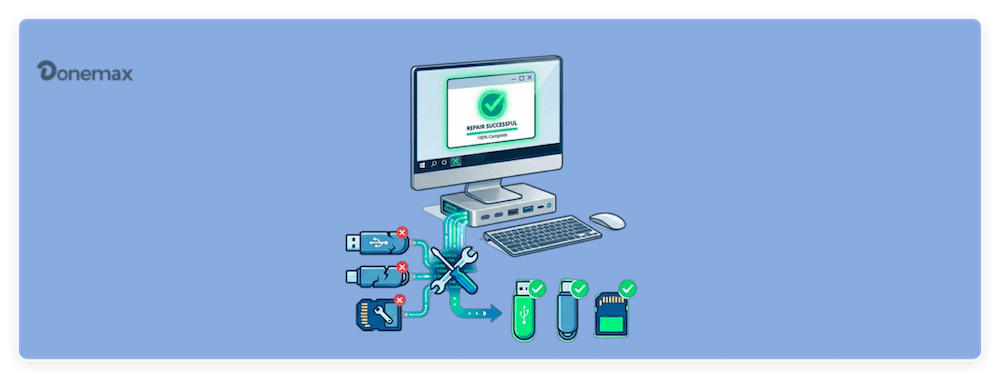
USB flash drives, pen drives, and SD cards are essential storage devices for transferring and backing up data. However, they can sometimes encounter problems, such as corruption, formatting errors, or being unreadable. When these issues arise, users often assume that their device is permanently damaged. However, with the right free tools, you can repair and restore your flash drive or SD card without spending a penny.
free USB repair tool

In this guide, we will explore some of the best free tools for repairing USB drives and SD cards. We'll also provide step-by-step instructions to fix common issues and preventive measures to avoid data loss in the future.

Quick Guide to Repair Your Flash Drive/Pen Drive/SD Card

  1. Check the connection – Try a different USB port or SD card reader.
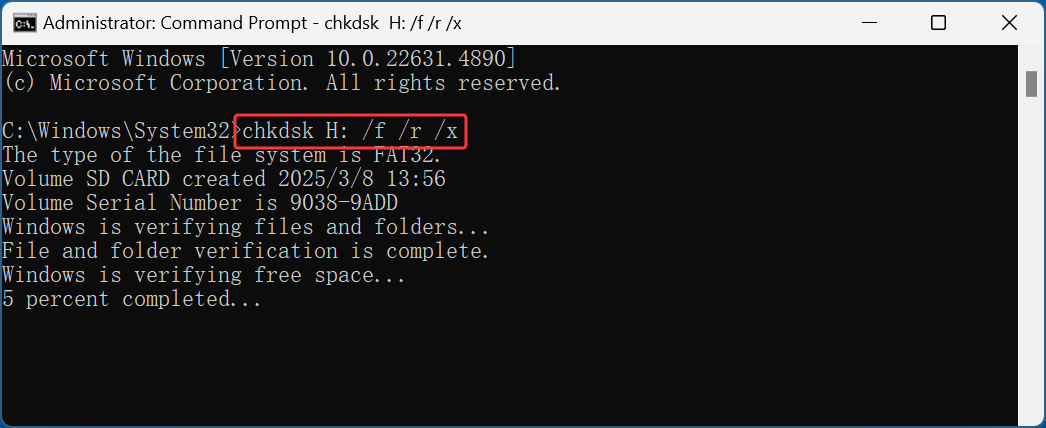
  2. Use CHKDSK – Run chkdsk X: /f /r /x in Command Prompt.
  3. Try Disk Management – Reassign a drive letter or format the drive.
  4. Use Diskpart – If the drive is not recognized, clean and format it.
  5. Try third-party tools – Use Donemax Data Eraser or SD Card Formatter if needed.
  6. Recover data first (if necessary) – Before formatting, use Donemax Data Recovery.
  7. Perform a full format – If nothing works, use HDD Low Level Format Tool.

Common Problems with Pen/Drives and SD Cards

Before we dive into the repair tools, let's first identify the most common issues that affect these storage devices:

USB flash drives, pen drives, and SD cards are widely used for storing and transferring data, but they are prone to various issues. Below are some of the most common problems users face, along with explanations and potential solutions.

1. Device Not Recognized by the Computer

One of the most frustrating issues occurs when you plug in a USB drive or SD card, and the computer fails to detect it. There are several reasons why this happens:

  • Faulty USB Port or Card Reader – The port or reader you are using may be damaged.
  • Outdated or Corrupt Drivers – Missing or outdated drivers can prevent the system from detecting the device.
  • Partition Table Corruption – If the partition table is damaged, the OS won’t recognize the drive.
  • Physical Damage – A broken USB connector or internal chip failure can render the device unusable.

2. Corrupted or Inaccessible Files

If you open your USB drive or SD card and notice missing or corrupted files, this can be due to various reasons.

  • Abrupt Removal – Removing the drive during file transfer can lead to corruption.
  • Virus or Malware Infection – Some malware hides or corrupts files.
  • Bad Sectors – Physical damage to memory cells can make data unreadable.

3. Formatting Errors and RAW File System Issues

Sometimes, when you connect your USB drive or SD card, you see an error message saying:

  • "You need to format the disk before you can use it."
  • "The file system is RAW."
  • "Windows was unable to complete the format."

These messages indicate that the file system is damaged or unreadable by your OS. Possible causes:

  • Interruption During File Transfers – Unplugging the drive while writing data can corrupt the file system.
  • Wrong Formatting – Some devices require a specific format (e.g., FAT32 for older systems, exFAT for large files).
  • Physical Damage – If the NAND chip is damaged, the drive may be beyond repair.

4. Slow Transfer Speeds or Read/Write Errors

If your USB drive or SD card is taking an unusually long time to transfer files or refuses to let you write new data, this may indicate a problem.

  • Device is Almost Full – Lack of free space slows down performance.
  • Fragmentation – Over time, data fragmentation can slow down read/write operations.
  • Bad Sectors – Damaged memory cells can cause errors.

Best 5 Free Tools to Repair USB Drives and SD Cards

Several free tools can help you diagnose and repair your damaged storage devices. Here are the most effective ones:

Top 1. CHKDSK (Windows Built-in Tool)

CHKDSK (Check Disk) is a built-in Windows command-line tool that can scan and repair errors on a USB flash drive or SD card.

How to Use CHKDSK

  1. Plug in your USB drive or SD card.
  2. Open the Command Prompt as Administrator.
  3. Type the below command and press Enter:

    chkdsk X: /f /r /x

    free USB repair tool

    (Replace X with the drive letter of your USB or SD card.)

  4. Wait for the scan to complete and follow any instructions provided.

CHKDSK will fix errors and attempt to recover bad sectors, restoring the functionality of your drive.

Top 2. Windows Disk Management & Diskpart

If your USB drive or SD card is not showing up properly, you can use Windows Disk Management or Diskpart to fix it.

Using Disk Management:
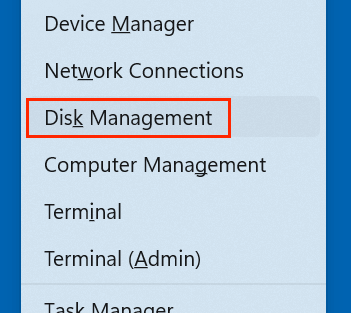
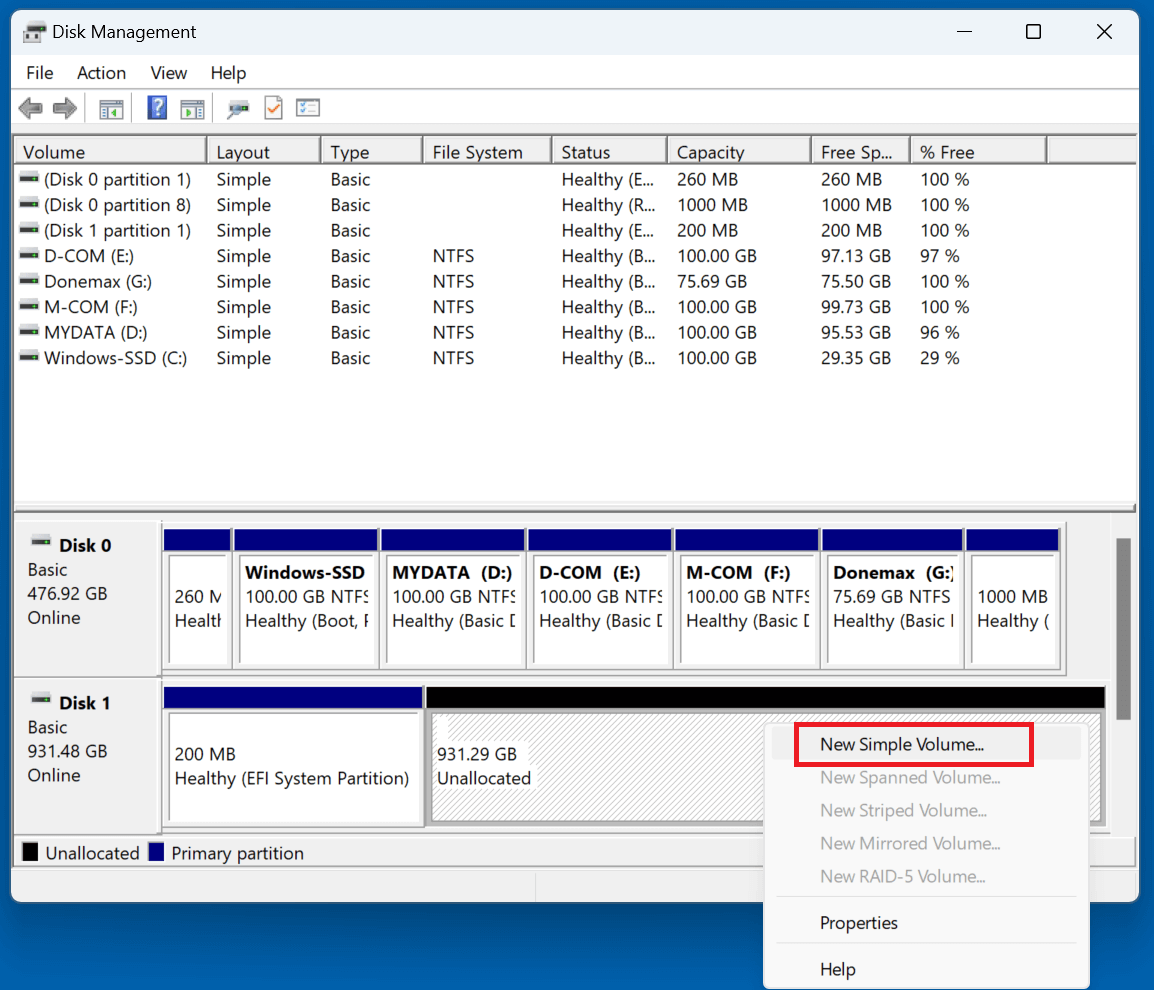
  1. Choose Disk Management by pressing Windows + X.

    free USB repair tool

  2. Find your SD card or USB drive.
  3. To create a partition, right-click and choose New Simple Volume if it displays as Unallocated.

    free USB repair tool

  4. Format it as FAT32 or exFAT and assign a drive letter.

Top 3. SD Card Formatter (By SD Association)

If your SD card is corrupted or unreadable, the SD Card Formatter tool by the SD Association can format it properly.

How to Use SD Card Formatter
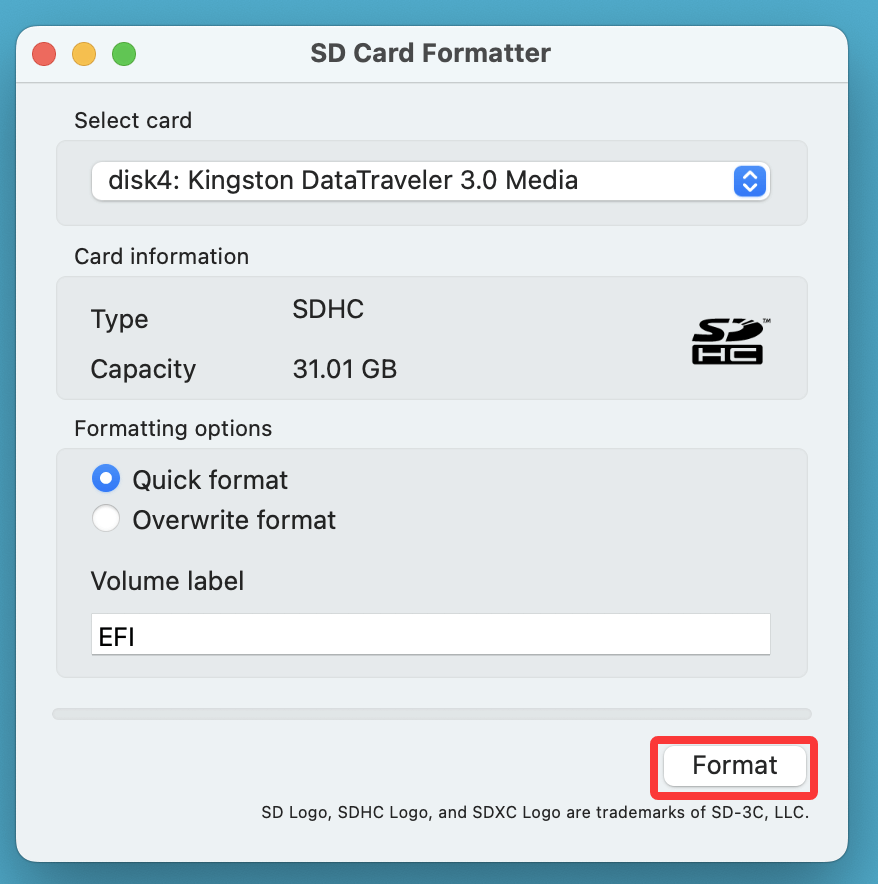
  1. Go to the official SD Association website and download the SD Card Formatter tool.
  2. Put your SD card in and launch the application.
  3. From the list, pick your SD card.
  4. Click Format and let the tool do its job.

    free USB repair tool

This tool ensures your SD card is formatted correctly and is often more effective than Windows' built-in formatting tool.

Top 4. HDD Low Level Format Tool

This tool performs a low-level format, which erases and rebuilds your drive from scratch. It's useful for severe corruption issues.

Steps to Use HDD Low Level Format Tool:
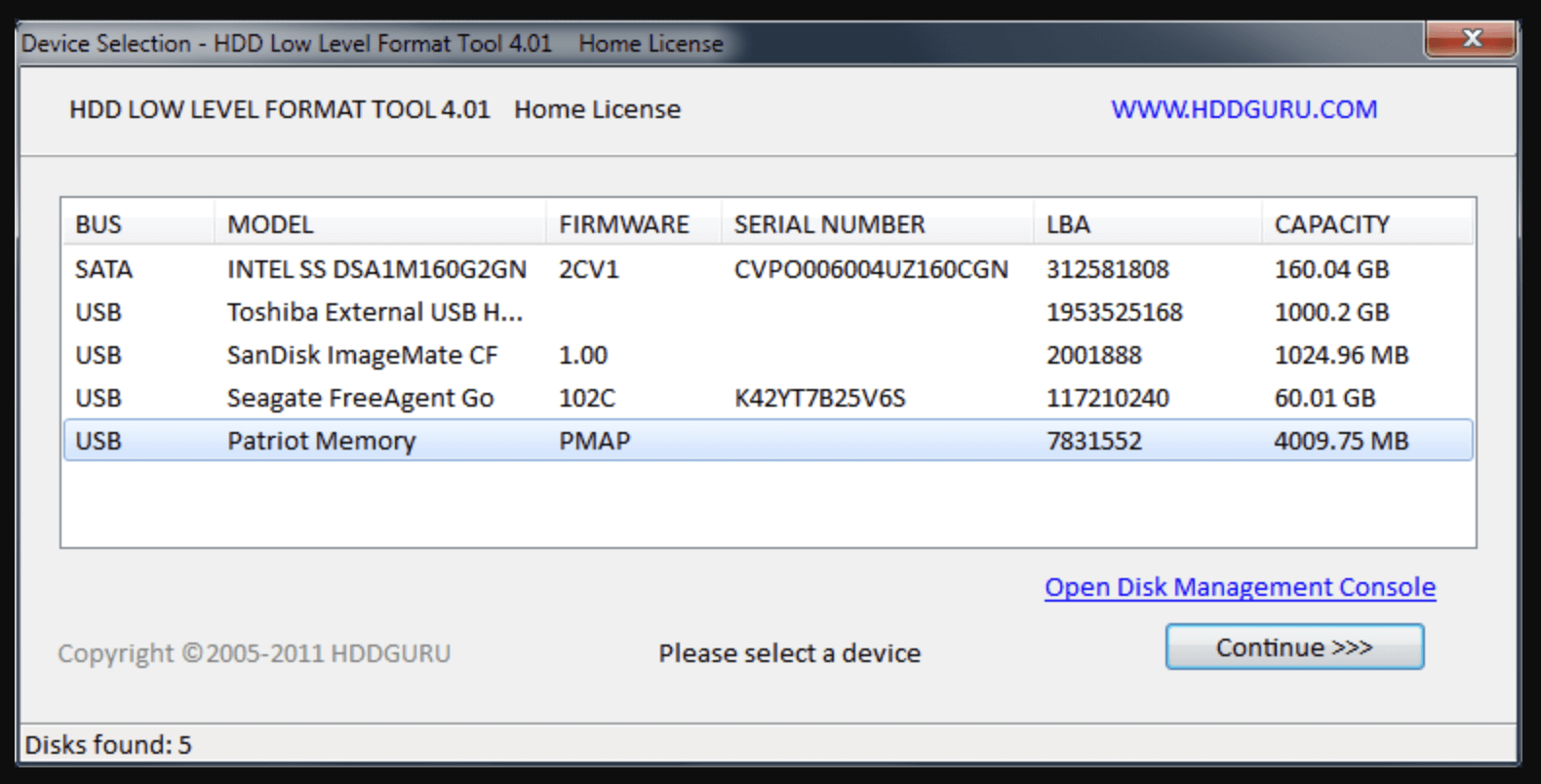
  1. Download and install the tool.

    free USB repair tool

  2. Select your USB drive or SD card.
  3. Click Low-Level Format and start the process.
  4. After completion, use Windows Disk Management to create a new partition.

Use this only as a last resort, as it permanently erases all data on the drive.

Top 5. Donemax Data Recovery

If you need to recover lost files before repairing your drive, this tool can help.

How to Use Donemax Data Recovery:
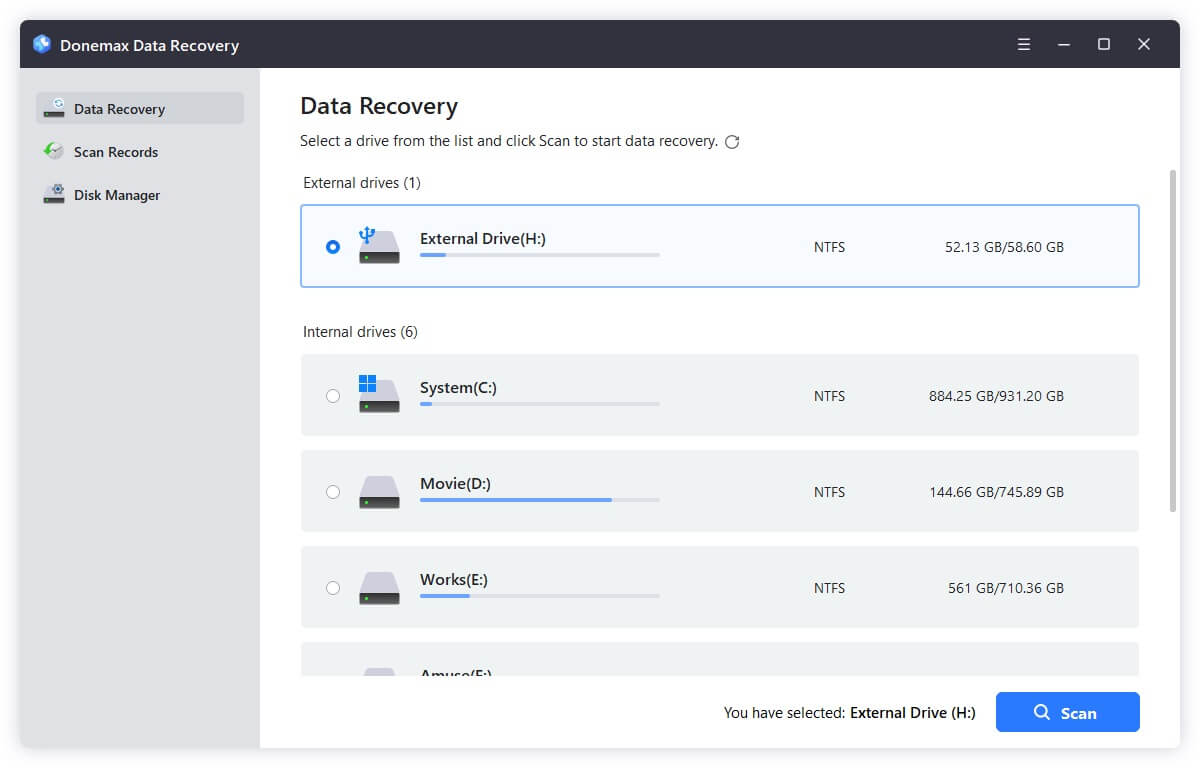
  1. Install and open the software.
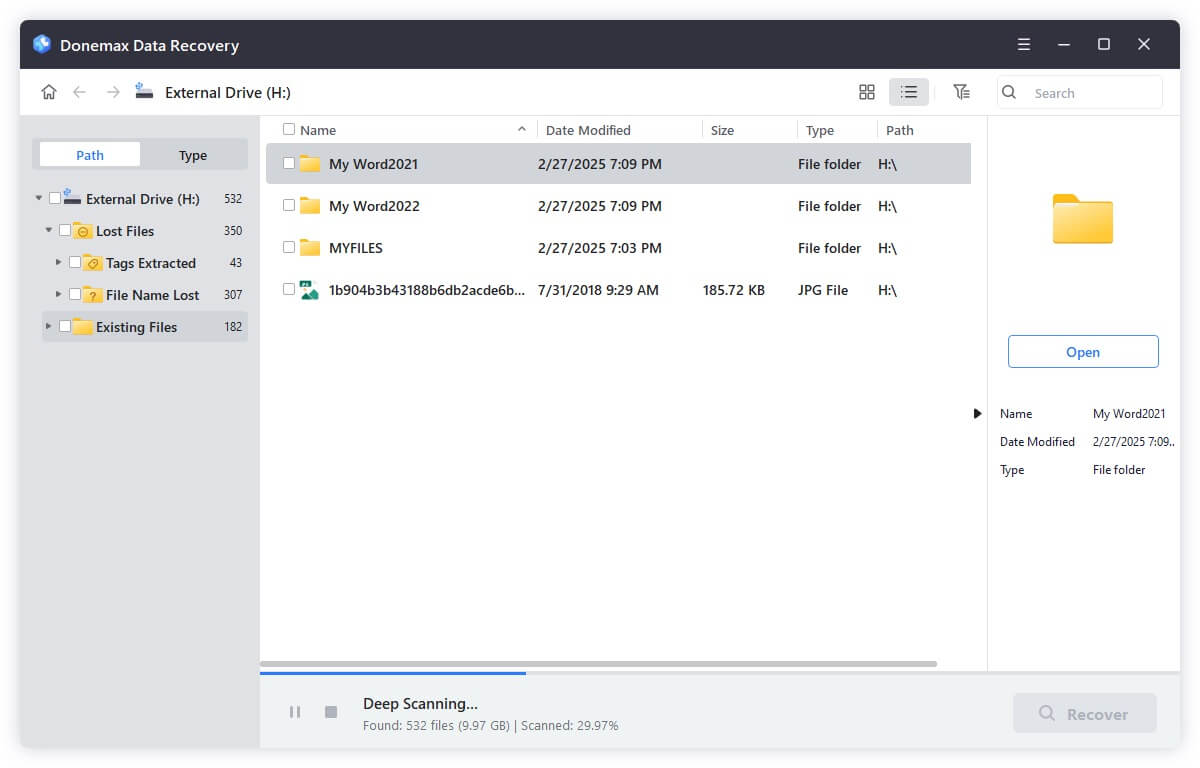
  2. Select your USB drive or SD card and scan for lost files.

    Select the USB drive

  3. Deeply scan the USB drive or SD card and find all recoverable files.

    Scan the USB drive

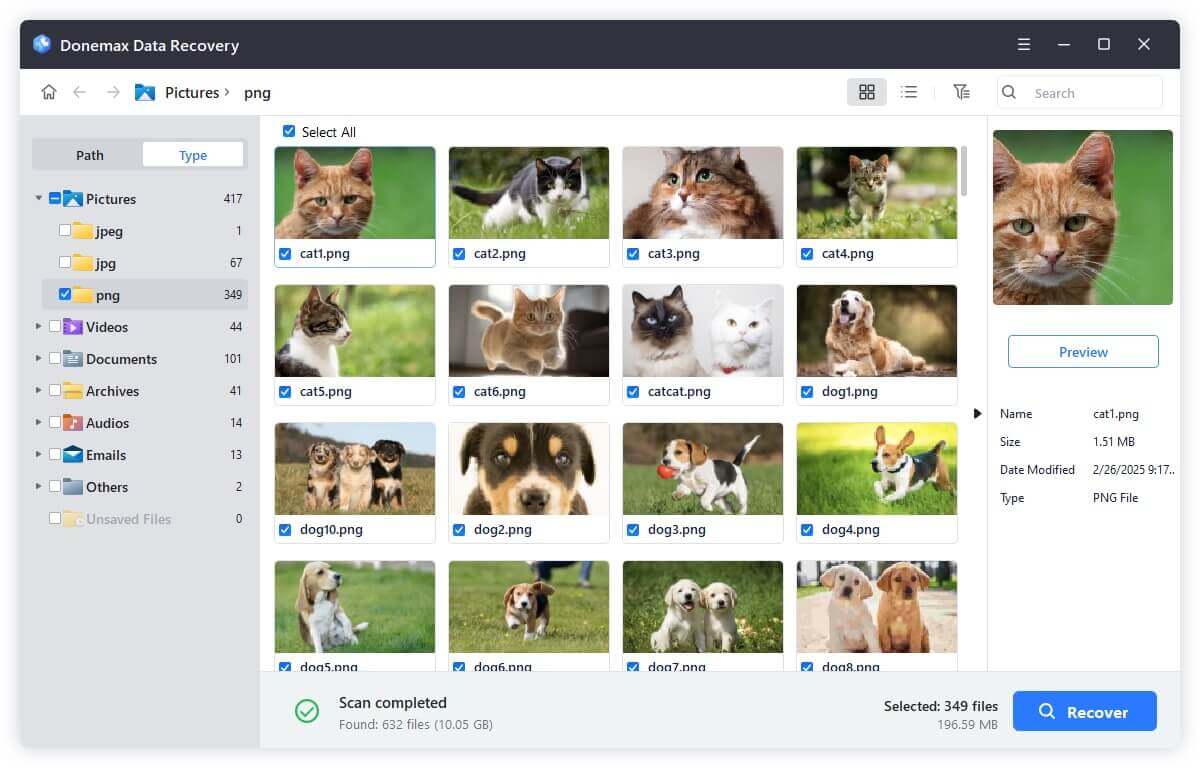
  4. Preview and recover important files before repairing the drive.

    Preview and Recover the USB drive

  5. If you want to repair the device, choose Disk Manager, select the device, click Repair.

    Repair USB drive

Preventive Measures to Avoid Future Issues

To avoid dealing with corrupted or damaged USB drives and SD cards in the future, follow these best practices:

  • Always eject USB drives properly – Don't remove them while transferring files.
  • Keep backups – Store important data in multiple locations.
  • Use reliable brands – Cheap USB drives and SD cards are more prone to failure.
  • Scan for malware regularly – Viruses can corrupt storage devices.
  • Avoid extreme temperatures – Heat and moisture can damage flash memory.

FAQs about Repairing USB drives and SD Cards

Yes, it is often possible. The key is to use a recovery tool like Donemax Data Recovery to extract your files before attempting a formal repair or formatting. Once your data is safe, you can use repair commands like CHKDSK to fix the file system without further damage.
For SD cards specifically, the SD Memory Card Formatter (by the SD Association) is the gold standard. Unlike standard system formatting, it follows the specific flash memory standards required by SD cards, making it more effective at restoring cards that aren't recognized by cameras or phones.
A "RAW" file system means your operating system no longer recognizes the format of the drive (like FAT32 or exFAT). This usually happens due to abrupt removal or virus infection. You can often fix this using the HDD Low Level Format Tool or by re-partitioning the drive in Disk Management.
No. If the USB connector is broken or the internal NAND flash chip is cracked, software tools will not be able to detect or fix it. If the drive does not show up in Disk Management (Windows) or Disk Utility (Mac) even after trying different ports, it likely has a hardware failure.
First, check for a physical lock switch on the side of the device. If there isn't one, you can use the Diskpart command in Windows: type attributes disk clear readonly to remove the software-level write protection that often prevents repairs.

Conclusion

When your USB flash drive, pen drive, or SD card becomes corrupted, you don't have to throw it away. Using free tools like CHKDSK, Disk Management, SD Card Formatter, and Donemax Data Recovery, you can repair most common issues.

If your drive is still not working after trying these methods, it may be physically damaged and require replacement. However, in most cases, these free tools will help you recover and restore your storage device without spending a dime.

logo stage

Donemax Data Recovery

One of the best data recovery programs to recover deleted, formatted or lost data from PC, Mac, HDD, SSD, USB drive, SD card, camera, RAID, Sever or other storage devices.

Steven
Contributing Writer

Steven

Steven has been a senior writer & editor of Donemax software since 2020. He's a super nerd and can't imagine the life without a computer. Over 6 years of experience of writing technical solutions and software tesing, he is passionate about providing solutions and tips for Windows and Mac users.

Gerhard Chou
Editor in chief

Gerhard Chou

In order to effectively solve the problems for our customers, every article and troubleshooting solution published on our website has been strictly tested and practiced. Our editors love researching and using computers and testing software, and are willing to help computer users with their problems