
Written byStevenUpdated on Jan 01, 1970

Before we start: Removing apps from running on startup is an easy and quick way to speed up boot time on Windows or macOS. However, if it's because the drive issues that cause the system boot and run slowly, you can use Donemax Disk Clone to clone and upgrade your system disk.
PAGE CONTENT:
Does your computer feel like it's waking up from a deep hibernation every time you turn it on? If your PC or Mac takes several minutes to become usable after booting, the most likely culprits are startup programs.
Many applications automatically configure themselves to launch the moment your system starts. While some—like your antivirus—are essential, many others are "resource vampires" that eat up your RAM and CPU power before you've even opened a browser.
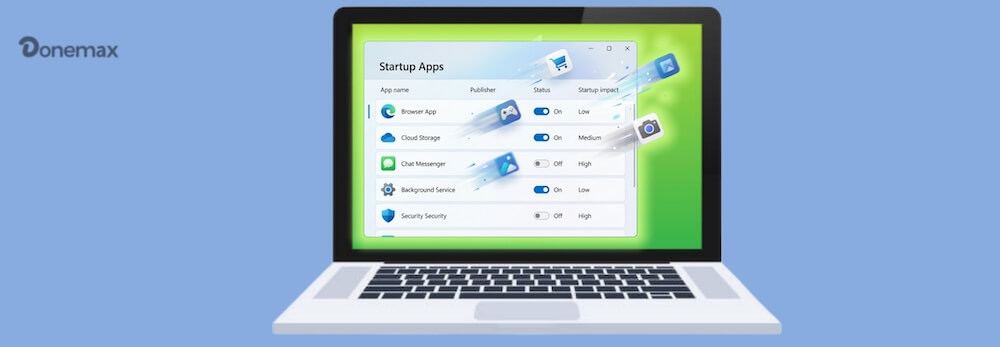
In this guide, we'll show you exactly how to stop programs from running on startup and remove apps from running on startup to reclaim your computer's speed.
Learning how to manage these apps offers immediate benefits for your digital life:
A common fear is: "If I disable this, will my computer break?" Generally, disabling a startup item does not uninstall it; it just means you have to click the icon manually to open it.
Safe to Disable |
Keep Enabled |
|---|---|
Spotify, Discord, Steam, Skype |
Antivirus / Security Software |
Cloud Storage (if you don't sync daily) |
Audio/Graphics Drivers (Realtek, Nvidia) |
Printer Helpers |
Backup Software (e.g., Time Machine, Backblaze) |
Browser Updaters (Edge, Chrome) |
Windows/macOS System Services |
Windows makes it relatively easy to see what is starting up with your system, though the menus differ slightly between versions.
The Task Manager is the most powerful "at-a-glance" tool for Windows users.
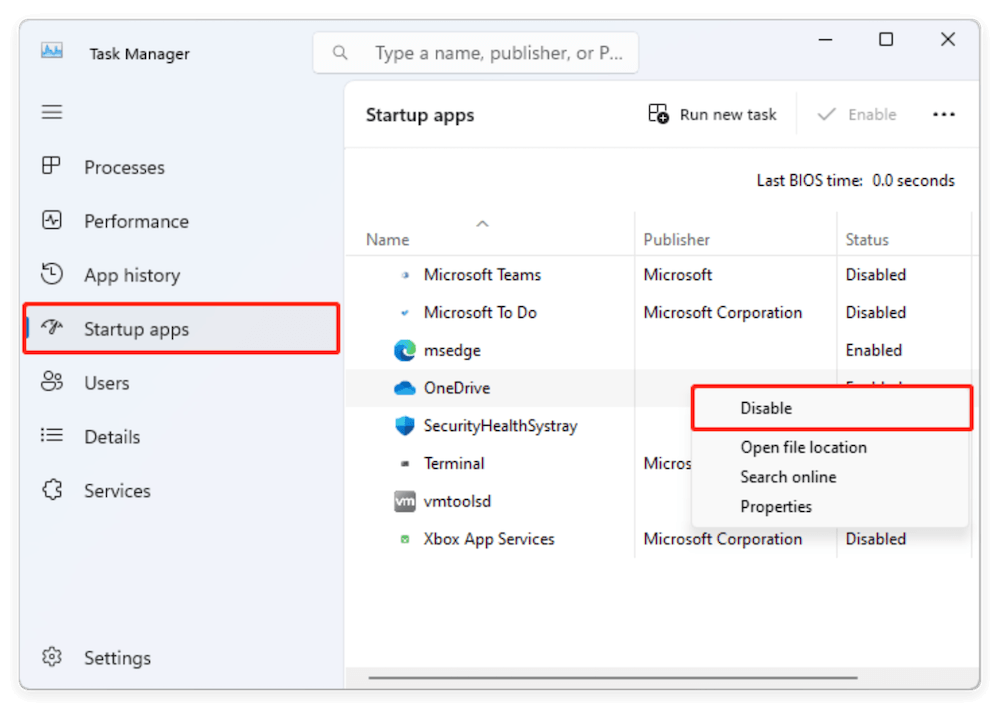
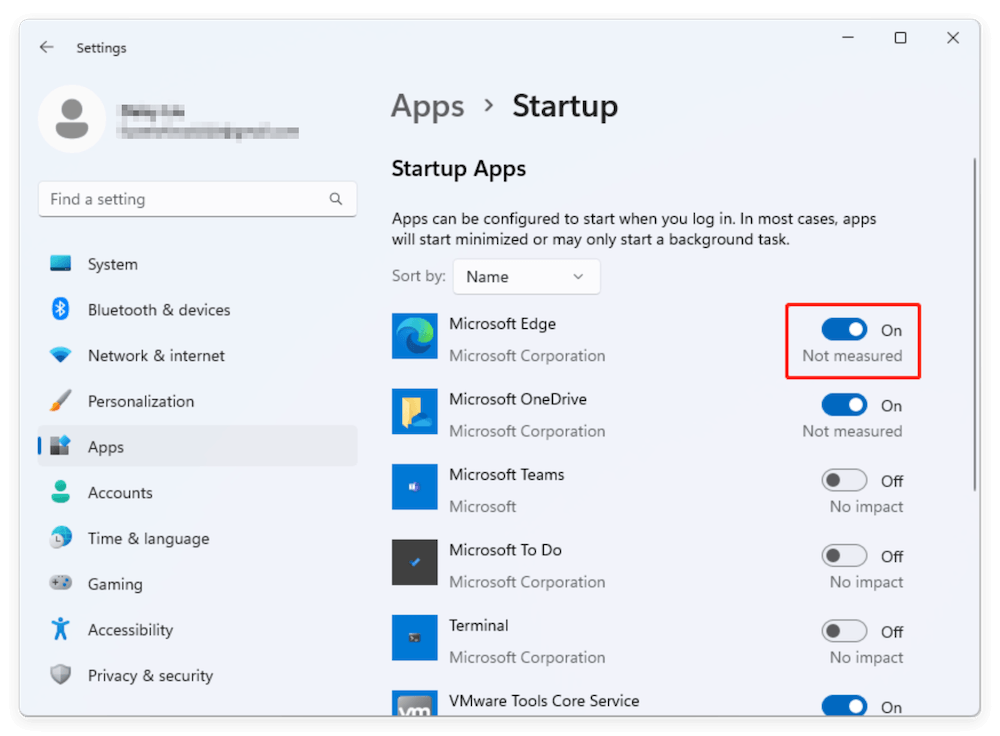
If you prefer a more modern interface:
Some older apps place shortcuts in a secret folder rather than using registry keys.
Apple keeps things a bit more tucked away, but the process is very straightforward once you know where to look.
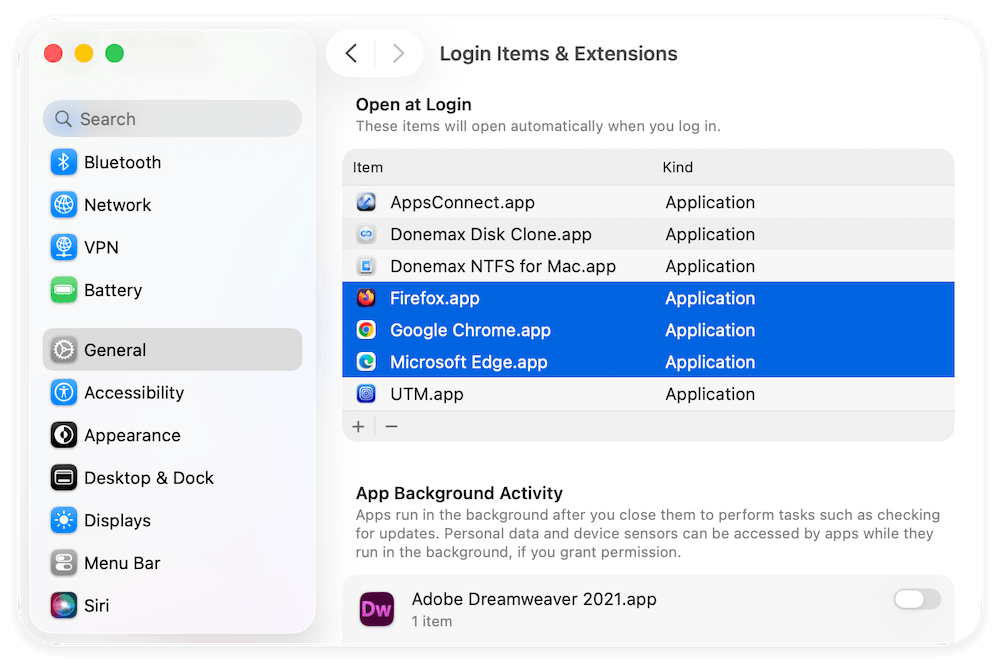
💡 Pro Tip: Check the "App Background Activity" section below it to turn off helpers and updaters that run even when the app isn't open.
If an annoying app is currently sitting in your Dock:
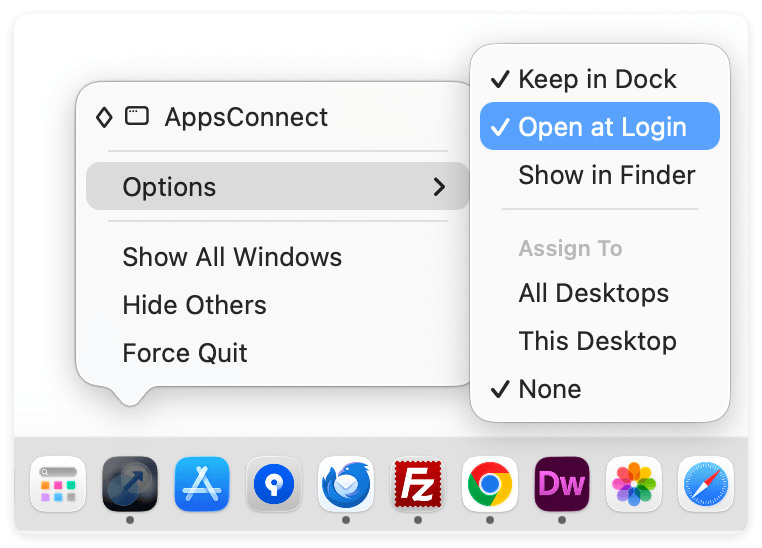
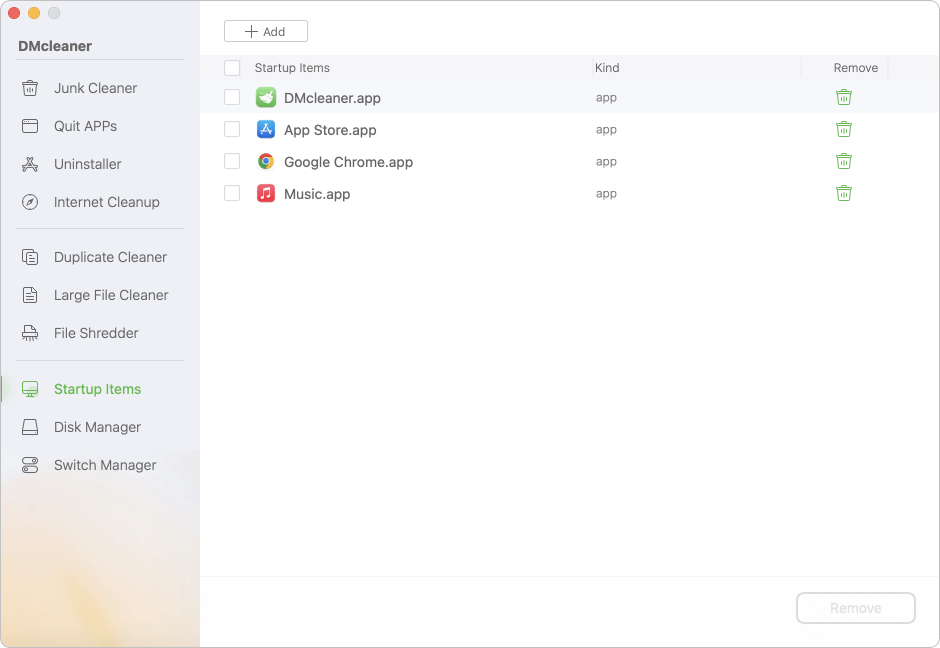
You can also use a third-party tool to help you remove startup items. For example, the Mac optimization and cleanup tool Donemax DMcleaner for Mac offers the option.
You can run the software and change to Startup Items. Choose the apps which you want to remove from running on startup, click the trash icon or Remove button (at the bottom) to delete.
If you've disabled everything and your system is still slow, consider these advanced steps:
Sometimes, even after you remove apps from running on startup, small "Launch Agents" remain on Mac or "Registry keys" remain on Windows.
Some persistent apps will re-enable their startup status every time you open them. To fix this, open the app's own Preferences or Settings menu and look for a toggle that says "Start with Windows" or "Launch at Login". Turn it off there to make the change permanent.
Knowing how to stop programs from running on startup is like giving your computer a breath of fresh air. By performing this quick 5-minute audit every few months, you can keep your Windows 11 or macOS system running like new.
Ready to take it further? If your drive is still slow after cleaning your startup list, it might be time to look at disk health. Tools like Donemax Disk Clone can help you migrate your entire system to a faster SSD, providing the ultimate speed boost!
Donemax Disk Clone
An award-winning disk cloning program to help Windows users and Mac users clone HDD/SSD/external device. It also can create full bootable clone backup for Windows PCs and Macs.
Steven
Steven has been a senior writer & editor of Donemax software since 2020. He's a super nerd and can't imagine the life without a computer. Over 6 years of experience of writing technical solutions and software tesing, he is passionate about providing solutions and tips for Windows and Mac users.
Gerhard Chou
In order to effectively solve the problems for our customers, every article and troubleshooting solution published on our website has been strictly tested and practiced. Our editors love researching and using computers and testing software, and are willing to help computer users with their problems

