Written byCoco LinUpdated on Aug 12, 2026

Before we start: Are you planning to upgrade your slow Hard Disk Drive (HDD) to a super-fast Solid State Drive (SSD)? Or maybe your current drive is running out of space, and you need to migrate all your personal files, operating system, and installed programs to a larger drive without reinstalling Windows from scratch? Donemax Disk Clone can help you easily in such cases.
PAGE CONTENT:
Upgrading storage can feel intimidating if you have never done it before. Many users worry about losing valuable files, facing boot errors, or dealing with complex command-line tools. Fortunately, disk cloning makes drive replacement simple, fast, and completely stress-free.
If you are looking for the most reliable tool for the job, Donemax Disk Clone is the best disk clone software available today. In this complete guide, we will explore why Donemax Disk Clone stands out from other tools and walk you through how to clone a disk step-by-step.
Disk cloning is the process of creating an exact, bit-for-bit duplicate of a hard drive or SSD. Unlike traditional file copying—which only moves visible user files—cloning transfers everything. This includes your operating system, system files, hidden recovery partitions, system settings, registry keys, and software licenses.
Here are the primary reasons why disk cloning is essential for modern computer users:
There are many cloning utilities on the market, but not all of them offer the same balance of safety, performance, and simplicity. After testing popular solutions, it becomes clear why Donemax Disk Clone is the best disk clone software for both beginners and experienced users.
Ready to migrate your data? Follow this easy, step-by-step tutorial to clone your hard drive or SSD safely using Donemax Disk Clone.
Step 1: Download and Install Donemax Disk Clone
Download Donemax Disk Clone and install the application on your Windows or Mac computer by following the quick setup wizard.
Step 2: Connect Your Target Drive
Connect your new HDD or SSD to your computer. If you are using a laptop, you can connect the new SSD using a USB-to-SATA/NVMe adapter or external enclosure. If you are on a desktop, you can install the new drive internally into an open drive bay.
Step 3: Launch the Program and Select a Mode
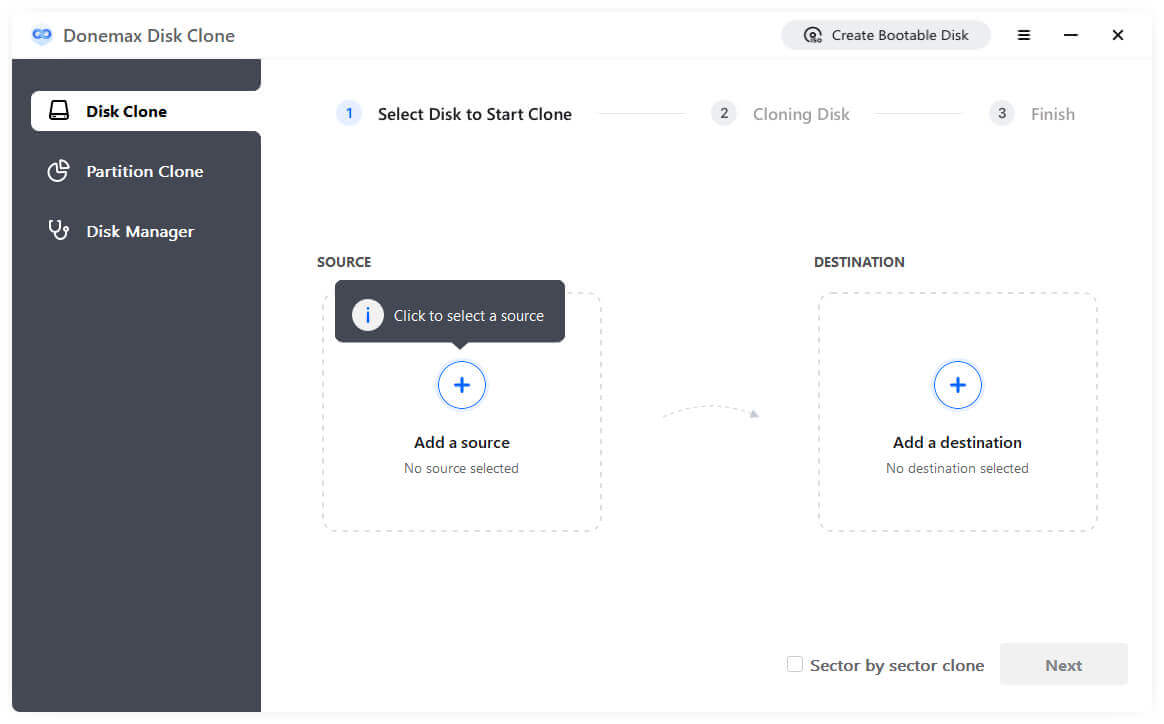
Open Donemax Disk Clone. You will see two primary mode options: 'Disk Clone'(clones an entire drive) and 'Partition Clone'(clones a specific partition). To duplicate your entire system or storage disk, choose Disk Clone.
Step 4: Choose the Source Disk and Target Disk
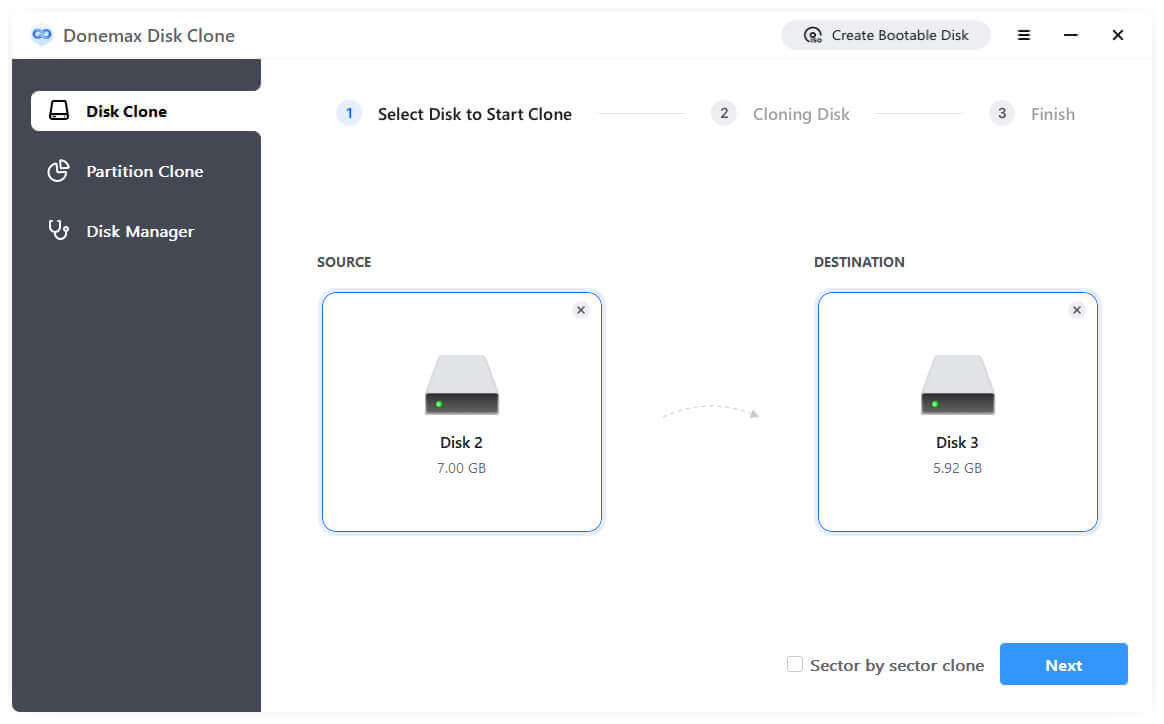
Select the Source Disk (the original drive containing your data) and the Target Disk (your new, larger HDD/SSD). Double-check your selections to make sure you have picked the correct drives.
Step 5: Preview Layout and Edit Partitions
Donemax Disk Clone will show you a visual preview of how the target disk will look after cloning. You can choose to auto-fit the layout, copy as original, or manually adjust partition sizes to maximize your space.
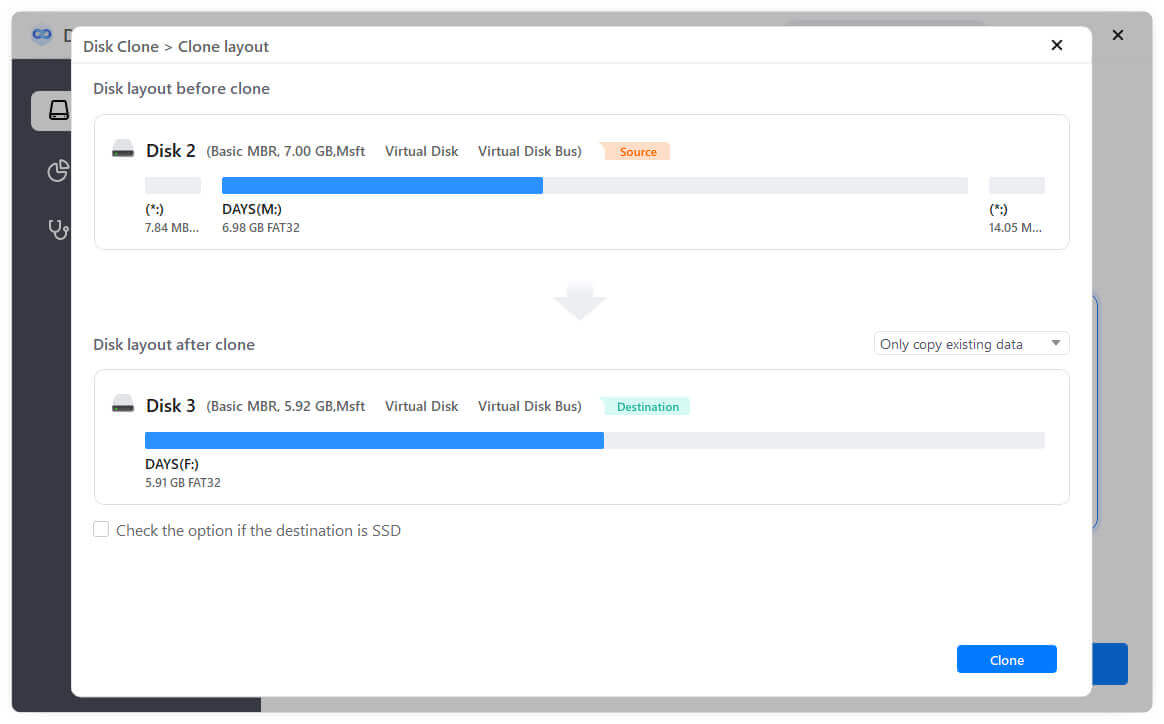
Step 6: Start Cloning and Finish
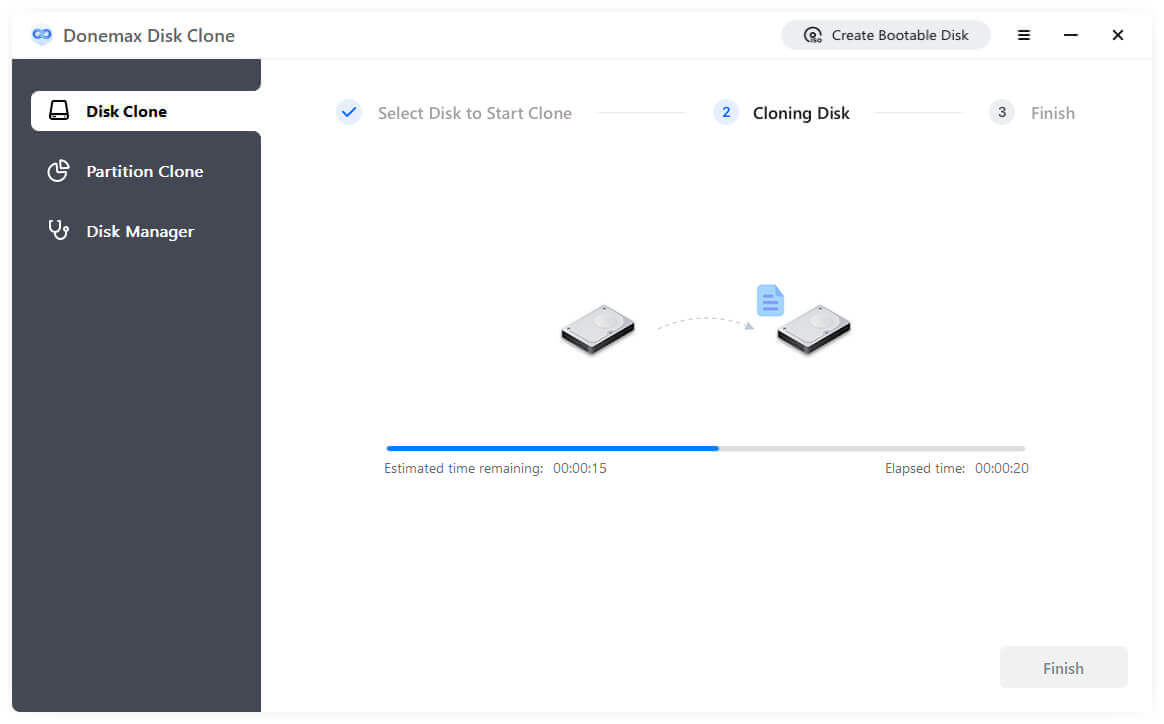
Click the Clone button to begin the cloning process. Donemax Disk Clone will transfer all files, partitions, and boot details. Once completed, you will receive a success notification. You can now safely disconnect your old drive or set the new SSD as your primary boot device in BIOS/UEFI settings!
To ensure your disk cloning process goes without a hitch, keep these expert tips in mind:
Upgrading your storage drive or migrating your operating system does not have to be frustrating or risky. With intuitive navigation, high-speed transfers, complete data protection, and smart partition resizing, Donemax Disk Clone is the best disk clone software for Windows and Mac.
Whether you are replacing an old HDD with an NVMe SSD or making a routine backup, Donemax Disk Clone ensures a fast and flawless migration. Download Donemax Disk Clone today and experience hassle-free disk cloning in just a few clicks!
Donemax Disk Clone
An award-winning disk cloning program to help Windows users and Mac users clone HDD/SSD/external device. It also can create full bootable clone backup for Windows PCs and Macs.
Coco Lin
Coco has been a writer and a chief programmer at Donemax software since 2018. Over 10 years of experience of writing troubleshooting articles in the software industry, she is passionate about programming and loves to providing solutions to Windows and Mac users. Also she enjoys music and palying tennis in her free time.
Gerhard Chou
In order to effectively solve the problems for our customers, every article and troubleshooting solution published on our website has been strictly tested and practiced. Our editors love researching and using computers and testing software, and are willing to help computer users with their problems