
Written byMariaUpdated on Mar 09, 2026

Before we start: When the data on DJI Osmo is deleted or lost due to some issues, stop using the device and remove the memory card immediately. Then use the software Donemax Data Recovery to scan the card and recover videos and photos quickly.
PAGE CONTENT:
Losing valuable footage from your DJI Osmo can be frustrating—especially after capturing travel adventures, action shots, or professional content. Whether your videos were accidentally deleted, the SD card was formatted, or files became corrupted, recovery is often possible.
In this detailed guide, you'll learn how DJI Osmo file recovery works, when recovery is possible, step-by-step methods to restore your files, and how to prevent future data loss.
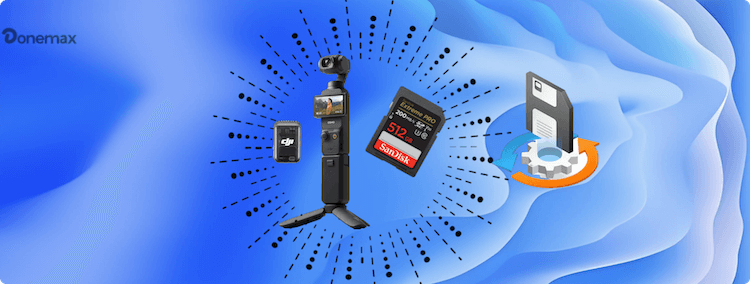
What Is DJI Osmo?
The DJI Osmo series includes portable cameras and smartphone gimbals designed for smooth, stabilized video recording. Popular models include:
Most DJI Osmo devices store footage on microSD cards, while some models also offer limited internal storage.
Where Are DJI Osmo Files Stored?
DJI Osmo cameras typically store files on:
Supported file systems include:
If the file system becomes corrupted, the card may show errors like “SD card error,” “Card not recognized,” or appear as RAW format on a computer.
File Formats Used by DJI Osmo
Common formats include:
Understanding the file format is important because recovery tools must support these types.
Data loss can happen for several reasons:
1. Accidental Deletion
You may delete files directly on the camera or during transfer to a computer.
2. Formatting the SD Card
Formatting the card inside the camera or on a computer erases file directory information.
3. SD Card Corruption
Improper ejection, power failure, or file system damage can corrupt the card.
4. Battery Removal During Recording
If the camera powers off mid-recording, video files may become corrupted or incomplete.
5. Interrupted File Transfer
Disconnecting the cable while transferring files may cause file corruption.
6. Virus Infection
Connecting the SD card to an infected computer can damage file structures.
In most cases, yes—if you act quickly.
When a file is deleted or a card is formatted, the actual video data remains on the storage media. Only the file reference (index) is removed. The data becomes invisible but is still physically present.
Recovery is possible if:
Recovery becomes difficult if:
The key rule: Stop using the SD card immediately.
To maximize recovery success:
The less you use the card, the higher the recovery chances.
This is the most effective and commonly used method. To recover files from DJI Osmo effectively, a reliable data recovery software is essential. Donemax Data Recovery is the best choice provided. The professional software supports:
Here are the steps for DJI Osmo file recovery by using the recovery software:
Step 1: Power off your DJI Osmo and remove the microSD card. Use a high-quality card reader to connect it to a Windows or Mac computer. Launch the data recovery software and select the SD card from the device list.
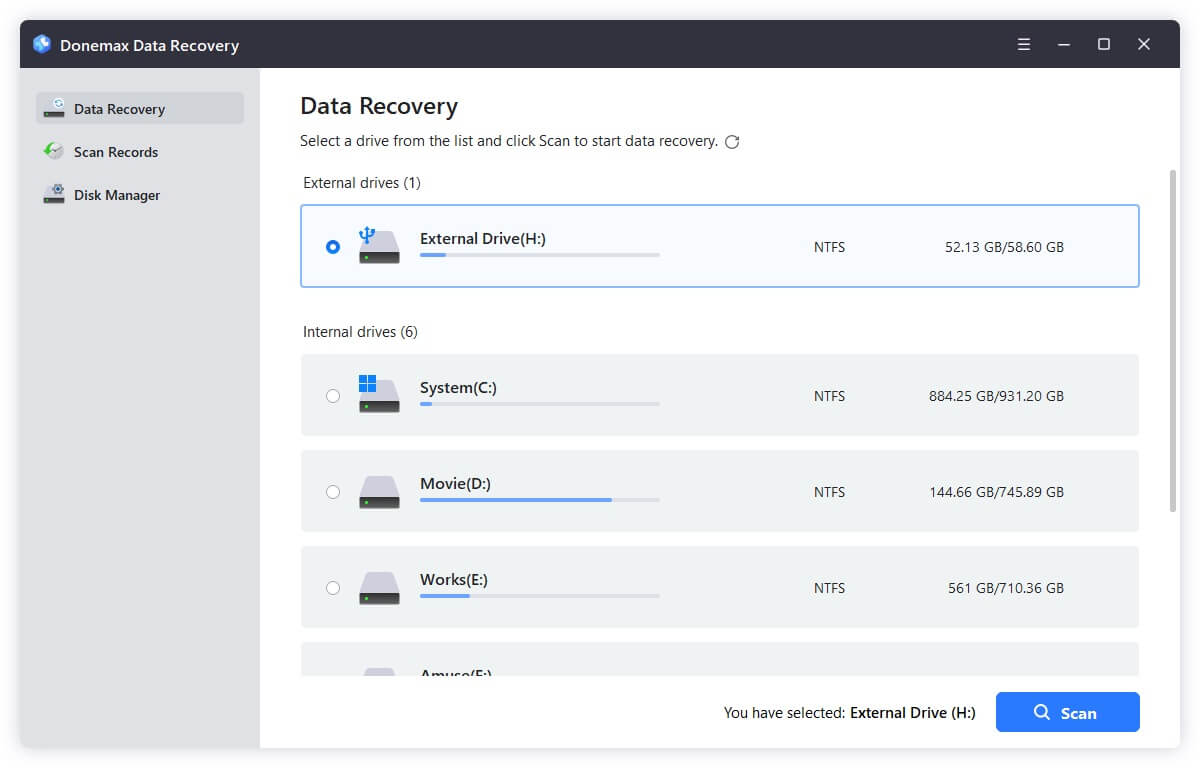
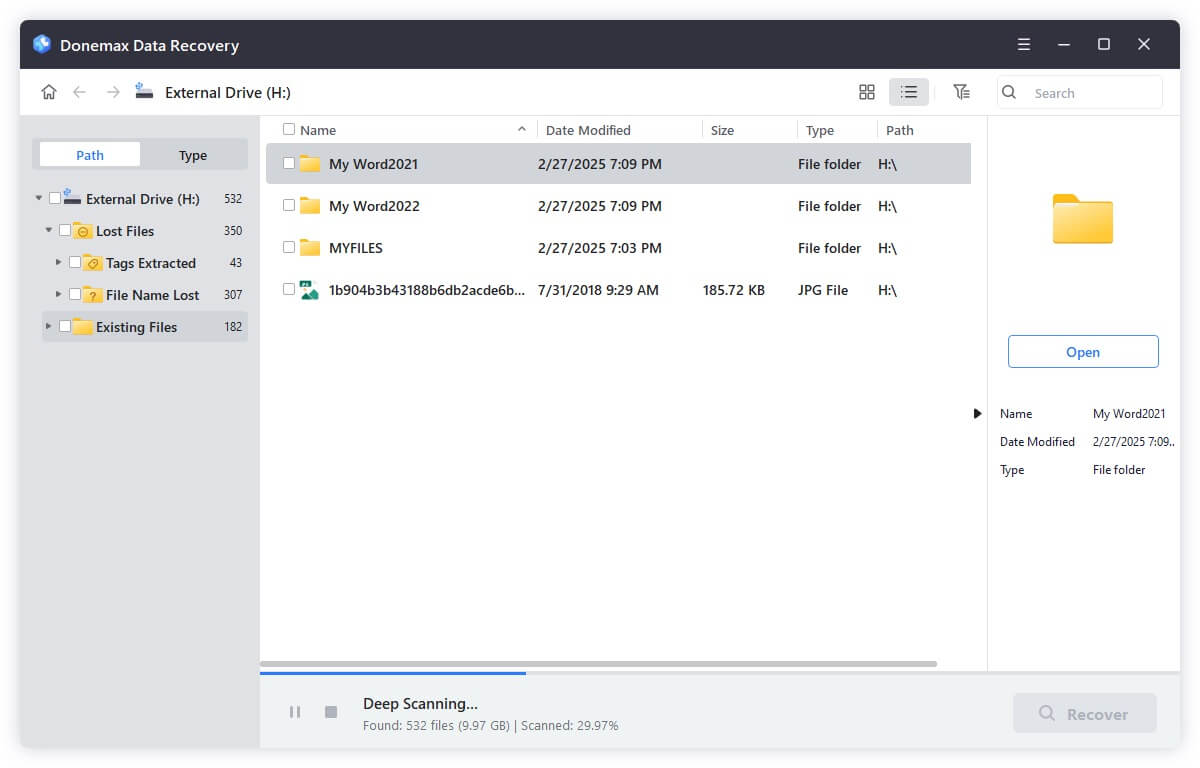
Step 3: Click the Scan button, the software will start a scan for the selected SD card. After a quick scan, the software will start deep scan automatically. Deep scan may take longer but finds more files.
Step 4: After the scan is finished, all the found files will be listed. The software allows you to preview videos and photos before restoring. After that, select the wanted files and click Recover to save the files.
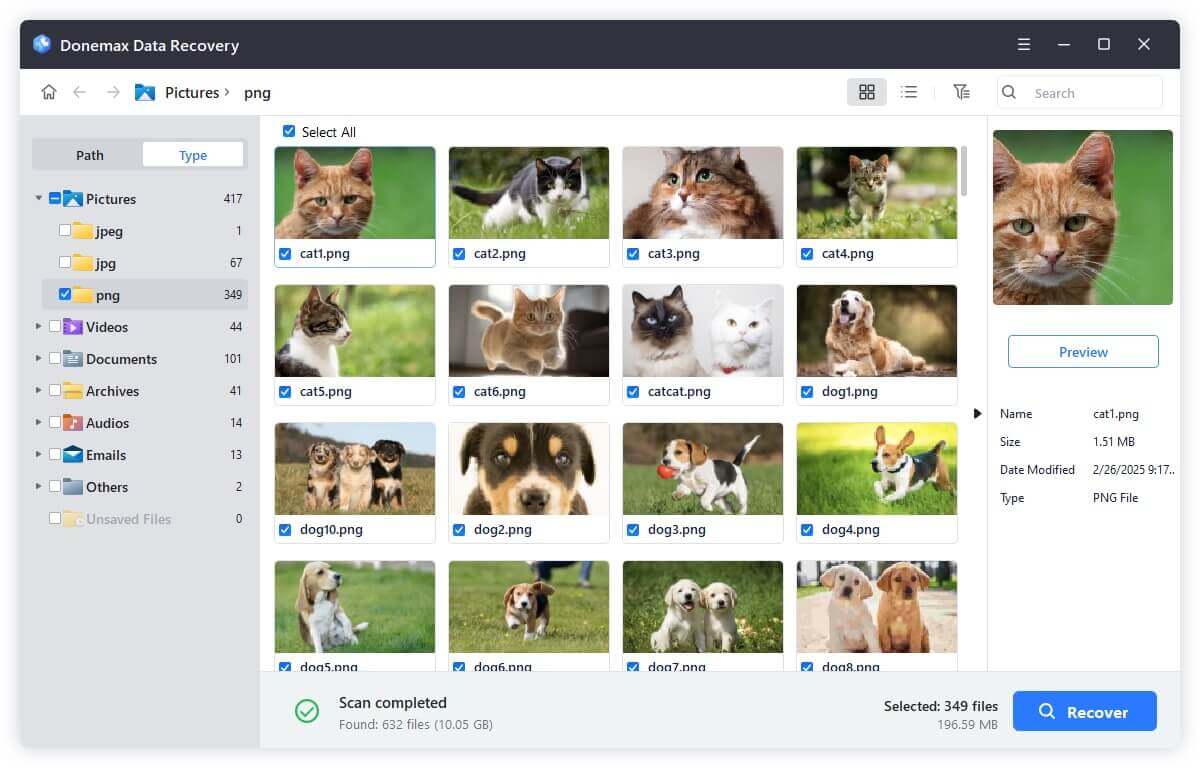
🪧 Important: Save recovered files to your computer—not back to the same SD card.
If you regularly back up your footage, recovery becomes simple.
Check Your Computer
Search for:
Cloud Backup
If you used syncing features through the DJI app or cloud storage, check:
DJI App Sync
Some content may still be accessible through the DJI mobile application.
Signs of physical damage:
DIY recovery will not work in such cases.
Professional recovery labs can:
However, costs can range from $300 to $1000+ depending on damage severity.
Prevention is easier than recovery.
1. Use High-Quality SD Cards
Buy genuine, high-speed microSD cards from reputable brands.
2. Format Inside the Camera
Always format the card in your DJI Osmo instead of your computer.
3. Maintain Battery Level
Avoid recording when battery is low.
4. Safely Eject Storage
Do not remove SD card while the camera is on.
5. Back Up Regularly
After every shoot:
Follow the 3-2-1 backup rule:
1. Can I recover deleted DJI Osmo videos without software?
Only if you have a backup. Otherwise, professional recovery software is required.
2. Can formatted SD card videos be recovered?
Yes, if the card has not been overwritten.
3. Why won't my DJI Osmo video play?
The file may be corrupted due to interrupted recording. Use video repair tools.
4. Is RAW DNG photo recovery possible?
Yes. Most advanced data recovery tools support DNG recovery.
5. How long do deleted files remain recoverable?
Until they are overwritten by new data. This could be minutes or months depending on usage.
DJI Osmo file loss can feel devastating—but in many cases, recovery is completely possible. Whether files were deleted, formatted, or corrupted, acting quickly makes all the difference.
The most important steps are:
With proper recovery methods and smart storage habits, you can protect your valuable footage and avoid permanent loss in the future.
If you regularly capture important moments with your DJI Osmo, make backups a routine part of your workflow. That small habit can save hours of frustration—and preserve memories that cannot be recreated.
Donemax Data Recovery
Powerful, safe & easy-to-use data recovery software. Easily and completely recover deleted, formatted, or other lost data. The tool supports PC, Mac, HDD, SSD, USB drive, camera, SD card, RAID and other storage devices.
Maria
Maria is one of the senior writers & editors of Donemax who lives and works in Sydney, Australia. She loves PC, Mac and Internet Technology. She has 6 years of writing articles about data recovery on PC/Mac, disk cloning solution, data eraser and computer OS optimization, etc. She is also interested in testing various software and digital products.
Gerhard Chou
In order to effectively solve the problems for our customers, every article and troubleshooting solution published on our website has been strictly tested and practiced. Our editors love researching and using computers and testing software, and are willing to help computer users with their problems

